 ChatGPT,
 Claude,
 Gemini,
 Grok — all four for
Key takeaways
- Most WordPress errors come from plugin conflicts, theme problems, database issues or hosting-related settings.
- Start with simple checks before making changes to your website’s files or configuration.
- If WordPress itself looks fine, the problem may be on the hosting side. Check your server status, error logs and resource usage.
- Keep a recent backup before you change anything. It gives you a recovery option if something goes wrong.
Your WordPress site was working fine yesterday. Today, you’re staring at a blank page, a 500 error or an unfamiliar error message. Where do you start?
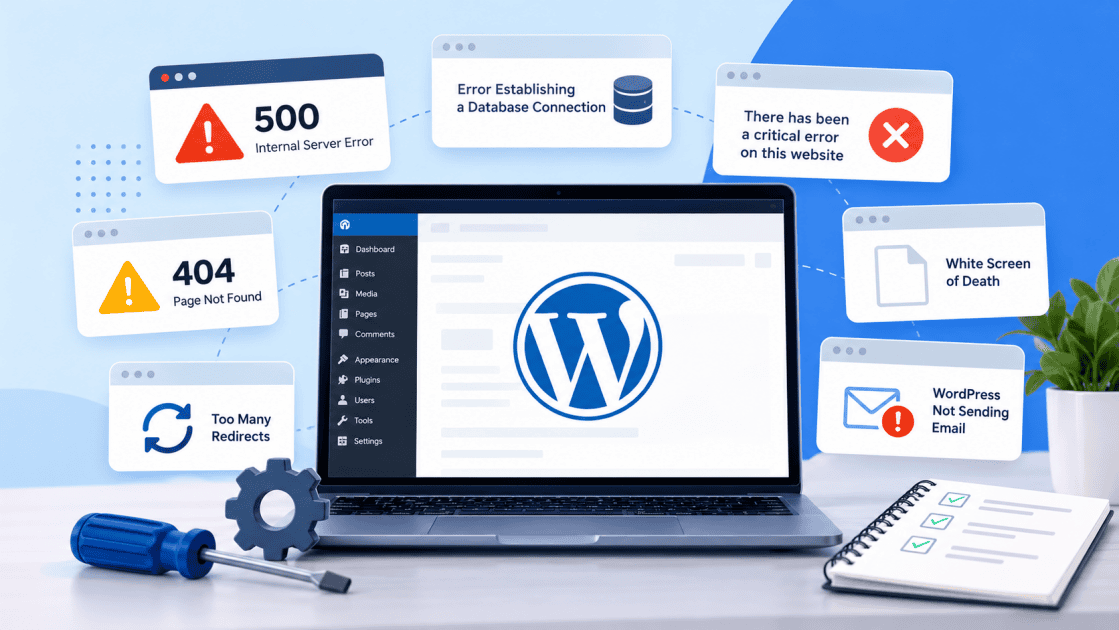
Common WordPress errors include the 500 Internal Server Error, the White Screen of Death, database connection errors, redirect loops and plugin conflicts. Most can be diagnosed by checking recent changes, reviewing error logs and identifying whether the issue comes from WordPress or your hosting environment.
This WordPress troubleshooting guide covers 15 common errors, their causes and step-by-step fixes to help you get your website working again.
Before you start: Quick WordPress troubleshooting checks
Before attempting any WordPress fixes, follow these three checks:
- Back up your website: Create or verify a recent backup containing your WordPress files and database. If you’re unsure how, follow our guide to backing up a WordPress site.
- Check recent changes: Did the error begin after updating WordPress, installing a plugin or modifying your theme? Investigate the most recent change first.
- Test your website: Clear your browser cache, try an incognito window and check whether the error affects your entire site or only specific pages.
If the issue continues, review your website’s error logs to identify PHP errors, plugin conflicts or server-related problems. Our guide to finding and accessing WordPress error logs explains where to locate these logs and how to use them for troubleshooting.
Before editing configuration files, use a staging environment when available and keep a working backup.
Quick overview: 15 Common WordPress issues you see and their solution
Find your symptoms below, then refer to the matching troubleshooting section.
| What you see | Most likely cause | First thing to try |
| 1. 500 Internal Server Error | Damaged .htaccess file or plugin conflict | Review error logs and recent changes |
| 2. There has been a critical error on this website | Plugin, theme or PHP fatal error | Check for a WordPress recovery mode email |
| 3. Blank white page | Plugin, theme or PHP memory problem | Temporarily disable suspected plugins |
| 4. 403 Forbidden | Security rules or incorrect permissions | Review security settings and file permissions |
| 5. Error establishing a database connection | Incorrect database details or server issue | Check database credentials |
| 6. 504 Gateway Timeout | Server response delay | Check resource usage |
| 7. Too many redirects | URL settings or SSL redirect loop | Check site URLs and clear cookies |
| 8. Plugin not working | Plugin or theme compatibility issue | Check recent plugin updates |
| 9. WordPress not sending email | Email delivery configuration | Check email authentication and sending settings |
| 10. HTTP error when uploading images | File size, memory or permissions issue | Resize the image and try again |
| 11. Memory exhausted error | PHP memory limit or resource-heavy plugin | Check memory usage and limits |
| 12. 404 Page Not Found | Broken permalinks or missing page | Save permalink settings again |
| 13. Login page keeps refreshing | Cookies or URL configuration | Clear cookies and check site URLs |
| 14. Stuck in maintenance mode | Interrupted update | Check for a leftover .maintenance file |
| 15. DNS_PROBE_FINISHED_NXDOMAIN | Domain or DNS configuration | Check nameservers and DNS records |
The table gives you a starting point for fixing common WordPress issues. However, it’s important to understand where the error originates. Troubleshooting a WordPress plugin issue differs from resolving a server-level problem, and identifying the cause early can save time and prevent unnecessary changes.
WordPress hosting troubleshooting: Is it your site or your server?
Not every WordPress error starts in WordPress. Sometimes, the issue comes from your hosting environment, server resources or database connection.
Here’s how to narrow it down:
- Check recent changes: If the error appeared after updating a plugin or theme, investigate that change first.
- Check your hosting status: If your entire website is unavailable, review your hosting provider’s server status and error logs.
- Review server resources: Check whether memory limits, high CPU usage or database issues are triggering errors.
These checks can help identify where to investigate, although symptoms alone may not confirm whether the issue is WordPress-related or server-related.
If the issue persists, collect the exact error message, affected URLs, approximate time of failure and relevant error-log entries before contacting your hosting provider. This information can make WordPress hosting troubleshooting faster and more effective.
If your website is on Bluehost, you can check the server status page or contact support for help with hosting-related issues.
The most common WordPress issues and how to fix them
WordPress errors can appear without warning, affecting anything from your login page to your entire website. Understanding what triggers each error is the first step toward resolving it. Here are 15 common WordPress issues and the steps to fix them.
1. 500 Internal Server Error
A 500 error means something went wrong on the server, but the server couldn’t provide a more specific explanation.
Common causes: A damaged .htaccess file, corrupted WordPress files, PHP errors or plugin conflicts.
How to fix it:
- Check your error logs: Review recent PHP errors, plugin failures or server configuration issues.
- Check the .htaccess file: If your server uses Apache and an.htaccess file, back up the file before temporarily renaming it to.htaccess-old. Reload your website. If that resolves the issue, go to Settings > Permalinks and save your settings to regenerate the rewrite rules where supported.
- Disable conflicting plugins: If the error continues, temporarily disable plugins through FTP or File Manager. If you rename the wp-content/plugins folder, restore its original name after testing. Then reactivate plugins one at a time to identify the conflict.
- Check WordPress core files: If you suspect corrupted WordPress core files, follow the official reinstallation procedure after backing up your website. Avoid overwriting site-specific files or configuration settings.
- Contact your hosting provider: If the error continues, share your error-log details and recent website changes with your hosting provider for further investigation.
2. “There has been a critical error on this website”
WordPress shows this message when a fatal PHP error prevents part of your website from working. In some cases, WordPress also emails the site administrator a recovery mode link.
Common causes: A plugin or theme update that doesn’t work with your PHP version or conflicts with another component.
How to fix it:
- Check your administrator email: Look for a WordPress recovery mode email containing details about the error and a recovery link.
- Use WordPress recovery mode: If available, use the recovery link to access your dashboard and deactivate the plugin or theme causing the error.
- Review error logs: If you didn’t receive an email, review your error logs and temporarily disable the suspected plugin through FTP or File Manager.
- Resolve the compatibility issue: Contact the plugin or theme developer or find a replacement before reactivating the affected plugin or theme.
Also read: WordPress Critical Error: There Has Been a Critical Error on This Website
3. White Screen of Death (WSOD)
The White Screen of Death is a blank page with no error message. It usually points to a PHP error or another problem preventing WordPress from displaying your website.
Common causes: Plugin conflicts, theme problems or insufficient PHP memory.
How to fix it:
- Disable plugins temporarily: Rename the
wp-content/pluginsfolder through FTP or File Manager. If your website loads again, restore the folder name and reactivate plugins individually to identify the conflict.
- Test your WordPress theme: If the issue continues, try switching to an installed, compatible default WordPress theme.
- Review error logs: Check your error logs for PHP errors, fatal errors or memory-related problems.
- Enable WordPress debug logging: If the cause remains unclear, enable debug logging through wp-config.php without displaying errors publicly.
- Check PHP memory limits: If the logs indicate memory exhaustion, investigate resource-heavy plugins or tasks and review your hosting account’s PHP memory settings.
Disable debugging once you’ve found the cause, then confirm your site works normally.
4. 403 Forbidden error
A 403 error means the server won’t let you or your visitors see a page. It can block your login page, dashboard or whole site.
Common causes: Security plugin restrictions, incorrect file permissions or server security rules.
How to fix it:
- Check security settings: Check whether a security plugin or firewall is blocking access. Temporarily disable the suspected plugin if necessary.
- Review file permissions: Review your file and folder permissions. Common settings are 644 for files and 755 for folders, although the correct values depend on your hosting configuration.
- Check server security rules: If the problem continues, ask your hosting provider to check server security rules.
5. Error establishing a database connection
This error means WordPress can’t reach its database. Without the database, WordPress can’t load the content and settings required to display your website.
Common causes: Incorrect database credentials, database server downtime or corrupted database tables.
How to fix it:
- Check database credentials: Open wp-config.php and check DB_NAME, DB_USER, DB_PASSWORD and DB_HOST. Make sure they match your database configuration. Avoid sharing your database password when requesting assistance.
- Check your hosting status: Check your hosting provider’s server status for database-related issues.
- Review database connectivity: If the credentials appear correct, confirm that the database server is running and the database user has the required permissions.
- Review logs or contact support: If the details are correct but the error continues, review your error logs or contact your hosting provider before attempting database repairs.
For additional troubleshooting steps, read our guide to fixing WordPress database connection errors.
6. 504 Gateway Timeout
A 504 error means one server waited too long for a reply from another server. Visitors see an error instead of your page.
Common causes: Slow plugins, heavy database queries, external services or server resource limitations.
How to fix it:
- Reload your website: Reload the page after a few minutes. Short timeouts sometimes clear on their own.
- Check recently installed plugins: Review recently installed plugins and disable suspected resource-heavy plugins if appropriate.
- Review server resources: Check your resource usage and error logs. Look for high CPU usage, long-running PHP processes or database queries that may be delaying the response.
- Contact your hosting provider: If the server is overloaded or the issue continues, contact your host. Share the affected URL, the time of the error and any relevant log entries.
7. Too many redirects
Your browser shows “ERR_TOO_MANY_REDIRECTS” when your site keeps sending visitors in a loop between addresses.
Common causes: Incorrect site URL settings, conflicting SSL redirects or plugin-generated redirect rules.
How to fix it:
- Clear browser cookies and cache: Clear your browser cookies and cache, then try accessing your website in a private window.
- Check WordPress URL settings: Go to Settings > General. Confirm that the WordPress Address and Site Address are configured correctly for your installation. Verify the domain and HTTP or HTTPS configuration before making changes.
- Review SSL and HTTPS redirects: Confirm that your SSL certificate is active and that your hosting server, CDN and WordPress plugins aren’t applying conflicting redirect rules.
- Disable conflicting plugins: Temporarily disable suspected redirect, SSL or caching plugins to identify conflicts.
- Review server redirect rules: If the problem continues, check your .htaccess file where applicable and review any hosting-level or CDN redirect settings.
8. Plugin not working or breaking your site
A plugin may stop working after an update, or it may break other parts of your site.
Common causes: Compatibility problems with your WordPress version, PHP version, theme or another plugin.
How to fix it:
- Check plugin compatibility: Check whether the affected plugin supports your current WordPress and PHP versions.
- Identify plugin conflicts: Deactivate other plugins, then reactivate them one at a time to identify a possible conflict.
- Test your theme: Switch to a default theme to rule out a theme conflict.
- Review plugin support information: Check the plugin’s support page for known issues or available fixes.
- Restore a working version if necessary: If the issue started immediately after an update, consider restoring a verified backup or using a compatible earlier version through a supported rollback process.
9. WordPress not sending email
Contact forms, password resets and order emails never arrive, or they land in spam.
Common causes: Incorrect email-sending settings, missing email authentication or delivery restrictions.
How to fix it:
- Configure email delivery: Configure a reliable email delivery method using an SMTP plugin, such as WP Mail SMTP, and a compatible email-sending service.
- Check email authentication: Check your domain’s SPF and DKIM authentication records, then send a test email.
- Review delivery settings: Review your mail service settings or contact your provider if messages still aren’t arriving.
- Check email delivery logs: If your email service provides delivery logs, check whether messages were rejected, bounced or marked as spam.
Also read: How to Fix WordPress Not Sending Email Issue?
10. HTTP error when uploading images
WordPress shows a short “HTTP error” message when an image upload fails in the Media Library.
Common causes: Large image files, PHP memory limits, incorrect file permissions or plugin conflicts.
How to fix it:
- Retry the upload: Wait a minute and try again. The error sometimes comes from a short server delay.
- Optimize the image: Resize and compress the image. Rename the file using letters, numbers and dashes.
- Check upload limits: Check your upload size limit and try uploading another image to determine whether the issue affects a specific file.
- Review error logs and permissions: If uploads continue to fail, check your error logs, file permissions and plugins.
- Check server resources: If the problem affects larger images, review PHP memory limits and image-processing resource usage with your hosting provider.
11. Memory exhausted error
You see “Fatal error: Allowed memory size of X bytes exhausted” when a script needs more memory than your site allows.
Common causes: A low PHP memory limit, resource-heavy plugins or large image processing tasks.
How to fix it:
- Check PHP memory limits: Check your hosting account’s PHP memory limit and review error logs for the affected process.
- Identify resource-heavy plugins: Identify resource-intensive plugins or tasks and optimize or replace them where possible.
- Review WordPress memory settings: If more memory is required, review the available PHP and WordPress memory settings with your hosting provider. A WordPress memory setting can’t override a lower server-enforced PHP limit.
- Retest your website: After making any configuration changes, repeat the action that caused the error and confirm that the issue is resolved.
12. 404 Page Not Found
Visitors see a 404 page when WordPress can’t find the page they asked for.
Common causes: Broken permalink settings, deleted pages or outdated links.
How to fix it:
- Refresh permalink settings: Go to Settings > Permalinks and click Save Changes. This often fixes permalink-related 404 errors affecting multiple posts.
- Check deleted pages: If you deleted a page by mistake, restore it from Trash.
- Create relevant redirects: Set up 301 redirects for pages you removed on purpose when a relevant replacement exists.
- Check the requested URL: If only one page returns a 404 error, confirm that the URL is correct and that the page is published and publicly accessible.
13. Login page keeps refreshing or redirecting
You enter your username and password, and the login page just reloads.
Common causes: Browser cookies, incorrect WordPress URL settings or caching and security plugin conflicts.
How to fix it:
- Clear browser cookies and cache: Clear your browser cookies and cache, then try logging in again.
- Check WordPress URL settings: Check your WordPress Address and Site Address settings for configuration problems.
- Disable conflicting plugins: Temporarily disable suspected caching or security plugins through FTP or File Manager and try logging in again.
- Review login redirects: If the issue persists, check whether your site uses conflicting HTTP-to-HTTPS or domain redirect rules.
14. WordPress stuck in maintenance mode
Your site shows “Briefly unavailable for scheduled maintenance. Check back in a minute.” and the message never goes away.
Common causes: An interrupted WordPress, plugin or theme update that left a .maintenance file behind.
How to fix it:
- Check update status: Wait a few minutes to confirm the update isn’t still running.
- Access website files: Connect through FTP or File Manager.
- Remove the maintenance file: Back up your website, then remove the leftover .maintenance file from the site’s root directory.
- Verify the update: Reload your site and check the interrupted update before attempting it again.
- Check website functionality: Confirm that your WordPress dashboard, plugins and theme work correctly after the maintenance message disappears.
15. DNS_PROBE_FINISHED_NXDOMAIN
Your browser can’t find the server for your domain. This error isn’t specific to WordPress, but it often looks like your site is down.
Common causes: Incorrect DNS settings, recent DNS changes, an expired domain or outdated local DNS records.
How to fix it:
- Check your domain registration: Check that your domain hasn’t expired and points to the correct nameservers.
- Clear DNS cache: Clear your browser cache and flush your computer’s DNS cache.
- Review DNS records: Check your DNS records and allow time for recent changes to propagate.
- Check DNS from another network: Try accessing the website from a different network or device to determine whether the issue is local.
- Contact your domain or hosting provider: If the domain still doesn’t resolve, request assistance confirming the correct nameservers and DNS records.
Fixing WordPress errors is important but preventing them can save you time and reduce unexpected downtime. A few regular maintenance practices can help keep your website running smoothly and minimize recurring issues.
How to prevent WordPress issues
Most of these errors are easier to prevent than to fix. Build these habits:
- Back up regularly: Keep a recent, usable backup before making important website changes. Periodically test your recovery process to make sure your backups can be restored.
- Keep WordPress updated: Update WordPress core, plugins and themes to reduce compatibility problems and security risks.
- Test changes on a staging site: Try major updates before applying them to your live website. Learn more about WordPress staging sites.
- Remove unused plugins: Keep only the plugins you need and choose ones that receive regular updates.
- Monitor your website: Check uptime, performance and error logs to identify problems early.
- Review plugin compatibility: Before major WordPress or PHP updates, verify that essential plugins and themes support the versions you’re planning to use.
These preventive measures can help reduce recurring WordPress errors, but having the right hosting tools and support is equally important. Bluehost offers WordPress hosting features that can help simplify website maintenance and troubleshooting.
How does Bluehost make WordPress troubleshooting easier?
Resolving WordPress errors becomes easier when you have the right tools to identify issues, recover website data and maintain security.
With our WordPress Hosting, you can access tools designed to simplify WordPress maintenance and troubleshooting:
- Managed WordPress updates: Keep WordPress core, themes and plugins updated to reduce security risks and compatibility issues.
- Automatic website backup options: Access automated website backups and restore options to recover from unexpected errors or failed updates.
- Staging environments: Test plugin updates, theme changes and fixes before publishing them to your live website.
- Website security: Protect your website with free SSL, malware scanning and malware removal on eligible plans.
- Expert support: Access 24/7 assistance through live chat support, with phone assistance available on supported plans to troubleshoot hosting and WordPress-related issues.
While no hosting solution can prevent every WordPress error, having the right maintenance, recovery and support tools can make troubleshooting more manageable. If you are looking for a simpler way to manage website, explore Bluehost WordPress Hosting plans for built-in maintenance, security and recovery tools.
Final thoughts
WordPress errors can interrupt your website, but knowing where to look makes them easier to resolve. The key is to act early, address the issue and make sure your website has the right support to prevent further disruptions.
Once the issue is resolved, focus on what matters most: keeping your website running smoothly and your visitors’ experience uninterrupted.
Ready to spend less time troubleshooting WordPress issues and more time growing your website? Get started with Bluehost WordPress Hosting for built-in maintenance, security tools and expert support.
FAQs
An issue with your website doesn’t necessarily mean WordPress itself is down. WordPress websites run on different hosting servers, so an outage may be related to your hosting provider, domain or website configuration.
Check your hosting provider’s status page first. Bluehost customers can visit bluehost.com/status for service updates.
Your WordPress dashboard may not load because of plugin conflicts, login redirect loops, PHP errors or insufficient memory. Clear your browser cookies and cache first. If the issue continues, check recent updates and temporarily disable suspected plugins through FTP or File Manager.
You can enable WordPress debugging by editing your wp-config.php file. Back up the file before making changes and use a staging environment where possible.
Set the following values, updating existing definitions rather than adding duplicates:define('WP_DEBUG', true); WordPress can then record diagnostic messages in
define('WP_DEBUG_LOG', true);
define('WP_DEBUG_DISPLAY', false); wp-content/debug.log without showing them to visitors. Keep the log protected from public access and disable debugging after troubleshooting.
A 429 error means your site or server received too many requests in a short time and started blocking them. Bots, repeated login attempts or a plugin making excessive requests can cause it.
Review your server logs and security settings to identify the source. Appropriate rate-limiting or firewall rules can help manage unwanted traffic.


Write A Comment