 ChatGPT,
 Claude,
 Gemini,
 Grok — all four for

Key highlights
- Learn how to duplicate WordPress pages manually or with plugins to save time and keep layouts consistent.
- Understand when to choose manual duplication or a plugin based on workflow, frequency and skill level.
- Explore step-by-step instructions for using Yoast Duplicate Post to clone pages quickly and manage bulk duplication.
- Know how to customize duplicated pages to avoid SEO issues and maintain unique, optimized content across your site.
- Uncover additional plugin options that expand duplication features for teams, backups and large-scale content management.
After creating a high-quality WordPress post, you might want to duplicate the page to reuse its structure, settings and content for future posts. Learning how to duplicate a page in WordPress efficiently can save time and maintain consistency across your site’s content, metadata and design elements.
While creating a template in a notebook or external tool is possible, learning how to duplicate a WordPress page directly within the platform is far more efficient. Surprisingly, WordPress doesn’t offer a built-in feature to easily duplicate a page, which is why many users turn to plugins or manual methods to clone existing content and streamline their workflow. If you’re looking to learn WordPress more effectively, understanding page duplication techniques is essential for saving time.
This guide will walk you through how to duplicate a page in WordPress and then provide an alternative way to make duplicate WordPress pages with plugins.
What is page duplication in WordPress?
For WordPress websites, page duplication means using the dashboard to move all the content and formatting from an original page to a new page.
Using page duplication, you can create custom post types. It’s similar to using a template but even better in some instances. For example, it saves you from creating WordPress templates for a page setup that you’ll need only once or twice.
If you’re using a website hosted on WordPress.com, the support team has made a guide on how to copy a post or page. In contrast, this guide will discuss websites built using WordPress.org. If you don’t know which you use, here’s a refresher on the difference between the WordPress platforms.
Why bother making a duplicate WordPress page?
Creating a new post or page takes time and effort, especially when you go beyond basic page layouts. For this reason, page duplication can be useful to:
- Transfer content from an existing page to a new WordPress page in order to reuse it. This helps create a group of similarly worded pages, when making sales pages for a product line, for example.
- Apply recurring page elements, like headers and buttons, to a new WordPress page. When you duplicate all your page blocks, there’s no worrying about elements being left behind or configured differently.
- Experiment with options while keeping your original post intact. Having page backups is always a good idea and page duplication is the easy solution. On your duplicated page, you can run wild with ideas since you’ll have a fallback page.
How do I choose the best method to duplicate a WordPress page?
WordPress gives you two main ways to create a duplicate page and each method fits different goals and comfort levels.
| Factor | Manual duplication | Plugin method |
|---|---|---|
| Time investment | About 5–10 minutes per page using the copy all blocks workflow you saw in the manual section | Just seconds per page with tools like Yoast Duplicate Post |
| Skill level | Works if you know the basic WordPress editor and feel fine copying and pasting content | Plugins guide you with clear buttons so complete beginners handle duplication easily |
| Frequency | Best when you duplicate 1–2 pages occasionally and want to avoid another plugin | Fits content creators who clone pages often or manage many services and locations |
| Extra features | Simple copy of content and layout only | Supports bulk duplication, scheduling and advanced options like custom field control |
Choose manual duplication if you duplicate 1–2 pages from time to time and prefer a lightweight WordPress setup. Choose a plugin like Yoast Duplicate Post if you duplicate WordPress pages regularly, need bulk actions or want to save every possible minute.
If you run a small business site or blog, you probably just need a fast reliable workflow. Hosting with us gives you a smooth WordPress experience so you focus on content while your tools handle the heavy lifting around every WordPress duplicate page.
How to duplicate a page in WordPress
Long story short: You’ll have to access your dashboard, pick a post or page, go into edit mode and click the Options menu (three dots) in the top-right corner. Scroll down to Tools and select Copy all blocks. Now when you create a new page in WordPress, you can paste everything from your existing one.
Below is a detailed step-by-step walkthrough so you know precisely how to duplicate a page in WordPress.
1. First, open your WordPress dashboard.
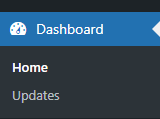
2. Navigate to Posts or Pages — whichever includes the content you want to duplicate. For the sake of this example, we’ll duplicate a page. Regardless, the process is exactly parallel. In your left-hand sidebar, hover over Pages and click All Pages.

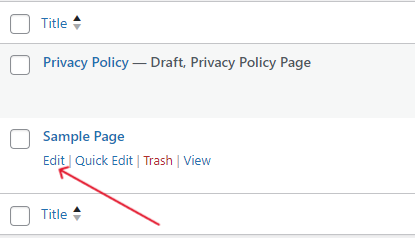
3. Hover on the page you want to copy, then click Edit. This will take you to the WordPress editor.
4. Now click the three vertical dots icon (Options menu) in the top right corner of the WordPress editor.

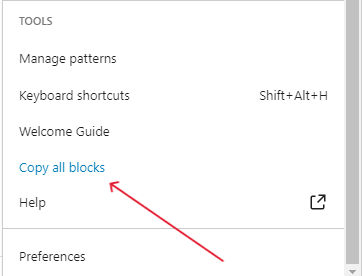
5. Scroll down to Tools and click Copy all blocks.
6. Next, go back to your WordPress dashboard and click Pages. Select Add New in the drop-down menu.

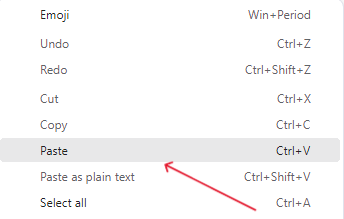
7. In your new page, paste the content by hitting Ctrl + V on Windows or Command + V on a Mac. Alternatively, you can right-click the new page and select Paste.
That’s it, you’ve just learned how to copy pages manually in WordPress. While fairly straightforward, this method of duplicating pages in WordPress is somewhat tedious, especially if you have many things to clone.
Fortunately, when you need to duplicate a WordPress page, the WordPress plugin repository offers free solutions that simplify the entire process. Many WordPress duplicate page plugins enable one-click cloning of posts and pages, while advanced options can even duplicate multiple pages at once. Among the most reliable choices available, Yoast Duplicate Post stands out as the top-recommended plugin for efficiently duplicating WordPress content.
Duplicating a page using the Yoast Duplicate Post plugin
If you implement search engine optimization (SEO) on your WordPress site, you’ve likely heard of Yoast’s SEO plugin, which has over five million active installations and over 25,000 five-star ratings. Well, that’s not the only plugin Yoast has.
You can also enjoy Yoast’s plugin for creating duplicate WordPress pages. It’s free, here’s how to install and use it.
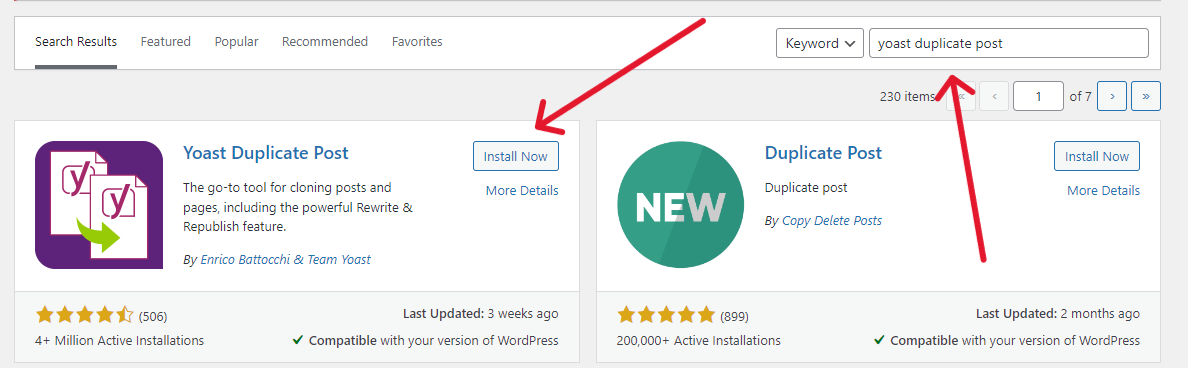
1. Head to your WordPress dashboard. On the right-hand sidebar, hover over Plugins and select Add New.

2. Search for “Yoast Duplicate Post” and click Install Now.
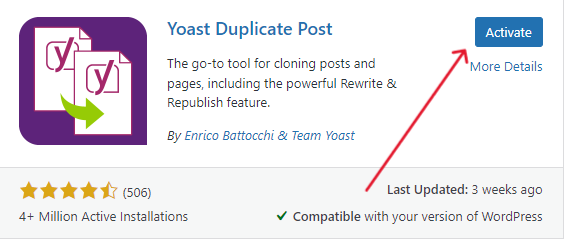
3. When the plugin has finished installing, click Activate.
4. On the right-hand sidebar, go to Installed Plugins to confirm the plugin is active.

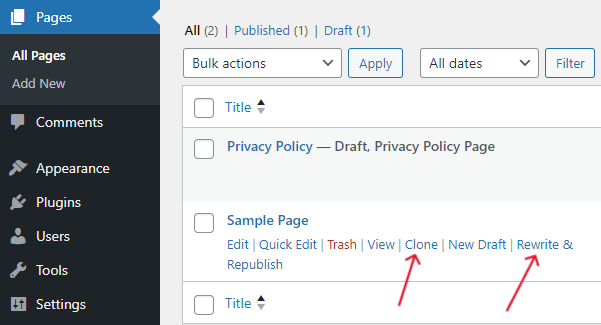
5. On the right-hand sidebar, hover over Pages and select All Pages. Hover over the page you want to duplicate. You’ll now have the option to Clone or Rewrite & Republish a page. Click Clone.
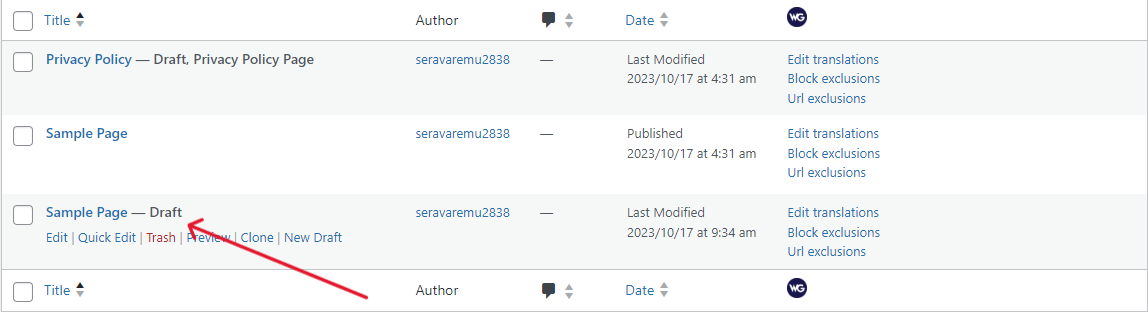
6. Easy as pie, a duplicate page will appear.
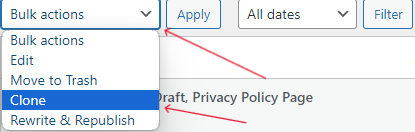
7. If you want to duplicate WordPress pages or posts in bulk, Yoast Duplicate Post has you covered. Simply go to Bulk actions and click Clone.
8. Checkmark the boxes beside the pages you want to duplicate. When you’re done, click Apply.
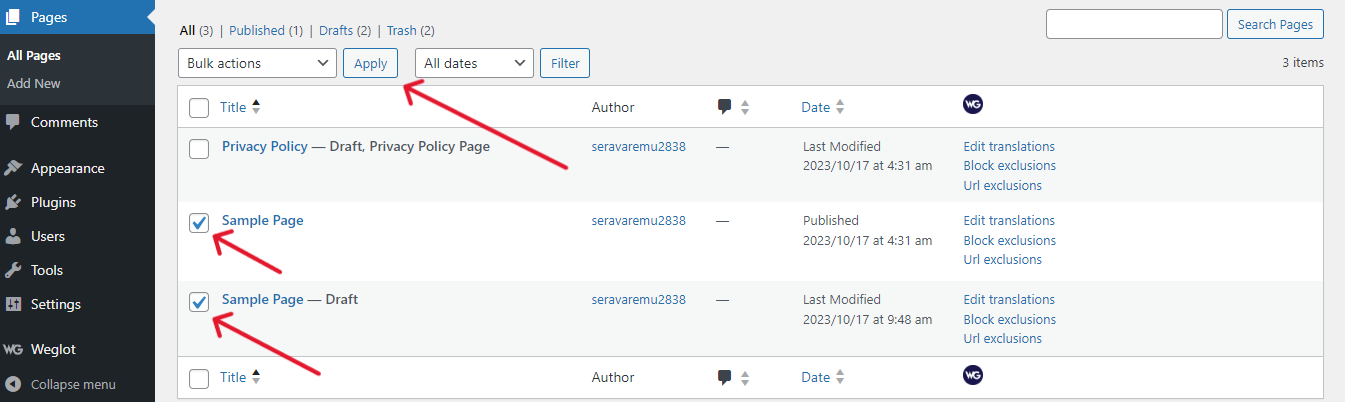
As you can see, Yoast nails page duplication in a very user-friendly manner.
How to duplicate multiple WordPress pages at once
You can duplicate multiple WordPress pages at once using the Yoast Duplicate Post bulk clone feature in your WordPress dashboard. This works best when you create many similar pages, like service pages from one template, city or location pages, seasonal campaign pages, or product pages that share the same layout.
- Log in to your WordPress dashboard and go to Pages > All Pages.
- Review the list and decide which pages you want to copy.
- Check the box next to each page you want to clone. Select as many as you need.
- Open the Bulk actions dropdown at the top of the list.
- Choose Clone from the dropdown options.
- Click Apply to run the bulk duplication.
- WordPress creates copies of every selected page and Yoast Duplicate Post marks them clearly as duplicates.
Right after you duplicate pages, rename each one with a clear title and use a simple naming pattern like “Template – Service Name” to stay organized. Edit every draft before you publish it and update headings, images, internal links and meta descriptions so each duplicate WordPress page feels unique and SEO friendly. Yoast Duplicate Post sets each cloned page as a draft, so you avoid live duplicate content and keep control. What might take an hour when you copy by hand often takes minutes with this tool, especially on fast WordPress hosting from us at Bluehost. Use bulk duplication to ship campaigns faster, then invest that saved time into growing your business.
Other plugins for creating duplicate pages
In most use cases, the Yoast plugin will satisfy all your duplication needs. But it would be remiss not to mention some top contender plugins, including:
1. Duplicate Page
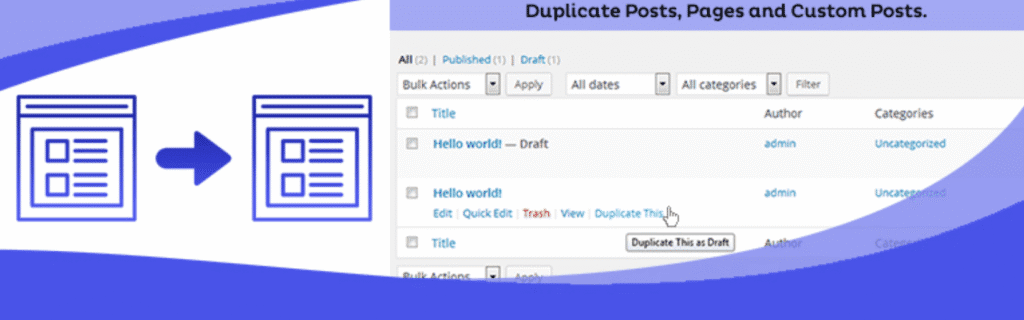
This plugin has over three million active installations and over 300 five-star ratings. The free version lets you save duplicate posts as a draft, private, public or pending, this way, you don’t have to change its status afterward.
With the premium version, you can gate duplicate pages behind permissions and user roles to manage a team. If your WordPress dashboard is used by staff or other people, this plugin has useful features for you.
Also, premium users can change duplicate page links and add a prefix or suffix that automatically applies to duplicate post names.
2. Duplicator
With over one million active installations and 4,000 five-star ratings, Duplicator is focused on migration and backup features. Hence, you’ll find it most useful when making bulk changes.
For example: Entire WordPress themes, plugins and sets of pages can be compressed into a zip file and migrated to another website.
3. Duplicate Post

This plugin has over 200,000 active installations and 800 five-star ratings. It’s best for those who want an easy entry into page duplication.
Duplicate Post has tutorials available and beginners can try out the plugin on a free dummy website. It also features a handy naming tool to keep track of the latest versions of duplicate pages.
What should I do after duplicating a WordPress page to avoid issues?
The first and most important step is to immediately change the page title and URL slug to make them unique. Duplicate titles and URLs confuse search engines and can hurt your rankings.
- Update the page title so it clearly reflects the new page goal and stays unique in your WordPress duplicate page list.
- Change the permalink before you publish, so you avoid unnecessary duplicate content URLs.
- Edit the meta title and description in Yoast SEO or another plugin so each duplicate WordPress page has distinct metadata.
- Rewrite copied text and remove details that only apply to the original page.
- Swap images and adjust alt text so they match the new topic or offer.
- Fix internal links so they point to the correct pages for this version.
- Update any custom fields or schema settings that mention locations, products, or dates.
- Set the right status, such as draft or pending review, while you refine the content.
- Use Preview to scan layout, links and calls to action before you publish.
After you duplicate a page in WordPress, always customize the duplicated content to avoid SEO penalties from duplicate material. When you copy a WordPress page, the platform automatically saves it as a draft, giving you time to make necessary edits before publishing. Review the SEO considerations in the FAQ section above and follow best practices each time you duplicate pages in WordPress. Thoughtful customization protects your search rankings and builds visitor confidence in your site. For hosting that enables efficient page duplication workflows with fast preview capabilities, Bluehost provides optimized WordPress hosting solutions designed to streamline your content management process.
Final thoughts
Duplicate WordPress pages to save valuable time so you can focus on growing your website. It pays to be efficient.
You’ll also gain free access to the WordPress Academy to bolster your grasp on SEO and digital marketing. World-class experts develop the courses.
Don’t settle for less than hosting tailored specifically for WordPress.
FAQs
Google has said that duplicate pages don’t hurt SEO unless the duplication is a scheme to artificially boost rankings. That doesn’t mean you should populate your website with pages that are exact copies. Instead, use the original page as a template for a new page to ensure your pages are consistent.
There’s a simple fix and no plugin is required. On your WordPress dashboard, go to Pages > Edit > Quick edit > Trash. Optionally, you can permanently delete the pages by going into the trash and removing them again.
These terms are often used interchangeably and for good reason; in many cases, they mean the same thing. But clone has a specific meaning over at Yoast HQ. In the Yoast Duplicate Post plugin, Clone duplicates content, while New draft opens a duplicate page in a new draft immediately.
Yes, you can duplicate a WordPress page without installing any plugins by using the built-in copy-and-paste method in the WordPress block editor. Open the original page in edit mode, click the Page tab, open the three-dot menu, choose Copy all blocks, then create a new page and paste with Ctrl+V on Windows or Command+V on Mac. This manual way uses no extra plugins, works on any WordPress setup, keeps you in full control and avoids update or compatibility headaches. It takes longer for many pages, can skip advanced settings or custom fields and leaves more room for mistakes, so check the earlier step-by-step tutorial if you want a guided walkthrough. Use this manual method when you duplicate a page only occasionally, run into plugin limits, or prefer a lean install. When you duplicate WordPress pages often or in bulk, a plugin like Yoast Duplicate Post finishes the job in seconds. We at Bluehost pair fast WordPress hosting with tools that keep these plugins running smoothly, so you spend more time creating and less time copying content.


Write A Comment