 ChatGPT,
 Claude,
 Gemini,
 Grok — all four for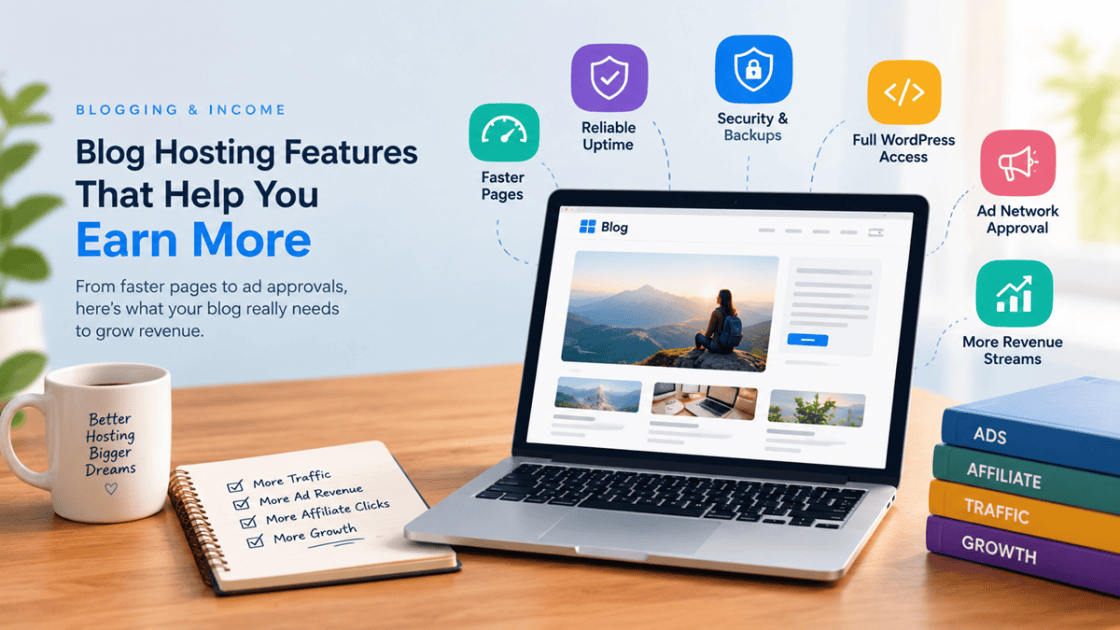
Key highlights
- See which hosting features let your blog earn, which protect that income and which add new revenue streams.
- Learn what Google AdSense, Journey by Mediavine, Raptive and Mediavine check before they accept a blog.
- Find out how slow pages, downtime and hacks cost you ad impressions and affiliate clicks.
- Match hosting features to your blog’s stage and verify a host’s claims before you buy.
Picture a blog going viral, then your site freezing just as readers arrive. Your ads never load, your affiliate links never get clicked and the moment passes. The hosting behind your blog plays a bigger part in your income than most bloggers expect.
You can publish strong posts and still lose income to slow pages, downtime or a platform that blocks the tools you need. This guide maps each feature to the revenue it supports and shows what your ad networks currently require.
You’ll also see how to match blog hosting features to your blog’s stage and get a checklist for verifying a host’s claims before you buy.
What blog hosting features matter most for making money?
The blog hosting features that matter most for earning are full control over plugins and code, fast page loads, reliable uptime, and security with backups. Add a CDN, domain email, staging and commerce tools as your traffic and revenue streams grow.
Prioritize each feature by the job it does for your income.
| Priority | Features | Why it matters for income | When you need it |
|---|---|---|---|
| Let you earn | Full WordPress access, your own domain and free SSL | Ad networks need code access, and sign-up forms and checkouts need HTTPS | Before your first post |
| Protect what you earn | Server caching, NVMe storage, uptime SLA, malware scanning, WAF, managed updates and backups | Keep pages fast and online so ads load and links get clicked | Before you apply to ad networks |
| Add revenue as you grow | CDN, domain email, staging, eCommerce tools and extra capacity | Support international readers, email lists, safe testing and product sales | As traffic and revenue streams grow |
If your budget covers only some of these now, start with the first two rows. A host missing anything in “Let you earn” rules itself out.
Also read: For revenue strategies beyond hosting, explore these ways to make money blogging.
Self-hosted vs hosted blogging platforms: Which gives you more ways to earn?
Self-hosted WordPress runs on your own hosting plan and gives you full access to themes, plugins and code. Hosted platforms handle the technical side for you, but they may limit ads, plugins or selling depending on the plan. Free platforms usually set the tightest limits.
| What you need to earn | Self-hosted WordPress | Paid hosted platform | Free platform |
|---|---|---|---|
| Your own domain | Yes | Usually | Often a subdomain only |
| Ad network code | Yes | Depends on plan | Rarely allowed |
| Affiliate link plugins | Yes | Depends on plan | Usually not |
| Email opt-in forms | Any plugin you choose | Built-in or limited options | Basic or none |
| Selling products or memberships | Yes, with plugins such as WooCommerce | Often higher plans only | Rarely |
Bottom line: If ads, affiliate links or your own products are part of your plan, choose self-hosted WordPress. A free platform works for testing a topic, and you can move to your own hosting once your posts draw steady traffic.
Also read: WordPress hosting for bloggers
What ad networks look for before they accept your blog
Most ad networks check four things: code access, traffic volume, where your traffic comes from and how old your domain is. The thresholds differ widely, so knowing them early helps you plan your hosting.
The table below compares entry requirements for four common ad programs as of October 2026. The last column shows what each requirement means for your hosting setup.
| Program | Entry requirement (as of October 2026) | Hosting implication |
|---|---|---|
| Google AdSense | Access to your site’s HTML source; original, policy-compliant content | You need a site where you can edit code and add ad scripts |
| Journey by Mediavine | 1,000 sessions from Tier 1 countries within 30 days | Your plan and speed setup should handle steady traffic from those countries |
| Raptive | 25,000 monthly pageviews; 50% of traffic from the US, UK, Canada, New Zealand or Australia for sites at 25,000 to 99,999 pageviews; domain at least 6 months old | Register your own domain early and choose a build that makes ads easy to add and manage |
| Mediavine | $5,000 minimum annual ad revenue | You need enough traffic capacity and uptime to earn at that level first |
The entry bar rises from code access to a revenue minimum, so your hosting needs change as you move between programs. Requirements also change often, so check each program’s page before you apply.
See Mediavine’s current requirements for both Journey and Mediavine thresholds, and Raptive’s eligibility requirements for traffic mix and domain age. Since Raptive counts domain age, register your own domain early. You’ll also keep that address if you change hosts later.
Once you know which threshold you’re aiming for, make sure your hosting can handle that traffic and load ads quickly.
Performance features that protect ad and affiliate income
Speed and uptime decide whether readers stay long enough to see your ads and click your links. They also affect how much search traffic keeps arriving.
Google’s Core Web Vitals guidance asks for Largest Contentful Paint (LCP) of 2.5 seconds or less and Interaction to Next Paint (INP) of 200 milliseconds or less. It also asks for Cumulative Layout Shift (CLS) of 0.1 or less.
1. Server-level caching and NVMe SSD storage
Ad scripts, affiliate widgets and large images add weight to every monetized post, so your server needs headroom to keep pages quick.
Server-level caching stores ready-made copies of pages so the server doesn’t rebuild them on every visit. NVMe SSD storage speeds up the requests caching can’t cover.
Each Core Web Vitals metric reflects what readers feel: LCP tracks how fast the main content appears, INP tracks how fast the page responds to taps and CLS tracks layout jumps, which late-loading ads can cause.
Google says good Core Web Vitals align with what its ranking systems seek to reward, per Google’s page experience guidance. Good scores don’t guarantee top rankings, so treat speed as one part of a strong site.
What to check: Look for caching built into the server as well as any plugin you add. Then confirm the storage type listed on the plan.
Also read: For step-by-step fixes, learn how to optimize WordPress website speed.
2. Content delivery network (CDN)
A CDN keeps pages fast for readers far from your server, which protects ad views from every country your traffic comes from. It stores copies of images, Cascading Style Sheets (CSS) files and scripts on servers closer to each reader.
That matters for networks such as Raptive, which look at how much of your traffic comes from the US, UK, Canada, New Zealand and Australia.
A CDN also takes some load off your main server during a traffic spike. That gives your hosting plan more room when a post suddenly gets shared.
What to check: Confirm whether the CDN is included in the plan or sold as an add-on, and find out how you turn it on.
3. Uptime service level agreement (SLA)
Downtime hurts most during a traffic spike. If a post lands in a popular newsletter and the site is down, those ad impressions and affiliate clicks don’t come back.
Uptime is the share of time your site is reachable. An SLA states what the host commits to and what you get if it falls short. That remedy is usually an account credit, which may not cover ad or affiliate income lost during an outage.
Small percentages hide real minutes. In a 30-day month, 99.9% uptime allows about 43 minutes of downtime, while 99.99% allows about 4 minutes.
What to check: Read the SLA percentage, what counts as downtime, whether planned maintenance is excluded and how you claim a credit.
4. Traffic capacity
Traffic capacity decides whether your plan can hold the audience ad networks require. Many hosts now size plans by suggested monthly visits rather than bandwidth, so compare that figure with the thresholds in the ad network table above.
Raptive counts pageviews, while most plans list visits. One visit can include several pageviews, so check pages per visit in your analytics before you compare. Size your plan for the traffic you expect in 12 months so a post that takes off doesn’t push you past your plan’s guidance.
What to check: See whether the plan names a suggested visit range and whether you can upgrade within the same host without a migration.
Security and backup features that keep revenue flowing
A hacked blog can be flagged in search results, lose ad network approval and scare readers away from your sign-up forms. Patchstack’s 2026 WordPress security report counted 11,334 new WordPress ecosystem vulnerabilities in 2025, up 42% from 2024, with 91% of them in plugins. Monetized blogs often run extra plugins for ads, affiliates and forms, which adds exposure.
1. Free SSL and HTTPS
Readers hesitate to share an email address or card details on a page their browser flags as not secure. Free SSL lets your blog load over HTTPS, which encrypts the connection between your site and each reader.
Chrome can show visitors that a site doesn’t use a private connection. Chrome’s connection security help says the fix is for the site owner to secure it with HTTPS. A warning like that can make a reader hesitate before typing an email address into your sign-up form.
Pages that collect sign-ups or payments should load over HTTPS. If a checkout runs without it, readers may be asked to trust a connection their browser has flagged.
What to check: Confirm SSL is free, renews automatically and covers each site on your plan.
2. Malware scanning, firewalls and managed updates
Cleaning up a hacked blog can take days of lost income. These four layers each handle a different stage of an attack, and some hosts sell removal or updates as extras.
- Web application firewall: Filters malicious traffic, such as repeated login attempts, before it reaches WordPress.
- Malware scanning: Checks your files for infected code so you can act before readers or ad networks notice.
- Malware removal: Cleans infected files, a service that may be included or billed separately.
- Managed updates: Keeps WordPress core, themes and plugins patched, which matters when most new vulnerabilities sit in plugins.
In Patchstack’s own 2025 tests, common firewall setups blocked only 12% to 26% of the attacks it ran, depending on the test set. That suggests a firewall works best alongside updates and plugin cleanup. Patchstack also reported that 46% of the vulnerabilities in its 2025 data had no patch at disclosure, so remove unused plugins and replace abandoned ones.
What to check: Ask whether malware removal is included or extra, and whether updates run automatically or wait for your approval.
3. Automated backups and one-click restore
Backups shorten the time your blog stays broken after a bad plugin update, a theme change or a hack, which limits how much income you lose. One-click restore lets you roll back yourself without waiting on a support ticket.
Two hosts can both list backups and still differ on how often they run and how long they’re kept. Ask about each of these points.
- Frequency: More frequent backups lose less work, so match backup frequency to how often you publish or sell.
- Retention: More restore points let you go back to a date before a problem started.
- Storage location: Backups stored away from your server stay available if the server fails.
- Self-serve restore: You can restore a backup yourself without opening a support ticket.
- Overwrite risk: Restoring an older backup can replace newer posts, comments or orders.
Before you roll back a live blog, learn how to restore WordPress from a backup without losing recent changes.
Growth features: SEO, email, commerce and staging
Once your blog is fast and protected, these features help you earn more from the traffic you have. Prioritize them based on how you plan to monetize.
1. Built-in SEO tools
Built-in SEO tools help more of your posts get found, and search traffic feeds ads, affiliate clicks and email sign-ups. Pre-installed SEO plugins such as Yoast SEO help with titles, meta descriptions, readability and sitemaps.
An SEO plugin that’s ready on day one lets you set good habits from your first post.
Pair it with Google Search Console, so you can see which posts drive the traffic your ads and affiliate links depend on.
What to check: See whether an SEO plugin comes pre-installed and whether the host’s support team can help you use it.
2. Domain-based email
Your email list is a revenue channel you own, useful for product launches, affiliate roundups and sponsor reach. Domain-based email helps those messages reach inboxes, because you can authenticate your mail with DNS records on a domain you control.
Gmail’s email sender guidelines require all senders to set up Sender Policy Framework (SPF) or DomainKeys Identified Mail (DKIM). Senders of about 5,000 or more messages a day to personal Gmail accounts must also use Domain-based Message Authentication, Reporting and Conformance (DMARC) and one-click unsubscribe. Mail that fails these rules may be rejected.
What to check: Confirm the plan offers email on your domain and gives you DNS access to add SPF, DKIM and DMARC records.
3. eCommerce tools
eCommerce tools let you sell your own products on your blog, such as eBooks, templates, courses and paid memberships. Some hosting plans include these tools pre-installed, which saves setup time.
Selling your own products adds income that doesn’t depend on ad rates or affiliate commissions. Check which of these your plan includes.
- Payment processing: Accepts card payments on your own domain through a processor such as Stripe or PayPal.
- Subscriptions: Bills readers on a recurring schedule for products or content.
- Memberships: Restricts premium posts or downloads to paying members.
- Courses: Organizes lessons and tracks student progress.
- Affiliate program tools: Lets you recruit other creators to promote your products for a commission.
To plan your store setup, see how to monetize a WordPress website with payments, memberships and products.
What to check: Find out which plan tier includes commerce tools, since hosts often reserve them for higher tiers.
4. Staging sites
A staging site is a private copy of your blog where you test ad layouts, new plugins or a checkout before changing the live site. It protects revenue on your highest-earning pages.
A broken layout on a high-traffic post can reduce clicks until you fix it. Testing on staging first keeps those pages earning while you experiment.
If the idea is new to you, this explainer covers what a staging site is and how to use one.
What to check: Look for one-click staging and a way to push tested changes to the live site.
5. Migration and portability
A migration tool lets you move to a larger plan or a better-fitting host without losing the traffic you’ve built. Before you buy, ask whether the host offers one and whether domain and email need separate steps.
These features can add up and cost more than the monthly fee. Before you compare plans, it helps to see what hosting costs against the income it protects.
What blog hosting costs compared with what it protects
One outage during a traffic spike or one hacked plugin can cost more in lost ad impressions and affiliate clicks than the yearly price gap between two plan tiers.
Blog hosting usually costs a few dollars a month on an entry plan, but the introductory price is only part of the cost. Most hosts discount the first term, then renew at a higher rate. Budget for the renewal price, since that’s what you’ll pay from your second term onward.
Add the costs that sit outside the hosting plan. These include the domain after any free first year, professional email if it isn’t included and malware removal on plans that only include scanning.
What to check: The renewal price, the term length the offer requires and which add-ons you’ll pay for separately.
Match hosting features to your blog’s stage and revenue model
Start with the features your current stage needs and add the rest as traffic and revenue streams grow. The right mix depends on how many readers you have and how you plan to earn from them.
The table below compares must-have blog hosting features by stage, from launch to selling your own products. The traffic ranges draw on the ad network thresholds above, so you can see when each feature starts to matter.
| Stage | Typical revenue model | Must-have features | Add when ready |
|---|---|---|---|
| Launching (up to about 1,000 sessions a month) | Affiliate links and an early email list | Your own domain, free SSL, caching, automated backups and full plugin access | Domain email with SPF or DKIM |
| Growing (1,000 Tier 1 sessions to 25,000 pageviews a month) | AdSense or Journey by Mediavine ads plus affiliates | CDN, managed updates, malware scanning, WAF and SEO tools | Staging and capacity for traffic spikes |
| Established (25,000+ pageviews a month, several revenue streams) | Premium ad networks, sponsorships, affiliates and email | Uptime SLA, staging, phone or chat support and capacity above current traffic | Cloud or VPS plan if traffic spikes slow pages. |
| Selling own products | Digital products, memberships and courses | Payment processing, WooCommerce, subscriptions, memberships and HTTPS checkout | Affiliate program tools and higher capacity |
Choose a plan sized for the stage you expect to reach within a year. This gives your blog room to grow without requiring an early move to another hosting provider.
Use these rules of thumb to turn the table into a plan choice for your next 12 months.
- Testing tools: Choose a plan with backups and staging if you plan to test ad layouts on your top posts.
- Phone support: Choose a plan with phone support if a few hours of downtime would cost you real ad or sponsor income.
Also read: When you’re ready to look at named options, compare blog hosting providers side by side.
How to check a host’s features before you commit
Check a host’s claims by testing speed, reading the terms and confirming which plan tier includes each feature. Use this checklist of blog hosting features before you buy, or run it against your current host to find gaps.
Work through the steps in order, since the early ones rule out hosts quickly. Keep notes for each host so you can compare them side by side.
- Check the plan tier: Confirm each feature, including commerce tools, domain email and staging, is on the exact plan you’ll buy.
- Test speed: Run a demo site through PageSpeed Insights and compare the results with the Core Web Vitals targets above.
- Read the SLA: Check what counts as downtime and how you claim a credit.
- Confirm backups: Ask about backup frequency, how many restore points are kept and whether you can restore yourself.
- Compare security: Check which security features are included and which cost extra, especially malware removal.
- Check renewal pricing: Compare the introductory price with the renewal price and the term length the offer requires.
- Review support: Check support hours and channels, since phone and chat access can vary by plan.
- Read refund terms: Note which add-ons and domain fees a money-back guarantee excludes.
- Check portability: Confirm migration eligibility and how you would export your content if you leave.
Pro tip: Screenshot the plan features and terms on the day you buy. If a feature changes later, you’ll have a dated record to share with support.
How we built this checklist: These criteria draw on Google’s Core Web Vitals and HTTPS guidance, each ad network’s published requirements, Patchstack’s 2026 WordPress security report and Gmail’s sender guidelines.
Where Bluehost WordPress Hosting fits a monetized blog
Bluehost WordPress Hosting brings the blog hosting features on this checklist into one plan for WordPress blogs. Plans scale as your traffic and revenue streams grow.
Each feature below matches a point from the checklist, and the plan table shows which tier fits your stage.
- Speed: Starter, Business and eCommerce Essentials include NVMe SSD storage, a free CDN and static and object caching.
- Uptime: Our 99.99% uptime SLA lets you claim up to 5% monthly credit within 30 days if uptime falls short.
- Security: Free SSL, malware scanning, a WAF and distributed denial-of-service (DDoS) protection help protect your blog. Business and eCommerce Essentials add AI-powered malware removal.
- Backups: Weekly automated backups with one-click restore let you roll back after a bad update.
- Updates: We manage WordPress updates to help keep core, themes and plugins current.
- SEO tools: Yoast SEO comes pre-installed, with artificial intelligence (AI) keyword recommendations to guide your topics.
- Developer tools: Secure Shell (SSH) and the WordPress command-line interface (WP-CLI) let you work faster.
- Support: 24/7 WordPress experts help by chat, and Business and eCommerce Essentials add phone support.
- Migration: Our Free Site Migration Tool moves eligible WordPress sites. Domain settings and email may require separate configuration.
- WordPress.org recommendation: WordPress.org has recommended Bluehost since 2005.
If you’re starting from scratch, WordPress AI Builder helps you create a first version of your site that you can then edit.
The table below compares Bluehost WordPress Hosting plans by blog stage. Capacity figures are our published guidance for monthly visits rather than hard caps.
| Plan | Best fit | Capacity guidance | Monetization tools | Price (36-month term) |
|---|---|---|---|---|
| Starter | First blog at the launching stage | 10 websites, 10 GB NVMe storage, ideal for 40K visits a month | Core speed, security, backup and SEO features with chat support | $3.99/mo, renews at $9.99/mo |
| Business | Growing blogs applying to ad networks | 50 websites, 50 GB NVMe storage, ideal for 200K visits a month | Adds phone support and AI-powered malware removal | $6.99/mo, renews at $13.99/mo |
| eCommerce Essentials | Blogs selling their own products | 100 websites, 100 GB NVMe storage, ideal for 400K visits a month | Payments, WooCommerce auto-install, subscriptions, memberships, paid courses and affiliate program tools | $14.99/mo, renews at $21.99/mo |
Note: Pricing was verified in October 2026 and may change. See current Bluehost plans and pricing.
If you plan to apply to ad networks this year, Business adds capacity and phone support. If you plan to sell products or courses, eCommerce Essentials includes the commerce tools covered earlier.
Plans on 12- or 36-month terms include a free domain for the first year, and the domain renews at the current rate after that. Our 30-day money-back guarantee covers hosting, though most add-ons are excluded and a domain fee applies.
Final thoughts
If you plan to apply to ad networks within six months, start with three features: server caching, a CDN and a plan sized for at least double your current traffic. Add staging and domain email next, then commerce tools once you have a product to sell.
Run the checklist above against your current host and list the gaps. If they include speed, backups or room to grow, choose the plan that fits your stage with Bluehost WordPress Hosting.
FAQs
The features that help a blog make money are full control over plugins and code, fast page loads from server caching and NVMe storage, reliable uptime, and security with backups. Growing blogs also benefit from a CDN, domain email, staging and enough capacity to meet ad network traffic thresholds.
Self-hosted WordPress is the best fit for a blog you want to monetize, since it lets you add ad code, affiliate plugins and sales tools. Choose a plan with server caching, backups and security included, sized for the traffic you expect in 12 months. If you want named providers, our blog hosting comparison guide ranks specific options against these criteria.
Entry-level blog hosting usually costs a few dollars a month with a long-term subscription, and renewal prices are higher than introductory ones. Plans with commerce tools or more capacity cost more. Budget for the renewal rate, a domain after any free first year and paid add-ons such as professional email.
Yes, if the platform lets you use your own domain, add ad code and install the plugins your revenue model needs. Free plans can limit those controls, which can rule out some ad programs.
Yes, you can move a WordPress blog to a new host by migrating its files, database and theme. Plan the move for a low-traffic period and keep the old plan active until you confirm the new site, email and forms work. Update your domain’s DNS last, so readers reach the new host only after it’s ready.
Upgrade from shared hosting when traffic approaches your plan’s suggested visits or ad scripts start slowing your pages. Managed WordPress hosting adds caching, updates and WordPress support, while a VPS gives you reserved resources for heavy traffic or plugins.
No, a CDN is optional for a small blog whose readers are mostly near your server. It becomes more useful once you attract readers in several countries or publish image-heavy posts. Since many plans include a CDN at no extra cost, turning it on early adds little work and gives you headroom before traffic spikes.

Write A Comment