



Key highlights
- Understand what SSH is and why it’s crucial for securely managing servers, websites and remote environments
- Identify the common reasons for SSH connection issues including connection refusals, permission errors and timeouts
- Learn how to troubleshoot common SSH connection issues using basic commands and log checks
- Explore preventive measures like SSH key management, firewall configuration and regular updates to maintain stable connections
- Uncover how Bluehost’s tools simplify SSH access, key management and troubleshooting for reliable and secure hosting performance
Secure Shell (SSH) is a simple and secure way to access your server remotely. It creates a safe tunnel between your computer (the SSH client) and your web server, allowing you to manage files, transfer data or deploy updates, all through an encrypted connection.
In short, SSH lets you manage your website or application securely without relying on a control panel. It’s especially useful for developers, system admins and anyone managing a site on a hosting platform.

But even with its reliability, SSH isn’t perfect. Sometimes your SSH connection can fail, leaving you unable to connect to the server. From network problems to blocked ports, a number of issues can interrupt your workflow.
In this guide, we’ll explore the most common SSH connection issues, explain their root causes and share practical steps to troubleshoot them.
Why do SSH connections fail?
When your SSH connection suddenly stops working, it can be frustrating, especially if you rely on it to manage your website or server. Understanding the common reasons for SSH connection issues helps you quickly pinpoint what’s wrong and get back online faster.
Most SSH problems fall into a few key categories:
- Connectivity and network-level issues: The SSH service may not be running, the SSH port might be blocked by a firewall rule or the server could be temporarily unreachable due to a weak network connection.
- Authentication and permission errors: Incorrect credentials, misconfigured SSH keys or wrong file permissions can prevent you from gaining access.
- Host-key verification mismatches: When a server’s identity changes or your computer has an outdated saved key, SSH blocks the connection to keep your data secure.
- Timeouts and slow response: Network instability, DNS issues or server overloads can cause SSH sessions to disconnect.
- Configuration and environment-specific problems: Errors in the SSH configuration file, SELinux restrictions or version mismatches between the client and server can interrupt connectivity.
While these issues can happen on any hosting platform, Bluehost makes troubleshooting simpler. With built-in tools like cPanel terminal access, SSH key management and detailed server logs, you can identify and fix problems faster. Moreover, you can do it without relying solely on complex command-line troubleshooting.
Before you begin: basic SSH troubleshooting checklist
If your SSH connection fails, don’t panic. Most errors like “Connection refused” or “Permission denied” come down to simple configuration or connectivity issues.
Before diving into specific error fixes, start with this quick checklist to troubleshoot SSH connection issues. It helps you identify the root cause faster and rule out common problems.
Quick steps to diagnose SSH issues
1. Note the exact error message
Carefully read the error shown in your terminal (for example, Connection refused, Permission denied or Host key verification failed). This tells you which type of problem you’re dealing with. It could be connectivity, authentication or configuration.
2. Check network connection and reachability
Use these commands to confirm your server is online and reachable:
ping your-server-ip
traceroute your-server-ip
If packets don’t reach the server, fix your network or DNS settings first.
3. Verify the SSH service (daemon) status
Make sure SSH is active on your server:
sudo systemctl status sshd If it shows as inactive, start it using:
sudo systemctl start sshd 4. Confirm firewall and port settings
Firewalls or security groups may silently block SSH connections. Check the status using:
sudo ufw status
sudo iptables -L
Ensure port 22 (or your custom SSH port) is open and reachable from your network.
5. Validate authentication details
Double-check your username, password or SSH key setup.
Set the correct permissions for your SSH files:
chmod 700 ~/.ssh
chmod 600 ~/.ssh/id_rsa
Also confirm that your public key is saved in the server’s ~/.ssh/authorized_keys file.
6. Check logs and re-test the connection
Logs often reveal the exact reason for connection failures. View them using:
sudo tail -f /var/log/auth.log
sudo tail -f /var/log/secure
Then, reconnect using verbose mode for detailed feedback:
ssh -vvv user@your-server-ip SSH troubleshooting summary
| Error | Likely cause | Fix / Command | Bluehost tip |
| Connection refused | SSH service not running or port blocked | sudo systemctl start sshd | Enable SSH access from Hosting → Security → SSH Access. |
| Permission denied | Wrong credentials or key permissions | Reset password or fix permissions (chmod 600) | Manage SSH keys securely in your Bluehost control panel. |
| Host key verification failed | Server fingerprint changed | ssh-keygen -R hostname → reconnect | Verify the new fingerprint in your hosting dashboard. |
| Connection timed out | Network or firewall issue | ping, traceroute, open port 22 | Check Server Status for outages or blocked ports. |
| Configuration or SELinux issue | Syntax or policy restriction | sudo sshd -t, review logs | On VPS/Dedicated, update SSH config in your server console. |
By following these steps first, you’ll often find and fix the issue before needing deeper troubleshooting. It saves time, reduces guesswork and helps you reconnect to your server faster, even if you’re not a technical expert.
What are the common SSH connection issues?
Even though SSH is reliable, connection errors still occur for various reasons. Understanding these issues and their causes is the first step to fixing them. Below are the most common SSH connection issues and how to troubleshoot them effectively.

1. Connection refused
A “connection refused” error is one of the most common SSH errors. It happens when the SSH client can reach the host IP address but the SSH server refuses the connection request. This usually means the SSH service (sshd) is not running, the SSH port is blocked or the destination port isn’t configured properly.
Common causes
Before you can fix this issue, it helps to understand what’s causing it. A “connection refused” error usually happens because something is stopping your computer from establishing a secure link with the server. It could be a simple configuration problem, a service that’s turned off or a firewall rule blocking access.
Here are the most common reasons this error appears:
- SSH service not running or installed: The SSH program (sshd) might not be active or missing from the server.
- Incorrect port: The server might use a non-default SSH port while your client is trying to connect to port 22.
- Firewall blocking SSH: Firewall rules or security settings could be blocking the SSH port.
- Incorrect IP address or hostname: You may be trying to connect to an outdated or wrong IP or hostname.
How to troubleshoot
When you see a “connection refused” message, it doesn’t necessarily mean something is broken; it just means your server isn’t ready to communicate yet. This could happen if SSH is turned off, if your firewall is blocking the request or if your connection is aimed at the wrong address.
By checking a few simple settings, you can usually fix this quickly without advanced technical knowledge.
- Check if SSH is turned on
Run this command to verify the SSH service status:
sudo systemctl status sshd If it says “inactive” or “failed,” start it using:
sudo systemctl start sshd This ensures that your server is ready to accept connections.
- Confirm you’re using the right port
SSH usually runs on port 22, but it may be changed for security. Check which port is being used with:
netstat -tuln | grep ssh If your server uses a different port (for example, 2222), update your connection command accordingly:
ssh -p 2222 user@your-server-ip - Check your firewall
A firewall might be silently blocking SSH requests. Check its status with:
sudo ufw status
sudo iptables -L
If port 22 (or your custom SSH port) isn’t open, allow it through the firewall, then try reconnecting.
- Make sure the server is reachable
Use ping or traceroute to confirm your computer can reach the server:
ping your-server-ip
traceroute your-server-ip
If there’s no response or the packets time out, fix your network or DNS settings before testing SSH again.
- Double-check your server details
Make sure you’re using the correct IP address and username especially if your hosting account was recently upgraded or migrated. A small typo or outdated IP is a common reason for connection failures.
Bluehost tip:
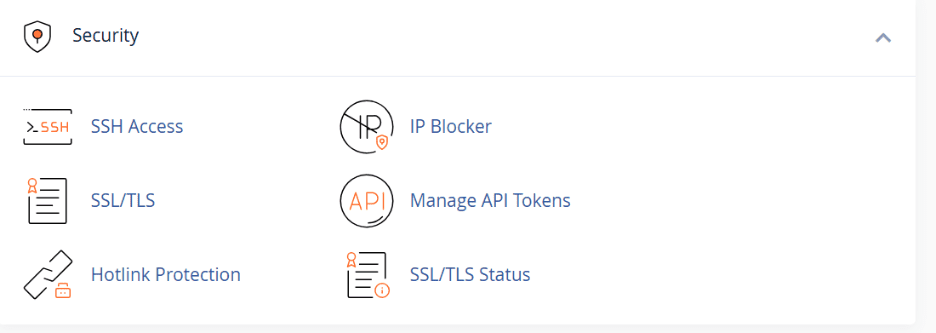
If you’re hosting with Bluehost, SSH access is automatically enabled on VPS and Dedicated Hosting plans. Shared Hosting users can activate it under Hosting>Security> SSH Access in their control panel.
2.Access denied or permission denied
Another common SSH error is “Access denied” or “Permission denied.” This means the SSH connection reached the server but authentication failed, either because of the wrong username, password or SSH key setup. In simple terms, your server is rejecting the login attempt because it can’t confirm your identity.
Common causes
“Access denied” usually means there’s a problem with your credentials or how they’re set up on the server. It’s often a small misconfiguration rather than a serious issue.
Here are the most common reasons this happens:
- Incorrect credentials: The username or password doesn’t match what’s stored on the server.
- SSH key mismatch: The private key on your computer doesn’t match the public key saved on the server.
- File permission issues: If your SSH key files or .ssh folder have the wrong permissions, authentication will fail.
- Account restrictions: Your user account may not have SSH access or might be disabled.
- Disabled authentication methods: Password or public key login might be turned off in the SSH configuration file (sshd_config).
Troubleshooting steps
The “Access Denied” error can happen for multiple reasons but the good news is that these errors are easy to fix. Its usually just a matter of checking your keys and permissions. Lets check how to resolve them.
- Check your username and password or key
Make sure you’re logging in with the right credentials. Even small typos can cause this error. If you’re using SSH keys, confirm that your public key is uploaded to the server:
- Verify your SSH key setup
Ensure your public key is on the server under:
~/.ssh/authorized_keys and your private key is stored safely on your computer with the correct permissions:
chmod 700 ~/.ssh
chmod 600 ~/.ssh/id_rsa
3. Fix file and folder permissions
SSH is very strict about permissions. Set them as follows:
- .ssh folder → 700
- authorized_keys → 600
- Both owned by your user account
- Review server SSH settings
Open your SSH configuration file:
sudo nano /etc/ssh/sshd_config Make sure both password and key authentication are enabled:
PasswordAuthentication yes
PubkeyAuthentication yes
Then restart the service:
sudo systemctl restart sshd - Check logs for more details
Use one of these commands to see why your login was blocked:
sudo tail -f /var/log/auth.log
sudo tail -f /var/log/secure
Look for clues such as incorrect permissions, key mismatches or authentication method failures.
Bluehost tip:
On Bluehost servers, you can easily manage SSH keys through the Hosting > SSH Access section of your control panel. There, you can generate, import and authorize keys without manually editing files. This helps prevent most authentication-related connection errors
3. Host key verification failed
When you first connect to a server using SSH, your client stores its public key (the host key) in a local file called known_hosts. Each time you reconnect, SSH compares the stored key with the one presented by the server.
If they don’t match, SSH blocks the connection and shows the “Host key verification failed” warning to protect you from possible security threats, such as a man-in-the-middle attack or an unauthorized server replacement.
Common causes
This error usually appears when the server’s identity doesn’t match what your computer remembers. It’s part of SSH’s built-in security checks.
Here are the common reasons it happens:
- Server reinstallation or migration: If the server has been rebuilt or moved to new hardware, its host key will change.
- Man-in-the-middle protection: SSH is preventing a connection because the key mismatch could indicate tampering.
- Outdated or corrupted known_hosts entry: The saved host key on your local machine is no longer valid.
- DNS or IP changes: Connecting to the same domain but a new IP can trigger a mismatch if the new server has a different key.
How to troubleshoot
Your computer saves a “fingerprint” of each server you connect to. If the fingerprint changes, SSH assumes something suspicious happened, like the server being replaced or your connection being intercepted.
However, t’s not always dangerous ; sometimes it just means your hosting environment changed. Let’s look at simple steps on how to resolve such issues.
- Check the saved host key
View the list of stored host keys on your computer:
cat ~/.ssh/known_hosts Find the line that corresponds to your server’s IP address or domain. If it doesn’t match your current server, that’s the cause of the error.
- Remove the outdated key
Delete the old entry to allow a fresh connection:
ssh-keygen -R your-server-ip This removes the incorrect fingerprint from your local records.
- Verify the new key is safe
Before reconnecting, confirm the new host key or fingerprint with your hosting provider or dashboard. This step ensures you’re connecting to the right server and not an impersonated one.
- Reconnect to the server
Once verified, reconnect to your server:
ssh user@your-server-ip When prompted, accept the new key only if it matches the fingerprint your provider confirmed.
Bluehost tip:
If you’ve upgraded your plan or moved servers on Bluehost, your host key might have changed. Remove the old entry from known_hosts and verify the new key through your dashboard.
4. Connection timeout
A connection timeout occurs when the SSH client can’t complete a connection because the server fails to respond in time. Unlike a “connection refused” error (where the server actively rejects the request), a timeout means your client’s request didn’t reach the SSH service or the response never made it back.
Common causes
This happens when the connection request gets delayed or blocked before reaching the server. In most cases, it’s a network or firewall issue, not a server malfunction.
Common reasons include:
- Network connectivity issues: Poor internet connection, unstable Wi-Fi or routing problems can delay or block communication.
- Firewall or security group blocking access: Firewalls or router settings may silently drop SSH packets.
- Incorrect port or IP configuration: If you’re connecting to the wrong port or outdated IP, the client will keep waiting for a response that never arrives.
- Server overload or downtime: A busy or unresponsive server may fail to respond before the SSH client gives up.
- DNS resolution failure: A domain name that no longer points to the correct IP address can also cause timeouts.
How to troubleshoot
If SSH times out, it simply means your computer couldn’t get a reply from the server. It’s like dialing a number and never getting a ring. This is often a connection or routing issue rather than something wrong with SSH itself. Let’s go throughhow to resolve such issues.
- Test your internet connection
Make sure your network is working by opening websites or trying another online service.
- Ping the server
Use the ping command to check whether your server is reachable:
ping your-server-ip If packets are lost or the request times out, your network may be unstable.
- Run a traceroute
This helps find where the connection is breaking down:
traceroute your-server-ip If the trace stops midway, there may be a routing issue or an intermediate firewall blocking access.
- Check the SSH port and IP
Make sure you’re connecting to the correct IP address and SSH port.
The default port is 22, but some servers use a custom one.
ssh -p 22 user@your-server-ip If using a custom port, replace 22 with the correct number.
- Review firewall settings
Firewalls can silently block SSH traffic. Check the current rules on your system:
sudo ufw status
sudo iptables -L
Ensure your SSH port is open and not blocked by a firewall.
- Try another network
Connect from a different Wi-Fi or mobile hotspot. This helps rule out problems with your ISP or local router.
Bluehost tip:
If you’re hosted on Bluehost and encounter timeouts, use the Server Status page to check for any ongoing maintenance or outages. You can also verify your SSH IP and port details in your hosting dashboard before reconnecting.
5. Other less-common SSH issues
Most SSH problems involve connectivity or authentication, but sometimes deeper configuration issues can cause errors especially on VPS or dedicated servers. Here are a few advanced cases and how to fix them.
1. SELinux or AppArmor blocking SSH (for VPS/dedicated users)
Security tools like SELinux or AppArmor may block SSH connections if not configured properly. To test this, temporarily switch SELinux to permissive mode:
sudo setenforce 0 If that resolves the issue, review and update your security policies before re-enabling enforcement.
2. Misconfigurations in sshd_config (syntax errors, unsupported algorithms)
Errors or unsupported settings in your SSH configuration file can stop the SSH daemon from running. Check for syntax issues using:
sudo sshd -t If errors appear, open the file to review and fix the mentioned lines:
sudo nano /etc/ssh/sshd_config After correcting them, restart the SSH service:
sudo systemctl restart sshd 3. IP or host restrictions (only whitelisted IPs allowed)
Your server may only accept SSH connections from certain IPs. Verify and update these access files if needed:
cat /etc/hosts.allow
cat /etc/hosts.deny
4. SSH client/server version mismatch
If your SSH client or server is outdated, they might not share supported encryption methods. Run verbose output to check:
ssh -vvv user@host Update either side to ensure compatibility.
5. How to identify and fix
If you’ve ruled out basic causes and still can’t connect, the issue may lie in your server’s security policies or configuration files. This is more technical, but the fixes are straightforward once you identify the problem.
Run the following commands to diagnose and fix these advanced issues:
Troubleshooting steps (simple guide)
- Check security enforcement tools
Temporarily disable SELinux to see if it’s blocking SSH:
sudo setenforce 0 If SSH works after that, adjust your security policy before turning it back on.
- Test SSH configuration for errors
If any errors appear, open your SSH config file and fix them.
sudo sshd -t - Check IP restrictions
Some servers only allow certain IPs to connect. Check:
cat /etc/hosts.allow
cat /etc/hosts.deny - Check for version mismatch
Run SSH in verbose mode to identify compatibility issues:
ssh -vvv user@host Update your SSH client or server if needed.
- Inspect system logs
sudo tail -f /var/log/secure
sudo tail -f /var/log/auth.log
Bluehost tip:
If you’re using a Bluehost VPS or Dedicated Server, you have direct access to your SSH configuration and security settings. You can adjust these in the server console to quickly fix advanced issues like SELinux restrictions, configuration errors or version mismatches.
How to prevent SSH connection issues?
While troubleshooting helps fix immediate issues, prevention is the best long-term strategy. By maintaining secure configurations and practicing regular server hygiene, you can minimize the risk of connectivity errors and downtime. Here’s how to prevent common SSH connection issues before they start.
1. Use SSH keys instead of passwords
- SSH keys offer stronger security and reduce the risk of brute-force attacks.
- Generate a key pair using:
ssh-keygen -t rsa -b 4096 - Add the public key to your server:
~/.ssh/authorized_keys file. - Disable password authentication for added protection by updating:
PasswordAuthentication no - Then restart the SSH service to apply the change.
2. Keep your software up to date
Outdated SSH clients or server packages may contain vulnerabilities or compatibility issues. So, regularly update OpenSSH, your operating system and firewall tools to ensure the latest security patches and protocol support.
sudo apt update && sudo apt upgrade Keeping software current ensures your system supports the latest security protocols and encryption algorithms.
3. Restrict SSH access
Limiting who can connect to your server strengthens security and reduces unauthorized attempts.
You can:
- Allow only trusted IP addresses or ranges
- Specify approved users in /etc/ssh/sshd_config using the AllowUsers directive
- Add targeted firewall rules, for example:
- sudo ufw allow from your.ip.address to any port 22
4. Enforce correct file permissions
Incorrect file or folder permissions can lead to “permission denied” errors and expose sensitive data.
Set secure permissions for your SSH directory and key files:
chmod 700 ~/.ssh
chmod 600 ~/.ssh/authorized_keys
These settings ensure your SSH files are accessible only to your user account, keeping your credentials secure.
5. Monitor server health and connectivity
Server overload, full disks or high CPU usage can cause SSH timeouts or dropped sessions.
Use monitoring tools such as top, htop or hosting dashboards to keep an eye on performance metrics and resolve issues early.
6. Enable two-factor authentication (2FA)
For extra protection, use two-factor authentication for SSH (available on many modern systems). It adds an additional verification layer beyond passwords or keys.
7. Backup and rotate SSH keys regularly
Regularly rotate your SSH keys and store backups securely. This minimizes risk if a private key is ever compromised and ensures uninterrupted access if one becomes invalid.
8. Document changes and maintain logs
Keep track of any SSH-related configuration updates, firewall adjustments or key changes. A clear log helps identify when and why issues arise, making future troubleshooting much easier.
Bluehost tip:
Hosting with Bluehost gives you a stable, secure environment with built-in SSH access management and robust uptime. Use your Bluehost control panel to manage keys, monitor server performance and configure firewall access, helping you maintain reliable and secure SSH connections at all times.
Final thoughts
SSH gives you secure, direct access to your hosting environment, a powerful advantage for developers, admins and site owners. While connection problems are common, they’re almost always fixable with a systematic approach.
By following best practices and leveraging your hosting provider’s built-in tools, you can ensure your SSH connections remain fast, reliable and secure.
If you’re managing your website on Bluehost, you already have the advantage of a hosting platform designed for performance and security, so you can spend less time troubleshooting and more time building.
Bluehost’s hosting plans include free SSH, key management and expert support to help you resolve issues fast. Explore Bluehost Hosting plans!
FAQs
SSH (Secure Shell) is a protocol that allows you to securely connect to a remote server for file transfers, command-line management and configuration tasks. It encrypts data between your computer and the server to prevent unauthorized access.
This usually means your SSH service isn’t running, the port is blocked by a firewall or the server IP or hostname is incorrect. Check that sshd is active and the correct port (usually 22) is open.
Ensure you’re using the correct username and credentials. If you’re using SSH keys, verify that your private key matches the server’s public key and that permissions are correctly set (chmod 700 ~/.ssh, chmod 600 ~/.ssh/authorized_keys).
This happens when your local system detects that the server’s identity key has changed, often after a server migration or rebuild. Remove the old entry from your known_hosts file using ssh-keygen -R hostname and reconnect.
Connection timeouts typically indicate network instability, server overload or a firewall blocking access. Test network reachability using ping or traceroute and ensure port 22 (or your custom port) is open.



Write A Comment