 ChatGPT,
 Claude,
 Gemini,
 Grok — all four for
Key highlights
- Learn what Google eSignature does in Docs and Drive, including signer fields, status tracking and audit trails.
- Discover how to request signatures in Google Docs step by step, including reminders and reusable templates.
- Know how to send a Portable Document Format (PDF) file from Drive and find signed copies.
- Understand Google’s limits, plan eligibility and US legal basics before you send your first client contract.
- Explore how Bluehost Google Workspace lets you connect your domain and manage eligible plans from one account.
To request signatures in Google Docs, open Tools > eSignature, add signers, drag in fields and click Request signature. According to Google’s eSignature eligibility list, Google Workspace eSignature is included on eligible plans, including Business Standard and Business Plus.
PDFs in Google Drive work the same way through the file’s menu. Requesting an e-signature in Google Docs differs from drawing a signature into a Doc or adding a Gmail email signature. The tool tracks each signer and returns a signed PDF with an audit trail, which suits client contracts and vendor agreements.
This guide covers the Docs and Drive steps, the signer side and tracking first. Limits, plans, legal basics, admin settings and add-ons come later.
What Google eSignature does in Docs and Drive?
Google eSignature is built into Google Docs and Google Drive, so you don’t need an add-on like DocuSign for basic contract signing. File owners and editors can add signers, place fields and track each request without leaving the document.
This table maps each Google Docs eSignature feature to what it does, based on Google’s eSignature how-to.
| Feature | What it does |
|---|---|
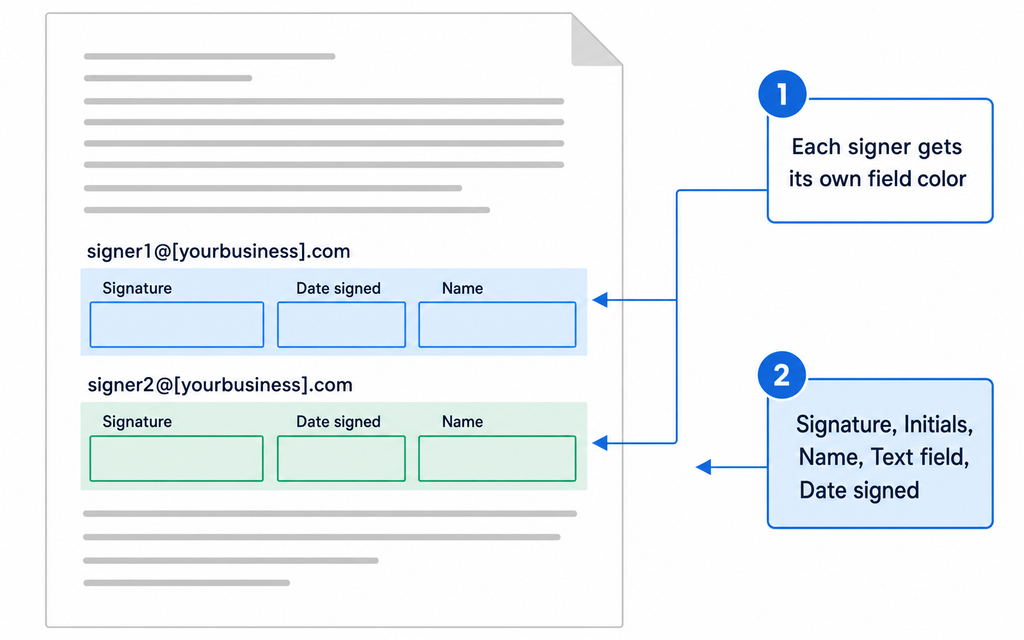
| Signer fields | Adds Signature, Initials, Name, Text field and Date signed fields, color-coded per signer |
| Custom text fields on PDFs | Collects details such as job title or email address |
| Templates | Keeps fields in a Doc so you can reuse the contract |
| Reminders | Sends optional automatic reminders to signers |
| Status tracking | Lets you check the status of each request |
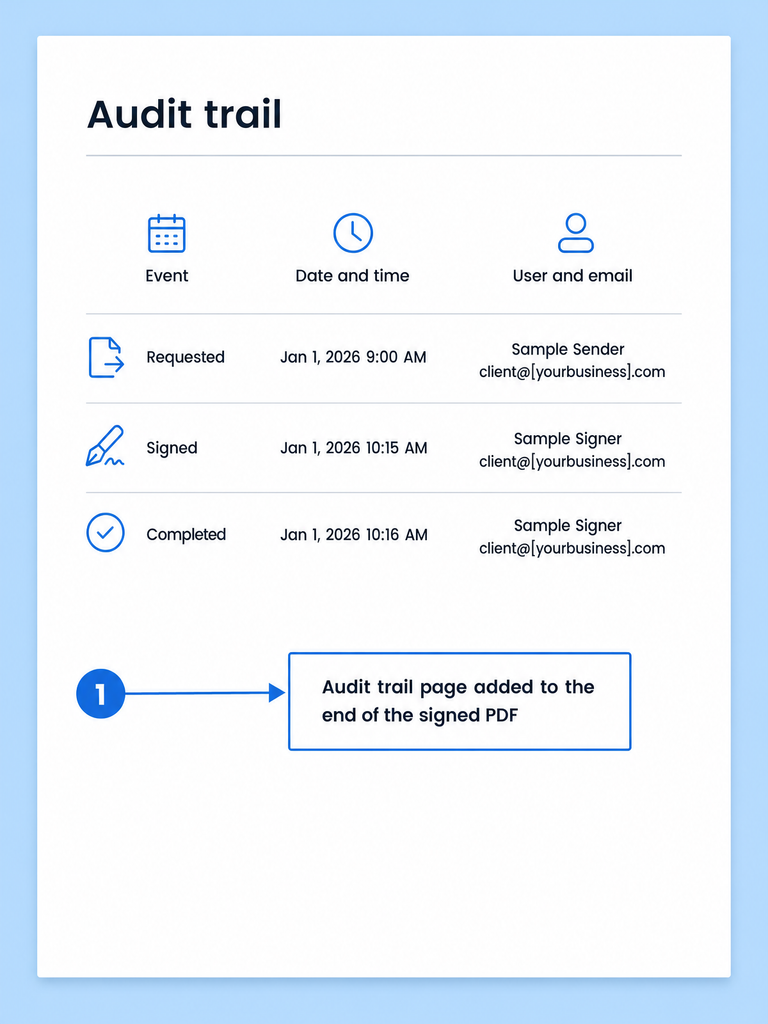
| Audit trail | Adds a page to the end of the final PDF that logs each event |
Google added PDF signing in Drive in December 2024, so these fields work on Drive PDFs too. Together, these Google Workspace signatures features let you send, sign and file a contract in one place.
How to request signatures in Google Docs
You can request signatures on any Google Doc you own or can edit, including Word files opened in Docs. These steps show how to use Google eSignature on a computer, following Google’s how-to linked above. If Docs and Drive are new to you, start with getting started with Google Workspace.
1. Finalize the document first
Google locks the PDF once you send, and changes require cancelling and resending. Finish your edits and confirm signer names and emails before you start.
2. Open Tools > eSignature
In Google Docs, go to Tools > eSignature to open the eSignature panel. Teams drafting contracts in Google Docs with Bluehost use the same menu.
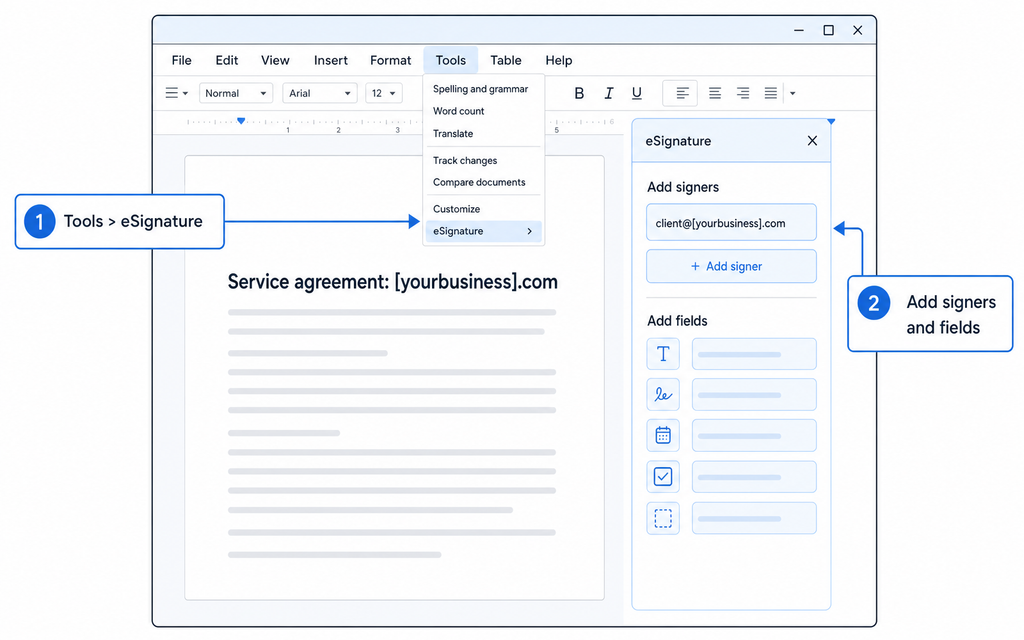
3. Add signers
Add up to 10 signers to the request. Each signer gets their own field color, so you can see who signs where.
4. Drag fields into place
Drag Signature, Initials, Name, Text field or Date signed fields onto the page, up to 200 fields per document. Docs saves the fields automatically, so the contract can double as a reusable template.
5. Click Request signature and set reminders
Click Request signature, name the PDF, enter signer emails and add an optional message. If you turn on automatic reminders, the first goes out after 72 hours. More follow every 3 days for up to 9 days or until the document is signed.
How to request an eSignature on a PDF in Google Drive
Google Drive eSignature works on PDFs stored in Drive, such as a vendor’s contract. Open the PDF, select Menu (three dots), then select eSignature.
Add signers and drag in fields the same way you would with eSignature in Google Docs, then click Request signature. PDFs also support the custom text fields listed above.
How signers complete a Google eSignature request
Signers start from the request email and finish inside the document. Share these steps with clients who ask how to sign documents in Google Workspace:
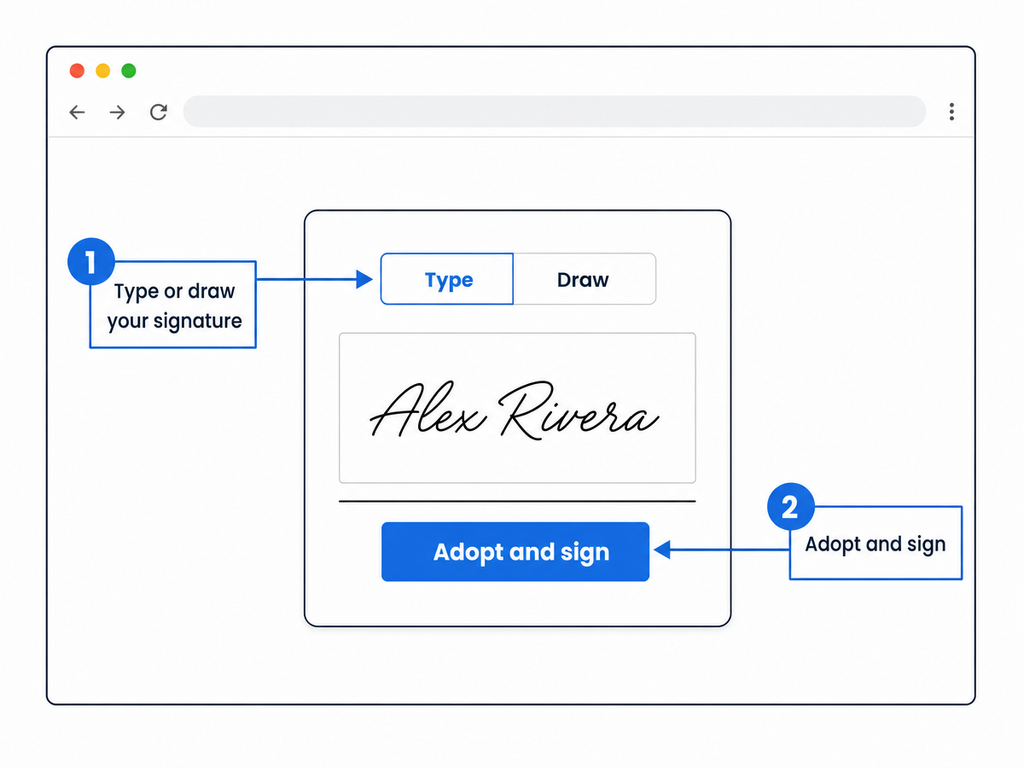
- Open the email and click the link to the document.
- Click the signature field, type or draw your signature, then select Adopt and sign.
- Fill in any other fields and select Mark complete.
- Accept Google’s terms when prompted.
- Select Reject to decline, which emails the requester.
Google’s July 2024 eSignature launch notes say signers can “sign contracts from both mobile devices and PCs.” Google’s help describes requesting on a computer, so test signing on a phone before you rely on it for client contracts.
How to track, cancel and find signed documents
You can check each request’s status in the eSignature panel. To stop a request, cancel it from the PDF’s menu.
A request is complete once all signers sign, and Google then emails everyone. The final PDF ends with an audit trail page that logs each event with timestamps, names and emails.
Where the signed file lands depends on your folder access. Google saves copies in two places:
- Your copy: It saves to the original folder, or to My Drive if you can’t edit that folder or its sharing would block signers.
- Signer copies: Each signer gets a copy in their own My Drive.
Google’s signer terms, covered in the legal section below, note that copies may not reach a counterparty without a Drive account. Keep your own backup of executed copies.
Google eSignature limits to know
This table summarizes the limits in Google’s how-to linked above. Google can change them, so check before a large send.
| Limit | What Google documents |
|---|---|
| Signers per request | Up to 10 |
| Fields per document | Up to 200 |
| File types | Google Docs, Word files opened in Docs, PDFs in Drive |
| Reminders | Optional; first at 72 hours, then every 3 days for up to 9 days or until signed |
| Where you send from | Documented on a computer |
Signing order, expiry dates and bulk sending are not mentioned in Google’s documentation. If your process depends on those, check a dedicated eSignature tool.
Which Google Workspace plans include eSignature?
Google’s eligibility list linked above includes Business Standard, Business Plus, Enterprise Standard, Enterprise Plus, Education Plus and Workspace Individual. Business Starter and free Gmail accounts aren’t on Google’s list. See Google Workspace vs free Gmail for the differences.
This table compares the three Business plans sold through Bluehost against Google’s list. Storage matters because completed PDFs save to Drive.
| Plan | On Google’s eSignature list | Storage per user | Price per user (12-month term) |
|---|---|---|---|
| Business Starter | No | 30GB | $3.50/mo, renews at $7.00/mo |
| Business Standard | Yes | 2TB | $7.00/mo, renews at $14.00/mo |
| Business Plus | Yes | 5TB | $11.00/mo, renews at $22.00/mo |
Note: Bluehost pricing was verified in October 2026 and may change. See current Bluehost plans and pricing.
Business Standard is the lowest-priced Business tier on Google’s list. Business Plus adds 5TB of storage and Vault, so compare Business Standard and Plus if you have retention needs.
When you buy Business Standard or Business Plus through Bluehost, you can connect your domain and manage Workspace from one account. If your domain is registered with us, Domain Name System (DNS) setup is automatic.
Also read: Business Starter vs Standard comparison
Is Google Workspace eSignature legally binding?
A Google Workspace e-signature can be legally binding in many cases, depending on the document and the parties’ location. The Google Workspace eSignature page says the tool is designed to comply with the US Electronic Signatures in Global and National Commerce Act (ESIGN). Google also cites EU simple electronic signature rules and certificates from an Adobe Approved Trust List (AATL) member.
Under the federal ESIGN Act, a signature or contract in interstate commerce generally can’t be denied legal effect solely because it’s electronic. The law also doesn’t require anyone to accept an electronic signature.
ESIGN’s specific exceptions place some documents outside that general rule. Some exceptions cover documents to the extent other laws govern them, such as wills and family law, while others apply outright. Check with a lawyer before sending these for eSignature:
- Wills, codicils and testamentary trusts
- Adoption, divorce and family law
- Uniform Commercial Code (UCC) provisions other than sections 1-107 and 1-206 and Articles 2 and 2A
- Court orders and official court documents
- Utility shut-off notices
- Default, foreclosure or eviction notices on a primary residence
- Cancellation of health or life insurance benefits
- Product recall notices
- Hazardous-materials documents
Google’s eSignature signer terms add powers of attorney and deeds as documents needing wet ink in many jurisdictions. Google says it can’t guarantee an enforceable contract and advises using eSignature with counterparties in the same jurisdiction or consulting a lawyer.
Note: This section is general information and isn’t legal advice.
How admins turn eSignature on or off
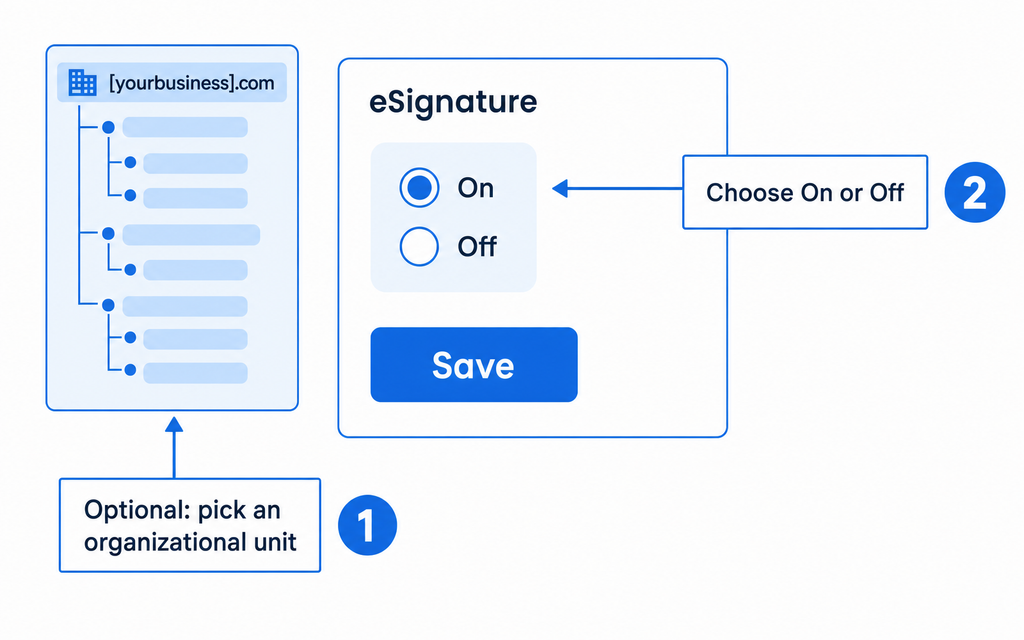
eSignature is on by default for supported editions, and admins can switch it on or off for the organization or by organizational unit. You need the Drive & Docs administrator privilege to make the change. Google’s admin instructions for eSignature list these steps:
- In the Admin console, go to Menu > Apps > Google Workspace > Drive and Docs.
- Click eSignature.
- Select an organizational unit if you want to limit the change.
- Choose On or Off.
- Click Save, or Override for an organizational unit.
Changes can take up to 24 hours. Turning eSignature off stops people from requesting signatures, but they can still sign requests sent to them.
When an add-on like DocuSign makes sense
Google’s built-in tool covers everyday contracts, and some teams need extra workflow options. DocuSign’s Google Workspace add-on works in Docs, Drive and Gmail. Its listing says completed contracts save to Drive.
DocuSign eSignature plans and pricing lists $11/mo for Personal with 5 envelopes a month, $30/user/mo for Standard and $45/user/mo for Business Pro. These US list prices are annual billed monthly as of October 2026 and “may be valid for new customers only.” Standard and Business Pro include up to 100 envelopes per user a year, with extra envelopes billed pay-as-you-go.
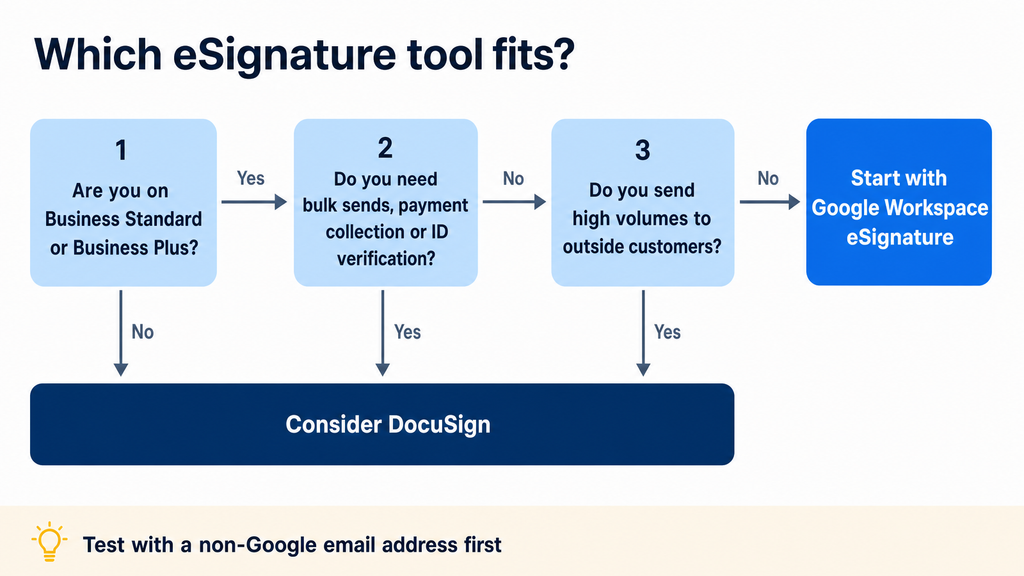
Choose DocuSign if:
- You need bulk sends or payment collection, which DocuSign lists on Business Pro
- You need DocuSign’s ID verification add-on
- You send high volumes of agreements to outside customers
- Your clients already expect DocuSign
Also read: Google Workspace Marketplace apps for small business
Tips for a smoother eSignature workflow
A few habits keep requests moving and make signed files easier to find. Use this checklist before your next send:
- Test with a non-Google address: See what outside signers experience before client sends.
- Build reusable templates in Docs: Save fields in a master Doc for recurring agreements.
- Check document eligibility first: Review the ESIGN exceptions above before you send.
Pro tip: Send from a shared folder your signers can access, so the final PDF lands where your team expects it.
Final thoughts
Your first request takes five steps in Docs, so practice before a client contract depends on it. Send a test request to a colleague this week and review the signed PDF and its audit trail.
Bluehost pairs Business Standard and Business Plus with your domain, so email, Docs and signature requests sit under one account. Get started with Bluehost Google Workspace to send your first signature request.
FAQs
Yes, Business Standard and Business Plus plans from Bluehost include it because Google lists those editions as eligible. The feature is on by default, so you can request signatures unless your admin has turned it off. If you’re on Business Starter today, you can upgrade to Business Standard to get onto Google’s eligible list.
<a href=”https://workspaceupdates.googleblog.com/2023/12/esignature-generally-available-workspace-individual-subscribers.html” rel=”noopener noreferrer” target=”_blank”>Google’s December 2023 release notes</a> describe requesting eSignatures from non-Gmail users. Google’s documentation doesn’t spell out the full experience, so send a test request to a non-Google address you control first. Then confirm the signed copy reaches that inbox before you send to clients.
Yes, Google says you can sign from a mobile device, while sending a request is documented as a computer task. If your clients often sign on phones, send a test request to your own phone first. Check that each field works before you rely on it for client contracts.
No, free personal Gmail accounts aren’t on Google’s eSignature eligibility list. Solo owners can look at Workspace Individual, which Google lists as eligible. For a team, Business Standard is the lowest-priced Business tier on Google’s list, and it adds business email at [yourbusiness].com.
No, the PDF stays locked while the request is active. To make a change, cancel the request from the PDF’s menu, edit the source Doc and send a new request. Delete the cancelled PDF copy if you don’t need it, so your team doesn’t confuse versions later.
No, Google doesn’t document a per-signature or per-envelope charge. Its eSignature page, linked in the legal section, says the feature is available at no cost on eligible plans, so your cost is your Workspace subscription. If your volume grows, check Google’s help center for any request limits that apply to your plan.

Write A Comment