 ChatGPT,
 Claude,
 Gemini,
 Grok — all four for
Key highlights
- Learn the four protection layers that block attacks, remove malware, speed recovery and secure your logins.
- Discover which security features close real gaps on your site and which ones are nice extras.
- Compare plugins, cloud firewalls, hosting-integrated tools and managed services by setup, upkeep and platform fit.
- Know what free security tiers usually leave out, including delayed firewall rules and alert-only vulnerability plans.
- Explore a seven-step plan that shows how to choose website security software for your site and team.
Learning how to choose website security software comes down to one rule: Match four protection layers to your site’s risk. Those layers block attacks, find and remove malware, help you recover and protect your logins.
After that, pick a deployment model and a support level you can keep up with. The hard part is that many website security solutions make overlapping claims. A plugin, a cloud firewall and a hosting add-on can sound almost identical on a product page.
This guide explains the threats your software needs to handle, the main tool types and the features worth paying for. You’ll also see how deployment models differ and how five popular tools compare. Finally, you’ll learn what free tiers leave out, how to vet a provider and how to decide in seven steps.
Quick answer: Match four protection layers to your site’s risk
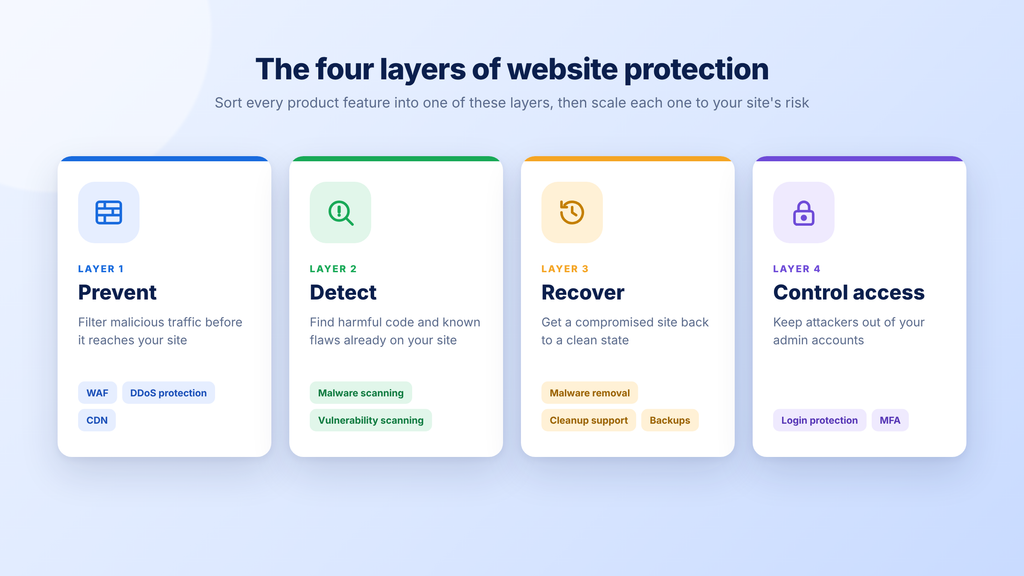
The short answer is to cover four layers of protection and scale each one to what your site handles. A site with payments, customer accounts or many plugins generally needs more depth in each layer than a simple portfolio does.
Think of the layers as four questions your website security solution has to answer. Each layer handles a different stage of an attack, so a gap in one is hard to cover with another. When you read a product page, sort every feature into one of these layers.
- Prevent: A web application firewall (WAF) filters malicious traffic before it reaches your site.
- Detect: Malware scanning and vulnerability scanning find harmful code and known flaws already on your site.
- Recover: Malware removal, cleanup support and backups get a compromised site back to a clean state.
- Control access: Login protection and multi-factor authentication (MFA) keep attackers out of your admin accounts.
How much depth you need depends on four factors. The first two are whether you take payments or store customer data and how many plugins or extensions you run. The other two are your traffic level and who maintains the site day to day.
Sites that handle payments or customer data generally need all four layers in place from the start. A small brochure site with few plugins may start with scanning, removal and backups. It can then add a firewall and stronger login controls as it grows.
The seven-step framework later in this guide turns these layers into a shortlist you can act on. The sections before it explain each layer in plain terms. That way, you can judge what a product actually covers before you compare prices.
What does website security software protect?
Website security software protects your live site’s files, database, logins and visitors from attacks and malicious code. It differs from antivirus software, which protects a single computer or device.
If you’ve searched for security software and landed on desktop antivirus reviews, that’s the source of the mix-up. Antivirus tools watch your laptop. Website security tools watch the server, the code and the traffic that reach your site.
A compromise on your site affects more than the site itself. Three things are usually at stake, and each one points to a layer you’ll evaluate later in this guide.
- Visitor data: Contact forms, accounts and checkout pages can expose names, emails and payment details if attackers get in.
- Uptime: Malware, traffic floods and defaced pages can take your site offline or make it unusable for customers.
- Search visibility and reputation: Hacked pages can hurt how search engines treat your site and how far customers trust it.
Search visibility deserves extra attention because it’s easy to overlook until something goes wrong. Google spam policies, last updated in August 2026, list hacked content as a violation. Google says sites that violate its policies “may rank lower in results or not appear in results at all.”
For a small business, that can mean fewer leads, calls and orders for as long as the cleanup takes. It also means your security choice affects marketing as much as it affects IT.
That’s why the speed of detection and cleanup matters as much as the length of the feature list. The longer malicious code stays on your site, the longer your visitors and rankings are exposed. Keep that time-to-fix lens in mind as you read the rest of this guide.
What threats should website security software handle?
The threats most worth planning for on a small site are exploited software vulnerabilities, injected malicious code, credential attacks on logins and automated bot traffic. Each one maps to a specific layer, which is how you’ll know whether a tool covers it.
Software flaws stand out in current breach data. Verizon’s 2026 Data Breach Investigations Report (DBIR) analyzes a global set of breaches recorded from October 2024 through November 2025.
In the Verizon 2026 DBIR, exploitation of vulnerabilities was the most common known initial-access vector at 31% of breaches. Among small and medium-sized businesses, exploited vulnerabilities accounted for 26% of initial access. Basic Web Application Attacks were among the main breach patterns for that group.
For your decision, that means patching and vulnerability detection deserve real weight when you compare tools. A product that only cleans up after an attack leaves the most common known entry point in Verizon’s data unguarded.
WordPress sites face a related pattern. Patchstack, a security vendor that sells virtual patching, updated the Patchstack 2026 WordPress report in February 2026. It found that 91% of new WordPress vulnerabilities disclosed in 2025 were in plugins.
The same vendor report found that, for the most heavily exploited flaws, the median time to mass exploitation was about 5 hours. If your site runs many plugins, a weekly update check can leave a gap that attackers move through quickly. Fast updates, vulnerability alerts or virtual patching help you close that gap.
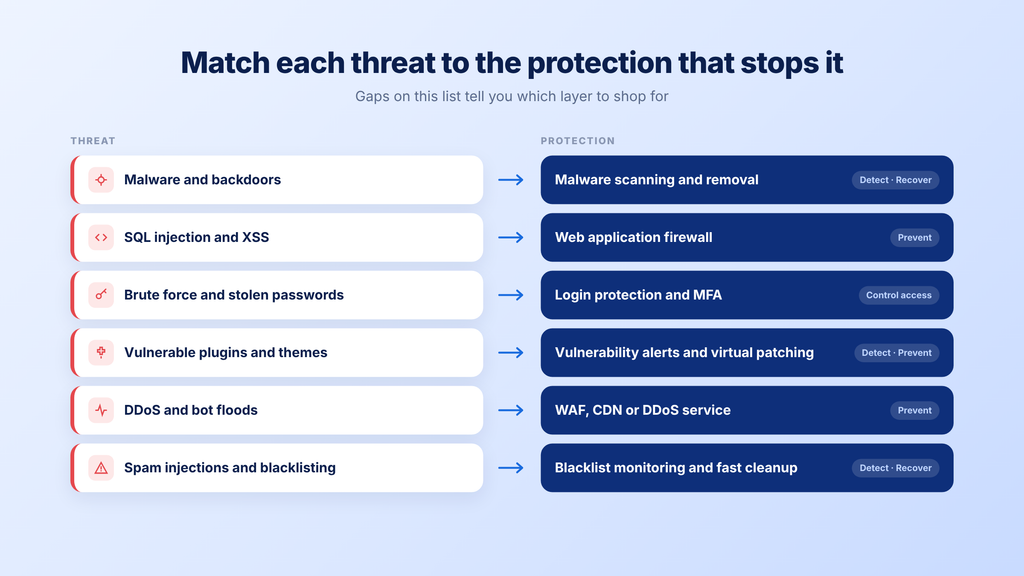
Use the list below to connect each threat to the protection that handles it. When you review a product later, check that it covers the threats that apply to your site. Gaps on this list tell you which layer to shop for.
- Malware and backdoors: Hidden code that steals data or gives attackers return access calls for malware scanning and removal.
- Injection attacks: Structured Query Language (SQL) injection and cross-site scripting (XSS) push harmful commands through forms and links, which a WAF can filter.
- Brute force and credential stuffing: Bots guess or reuse stolen passwords on your login page, so you need login protection and MFA.
- Vulnerable plugins and themes: Known flaws in outdated extensions call for vulnerability alerts, prompt updates or virtual patching.
- Bot floods: Distributed denial of service (DDoS) attacks and abusive bots overload servers, which a WAF, content delivery network (CDN) or DDoS service can absorb.
- Spam injections and blacklisting: Injected spam pages and redirects can get your site flagged, so blacklist monitoring and fast cleanup matter.
Together, these threats explain why a single tool rarely covers everything a site needs. The next section shows which tool types handle each one.
What are the main types of website security software?
Most website security services bundle several of the categories below under one brand name. Looking at the categories inside a product tells you more than the brand name or the marketing label does.
Each category maps to one of the four layers. Once you can name the category, you can see which layers a product covers and which ones you’ll need to fill elsewhere.
1. Malware scanners and removal tools
Malware scanners check your site’s files and database for malicious code, backdoors and spam injections. Removal tools then clean that code out, either automatically or with help from a person.
Detection methods differ in what they can catch. Signature-based scanning compares files against a list of known malware, which works well for familiar threats. Behavior-based scanning looks for suspicious actions or patterns, which can help catch new or disguised code that has no signature yet.
Scan timing matters too. Scheduled scans run at set intervals, such as daily or every few days, while continuous scanning watches for changes as they happen. A shorter gap between infection and detection gives malicious code less time to spread or damage your reputation.
Removal is where products vary most. Some remove threats automatically, some offer one-click cleanup and some hand the job to a human-led service. Before you buy, ask who actually does the cleanup when automated tools can’t finish the job.
2. Web application firewalls (WAF)
A WAF sits between visitors and your site and inspects each web request before it reaches your server. It blocks requests that match attack patterns and lets normal traffic through.
Typical targets include SQL injection, XSS, bad bots and brute force login attempts. Some WAFs run in the cloud in front of your site, while others run on your server as a plugin or module. Many providers also offer rule sets built around risk categories published by the Open Worldwide Application Security Project (OWASP).
How fast new rules arrive is a key buying criterion. When a new flaw becomes public, a WAF can block attempts to exploit it only after it receives a matching rule. Products that deliver rules in real time shorten that exposure window compared with products that release rules on a delay.
3. Vulnerability scanners and virtual patching
Vulnerability scanners check your software versions and settings against databases of known flaws. They tell you which plugin, theme or core version needs attention before an attacker finds it.
Virtual patching goes a step further. It blocks exploit attempts for a known flaw until you install the official update or until the developer releases one. That buys you time when an update isn’t available yet or when you can’t test it right away.
This pairing matters most for WordPress and other plugin-based platforms, given how many new WordPress flaws start in plugins. If you want to see how scanners map pages and test for weak points, learn how web application scanning works.
4. DDoS protection and content delivery networks (CDNs)
DDoS protection keeps your site available when attackers flood it with traffic. It absorbs and filters abusive requests at the network edge so they don’t reach your server.
A CDN stores copies of your pages on servers in many locations and delivers them from one near each visitor. That speeds up loading and spreads traffic across many servers, which helps during sudden spikes.
Cloud WAFs often bundle DDoS protection and a CDN together. If you already plan to use a cloud firewall, check whether these come with it before buying them separately.
5. Login security and multi-factor authentication
Login security protects the front door of your site, which is the admin login page. Website authentication tools add brute force blocking, rate limiting, bot challenges and two-factor authentication (2FA) or MFA for admin accounts.
This layer has clear evidence behind it. Microsoft says in its Microsoft Digital Defense Report 2025 that phishing-resistant MFA can stop over 99% of password-based identity attacks. The report covers trends from July 2024 through June 2025.
Phishing-resistant MFA uses methods such as passkeys or hardware security keys, which are designed to resist fake login pages. For your site, the takeaway is practical: Login protection costs little to turn on and blocks a large class of attacks.
6. Backup and restore tools
Backup tools save copies of your files and database so you can roll back after a problem. Look for automated, off-site and versioned backups, which let you pick a clean copy from before an infection started.
A one-click restore option saves time when you’re under pressure. Test it before you need it, because a backup you can’t restore offers little protection.
Keep in mind that backups support recovery and leave the cause of an infection in place. If you restore a site without fixing the vulnerable plugin or stolen password that let attackers in, the same problem can return.
7. SSL/TLS certificates
Secure Sockets Layer (SSL) and Transport Layer Security (TLS) certificates encrypt data moving between your site and its visitors. They enable Hypertext Transfer Protocol Secure (HTTPS), which shows visitors that the connection is encrypted.
SSL is a baseline requirement for sites that collect information through forms, accounts or checkout pages. It protects data in transit, while blocking attacks and removing malware fall to other tools. See SSL certificates and firewalls compared for a closer look at how the two work together.
8. Managed security services
Managed security services handle monitoring and response for you. A managed security service provider (MSSP) or a security as a service (SECaaS) offering watches your site, investigates alerts and coordinates cleanup.
Hosting-integrated security sits between plugins and full MSSPs. Your host runs scanning, removal and sometimes firewall protection at the server level, often with an option to add hands-on cleanup.
Apart from managed services, each category covers one or two layers. That’s why many small sites combine several categories, often through one product that bundles them.
Detection vs prevention tools: Why you need both?
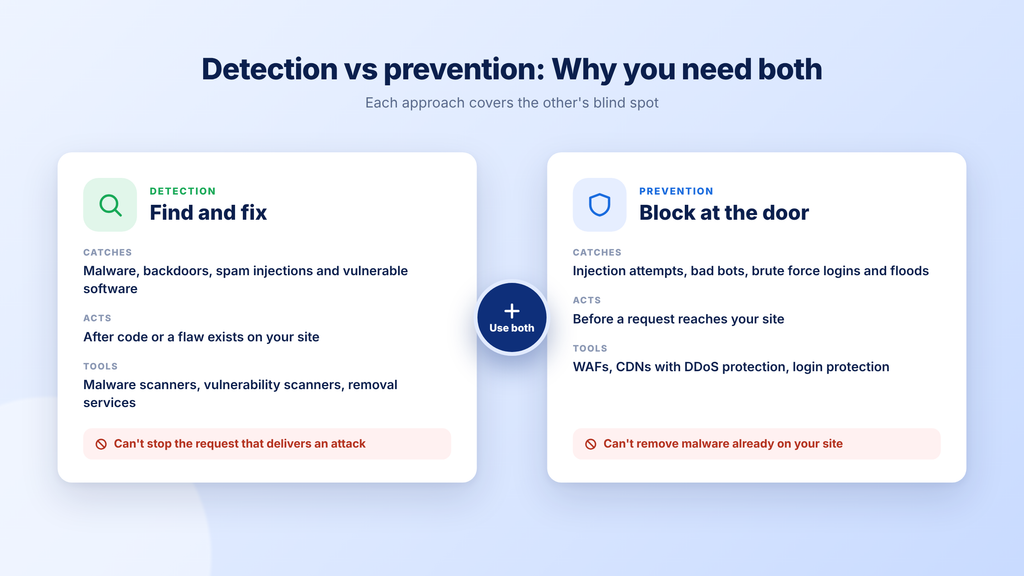
Find-and-fix tools, such as malware scanners and vulnerability checks, look for problems already on your site. Block-at-the-door tools, such as WAFs, CDNs and login protection, stop attacks in the traffic path before they land.
Relying on only one type leaves a predictable gap. A WAF can’t remove malware that was installed before you turned it on. A scanner reacts after malicious code lands, so it can’t stop the request that delivered it.
Sites that take payments or store customer data generally benefit from both types. Smaller sites can start with one and add the other, as long as you know which gap you’re leaving open for now.
The comparison below shows how the two approaches differ on the points that shape a buying decision.
| Question | Find-and-fix | Block-at-the-door |
|---|---|---|
| What it catches | Malware, backdoors, spam injections and outdated or vulnerable software | Injection attempts, bad bots, brute force logins and traffic floods |
| When it acts | After code or a flaw exists on your site | Before a request reaches your site |
| Typical tools | Malware scanners, vulnerability scanners and removal services | WAFs, CDNs with DDoS protection and login protection |
| What it can’t do | Stop the request that delivers an attack | Remove malware already on your site |
The two approaches cover each other’s blind spots. When you compare products, check which column each feature falls under so you can see whether both sides are covered.
Also read: Get a closer look at the malware scanner vs firewall decision and how each tool protects your site.
Key features to evaluate in website security software
The features that matter most are the ones that close gaps in your four layers and shorten how long a problem stays on your site. Coverage of the threats that apply to you counts for more than a long feature list.
Use the checklist below when you read a product page or talk to a sales team. Each item names the feature and what to look for inside it. If a product can’t answer one of these clearly, treat that as a gap until you learn more.
- Continuous or frequent scanning: Look for scanning that covers files and the database, with continuous monitoring or at least daily scans.
- Automatic malware removal: Automated cleanup handles common infections quickly, and a clear path to human cleanup covers cases automation can’t finish.
- WAF with fast rule updates: Ask whether new firewall rules arrive in real time or on a delay, since delays leave new flaws exposed.
- Virtual patching or vulnerability alerts: For plugin-heavy sites, look for tools that flag vulnerable plugins and themes or block exploits before updates arrive.
- Login protection: Brute force blocking, rate limiting and 2FA or MFA support protect your admin login page from automated attacks.
- Blacklist monitoring: Alerts when Google or other services flag your site help you start cleanup before customers see warnings.
- Database scanning: WordPress and other database-driven sites can hide malicious code in database tables, which file-only scanning may miss.
- Dashboard and reporting: Plain-language alerts and a clear status view help you act on problems without decoding technical logs.
- Performance impact: Cloud-based scanning moves work off your server, while on-server scans can use resources during busy periods.
- Support: Check support hours, channels and response targets. Also ask whether 24/7 help is included or costs extra.
- Artificial intelligence (AI) detection: AI models can help flag unknown or disguised files that signature lists miss, with you reviewing each alert.
Not every feature carries equal weight for a small site. Prioritize the first group below, then use the second group to break ties between similar products.
Start with these:
- Continuous or daily scanning of files and the database
- Automatic removal with a human cleanup option
- A WAF with current rules
- Login protection with MFA support
- Backups you can restore quickly
Add these if your budget allows:
- AI detection for unknown files
- A security seal for visitors
- Detailed reporting and audit logs
- Country blocking and custom firewall rules
- A built-in CDN for speed
Database scanning moves into the first group if you run WordPress, a store or any site where customer data lives in the database. Virtual patching moves up as well if you run many plugins and can’t update them the same day.
Which deployment model fits how you work?
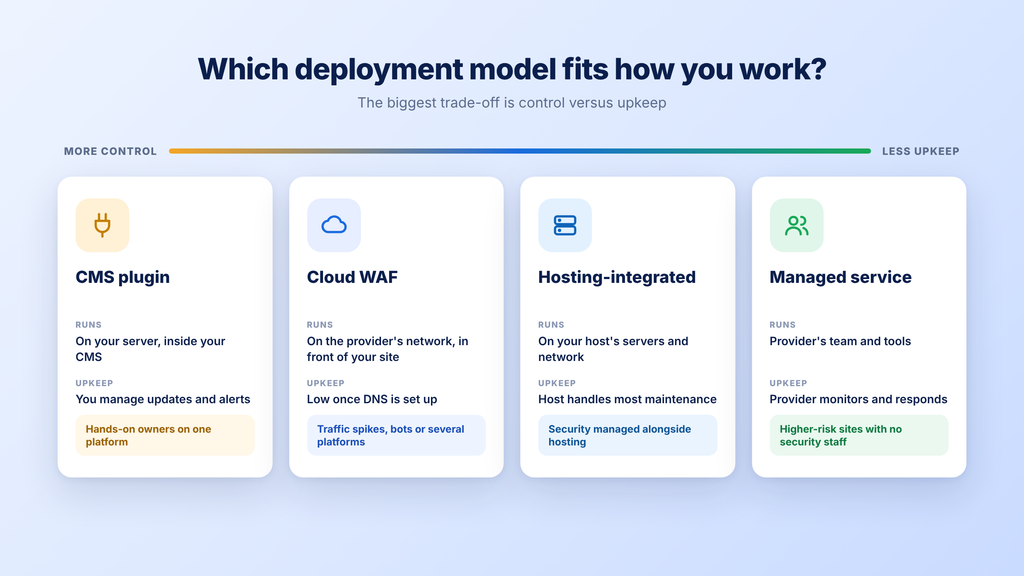
Where security software runs decides what it can see, how much setup it needs and who maintains it. A plugin sees your site’s code, a cloud firewall sees incoming traffic and your host sees the server underneath both.
A content management system (CMS) plugin installs inside your site, while a cloud firewall usually requires a Domain Name System (DNS) change. The table below compares the four main deployment models on setup, platform fit and upkeep.
| Model | Where it runs | Setup | Platform fit | Ongoing upkeep | Best for |
|---|---|---|---|---|---|
| CMS plugin | On your server, inside your CMS | Install and configure from your dashboard | One CMS, often WordPress | You manage updates, settings and alerts | Hands-on owners on one platform |
| Cloud or DNS-level proxy WAF | On the provider’s network, in front of your server | Change your nameservers or DNS records | Any website | Low once set up, with periodic rule and alert reviews | Sites with traffic spikes, bots or several platforms |
| Hosting-integrated security | On your host’s servers and network | Included with hosting or added from your hosting account | Sites hosted with that provider | Host handles scanning and much of the maintenance | Owners who want security managed alongside hosting |
| Managed service or MSSP | Provider’s team and tools across your site | Onboarding with the provider | Varies by provider | Provider monitors and responds | Higher-risk sites with no security staff |
The biggest trade-off is control versus upkeep. Plugins give you the most direct control over settings in this table. Hosting-integrated and managed options take more of the daily work off your plate.
- Choose a plugin if:
- You run WordPress or another CMS with a mature security plugin
- You’re comfortable adjusting settings and reviewing alerts yourself
- You want firewall and login controls inside your dashboard
- Your server has room for on-site scanning without slowing pages
2. Choose a cloud WAF if:
- You get traffic spikes, heavy bot activity or DDoS attempts
- You run a non-WordPress site or several platforms
- You can change nameservers or DNS records with your registrar
- You want a CDN for speed alongside traffic filtering
3. Choose hosting-integrated security if:
- You want scanning and removal handled at the server level
- You prefer one account for hosting, domains and security
- You’d rather skip maintaining a separate plugin or proxy
- You want an upgrade path to hands-on cleanup through your host
4. Choose a managed service if:
- Your site handles sensitive data or significant revenue
- No one on your team has security experience
- You need someone to investigate and respond to incidents
- You can budget for ongoing service fees
How do popular website security tools compare?
The five tools below represent the main deployment models: hosting-integrated, cloud proxy, CMS plugin and plugin-based virtual patching. The comparison uses each provider’s own published plan details, so you can see how real products line up with the criteria above.
Bluehost Malware Protection: Bluehost Malware Protection is hosting-integrated security that runs at the server level for sites hosted with Bluehost. Malware Scan & Clean comes included with Starter Hosting and covers continuous scanning, automatic malware removal and Google blacklist monitoring. AI Malware Defense comes with Business Hosting and above and adds ThreatShield Smart WAF, brute force login protection and database SQL injection protection for WordPress.
Sucuri: The Sucuri Website Security Platform puts a cloud WAF and CDN in front of any website and includes malware and hack removal. Sucuri platform pricing lists the Basic Platform at $229/yr for one site, with a 30-hour response target for cleanup that Sucuri calls an estimate. Sucuri’s separate Firewall plans don’t include malware removal, so check which product line you’re buying.
Wordfence: Wordfence is a WordPress-only plugin that runs an endpoint firewall, malware scanner and login protection on your server. When you compare Wordfence plans, Premium costs $149/yr per installation and adds real-time firewall rules, malware signatures and an Internet Protocol (IP) blocklist. Malware cleanup sits outside Premium and comes with the separate Wordfence Care and Response services.
Cloudflare: The Cloudflare plan comparison lists a Free plan with unmetered DDoS protection, a CDN and a WAF with the Free Managed Ruleset. Pro costs $20/mo billed annually or $25/mo billed monthly, and the Cloudflare Pro plan adds the Managed and OWASP Core rulesets. Keeping your current DNS provider requires Business or Enterprise, so Free and Pro sites typically use Cloudflare nameservers, and these pages don’t list malware cleanup.
Patchstack: Patchstack focuses on WordPress and Drupal vulnerabilities, with virtual patching that runs inside your site. Patchstack pricing lists the Developer plan at $69/mo billed annually, or $828/yr, with 25 site licenses by default. Patchstack says it “does not scan your files like a malware scanner,” so you’d pair it with a separate scanner.
Free vs paid website security software
Free tools can cover basic scanning and some firewall protection. Paid tiers usually add real-time rules, active blocking and help with cleanup.
The limits of free plans are specific, and they’re worth knowing before you rely on one. These examples come from each provider’s own pages. Each one shows a different way a free tier trades coverage for cost.
- Delayed rules: Wordfence Free receives firewall rules and malware signatures after a 30-day delay.
- Alerts without blocking: The Patchstack free version detects vulnerable software and notifies you, while blocking attacks requires paid protection.
- Fewer managed rules: The Cloudflare WAF managed rules documentation shows the Managed Ruleset and OWASP Core Ruleset aren’t available on the Free plan.
Before you buy anything, check what your hosting plan already includes. Some hosts include scanning, removal or a firewall with hosting, which can fill the gaps a free plugin leaves.
Also weigh the cost of a cleanup against the cost of a plan. If an infection stays on your site for days while you research fixes, lost leads and repair time add up fast. A paid plan with included cleanup can cost less than an emergency fix.
How to choose website security software in 7 steps?
This framework turns the earlier sections into actions you can complete in order. Each step makes one decision, so by the end you’ll have a short list and a tested setup.
Work through the steps for each site you manage. Agencies can reuse steps 5 through 7 across clients with similar setups.
1. Assess your risk and what your site handles
Start by writing down what would hurt most if your site were compromised. That list becomes your set of must-protect assets, and it sets how much depth each layer needs.
- Payments: Do you process orders or store payment details?
- Logins: Do customers, members or staff sign in?
- Customer data: Do forms or accounts collect names, emails or addresses?
- Traffic: Do you see steady traffic or sudden spikes from campaigns?
- Plugins: How many third-party extensions does your site run?
The more items that apply, the more depth each layer needs. A site that checks most of them generally needs all four layers.
2. List your platform, plugins and team skills
Next, record the technical facts that limit your options. A tool that doesn’t support your platform or asks for skills your team lacks will leave gaps, however strong its features look.
- Platform: Note your CMS or framework and the version you run.
- Plugin count: List active plugins and themes, and flag any that haven’t been updated recently.
- Update owner: Name the person who applies updates and how often they do it.
- Comfort level: Rate how comfortable your team is configuring firewall rules or reading scan reports.
If no one owns updates, give extra weight to virtual patching and to hosting-integrated or managed options. Those models reduce the work that falls on you.
3. Check what your hosting already includes
Review your hosting plan before you buy add-ons, so you don’t pay twice for the same protection. Look for malware scanning, automatic removal, a firewall, backups and SSL in your plan details.
Note the tier each feature belongs to, because higher hosting plans often include more security. If a gap remains, you’ll know exactly which layer to shop for.
4. Decide which protection layers you need
Map your risk list from step 1 to the four layers: prevent, detect, recover and control access. Mark each layer as covered, partly covered or missing.
Close the biggest gap first. If your admin accounts have no MFA, start there, since it’s quick to turn on. If you run many plugins without a firewall, that gap comes next.
5. Shortlist tools by deployment model
Use the “Choose X if” guidance in the deployment section to pick one or two models that fit your platform and upkeep capacity. Then shortlist two or three tools within those models.
Mixing models can work well. For example, hosting-integrated scanning and removal can pair with a cloud CDN, as long as you know which tool handles which layer.
6. Compare features, support and total cost
Score each shortlisted tool against the feature checklist and the eight vendor questions. A simple yes, partial or no for each item makes differences easy to see.
Then compare what each option costs over two years. Three factors change the real total.
- Renewal pricing: Use the renewal rate, which can differ from the introductory price.
- Cleanup coverage: Add the cost of cleanup if the plan doesn’t include it.
- Site count: Check whether pricing is per site, per installation, per domain or per account.
7. Set it up, test it and monitor it
Once you choose, set up the tool and confirm it works before you rely on it. These checks take little time and show whether your recovery path holds up.
- Turn on alerts: Send security alerts to an inbox someone checks daily.
- Run a first scan: Clean up anything it finds before you consider the site protected.
- Test a restore: Restore a backup to a staging copy to confirm it works.
- Enable MFA: Turn it on for each admin and editor account.
- Test the cleanup path: Find out how to request cleanup help and how long a response takes.
- Review reports: Check the dashboard weekly or monthly, based on how busy your site is.
Revisit these steps when your site changes, such as when you add a store or a batch of new plugins. A setup that fit a five-page site may leave gaps once you take payments.
Security habits that make your software more effective
Security software works best when the site behind it is well maintained. These habits reduce the number of problems your tools have to catch. They also make cleanup easier when something gets through.
- Keep core, themes and plugins updated: Apply updates promptly, and turn on automatic updates for extensions you trust.
- Remove unused plugins and accounts: Inactive plugins can still hold vulnerable code, and old accounts give attackers extra ways in.
- Use strong unique passwords and MFA: Require a password manager and MFA for each admin account to strengthen website authentication.
- Limit admin access: Give each person only the permissions their role needs, a practice called least privilege.
- Follow a 3-2-1 backup approach: Keep three copies on two types of storage with one off-site, and test restores regularly.
- Scan continuously or at least daily: Scan more often if you publish frequently, accept file uploads or run many plugins.
- Train anyone with access to spot phishing: Fake login pages and urgent emails can trick staff into handing over admin passwords.
- Keep a simple incident response plan: Write down who to call, where backups live and how to request cleanup before you need it.
For more practical habits, see these tips to protect against malware. They cover monitoring and update routines in more detail.
Also read: Work through the website security checklist to keep permissions, audits and backups on schedule.
How Bluehost Malware Protection secures your site at every layer?
If you host your site with Bluehost, Bluehost Malware Protection maps to the criteria in this guide through three tiers. Two tiers come included with hosting, and the third is an optional paid add-on for hands-on cleanup.
The table below shows how each criterion lines up with a tier. Each tier includes everything in the one before it.
The tiers follow the order of the four layers. Detection and recovery come first, then prevention and access control, then hands-on help.
- Malware Scan & Clean: Continuous scanning and automatic removal
Malware Scan & Clean comes included with Starter Hosting. It handles the detect and recover layers, so threats are found and removed without manual work. It includes:
- Malware detection
- Continuous scanning
- Unlimited pages scanned
- Google blacklist monitoring
- Proactive malware protection
- Automatic malware removal
- Malicious process killing
- Live dashboard and reports
- Security seal
- 24/7/365 support
2. AI Malware Defense: Firewall coverage and login protection
AI Malware Defense comes included with Business Hosting and above. It adds the prevent and control access layers, blocking attacks before they reach your site. It includes everything in Malware Scan & Clean, plus:
- ThreatShield Smart WAF
- AI-powered cloud file scanning
- Injection attack remediation
- Brute force login protection
- Database SQL injection protection (WordPress)
3. Bluehost Complete Security: Human expert cleanup
Bluehost Complete Security is a paid add-on for infections that automation can’t fully resolve. It includes everything in AI Malware Defense, plus:
- Comprehensive database scanning (WordPress)
- Human expert comprehensive website cleanup for a single WordPress site
Some infections need more than automation, such as a complex WordPress compromise spread across several plugins. Bluehost Complete Security adds human expert cleanup for a single WordPress site in those cases. Our experts work through the site with hands-on care to clean, restore and secure it.
A few qualifications apply before you choose a tier. Check these against your setup so the protection fits how your site is hosted.
- Hosting requirement: Your domain must be hosted with Bluehost to use Bluehost Malware Protection.
- Upgrade path: Moving from Malware Scan & Clean to AI Malware Defense requires upgrading your hosting plan to Business Hosting or above.
- Add-on availability: Customers on Malware Scan & Clean or AI Malware Defense can add Bluehost Complete Security.
- Realistic expectations: No security setup can promise a site won’t be infected or blacklisted, so keep updates, MFA and backups in place.
Because the first two tiers come with hosting, you can start with the protection your plan includes. You can then add hands-on cleanup when your site’s complexity calls for it.
Final thoughts
The right website security software isn’t the one with the longest feature list. It’s the one that covers the four layers your site actually needs: prevent, detect, recover and control access. As you compare options, favor tools that state plainly how fast new attacks get blocked and who handles cleanup when something gets through.
Start with step 1 today by listing what your site handles, then check what your hosting already includes. That one check often shows which layers are covered and where your real gaps are.
If your site runs on Bluehost, your plan may already include a protection tier. Compare the Bluehost Malware Protection tiers to see what you have and what to add as your site grows.
FAQs
No. Bluehost Malware Protection requires your domain to be hosted with Bluehost, so you would need to move your site to use these tiers. To stay with your current host, use the criteria in this guide to pick a plugin or cloud firewall that works there.
Yes. You can move to AI Malware Defense by upgrading your hosting plan to Business Hosting or above, since that tier comes with those plans. Customers on either tier can also add Bluehost Complete Security for human expert cleanup of a single WordPress site.
Yes. An SSL certificate encrypts form entries, logins and other data moving between your site and its visitors. Scanning for malware and blocking injection or brute force attacks fall to other tools. Pair SSL with scanning, removal, a firewall and login protection to cover the other layers.
A WAF filters web requests at the application layer, looking for attacks such as SQL injection and XSS aimed at your site’s code. A network firewall controls connections by ports, IP addresses and protocols. The two work at different levels, so sites with logins or forms generally benefit from a WAF on top of a network firewall.
Yes, it can, depending on where the work happens. Plugins that run heavy scans on your server may use resources and slow pages during busy periods. Cloud-based scanning and edge filtering generally move that load off your server, so test your page speed after setup to confirm.
A website security audit is a structured review of your site’s software, settings, user access and backups to find weaknesses before attackers do. Sites that handle payments or customer data generally benefit from periodic audits, such as once a year. Smaller sites can run a checklist review after major changes, like a redesign or new plugins.

Write A Comment