


Key highlights:
- Add a download button in WordPress to enhance user experience; offers easy access to downloadable content like PDFs, images and software.
- Use plugins like Download Monitor to manage or track downloads with features such as password protection and user access restrictions.
- Increase engagement and conversions by offering download buttons for valuable resources like eBooks, templates or digital products.
- Create visually appealing and mobile-friendly buttons using CSS or plugins to improve accessibility across all devices.
- Track download activity with tools like Google Analytics or MonsterInsights to understand user behavior and measure content performance.
Want to share downloadable resources on your WordPress site but worried about creating an impression among visitors?
Adding a download button is the easiest way to offer files like PDFs, eBooks and more with just one click! The download feature lets visitors easily download files like PDFs, images or even software. It improves both user experience and site functionality.
This guide will show you how to add download button in WordPress using various methods. Powered by Bluehost, we’ll walk you through WordPress’s built-in tools and popular plugins, ensuring seamless file sharing.
What is the download button on a WordPress website?
A download button is a clickable element on your WordPress site that allows visitors to download a file directly to their device. Whether it’s downloadable PDFs, high-quality images, zip files or software, the download feature makes it simple for users to access your downloadable content with just one click.
While you can easily create basic download links by inserting the file URL manually, download buttons improve usability, making your files more visible and accessible to your visitors. They also enhance the overall design and user experience of your WordPress site.
Benefits of adding a download link button in WordPress
Incorporating a download button into your WordPress website offers several advantages beyond just allowing users to download content.
Let’s find out why the download feature is an absolute necessity for your WordPress.
Enhancing user experience
A download button ensures that users can quickly access important files without having to search through long pages or multiple links. This streamlined process keeps users happy and engaged on your site.
Say, you’re offering a downloadable PDF guide. Placing a prominent download button next to the description allows users to directly download link to the file without navigating to a new page.
Better file management
Adding downloadable files via a button, especially using plugins, simplifies how you manage those files. You can organize, categorize and update your downloadable files in one centralized location, such as the WordPress media library or through a file manager plugin.
For instance, if you change a file, you only need to update it in your media library. All download buttons across your site will reflect the update instantaneously.
Increased engagement and conversions
Download buttons can help increase engagement, particularly if you’re offering valuable content such as whitepapers, templates or resources behind the download link. These elements can drive visitors to take actions that benefit your business, such as joining your email list or becoming a customer.
Ideal for eCommerce and digital products
If your WordPress site sells digital products (such as eBooks, music, video files or software applications, a download button makes it easy for users to retrieve their purchased items instantly. Tools like Easy Digital Downloads integrate well with download buttons, streamlining the process of delivering digital goods.
Trackable user behavior
You can track how many users download link to a particular file, especially if you use a WordPress plugin that integrates with Google Analytics or offers built-in tracking. This insight helps you understand which of the downloaded files resonates with your audience.
Popular use cases for download buttons
Adding a download button in WordPress helps you offer files in a simple and user-friendly way. Different types of websites use download buttons to share digital downloads such as a PDF file, audio files, ZIP folders, templates or media file resources. Below are some practical examples of how download buttons improve real-world WordPress sites.
1. Sharing resources in blog posts
If you regularly publish a WordPress post that includes guides, worksheets or checklists, adding a download button helps readers save the files directly to their devices. This works well for free downloads where users want instant access without opening a new page.
2. Offering digital products
Creators and small businesses often use download buttons to deliver eBooks, artwork, training sheets and other digital downloads. When paired with a WordPress download manager plugin or a simple file management plugin, it becomes easy to manage files and provide a clean download URL for users.
3. Membership and community sites
Membership site owners use download buttons to share exclusive WordPress files with registered users. These can include tutorials, video files, guides or premium content stored in the media library. You can upload multiple files in the WordPress admin and control who can access files based on roles or membership levels.
4. Educational and training websites
Schools, trainers and course creators use download buttons to share notes, practice sheets, audio files or PDF lessons. This helps users quickly save the files uploaded in the media library without browsing through long content sections.
5. File-heavy business websites
Agencies, service providers and enterprise websites often share large documents, reports and presentations. A download button placed near the description keeps the process simple and avoids confusion around the file URL or location.
These use cases show why download buttons are used across different industries. Now that we understand the value they offer, the next step is learning how to add a download button in WordPress. Once you set it up using the built-in file block, it’s helpful to know the limitations that come with it.
Step-by-step guide to create a download button in WordPress
Now let’s explore how to add download button to your WordPress site using both manual methods and plugins. With Bluehost powering your WordPress website, these options will be smooth and efficient.
Using the WordPress block editor (Gutenberg)
The Gutenberg block editor, which is standard in most WordPress installations, makes it very easy to add the download element button.
Adding a file block
- Open the WordPress post or page where you want to add the download button
- Click the “+” icon in the Block Editor to add a new block.
- Search for “File” in the block search bar and add the File block to your post or page.
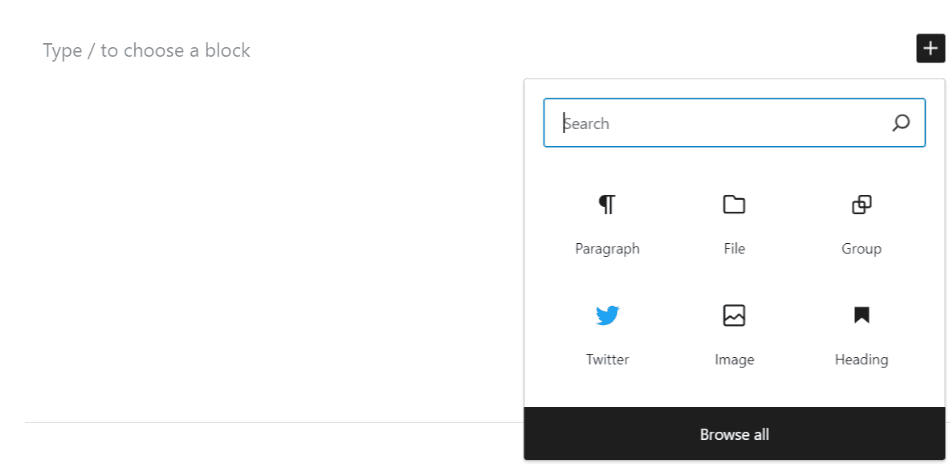
- From here, either upload the downloadable file directly or select from the WordPress media library.
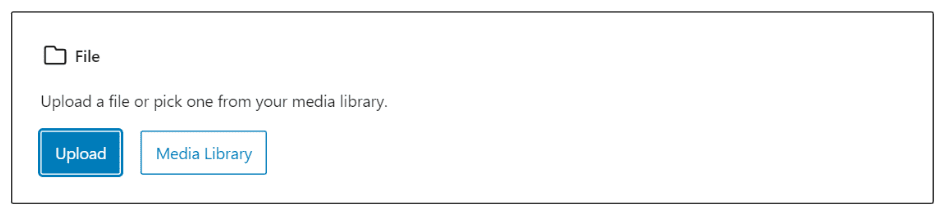
Uploading files to the WordPress media library
If your file isn’t already uploaded, you can upload it to the media library right from the File block. This is an organized place to store all your downloadable content for easy future access.

Customizing the button and label
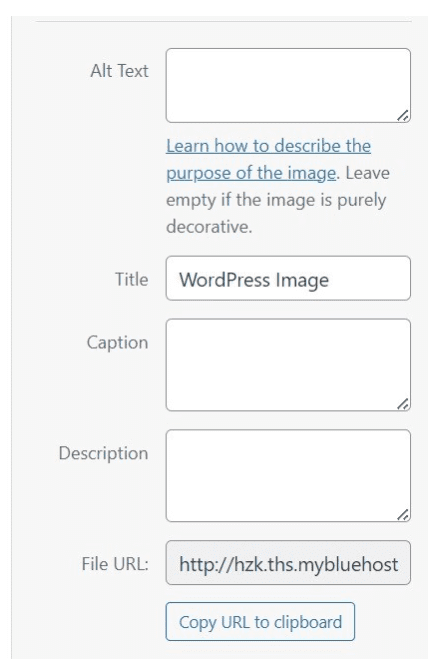
Once you’ve added the file, you can edit the label on the download element button to provide more context (e.g., “WordPress Image”). Additionally, you can change the alignment and other display settings to suit the page layout.
Limitations of the file block in WordPress
The built-in file block makes it easy to add a download button in WordPress, but it also has important limitations that you should know before relying on it for large or advanced file delivery.
1. Handles one file at a time
The file block only lets you add a single file URL per block. This means you cannot manage multiple files or offer grouped file downloads on the same button.
2. Limited styling and customization
The file block uses a basic layout. You can change the label, but you cannot fully customize the button style or improve the way media file or PDF file downloads appear. If you want a more branded design, you may need a plugin or custom CSS.
3. Browser-dependent download behavior
When users click the download button, their browser may open the file instead of saving it. This is common with PDF files and audio files and it can confuse users who expect an instant download.
4. Not ideal for advanced file management
The file block cannot manage files, organize WordPress files or support advanced features such as file previews, bulk downloads or secure access. If you want to access files or manage files that are part of a growing library, you will need a dedicated WordPress download manager or a file management plugin.
5. Not suitable for complex workflows
If your website involves uploading files regularly, controlling access or supporting a membership site structure, the default file block becomes limiting. It also does not support document library layouts, CSV file imports or options to sort the files uploaded in the WordPress admin.
These limitations make the file block great for simple tasks but not for advanced use cases. If you need more features and control while adding a download to your website, the classic editor and plugin-based methods offer better flexibility.
Using classic editor to add or create a download button
If you’re using the Classic Editor, the steps are a little different, but just as simple.
Uploading the file
- While editing your post or page, click “Add Media.”
- Upload the file you want to make downloadable or select it from your existing media library.
Adding the file URL manually
Once uploaded, copy the file URL provided by WordPress. You can then manually add this to your post using a simple anchor tag in HTML.
Example:
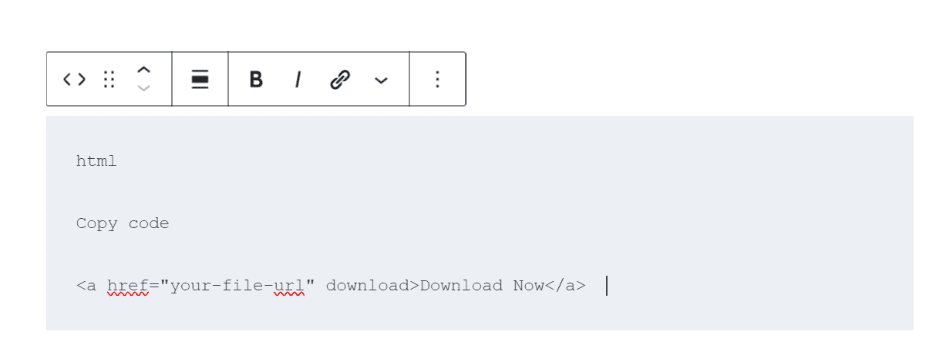
This method works great for those who prefer more control over their download link.
How to create a download element button using WordPress plugins
If you need advanced functionality or want to make managing your downloadable files even easier, using a plugin is a smart option.
Let’s explore some of the best WordPress plugins for this purpose.
Best WordPress plugins for adding download buttons
There are several highly rated WordPress plugins that allow you to add and manage simple download link buttons:
- Download Monitor – Perfect for managing, tracking and securing your downloads.
- WPForms – While known for creating forms, WPForms also allows you to integrate downloadable files into your forms.
- Quick Download Button – An easy-to-use plugin that allows you to quickly create a download element button anywhere on your site.
How to add a download button using Download Monitor plugin
Download Monitor is one of the most powerful plugins for managing downloadable files in WordPress. Here’s how you can use it.
Installing the plugin
- From the WordPress admin area, navigate to Plugins > Add New.
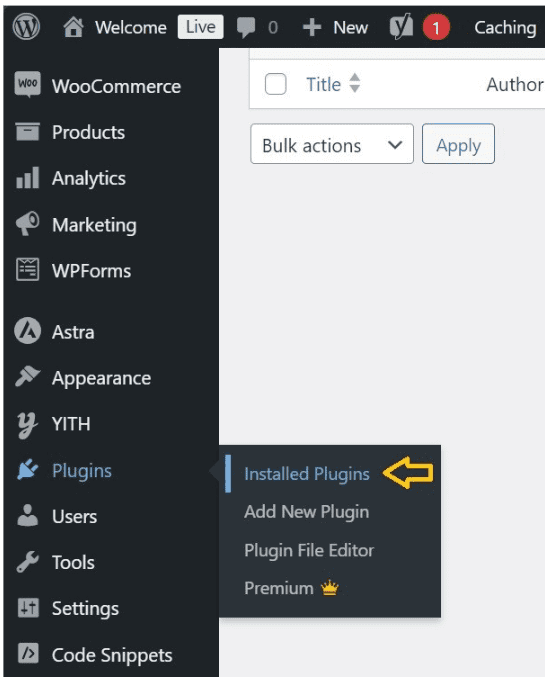
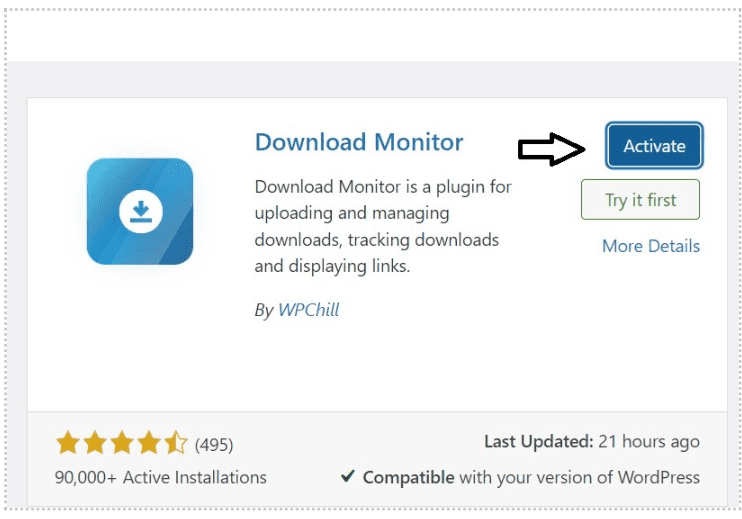
- Search for “Download Monitor” and click “Install Now.”
- After installation, activate the plugin.
Creating download links
Once activated, go to the Downloads section in your dashboard and click “Add New” to upload file. The plugin generates a downloadable file link that you can insert anywhere on your site.
Customizing the button
You can also customize the button’s text, style and location within your content. If you’re using a shortcode, you can place the download link button exactly where you need it.
Alternative plugins for downloadable content
If Download Monitor doesn’t meet your needs, other powerful plugins are worth exploring.
File manager plugins
Plugins like WP File Manager allow you to handle files in bulk, offer folder structure views and manage downloadable content efficiently.
E-commerce plugins for digital downloads
For selling digital products, Easy Digital Downloads is an excellent choice. It not only provides download buttons for purchased items but also helps manage product listings, payments and downloadable file deliveries.
Advanced download management options in WordPress
If you need more control over how users access files, download content or interact with your digital downloads, advanced tools offer better flexibility than the basic file block or classic editor. These options are ideal when you work with multiple files, manage a large library or want features that improve user experience.
1. Create a searchable document library
A document library plugin helps you display media library items in a searchable layout. Users can filter content, preview WordPress files and download them with one click. This setup works well for educational sites, agencies and businesses that handle many files uploaded each month.
2. Use a WordPress download manager plugin
A full download manager lets you organize your WordPress files, protect download URLs, track downloads and control access. These plugins often support free downloads, premium downloads, bulk actions and file categories. They also make uploading files in the WordPress admin easier.
3. Enable file previews and popup viewers
Advanced tools allow users to preview a PDF file, audio files or images before downloading them. This reduces confusion and improves the overall user experience, especially when you offer large or detailed media file resources.
4. Manage multiple files with structured folders
A file management plugin can help you create folders, sub-folders and categories to organize multiple files. You can also restrict access files for logged-in users, membership site members or customers who purchased digital downloads.
5. Import or update files with CSV support
Some plugins allow you to import file lists through a CSV file. This is helpful when migrating download data from another platform or managing a large set of download URLs.
6. Control download settings and custom pages
Advanced plugins let you redirect users to a new page after downloading, lock files behind forms or track which files are most popular. This is useful when offering free downloads or measuring performance.
These advanced options create a smoother experience when you want more than the basic file block or simple plugin method. Once you set up your preferred download manager, the next step is to customize your download button to match your site design.
Customizing your download link button for a better user experience
Customizing your download buttons helps ensure they are user-friendly, visually appealing and optimized for different devices.
How to style your download link button?
Using custom CSS to enhance button appearance
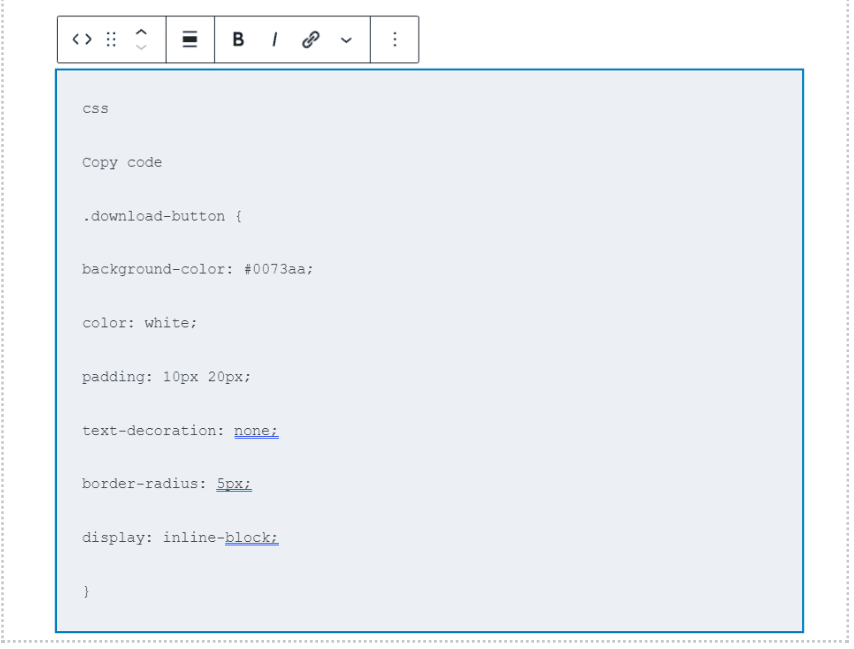
You can always style the download element button further with custom CSS. For example, changing the button’s background, text color, padding and size makes it stand out more.
Example of CSS:
Third-party plugins for button styling
Alternatively, plugins like MaxButtons offer more control over the button’s look without needing to write any code.
Adding icons to your download button
Icons add a visual cue that tells users what type of downloadable file they’re downloading (PDF file, Word document, etc.).
How to add file type icons for clarity
You can easily add file-type icons using plugins like Better File Download Icons or manually include them utilizing an image next to your download button.
Mobile-friendly download buttons
Optimizing for mobile devices
Ensure that your download link buttons are responsive. This quick test is crucial for mobile users, as significant, non-responsive buttons can disrupt the user experience. Most WordPress themes are mobile-friendly by default, but you should still test how your download buttons look on smaller screens.
Advanced options for managing downloadable files
Consider some of these advanced options for added control over your downloadable files.
Setting permissions for downloadable files
Restricting access to registered users
Many plugins allow you to restrict file downloads to specific user groups. This feature is helpful for membership sites or if you want only registered users to have access.
Password-protecting downloads
If the files you’re sharing are sensitive, password protection adds an additional layer of security. Some plugins, like Download Monitor, offer this feature.
Tracking file downloads in WordPress
Using Google Analytics for download tracking
If you want to track how often a file is downloaded, integrating Google Analytics is a great option. Event tracking allows you to see user interactions with your download button.
Using plugins to track downloads
For a more straightforward approach, plugins like MonsterInsights and Download Monitor come with built-in download tracking capabilities, providing instant insights into your downloaded files.
Final thoughts
Adding a simple download link button to your WordPress website significantly improves user experience and content sharing, whether you’re offering eBooks, software or other resources. By leveraging WordPress’s native tools or advanced plugins, creating a seamless download experience is quick and easy.
With Bluehost, you get optimized WordPress hosting that ensures your downloadable files are served efficiently, even during high-traffic periods. One of Bluehost’s unique features is its built-in CDN (Content Delivery Network), which ensures faster global file delivery, allowing visitors to download files without delays, no matter where they are.
Enhance your WordPress site’s performance with Bluehost and start offering seamless downloads to your visitors today!
FAQs
Yes, you can restrict access to download links to registered users or specific roles using plugins like Download Monitor or membership plugins. This feature is excellent for sites that offer exclusive content.
You can use Google Analytics with event tracking or plugins like MonsterInsights or Download Monitor, which come with built-in tracking features to monitor download activity.
Yes, many plugins allow you to password-protect downloadable files. This is useful for private or sensitive content, ensuring that only users with the password can access the download.
Most WordPress themes are responsive, but always test your site on mobile devices. You can also add custom CSS to adjust the size and padding of the button for better mobile usability.
In the WordPress admin panel, use file restriction plugins like WP File Manager to block uploads. For user engagement, add interactive elements (polls, quizzes) and optimize content. Ensure admin access security with strong passwords and role-based permissions.

Write A Comment