 ChatGPT,
 Claude,
 Gemini,
 Grok — all four for
Key highlights
- Understand what a Google security warning on your website means and why it appears.
- Identify the three warnings you are most likely to see, including “Deceptive site ahead.”
- Follow four clear steps to confirm the problem, clean your site and request a review.
- Learn how to tell a real website warning apart from a Gmail account alert email.
- Discover how Bluehost Malware Protection monitors your site against Google’s blacklist and clears threats for you.
A Google security warning on your website is a Google Safe Browsing alert that appears in Chrome and in Google Search when Google finds harmful, deceptive or hacked content on your pages. You remove it by fixing the cause on your site and then asking Google to review your pages again. This is different from the “critical security alert” emails Google sends about your Gmail or Google account, which are covered near the end of this guide.
The warning is stressful because it turns visitors away and shakes their trust. The good news is that you can clear it, and this guide walks you through each step.
What a Google security warning means
Google Safe Browsing checks sites using automated systems, then warns people before they open a page that looks dangerous. The warning can show up as a full-page screen in the browser and as a label next to your listing in search results. Either way, fewer people click through, and the ones who do see a warning about your brand.
Seeing a warning does not always mean you were careless. Attackers often break into ordinary small-business sites and hide harmful content there, so a clean-looking site can still get flagged. Google’s own guidance notes that “hackers can take control of innocent sites and use them to host or distribute social engineering content”.
Common Google security warnings and what triggers them
Before you can fix anything, you need to know which warning you have. Each one points to a different cause and a different fix.
“Deceptive site ahead”
This red screen appears in Chrome when Google detects social engineering content, such as fake login prompts, phishing forms or deceptive download buttons. The content is often injected by an attacker or served through a third-party ad or script, so you may not have added it yourself. Removing the deceptive content and any code that placed it there is what clears this warning.
“Dangerous” or “This site may harm your computer”
This warning means Google found malware or unwanted software on your site. It can appear in the browser navigation bar and as a full interstitial page when someone tries to visit. According to Google, flagged pages can show a warning label in search results or an interstitial warning page in the browser.
“Not Secure” (missing HTTPS)
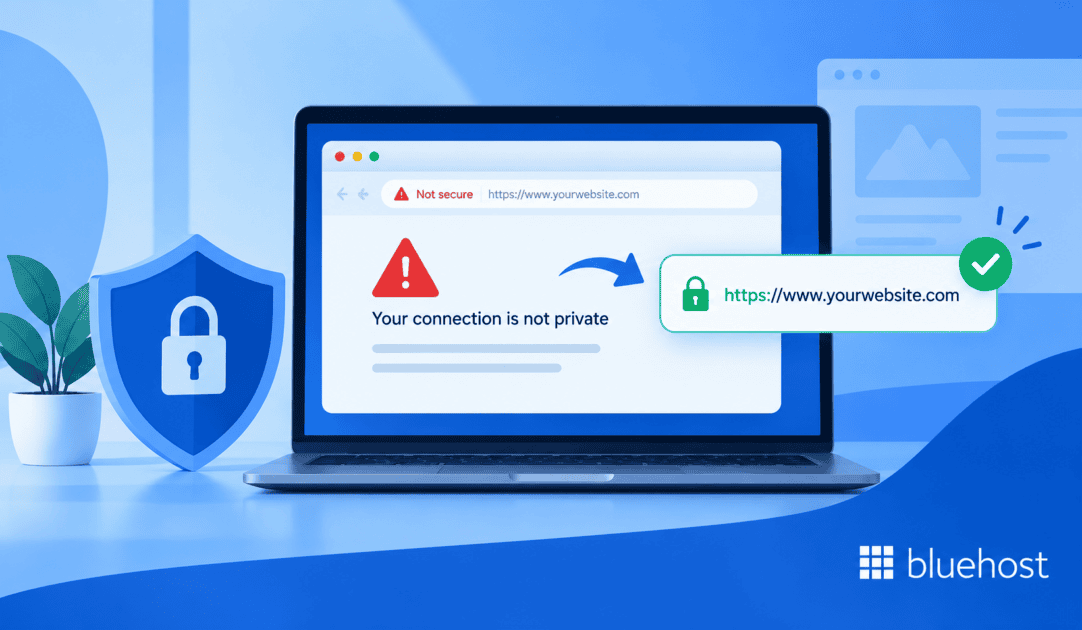
Owners often confuse this label with a malware warning, but it is separate. Chrome marks pages that still load over HTTP as “Not Secure,” and you can read more in Bluehost’s overview of recent Google security updates. You fix it by installing an SSL certificate and moving your site to HTTPS, not by cleaning malware.
How to remove a Google security warning step by step
Work through these steps in order. The first two apply to malware and deceptive-content warnings, the third handles the “Not Secure” label, and the fourth asks Google to lift the warning.
Step 1: Confirm the warning and find the cause
Open the Security Issues report in Google Search Console to see which pages Google flagged and why. You can also enter your address in Google’s Safe Browsing Site Status tool to confirm the current status. From there, scan your files, database and source code for injected content, and review anything that changed recently, such as plugins, themes or user accounts. Bluehost’s guide on how to check your site for malware walks through manual and automated scans.
Step 2: Remove the malware and clean your site
Delete the malicious files and any backdoors, update your core software, plugins and themes, reset your passwords and restore a clean backup if you have one. Fix every affected page, because a partial cleanup will not restore your normal appearance in search results. If you would rather not do this by hand, Bluehost Malware Protection removes detected threats automatically, and Bluehost Complete Security adds hands-on WordPress cleanup from security experts. For a full walkthrough, see these steps to fix a hacked website.
Step 3: Fix a “Not Secure” warning with SSL
If your warning is the “Not Secure” label, install and activate an SSL certificate, then force all traffic to HTTPS and clear any mixed-content errors. This step restores the padlock and clears the label on its own. Bluehost’s guide shows you how to get a free SSL certificate and switch your site to HTTPS.
Step 4: Request a review from Google
Once every page is clean, open the Security Issues report and select Request Review. Write a short, honest request that names the issue you found, the steps you took to fix it and the result. According to Google’s Security Issues report guidance, most reviews take several days or weeks, so plan for a wait rather than an instant clearance. Do not send another request before Google responds, because a site that flips between clean and infected can be marked a repeat offender and blocked from requesting another review for 30 days.
How to prevent Google security warnings
The easiest fix is avoiding the warning in the first place. A few steady habits keep your site clean and off Google’s radar:
- Keep everything updated: Apply core, plugin and theme updates quickly so attackers cannot use known holes.
- Lock down logins: Use strong, unique passwords and turn on two-factor authentication.
- Filter traffic: Run a web application firewall to block common attacks before they reach your site.
- Scan continuously: Use always-on malware scanning and Google blacklist monitoring so problems surface early.
- Back up regularly: Keep recent offsite backups so you can restore a clean version fast.
- Use HTTPS: Keep a valid SSL certificate active on every page.
For a deeper checklist, review these website security best practices.
Let Bluehost watch for Google warnings
You do not have to catch these problems on your own. Bluehost Malware Protection scans your entire site around the clock, monitors it against Google’s blacklist to catch security warnings early, and removes threats automatically from one dashboard. When a cleanup needs a human touch, Bluehost Complete Security brings in security experts to restore your WordPress site. Your domain needs to be hosted with Bluehost, and features vary by plan.
Final thoughts
Removing a Google security warning requires four clear steps: identify the specific flag, clean the root cause across your entire site, request a review from Google and maintain active monitoring to prevent reinfection. Careful cleanup ensures Google lifts the warning quickly after re-scanning your pages. Continuous monitoring and prompt updates protect your online presence long after the flag disappears.
To prevent future security headaches and protect your search rankings, host your website with Bluehost. Bluehost includes automatic malware detection and removal at no extra cost to keep your site secure and trusted by search engines. Get started with Bluehost today to safeguard your website.
FAQs
Why is Google showing a security warning on my website?
Google flags your site when Safe Browsing finds malware, deceptive content or a hacked page, or Chrome may show a “Not Secure” label when your pages still load over HTTP instead of HTTPS.
How long does it take Google to remove a security warning?
Google does not publish a fixed time, so after you clean every affected page and request a review, submit only one request and wait for Google to recheck your site and lift the warning once it confirms your pages are safe.
Is the Google security alert email real or a scam?
A website security warning shows up in the browser and in search results, while account alerts arrive as email, so verify any email by signing in to your Google account directly rather than clicking links in the message.
Can I remove a Google security warning myself?
Yes, you can clean your site and request a review on your own, and automated malware tools or expert cleanup help when the problem is hard to find.
Will the warning hurt my search rankings and traffic?
Yes, the warning turns visitors away and adds a warning label to your search listing, so clearing it and requesting a review restores your site’s normal appearance.

Write A Comment