


Key highlights
- Understand what a Joomla error is and how it impacts your website visitors.
- Learn what the Joomla error 500 means and why internal server error messages appear.
- Spot common Joomla errors caused by PHP issues, faulty plugins, templates or the .htaccess file.
- Diagnose problems step-by-step using error logs, cache clearing and file permissions checks.
- Fix critical issues like HTTP error 500 in Joomla and Joomla error 403 with simple troubleshooting steps.
- Prevent repeat errors by choosing a reliable hosting provider like Bluehost with optimized servers and support.
Your site was fine a minute ago. Now visitors only see a Joomla error and leave confused.
Maybe it’s a vague Joomla error message, a white screen or the dreaded HTTP error 500 Joomla. You try refreshing the page, but nothing changes and support tickets start piling up.
Downtime hurts trust, sales and your confidence in managing the website yourself. The good news is that most issues have clear causes and can be fixed safely.
This guide will help you understand each type of Joomla error and what it really means. You’ll learn how to spot patterns, use logs and resolve problems before they overwhelm your live site.
Let’s learn!
What is the Joomla Error 500?
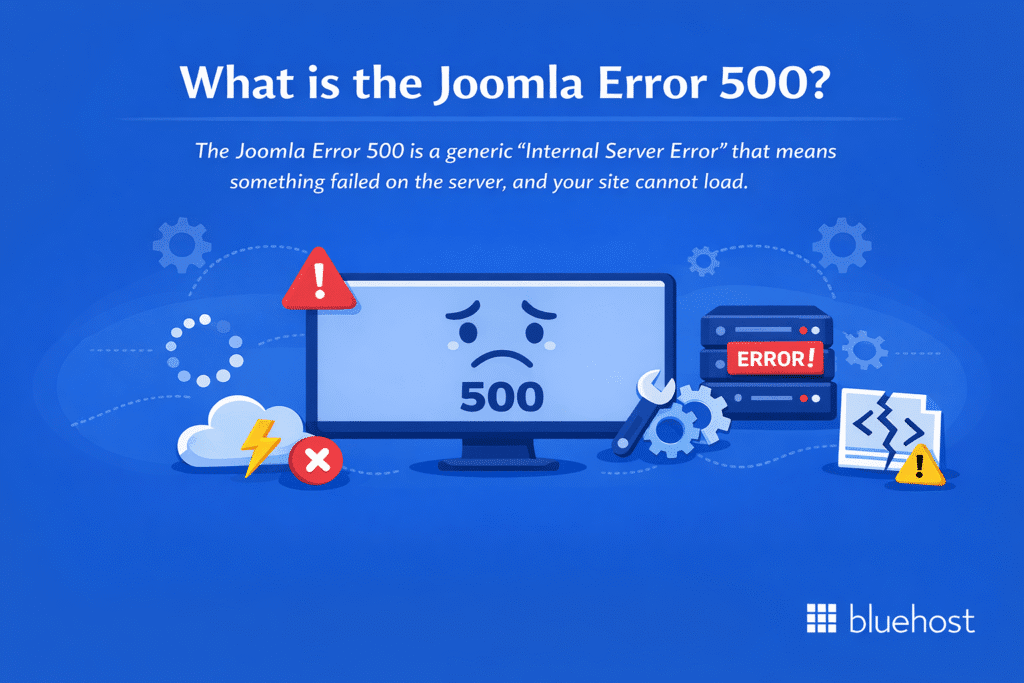
The Joomla Error 500 is a generic “Internal Server Error” that means something failed on the server, and your site cannot load. Instead of a normal page, the server returns a vague error message with almost no details.
In Joomla, Error 500 commonly results from faulty extensions, PHP configuration limits, incorrect file permissions, server misconfiguration or issues introduced during updates and may also be caused by problems in the .htaccess file.
Any of these can cause the server to process the request incorrectly and block access to your website.
To find the real cause, you typically need to check server logs and enable Joomla error reporting. This reveals the exact file, line or extension that triggered the internal server error, so you can fix it and restore your site.
Also read: How to Fix WordPress Errors – Step-by-Step Guide
What are the main causes behind the Joomla Error 500?
A Joomla 500 error occurs when the server fails to process a request, usually because something on the site breaks before the page loads.
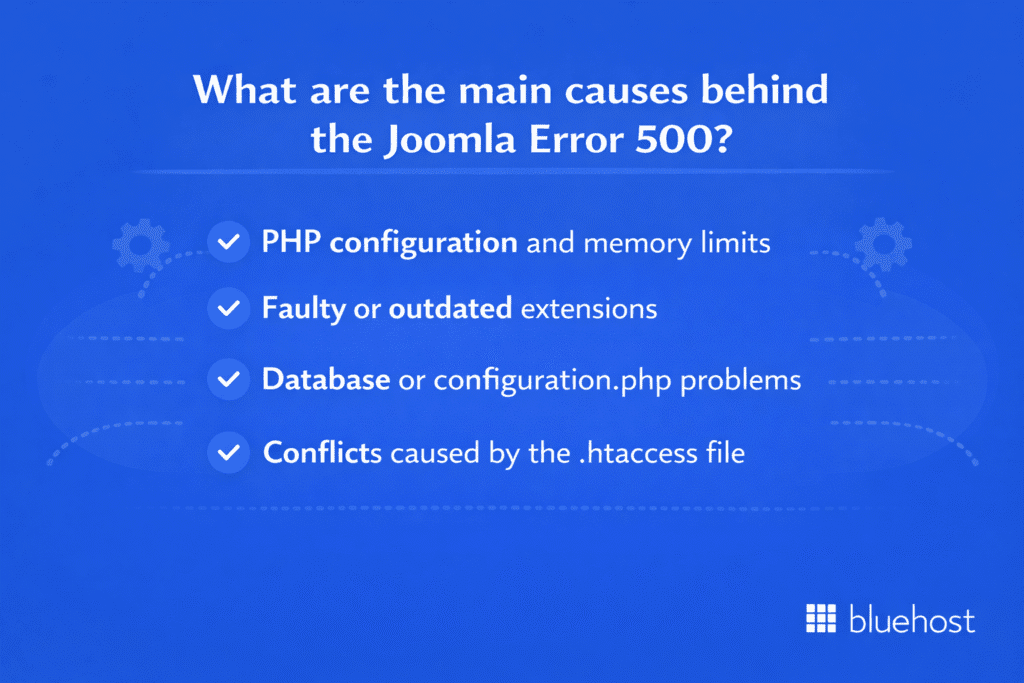
Most issues fall into a few predictable categories that you can identify quickly.
1. PHP configuration and memory limits
PHP powers every part of Joomla, so even small configuration problems can trigger an internal server error. Before the server stops the request, PHP may fail without displaying an on-screen message, even though the error is still logged at the server level.
Here are the most common triggers:
- Outdated PHP version incompatible with your Joomla setup
- Low memory or execution limits causing scripts to stop
- Disabled PHP functions required by extensions or templates
2. Faulty or outdated extensions
Extensions frequently cause sudden Joomla errors because they run code on almost every page. When something inside an extension fails, the server returns an error instead of loading the site.
Common extension-related causes include:
- A recent install or update introduced broken or incompatible code
- Conflicts after updating Joomla or PHP
- Missing or corrupted files inside the extension folder
3. Database or configuration.php problems
Joomla relies on constant communication with the database. If that connection fails, the server cannot load the page and returns an error.
You’ll often see issues like:
- Incorrect database user credentials in configuration.php
- Corrupted database tables after a failed update
- Invalid or missing values inside the configuration file
4. Conflicts caused by the .htaccess file
The .htaccess file controls redirects and rewrite rules. One incorrect line can break your live site instantly and trigger an internal server error.
These problems often come from:
- Custom rules conflicting with Joomla’s default structure
- Rules copied from another site or server environment
- Corrupted or duplicated .htaccess entries after migration or edits
Also read: HTTP Status Codes Explained: What They Are and Why They Matter?
What are the different types of PHP error messages in Joomla?
Joomla often shows different PHP error messages when something in the code stops working correctly. These messages help you understand what failed and where the problem started.
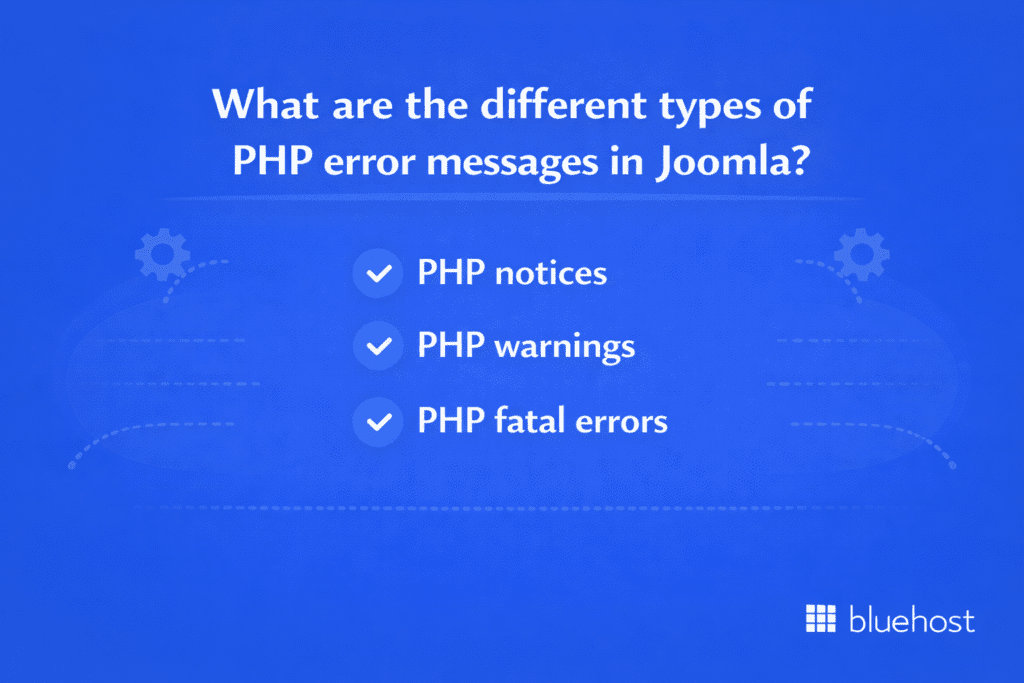
Knowing the differences between the types makes it easier to quickly troubleshoot any Joomla error.
1. PHP notices
PHP notices are low-level messages that highlight minor issues in your code. They usually don’t break the site, but they indicate something that may cause problems later.
Typical examples include:
- Undefined variables
- Deprecated functions still used by older extensions
- Missing optional files or parameters
2. PHP warnings
PHP warnings point to more serious problems. They can interrupt some features, and if ignored, they may lead to a larger internal server error.
Common warning triggers include:
- Failed file includes or missing folders
- Incorrect function arguments
- Extensions calling outdated PHP methods
3. PHP fatal errors
PHP fatal errors stop the entire page from loading. In many cases, a fatal error results in a Joomla Error 500 or a broken page.
These errors often appear when:
- Essential files are missing or corrupted
- Extensions contain incompatible code
- Joomla hits a hard limit in PHP settings
Also read: 502 Bad Gateway Error: What It Means & How to Fix It Fast
What are the most common Joomla errors you may encounter?
Joomla can display different errors depending on what the server encounters while loading your website.
| Joomla error | What it usually means | Common triggers |
|---|---|---|
| White Screen of Death (blank page) | Joomla stops loading due to a fatal PHP issue or hidden error output. | Missing core/extension files, low PHP memory, broken template or extension code |
| 404 page not found issues | Joomla can’t locate the requested page or route it correctly. | Unpublished/deleted content, incorrect SEF settings, invalid menu links |
| Database connection errors | Joomla can’t connect to the database required to load site content. | Wrong credentials in configuration.php, corrupted/missing tables, MySQL outages |
| Template or design-related errors | Layout files or overrides aren’t working correctly with your current setup. | Missing template files, override conflicts, template not compatible with Joomla version |
| Extension or plugin conflicts | One or more extensions is interfering with site functions or loading. | Incompatible extensions, conflicting scripts, missing/damaged extension files |
| Joomla error 403 (access denied) | The server is blocking access to a page, folder or resource. | Incorrect permissions, security plugin rules, hosting/server restrictions |
| Joomla Error 500 and other internal server issues | The server hits an unexpected issue and can’t complete the request. | .htaccess problems, extension execution failures, PHP limits/config issues, permission blocks |
Each error points to a specific type of failure, helping you understand where to begin troubleshooting.
1. White Screen of Death (blank page)
A blank page with no visible message most commonly signals a PHP fatal error, but it can also result from disabled error reporting or exhausted memory limits. Joomla stops processing the page, leaving no clue unless error reporting is enabled.
Possible causes include:
- Missing core or extension files
- Low PHP memory limits halting execution
- Template or extension code failing unexpectedly
2. 404 page not found issues
A 404 occurs when Joomla cannot locate the requested page. This error often appears after content restructuring or changes to menu routing.
Common triggers:
- Unpublished or deleted content
- Incorrect SEF URL settings
- Menu links pointing to invalid resources
3. Database connection errors
These errors appear when Joomla cannot connect to the database needed to load site content.
Typical reasons include:
- Incorrect database user details in configuration.php
- Corrupted or missing tables
- MySQL service outages or server interruptions
4. Template or design-related errors
Templates control layout and display logic. A broken or outdated template can cause styling issues, warnings or full-page failures.
You may see errors when:
- Required template files are missing
- Template overrides conflict with updated components
- The template is incompatible with your Joomla version
5. Extension or plugin conflicts
Extensions run across your site and often trigger errors when incompatible, outdated or installed incorrectly.
Common causes include:
- Using extensions not tested for your Joomla version
- Conflicting plugin scripts loading together
- Missing or damaged extension files
6. Joomla error 403 (access denied)
A 403 error appears when the server blocks access to a page or directory.
This often happens due to:
- Incorrect permissions on files or folders
- Security plugins denying specific requests
- Server-level restrictions applied by your hosting provider
7. Joomla Error 500 and other internal server issues
A Joomla Error 500 appears when the server encounters a problem it cannot display.
Frequent triggers include:
- A corrupted or misconfigured .htaccess file
- Extensions failing during execution
- PHP configuration issues or memory constraints
- Incorrect file or folder permissions stopping Joomla from loading
How do you diagnose any Joomla error step-by-step?
Before you fix any Joomla error, you need to understand what actually went wrong.
A simple refresh or guess rarely helps. Instead, follow a structured process that reveals the exact error message, file and line causing the problem.
Please note: These diagnostic steps apply to current Joomla CMS versions (such as Joomla 4 and Joomla 5).
1. Enabling Joomla debug mode
Debug mode gives you more detailed error information directly on the page. It helps you see which file, extension or query failed.
To enable it from Joomla admin:
- Log in to your Joomla admin dashboard
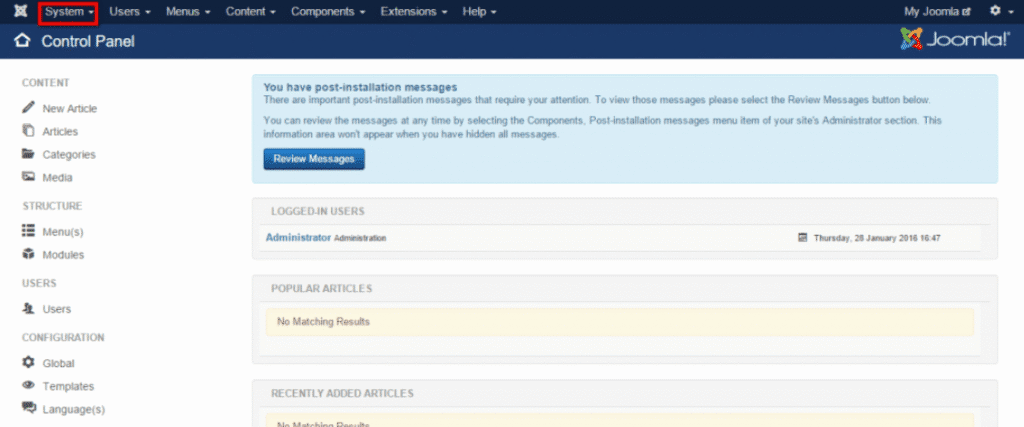
- Go to ‘System’ > ‘Global Configuration’
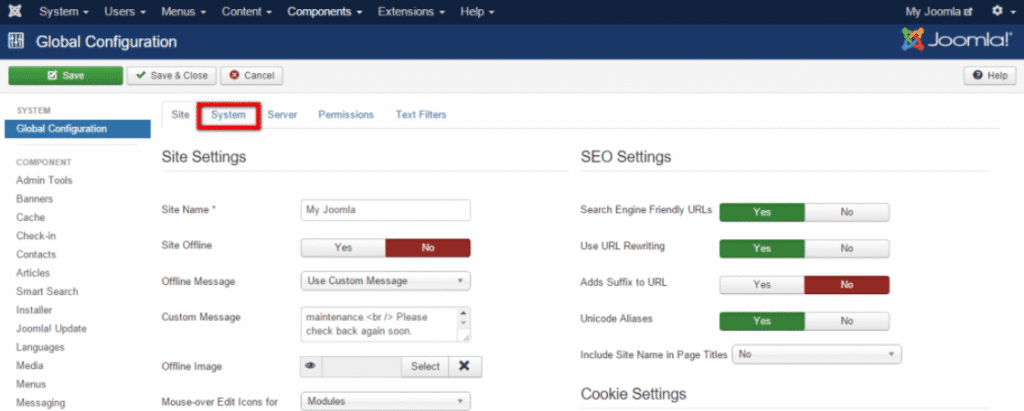
- Open the ‘System’ tab and turn on ‘Debug System’
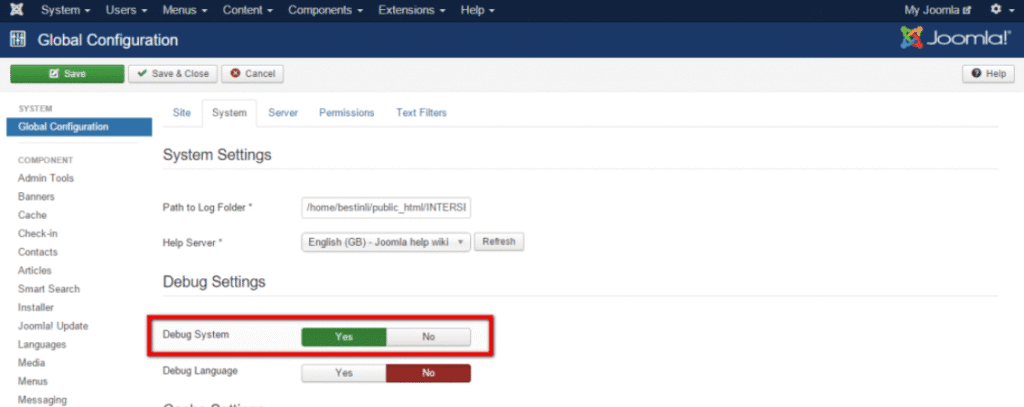
- Set ‘Error Reporting’ to a higher level, such as “Development”
- Save the changes and reload the problem page
Now you can review the detailed error message and note the file path and line number.
2. Checking Joomla error logs and server logs
If the page is blank or the error looks generic, your logs often show much more detail. Server logs help you understand internal server error messages that never appear on screen.
Use one of these options:
- Open the error logs from your hosting control panel
- Use the ‘File Manager’ to locate error.log or similar log files
- Connect with an FTP client and browse the logs or logs/error folder
Look for entries that match the time the problem started. Pay attention to PHP errors, missing files or permission denied messages.
3. Reviewing recent site updates or changes
Most Joomla errors start right after something changes on your site. Retracing those steps often reveals the real cause.
Ask yourself:
- Did you recently update Joomla, a template or an extension?
- Did you edit the .htaccess file, configuration or file permissions?
- Did you migrate to a new server or change PHP settings?
Make a short list of those actions. This gives you a clear starting point for troubleshooting instead of guessing randomly.
How do you troubleshoot and fix Joomla errors effectively?
Once you identify what caused the Joomla error, you can start applying the right fix.
| Troubleshooting method | Why this works | Common issues resolved |
|---|---|---|
| Updating Joomla core, extensions and templates | Ensures all site components remain compatible with your server and PHP version. | Version conflicts, deprecated code errors, broken features |
| Clearing Joomla and browser cache | Forces Joomla to load fresh files instead of outdated stored data. | Layout problems, missing content, stale pages |
| Correcting file and folder permissions | Restores proper server access to required files and directories. | 403 errors, upload failures, access issues |
| Disabling problematic extensions | Isolates extensions that trigger errors and restores site access. | White screen errors, admin lockouts, plugin conflicts |
| Resetting the .htaccess file | Removes faulty rewrite rules that break site routing. | Redirect loops, broken URLs, server errors |
| Increasing PHP resource limits | Prevents failures caused by insufficient memory or execution time. | Error 500 messages, timeouts, failed uploads |
Most issues come from configuration problems, outdated extensions, incorrect permissions or conflicts inside the .htaccess file.
Use the steps below to resolve errors safely and restore your site.
1. Updating Joomla core, extensions and templates
Outdated software is one of the most common reasons Joomla stops working correctly. Updating ensures everything matches your current PHP version and server environment.
Steps to follow:
- Update the Joomla core to the newest stable version
- Update all extensions, modules, plugins and templates
- Remove outdated or unsupported components causing repeated issues
This prevents internal server errors linked to old code or missing files.
2. Clearing Joomla cache and browser cache
Cached files sometimes store outdated data or broken code. Clearing them forces Joomla to load fresh files.
Do this in two parts:
- Clear your Joomla cache from the ‘System’ menu
- Clear your browser cache to remove stored page versions
This often fixes layout issues, missing content and unexpected error messages.
3. Correcting file and folder permissions
Incorrect permissions can block the server from accessing required files. When that happens, Joomla may show a 403 error or a full internal server error.
Check for:
- Files that should be set to 644
- Folders that should be set to 755
- Any file or folder with overly restrictive permissions
Correcting permissions ensures Joomla and the server can read and write files properly.
4. Disabling or re-enabling problematic extensions
If an extension triggered the error, disabling it temporarily helps the site load again.
Steps:
- Access the Joomla admin or use your hosting ‘File Manager’ if admin is locked
- Rename the extension folder to disable it manually
- Reload the page to see if the error disappears
This confirms whether the extension caused the issue.
5. Regenerating or resetting the .htaccess file
A corrupted .htaccess file can instantly break your live site. Resetting it removes conflicting rules.
How to reset it:
- Rename the current .htaccess file
- Create a new one using Joomla’s default content
- Test the site to see if the internal server error is resolved
This fixes many rewrite and redirect conflicts.
6. Increasing PHP limits to avoid repeated server errors
Low PHP limits often cause hidden failures that result in Joomla Error 500 messages.
Increase settings like:
- memory_limit
- max_execution_time
- upload_max_filesize
Higher limits help heavy templates, large extensions and complex pages load without failing on the server.
How can you fix Joomla Error 403, 404 and similar access issues?
Access-related Joomla errors usually occur when the server blocks a request, a file cannot be accessed or a routing rule fails. These issues look different from a Joomla Error 500, but often come from simple permission or configuration problems you can fix quickly.
1. Incorrect permissions settings
Wrong file or folder permissions can block access and trigger a Joomla Error 403. When the server cannot read or execute a file, it denies the request.
Check for:
- Files set too restrictively (should normally be 644).
- Folders set incorrectly (should normally be 755).
- Ownership mismatches after migrations or hosting changes.
Correct permissions ensure the server and Joomla can work correctly without access errors.
2. Security plugin or firewall blocks
Security extensions or server firewalls sometimes treat normal requests as suspicious. When this happens, Joomla may show a 403 or routing error instead of loading the page.
You may need to:
- Temporarily disable the security plugin.
- Whitelist specific IP addresses or admin paths.
- Check firewall logs for blocked requests.
This helps you confirm if the block is caused by a plugin or a server rule.
3. Server-level restrictions
Some hosting environments apply restrictions that affect URLs, folders or file types. These limits can trigger both 403 and 404 errors, depending on what the server encounters.
Possible server-level causes include:
- Disabled directory access or restricted paths.
- Rules inside the .htaccess file blocking requests.
- Missing modules needed for SEF URLs.
Adjusting server settings or working with your hosting provider often resolves these access issues.
What advanced methods can help you fix Joomla errors?
When basic troubleshooting doesn’t reveal the found error, you may need deeper diagnostic steps. These methods help website owners identify hidden server issues, permission conflicts or database problems that affect the entire Joomla site.
They also give enough information to decide whether the problem needs developer support.
1. Reviewing host-level error logs
Host-level logs often reveal common errors that never appear on the screen. They show the exact file, PHP line or server rule that failed.
These logs can highlight:
- Missing or corrupted files
- Requests blocked by the server
- Errors triggered before Joomla loads
This step is especially useful when the server issue appears only under load or after updates.
2. Identifying resource or memory-related failures
Some Joomla issues come from resource limits inside the hosting environment. When memory runs out, the server stops the request without a clear message.
Check for:
- Memory exhaustion entries in logs
- PHP processes hitting limits
- Large components failing during installation or updates
These problems may appear only after installing a new version of Joomla, a template or a heavy extension.
3. Detecting incorrect ownership or advanced permission issues
Even if your file permissions look correct, ownership mismatches can still break your Joomla site. These problems often appear after server migrations or control panel changes.
Look for:
- Files owned by the wrong user or group
- Folders that block write access
- Permissions that look right but still prevent uploads or caching
Fixing ownership problems usually requires help from your hosting provider, but it resolves many common errors that basic troubleshooting misses.
Should you disable Joomla error reporting or fix the underlying problem?
When a Joomla error appears, many website owners consider disabling error reporting to hide warnings or notices.
While this can make the Joomla site look normal temporarily, it rarely solves the server issue causing the problem. To decide the right approach, you need to understand when hiding errors is acceptable and when fixing the root cause is essential.
When is disabling error reporting appropriate?
Turning off error reporting can help when you already know the error source and simply want to hide messages from visitors.
It may be useful when:
- A non-critical extension shows notices that don’t affect functionality.
- You are waiting for a developer or a new version of an extension.
- You want to prevent visitors from seeing system paths or sensitive details.
Even then, you should keep logs enabled so you still have enough information for troubleshooting.
When fixing the actual error is the better choice?
Fixing the underlying problem is almost always the safer long-term solution. If you only hide the message, the same error can grow into larger common errors such as a Joomla Error 500 or a 403 block.
You should address the real cause when:
- The error breaks a page, template or menu item.
- The server returned warnings or failed requests in logs.
- Permissions, database settings or extensions trigger repeated issues.
Solving the core issue ensures your site stays stable, avoids repeated debugging and reduces downtime, something every person managing a Joomla site depends on.
How can you prevent Joomla errors from happening again?
Preventing future issues is often easier than fixing a sudden Joomla error. A stable Joomla site depends on clean updates, proper permissions, reliable hosting and regular maintenance.
When these steps are followed consistently, many common errors never appear in the first place.
1. Updating Joomla regularly
Running the new version of Joomla keeps your site secure and compatible with current PHP settings. Updates often fix bugs that lead to internal server issues or broken pages.
Key practices:
- Update Joomla core when stable releases appear
- Install extension and template updates promptly
- Remove outdated components that no longer receive support
2. Creating and maintaining backups
Backups protect your Joomla site from accidental changes, failed updates or corrupted files. With a clean backup, you can restore your entire setup in minutes.
Important reminders:
- Back up files and the MYSQL database regularly
- Store backups in multiple safe locations
- Test your backup occasionally to ensure it works correctly
3. Testing extensions before installing them
Extensions add features, but they also introduce risk. Many internal server issues come from incompatible or poorly maintained plugins.
Before installing anything:
- Check if the extension supports your Joomla version
- Review feedback from other website owners
- Test it on a staging site to avoid unexpected problems
4. Using a reliable hosting provider
A strong hosting environment plays a critical role in overall website stability and performance. Many website issues stem from limited server resources, outdated infrastructure or hosting platforms that aren’t designed to scale with site traffic.
That’s why choosing a reliable hosting provider is essential for long-term site health.
At Bluehost, we provide a stable, performance-optimized hosting environment designed to support modern websites and content management systems. Our platform focuses on reliability, security and scalability—helping reduce issues related to slow performance, downtime and server-level disruptions.
Our infrastructure is built to deliver consistent uptime, fast load times, and reliable resource management, so your site remains accessible and responsive as traffic grows.
How Bluehost helps keep your site stable and secure:
- Optimized hosting environment with modern server infrastructure, updated PHP support and performance enhancements like object caching and static content caching.
- High-performance architecture powered by built-in caching and a free Cloudflare CDN to reduce latency and improve page load speeds.
- 99.99% uptime SLA with fully managed infrastructure and built-in failover to help keep your site online and available.
- Free Let’s Encrypt SSL certificate included with hosting plans to encrypt visitor data and build trust.
- Weekly website backups with restore options, providing protection against data loss and failed updates.
- 24/7 expert support via chat and phone to assist with hosting, performance, security and site management questions.
- Scalable hosting plans that allow you to upgrade resources easily as your website grows, with options to move to Cloud, VPS or Dedicated hosting when needed.
With Bluehost, you get a dependable hosting foundation designed to support your website today and scale with you tomorrow—helping you minimize downtime, maintain performance and focus on building your online presence with confidence.
Final thoughts
Dealing with a Joomla error can be stressful, but most issues stem from simple causes such as permissions, extensions, PHP limits or misconfigured files. Understanding these helps prevent many errors before they impact your site.
Keep your Joomla site stable by staying up to date, testing changes, maintaining backups and choosing the right hosting provider. These steps reduce downtime and server issues.
For optimized Joomla hosting with reliable backups and 24/7 support, consider Bluehost. Explore Bluehost hosting plans to keep your Joomla site running smoothly and error-free.
FAQs
It means Joomla encountered an error while attempting to render its error handling system, often due to the same underlying issue that caused the original failure. Often, a deeper Joomla error message exists, so check logs and basic Joomla error fixing guides first to see what went wrong.
Yes, Joomla is still relevant in 2026 for complex, multilingual sites. It remains a very relevant option when you need more control than simple blog or landing page tools.
You may get an error message when the server hits a problem, a script fails or resources are missing. In Joomla, this is often seen as http error 500 Joomla or even a Joomla server error 500 when the backend cannot finish the request.
A Joomla website is any site built using the Joomla CMS to manage content, menus and design from a central dashboard. Many community threads with similar questions show how people use it for blogs, business sites and every type of post or page.
Start with a few actions: reload the page, check logs and undo the last change. Then follow Joomla error fixing steps like disabling recent extensions, fixing configuration issues and clear browser cache to rule out old cached files.
An Internal Server Error usually appears when the server fails before Joomla can render the page. Common causes include bad extensions, broken .htaccess rules or limits that lead to a 500 Internal Server Error in Joomla during heavy requests.
Use your hosting File Manager or an FTP client to review file permissions and directory settings. Incorrect values often trigger Joomla error 403, so fix them to recommended levels and keep a question copy link from a trusted guide for reference.
If you found error entries in the logs, Joomla likely stopped to avoid more damage. Compare the timestamp with recent changes, then scan a related questions feed in the community to see how others fixed the same pattern.
A common error during updates is a white screen or broken page caused by incomplete extension or core upgrades. Look for threads where the questions shows research effort and check show activity to confirm which steps actually solved the issue.
Note the exact URL and code when the server returned an unexpected response, then check logs and disable recent changes. When you read community solutions, keep the best one using answer copy link and explore related questions to see other answers find useful variations.


Write A Comment