WordPress: Blank White Pages (White Screen of Death)
WordPress is one of the most popular builders. With its many features, you may occasionally see an error. There are various reasons why a website's white page error may occur, and you may or may not see an error message.
If you experience a blank white page, it could be caused by many reasons, including:
- 3rd party scripts
- WordPress Plugins
- PHP process
- WordPress Theme
There are many easy ways to fix the issue (i.e., disable all the plugins and reset the theme). Here are the most common ways to fix a blank white page on your website.
- Disabling WordPress Plugins
- Changing the WordPress Theme
- Purging Cache
- Enabling Debug Mode
- Increasing the PHP Memory Limit
- Summary
Please see How to Restore a WordPress Site for a complete step-by-step guide on creating a backup of your WordPress site. Jetpack also enables you to easily restore your site or download a backup from a chosen point in time. View Jetpack - Backup and Restore to learn more about how Jetpack works.
Other common WordPress solutions you can view on our blog, 3 Most Common WordPress Issues and Their Solutions.
Step 1: Disable WordPress Plugins
This will guide you on how to troubleshoot and disable the WordPress plugins to fix a blank white page.
- Log in to your Bluehost Portal.
- In the left-hand menu, click Websites.
- Click the Manage button located next to the website you want to manage.

- Navigate to the PLUGINS tab and click 'Toggle off' for each plugin to deactivate.
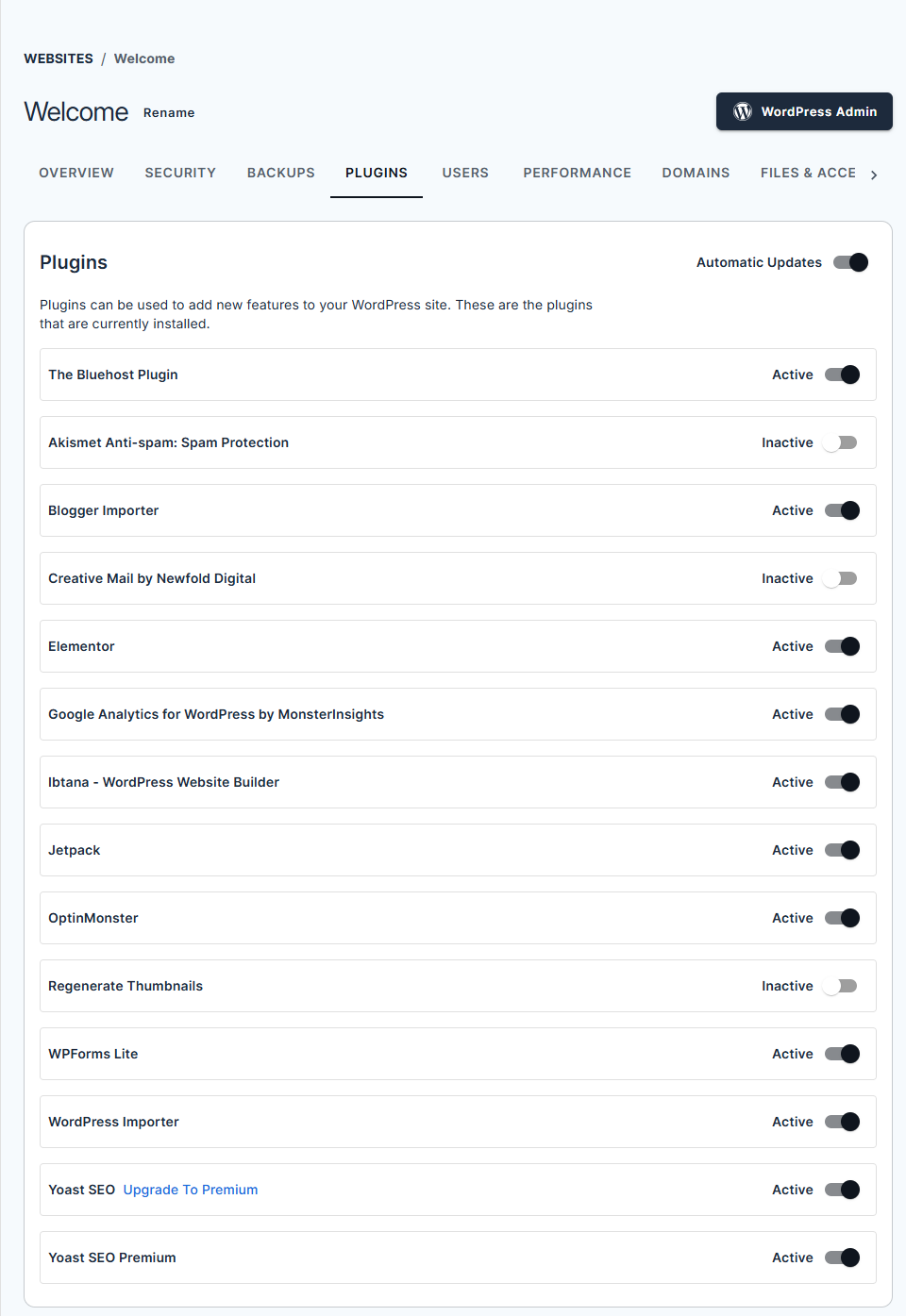
Now check your site to see if it's working again. If so, you will know that a plugin was the cause of the issue. Your next step will be to go back and enable the plugins one at a time.
Check your website after enabling each plugin and see if it goes down again. If your website goes down after enabling a specific plugin, check with the developer of that plugin for assistance.
If this does not bring your WordPress site back online, try changing your theme as well.
Step 2: Change the WordPress Theme
If the issue isn't related to a plugin, the cause of the White Screen of Death might be your WordPress theme. To troubleshoot this issue, temporarily switch to a different theme.
- Log in to your Bluehost Portal.
- In the left-hand menu, click Websites.
- Click the WordPress Admin button located next to the website you want to manage.
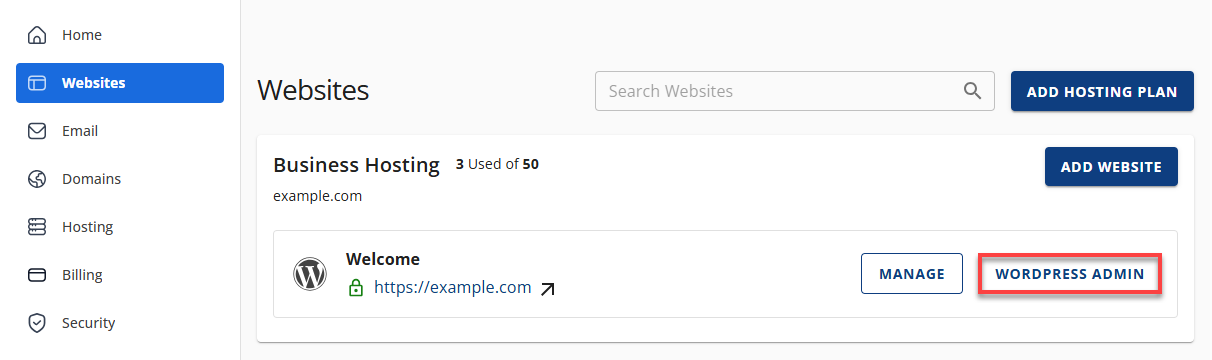
- On the WordPress menu, go to Appearance and select Themes. Choose the new theme you want to switch to, and then click the Activate button.
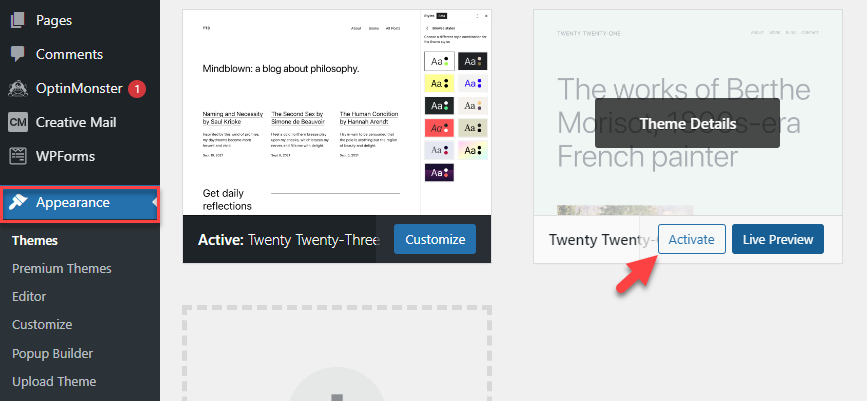
Check your site again to see if it is working. If so, then the likely culprit of the issue was an error caused by your theme. Check with the developer of that theme for assistance, or use a different theme.
Step 3: Purge Cache
Just like a computer or browser, sometimes the Cache has to be cleared. This will guide you on how to clear your website cache in your WordPress website to resolve the blank white page.
Suppose your website experiences a high volume of concurrent visitors. In that case, it may sometimes appear inaccessible due to the excessive PHP processes running on the server.
To enhance performance, you can enable page caching. Bluehost provides a caching feature through both the Bluehost portal and the Bluehost plugin. This feature is automatically activated for all WordPress installations and is designed to optimize your site's performance.
Step 5: Enable Debug Mode
Debug mode is an incredibly valuable tool for troubleshooting a WordPress site that is experiencing errors or not functioning correctly. Enabling debug mode allows you to pinpoint the root cause of the issue. This article will provide you with a step-by-step guide on how to enable debugging using the wp-config file.
Step 6: Increase the PHP Memory Limit
The more popular method is to optimize your WordPress website and databases to ensure it does not cause PHP memory spikes. It is recommended that you perform website optimization first, which can help your WordPress website to load pages better and not reach your account memory limits.
WordPress may fail to load the necessary resources when it reaches its default memory limit, resulting in a blank page. By increasing the PHP memory limit, you provide WordPress with more resources to handle the demands of your site. This can prevent memory-related errors and alleviate the occurrence of blank white pages.
Summary
Like any software or script, website updates are needed from time to time. If you wonder why your WordPress site is showing a blank white page, sometimes it's due to 3d party scripts, plugins, or a theme. This guide covers how to check your settings, disable WordPress plugins, change WordPress themes, purge cache, enable debug feature, and check PHP memory limits to fix a WordPress blank white page on your website.
If you need further assistance, feel free to contact us via Chat or Phone:
- Chat Support - While on our website, you should see a CHAT bubble in the bottom right-hand corner of the page. Click anywhere on the bubble to begin a chat session.
- Phone Support -
- US: 888-401-4678
- International: +1 801-765-9400
You may also refer to our Knowledge Base articles to help answer common questions and guide you through various setup, configuration, and troubleshooting steps.