



Key highlights
- Know which WordPress testing method will suit your project size, skill level and speed requirements before committing to a setup.
- Learn how WordPress Playground blueprints enable instant, browser-based testing without installing any WordPress local development tools.
- Explore the core differences in WordPress Playground vs local environments, including performance, flexibility and offline accessibility.
- Understand when to set up a local WordPress environment using tools for more robust, long-term development.
You know that familiar pit in your stomach when you hover over the “Update All” button on your WordPress plugins. One wrong move and your entire live site could break. Maybe you’ve already experienced the panic of a white screen of death after an update gone wrong. The solution seems obvious: test your changes somewhere safe first. But when you start researching WordPress testing tools, you quickly discover two very different approaches competing for your attention.
The debate around WordPress Playground vs local development tools has grown increasingly relevant as WordPress continues evolving. Both promise safe testing environments where you can experiment freely without touching your live site. Yet they work in fundamentally different ways that can dramatically impact your workflow. One runs entirely in your browser with zero installation. The other creates a full WordPress environment on your computer with complete control over every setting.
Choosing between these WordPress local development tools feels overwhelming because the “right” answer depends entirely on how you work. What serves a quick plugin test differs from what you need for months-long client projects.
This guide breaks down exactly how each approach works and helps you identify which matches your specific workflow needs. You’ll understand the technical differences, practical limitations and ideal use cases so you can confidently set up local WordPress environment solutions that actually serve your projects.
What is WordPress Playground and how does it work
WordPress Playground represents a significant shift in how developers and site owners can interact with WordPress. Unlike traditional approaches requiring downloads and configuration, this official WordPress.org project brings the entire platform directly into your web browser.
Understanding browser-based WordPress development
WordPress Playground runs entirely within your browser using WebAssembly technology. This means no downloads, no server configuration and no technical barriers standing between you and a working WordPress installation. Simply navigate to the playground website and you have instant access to a fully functional WordPress site.
The technology works by compiling PHP (the language WordPress runs on) into WebAssembly, which browsers can execute natively. Your browser essentially becomes the server running WordPress. The experience feels remarkably similar to working with a traditionally hosted site despite everything happening locally in your browser tab.
Key characteristics that define WordPress Playground include:
- Runs WordPress directly in Chrome, Firefox or Safari without plugins
- Requires no local server software installation whatsoever
- Creates temporary environments by default that disappear when you close the tab
- Receives active development as an official WordPress.org project
- Offers data persistence options for longer-term work
This approach eliminates the traditional friction of WordPress testing. Within seconds, you can have a fresh WordPress installation ready for experimentation.
WordPress Playground blueprints explained
The WordPress Playground blueprints feature takes browser-based testing to another level by enabling pre-configured environments. Instead of manually installing themes and plugins every time you spin up a new playground, blueprints automate the entire setup process.
Blueprints use JSON-based configuration files that specify exactly what your environment should include. You define which themes to install, which plugins to activate and even what settings to configure. When someone loads a blueprint, they get your exact environment replicated instantly.
The practical applications of blueprints include:
- Pre-installing specific theme and plugin combinations automatically
- Sharing complete configurations via URL parameters for team access
- Creating documentation demos that readers can interact with directly
- Providing support environments where users can replicate issues
- Building custom configurations for repeated testing scenarios
Plugin developers particularly benefit from blueprints. They can create interactive demos embedded directly in documentation, letting potential users experience their plugin without any installation commitment.
Best use cases for WordPress Playground
WordPress Playground excels in specific scenarios where speed and accessibility matter more than permanence. Quick plugin testing becomes effortless when you can spin up a fresh environment in seconds, test a plugin’s functionality and close the tab without cleanup.
Learning WordPress benefits tremendously from this approach. New users can experiment freely without fear of breaking anything permanent. The low-stakes environment encourages exploration and builds confidence.
Client demonstrations work beautifully with Playground. Share a blueprint URL showing exactly how a proposed theme or plugin would look, letting clients interact with actual WordPress rather than static mockups. Documentation creators can embed functional examples that readers explore hands-on.
Traditional WordPress local development tools compared
While WordPress Playground offers browser-based convenience, traditional WordPress local development tools provide deeper functionality through software installed on your computer. These solutions create complete development environments with full database access and server configuration options.
Local by Flywheel features and benefits
Local by Flywheel has become the go-to choice for many WordPress professionals thanks to its balance of power and accessibility. The graphical interface eliminates command-line requirements while still providing robust development capabilities.
Creating a new WordPress site takes literally one click. Select your preferred PHP version, database type and WordPress installation settings through a friendly interface. Within minutes, you have a fully functional local WordPress site ready for development.
Features that set Local apart include:
- Graphical interface requiring minimal technical knowledge to navigate
- Built-in SSL certificates for testing secure connections locally
- Live link sharing that lets others access your local site temporarily
- Blueprint functionality for creating reusable site configurations
- Add-on ecosystem extending functionality with additional tools
- Integration with Flywheel and WP Engine hosting for seamless deployments
The Local Connect feature deserves special mention. It enables syncing between your local development site and live sites hosted on compatible platforms, streamlining the deployment workflow significantly.
MAMP and XAMPP for WordPress development
Before user-friendly tools like Local existed, developers relied on traditional development stacks like MAMP and XAMPP. These solutions bundle Apache (the web server), MySQL (the database) and PHP into packages you install locally.
The learning curve runs steeper than modern alternatives, but the payoff includes greater control and flexibility. You configure server settings directly, understanding exactly how your development environment operates.
Characteristics of these traditional tools include:
- Manual configuration that provides deeper understanding of server operations
- Support for multiple PHP versions and custom configurations
- Free versions available with optional pro upgrades for additional features
- Better suitability for developers comfortable with server administration
- Ability to run non-WordPress projects alongside WordPress sites
These tools remain popular among developers who value understanding every layer of their stack or who work with multiple technologies beyond WordPress exclusively.
DevKinsta and other modern alternatives
The WordPress local development landscape continues expanding with newer options addressing specific needs. DevKinsta from Kinsta hosting provides a free local development tool with tight integration to their managed hosting platform.
Laragon offers a lightweight Windows solution that many developers praise for its speed and simplicity. Docker-based solutions appeal to teams wanting consistent environments across different operating systems and developers.
Host-specific tools increasingly integrate local development with managed hosting environments, enabling one-click deployments from local sites to production servers. This trend toward tighter local-to-live integration reflects how professional WordPress development workflows continue maturing.
Key differences between WordPress Playground and local tools
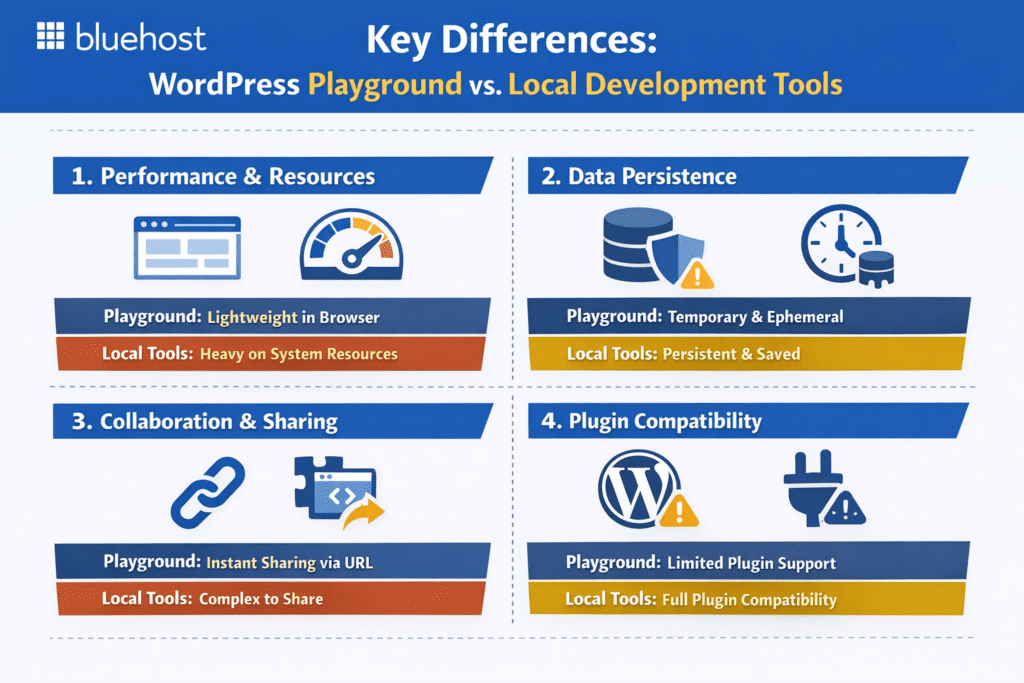
Understanding the fundamental differences between these approaches helps you make informed decisions about which WordPress testing tools fit specific situations. The distinctions go beyond surface-level features into how each fundamentally operates.
Performance and resource requirements
WordPress Playground runs surprisingly lightweight because it operates within your existing browser. You need no additional disk space for server software and memory usage scales with your browser tab rather than running as separate services.
Traditional local tools require more substantial resources. Local by Flywheel and similar applications install server software that runs continuously while active. Each site you create consumes disk space for files and database storage. Running multiple sites simultaneously increases RAM usage noticeably.
For older computers or machines with limited storage, Playground’s lighter footprint offers practical advantages. Developers with powerful workstations won’t notice resource differences, but these considerations matter for some users.
Data persistence and project management
This represents perhaps the most critical difference between WordPress Playground vs local development approaches. Playground environments disappear by default when you close the browser tab. Everything you built, every setting you configured and every piece of content you created vanishes.
Workarounds exist for Playground persistence. You can export sites as ZIP files and reimport them later. Browser storage options preserve data between sessions in some cases. However, these solutions require deliberate action rather than automatic saving.
Local development tools save everything permanently by default. Close the application, restart your computer or walk away for weeks. Your sites remain exactly as you left them. For ongoing projects spanning days, weeks or months, this automatic persistence proves invaluable.
Collaboration and sharing capabilities
WordPress Playground enables instant sharing through URLs. Send someone a blueprint link and they immediately access an identical environment. No account creation, no software installation and no configuration required on their end. This frictionless sharing excels for demonstrations, support scenarios and documentation.
Sharing local development sites requires additional steps. Live link features in tools like Local create temporary public URLs but need manual activation. Services like ngrok tunnel local sites to public addresses but add complexity. Team members generally need their own local installations rather than accessing a single shared environment.
For teams working on shared projects, local tools offer version control integration and established deployment workflows. Individual experimentation favors Playground’s instant sharing while sustained team collaboration often benefits from local tool ecosystems.
Plugin and theme compatibility considerations
Browser-based execution introduces limitations that don’t affect traditional local environments. Some plugins requiring server-level access, file system operations or external service connections may not function properly in WordPress Playground.
Features depending on scheduled tasks (WP-Cron), sending emails or connecting to external APIs might behave differently or fail entirely. Complex plugins with specific server requirements could present compatibility issues.
Local development tools offer fuller compatibility with production environments because they run actual server software. If a plugin works on your live site, it almost certainly works in your local environment. This compatibility matters especially when testing plugins you plan to deploy on production sites.
How to set up local WordPress environment for your needs
Getting started with either approach requires understanding the specific steps involved. Both paths lead to functional WordPress testing environments but through different processes.
Getting started with WordPress Playground
Starting with WordPress Playground takes less than a minute from decision to working WordPress installation. The simplicity makes it ideal for quick experiments or introducing someone to WordPress.
Follow these steps to begin:
- Navigate to playground.wordpress.net in your preferred browser
- Select your desired PHP and WordPress version from available options
- Wait briefly as the environment initializes in your browser
- Access the WordPress admin dashboard to begin working
- Install themes or plugins directly through the admin interface
- Test functionality, explore settings and experiment freely
- Export your site or save a blueprint configuration for future use
The interface feels familiar to anyone who has used WordPress before. Despite running in a browser, the admin experience mirrors traditional WordPress closely.
Installing and configuring Local by Flywheel
Local requires an initial software installation but then provides ongoing convenience for managing multiple WordPress sites. The investment of setup time pays dividends through streamlined site creation afterward.
The installation process includes:
- Download the Local application from localwp.com (available for Mac, Windows and Linux)
- Run the installer and follow standard installation prompts
- Launch Local and complete initial configuration
- Click the plus button to create your first WordPress site
- Choose your preferred PHP version, web server and database type
- Set your WordPress admin username and password
- Wait as Local creates your complete development environment
- Click the Admin button to access your WordPress dashboard
Configure SSL certificates through Local’s interface for testing secure connections. Enable live links when you need to share your local site temporarily with clients or collaborators.
Choosing the right tool based on your project
Your project requirements should drive tool selection rather than general preferences. Different scenarios genuinely call for different approaches.
Choose WordPress Playground when you need to test a plugin quickly before installing on your live site. Use it for learning new WordPress features without commitment. Create demonstrations for clients or support scenarios where recipients shouldn’t need to install software.
Choose local development tools when building sites you’ll work on over extended periods. Use them for client projects requiring full plugin compatibility. Select them when you need offline access or when your workflow includes version control and established deployment processes.
Neither choice is universally superior. The best tool matches your specific situation.
Making the right choice for your WordPress workflow
With clear understanding of both approaches, you can now make informed decisions about which WordPress testing tools serve specific needs within your workflow.
Get expert guidance over a call
📞 Call 888-401-4678When WordPress Playground is the better choice
WordPress Playground shines brightest in scenarios prioritizing speed and accessibility over permanence. Quick tests to verify plugin behavior before updating your live site take seconds rather than the minutes required to create traditional local sites.
Learning WordPress becomes less intimidating when nothing can permanently break. Beginners benefit from fearless experimentation. Demonstrations for clients, support representatives helping users replicate issues and documentation creators embedding interactive examples all leverage Playground’s instant shareability effectively.
Situations where you need zero setup time and have no long-term data persistence requirements point toward Playground as the optimal choice.
When local development tools make more sense
Long-term projects demand the automatic persistence that local tools provide. Client websites you’ll develop over weeks or months need environments that survive browser tab closures and computer restarts.
Full plugin compatibility requirements favor local environments. When testing complex plugins with server-level integrations, local tools offer closer parity with production environments. Offline development needs eliminate Playground as an option entirely since it requires internet connectivity.
Professional client work typically benefits from established local development workflows including version control integration, staging processes and documented deployment procedures.
Using both tools in a hybrid workflow
Experienced WordPress professionals increasingly adopt hybrid workflows leveraging both approaches for different purposes. This combination captures the benefits of each without accepting unnecessary limitations.
A practical hybrid workflow might use WordPress Playground for initial plugin evaluations: quickly spinning up environments to test whether a plugin does what you need before committing further time. Once you’ve identified plugins worth deeper exploration, switch to local development tools for thorough testing within your actual project environment.
Use Playground for creating shareable demos and support environments while maintaining local tools for your primary development work. This approach maximizes flexibility without forcing artificial either/or choices.
Taking your WordPress site live with Bluehost
After experimenting in WordPress Playground, you may feel ready for production. Bluehost provides an excellent transition from experimentation to live websites.
We offer one-click WordPress installation that mirrors the simplicity of Playground. Your WordPress site launches instantly with proper hosting infrastructure. Unlike Playground, your content persists permanently and remains accessible to visitors worldwide.
Key benefits of Bluehost WordPress hosting include:
- Free domain name: Get your custom domain included with hosting plans.
- Free SSL certificate: Secure your website with HTTPS encryption automatically.
- 99.99% uptime guarantee: Your site remains accessible to visitors reliably.
- 24/7 expert support: Get help whenever you need assistance.
- AI Site Creation: Build professional sites quickly with intelligent design tools.
WordPress.org officially recommends Bluehost as a trusted hosting provider. This endorsement reflects years of WordPress-focused hosting excellence. When Playground experimentation becomes serious website ambition, Bluehost delivers the infrastructure you need.
Get started with Bluehost today and transform your WordPress experiments into professional websites.
Final thoughts
The WordPress Playground vs local development tools decision ultimately depends on your specific needs rather than one option being universally superior. Both approaches offer legitimate value for different scenarios, and understanding their respective strengths helps you make appropriate choices for each situation.
WordPress Playground delivers unmatched speed for quick tests, learning environments and shareable demonstrations. Traditional local development tools provide the persistence, compatibility and professional workflows that longer-term projects demand. Many professionals benefit from using both strategically.
Consider your typical workflow patterns. Do you frequently need quick plugin tests? Playground saves significant time. Do you develop client sites over extended periods? Local tools serve you better. Do both scenarios apply? Embrace the hybrid approach.
Once you’ve perfected your WordPress site in a testing environment, you’ll need reliable hosting to bring it live. Bluehost offers WordPress-optimized hosting officially recommended by WordPress.org since 2005, providing the performance and reliability your tested sites deserve in production. Get started with Bluehost WordPress Hosting to deploy your WordPress projects with confidence.
FAQs
WordPress Playground is a browser-based WordPress testing environment that runs entirely in your browser using WebAssembly, requiring zero installation or configuration. Unlike WordPress local development tools such as Local, XAMPP, or DevKinsta, which run a full server stack on your machine, WordPress Playground is instant, ephemeral, and fully sandboxed. It is ideal for quick demos, plugin previews, and lightweight testing, while local development tools offer persistent environments, database access, and advanced workflow control suited for serious WordPress development.
When comparing WordPress Playground vs local development tools for WordPress testing, Playground wins on speed and accessibility since it launches instantly in any browser with no setup. Local development tools like Local by Flywheel or DevKinsta offer persistent databases, custom PHP versions, SSL support, and full file system access, making them better for thorough plugin and theme testing. For quick compatibility checks or sharing a WordPress demo, Playground is the faster choice, while local tools suit production-level testing workflows.
To set up a local WordPress environment, download your preferred tool – Local by Flywheel, XAMPP, or DevKinsta – install it on your machine, and follow the guided site creation wizard to configure PHP, MySQL, and a local domain. Local and DevKinsta are the most beginner-friendly WordPress local development tools, offering one-click WordPress installation. XAMPP requires manual WordPress setup but gives you more control over your server environment. All three tools create a fully functional offline WordPress site for development and testing.
WordPress Playground Blueprints are JSON configuration files that let you pre-define a Playground environment with specific plugins, themes, WordPress versions, and settings, launching a ready-to-test site instantly in the browser. Using WordPress Playground Blueprints dramatically speeds up your testing workflow by eliminating repetitive manual setup steps. Developers can share a Blueprint URL so collaborators or clients open an identical preconfigured WordPress environment with one click, making Blueprints one of the most powerful WordPress testing tools available for rapid iteration and plugin demos.
The best WordPress local development tools for plugin and theme testing in 2024 are Local by Flywheel, DevKinsta, and Laravel Herd, all of which offer fast setup, multisite support, and seamless WordPress integration. Local remains the most popular choice thanks to its intuitive UI and Live Link sharing feature. DevKinsta is ideal for teams using Kinsta hosting, while XAMPP and Laragon suit developers who prefer manual control. Each tool lets you set up a local WordPress environment quickly for reliable, repeatable testing.
WordPress Playground cannot fully replace a local development environment for serious WordPress development because it runs in a temporary, browser-based session with no persistent storage, limited file system access, and no support for external database connections or custom server configurations. WordPress local development tools like Local or DevKinsta are essential for production-level work, version-controlled codebases, and complex plugin development. Playground excels as a fast, disposable sandbox for quick testing, demos, and onboarding, but it complements rather than replaces traditional local WordPress development tools.
The main limitations of WordPress Playground compared to local WordPress development tools include no persistent data storage, no real email sending, restricted file system access, and inability to connect to external services or databases. WordPress Playground also has limited PHP extension support and cannot replicate complex hosting configurations needed for production testing. Local development tools like Local, DevKinsta, or XAMPP provide full server environments that mirror real hosting setups, making them far more suitable for advanced WordPress testing workflows and plugin or theme development.
Use WordPress Playground when you need instant, zero-setup WordPress testing for quick plugin previews, client demos, or compatibility checks without touching your local machine. Choose a local development environment when your workflow requires persistent data, custom server settings, version control integration, or production-level WordPress testing. For most developers, the best approach combines both: WordPress Playground Blueprints for rapid prototyping and sharing, paired with WordPress local development tools like Local or DevKinsta for ongoing, serious WordPress development work.


Write A Comment