


Key highlights
- Understand the fundamental differences between decentralized workgroups and centralized domain-based network environments.
- Learn how administrative control and security policies vary between local machine management and a centralized server architecture.
- Explore the scalability limitations of workgroups and why domains are essential for supporting business growth and complex user needs.
- Discover how user authentication and resource sharing are optimized to improve organizational efficiency and security.
- Uncover the overall impact that choosing the correct network setup has on long-term IT maintenance and administrative overhead.
When configuring a network for your office or home environment, one of the most consequential decisions you will face is choosing between a workgroup vs domain setup. Both are core Windows networking models, yet they differ fundamentally in how they manage users, devices and security. The wrong choice can lead to unnecessary administrative overhead, security vulnerabilities and costly migrations down the road.
Whether you are managing five computers or overseeing an enterprise infrastructure, understanding how these two models operate is essential. In this guide, you will learn how a domain works, how a workgroup works and the critical differences between a domain network vs workgroup network, giving you the clarity to make a well-informed decision for your specific environment.
What is a workgroup and how does a workgroup work?
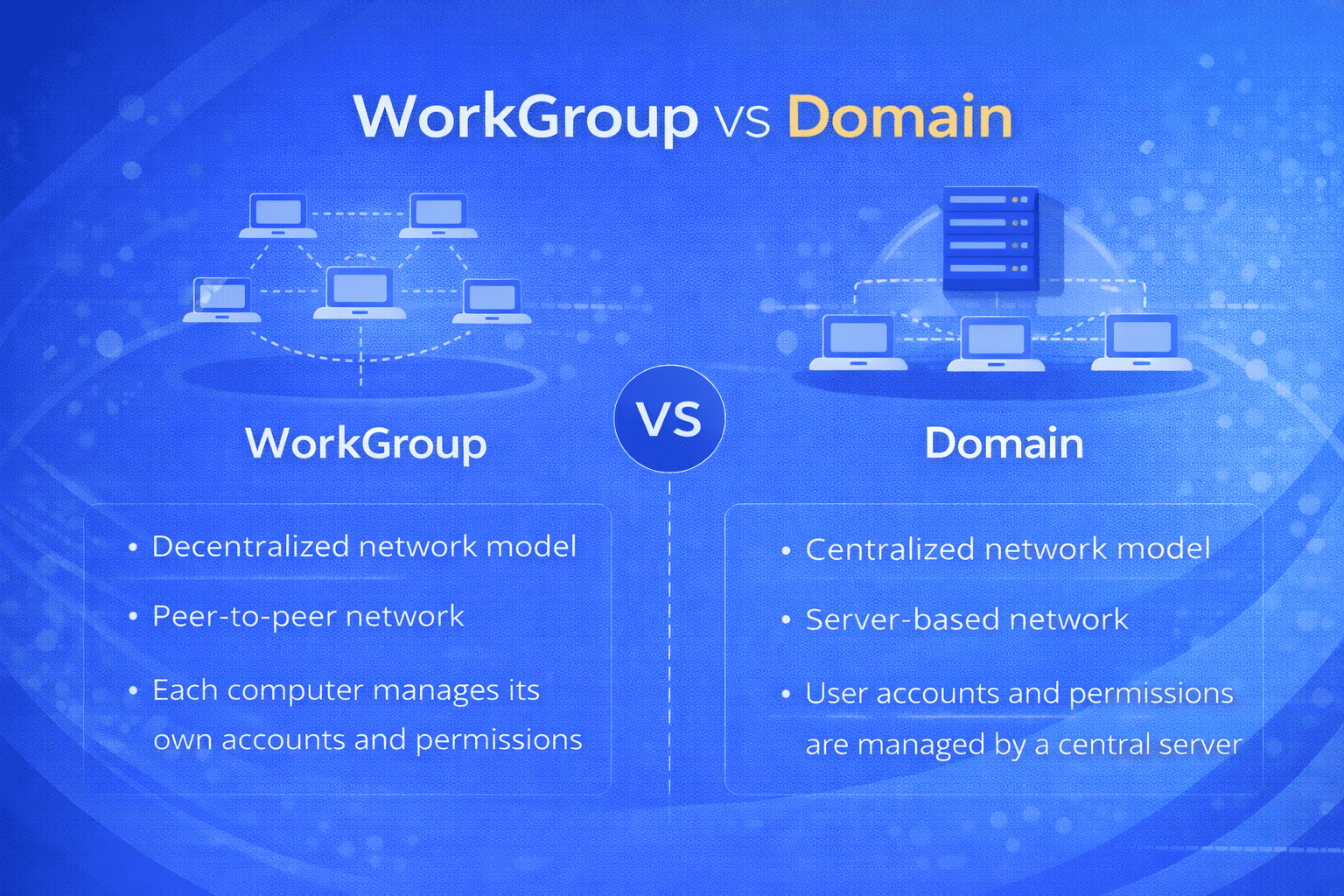
A workgroup is a peer-to-peer (P2P) network model in which each computer operates independently. There is no central server managing authentication, access control or security policies. Every device on the network maintains its own local user accounts and is responsible for managing its own shared resources.
How does a workgroup work in practice?
In a workgroup, computers communicate directly with one another without passing through a dedicated server. When you want to share a file or printer, you configure sharing permissions locally on that specific machine. Any other device on the same local network can then request access and the host machine validates the credentials stored within its own local database.
Key characteristics of how a workgroup operates include:
- Decentralized management: Each computer stores and manages its own user accounts and passwords independently
- Local authentication: Login credentials are verified by the individual machine, not a central authority
- Direct resource sharing: Files, printers and other resources are shared directly between computers on the network
- No dedicated server required: The network functions using only the computers already present
Workgroups are best suited to networks with fewer than 20 computers. They work well in home environments or very small offices where simplicity and minimal cost are top priorities. However, as the network grows, managing individual user accounts on every machine becomes impractical and increasingly error-prone.
What is a domain and how does a domain work?
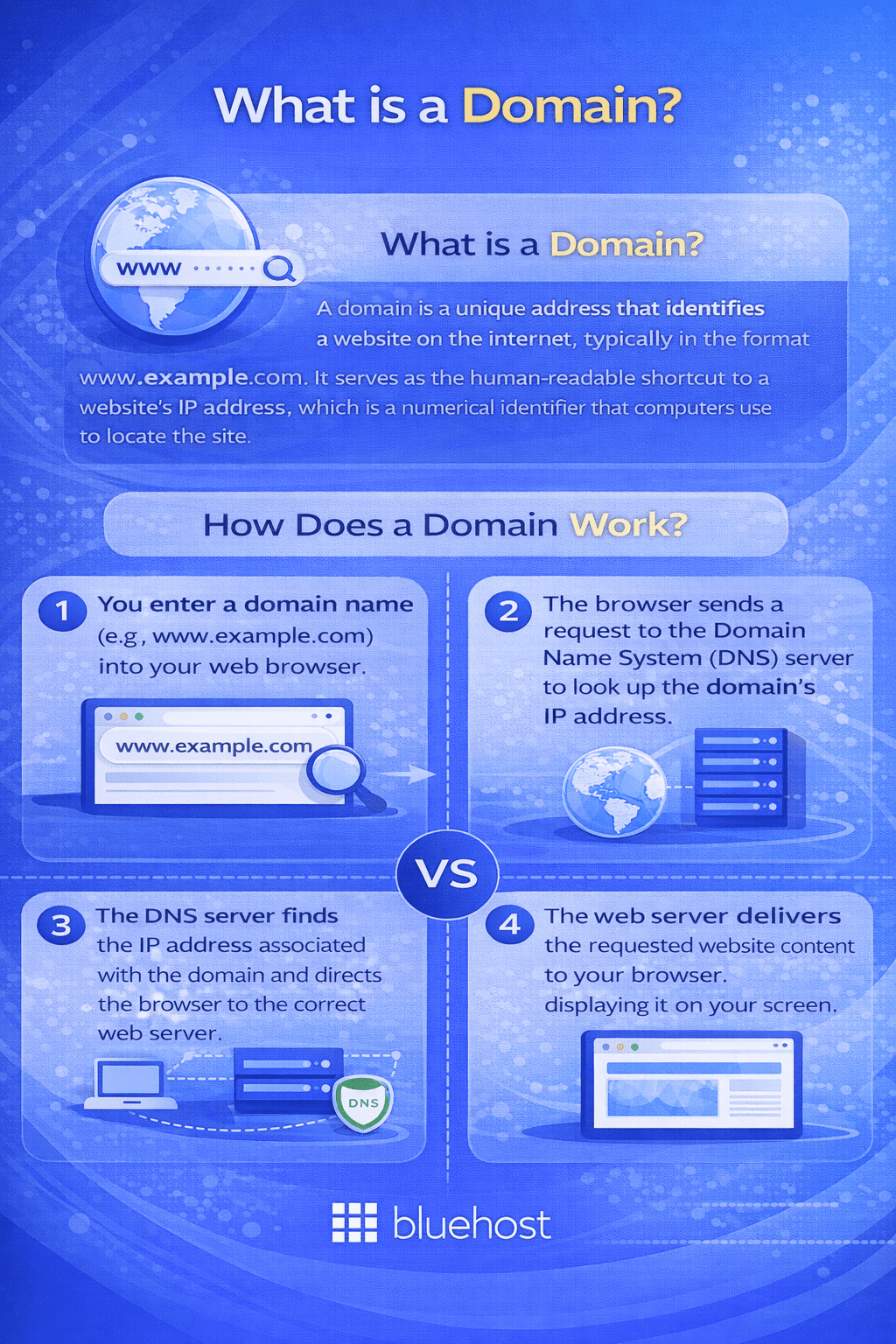
A domain is a client-server network model where all computers, users and resources are managed centrally through a dedicated server called a Domain Controller (DC). In a Windows environment, domains rely on Active Directory Domain Services (AD DS), Microsoft’s directory service that stores and manages information about every object on the network, including users, computers and security groups.
Also read: How Do Domains Work? A Simple Guide for Businesses
How does a domain work in practice?
When a user logs into a domain-joined computer, their credentials are sent to the Domain Controller for authentication. Rather than validating the login locally, the Domain Controller checks those credentials against the centralized Active Directory database. If the credentials match, the user is granted access according to the permissions and policies assigned to their account.
Key characteristics of how a domain operates include:
- Centralized authentication: All user logins are verified through the Domain Controller
- Group Policy management: Security settings and software policies can be enforced across all devices from one location
- Single sign-on (SSO): Users log in once and automatically gain access to all permitted network resources
- Scalability: Domains can support thousands of users and devices without proportional increases in administrative effort
- Network-wide account management: Creating or disabling a user account applies across the entire network immediately
Domains are the standard for medium to large organizations where centralized control, consistent security enforcement and scalability are non-negotiable requirements. Setting up a domain requires at least one server running Windows Server with the AD DS role installed.
Domain network vs workgroup network: key differences explained
The most effective way to evaluate a domain network vs workgroup network is to examine how each model handles the core challenges of network management: administration, security, scalability and cost.
1. Management and administration
In a workgroup, every computer must be administered individually. Updating a password policy, adding a new user or changing a security setting requires you to log into each machine separately and make the change manually. In a domain, a single configuration change on the Domain Controller propagates automatically to every connected device, dramatically reducing administrative workload as the network scales.
2. Security and access control
Domain networks offer significantly stronger security capabilities through Group Policy Objects (GPOs). Administrators can enforce password complexity requirements, screen lock timers, software installation restrictions and firewall configurations across the entire network simultaneously. In a workgroup, security settings are configured machine by machine, creating inconsistencies that introduce vulnerabilities, particularly when one device is overlooked or misconfigured.
3. Scalability
Workgroups are practical for small setups of up to 10 to 20 computers. Beyond that threshold, the manual management required becomes unmanageable and unsustainable. Domain networks are architecturally designed to scale, supporting thousands of users and devices across multiple locations within a single Active Directory infrastructure.
4. Cost and infrastructure requirements
A workgroup requires no additional hardware or licensing investment, it works natively with standard Windows installations at no extra cost. A domain, however, requires at least one dedicated server, a Windows Server license and IT expertise to configure and maintain it. While the upfront cost is higher, the administrative savings and security benefits typically justify the investment for organizations beyond the small-office threshold.
Quick comparison: workgroup vs domain at a glance
| Feature | Workgroup | Domain |
|---|---|---|
| Authentication | Local (per machine) | Centralized (Domain Controller) |
| Management | Decentralized | Centralized via Active Directory |
| Scalability | Up to 10–20 devices | Thousands of devices |
| Security enforcement | Limited and inconsistent | Advanced via Group Policy |
| Server required | No | Yes (Windows Server) |
| Best suited for | Homes and small offices | Businesses and enterprises |
Also read: Domain vs Website: Key Differences Explained & Why Both Matter
Workgroup vs domain: which is right for your organization?
Selecting between a workgroup and a domain depends on your organization’s size, security needs and long-term growth plans. Use the following criteria to guide your decision.
When a workgroup is the right choice?
A workgroup network is appropriate when:
- You are managing fewer than 10 computers in a single location
- Your security requirements are minimal, such as in a home office or small creative studio
- You have no dedicated IT staff or budget for server infrastructure
- Users do not need to roam between machines while retaining their personalized settings and access permissions
When a domain is the right choice?
A domain network is the stronger option when:
- You manage more than 20 users or devices on your network
- Your organization spans multiple locations or floors
- You need consistent security policies enforced across all devices simultaneously
- Employees require the ability to log into different computers using the same credentials
- You need centralized data auditing, access logging or compliance reporting
- Your organization is growing and you anticipate adding more users and devices in the near future
Common misconceptions about workgroups and domains
Several misconceptions frequently complicate the workgroup vs domain decision-making process.
Misconception 1: Domains are only for large enterprises: While domains are essential at enterprise scale, small businesses with as few as 10 to 15 employees can benefit substantially from centralized management and consistent security enforcement. The decision is not purely about headcount, it is about security requirements and administrative efficiency.
Misconception 2: Workgroups are inherently insecure: A properly maintained workgroup can be reasonably secure for small, low-risk environments. The challenge is that consistent security becomes exponentially harder to sustain across multiple independently managed machines without centralized policy enforcement.
Misconception 3: You always need on-premises hardware for a domain: Traditional domain infrastructure requires physical or virtual servers on-site. However, cloud-based solutions such as Microsoft Entra ID (formerly Azure Active Directory) enable organizations to implement domain-level identity management without maintaining on-premises server hardware, a compelling option for modern, distributed teams.
Google Workspace by Bluehost: Enhancing your domain network
When your business grows beyond a simple workgroup, moving to a domain-based network is the best way to maintain control and security. Google Workspace, offered via Bluehost, provides a professional suite of tools that integrate directly with your domain. This transition improves your overall workflow by centralizing communication and making collaboration seamless across your entire organization.
- Professional email addresses linked to your business domain.
- Real-time collaboration tools like Google Docs, Sheets and Slides.
- Shared calendars to simplify team scheduling and event management.
- Google Drive for secure, cloud-based file storage and sharing.
- High-quality video conferencing via Google Meet.
The advantage of managing Google Workspace via Bluehost
Bluehost makes Google Workspace exceptionally easy to use by integrating it directly into your hosting control panel. This allows you to manage your domain, website and productivity tools from a single dashboard, simplifying your administrative tasks. With Bluehost, you also benefit from streamlined billing and 24/7 expert support, ensuring that your domain network tools are always functioning at their peak.
Final thoughts
The workgroup vs domain decision is one of the foundational choices in network design and getting it right from the start can save your organization significant time, cost and security risk. A workgroup offers simplicity and zero infrastructure cost for small, low-complexity environments, while a domain delivers centralized control, scalable management and robust security enforcement for growing businesses and enterprises.
By understanding how a domain works and how a workgroup works, you are equipped to evaluate your current environment objectively. If you are already experiencing the pain of managing individual machines manually or your team has outgrown a workgroup setup, transitioning to a domain network is the logical next step. Evaluate your organization’s size, security requirements and growth trajectory to choose the model that positions your network infrastructure for long-term success.
To get started on the right path, sign up for Google Workspace to ensure your team has the centralized management and collaboration tools necessary for a thriving environment.
FAQs
A Windows workgroup is a peer-to-peer network feature built into Windows that lets nearby computers share resources without a central server managing access. Each device joins the workgroup by using the same workgroup name, “WORKGROUP” by default, while retaining its own unique computer name to stay identifiable on the network.
Setting up a Windows 10 workgroup takes just a few minutes and requires no additional software or server infrastructure.
In a workgroup, file sharing is configured locally on each individual computer, there is no central server to manage permissions or distribute access.
Workgroups become increasingly difficult to manage as an organization grows because every device must be administered separately. Adding a new employee means creating duplicate user accounts on each machine they need to access. Security settings, password policies, screen lock timers, firewall rules, must be configured individually per device, making inconsistencies inevitable. Software updates and patches follow the same manual, machine-by-machine process, raising both support overhead and the risk of unpatched vulnerabilities going unnoticed. Auditing who accessed what and when is also severely limited without a central log.
The core distinction in the workgroup vs domain debate comes down to how user accounts and network resources are managed across your setup. In a workgroup configuration, each computer independently handles its own local accounts and security settings. In a domain configuration, a centralized Domain Controller governs all user accounts, authentication and security policies across every connected device on the network.
Microsoft recommends workgroups for networks with no more than 20 computers. Beyond this number, the manual effort required to administer each device individually typically makes a domain-based setup the more efficient and scalable solution.
No. A Windows computer can belong to either a workgroup or a domain at any given time, but not both simultaneously. When a computer joins a domain, it is automatically removed from its existing workgroup configuration.
A traditional domain requires at least one server running Windows Server with the Active Directory Domain Services role installed. However, cloud-based alternatives such as Microsoft Entra ID can provide domain-level identity management without requiring on-premises server hardware.
Yes, in most scenarios a domain provides stronger security. Administrators can enforce consistent security policies across all devices simultaneously using Group Policy. A workgroup requires each machine to be secured individually, which increases the risk of policy inconsistencies and security gaps across the network.
A workgroup is a peer-to-peer network where each computer manages its own user accounts and security locally, while a domain network uses a central server to manage authentication, policies and access across all devices. Workgroups suit small setups with fewer than 10 devices, whereas domains are designed for organizations needing centralized control, consistent security enforcement and scalable user management.
A workgroup works by connecting computers on the same local network without a central server, each machine handles its own logins, shared folders and permissions independently. Users must have a separate account on each device they want to access. This makes workgroups simple and cost-effective for homes or very small offices, but difficult to manage as the number of users or devices grows.
A domain network works by using a central server, called a Domain Controller, running Active Directory to authenticate users and enforce security policies across every connected device. When a user logs in, the Domain Controller verifies their credentials and applies the appropriate permissions and group policies. This centralized approach allows IT administrators to manage hundreds or thousands of machines consistently from a single point of control.
Choose a workgroup if you have fewer than 10 devices and minimal security requirements, it is simpler and requires no dedicated server. Choose a domain if users need to log in from multiple machines, you must enforce consistent security policies, your team is growing or you require centralized access control and compliance reporting. A domain also makes sense when IT staff are available to configure and maintain the infrastructure.
Large organizations use domain networks because workgroups become unmanageable at scale, adding each user account manually to every individual machine is inefficient and creates security gaps. A domain network centralizes identity management through Active Directory, allowing IT teams to enforce Group Policy, control access, audit activity and support remote workers across multiple locations from a single server infrastructure.
Choose a workgroup if you have a small network of fewer than 10 computers with simple sharing needs and no dedicated IT staff, since it requires no server infrastructure or licensing costs. Choose a domain if your organization needs centralized user management, consistent security policies and scalable administration, typically from around 10 or more users. The overhead of maintaining individual accounts and settings on every device in a workgroup quickly becomes unmanageable as teams grow.
Workgroups become increasingly difficult to manage at scale because every user account, security setting and software update must be configured separately on each individual machine. Adding a new employee requires creating duplicate local accounts on every computer they need to access and security policies like password rules or screen lock timers can easily fall out of sync across devices. These limitations, along with the absence of centralized audit logs, are exactly why growing organizations adopt domain-based solutions like Active Directory.
Within this setup, every PC maintains its own local user accounts. If you want to access a shared folder on another machine, that machine must have a matching local account for you or sharing must be open to everyone on the network. This makes Windows workgroups straightforward to configure for home offices and small teams, but it also means any shared printer, folder or drive is managed individually on the device hosting it, there is no single place to control access across all computers at once.
- Confirm all PCs share the same local network. Devices must be on the same subnet so they can discover and communicate with each other.
- Assign a consistent workgroup name. Go to Settings > System > About > Rename this PC (Advanced) and enter the same workgroup name on every computer, the default is WORKGROUP.
- Verify each computer has a unique name. Duplicate computer names cause conflicts that prevent proper device visibility.
- Enable network discovery. Navigate to Control Panel > Network and Sharing Center > Change advanced sharing settings and turn on network discovery.
- Configure file and printer sharing. Enable sharing in the same menu so other workgroup members can access your shared resources using locally stored credentials.
Restart each PC after making changes to ensure the new workgroup settings take effect across all devices.
- Enable file sharing: Open Network and Sharing Center and turn on network discovery and file and printer sharing.
- Choose a folder to share: Right-click the folder, select Properties, then navigate to the Sharing tab.
- Set permissions: Choose which local user accounts can read or modify the folder contents.
- Access from another PC: On the second computer, enter the host machine’s name or IP address and provide valid local credentials from that machine.
This setup enables quick collaboration in small offices or home networks without any additional infrastructure. The key limitation is that you must repeat the entire process on every device you want to share from and permissions can easily fall out of sync across machines over time.
These are precisely the problems that centralized directory services like Active Directory are designed to solve. By consolidating authentication and policy enforcement through a Domain Controller, IT teams manage user accounts once and push security configurations network-wide instantly, eliminating duplication, closing security gaps and making compliance auditing practical at any scale.
What is the difference between a workgroup and a domain network?
A workgroup is a peer-to-peer network where each computer manages its own user accounts and resources independently, while a domain network uses a central server called a Domain Controller to manage authentication, security policies and access across all devices from one place. Workgroups suit small teams of up to about 10 computers, whereas domains are designed for larger organizations that need centralized control, consistent security enforcement and scalable user management.
How does a workgroup work in a small office or home office?
A workgroup works by connecting nearby computers on the same local network using a shared workgroup name, “WORKGROUP” by default, without requiring a central server. Each PC maintains its own local user accounts and resource sharing is configured individually on every device. To access a shared folder on another machine, you must provide credentials that match a local account on that specific computer, making setup simple but administration manual on a per-device basis.
How does a domain network work?
A domain network works by centralizing authentication and policy management through a Domain Controller running a directory service such as Active Directory. Users log in with a single domain account that grants access across all permitted network resources and IT administrators push security policies, password rules, software deployments, firewall settings, to every device simultaneously. This eliminates the need to manage individual accounts on each machine, making domains practical and scalable for organizations of any size.


Write A Comment