 ChatGPT,
  Claude,
  Gemini,
  Grok — all four for
 Bluehost Portal: Security Tab Overview
The Security tab in the Bluehost Portal has been updated for easier management of individual SiteLock and SSL Certificates associated with your domains. With the new look, you can view the complete list of your domains at a glance and select the domain to which you want to apply the upgraded SSL or SiteLock. This new design is simpler, more streamlined, and enhances your overall hosting experience with us!
Navigating the Security Tab
- Log in to your Bluehost Portal.
- Click Security on the left-side menu.
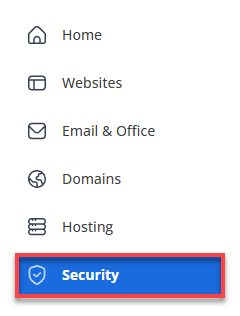
- You will see 3 tabs - Bluehost Malware Protection, SiteLock, and SSL Certificates.
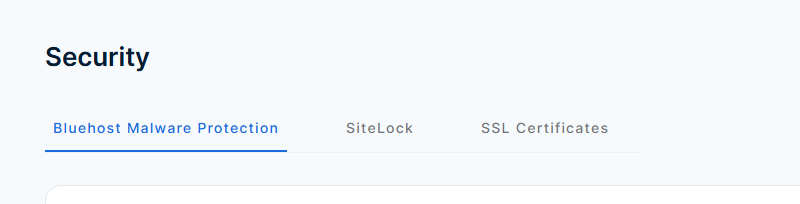
Each domain that has SiteLock and an SSL Certificate will be listed in the respective tabs.
Key Features of the Security Tab
Here are the key features you will find in the 3 menus under the Security tab
Bluehost Malware Protection
Bluehost offers Bluehost Malware Protection to help protect your website with intelligent, automated security that works around the clock. Our solution keeps you one step ahead with daily malware scans, continuous monitoring of the Google blacklist, and a trusted security seal to build visitor confidence — plus expert cleanup support whenever you need it.
Under the Bluehost Malware Protection menu, you can perform the following actions.
Purchase Bluehost Malware Protection
- Click Add Malware Protection.
If you already have an active Bluehost Malware Protection plan, click Add New Malware Protection instead.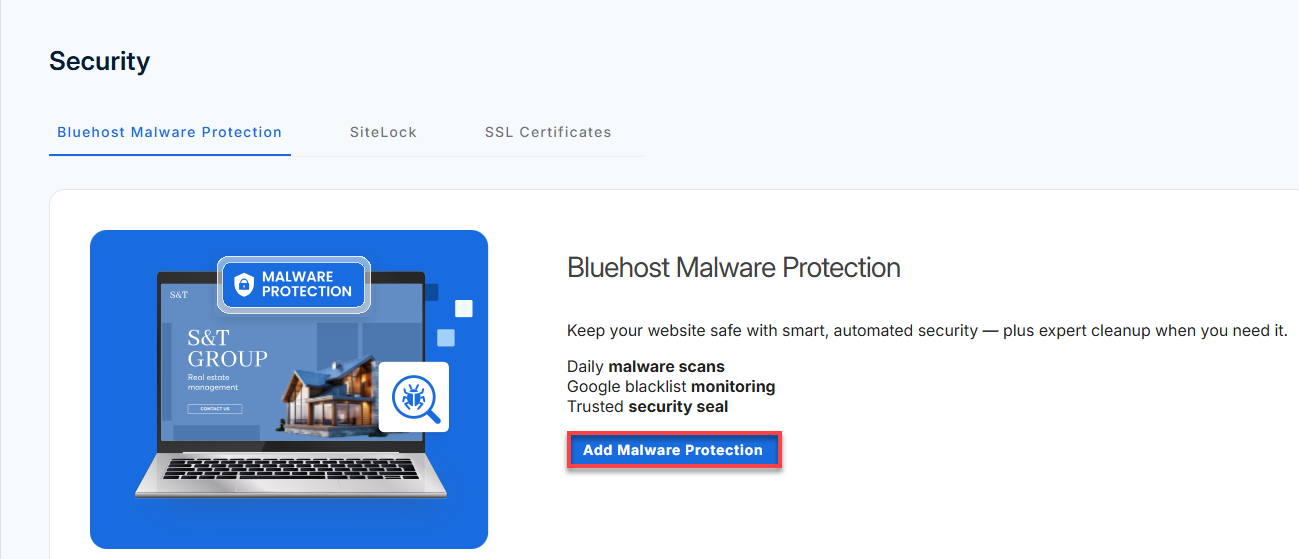

- In the pop-up, select your preferred term and Bluehost Malware Protection plan.
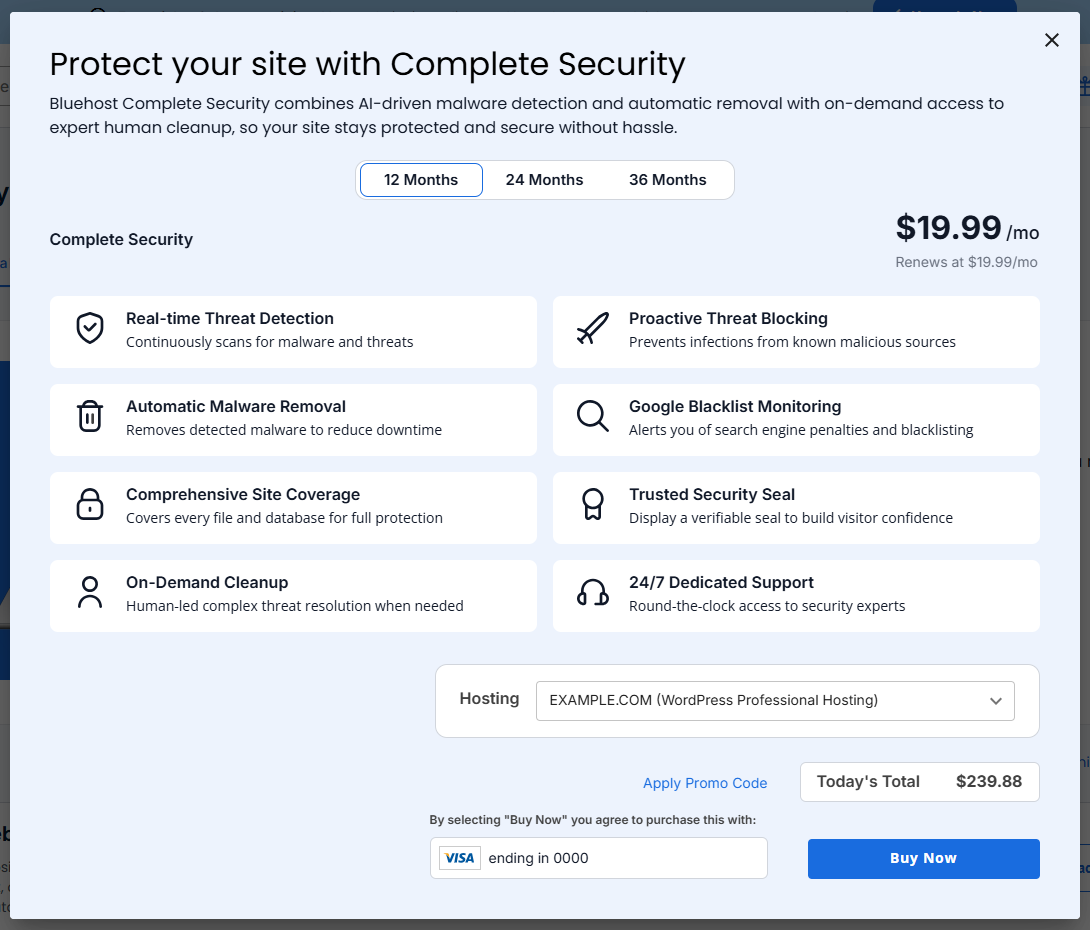
- Add a promo code or payment method if you don't have one on file yet.
- Click Buy Now to complete the payment transaction.
Assign a Domain
Easily connect your Malware Protection service to the domain you want to secure. Assigning a domain ensures it is actively monitored and protected, with security features applied right away. For step-by-step instructions, please refer to our guide, Bluehost Complete Security: How to Assign a Domain.
Upgrade Bluehost Malware Protection
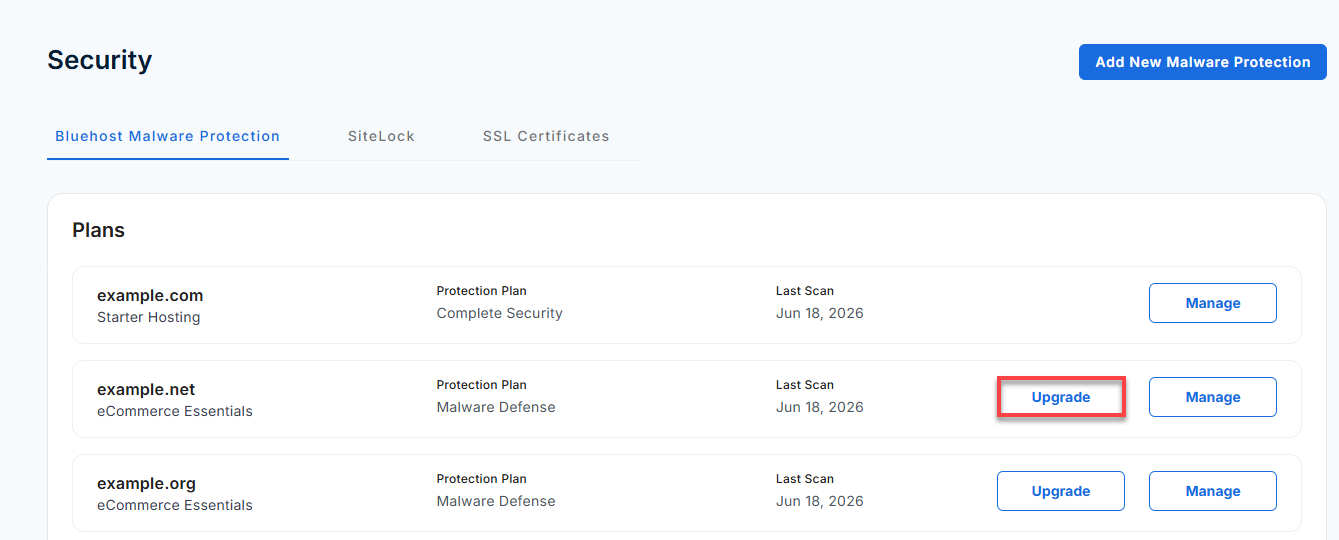
- Locate the Bluehost Malware Protection plan you want to upgrade, then click Upgrade.
- In the pop-up, select the term.
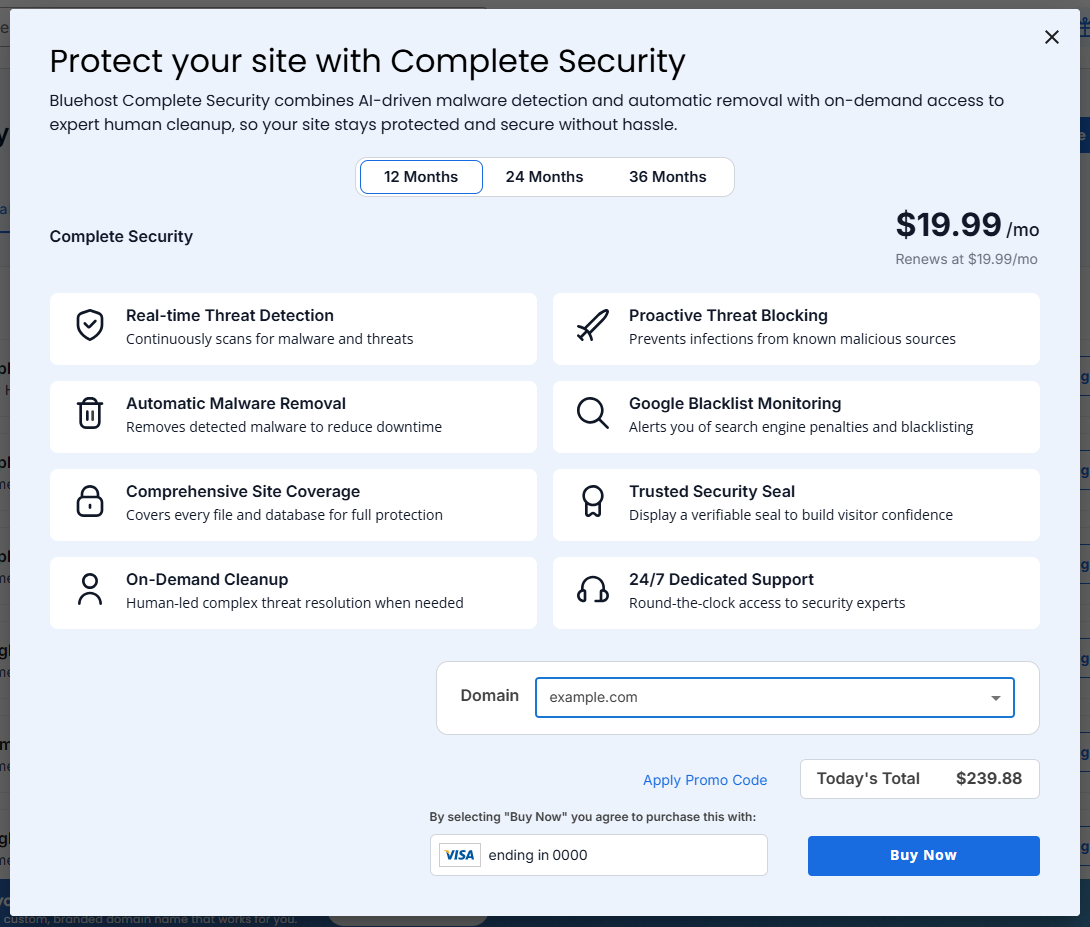
- Add a promo code or payment method if you don't have one on file yet.
- Click Buy Now to complete the process.
Manage Bluehost Malware Protection
Easily monitor and control your Malware Protection settings from a centralized dashboard. From here, you can view scan results, manage security features, and keep track of your site’s protection status in real time. For detailed guidance on using the dashboard, visit: Bluehost Malware Protection: Dashboard Overview.
Sitelock
Manage SiteLock
Access and manage your SiteLock features to monitor your website’s security, review scan results, and maintain protection against threats. The SiteLock dashboard makes it easy to stay on top of your site’s health and security status. For step-by-step guidance, please visit: Getting Started: How to Access and Use SiteLock.
Helpful Guides:
SSL Certificates
Bluehost offers SSL Certificates to secure user data and signal to search engines that your website is trustworthy. You can manage your SSL certificates by navigating to the SSL Certificates menu under the Security tab in the Account Manager.
Please note that the SSL Certificates menu under the Security tab will only show paid SSL. Under this menu, you can perform the following actions:
Purchase an SSL Certificate
Secure your website and protect visitor data by purchasing or renewing an SSL certificate. SSL helps encrypt sensitive information, boosts customer trust, and improves your site’s credibility. To learn how to complete the process and manage your SSL certificates, refer to the guide: How to Purchase a New SSL Certificate.
Manage Your Existing SSL Certificates
- In the SSL Certificates menu under the Security tab, click the Manage button.
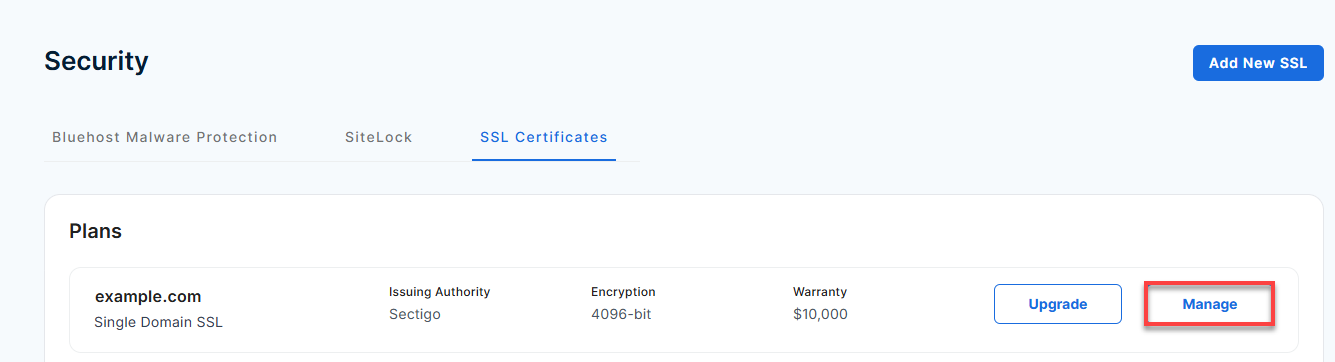
- The SSL Control Panel will open in a new tab.
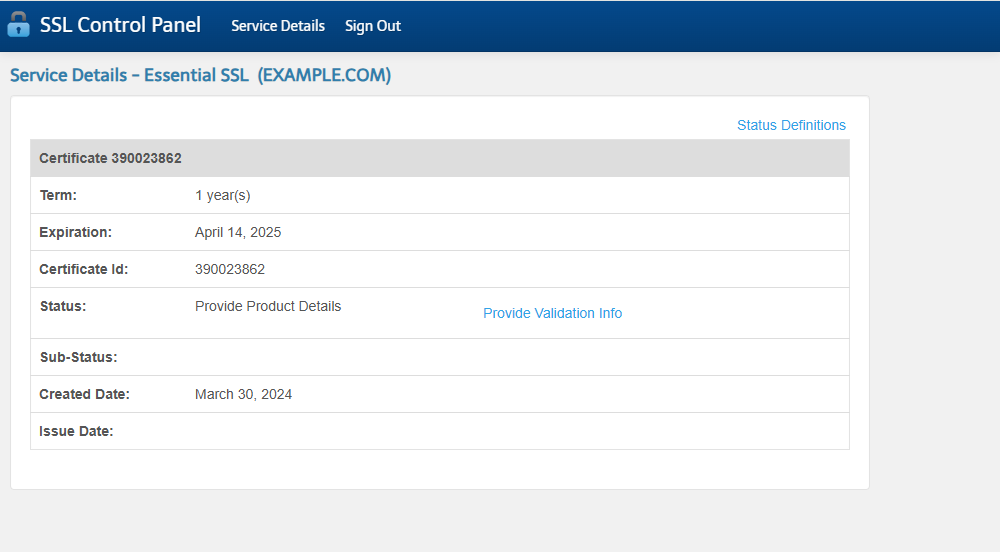
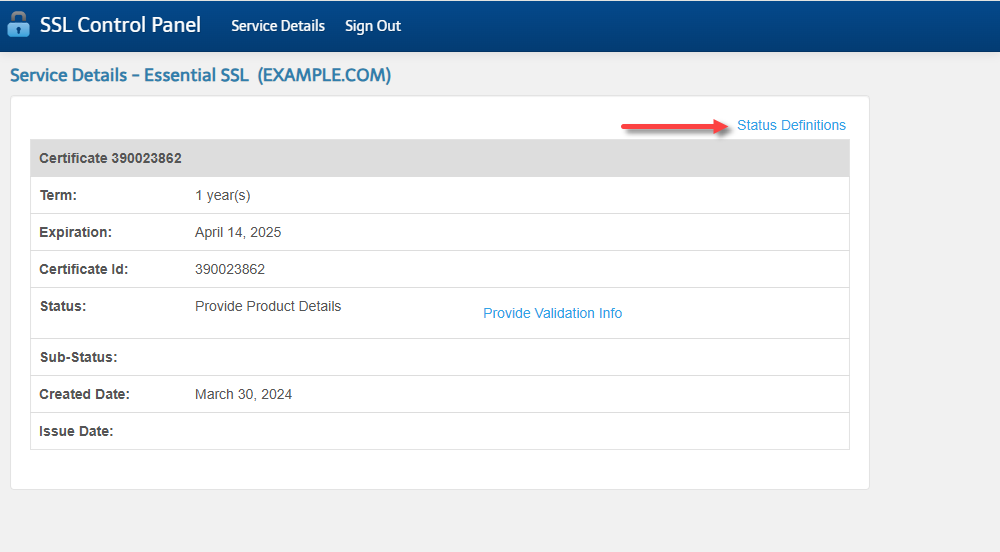
Under the SSL Control Panel, you will find the following details about your SSL certificate:
- Term
- Expiration date
- Certificate ID
- Status
- Sub-status
- Created date
- Issue date
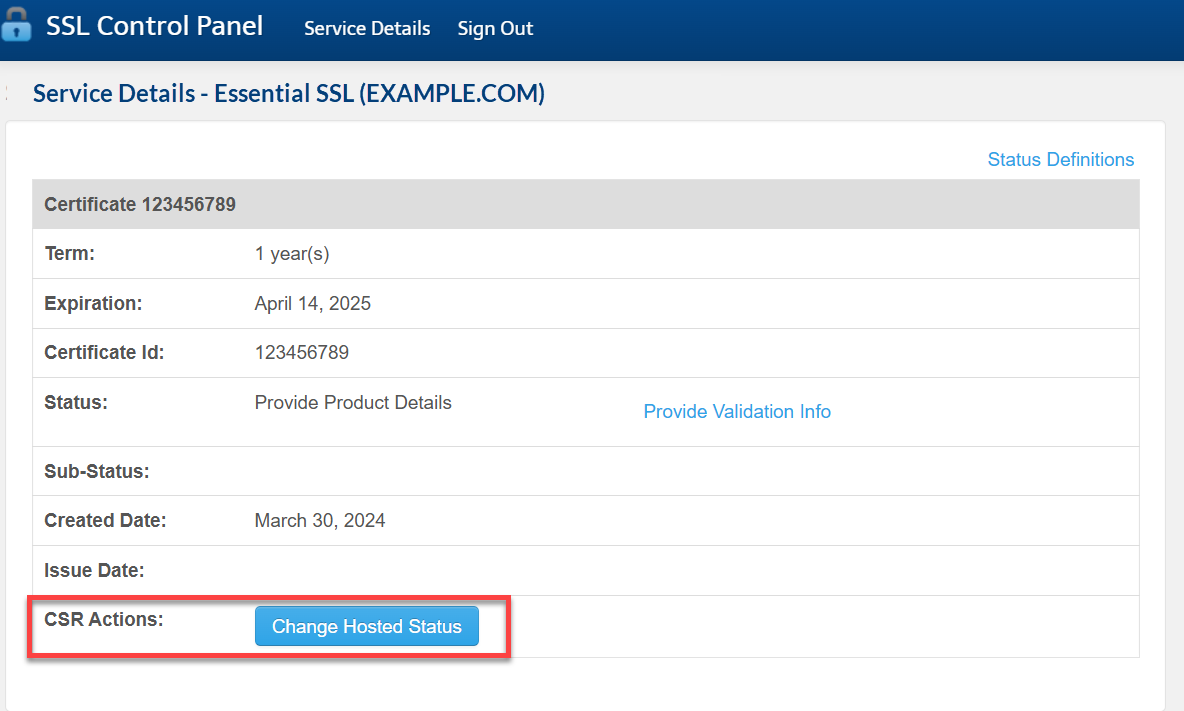
- CSR Actions
What does my SSL Status mean?
Click the Status Definitions link to learn more about your SSL status.
How do I validate my SSL?
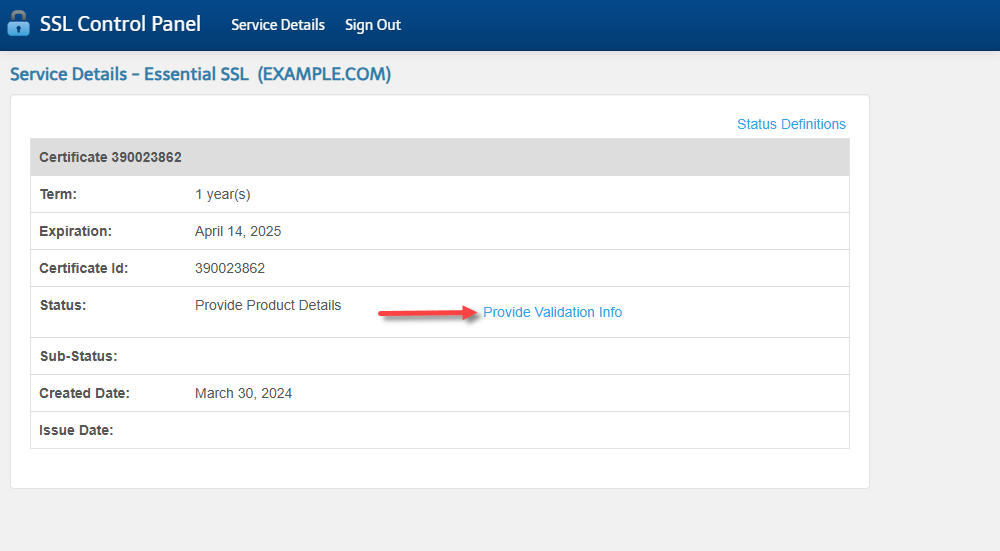
You may be asked to confirm your ownership of the domain for which the SSL certificate is being requested.
- Click the Provide Validation Info link.
- Select an email address for the domain control validation process.
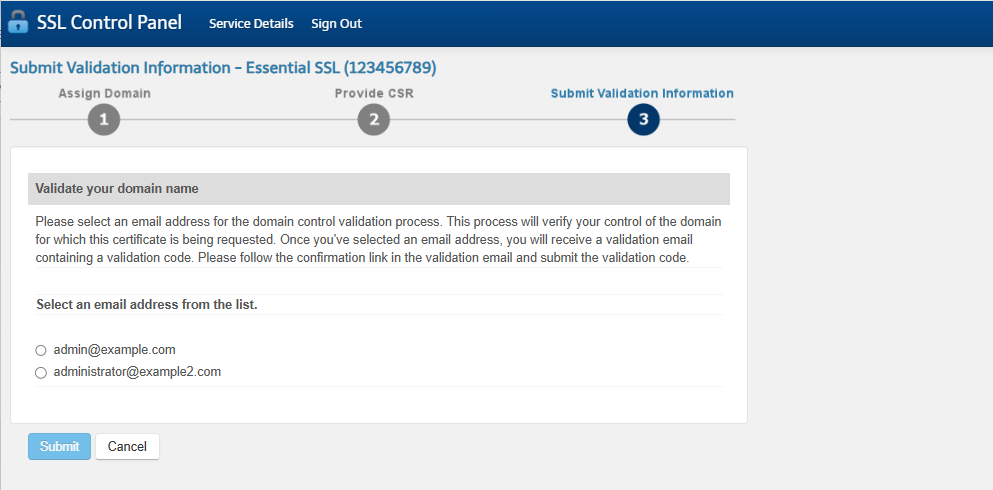
- Click Submit.
How can I update the hosting status of my website?
If you're prompted to update your hosting status, follow these steps.
- Click the Change Hosted Status button.
- Select your new status and enter the reason for the update.
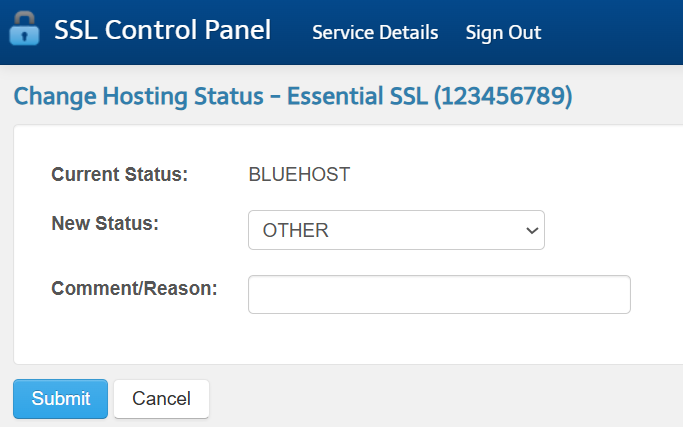
- Click Submit.
Upgrade SSL Certificate
- Locate the SSL Certificate plan you want to upgrade, then click Upgrade.
- In the pop-up, select the term.
- Add a promo code or payment method if you don't have one on file yet.
- Click Upgrade Now to complete the process.
Summary
The updated Security tab in the Bluehost Portal enhances your hosting experience by streamlining the management of SiteLock and SSL Certificates. With just a few clicks, you can quickly view your domains, upgrade your SiteLock or SSL service, and access the SiteLock dashboard and SSL control panel. Experience enhanced security with ease and confidence!
If you need further assistance, Bluehost Chat Support is available 24 hours a day, 7days a week while Bluehost Phone Support is available 7 days a week from 7 am-12 midnight EST.
- Chat Support - While on our website, you should see a CHAT bubble in the bottom right-hand corner of the page. Click anywhere on the bubble to begin a chat session.
- Phone Support -
- US: 888-401-4678
- International: +1 801-765-9400
You may also refer to our Knowledge Base articles to help answer common questions and guide you through various setup, configuration, and troubleshooting steps.