 ChatGPT,
 Claude,
 Gemini,
 Grok — all four for
Bluehost Professional Email: Can’t Log In to Webmail
If you cannot log in to your Bluehost Professional Email webmail, the cause is often one of these: you are on the wrong login page, the password is incorrect, the email account is not active, or the plan has expired. Work through the checks in this article in order. If none of them solves the problem, contact us using the options at the end of this article.
Log In to Professional Email Webmail
Option 1: Use the Login to Webmail Button
- Log in to your Bluehost Portal.
- From the left-hand navigation menu, click on the Email tab.
- Optional: In Professional Email, if multiple plans are listed, click Manage for the plan you want to use.
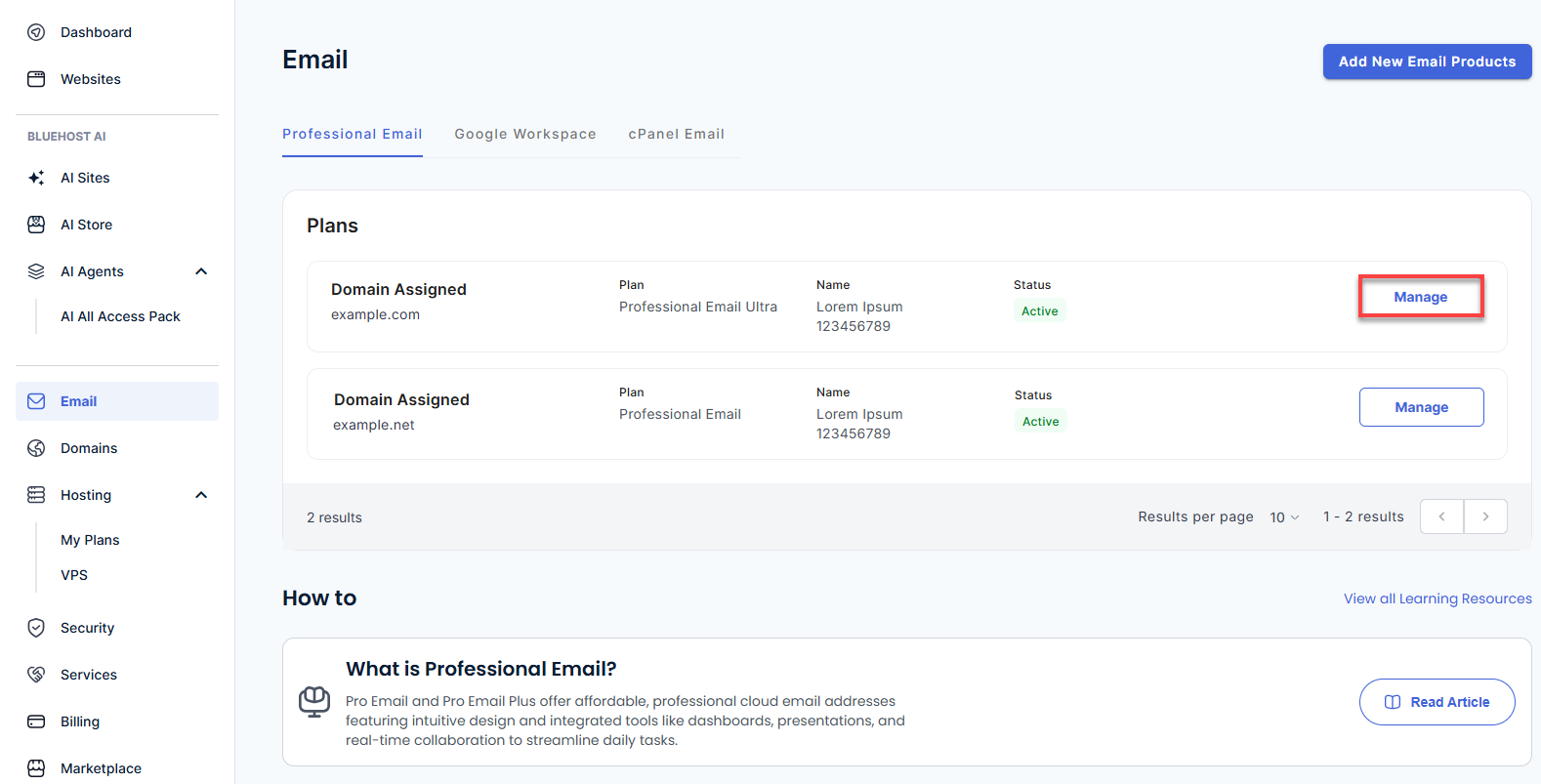
- You’ll be automatically redirected to the Email Management page, where you can manage your email settings and subscriptions.
- Click the Login to Webmail button.
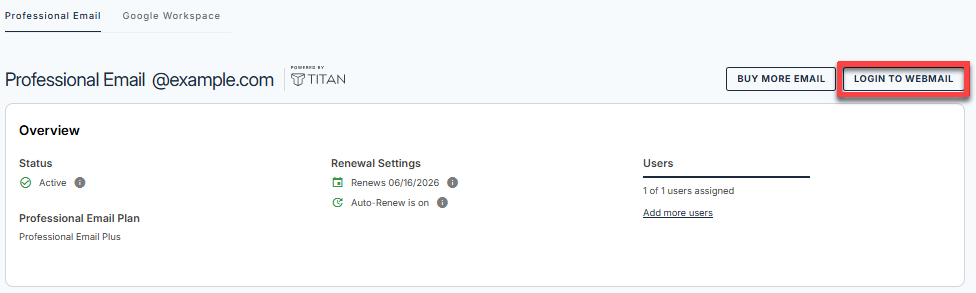
- Enter your Professional Email username and password.
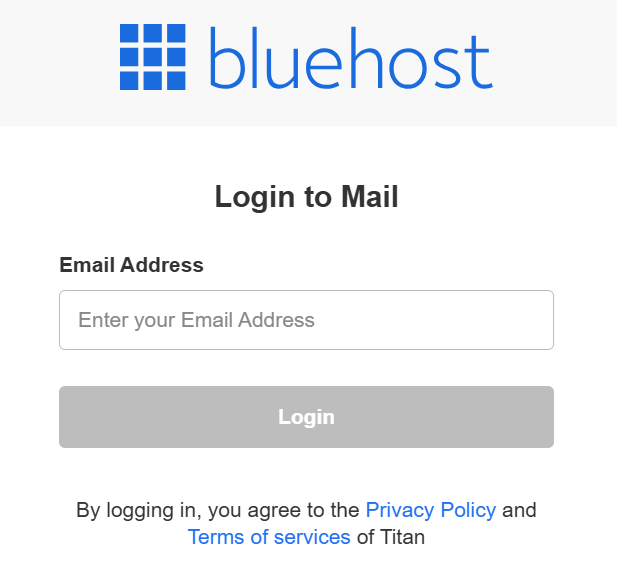
- Click Login.
Option 2: Use the Direct Login Link
- Go to the Professional Email login page.
- Enter your Professional Email username and password.
- Click Login.
Use the Correct Login Page
If you enter your email address and password but the login fails, you may be on the Email Management page instead of the webmail login page. A typing error in your email address or password can also cause the login to fail.
Do these steps:
- Go to the webmail login page. Use Option 1 or Option 2 in Log In to Professional Email Webmail above.
- Enter your full email address.
- Enter your password. Check it for typing errors.
Check That the Account Is Active
If the login still fails, the email account may not be active. It may also not exist yet, if no one created it. If you are not the account admin, ask the admin to do these steps:
- Log in to your Bluehost Portal.
- From the left-hand navigation menu, click on the Email tab.
- Optional: In Professional Email, if multiple plans are listed, click Manage for the plan you want to use.
- You’ll be automatically redirected to the Email Management page, where you can manage your email settings and subscriptions.
- Click Email Accounts.
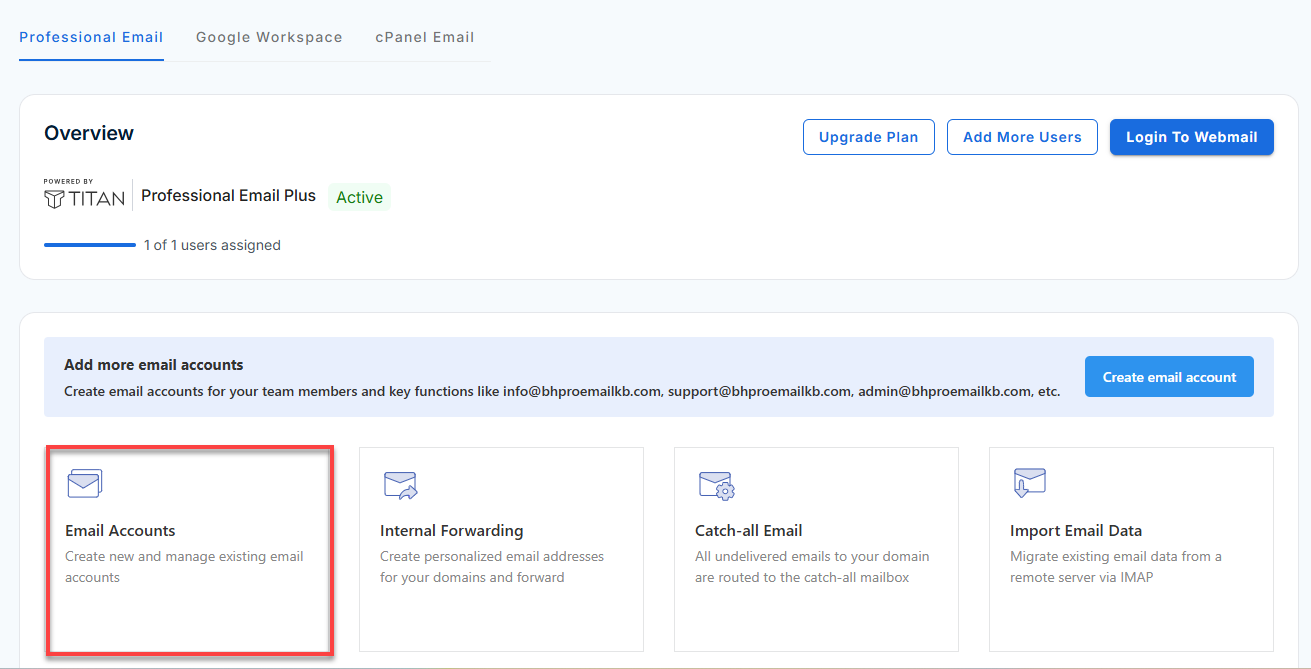
- Find the email account in the list.
- Make sure that the status is Active.
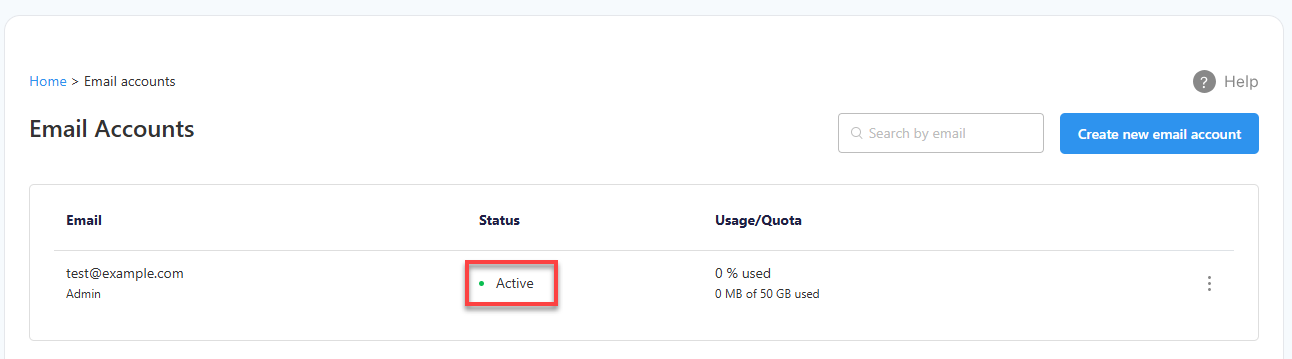
If the account is not in the list, or its status is not Active, the admin must create or activate it.
Reset a Forgotten Password
The login fails if the password is incorrect, for example because someone changed it or you forgot it. You can reset the password yourself, or the account admin can send you a link to set a new one.
To reset the password yourself, you need an alternate email address saved for your account. Do these steps:
- Go to the webmail login page. Use Option 1 or Option 2 in Log In to Professional Email Webmail above.
- Enter your email address and click Login.
- Click Forgot password.
- Enter your email address again and click Next.
- Open the email sent to your alternate email address, and follow the instructions to set a new password.
If you cannot reset the password yourself, the account admin can send you a link to set a new password from the Email Management page. If you are the admin, do these steps:
- Log in to your Bluehost Portal.
- From the left-hand navigation menu, click on the Email tab.
- Optional: In Professional Email, if multiple plans are listed, click Manage for the plan you want to use.
- You’ll be automatically redirected to the Email Management page, where you can manage your email settings and subscriptions.
- Click Email Accounts.
- Find the email account in the list.
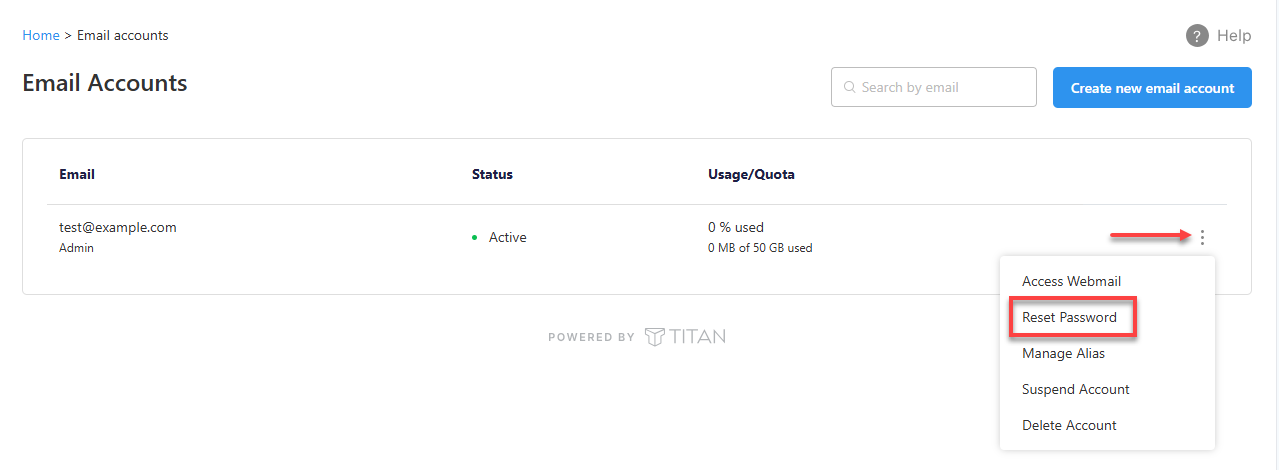
- Click the vertical ellipsis icon on the right of the email account.
- Click Reset Password.
- Enter the email address that should receive the reset password link.
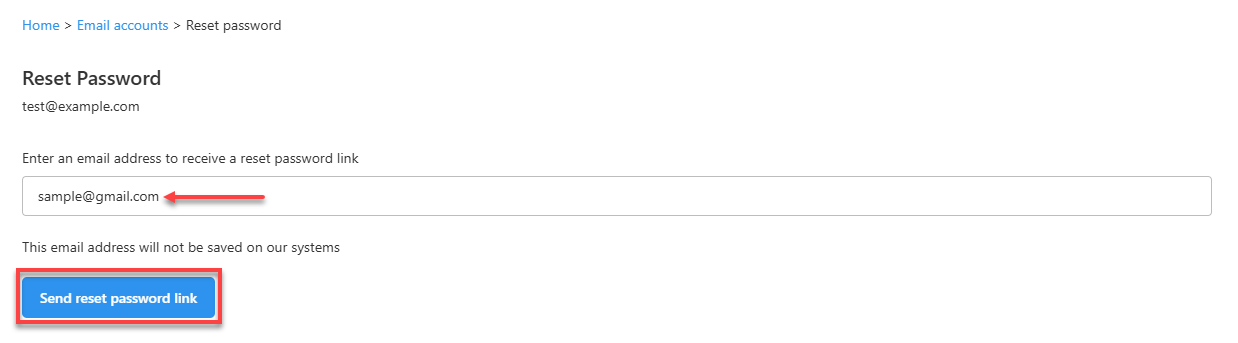
- Click Send reset password link.
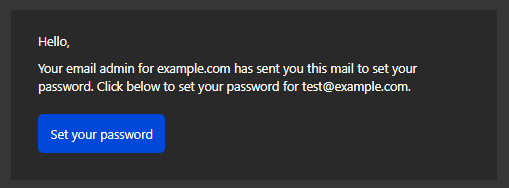
- Open the email that is sent to that address, and click Set your password. If you are resetting the password for another person, ask that person to do this step.
- On the Set your password page, enter the new password in the New Password and Confirm Password fields. The password must have at least 8 characters and contain letters, numbers, and symbols.
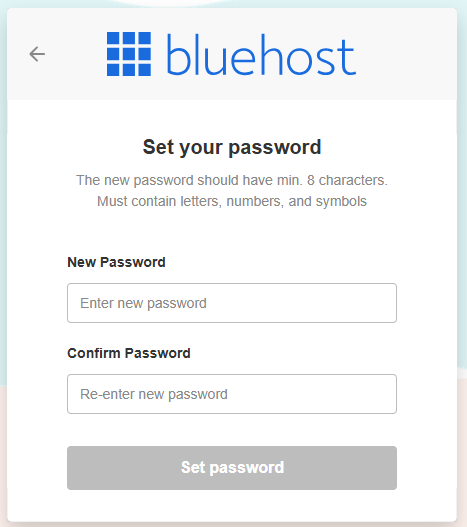
- Click Set password.
- Log in with the new password.
If you are not the account admin, ask your admin to send you a password reset link.
If Your Plan Has Expired
If you could log in before but cannot now, your plan may have expired. If you are not sure whether your plan is active, contact us using the options at the end of this article.
If payment is not received by the plan's expiration date, the plan is suspended after a grace period, and email services stop working. The timeframes depend on your plan term. All of the days are counted from the expiration date.
Annual plans:
- Suspended: 2 days after expiration. You cannot use your email. You can still renew the plan yourself.
- Deleted: 43 days after expiration. You lose access to all of the mailboxes, and you cannot renew the plan yourself. You must contact support for help.
- Data retention: After the plan is deleted, the email data is kept for 30 more days, until day 73, for emergency restoration.
- After day 73: The data is no longer recoverable.
Monthly plans:
- Suspended: 20 days after expiration. You cannot use your email. You can still renew the plan yourself.
- Deleted: 43 days after expiration. You lose access to all of the mailboxes, and you cannot renew the plan yourself. You must contact support for help.
- Data retention: After the plan is deleted, the email data is kept for 30 more days, until day 73, for emergency restoration.
- After day 73: The data is no longer recoverable.
If the plan is suspended, renew it as soon as you can. If the plan is deleted, contact support as soon as possible, before day 73, to ask whether your email data can be restored. Restoration is not guaranteed.
For renewal steps, see Professional Email: How to Renew Your Plan. For current pricing and plans, visit the Bluehost Professional Email page.
Summary
If you cannot log in to Professional Email webmail, use one of the login options shown above and check your email address and password. Make sure the account is active on the Email Management page, and reset the password if you forgot it. If your plan has expired, renew it as soon as you can using the renewal article. If the plan was deleted, or you need help, contact us.
If you need further assistance, Bluehost Chat Support is available 24 hours a day, 7days a week while Bluehost Phone Support is available 7 days a week from 7 am-12 midnight EST.
- Chat Support - While on our website, you should see a CHAT bubble in the bottom right-hand corner of the page. Click anywhere on the bubble to begin a chat session.
- Phone Support -
- US: 888-401-4678
- International: +1 801-765-9400
You may also refer to our Knowledge Base articles to help answer common questions and guide you through various setup, configuration, and troubleshooting steps.