 ChatGPT,
  Claude,
  Gemini,
  Grok — all four for
 Bluehost Professional Email: How to use Webmail as a Desktop App
You can install Professional Email (Titan) webmail on your computer as a desktop app. It's set up as a Progressive Web App (PWA) through your web browser, so your inbox opens in its own window and launches from your computer like any other app, without opening a browser tab first.
Log In to Your Webmail
To install the desktop app, you'll first need to open your mailbox in webmail from your Bluehost Account Manager.
- Log in to your Bluehost Portal.
- From the left-hand navigation menu, click on the Email tab.
- Optional: In Professional Email, if multiple plans are listed, click Manage for the plan you want to use.

- You’ll be automatically redirected to the Email Management page, where you can manage your email settings and subscriptions.
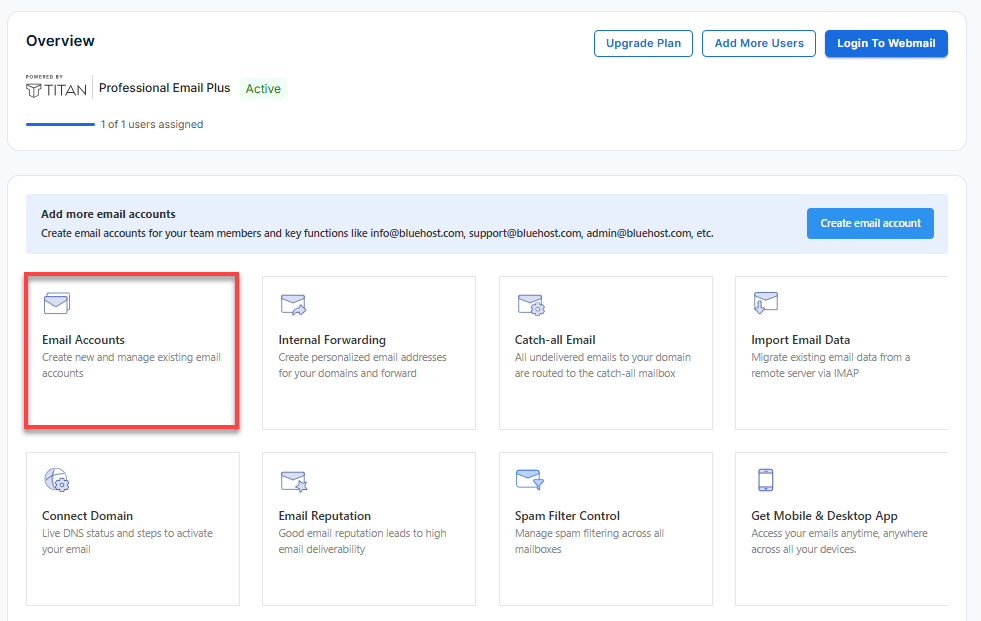
- Click Email Accounts.
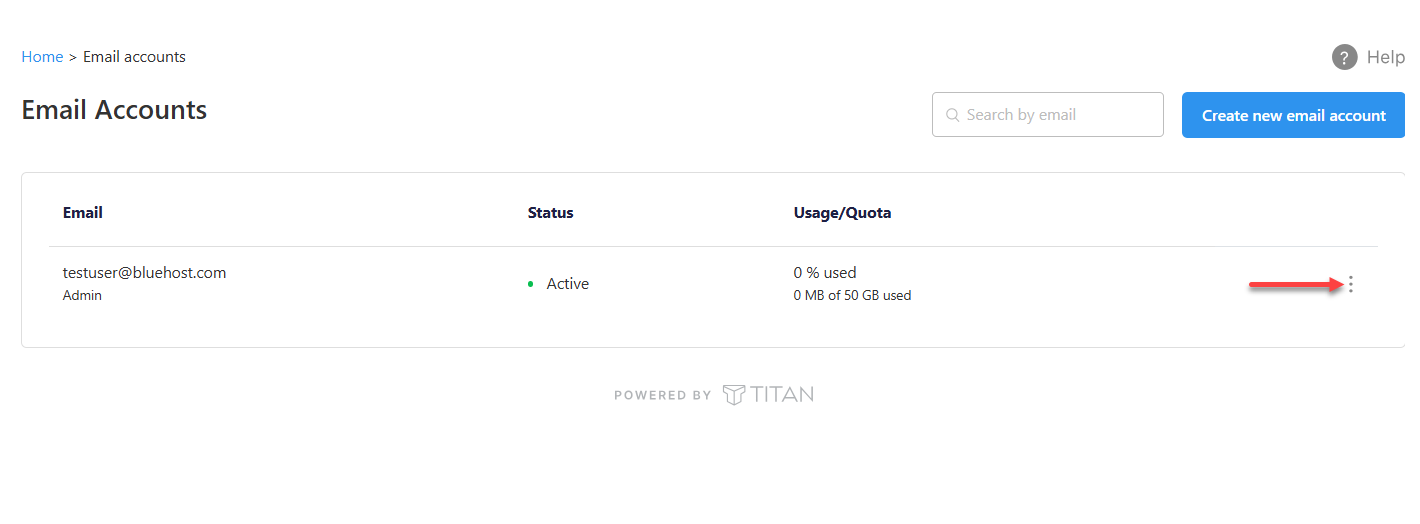
- Find the email account you want to use.
- Hover over the account and click the ellipsis icon (
⋮).
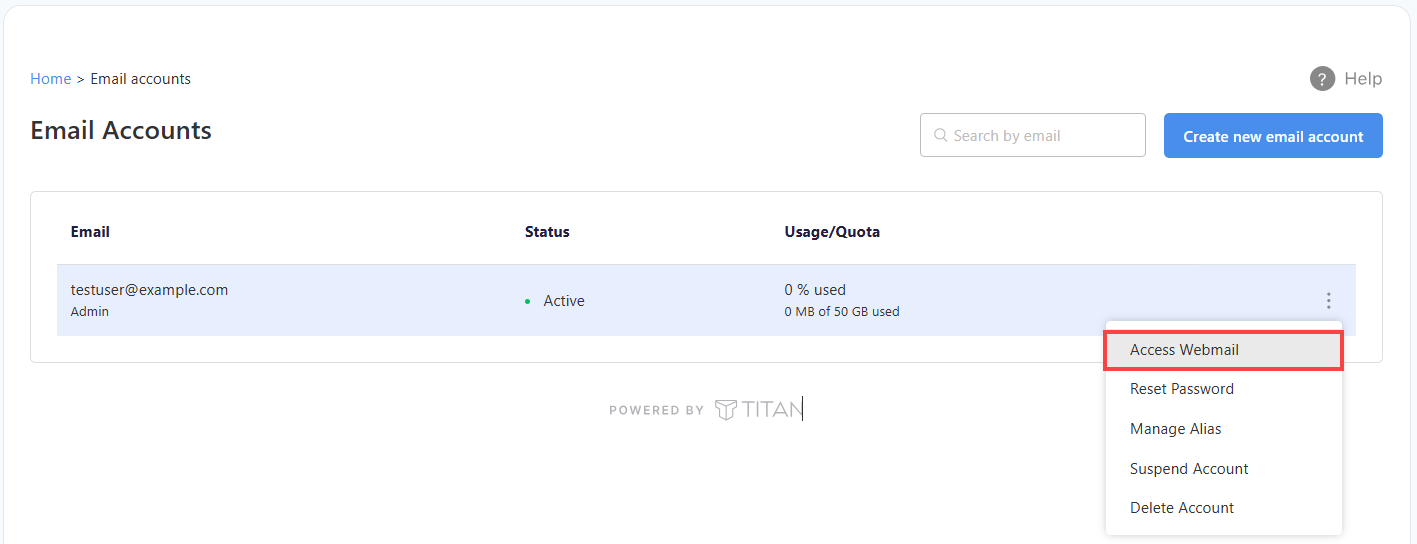
- Click Access Webmail to launch your webmail.
- Enter your email address and click Login. Next, type your password and click Login once more to access your account.
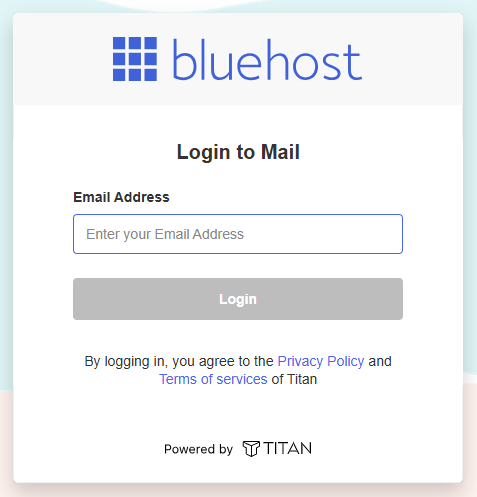
Alternatively, sign in directly at https://bluehost.titan.email/login/ using your full email address and password.
How to Install the Professional Email Desktop App
Choose the installation method that matches your browser, or use the direct link inside webmail settings.
Install from Google Chrome
Chrome lets you install webmail as an app from the browser's main menu.
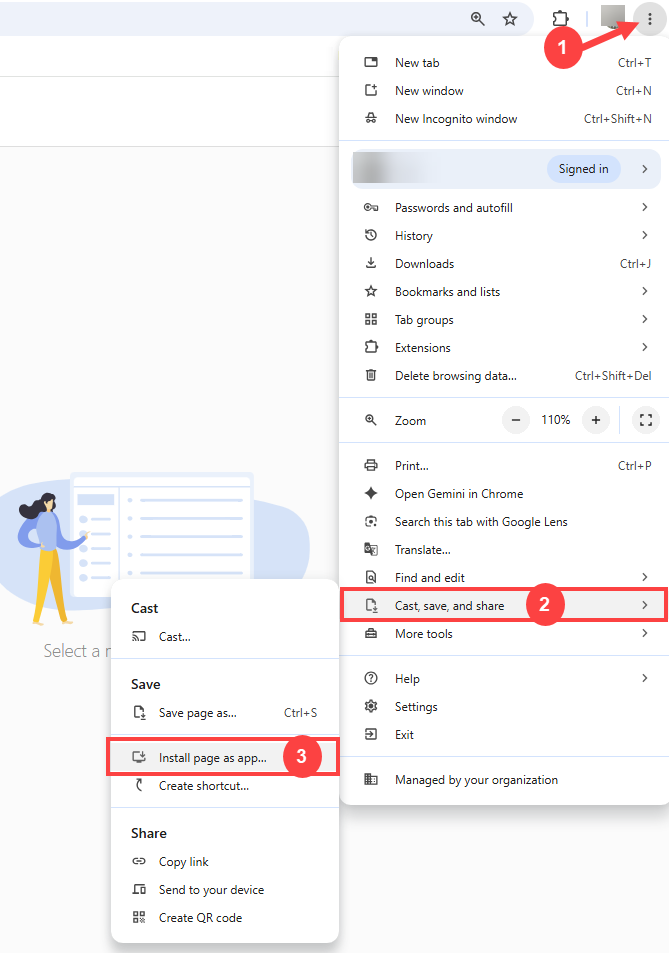
- Click the Customize and control Google Chrome icon (⋮) in the upper-right corner of Chrome.
- Select Cast, save, and share, then click Install page as app.
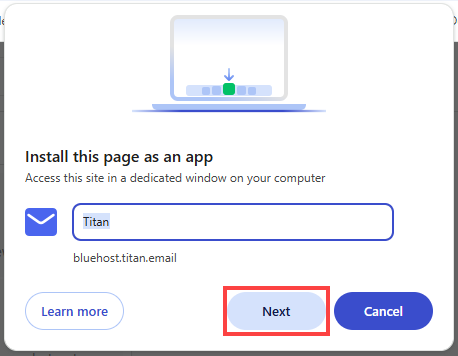
- When the "Install this page as an app" prompt appears, verify or edit the app name (e.g., Titan) and click Next.
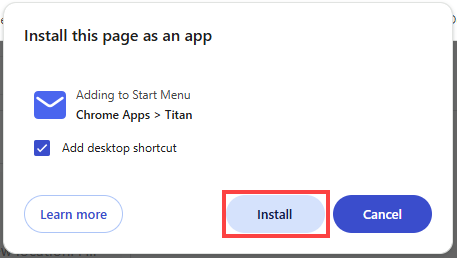
- On the following screen, optionally check Add desktop shortcut, then click Install to finish adding Titan to your computer.
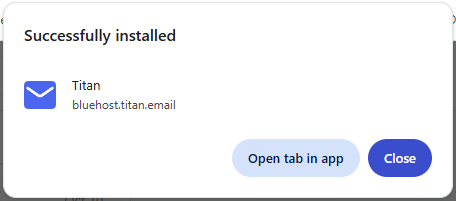
- Once you see the "Successfully installed" notification, click Open tab in app to launch Titan, or click Close to finish.
The desktop app installs and opens your inbox in a separate window.
Install from Microsoft Edge
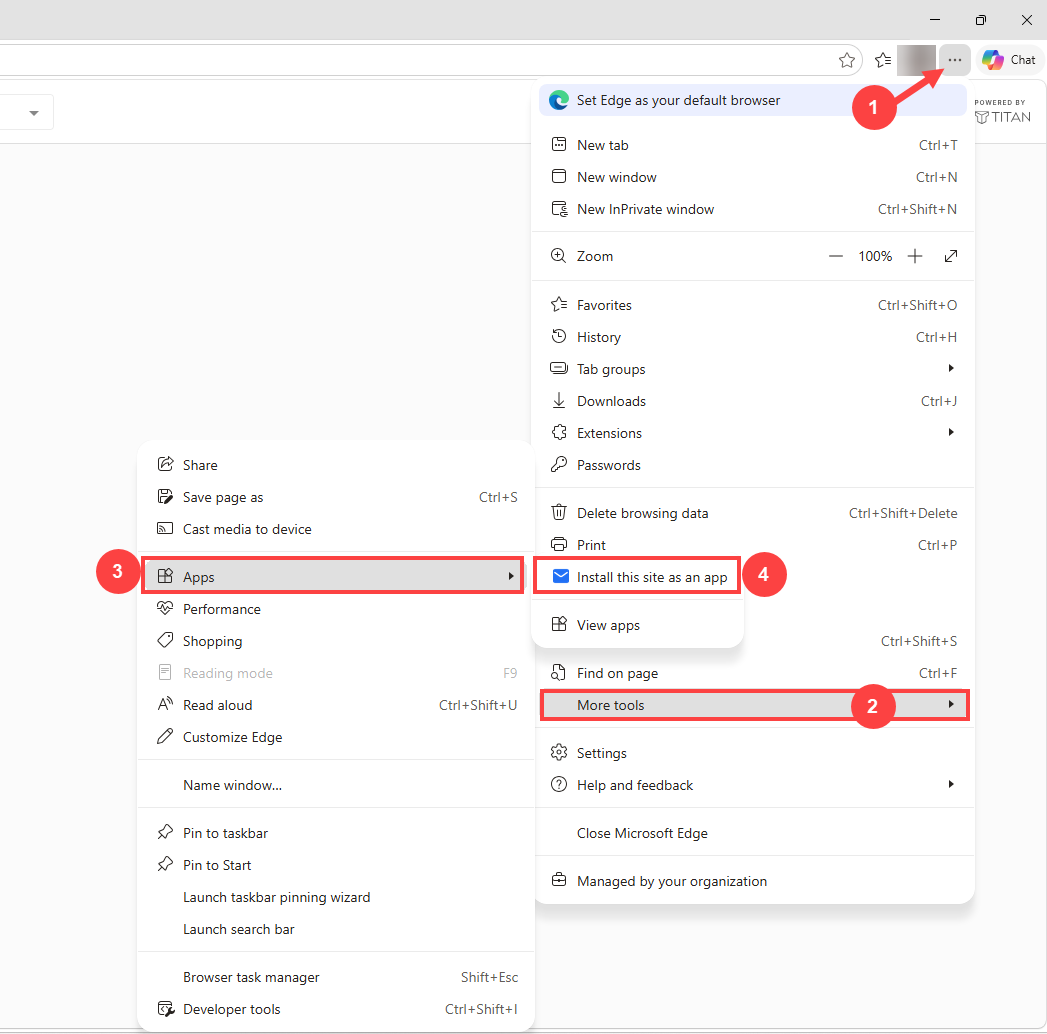
In Edge, the install option is in the Apps section of the browser's main menu.
- In Microsoft Edge, click the three-dot menu (…) icon in the top-right corner.
- Hover over More tools or Apps.
- Click Install this site as an app.
- When the "Install this site as an app" pop-up appears, verify the app name and click Install.
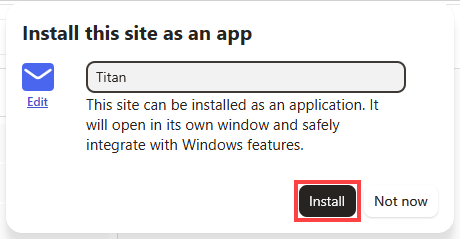
The desktop app installs and opens your inbox in a separate window.
Install from Webmail Settings
If the browser install option doesn't appear, you can start the installation from inside webmail instead.
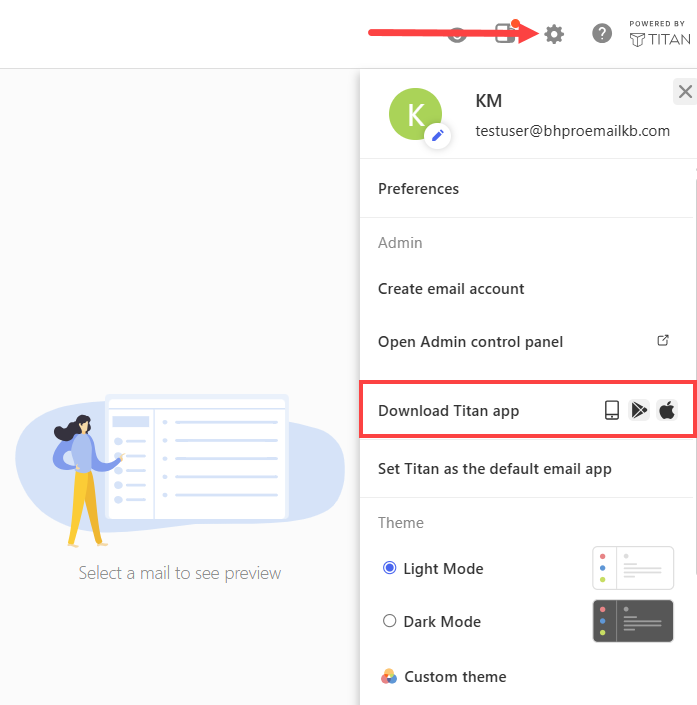
- In webmail, click the Settings icon.
- Select Download Titan app.
- Click Get desktop app.
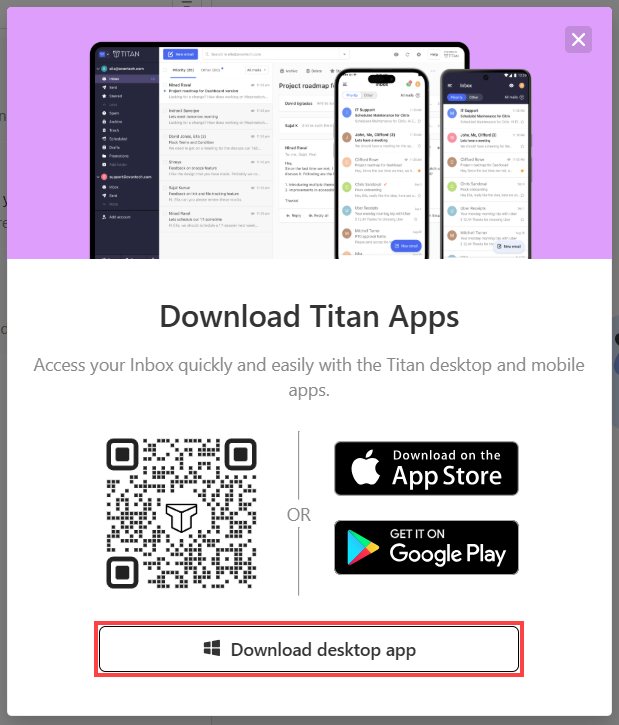
- In the prompt that appears, click Install.
Open the Desktop App
After installation, you can launch your inbox directly from your computer.
- Open your computer's app launcher, such as the Start menu on Windows or Launchpad on macOS.
- Click the Titan icon.
Your inbox opens in its own window, separate from your other browser tabs.
Summary
Installing Professional Email (Titan) webmail as a desktop app gives your Bluehost inbox its own window, so you can launch it straight from your computer like any other app.
If you need further assistance, Bluehost Chat Support is available 24 hours a day, 7days a week while Bluehost Phone Support is available 7 days a week from 7 am-12 midnight EST.
- Chat Support - While on our website, you should see a CHAT bubble in the bottom right-hand corner of the page. Click anywhere on the bubble to begin a chat session.
- Phone Support -
- US: 888-401-4678
- International: +1 801-765-9400
You may also refer to our Knowledge Base articles to help answer common questions and guide you through various setup, configuration, and troubleshooting steps.