 ChatGPT,
  Claude,
  Gemini,
  Grok — all four for
How to Export and Import Contacts in Roundcube Webmail on Bluehost
The ability to export and import contacts in Roundcube Webmail allows you to back up your email address book or transfer contacts between accounts and devices.
This feature is especially useful when migrating email accounts, switching devices, or restoring saved contacts. Bluehost webmail (Roundcube) includes built-in tools to manage your contacts quickly and efficiently.
Roundcube on Bluehost now features an updated theme. The option to switch to the old theme has been removed, but all email features remain unchanged and no action is required.
When Should You Export or Import Contacts?
You may need to export or import contacts if you:
- Move your email to another provider
- Back up your address book
- Switch devices or email applications
- Restore deleted or missing contacts
Exporting creates a backup file, while importing allows you to restore or transfer that data.
How to Access Roundcube Webmail
Before managing your contacts, you’ll need to access your webmail account.
You can refer to the How to Access Webmail: Log into Your Email Account article on how to access your Roundcube webmail.
How to Export Contacts in Roundcube
Exporting contacts allows you to download your address book for backup or transfer.
Steps to Export Contacts
- Log in to Roundcube Webmail.
- Click Contacts in the left menu.
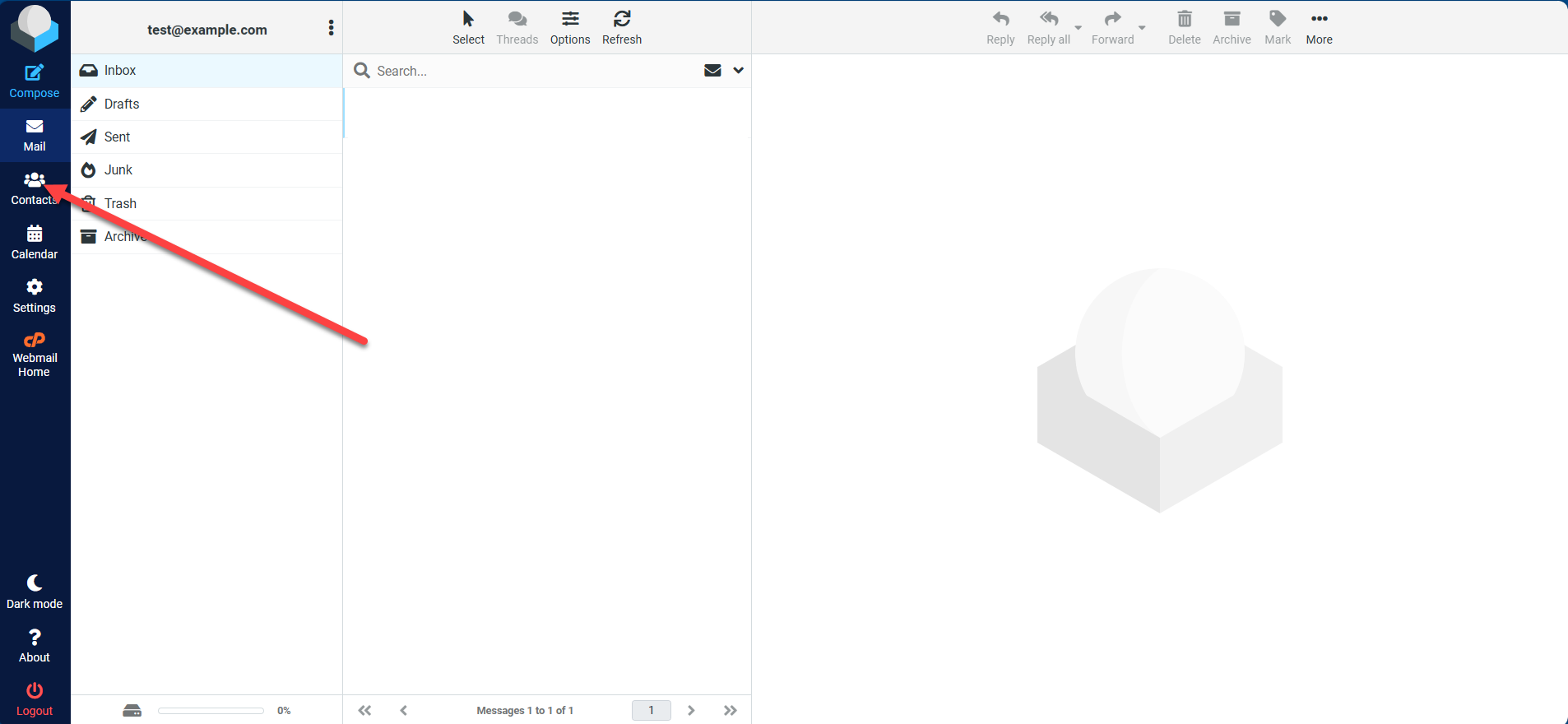
- Select the contact group (if applicable).
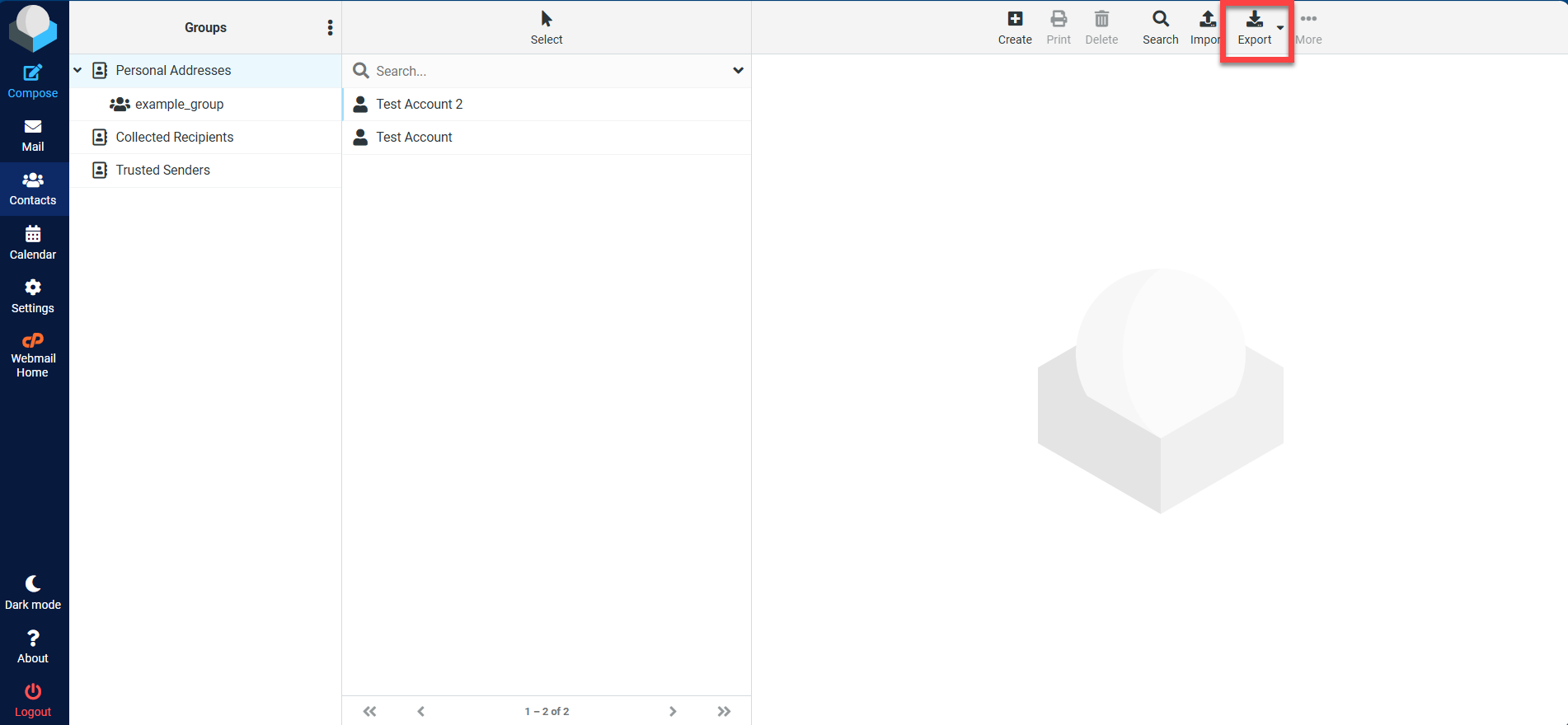
- Click the Export button.
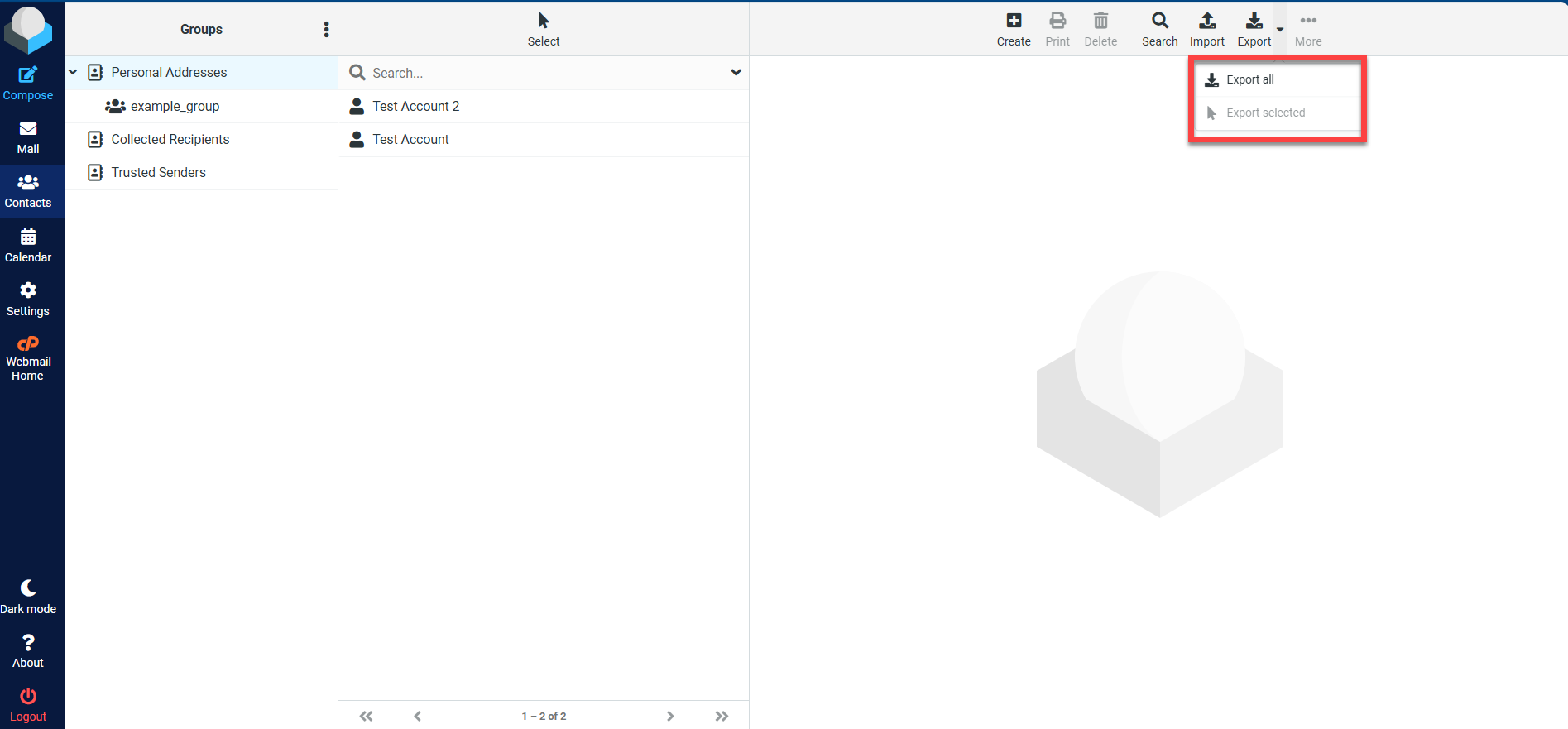
- If you haven't selected the contacts you want to export yet, you can click the down arrow beside the Export icon and choose to (1)Export all or (2)Export selected contacts. Otherwise, your selected contacts will automatically be exported to your computer.
- Save the file to your computer.
Contacts are typically exported as a .vcf (vCard) file.
How to Import Contacts in Roundcube
Importing contacts lets you upload an existing contact list into your email account.
Steps to Import Contacts
- Log in to Roundcube Webmail.
- Click Contacts.
- Select the destination address book.
- Click the Import button.
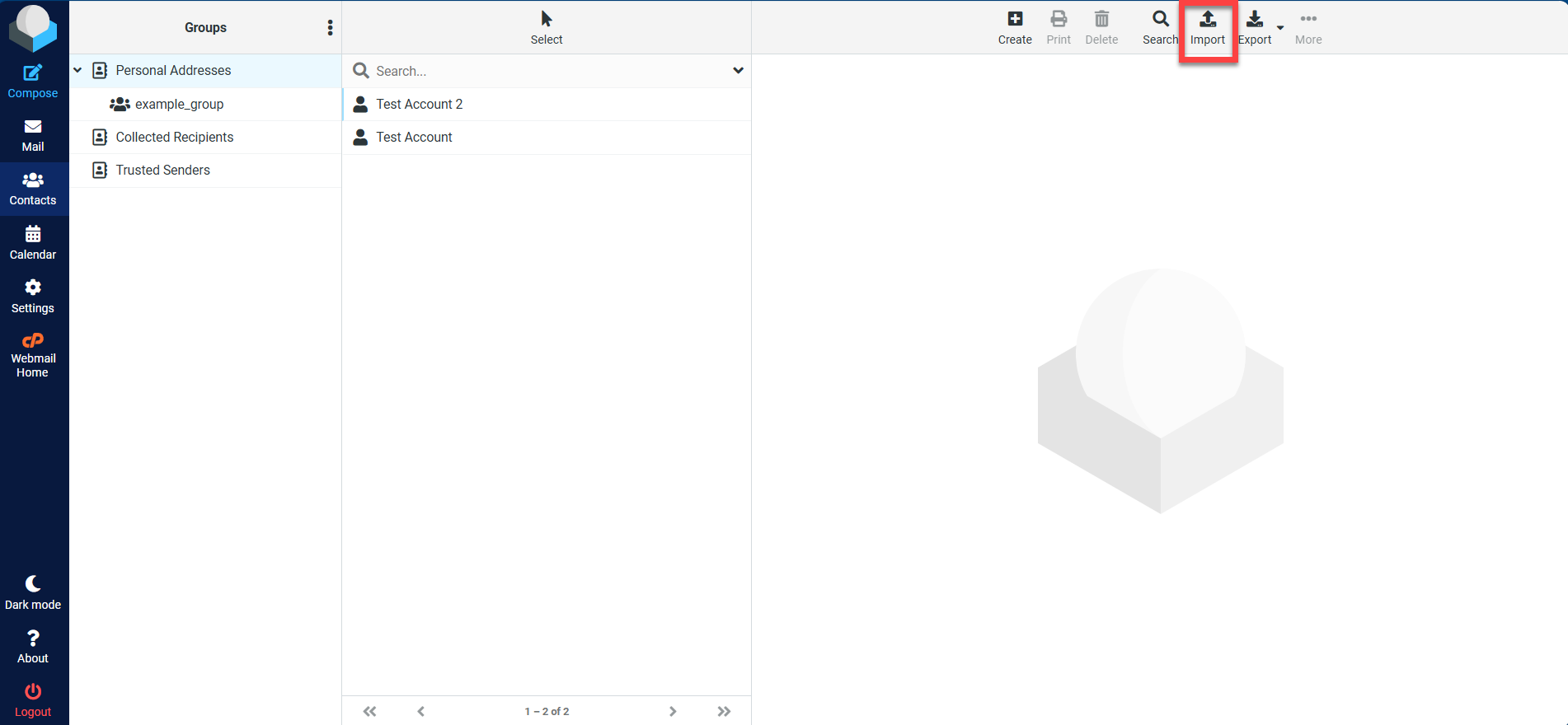
- Upload your contact file (.vcf recommended).
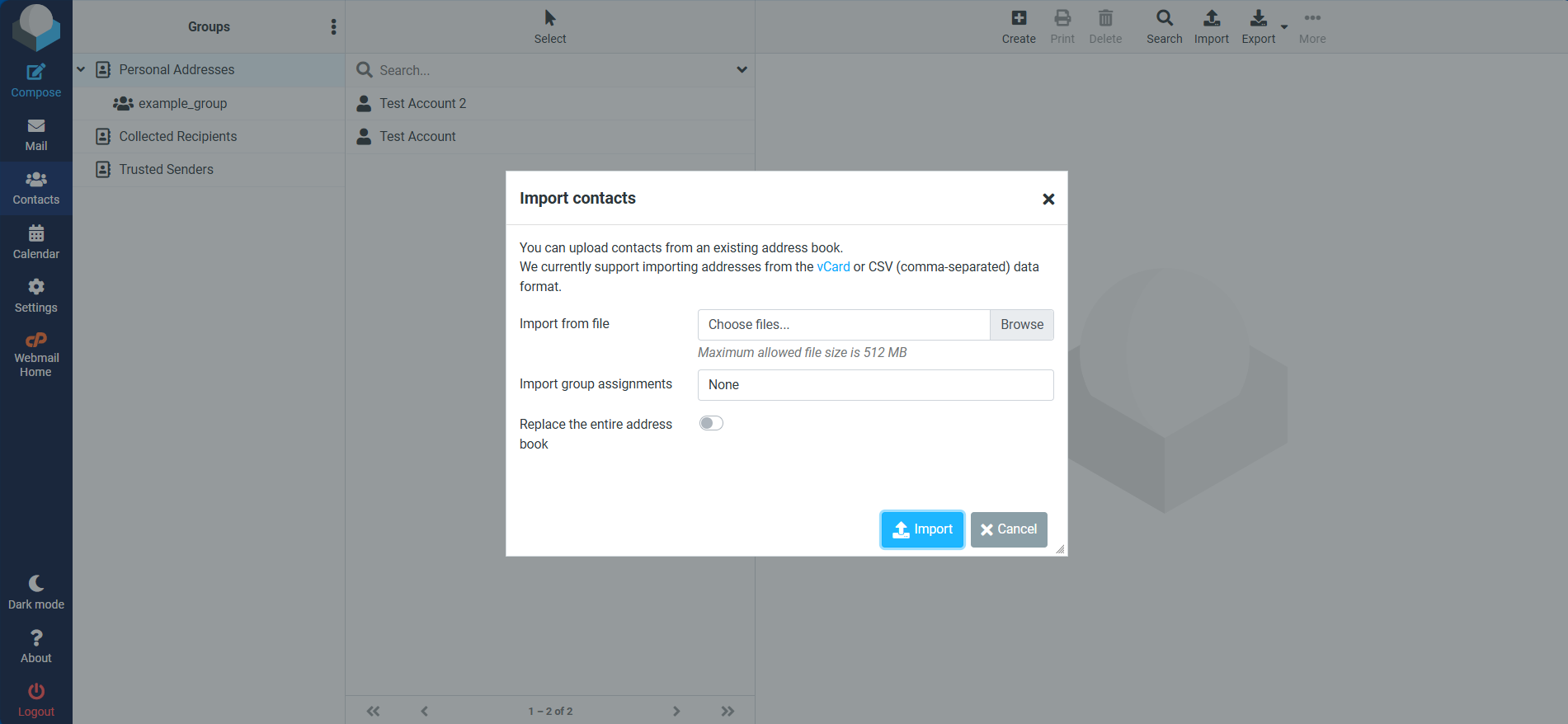
- Confirm the import.
Your contacts will be added to your address book.
Supported Contact File Formats
Roundcube supports the following formats:
- VCF (vCard) – Recommended for best compatibility
- CSV – May require proper formatting
Using the correct format helps ensure a successful import.
Tips for Managing Contacts
- Export contacts regularly as a backup
- Organize contacts into groups for easier management
- Verify imported contacts for accuracy
- Keep your contact list updated
Troubleshooting Contact Import Issues
If contacts do not import correctly:
- Confirm the file format is supported (.vcf preferred)
- Check for formatting issues in CSV files
- Try importing smaller batches
- Ensure there are no duplicate or corrupted entries
Summary
The export and import contacts in Roundcube Webmail feature on Bluehost allows you to easily back up, transfer, and restore your email contacts. By exporting your contacts as a file and importing them when needed, you can ensure your address book remains accessible and secure across different platforms and devices.
If you need further assistance, Bluehost Chat Support is available 24 hours a day, 7days a week while Bluehost Phone Support is available 7 days a week from 7 am-12 midnight EST.
- Chat Support - While on our website, you should see a CHAT bubble in the bottom right-hand corner of the page. Click anywhere on the bubble to begin a chat session.
- Phone Support -
- US: 888-401-4678
- International: +1 801-765-9400
You may also refer to our Knowledge Base articles to help answer common questions and guide you through various setup, configuration, and troubleshooting steps.