 ChatGPT,
  Claude,
  Gemini,
  Grok — all four for
 How to Enable and Disable Two-Factor Authentication
With traditional password authentication, you enter your username and password to access your account. However, this method has security risks because passwords can be stolen, guessed, or otherwise compromised.
Two-Factor Authentication (2FA) adds an extra layer of security by requiring not only your username and password but also something unique to you, like a code sent to your phone, a fingerprint, or a security token. So, even if someone gets your login details, they cannot access your account without completing the additional verification step.
For Bluehost accounts, the second verification step requires you to enter a verification code sent to the email address associated with your account. This added security measure helps protect your account from unauthorized access.
How to Access Your Bluehost Account Using 2FA
To access your Bluehost account, you must complete the verification process by following these steps:
- Log in to your Bluehost account using your User ID and password.
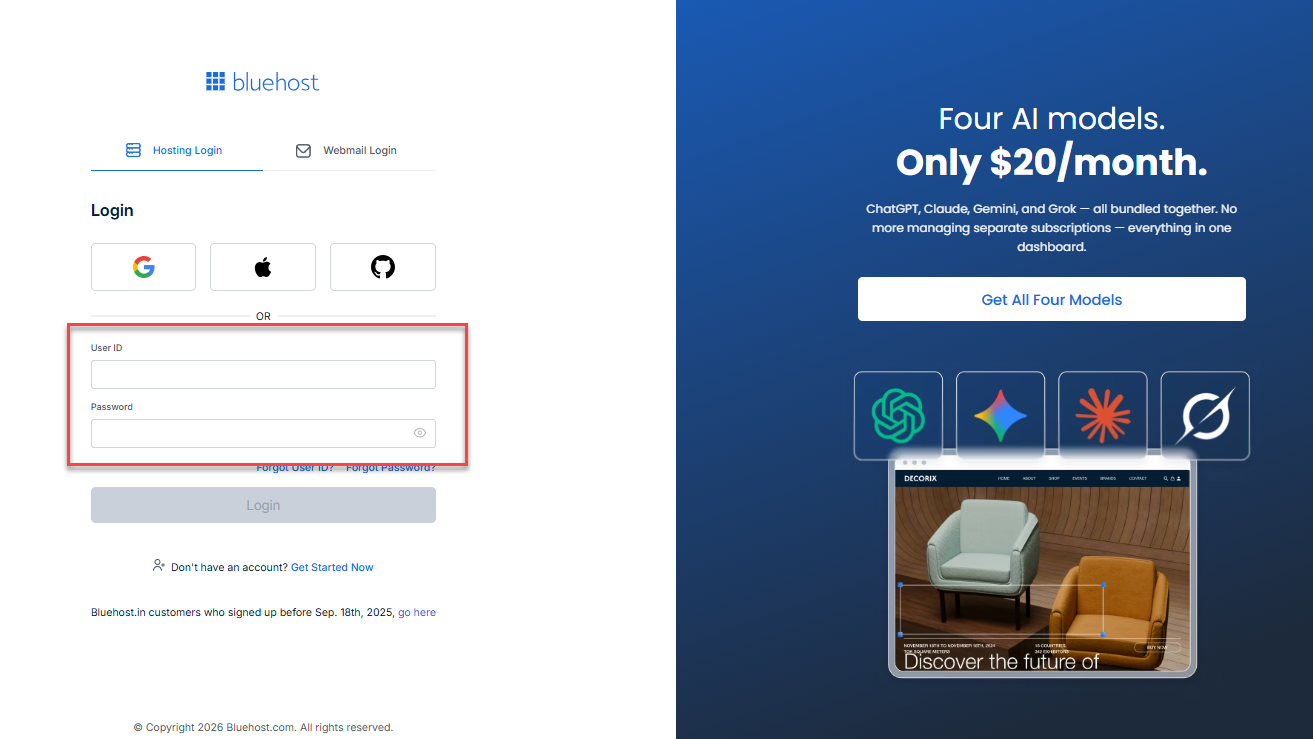
- Check the email address associated with your account for the verification code.
- Enter the verification code you received into the verification field.
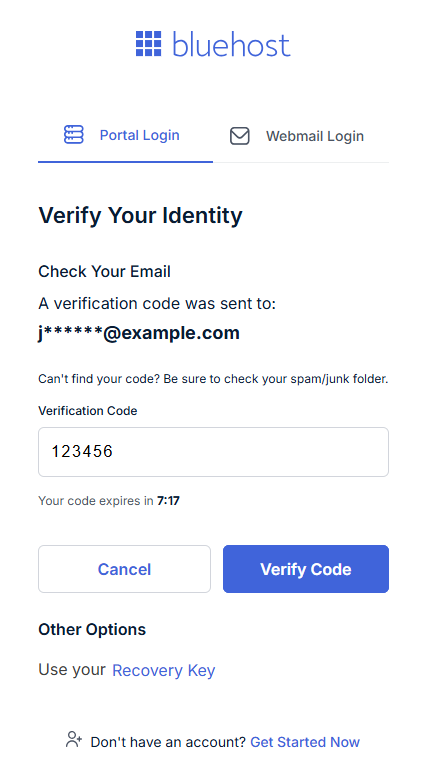
- Click Verify Code.
If successful, you'll be redirected to your Bluehost Portal Dashboard.
How to Set Up Two-Factor Authentication
To enable two-factor authentication in your Bluehost account:
- Log in to your Bluehost Portal.
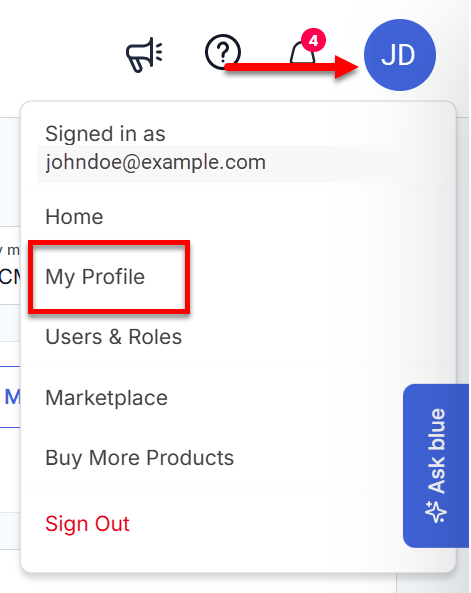
- Click your profile icon in the top-right corner, then select My Profile.
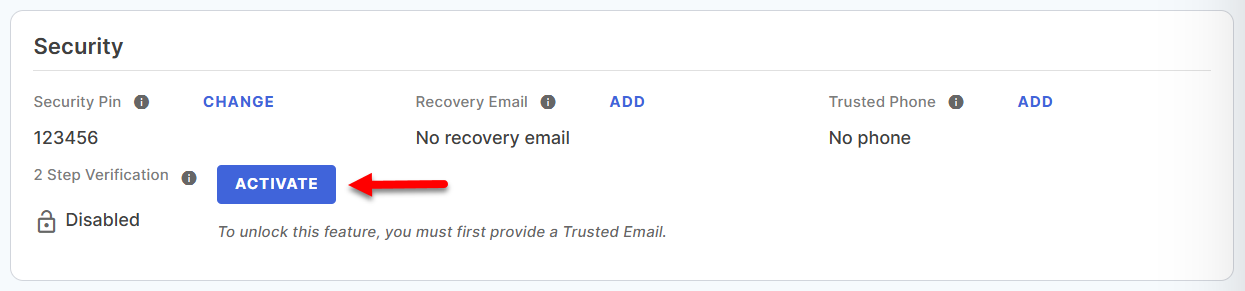
- Scroll down to the Security section.
- Click Activate next to 2 Step Verification.
- Confirm activation by selecting the checkbox next to the statement: "Yes, activate 2-Step Verification for my account. I am authorizing that verification codes may be sent to my verified forms of communication for authentication purposes."
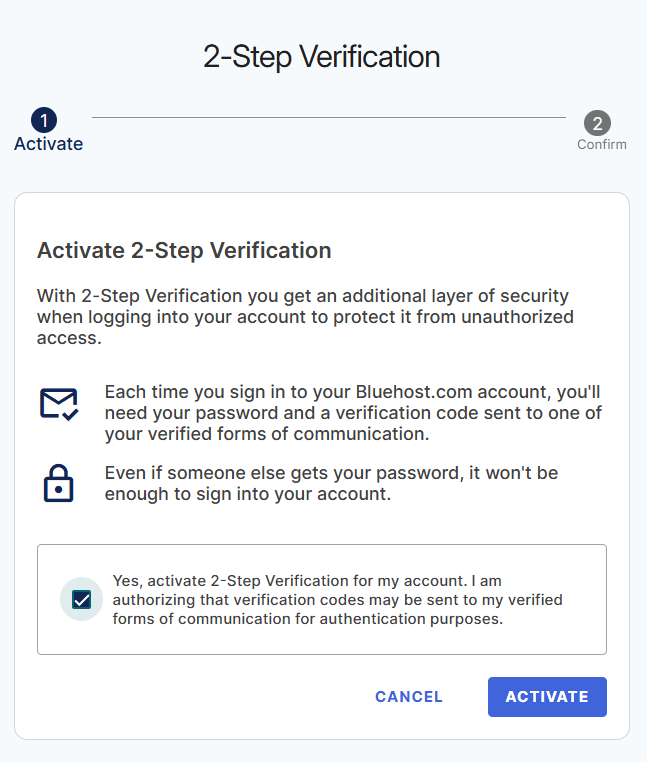
Then, click Activate.
- On the next page, save your Recovery Key.
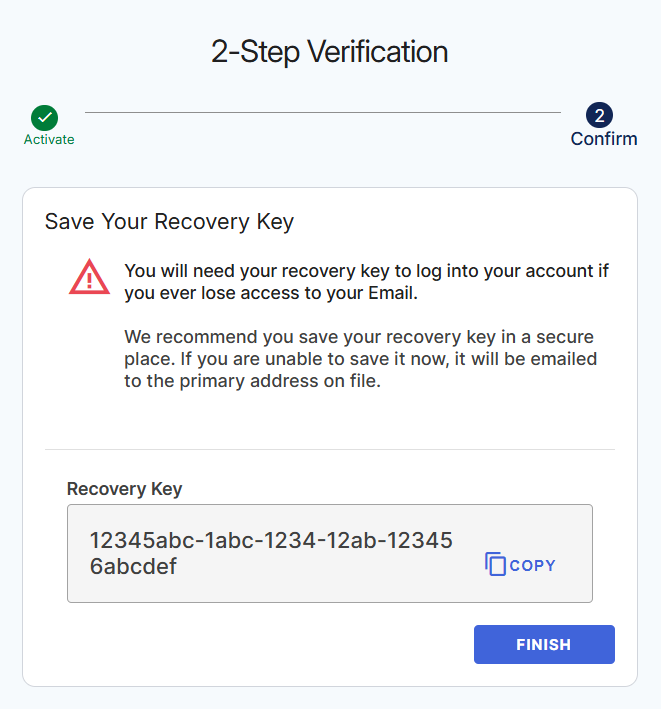
*The Recovery Key shown in the image above is provided as an example only. - Click Finish.
- Two-factor authentication is now activated for your account. The next time you log in, enter the verification code sent to your email. Click Continue To My Account.
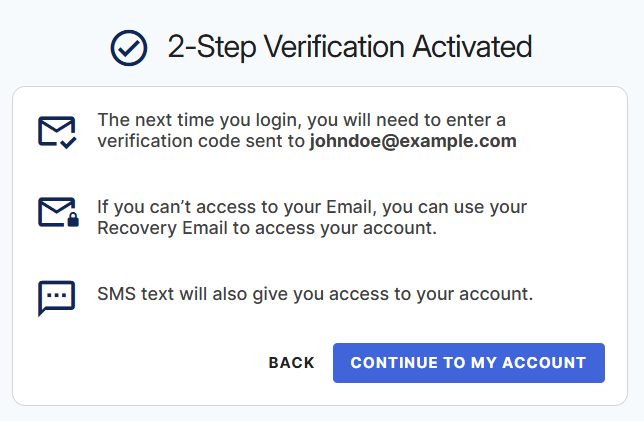
Check your spam or junk folders for an email from verify.bluehost.com if you didn't receive the verification code in your email account's inbox.
To disable two-factor authentication in your account:
- Navigate to the Security section of your Bluehost account.
- Click Disable next to 2 Step Verification.
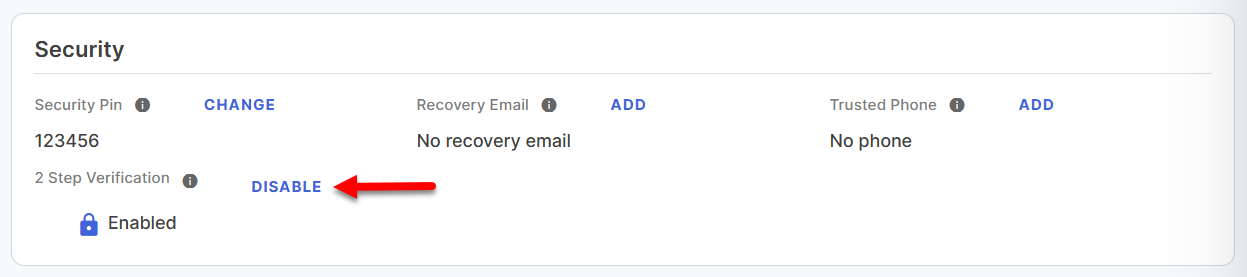
- In the confirmation pop-up, select "Yes, I acknowledge the risk and want to disable 2-Step Verification." and then click Disable.
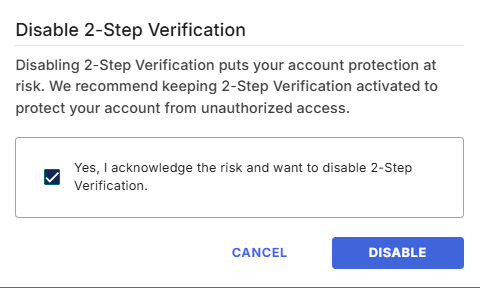
Two-factor authentication is now disabled for your Bluehost account.
Frequently Asked Questions
Q: Will the 2FA method prevent my websites from being hacked?
A: No. Enabling two-factor authentication prevents unauthorized persons from accessing your hosting account. Still, it won't prevent criminals from hacking directly into your website by exploiting vulnerabilities in outdated scripts or plugins.
Q: What else can I do to strengthen my account security?
A: There are many ways to keep your account safe. Below are some tips you can follow:
- Keep your software and scripts up to date.
- Don't reuse passwords.
- Don't share your account's password with anyone.
- Use a password manager.
- Don't click the links in suspicious or unexpected emails.
- Be careful of what you download from the internet.
- Beware of phishing attempts.
Summary
For a long time, passwords have been the go-to for logging into digital accounts. However, relying solely on passwords isn't enough to keep data safe. Protect your Bluehost account with two-factor authentication (2FA). By adding an extra layer of security, 2FA significantly reduces the risk of unauthorized access to your hosting account.
If you need further assistance, Bluehost Chat Support is available 24 hours a day, 7days a week while Bluehost Phone Support is available 7 days a week from 7 am-12 midnight EST.
- Chat Support - While on our website, you should see a CHAT bubble in the bottom right-hand corner of the page. Click anywhere on the bubble to begin a chat session.
- Phone Support -
- US: 888-401-4678
- International: +1 801-765-9400
You may also refer to our Knowledge Base articles to help answer common questions and guide you through various setup, configuration, and troubleshooting steps.