 ChatGPT,
 Claude,
 Gemini,
 Grok — all four for

Key highlights
- Learn how to customize WordPress theme using multiple methods like the Customizer, Full Site Editor, page builders and child themes.
- Follow step-by-step guidance on how to customize WordPress theme safely without breaking layouts or losing your design.
- Understand WordPress theme updates and customization to prevent overwritten changes during upgrades.
- Experiment with design tools to customize WordPress theme and build a layout that fits your brand and content style.
- Use staging and version-safe methods for WordPress theme updates and customization to protect theme edits long-term.
Customizing your WordPress theme is one of the easiest ways to give your website a fresh, unique and professional look without rebuilding everything from scratch. Whether you’re using a free theme, a premium theme or a block-based theme, WordPress gives you flexible design control. You can customize layouts, features and overall appearance with ease.
But here is the catch: most beginners are not sure where to start, which tools to use or how to customize a WordPress theme without breaking their site.
That is exactly what this guide will help you with.
In this blog, you will learn how to customize WordPress theme using different methods. We will explore five methods i.e. the Full Site Editor, the Theme Customizer, page builders, theme files and child themes.
Ready to customize your WordPress theme the right way? Let us get started.
Why customize your WordPress theme?
Customizing your WordPress theme is one of the best ways to improve your website’s visual appearance and make it feel truly yours. When you customize WordPress theme, you can update colors, fonts, page layouts, background images and navigation menus.
Theme customization also helps you improve usability and accessibility. Clear layouts, readable typography and well-structured template files make it easier for visitors and screen readers to browse your content.
You can make these updates using the Theme Customizer, Full Site Editor or a page builder plugin, depending on whether your active theme supports block themes or classic themes.
When should you customize your WordPress theme?
You should customize your WordPress theme when you want to improve your website’s design, functionality or branding. The best time to start customizing your WordPress theme is right after installing WordPress or activating a new theme. At this point, your WordPress site is clean, so changes to colors, layouts and menus are easier to manage.
Customization also makes sense in situations like:
- A brand refresh, where you may need to update colors, typography or background visuals.
- An outdated website layout that needs improved navigation or a more modern structure.
- Adding new features such as custom navigation menus, archive pages or additional template files.
- A theme that supports tools like the Full Site Editor, Theme Customizer or a page builder plugin, giving you more flexibility.
- Upcoming theme updates, where shifting changes to a child theme or a staging site helps prevent data loss.
These moments help ensure safe and effective WordPress theme customization.
What are the different ways to customize a WordPress theme?
There are several ways to customize your WordPress theme and each method gives you a different level of control. The right option depends on your theme type, your experience level and how much editing you want to do.
WordPress offers both beginner friendly tools and advanced customization options for users who want deeper control over their website.
To help you compare each method easily, here’s a quick breakdown of customization options along with skill level and theme support:
| Method | Skill Level | Best For | Risk Level | Theme Support |
| Full Site Editor | Beginner | Block themes | Low | Only block themes |
| Customizer | Beginner | Classic themes | Low | Most classic themes |
| Page Builders | Beginner–Intermediate | Custom layouts | Medium (bloat) | Most themes |
| Editing Theme Files | Advanced | Deep customization | High | All themes |
| Child Theme | Intermediate | Safe code edits | Low | All themes |
Now that you understand how each method differs, let’s look at how you can customize a WordPress theme using these approaches step by step.
1. WordPress theme customization with the Full Site Editor (FSE)
2. Customize WordPress theme using the theme customizer (classic themes)
3. Customize WordPress theme using page builders and theme frameworks
4. Edit theme files for deep WordPress theme customization (advanced users)
5. Create a child theme to customize WordPress theme safely
Now that we know the common ways, let’s delve deeper into the details: –
1. WordPress theme customization with the Full Site Editor (FSE)
The Full Site Editor is one of the most powerful tools for customizing WordPress themes, especially if your active theme supports block based themes.
The FSE lets you edit your entire site visually, including headers, footers, templates and template parts, without touching theme files or writing code.
It is perfect for beginners who want more control and for users who want faster WordPress theme customization.
What can you customize in WordPress theme with FSE?
With the site editor, you can easily update important parts of your WordPress website, such as:
- Global styles including colors, fonts, spacing and background settings
- Header and footer areas
- Navigation menus
- Template files such as single posts, pages and archive templates
- Featured images
- Buttons, blocks and layout settings
- Social media icons and site icon
FSE gives you complete control over how your website looks, while keeping everything inside the WordPress dashboard.
How to access and use FSE?
You can access the Full Site Editor from:
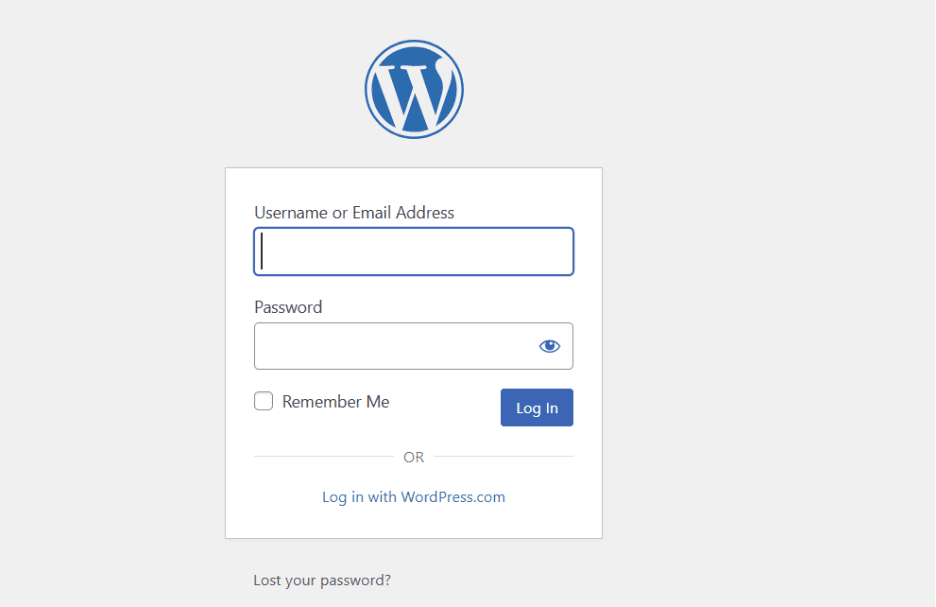
Step 1: Login to your WordPress Dashboard.
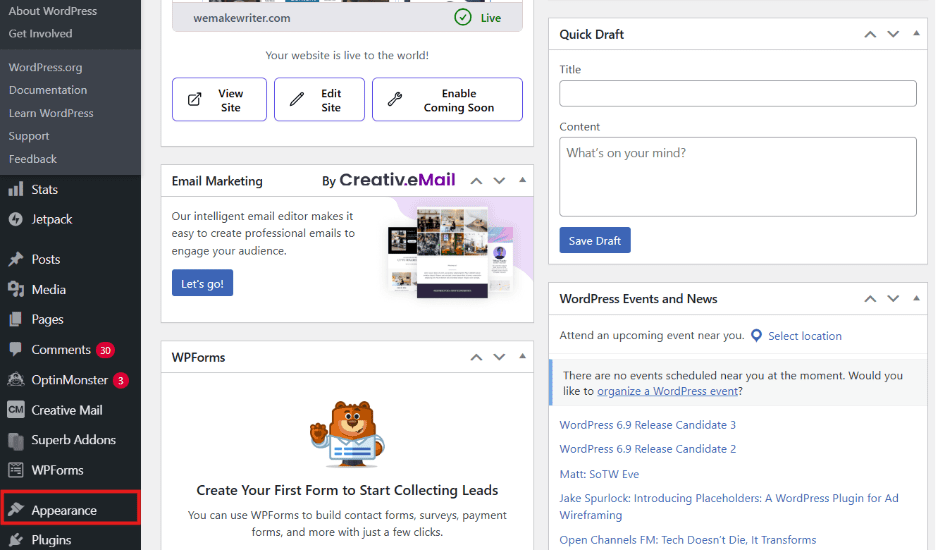
Step 2: In WordPress Dashboard and click on ‘Appearance’.
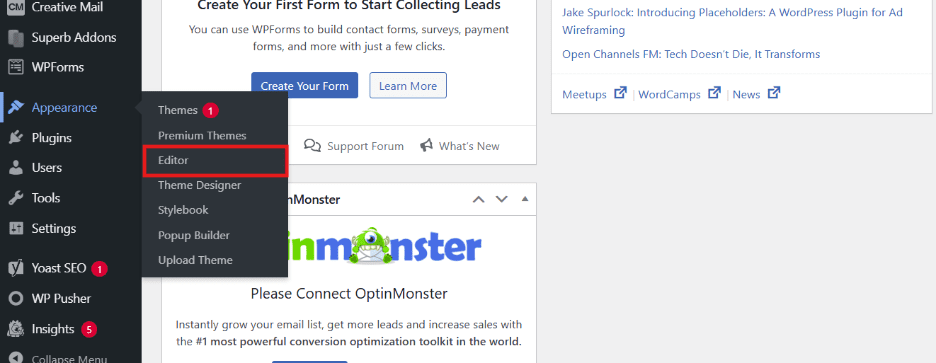
Step 3: In ‘Appearance’ click on ‘Editor’.
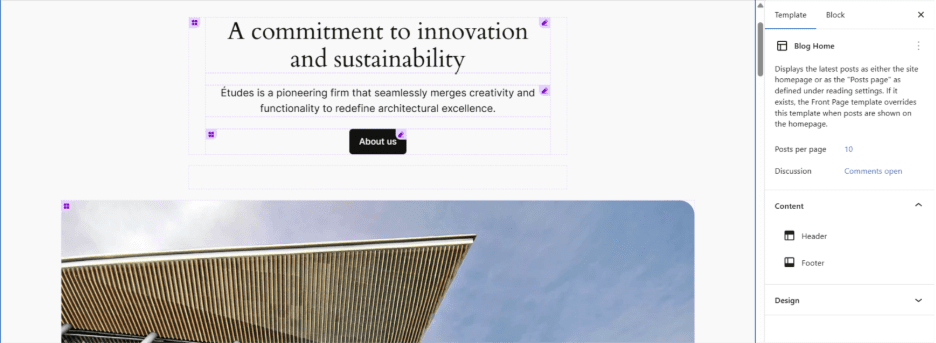
Step 4: You’ll be redirected to the following screen, where you can edit your website’s theme.
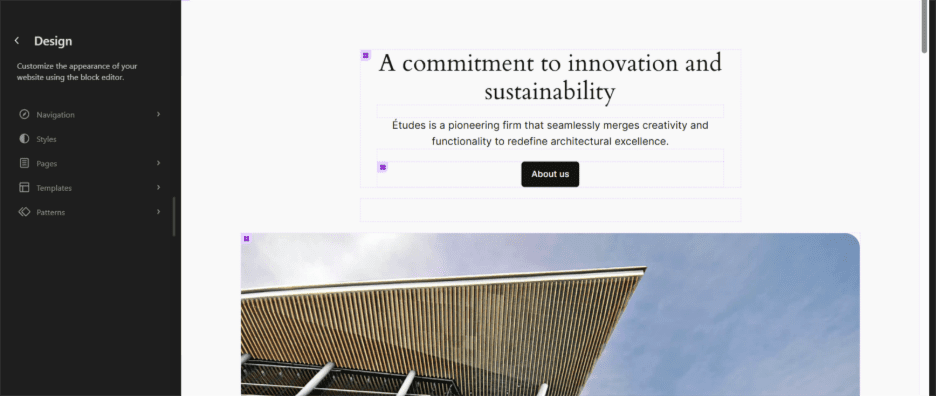
- You will see your homepage open with editing tools displayed at the top.
- Select any section to start modifying it, including the header, footer, sidebar or main content area.
- Use the ‘+’ icon to insert new blocks, similar to how you edit a normal page.
- Drag blocks to move them into the order or position you prefer.
- Adjust colors, fonts and spacing from the block settings panel on the right side.
Step 5: Save changes to update your live site instantly.
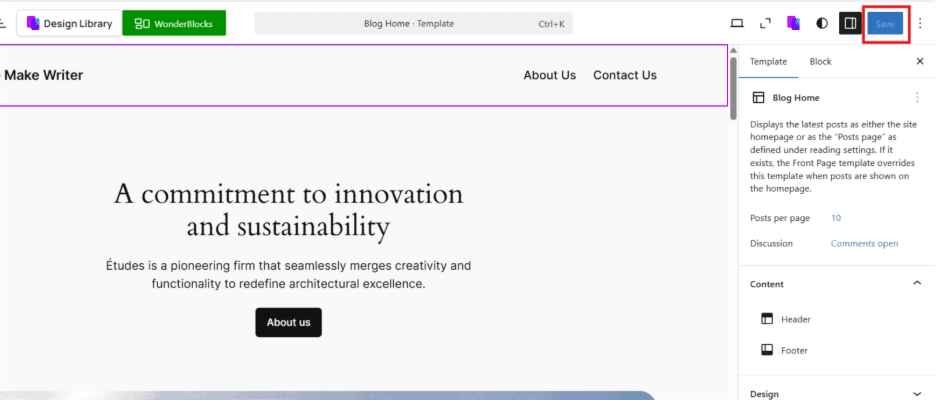
Note: You can also clone a template, adjust page layouts or add code snippets using supported blocks.
When to use FSE and when it does not work?
Use the Full Site Editor when:
- Your active theme supports block based editing
- You want visual control over your entire site
- You need an easier alternative to editing theme files
- You want to customize themes without using the theme file editor
Avoid using FSE when:
- You are on a classic theme
- You depend on complex custom themes or template files that require editing code
- You need advanced changes that require PHP or theme template files
If your theme does not support FSE, you can use the Theme Customizer, a page builder or create a child theme for deeper customization.
2. Customize WordPress theme using the theme customizer (classic themes)
If you are using a classic theme, Theme Customizer is one of the easiest ways to update your WordPress website without editing theme files.
The customizer lets you preview changes in real time and adjust important elements of your active theme directly from the WordPress dashboard. It is beginner friendly and works well for most free version and premium themes.
What the classic customizer lets you edit in WordPress theme?
Inside the WordPress Customizer, you can modify several parts of your theme, such as:
- Site title and site icon
- Colors and typography
- Homepage and static page settings
- Menus and navigation
- Widgets in supported areas
- Background images
- Featured images display
- Additional CSS for theme customizations
- Layout settings (depends on the parent theme)
These options help you customize themes quickly without touching the theme editor or theme template files.
How to access the classic customizer?
You can open the Theme Customizer easily from your WordPress dashboard:
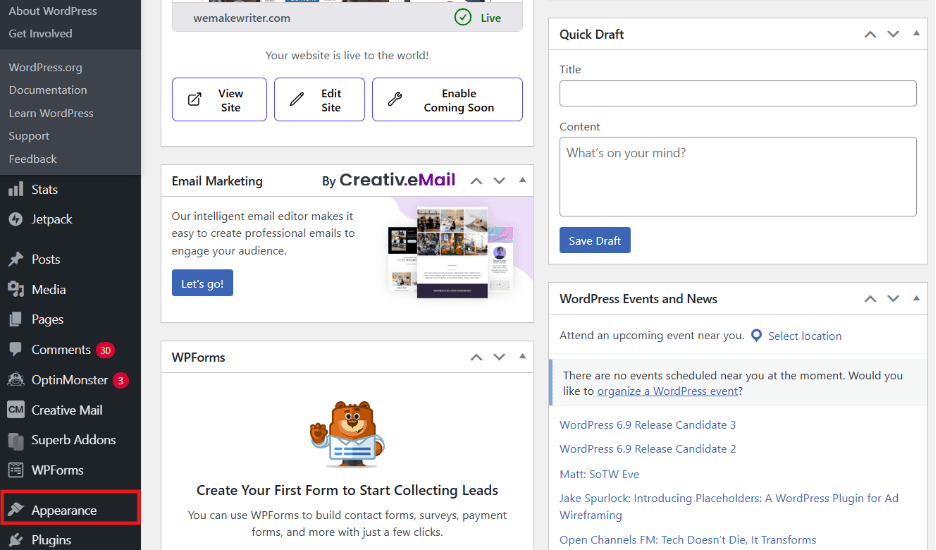
Step 1: Go to ‘Appearance’ section.
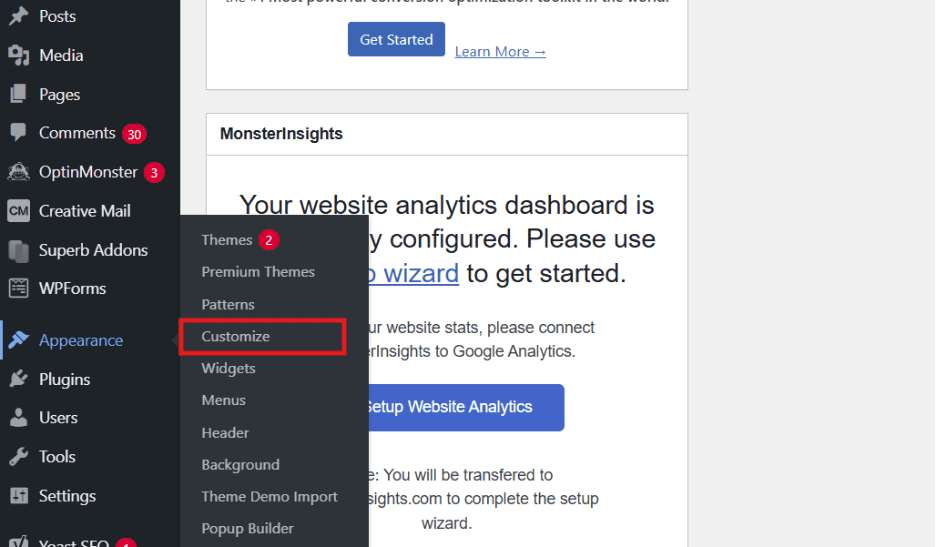
Step 2: Click on ‘Customize’ section.
Step 3: Choose the section you want to edit.
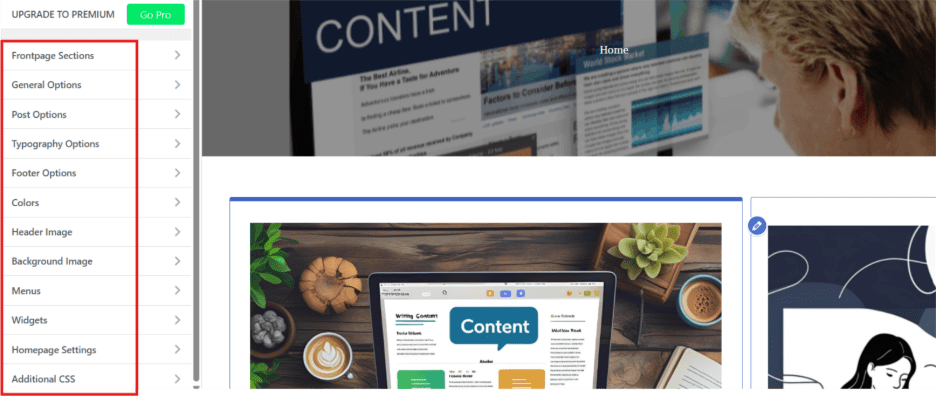
Step 4: Adjust settings using sliders, dropdowns or visual previews
Step 5: Click on ‘Publish’ to publish your page when changes are made.
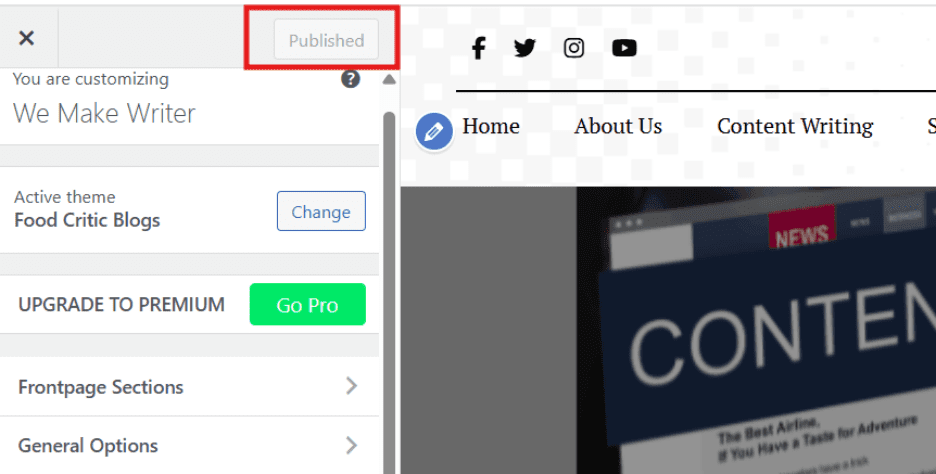
This tool is ideal when your active theme supports classic customization options and you want safe edits that will not affect your live site negatively.
This tool is ideal when your active theme supports classic customization options and you want safe edits that will not affect your live site negatively.
3. Customize WordPress theme using page builders and theme frameworks
Page builders are one of the most flexible ways to customize a WordPress theme. They give you drag and drop control over your page layouts without editing theme files or writing code.
If you want complete design freedom, page builders and theme frameworks are powerful tools that work on almost any WordPress site.
Popular page builders for customizing theme
Some of the most popular page builder plugins include:
- Elementor
- Beaver Builder
- Divi Builder
- SeedProd
- Brizy
These tools let you design an awesome website visually, even if you are using the default theme, Astra theme or any other parent theme.
What you can customize theme with page builders?
With a page builder plugin, you can customize:
- Page layouts and sections
- Headers and footers (in supported themes)
- Landing pages
- Buttons, forms and featured images
- Social media icons
- Columns and spacing
- Custom templates for the entire site
Many builders also offer ready made blocks and widgets, so you can add code snippets or design elements without editing code.
How to customize WordPress theme with Elementor?
Let’s explore how to customize WordPress theme using Elementor (step-by-step):
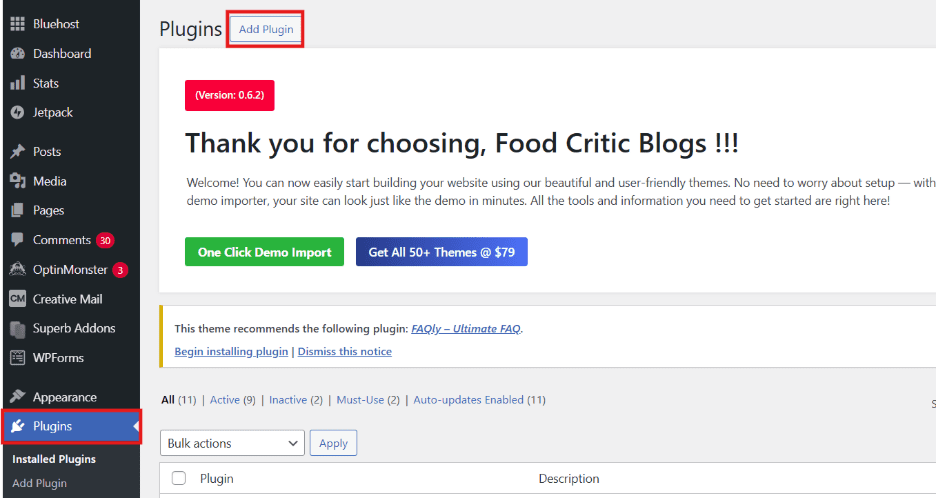
Step 1: Open your dashboard and click on ‘Plugin’. Now, click on ‘Add Plugin’.
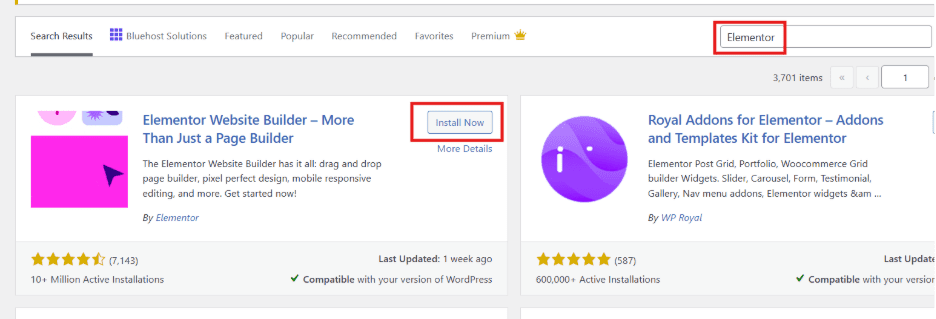
Step 2: Search ‘Elementor’ and install plugin.
Step 3: Open any page and select the ‘Edit with Elementor’ option.
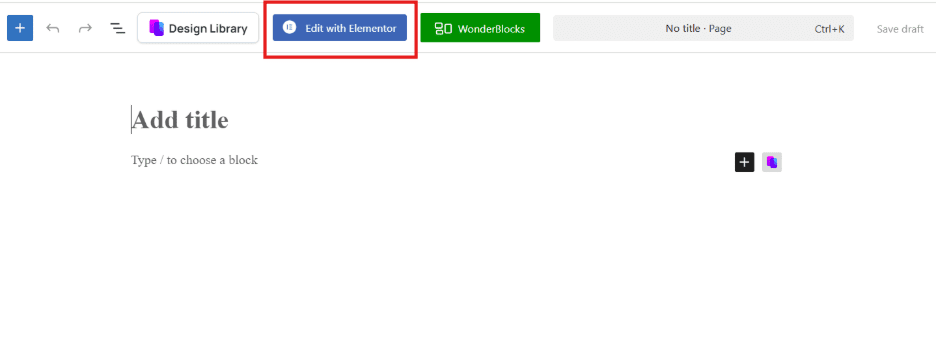
Step 4: You will see your page open with the widgets panel on the left and your content displayed in the center.
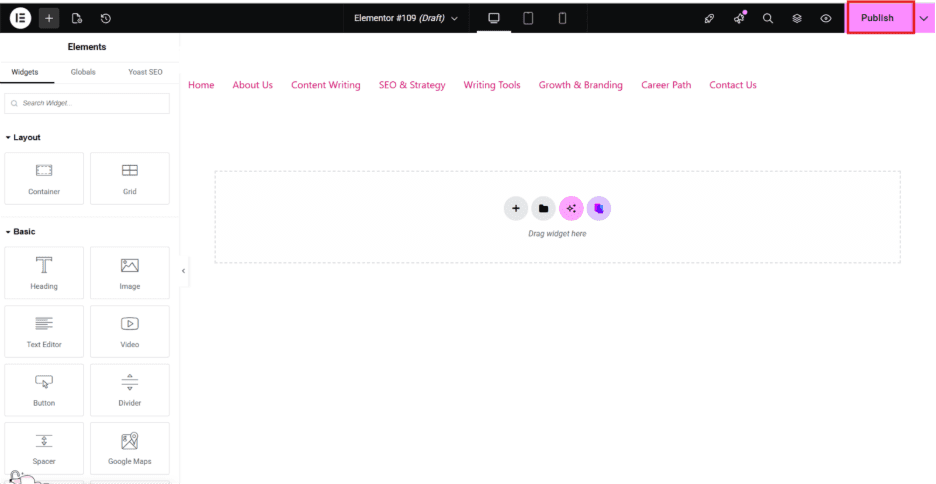
- Drag any widget from the left panel onto your page, such as headings, text sections, images or buttons.
- Select any element to open its settings panel and customize its colors, size, spacing and other style options.
- Adjust your layout by moving elements to new positions or switching to different column arrangements.
- Use the toolbar at the bottom to preview your design on desktop, tablet and mobile.
Step 5: Click “Publish” once you are happy with the page.
Theme framework options
Theme frameworks provide a solid structure that makes WordPress theme customization easier. Popular frameworks include:
- Genesis Framework
- Astra theme (lightweight framework style)
- GeneratePress
- Kadence
These frameworks offer fast performance, clean theme template files and more customization options inside the WordPress dashboard.
Pros and cons of using page builders
Pros:
- Beginner friendly visual editing
- Full control over layouts
- No need to use the theme file editor
- Works on most custom themes
Cons:
- Can slow down your WordPress site
- Layouts may break if you switch to a different builder
- Not ideal for users who prefer simple design tools
Page builders are great when you want flexibility without editing theme template files directly or creating a child theme.
4. Edit theme files for deep WordPress theme customization (advanced users)
Editing theme files gives you the deepest level of control over your WordPress website. When you edit theme files directly, you can customize your WordPress theme by adding new layouts or creating template files.
This approach offers powerful flexibility, but it should be used carefully to avoid issues during future WordPress theme updates and customization. It is also helpful for users who want to understand how to customize WordPress theme elements at a deeper level.
Understanding theme file structure
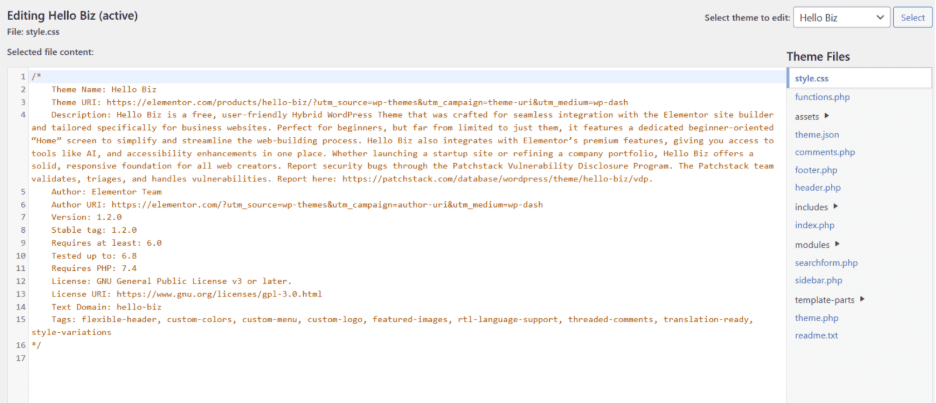
Every WordPress theme contains a set of template files that control different parts of your website. Common template files include:
- header.php
- footer.php
- single.php
- page.php
- functions.php
- style.css
Building your theme with theme file editor
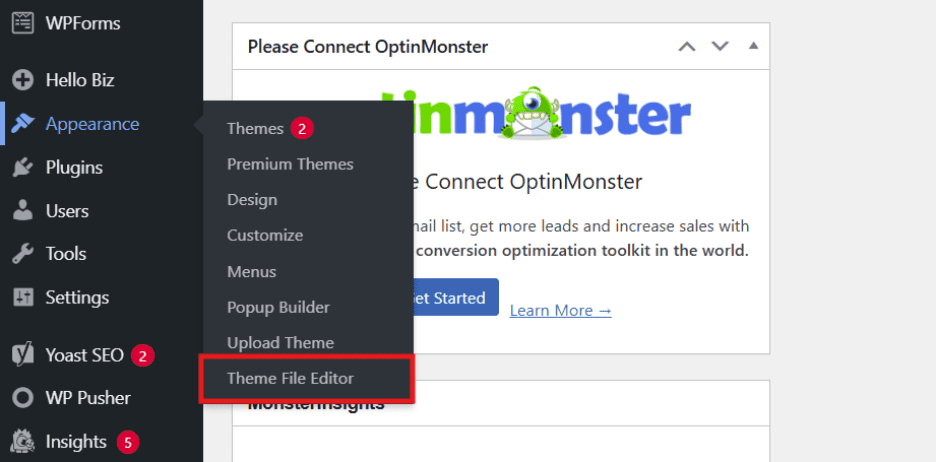
Step 1: Login to your WordPress dashboard.
Step 2: Click on ‘Appearance’.
Step 3: Now, click on ‘Theme File Editor’.
This shows all theme files stored in your theme installed from the WordPress theme directory.
What you should and should not edit?
You can safely edit:
- CSS inside style.css
- Template files for layout changes
- Functions inside functions.php
- Theme template files for custom output
Avoid editing:
- WordPress core files
- Parent theme files without a child theme
- Files that get overwritten when a new version is released
This protects your work during theme updates.
Safety checklist before editing code
Always follow these steps when working with the theme editor or editing theme’s code:
- Use a staging site instead of editing your live site
- Create a child theme so the child theme inherits your changes
- Enable version control to track previous version changes
- Backup your theme installed before editing
- Follow WordPress coding standards to avoid errors
- Test every update before pushing it to your live site
Editing theme files is powerful, but it must be done carefully to avoid breaking your WordPress website.
5. Create a child theme to customize WordPress theme safely
A child theme is the safest way to customize a WordPress theme without touching the parent theme’s code.
When you create a child theme, the child theme inherits all the features, styles and template files from the parent theme. This helps you make custom changes without losing them when the theme releases a new version.
Why use a child theme?
A child theme is helpful when:
- You want to edit theme template files safely
- You plan to modify CSS, PHP or add custom code snippets
- You do not want updates to remove your theme customizations
- Your parent theme has important functions you want to keep
- You want more control over your WordPress website layout
Child themes protect your custom work during theme updates and prevent mistakes that can break your live site.
Child theme folder structure
A standard child theme folder usually contains:
- style.css for custom styling
- functions.php for custom functions
- Template files you want to override
- Additional folders for assets such as images or scripts
You can view all these files in the WordPress dashboard under ‘Appearance’ > ‘Theme File Editor’.
How to override templates safely?
You can override template files by copying them from the parent theme to the child theme. Once copied:
- Edit the file inside the child theme
- Keep the same file name as the parent theme
- Only override what you need to customize
- Avoid editing theme’s code directly inside the parent theme
- Test changes on a staging site before applying them to your live site
This method ensures your edits remain safe, organized and compatible with WordPress theme directory standards.
Creating a child theme is essential for users who want long lasting control over their WordPress customization without risking previous version changes.
Best practices for safe WordPress theme customization
When you customize WordPress theme, you can make your website look better and work the way you want. But if you are not careful, theme customizations can break your site or disappear when a new version of the theme is released.
Following the right steps keeps your custom work safe and ensures your WordPress website stays stable.
1. Avoid unnecessary code edits
Only edit theme template files or theme’s code when it is absolutely needed. Many design changes can be done through the WordPress Customizer, Full Site Editor or block options. These tools help you customize themes without touching theme files directly.
2. Use a staging site before making changes
Always create or use a staging site before editing theme files. This lets you test changes without affecting your live site. You can safely experiment with layout updates, template files or new features.
3. Use version control to track changes
Version control helps you roll back to a previous version if something goes wrong. It also keeps track of every change made to theme files, which is useful when editing code or managing custom themes.
4. Make your customizations responsive and accessible
Follow WordPress coding standards and best practices to keep your site fast and accessible. Make sure your design:
- Works on mobile
- Uses readable fonts
- Supports screen readers
- Loads fast
These improvements help your visitors and support WordPress core guidelines.
Using these best practices, you can customize WordPress theme safe, clean and easy to maintain.
How to optimize your customized theme for better performance?
Once you customize your WordPress theme, it is important to make sure your website stays fast and smooth.
Good performance helps your visitors, improves SEO and prevents issues that can appear after theme updates or changes in your WordPress version.
1. CSS and JavaScript optimization tips
Too much custom CSS or JS can slow down your site. Here is how to keep things clean:
- Remove unused CSS from your theme or page builder
- Minify CSS and JavaScript files
- Avoid loading large files on every page
- Use plugins that help optimize scripts
This is especially helpful if you used the theme file editor while customizing your theme.
2. Image optimization tips
Optimized images make your website load faster:
- Compress images before uploading
- Use WebP format when possible
- Serve different image sizes for mobile and desktop
- Avoid very large background images
3. Theme and plugin efficiency
To keep your website stable:
- Delete unused plugins and themes
- Replace heavy plugins with lighter alternatives
- Keep your active theme updated to the latest WordPress version
- Avoid mixing your customizations into the default theme
- Use a child theme for long term changes
Following these steps ensures how to customize WordPress themes process results in a fast, stable and reliable WordPress website.
Upgrading to a premium theme (when it makes sense)
Upgrading to a premium WordPress theme can be a smart move when you want better design options, stronger performance and more reliable support.
While a default theme or free theme works for basic websites, premium themes offer advanced features that make customizing WordPress themes easier and safer.
1. When upgrading makes sense
Choose a premium theme when:
- You want more customization options without using the theme file editor
- Your current theme lacks features you need
- You want a design that looks more professional
- You need faster loading speeds and better mobile layouts
- You need support for the latest WordPress version and WordPress core updates
Premium themes are often updated more frequently, which keeps your website secure and compatible with new WordPress features.
2. Benefits of premium themes
Premium themes usually include:
- More template files and layouts
- Better customization tools
- Faster performance
- Built in features like sliders, blocks and widgets
- Access to customer support
- Higher compatibility with page builders and custom themes
If your website is growing or you want complete control over how to customize WordPress theme, a premium theme can save you time and reduce the need to edit theme’s code manually.
Final thoughts
Customizing your WordPress theme is one of the easiest ways to create a website that truly feels like yours. Whether you use the WordPress Customizer, the Full Site Editor, a page builder or even edit theme files, each method gives you more control over your site’s design and layout. The key is choosing the option that fits your comfort level and your website goals.
If you want deeper changes, a child theme is always the safest choice. It keeps your customizations protected when your theme releases a new version. And before making big updates, it is always smart to try everything on a staging site first instead of changing your live site.
Ready to create a website that looks amazing and performs even better?
With Bluehost WordPress hosting, you get access to WordPress AI Website Builder that automatically generates layouts tailored to your style, along with one-click WordPress installation that makes setup effortless.
FAQs
Yes, you can customize a WordPress theme without touching any code. Tools like the WordPress Customizer, the Full Site Editor and page builder plugins let you adjust colors, layouts, menus and more. You can update your design visually, even if you are using a default theme or a custom theme. Editing theme files is only needed for advanced changes. Bluehost users get drag-and-drop AI website builder with selected web hosting plans.
No, customizing your WordPress theme does not remove or change your content. Your posts, pages, images and settings stay exactly the same. Only the design and layout change. If you edit theme files, use a child theme or staging site to make sure your updates do not affect your live site.
The safest method is to create a child theme so the child theme inherits everything from the parent theme. This protects your customizations when a new version of the theme is released. You should also test changes on a staging site and follow WordPress coding standards if you edit theme’s code or template files.
WordPress theme updates and customization can conflict if changes are made directly to the parent theme. When a new update is released, any edits made inside the theme’s code or template files may be overwritten. The safest way to protect your custom work is to use a child theme, the WordPress Customizer or a staging site.
No. Full Site Editor is only for block themes. Classic themes still use the Customizer.
Your content stays, but your layout and styling may change. Always preview in a staging site first.
Yes, some page builders add extra CSS/JS. Use only essential widgets and optimize assets.

Write A Comment