 ChatGPT,
 Claude,
 Gemini,
 Grok — all four for
Key highlights
- Understand the fundamental distinction between SMTP for sending and IMAP for receiving to resolve email configuration issues faster.
- Explore the benefits of IMAP synchronization to maintain a consistent inbox experience across all your smartphones and computers.
- Learn how SMTP relays messages between servers to ensure your communications reach their intended recipients reliably.
- Uncover why IMAP is the superior choice for modern users who need to manage their mail without downloading it to a single device.
Every day, over 367 billion emails are sent and received worldwide. Behind every single one of those messages is a set of protocols working silently in the background to ensure your email reaches its destination and that incoming messages land safely in your inbox. If you have ever set up a business email account or troubleshot a mail configuration, you have almost certainly encountered two acronyms: SMTP and IMAP. Understanding the difference between SMTP and IMAP is not just a technical exercise it directly impacts how reliably your email communicates, how your data is stored and how your business correspondence is managed.
This guide breaks down exactly how SMTP works, how IMAP works and how these two protocols complement each other in a complete email ecosystem. Whether you are configuring a professional email account for the first time or optimizing an existing setup, this article gives you the clarity you need to make informed decisions.
What is SMTP and how does SMTP work?
SMTP Simple Mail Transfer Protocol is the standard communication protocol responsible for sending email messages from one server to another. Think of SMTP as the postal system’s delivery courier: its sole job is to pick up your outgoing mail and transport it to the correct destination server. SMTP does not handle how email is stored or retrieved on the receiving end; its responsibility ends once the message is handed off.
SMTP was first defined in 1982 through RFC 821 and has since evolved through several updates, with the modern standard documented in RFC 5321. Despite being decades old, it remains the universal protocol for email transmission because of its reliability and simplicity.
The SMTP sending process step by step
Understanding how SMTP works requires following the journey of an outgoing email from composition to delivery. Here is how the process unfolds:
- Message composition: You compose an email in your mail client (such as Outlook, Apple Mail or a webmail interface) and click Send.
- Client-to-server connection: Your email client connects to your outgoing mail server your SMTP server using your configured credentials and port.
- SMTP handshake: Your mail client and the SMTP server exchange a greeting sequence, verifying the connection and authenticating your identity.
- Message transfer: The SMTP server accepts the email and examines the recipient’s domain (the part after the @ symbol). It queries the Domain Name System (DNS) to locate the recipient domain’s Mail Exchange (MX) records.
- Server-to-server relay: Your SMTP server connects to the recipient’s incoming mail server and delivers the message using the same SMTP protocol.
- Delivery confirmation: Once the receiving server accepts the message, delivery is confirmed and the email waits in the recipient’s mailbox for retrieval.
If delivery fails at any stage due to an invalid address, a full mailbox or a server timeout the SMTP server generates a non-delivery report (NDR) and returns it to the sender.
Key SMTP port numbers you need to know
SMTP operates over specific network ports, and choosing the correct port matters for security and deliverability:
- Port 25: The original SMTP port, now primarily used for server-to-server email relay. Most Internet Service Providers block outbound connections on port 25 for individual users to reduce spam.
- Port 587: The recommended port for authenticated email submission from a mail client to an SMTP server. It supports STARTTLS encryption and is the modern standard for outgoing mail.
- Port 465: Originally designated for SMTP over SSL, now largely deprecated in favor of port 587, though many hosting providers still support it.
For most business email configurations, port 587 with STARTTLS or port 465 with SSL/TLS is the correct choice to ensure both security and reliable delivery.
What is IMAP and how does IMAP work?
IMAP Internet Message Access Protocol is the protocol responsible for retrieving email messages from a mail server and keeping them synchronized across multiple devices. Unlike SMTP, which pushes messages outward, IMAP pulls messages from the server to your mail client. Crucially, IMAP leaves the original messages stored on the server rather than downloading and deleting them locally.
IMAP was developed to solve a fundamental challenge: how do you access the same email account from multiple devices without losing messages or experiencing synchronization issues? IMAP’s server-side storage model is the answer. Whether you read an email on your smartphone in the morning, reply on your laptop at noon and archive it from a tablet in the evening, every action is reflected consistently across all devices.
How IMAP manages email retrieval
Here is a step-by-step breakdown of how IMAP works when you open your mail client and check your inbox:
- Client connection: Your mail client connects to your incoming mail server using IMAP over port 143 (standard) or port 993 (IMAP over SSL/TLS, recommended).
- Authentication: The server verifies your credentials username and password and grants access to your mailbox.
- Folder synchronization: Your mail client syncs with the server to reflect the current state of your inbox, sent folder, drafts and any custom folders you have created.
- Message headers retrieved first: IMAP is efficient by design. It downloads message headers (sender, subject, date) first, retrieving the full body and attachments only when you open a specific email.
- Status flags synchronized: Actions such as marking an email as read, starring a message or moving it to a folder are recorded as flags on the server, ensuring every connected device reflects the same state.
- Messages remain on the server: Unless you explicitly delete and expunge a message, it stays stored on the mail server, accessible from any device at any time.
IMAP vs POP3: a quick note on the alternative
IMAP is sometimes compared to POP3 Post Office Protocol version 3 which is an older incoming mail protocol. The core difference is that POP3 downloads emails to a single device and then typically deletes them from the server. This makes POP3 a poor choice for anyone who accesses email from more than one device. IMAP’s server-side synchronization model has made it the clear standard for modern email use, and most email providers default to IMAP for incoming mail configuration.
SMTP vs IMAP: Complementary Protocols That Handle Opposite Ends of Email
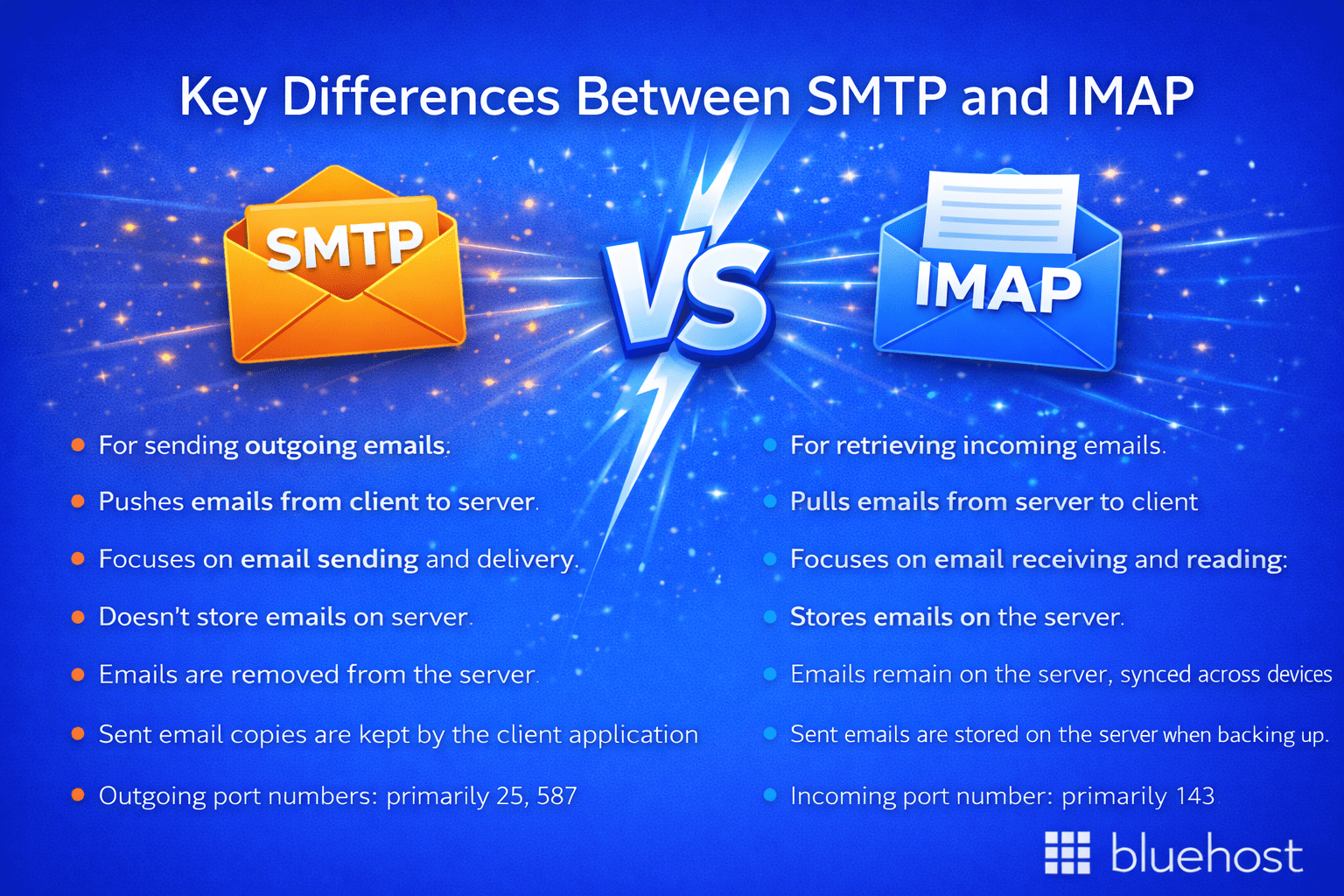
SMTP vs IMAP are two distinct email protocols that work in tandem rather than in opposition each one purpose-built for a different stage of the email delivery process. The difference between SMTP and IMAP is rooted in direction: SMTP manages outgoing email, pushing messages from your email client through to the recipient’s mail server, while IMAP controls incoming email access, allowing users to retrieve, organize and sync messages across multiple devices simultaneously with each protocol assigned its own dedicated ports and following entirely separate data flow paths.
| Feature | SMTP | IMAP |
|---|---|---|
| Primary function | Sending and routing email | Receiving and syncing email |
| Direction | Outbound (client to server, server to server) | Inbound (server to client) |
| Default port | 587 (submission), 25 (relay) | 143 (standard), 993 (SSL) |
| Email storage | Does not store email | Stores email on the server |
| Multi-device support | Not applicable | Full synchronization across devices |
| Encryption options | STARTTLS, SSL/TLS | STARTTLS, SSL/TLS |
| Authentication required | Yes (SMTP AUTH) | Yes (username and password) |
In practice, your email setup always uses both protocols simultaneously. Every time you send an email, SMTP handles the delivery. Every time you check your inbox, IMAP handles the retrieval. They operate in parallel, each fulfilling a distinct function within the same email infrastructure.
Why both protocols are essential for business email
A common misconception among non-technical users is that you choose between SMTP vs IMAP when configuring email. In reality, you configure both. Your mail client requires an outgoing (SMTP) server address for sending and an incoming (IMAP) server address for receiving. Remove either one from the equation and your email functionality is incomplete. SMTP without IMAP means you can send but not receive. IMAP without SMTP means you can receive but not respond.
For business users especially, this dual configuration is critical. Professional email accounts tied to a custom domain such as contact@[yourdomain].com depend on correctly configured SMTP vs IMAP settings to function reliably across every device your team uses.
SMTP vs IMAP: understanding when each protocol is most relevant
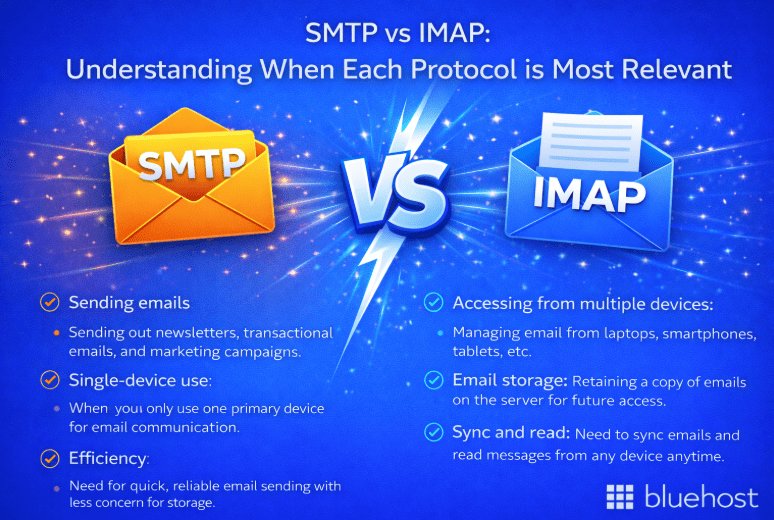
While you use both protocols for standard email communication, there are specific scenarios where understanding the role of each becomes particularly important for troubleshooting or optimization.
When SMTP configuration is most critical
SMTP settings become especially important in the following situations:
- Transactional email sending: If your website or application sends automated emails such as order confirmations, password resets or contact form notifications you are connecting directly to an SMTP server. Incorrect SMTP credentials or port settings will prevent these emails from being delivered.
- Email deliverability: SMTP authentication mechanisms such as SPF (Sender Policy Framework), DKIM (DomainKeys Identified Mail) and DMARC work at the SMTP layer to validate your sending identity and reduce the likelihood of your emails being flagged as spam.
- Third-party integrations: Marketing tools, CRM platforms and eCommerce systems often require SMTP credentials to send email on your behalf. Providing the correct SMTP server, port and authentication details ensures seamless integration.
When IMAP configuration matters most
IMAP becomes the focus in these scenarios:
- Multi-device email access: If you need your inbox to stay synchronized across a desktop, laptop, smartphone and tablet, IMAP is the protocol that makes this possible.
- Email client setup: When adding an email account to Outlook, Apple Mail, Thunderbird or any desktop client, the IMAP settings determine how your incoming mail is fetched and displayed.
- Team mailboxes: Shared inboxes used by multiple team members benefit significantly from IMAP’s server-side synchronization, ensuring everyone sees the same message states in real time.
How to Set Up SMTP vs IMAP Settings for Business Email
Getting your email protocols configured correctly is foundational to reliable business communication. Most hosting providers and email services supply SMTP and IMAP server details within your account dashboard or support documentation. Here is what you will typically need for both configurations:
Standard SMTP configuration fields
- Outgoing mail server (SMTP): Provided by your email host (e.g., mail.[yourdomain].com or a hosted SMTP address)
- Port: 587 (with STARTTLS) or 465 (with SSL
- Authentication: Required use your full email address as the username
- Encryption: STARTTLS or SSL/TLS
Standard IMAP configuration fields
- Incoming mail server (IMAP): Provided by your email host (e.g., mail.[yourdomain].com)
- Port: 993 (SSL/TLS) always recommended over port 143
- Authentication: Required use your full email address as the username
- Encryption: SSL
Always use encrypted ports (587 or 465 for SMTP; 993 for IMAP) to protect your credentials and message content in transit. Unencrypted connections expose your login details to potential interception, which is a significant security risk for any business email account.
If you host your website and email with the same provider, your SMTP and IMAP server addresses are usually the same typically in the format mail.[yourdomain].com. Your hosting provider’s support team or account documentation will confirm the exact values for your specific plan.
Google Workspace or Professional Email: Which is right for you?
Deciding between Google Workspace and professional email hosting depends on your specific workflow and budget. While both solutions utilize SMTP and IMAP protocols to ensure reliable, branded communication across all devices, Google Workspace offers a comprehensive productivity suite, whereas professional hosting provides a streamlined, cost-effective alternative for those who primarily need email functionality.
Comparison of Email Solutions
| Scenario | Recommended solution | Why choose this? |
|---|---|---|
| Teams needing real-time collaboration | Google Workspace | Bundles Gmail with Google Docs, Sheets and Meet for seamless team productivity and file sharing. |
| Solo entrepreneurs and bloggers | Professional Email Hosting | Provides a credible branded address at a lower cost, often included with existing web hosting plans. |
| Businesses needing deep app integration | Google Workspace | Offers extensive connectivity with CRM tools and third-party marketing apps via the Google Marketplace. |
| Users with basic communication needs | Professional Email Hosting | Focuses on reliable SMTP/IMAP delivery without the overhead of paying for unused software subscriptions. |
| Regulated industries needing high security | Google Workspace | Features enterprise-grade spam filtering, two-factor authentication and advanced encryption standards. |
Google Workspace by Bluehost
Google Workspace by Bluehost gives your business a fully integrated productivity ecosystem powered by Google’s trusted infrastructure, combined with Bluehost’s seamless setup and support. It is designed for teams that need professional email, real-time collaboration, AI-powered workflows and scalable storage, all managed under one reliable platform.
Key features:
- Custom domain email powered by Gmail
- 30GB to 5TB cloud storage per user depending on plan
- Real-time collaboration in Docs, Sheets and Slides
- Google Meet with up to 500 participants on higher plans
- Built-in Gemini AI across Gmail, Docs, Sheets and Meet
- Advanced security controls and data protection
- Vault archiving on Business Plus
- Seamless domain integration through Bluehost
- 24/7 expert support from Bluehost
Explore Google Workspace plans through Bluehost and equip your team with a smarter, AI-powered collaboration platform today.
Bluehost Professional Email
Bluehost Professional Email powered by Titan is a budget-friendly business email solution built for small businesses that want credibility without the cost of a full productivity suite. It delivers secure, reliable email hosting with productivity tools designed to enhance communication and brand trust.
Key features:
- Custom domain-based email address
- 10GB to 100GB storage options
- Advanced anti-spam and anti-virus protection
- Data encryption for secure communication
- Read receipts and email templates
- Send later and follow-up reminders on higher plans
- Two-factor authentication for added security
- Built-in calendar and contacts
- One-click email and contact migration
- Titan AI compose and reply on Ultra plan
Get started with Bluehost Professional Email and establish a trusted, professional presence at an affordable price.
Final thoughts
Knowing the difference between SMTP vs IMAP is key to building a reliable and professional email workflow. In this comparison, SMTP handles the outbound delivery of your messages, while IMAP manages incoming mail and keeps your inbox consistently synchronized across multiple devices. Understanding how these two protocols work together gives your business the foundation it needs for secure, efficient email communication.
Build your professional presence with Bluehost Professional Email or Google Workspace today. Both options offer a custom domain and dependable infrastructure, ensuring your email operations remain seamless and powerful as your business grows.
FAQs
Simple Mail Transfer Protocol (SMTP) is the universal standard for sending emails across the internet, powering everything from business communications to automated receipts. It acts as a digital courier that pushes your outgoing messages to the web, while protocols like IMAP handle the retrieval of incoming replies. This balance ensures a complete communication loop by separating the tasks of sending and receiving mail.
IMAP is the standard protocol for receiving email that synchronizes your messages across multiple devices while keeping them safely stored on a remote server. This two-way synchronization ensures that any action you take, such as reading or deleting an email, is instantly reflected on your phone, tablet, and computer. It differs from SMTP, which is designed solely to push outbound mail to its destination.
SMTP servers deliver emails by first authenticating your credentials to ensure only authorized users can send messages from your domain. Once verified, the server identifies the recipient’s destination through the Domain Name System and securely routes the message across the internet. This outward delivery focus ensures that professional business communications land reliably in the correct recipient’s inbox.
POP3 works by downloading emails to a single local device and typically deleting the original copies from the server by default. This one-way retrieval method means messages are only accessible on the specific device where they were first downloaded, lacking the synchronization found in IMAP. While SMTP handles the sending of mail, POP3 is now considered an outdated way to manage incoming communications across multiple screens.
IMAP provides seamless multi-device synchronization and built-in server-side backups that protect your communications against local hardware failures. It also enhances performance by initially downloading only message headers, which saves bandwidth and allows you to manage your inbox more efficiently. These core benefits make it the superior choice for professionals who need consistent and secure access to their email everywhere.
SMTP offers universal compatibility with virtually all email clients and includes reliable message queuing to retry deliveries if a receiving server is offline. It also integrates effortlessly with CRM systems and eCommerce platforms to handle automated transactional messages like order receipts and password resets. These features make SMTP the essential standard for ensuring professional outbound communications are sent securely and effectively.
The most critical security step for IMAP is using port 993 with SSL/TLS encryption to protect your login credentials and email data during transit. This ensures that your communications are fully encrypted between the server and your device, preventing unauthorized interception by malicious parties. Using a secure hosting environment with malware detection further safeguards your messages while they are synchronized across your devices.
The primary difference is that SMTP is used exclusively for sending outgoing emails, while IMAP is used for receiving and synchronizing incoming messages. Think of SMTP as the digital courier that pushes mail to the internet, whereas IMAP pulls replies back to your various devices. Together, these protocols form the complete two-way communication loop required for modern email management.
SMTP delivers outgoing messages by authenticating sender credentials and then routing the email through the Domain Name System to the recipient’s server. It securely pushes the communication across the internet to ensure it arrives safely in the correct destination inbox. This protocol is the foundational standard for maintaining the reliability and security of professional business emails.
IMAP synchronizes your incoming messages in real-time across all connected devices while keeping the original emails safely stored on a remote server. Any action you take, such as reading or organizing a message, is instantly updated everywhere to ensure a consistent inbox experience. This method is highly efficient because it allows you to manage your communications seamlessly from your desktop, smartphone, or tablet.
POP3 differs by downloading emails to a single device and removing the server copy, which prevents synchronization across other platforms. While SMTP sends mail and IMAP mirrors incoming messages on every screen, POP3 limits your access to the specific computer where the mail was first retrieved. This makes POP3 an outdated choice for modern users who rely on multiple devices for their professional communications.
Setting up IMAP securely requires configuring your email client to use port 993 with SSL/TLS encryption for all data transfers. This protects your sensitive login information and message contents from being intercepted by unauthorized parties as they travel over the internet. These encrypted connections are vital for keeping your professional business communications private and fully protected against external threats.

Write A Comment