 ChatGPT,
 Claude,
 Gemini,
 Grok — all four for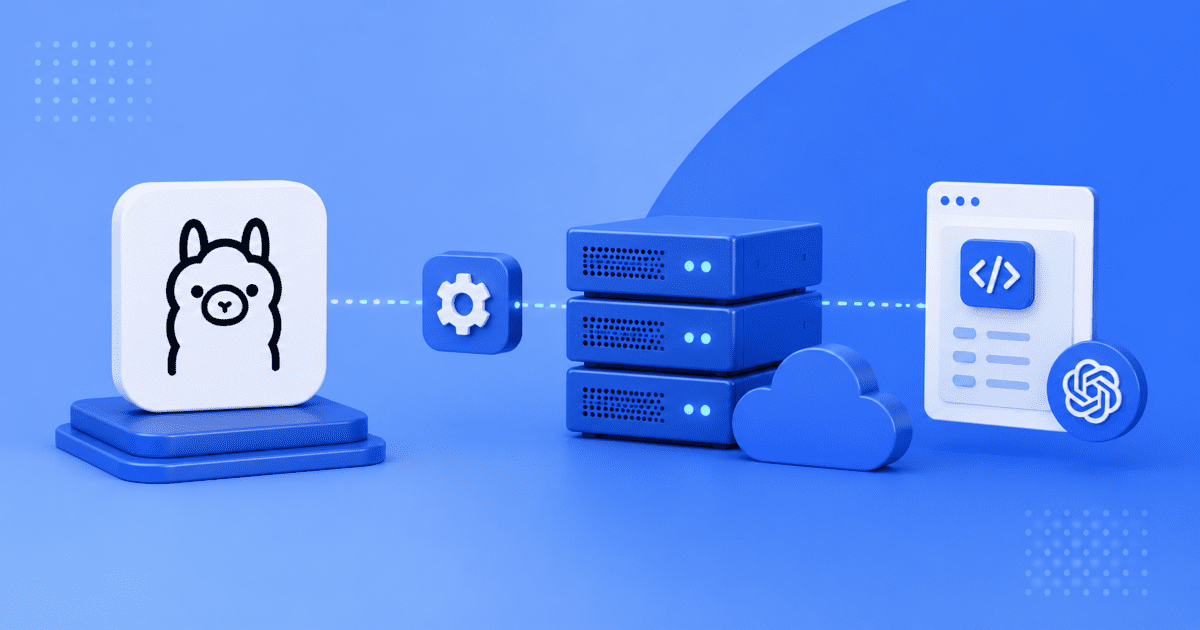
Key highlights
- Discover how to deploy a private, OpenAI-compatible LLM endpoint on your own server.
- Learn to configure Ollama on a self-managed VPS with root access.
- Explore the essential steps to secure your custom API environment.
- Understand how to connect standard OpenAI clients directly to your new endpoint.
If your AI project started with external APIs, you may already be seeing the trade-offs: rising usage costs, limited model control and less flexibility as your application grows. For developers building private AI tools, automation workflows or OpenAI-compatible apps, running open-source models on your own infrastructure can be a more flexible path.
Ollama makes that possible by letting you run large language models and serve them through API endpoints that work in a way similar to the OpenAI API. But running Ollama on a local machine is not ideal for always-on workloads. Your app depends on your device, your network and your available local resources.
Deploying an Ollama OpenAI-compatible API on a VPS gives you a persistent, remote environment with dedicated resources, full server control and 24/7 availability. You can connect existing OpenAI-compatible tools, build private AI applications and run automation workflows without relying completely on third-party API providers.
In this developer guide, you’ll learn how to deploy Ollama on a VPS, configure an OpenAI-compatible API endpoint, secure access and prepare the setup for real-world development, testing and automation workloads.
How do you host Ollama on a VPS?
To host Ollama on a VPS, install the Ollama runtime on a Linux server, download a supported AI model, configure secure API access and connect your applications using Ollama’s OpenAI-compatible endpoints.
The basic steps are:
- Provision a Linux VPS with sufficient CPU, RAM and storage resources.
- Install Ollama on the server.
- Download a model using the ollama pull command.
- Start the Ollama service and verify that the API is running.
- Configure a reverse proxy such as NGINX or Caddy.
- Enable HTTPS with an SSL certificate.
- Connect AI applications, agents or automation workflows using Ollama’s OpenAI-compatible API.
Hosting Ollama on a VPS provides dedicated resources, persistent uptime, root access and full control over your AI infrastructure. This allows developers to run self-hosted large language models, private AI assistants, agent workflows and OpenAI-compatible applications without relying entirely on third-party API providers.
Ollama VPS deployment checklist
Before you start deploying Ollama on a VPS, make sure your environment meets the minimum requirements. Taking a few minutes to validate your setup can help avoid installation issues, model loading failures and networking problems later in the process.
Use this checklist to confirm that your VPS is ready to host a self-hosted OpenAI-compatible API:
- Provision a VPS with root access and a supported Linux distribution such as AlmaLinux 9 or Ubuntu.
- Verify that your server has enough RAM and storage for the model you plan to run.
- Configure SSH access and apply basic server security measures.
- Register a domain name if you plan to expose the API publicly.
- Install and update required system packages.
- Prepare Nginx to act as a reverse proxy for the Ollama API endpoint.
- Configure SSL certificates with Certbot to encrypt API traffic.
- Review firewall rules and restrict direct access to the default Ollama port.
- Confirm that your applications can connect to a custom OpenAI-compatible endpoint.
Once these prerequisites are in place, you can move on to installing Ollama and preparing your VPS for production AI workloads.
Also read: AlmaLinux Explained: What It Is, How It Works and Why It Matters for VPS Hosting
How do you install and configure Ollama on your VPS?
Follow these sequential steps to install the software and expose the endpoint on your server.
Step 1: Connect to your server via SSH
Open your terminal application. Access your VPS using your root credentials and server IP address. This secure connection lets you issue commands directly to the Linux operating system. It provides the full control needed to build your self-hosted LLM API.
Step 2: Install Ollama on your VPS
Once you’re connected to your VPS, the next step is installing the Ollama runtime. Ollama provides an installation script that automatically downloads the required binaries and configures the service on supported Linux distributions.
Run the following command:
curl -fsSL https://ollama.com/install.sh | shThe installer downloads Ollama, places the required files on your server and configures the service to run in the background.
After the installation completes, verify that Ollama is available on your system:
ollama --versionYou should see the installed version number returned in the terminal. If the command is not recognized, confirm that the installation completed successfully and that the Ollama binary is available in your system path.
At this stage, the runtime is installed, but no models are available yet. The next step is downloading a language model that will power your self-hosted OpenAI-compatible API.
Step 3: Download and run your first model
With Ollama installed, you can now download the language model that will power your API. Ollama supports a variety of open-source models, including Llama 3, Mistral, Gemma and Qwen.
Before selecting a model, ensure your VPS has sufficient memory available. Larger models generally provide better reasoning capabilities but require more RAM and storage.
| Model | Recommended RAM |
| Gemma 2B | 8 GB |
| Llama 3 8B | 16 GB |
| Mistral 7B | 16 GB |
| Larger 13B+ models | 32 GB+ |
For this guide, we’ll use Llama 3 as an example.
Download the model by running:
ollama pull llama3The download may take several minutes depending on your network speed and the size of the model.
Once the model is available locally, start the Ollama service:
ollama serve You can verify that the model is working by sending a simple test prompt:
ollama run llama3 "Explain what a VPS is in one paragraph." If the model generates a response successfully, your Ollama server is running correctly and ready for API configuration.
Now that the model is installed and operational, the next step is exposing an OpenAI-compatible endpoint that applications can connect to securely.
Step 4: Configure API access through a secure endpoint
By default, Ollama listens on port 11434 and accepts connections only from the local machine. While it is possible to expose this port directly, doing so can create unnecessary security risks in production environments.
A better approach is to keep Ollama running locally and expose it through a secure reverse proxy such as Nginx. This allows you to manage SSL certificates, access controls, logging and traffic routing from a single layer.
First, configure Ollama to listen for external connections by creating a service override:
sudo systemctl edit ollamaAdd the following configuration:
[Service]
Environment="OLLAMA_HOST=0.0.0.0:11434"
Save the file and reload the service:
sudo systemctl daemon-reload
sudo systemctl restart ollama
Verify that the service is running:
sudo systemctl status ollamaYou can also confirm that Ollama is listening on port 11434:
ss -tulpn | grep 11434At this stage, avoid exposing port 11434 directly to the public internet. Instead, keep access restricted and configure Nginx to securely route requests to the Ollama server.
This approach creates a more secure foundation for a self-hosted OpenAI-compatible API and makes it easier to add SSL certificates, authentication, rate limiting and monitoring controls.
With the API service listening correctly, the next step is configuring Nginx and securing the endpoint before accepting external traffic.
How do you secure your public Ollama API endpoint?
Secure the connection to prevent unauthorized access to your private LLM. Leaving an API port open to the public internet creates serious security risks.
Set up a reverse proxy with Nginx
Install Nginx (a popular web server) to manage incoming web traffic. This software acts as a middleman between the public internet and your internal service. It securely routes external requests on standard web ports directly to your internal port 11434.
Apply SSL and firewall rules
Use Certbot to generate a free SSL certificate for encrypted data transfer. Next, configure IPTables (a Linux firewall utility) to block direct external access to the default service port. This forces all traffic through your secure Nginx proxy layer.
Now that your endpoint is secure, you can configure your application to use it.
How do you configure your application to the new API?
To configure your application to use your VPS-hosted Ollama API, update your OpenAI Python or Node.js client with the new base URL, point it to your secured VPS domain or IP address and pass the exact Ollama model name in the request.
The basic steps are:
- Replace the default OpenAI base URL with your Ollama server endpoint.
- Use your secured VPS domain or IP address as the API URL.
- Add the exact model name you downloaded with Ollama.
- Run a basic test prompt from your local machine.
- Confirm that the server returns a generated response.
This lets existing OpenAI-compatible applications, agents and automation workflows send requests to your self-hosted Ollama API instead of the default OpenAI endpoint.
Also read: How to Host Ollama on VPS: Step-by-Step Deployment Guide
Why choose a Bluehost Ollama VPS for your custom AI API?
Deploying Ollama successfully requires more than just a virtual server. You need an environment that can support model downloads, API requests, reverse proxy configurations and ongoing AI workloads without being constrained by shared resources.
Bluehost Ollama VPS Hosting is designed for developers who want to run private, self-hosted AI models while maintaining control over their infrastructure. It combines dedicated VPS resources with the flexibility needed to deploy and manage an OpenAI-compatible endpoint on your own server.
1. Full server control for custom AI deployments
Running Ollama often requires installing dependencies, managing services, configuring Nginx and securing API endpoints. Full root access on AlmaLinux 9 gives you the flexibility to customize your environment and manage your AI stack without platform restrictions.
2. Dedicated resources for AI workloads
AI inference workloads can place significant demands on CPU, memory and storage. Dedicated VPS resources help ensure consistent performance when serving models, processing requests and running automation workflows.
3. NVMe storage for faster model access
Large language models require frequent disk access during downloads, updates and startup operations. High-speed NVMe SSD storage can help reduce model loading times and improve overall responsiveness compared to traditional storage options.
4. Built for self-hosted OpenAI-compatible APIs
Bluehost Ollama VPS Hosting supports the core requirements covered in this guide, including running Ollama on a remote server, exposing a secure API endpoint, managing models and connecting applications through an OpenAI-compatible interface.
5. Resources that scale with your projects
As your AI applications grow, you may need additional CPU, memory or storage capacity. VPS infrastructure provides the flexibility to increase resources as workload requirements evolve.
Whether you’re building AI agents, internal copilots, workflow automation systems or private LLM-powered applications, Bluehost Ollama VPS Hosting provides a reliable foundation for self-hosted AI infrastructure.
Also read: Best VPS for Ollama in 2026: Compare Top AI Hosting Providers
Final thoughts
Deploying an Ollama OpenAI-compatible API on a VPS gives developers greater control over how AI applications are built, deployed and scaled. Instead of relying entirely on external AI services, you can run open-source models on infrastructure you manage while maintaining compatibility with existing OpenAI-based tools and workflows.
A VPS provides the dedicated resources, flexibility and server-level access needed to support self-hosted AI workloads. Whether you’re building internal tools, automation systems, AI agents or developer applications, hosting Ollama on a VPS creates a foundation that can grow with your requirements.
As your projects expand, the combination of Ollama and VPS infrastructure helps you balance performance, customization and ownership without sacrificing API compatibility. If you’re ready to take control of your AI stack, deploying Ollama on Bluehost VPS is a practical place to start.
What are the most frequently asked questions about the Ollama API?
Ollama runs models locally on your own hardware rather than relying on a cloud service. It offers a compatible endpoint, meaning your existing OpenAI client code works with minimal changes. The primary difference is you control the data and pay for server resources rather than per-token usage.
No, you cannot run this software on shared hosting. It requires root access to install dependencies and significant memory to load language models. A dedicated virtual server is the minimum requirement for AI applications.
Self-hosting can provide greater control over prompts and application data, provided logging, monitoring, backups and outbound integrations are configured appropriately. It also provides predictable monthly infrastructure costs regardless of how many API calls your application makes.
Yes, the software fully supports the standard chat completions endpoint structure. Applications expecting the typical JSON response format from OpenAI will process the local API output without issue.
You can scale your API by upgrading your VPS resources. Adding more CPU cores and RAM allows the server to process concurrent requests faster. For massive scale, you can deploy multiple virtual servers behind a central load balancer.

Write A Comment