 ChatGPT,
 Claude,
 Gemini,
 Grok — all four for
key highlight
- Deploy Ollama on a virtual private server to run large language models securely and privately.
- Learn the exact hardware and software prerequisites needed for smooth AI hosting.
- Discover how to use Docker for a clean, isolated Ollama installation on Linux.
- Secure your Ollama API endpoint to prevent unauthorized remote access to your models.
Hosting your own large language models gives you complete control over your AI data and keeps sensitive information off third-party servers. When local hardware falls short, deploying Ollama on a scalable VPS solution gives you the dedicated resources needed for stable, consistent performance. A VPS also lets you access your models remotely, scale compute as your needs grow and avoid the limitations of consumer-grade machines.
This guide walks you through how to host Ollama on a VPS, covering setup, security configuration and getting your models running on a remote Linux server.
What prerequisites do you need to host Ollama?
Before you begin the installation process, you must ensure your server environment meets specific technical requirements. Running large language models demands robust hardware and dedicated hosting resources to configure system settings properly.
- Sufficient memory: You need a VPS with at least 8GB of RAM for basic models. Larger AI workloads require 16GB or more.
- Fast storage: NVMe solid-state drives are critical for quickly loading bulky model files into system memory.
- Administrative control: You must have full root access to your server, which requires a self-managed hosting environment.
- Technical skills: Basic familiarity with Linux command-line operations is necessary to deploy and manage the software.
Meeting these baseline requirements ensures your AI models run smoothly without system crashes. Once your server is ready, you can move on to the actual installation phase.
How do you install and host Ollama on a VPS?
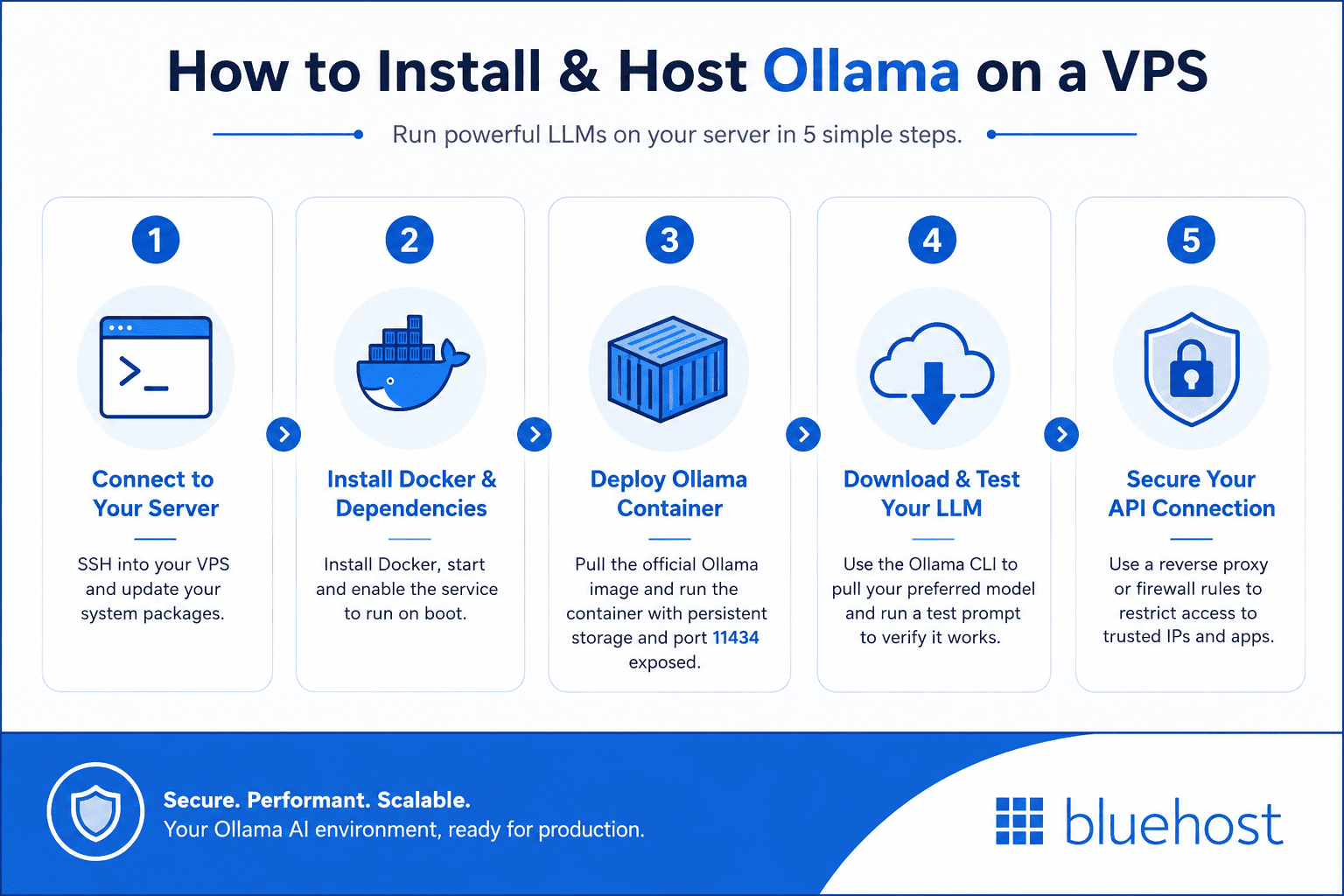
Follow these exact steps to get your Ollama environment running smoothly on a remote Linux server. Using containerization keeps your system clean and makes future upgrades much easier.
Step 1: Connect to your server via SSH
Open your local terminal application to access your virtual server. Establish a secure SSH connection to your VPS using your root credentials. Run a quick system update to ensure all AlmaLinux or Ubuntu packages are current before beginning the installation.
Step 2: Install Docker and required dependencies
Install Docker to manage Ollama within an isolated and upgradeable container environment. Start and enable the Docker service so it runs automatically whenever your server reboots. This approach prevents software conflicts down the line.
Step 3: Deploy the official Ollama container
Pull the official Ollama Docker image directly from the verified public repository. Run the container while mapping a persistent storage volume so your downloaded models survive server restarts. You must also expose the default port 11434 to allow internal API access.
Step 4: Download and test your preferred LLM
Use the Ollama CLI inside your running container to download a specific model like Llama 3 or Mistral. The download time will depend on the model size and your server connection speed. Run a simple test prompt via the command line to verify it works.
Step 5: Secure your Ollama API connection
Configure a reverse proxy like Nginx or adjust your IPTables firewall rules to protect the endpoint. Restrict public access so only approved IP addresses or specific applications can query your AI models. This prevents malicious actors from hijacking your server resources.
With your secure container running, you should evaluate if your hosting provider offers optimal performance.
Why choose Bluehost for your Ollama server?
Choosing the right foundation is critical for AI performance. A Bluehost Self-Managed VPS provides the unrestricted root access required for custom Docker and Ollama deployments.
Bluehost offers robust infrastructure to support resource-intensive applications:
- High-speed storage: NVMe SSD storage is included across hosting tiers, providing the fast I/O needed to load bulky LLM models.
- Consistent availability: A 99.99% uptime SLA ensures your AI services remain accessible when you need them.
- Unrestricted access: Self-managed VPS environments offer the full root access necessary for deploying custom Docker containers.
However, this level of control comes with a necessary trade-off. A Self-Managed VPS requires command-line comfort to operate effectively. It does not include 24/7 expert human support for custom software configuration.
You are fully responsible for managing your AI environment.
If you are comfortable managing your own server, hosting your own models offers significant long-term benefits.
Final thoughts
Self-hosting your own large language model gives you complete privacy over your sensitive data. You can experiment freely without worrying about third-party API costs or strict usage limits. It is a powerful way to build custom AI applications securely.
Ready to get started? Bluehost Ollama VPS plans give you full root access and the NVMe storage needed to deploy AI models. Choose the right tier for your needs and start building your private AI environment today.
To help you plan your deployment, we have answered some common questions below.
Frequently asked questions
You can host Ollama on VPS using only a CPU. While a GPU improves performance, modern processors handle smaller models efficiently for development tasks and lightweight private AI applications daily.
To host Ollama on VPS, use 8GB of RAM for basic models. Larger datasets or multiple users require 16GB or 32GB to ensure stable performance and fast AI processing results.
Performance depends on hardware. If your local machine lacks a GPU or sufficient memory, a high performance VPS provides a faster and more reliable environment for hosting your AI models.
You need root access to install Docker and manage firewall settings when you deploy Ollama on virtual servers. Administrative control ensures a secure and customized environment for your AI deployments.

Write A Comment