 ChatGPT,
 Claude,
 Gemini,
 Grok — all four for
Key highlights
- Learn what Gemini remembers from your chats and which settings decide how much it keeps.
- Discover the exact steps to turn memory on or off and confirm what Gemini used.
- Know how long Google keeps your chats and what human review means for your data.
- Choose a Temporary chat for client details, one-off questions and prompt tests you want kept separate.
- Explore two ways to carry your context between Gemini, ChatGPT, Claude and other assistants you use.
If you keep re-explaining your business, tone and projects to Gemini, or you’re surprised by what it remembers, the fix is in your settings. The Google Gemini memory feature lets Gemini learn from your past chats to personalize its replies. You control it under Personal Intelligence, separate from Instructions for Gemini and Keep Activity.
Those overlapping names cause most of the confusion. This guide maps each control in one place, with menu paths as of October 2026.
You’ll also get the steps to turn memory on or off, how long Google keeps your chats and how memory compares with ChatGPT. The last sections cover moving your context between artificial intelligence (AI) tools and practical habits for business use.
What is the Google Gemini memory feature?
The Google Gemini memory feature lets Gemini use details from your earlier chats, such as preferences, projects and facts you’ve shared, to tailor new answers. You don’t have to repeat that background each time. So yes, Gemini does have memory across chats, as long as Memory is on in your Personal Intelligence settings.
According to Google’s memory help page, Gemini can learn from your chats to understand more about you and your world. Google also notes that Gemini “might not always get it right,” so it’s worth checking what it draws on.
In March 2026, Google renamed past chats to memory and added a way to import memory from other AI apps. Older articles may still say “Personal context,” an earlier label for these controls.
Say you run a bakery and mentioned your wholesale menu last week. With Memory on, a new pricing email draft can reference that menu without you pasting it again.
The Gemini settings that shape what it remembers
Google Gemini memory feature settings are spread across five controls with similar names. This table shows what each one does and where to find it as of October 2026.
| Setting | What it does | Who adds the data | Where to find it (as of Oct 2026) |
| Memory | Learns from your past chats | Gemini, automatically | Settings & help > Personal Intelligence > Memory |
| Instructions for Gemini (“Saved info” in some locales) | Keeps preferences and facts you save on purpose | You | gemini.google.com/saved-info, or Personal Intelligence > Instructions for Gemini |
| Connected apps under Personal Intelligence | Adds optional context from Google apps such as Photos, YouTube or Search | You choose the apps | Personal Intelligence |
| Keep Activity (Gemini Apps Activity) | Stores your chat history, which Memory needs | Created as you chat | Settings & help > Activity |
| Temporary chat | Runs a one-off chat that isn’t personalized or saved to Activity | You start it per chat | Button next to New chat |
Memory depends on Keep Activity, so switching that off turns memory off too. Instructions for Gemini work differently: You add, edit or delete them yourself, and Google says they stay saved until you delete them.
You can also connect Google apps with Personal Intelligence, an opt-in option that’s rolling out gradually. It isn’t available in the European Economic Area (EEA), Nigeria, Switzerland or the United Kingdom (UK). Workspace business, enterprise and education accounts can’t use it either.
Who can use Gemini memory?
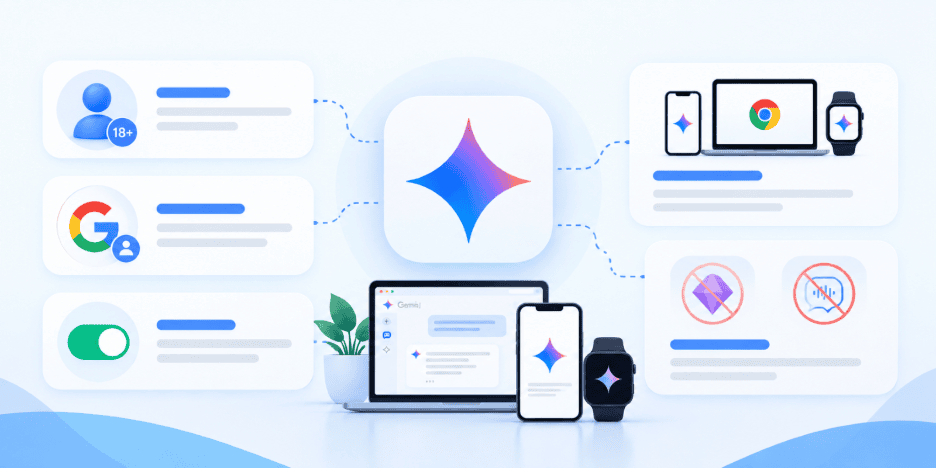
You can use Gemini memory if you’re 18 or older, use a personal Google Account and have Keep Activity on. If you don’t see the setting, check the conditions below before you assume it’s missing.
- Age: You need to be 18 or older.
- Account: Memory needs a personal Google Account, and Google’s help page says it isn’t available on work, school or supervised accounts. With Gemini with a work or school account, Keep Activity is controlled by your Workspace administrator.
- Activity setting: Keep Activity has to be on. Keep Activity is on by default for users 18 and older.
- Where it works: It runs in the Gemini mobile app, gemini.google.com, Gemini in Chrome where available and Gemini on a smartwatch.
- Where it doesn’t: It isn’t available in Gems or Live chats. A regular text chat can still reference a past Live conversation.
Google’s help page lists these requirements and doesn’t list a paid plan. Features can roll out gradually, so check Personal Intelligence in your own settings to confirm what you have.
How to turn Gemini memory on or off
You turn Gemini memory on or off from Personal Intelligence, on the web or in the mobile app. Setting names can shift during rollouts, so the paths below reflect Google’s help pages as of October 2026.
1. On the web
In a browser, the switch sits inside Settings & help. Google’s help page lists three short steps:
- Go to gemini.google.com and sign in with your personal Google Account.
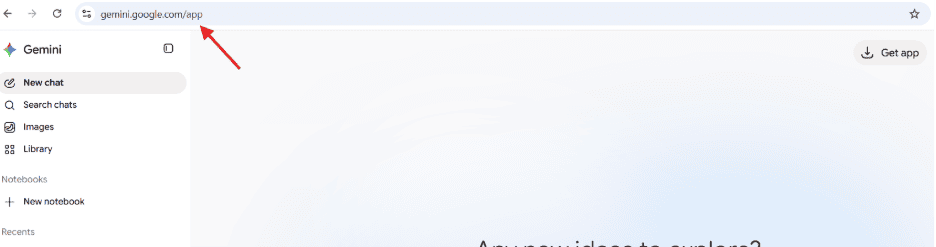
- Click Settings & help, then Personal Intelligence.
- Turn Memory on or off.
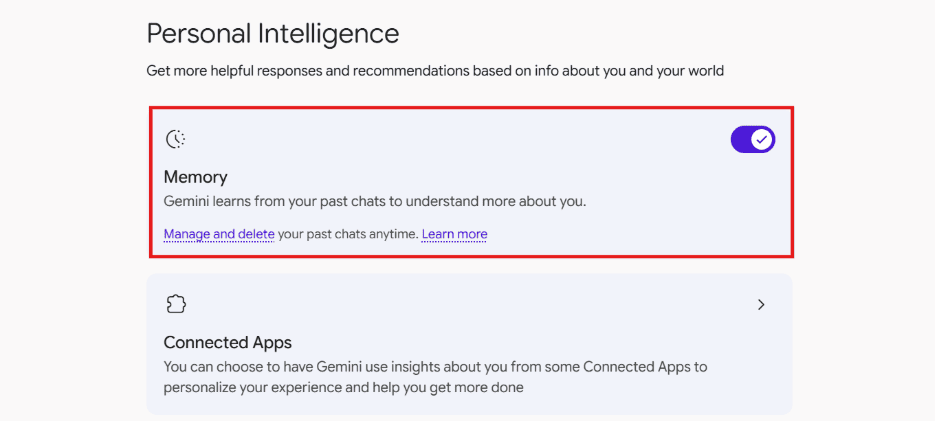
2. In the Gemini mobile app
In the app, the path runs through the menu and your profile.
- Open the Gemini app.
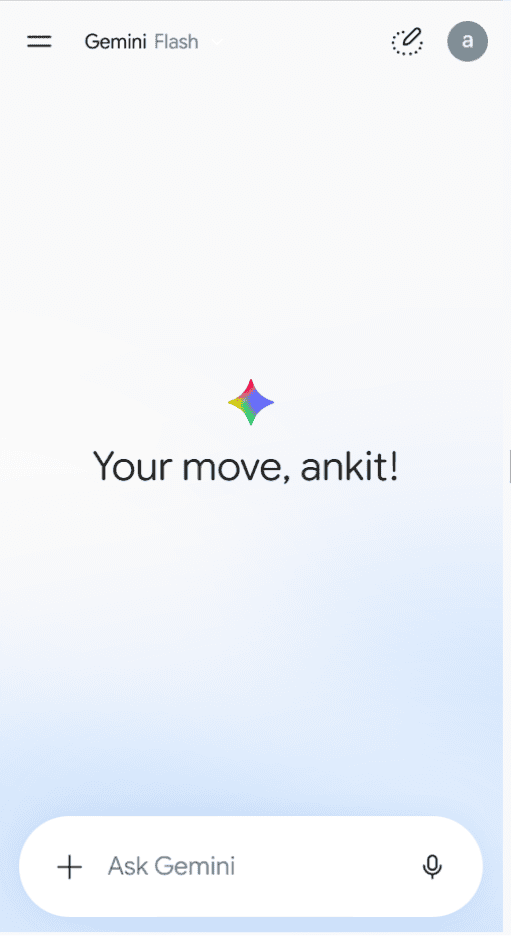
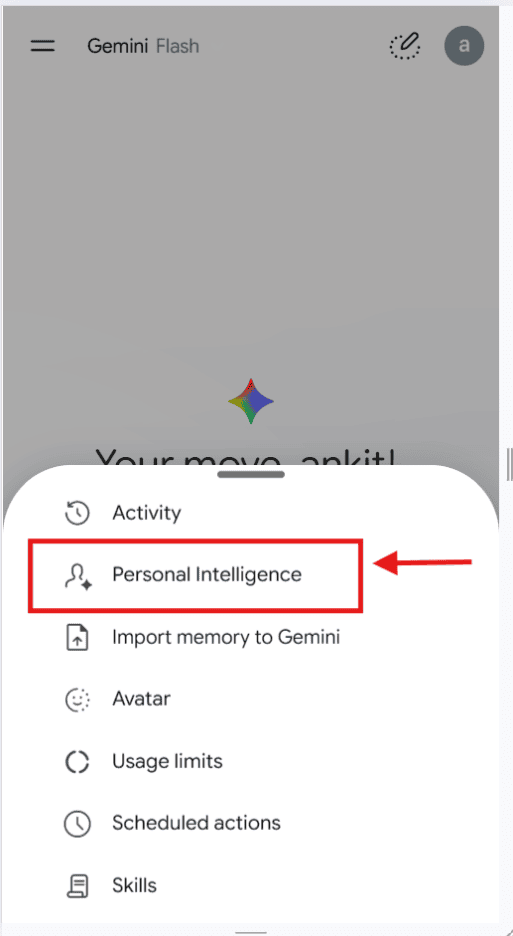
- Tap Menu, then your profile picture or initial, then Personal Intelligence.
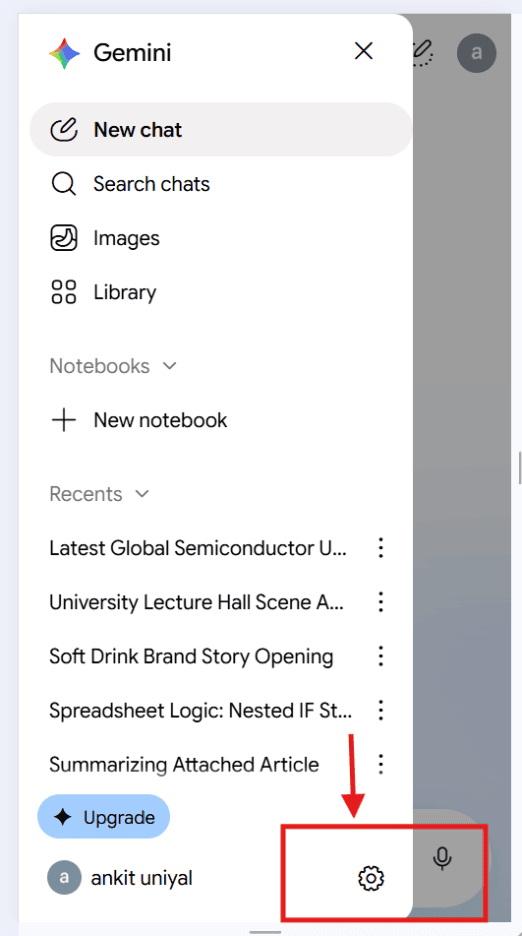
- Click on Personal Intelligence
4. Turn Memory on or off.
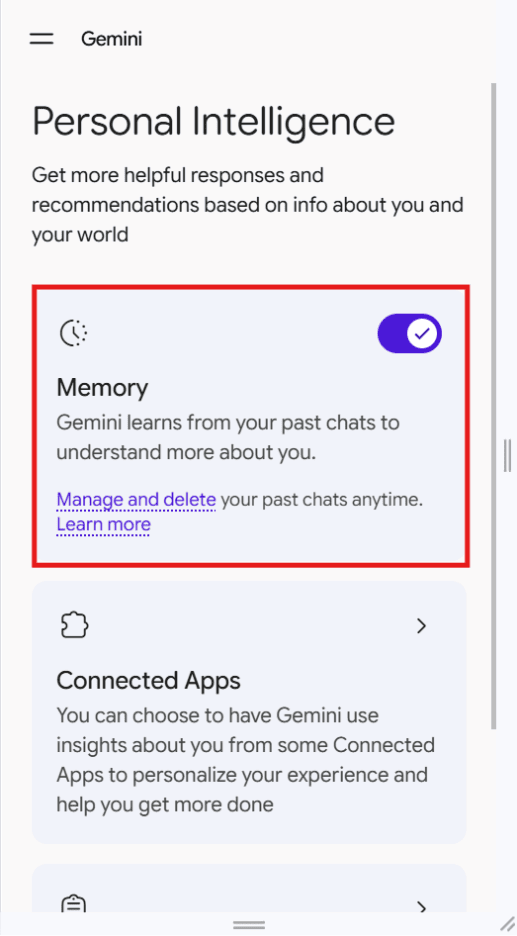
3. Check that it’s working
Once Memory is on, test it in a new chat. Ask Gemini, “Did you use any info from past chats?” Its answer tells you whether earlier conversations shaped the reply.
Pro tip: For one chat without personalization, open Tools and turn Personal Intelligence off for that chat. New chats switch back on by default, and that chat still saves to your activity.
How to correct or delete what Gemini remembers
You manage what Gemini remembers in three ways: Correct it in a chat, delete the chats that hold a detail or edit your instructions. Google’s help page doesn’t describe a single list of everything Gemini has learned, so these steps are how you keep it accurate.
1. Correct a detail in the chat
The quickest fix is to tell Gemini the right information while Memory is on. For example, type “I moved my shop to Austin, so use that from now on.”
2. Delete the chats that contain it
To remove a detail, delete every chat that contains it from Gemini Apps Activity at myactivity.google.com/product/gemini. There might be a short delay before Gemini stops using a deleted chat. If the detail came from a connected app, delete those chats and disconnect the app too.
3. Edit or remove your Instructions for Gemini
Your saved instructions live at gemini.google.com/saved-info, where you can edit or delete each entry or switch Instructions off. Google warns that asking Gemini to forget or avoid topics “doesn’t always work perfectly.” Deleting the instruction itself is the more reliable fix.
How long Google keeps your Gemini chats
The Gemini Apps Privacy Hub says your activity auto-deletes after 18 months by default. Other situations change that window, as this table shows.
| Situation | How long it’s kept |
| Keep Activity on (default) | Auto-deletes after 18 months. You can choose 3 months, 36 months or no auto-delete. |
| Chats reviewed by human reviewers | Up to 3 years, even after you delete your activity. They’re disconnected from your account. |
| Keep Activity off | 72 hours, so Google can respond and keep the service safe |
| Temporary chats | 72 hours |
The human-review row is the one to note, since deleting your activity doesn’t remove those chats. With Keep Activity off, new chats are kept for 72 hours, and memory turns off too.
Training follows the same setting. With Keep Activity on, Google uses your activity to improve its services, including training generative AI models. With it off, or in Temporary chats, future chats aren’t used for training unless you send feedback.
Either way, Google still uses your chats to respond to you and to help keep its service safe. You can change Keep Activity and the auto-delete period under Settings & help > Activity.
When to use a Temporary chat instead
Use a Temporary chat when you want a conversation that Gemini won’t personalize or save for later personalization. Google says you can start a Temporary chat from the button next to New chat. These chats aren’t personalized or saved for future personalization, and Google’s Privacy Hub says they aren’t used to train its models.
Choose a Temporary chat if you’re working on:
- Client or customer details you’d rather keep out of memory
- A one-off question unrelated to your usual work
- A prompt test you want free of your saved preferences
Temporary chats work on the web and in the mobile app, but not in Gemini in Chrome or Messages. Gems and connected apps that need Keep Activity won’t work inside them either.
Google keeps Temporary chats for 72 hours. Treat them as short-lived rather than unsaved.
Gemini memory vs ChatGPT memory
Gemini and ChatGPT can both learn from past chats, so the useful comparison is how each one lets you control memory. This table compares documented controls from Google’s help pages and OpenAI’s memory help page.
| Control | Gemini | ChatGPT |
| Where to manage | Personal Intelligence > Memory | Settings > Personalization > Memory |
| Learns from past chats | Memory | “Reference chat history” |
| Things you save on purpose | Instructions for Gemini | “Reference saved memories” and custom instructions |
| Private mode | Temporary chat (not personalized) | Temporary Chat (doesn’t create or update memories) |
| Deleting a chat | Gemini stops using it, possibly after a short delay | Doesn’t necessarily delete a saved memory |
The better fit depends on where your work already lives. Gemini can draw on connected Google apps, while ChatGPT separates saved memories from chat history.
OpenAI notes that ChatGPT’s controls vary by plan, region and platform. If you use ChatGPT for client work, read up on how private ChatGPT really is before you turn on chat history.
Also read: Gemini vs ChatGPT: How Do They Compare for Everyday Use?
Carry your context between Gemini and other AI tools
Each assistant remembers only its own chats, so memory splits when you use more than one. That’s common, since many businesses mix the AI tools teams rely on for writing, research and analysis.
1. Bring memory from ChatGPT or Claude into Gemini
Google lets you import memory into Gemini from other AI apps with a copied prompt. The process takes three steps.
- In Gemini, go to Settings & help > Import memory to Gemini.
- Copy Google’s prompt into your other AI app, such as ChatGPT or Claude.
- Paste that app’s response back into Gemini and click Add memory.
Full chat history is a separate option that accepts .zip files up to 5 GB each, with up to 5 uploads per day. Processing can take up to a day.
Import isn’t available in the EEA, Switzerland or the UK. Work and under-18 accounts can’t use it either. Google treats imported data like other activity, including for training AI models.
2. Take your Gemini context into a multi-model workspace
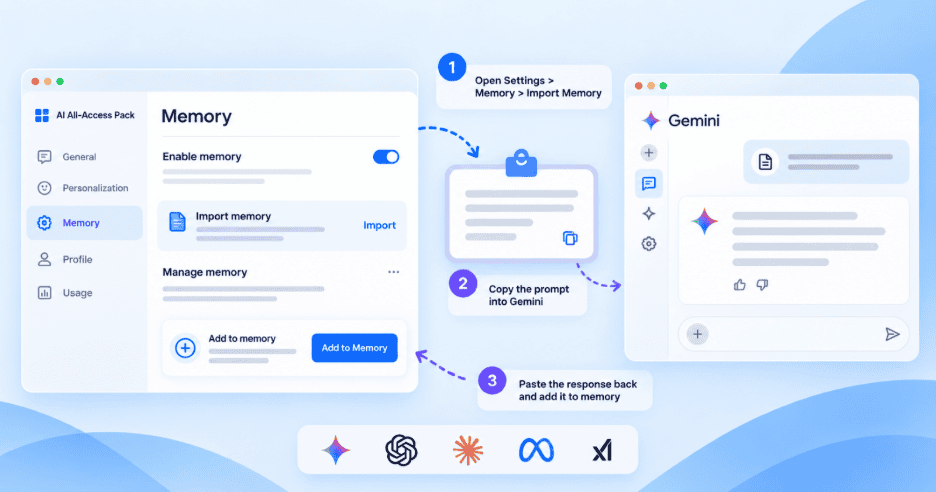
If you switch between models for different tasks, there’s another option. Bluehost AI All-Access Pack brings ChatGPT, Claude, Gemini and Grok into one dashboard, as the Chat Memory and Import Memory walkthrough explains. Its Chat Memory remembers past chats across AI models, and Import Memory brings in context from assistants like Gemini.
- In AI All-Access Pack, open Settings > Memory > Import Memory.
- Copy the prompt and paste it into Gemini.
- Paste Gemini’s response back and click Add to Memory.
Once added, AI All-Access Pack knows the preferences, background and instructions Gemini shared in its response. That’s different from moving your full chat history.
3. Tips for getting useful answers from Gemini memory
Pew Research Center’s 2026 survey found that 49% of adults in the United States use AI chatbots. In the same February 2026 survey, 38% of employed adults said they use chatbots for work tasks. About 7 in 10 expect AI to make their personal information less secure.
Those figures make a case for deciding on purpose what Gemini keeps. These habits help memory stay useful for business work.
- Save stable facts as instructions: Add your business type, audience, tone and preferred formats to Instructions for Gemini.
- Keep sensitive details out: Leave passwords, payment details and health information out of chats. Use a Temporary chat for client records.
- Review activity on a schedule: Pick a 3-month auto-delete if you want a shorter memory window.
- Correct drift quickly: Fix outdated facts in chat, or delete the chats they came from.
- Separate work and personal: Work and school accounts don’t get memory, and admins control their activity settings.
Also read: 10 Best Secure AI Tools for Business Protection in 2026
Final thoughts
Decide what you want Gemini to carry forward, then set Memory, Instructions for Gemini and your auto-delete window to match. A few minutes in those settings gives you a memory you’ve chosen on purpose.
When your work spans several models, your context ends up split across them. Our multi-model subscription keeps those assistants in one dashboard, with Chat Memory that can carry details from one model to the next. Explore AI All-Access Pack to keep your context in one place across the models you use.
FAQs
Google’s help page doesn’t list a paid plan as a requirement for memory. It lists three conditions: being 18 or older, using a personal Google Account and having Keep Activity on. Google rolls features out gradually, so open Personal Intelligence in your settings to confirm whether Memory appears for your account.
You may be using an account or setting that memory doesn’t support. Check whether you’re signed in to a work, school or supervised account, whether you’re under 18 or whether Keep Activity is off. Memory may also still be rolling out to you, and it doesn’t appear inside Gems or Live chats.
Yes, when Keep Activity is on, Google uses your activity to improve its services, including training generative AI models. Temporary chats and chats with Keep Activity off aren’t used for training unless you send feedback. Chats picked for human review are disconnected from your account first.
No, memory isn’t available inside Live chats or Gems as of October 2026. You can still open a regular text chat and ask Gemini to reference a past Live conversation. Google describes these limits as its current setup, so recheck its help page if you rely on Live for brainstorming or meeting prep.
Turning off Keep Activity stops Gemini from saving new chats beyond 72 hours and turns memory off. To remove past chats, delete them in Gemini Apps Activity at myactivity.google.com/product/gemini. Chats already reviewed by humans are kept for up to 3 years, even after you delete your activity.
No, memory and Instructions for Gemini aren’t available on work or school accounts. On those accounts, Keep Activity is on by default and only your Workspace administrator can turn it off. For memory, use a personal Google Account and keep client-sensitive work in the tools your company approves.

Write A Comment