 ChatGPT,
 Claude,
 Gemini,
 Grok — all four for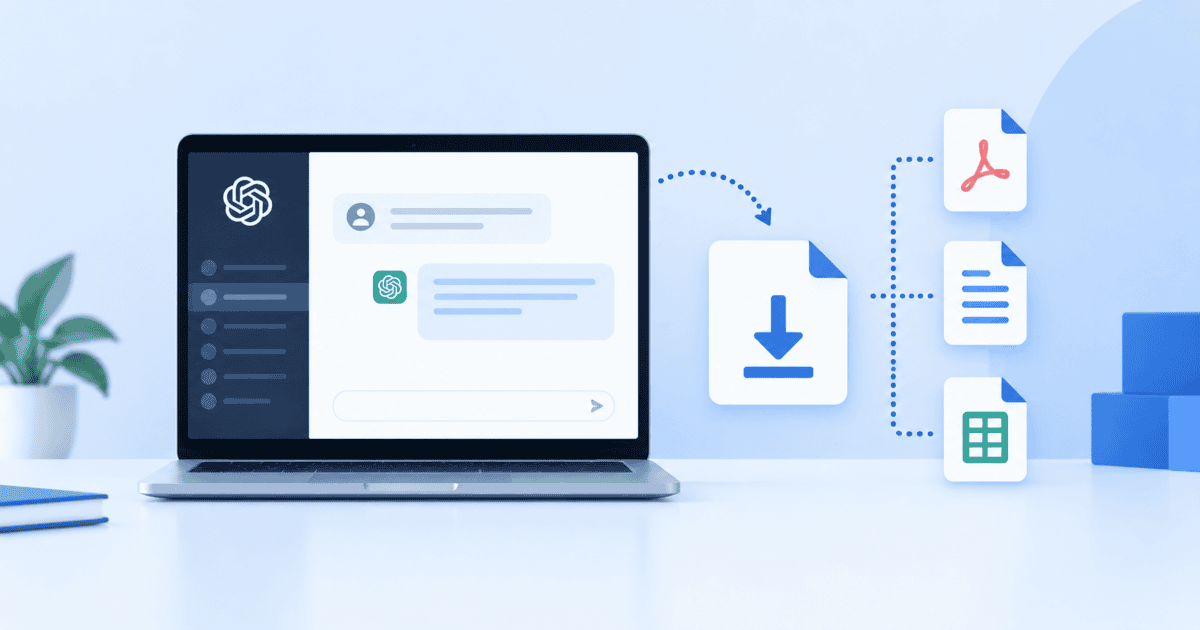
Key highlights
- Learn how to export ChatGPT conversations through Settings and Data controls.
- Check which ChatGPT account and workspace types support self-service data export.
- Compare practical ways to save one conversation as a PDF, document or shared link.
- Troubleshoot delayed exports, expired download links and missing conversations.
- See how Bluehost AI All-Access Pack helps you work across multiple AI models and bring useful context with Import Memory.
If you have wondered how to export ChatGPT conversations, the best method depends on what you want to save.
For an account-level backup, you can request your eligible ChatGPT data through Settings and Data controls. If you only need one conversation, printing to PDF, copying the content or creating a shared link may be more practical.
People export chats to back up important work, archive projects, retain useful prompts or save information before changing accounts or workspaces. The right method depends on whether you need your broader chat history or one specific conversation.
This guide covers the official ChatGPT export process, single-chat options, account transfers, long conversations and common export problems.
What’s the fastest way to export your ChatGPT conversations?
The fastest method depends on how much of your ChatGPT history you need.
- To export your account data: Open Settings, select Data controls, choose Export data and confirm your request.
- To save one conversation: Use print-to-PDF, copy and paste, a shared link or a trusted third-party exporter.
- To continue from part of a conversation: Use Branch in new chat on the web.
- To reference old chats in another personal account: Export your conversations and upload the conversation JSON file into a new chat.
OpenAI’s self-service export is an account-data export rather than a single-chat selector. If you only need one conversation, the individual methods further down will usually be faster.
Also read: Is ChatGPT Secure for Business? What You Need to Know Before Using It in 2026
Before you start: Which accounts can export data?
Self-service data export is not available for every ChatGPT workspace. Check your account type before you begin.
- Available on: ChatGPT Free, Go, Plus, Pro and eligible ChatGPT Edu workspaces.
- ChatGPT Edu: Export depends on the user’s permissions, workspace settings and whether data residency is configured.
- Not available through self-service settings: ChatGPT Business, Enterprise and ChatGPT for Healthcare workspaces.
- Sign-in required: You must be signed in to request an export through ChatGPT settings.
- Managed accounts: Contact your workspace owner about organization-managed data access.
- Before changing workspaces: Export, download and review personal data you want to keep before a personal workspace is merged or removed.
For eligible ChatGPT Edu workspaces, data export is off by default and must be enabled by a workspace administrator. Edu workspaces with data residency configured are not eligible for this export feature.
How to export ChatGPT conversations with your chat history?
The official ChatGPT export gives you your chat history and other relevant account data in a downloadable ZIP file.
Before starting, make sure you can access the email inbox or phone number associated with your account. OpenAI may require you to verify account ownership.
Follow these steps:
- Sign in to ChatGPT.
- Open your profile menu.
- Select Settings.
- Select Data controls.
- Under Export data, select Export.
- Select Confirm export.
- Wait for the email or SMS message telling you the export is ready.
- Select Download data export while signed in to the account that requested it.
Keep these timing details in mind:
- Processing can take up to seven days.
- The download link expires 24 hours after you receive it.
- Download the export while signed in to the same account that requested it.
- Review the archive before deleting an account or removing a personal workspace.
The downloaded ZIP includes your chat history and other relevant account data.
Request your data through the Privacy Portal
OpenAI’s Privacy Portal provides another official way to request a copy of your data.
Use this route when:
- You cannot use the export option in ChatGPT settings.
- You need another route for requesting your account data.
- You are making a privacy-related data request.
In the Privacy Portal, select Make a Privacy Request, choose I have a consumer ChatGPT account, then select Download my data and follow the verification instructions.
Save your data before moving to a managed workspace
If you plan to move or merge a personal workspace into a Business, Enterprise, Edu or Healthcare workspace, export the personal data you want to keep first.
Before completing the move:
- Request your data export.
- Download the ZIP file.
- Review the archive.
- Confirm that the conversations you need are present.
- Store the file somewhere secure.
After a personal workspace has been removed, you may no longer be able to open an earlier export link or request another export from that workspace.
Also read: ChatGPT for SEO: Powerful Prompts & Optimization Tips for ChatGPT SEO in 2026
What’s inside your ChatGPT export file?
A ChatGPT export is useful as a backup and reference source, but it is not a portable copy of your complete account experience.
You can expect:
- Conversation history: Your export contains your eligible ChatGPT conversation history.
- Structured conversation data: Exports used for account-to-account reference can contain
conversations.json. Larger exports may contain numbered conversation JSON files instead. - Account data: OpenAI includes other relevant account information with the export.
- Custom instructions: OpenAI confirms that custom instructions are included in ChatGPT data exports.
- Shared-link information: Personal account data exports can include metadata related to shared conversation links.
- Edu conversation assets: OpenAI specifically documents that eligible Edu exports can include files and other assets used in conversations.
There are also important limitations:
- Deleted conversations cannot be recovered through a later export.
- Uploading an export does not rebuild your original sidebar or recreate old chats as separate conversations.
- Subscriptions do not transfer to another account.
- Memories, GPTs, files, workspace access and other account settings do not transfer through conversation upload.
- Custom instructions may be included in your exported data, but they do not become the custom instructions of another account automatically.
Think of the export as structured backup and reference data rather than a complete account migration.
How to export or save a single ChatGPT conversation?
If you only need one useful conversation, you probably do not need to request your entire account export.
Your main options are:
- Print to PDF: Best for a quick offline copy.
- Copy and paste: Useful when moving a conversation into an existing document.
- Create a shared link: Useful when someone else needs to view a conversation.
- Use a browser extension: Helpful when you want additional export-format options.
- Process the official JSON: Useful for technical users who want structured data.
Here is how the methods compare:
| Method | Best for | Output | Main limitation |
|---|---|---|---|
| Print to PDF | Quick offline copy | Complex formatting may split across pages | |
| Copy and paste | Moving content into a document | Word, Google Docs, notes | Formatting may need cleanup |
| Shared link | Letting someone view a conversation | Web link | Access depends on account and workspace rules |
| Browser extension | Formatted single-chat exports | Depends on extension | Gives a third-party extension page access |
| Local JSON processing | Structured workflows | JSON, Markdown or other formats | Requires technical knowledge |
| Official data export | Account-level backup | ZIP with account data | Not designed as a one-chat selector |
Choose the method based on whether formatting, speed, privacy or structured data matters most.
1. Use a browser extension for formatted exports
A browser extension can be useful when you want to save one conversation in a cleaner format.
Depending on the extension, it may help you:
- Export a conversation into formats such as PDF or Markdown.
- Preserve headings or code formatting.
- Move a conversation into a documentation or note-taking workflow.
Extensions are third-party software, so review them carefully before allowing access to a ChatGPT page.
Before installing one:
- Review its permissions.
- Check the developer and user feedback.
- Avoid unnecessary permissions.
- Do not use an untrusted extension with sensitive conversations.
2. Print the conversation to PDF
For a quick offline copy without installing additional software, use your browser’s print feature.
Follow these steps:
- Open the conversation you want to save.
- Press Ctrl+P on Windows or Cmd+P on Mac.
- Choose Save as PDF.
- Review the preview.
- Save the file.
This approach works well for ordinary text conversations. Long tables, code blocks or complex layouts may split awkwardly across pages.
3. Copy and paste the conversation manually
Manual copy and paste works well when you want to add a conversation to an existing document or note.
You can move the content into:
- Microsoft Word.
- Google Docs.
- A notes application.
- A project document.
- A Markdown editor.
To remove unwanted web formatting, use Ctrl+Shift+V on Windows or Cmd+Shift+V on Mac when the destination supports plain-text pasting.
Keep in mind that pasting without formatting can remove headings, bold text, tables and code styling.
4. Share a conversation link
ChatGPT’s Share option lets you create a URL for a conversation or supported response.
For links created from personal accounts:
- Anyone who has the link can view the shared content.
- Later messages are not automatically added to the personal-account shared snapshot.
- You can update the shared snapshot from the Share controls.
- Deleting the original conversation removes its shared-conversation link.
- Removing a shared link does not delete a copy someone else already saved.
Managed workspaces work differently. Links created in Business, Enterprise, Edu or Healthcare workspaces are limited to eligible members of the same workspace and workspace sharing rules can further control access.
Always review the content before creating a shared link, especially if the conversation contains personal, client or business information.
5. Process your official export with a local script
If you are comfortable working with structured files, you can process your exported conversation JSON locally instead of relying on undocumented ChatGPT endpoints.
A local workflow can help you:
- Search exported conversations.
- Select specific chats.
- Convert selected content into Markdown or another format.
- Build your own searchable archive.
Start with the JSON provided in the official export. This avoids giving an unofficial tool access to your active ChatGPT session.
Also read: Claude vs. ChatGPT vs. Gemini: Which AI is Best for Your Team?
What can you do with exported ChatGPT conversations?
Exporting your conversations is only the first step. The archive becomes more useful when you organize it around the information you actually want to keep.
You can:
- Create a backup: Preserve important chats before changing accounts or workspaces.
- Search old work: Find previous prompts, project decisions and useful research.
- Build an archive: Store selected conversations in documents, Markdown or your preferred knowledge system.
- Reuse prompts: Keep prompts or instructions that consistently produce useful results.
- Reference old conversations in another personal account: Upload exported conversation JSON into a new chat.
- Carry selected context into another AI tool: Extract the background that still matters instead of moving every old conversation.
- Review sensitive information: Check what personal or business information appears in your archive.
- Store the export securely: Treat it as sensitive account and conversation data.
When you upload exported conversation data to another personal ChatGPT account, ChatGPT can use it as reference in that conversation. It does not restore each old chat to the sidebar or merge the two accounts.
How can you continue a ChatGPT conversation that’s gotten too long?
Exporting is not always necessary when you simply want to take an existing conversation in a new direction.
You have several options:
- Use Branch in new chat: On the web, hover over the relevant message, open More actions and select Branch in new chat.
- Create a summary: Ask for the key decisions, instructions and background, then carry the summary into another conversation.
- Save durable information: Keep recurring project details or prompts in a separate document.
- Use an export for historical reference: When moving between accounts, upload the relevant exported conversation data into a new personal chat.
Branch in new chat starts a separate conversation from the selected point while preserving the original thread. OpenAI says the feature is available to logged-in users on the web.
Exporting is more appropriate when you need an account-level backup or want historical conversations available as reference elsewhere.
How do you troubleshoot ChatGPT export problems?
Most export issues involve processing time, account eligibility, expired links or missing conversations.
Try these checks:
- The export has not arrived: Processing can take up to seven days.
- Another export is already being processed: Wait for the existing request before starting another.
- The download link expired: Links expire 24 hours after they are sent. Request another export.
- The download does not work: Confirm that you are signed in to the account that requested the export.
- You cannot use ChatGPT settings: Request your data through the Privacy Portal.
- Export data does not appear: Check whether your account or workspace supports self-service export.
- An Edu user cannot export: Ask the workspace administrator whether data export is enabled and whether the workspace is eligible.
- A conversation is missing: Exporting cannot restore chats that were already deleted.
- The JSON is too large to upload: Use numbered conversation JSON files if your export contains them, split the JSON into smaller files or upload only the conversations you need.
Before deleting an account or moving workspaces, download your export and review it so you know the information you need is available.
How can Bluehost AI All-Access Pack help you bring AI context with you?
A ChatGPT export is useful when you need a backup or historical reference. But if your goal is to keep useful context while working across different AI assistants, Bluehost AI All-Access Pack provides a different workflow.
AI All-Access Pack brings ChatGPT, Claude, Gemini and Grok into one dashboard and lets you switch models based on the task or compare their responses.
Bluehost AI All-Access Pack include:
- Access multiple AI models in one place: Work with ChatGPT, Claude, Gemini and Grok from one dashboard instead of managing separate tools.
- Switch and compare responses: Choose a model for the task or review responses from multiple models before deciding which output to use.
- Bring your existing context with Import Memory: Import Memory lets you bring existing chat memory from ChatGPT, Gemini or Claude so you can carry useful preferences and background into AI All-Access Pack.
- Keep useful context across chats: Chat Memory can retain relevant preferences, recurring tasks and details so you do not have to repeat the same background in every conversation.
- Use built-in AI agents: Research Agent creates cited research reports, Presentation Builder creates downloadable presentations and Article Writer supports SEO-focused article creation.
- Manage team access: The Account Management Dashboard gives teams and agencies a central place to manage access.
- Work on web and Android: AI All-Access Pack is available through its web experience and Android.
- Add stronger privacy controls with Privacy+: Privacy+ adds Privacy Mode with a sanitization layer for sensitive prompts, privately hosted LLM access, end-to-end encryption, encrypted searches, user-specific PIN protection and Incognito Mode. On Privacy+, Chat Memory is optional because administrators choose between Chat Memory and Privacy Mode sanitization.
Ready to carry your AI context further? Explore Bluehost AI All-Access Pack and work across ChatGPT, Claude, Gemini and Grok from one place.
Final thoughts
Exporting ChatGPT conversations gives you a practical way to back up important work. Use the official export for account history, simpler methods when you only need one conversation and Branch in new chat when you want to continue from an existing thread.
Keep your export secure and remember that it works as backup and reference data, not a complete account migration.
Ready to simplify how you work across AI models? Explore Bluehost AI All-Access Pack.
FAQs
No. Exporting and deleting are separate actions. Requesting a data export does not remove your existing conversations. Chats that were already deleted cannot be recovered by requesting an export later.
You can export conversations from an eligible account and upload the resulting conversation JSON to a new conversation in another personal ChatGPT account. ChatGPT can then use the uploaded data as reference. This is not a complete migration. It does not recreate your old conversations as separate chats, restore the original sidebar, combine accounts or transfer subscriptions, memories, GPTs, files, custom instruction settings or workspace access.
OpenAI warns that exports can contain sensitive account information and recommends keeping both the download link and exported files secure. Its current export documentation does not state that the downloaded ZIP is password-protected, so you should store it in a protected location and avoid sharing it through unsecured channels.
OpenAI’s Data controls export is intended to provide eligible account data rather than act as a single-chat export selector. If you only need one conversation, practical alternatives include printing it to PDF, copying it into a document or creating a shared link.
OpenAI says an export can take up to seven days to arrive. Once it is ready, the download link expires after 24 hours. Download the file while signed in to the same account that requested it.

Write A Comment