 ChatGPT,
 Claude,
 Gemini,
 Grok — all four for
Key highlights
- Use an email address that matches your domain, helping your business maintain a more consistent and professional identity.
- Get AI assistance within Gmail and other Google Workspace apps to draft content and work through everyday tasks faster.
- Keep email, documents, spreadsheets, meetings, calendars and cloud files within the same Google Workspace environment.
- Understand how Bluehost Google Workspace brings business Gmail, Gemini and user management together in one place.
Learning how to use Gemini in Gmail to write and manage email faster starts with a few simple steps. Email eats into real working time, and most of it goes to reading, sorting and wording replies. This guide covers the setup and the daily habits, so you spend less time buried in your inbox.
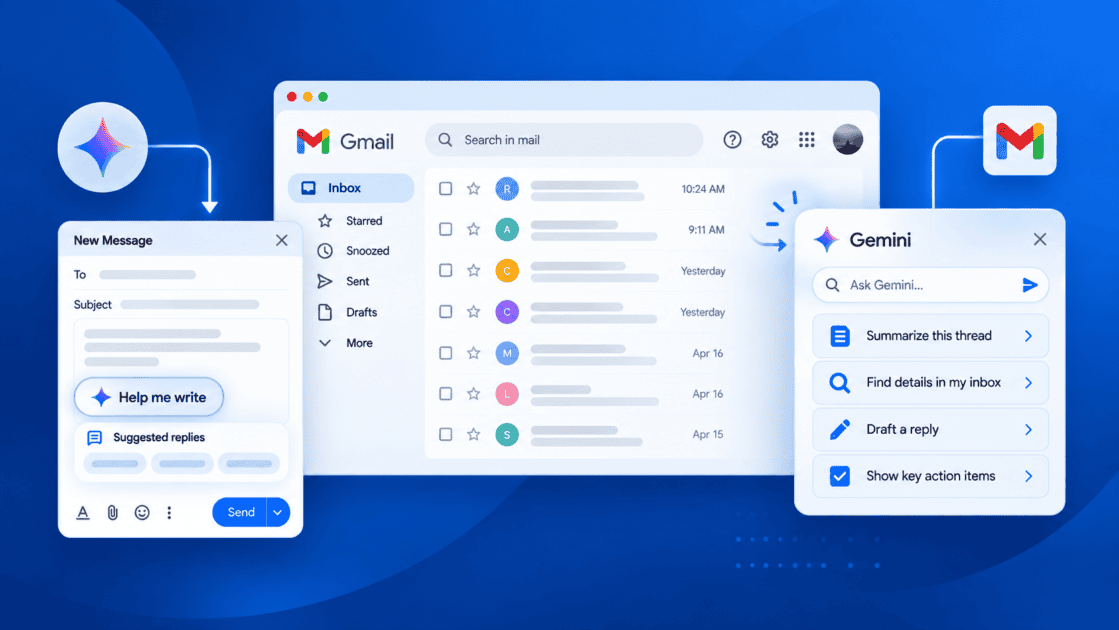
Gemini in Gmail is Google’s built-in AI assistant. It helps in two ways: It drafts and refines the email you send, and it helps you work through the email you receive. You stay in control as you review and edit each draft.
In this blog, You will learn what Gemini in Gmail does and which features are free. You will also see how to switch it on, how to write prompts that produce usable drafts and how to keep your data private.
How does Gemini in Gmail help you write and manage email faster?
Gemini in Gmail is Google’s built-in AI assistant for writing and managing email. It works inside Gmail rather than in a separate app, and it plays two roles.
First, it helps you compose and refine outgoing mail through Help me write and Suggested Replies. Second, it helps you work with your inbox. Thread AI Overview summaries and the Ask Gemini side panel can search your mail and answer questions about it.
Google described this direction in its January 2026 announcement: Gmail is entering the Gemini era. What matters most for you is knowing which features are free and which need a paid plan. The table below breaks that down.
Free and paid Gemini in Gmail features
Some Gemini features are free on personal Gmail accounts in the US. Others require a paid plan or a Google Workspace subscription. The columns below show each feature, what it does and what you need, so you can see where you stand.
| Feature | What it does | What you need |
|---|---|---|
| Help me write | Drafts and refines outgoing email | Free on personal US accounts; included in Workspace plans |
| Suggested Replies | Offers short ready-to-send reply options | Free on personal US accounts; included in Workspace plans |
| AI Overview thread summaries | Summarizes long email threads | Free on supported accounts |
| Ask Gemini inbox search | Answers questions about your inbox | Paid Google AI Pro or Ultra, or any Workspace plan |
| Proofread | Checks grammar and clarity in drafts | Workspace Business Standard and above, or Google AI Pro/Ultra |
The pattern is simple: Composing help and thread summaries are widely available, while asking your inbox questions and proofreading sit behind a paid plan. Google Workspace Business Starter and higher plans include the core Gemini features in Gmail, based on Google’s current plan details.
How to turn on Gemini in Gmail?
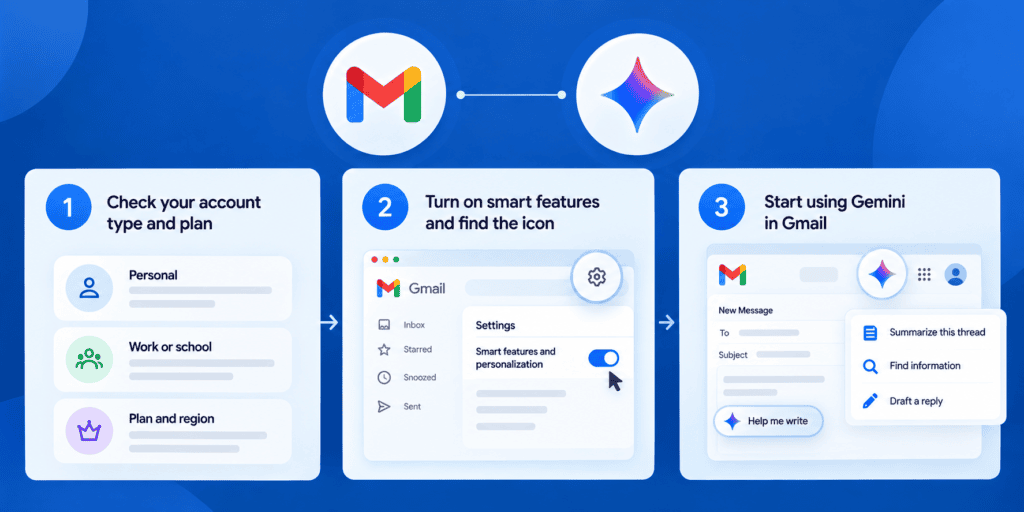
Turning on Gemini in Gmail takes a few minutes. The exact experience depends on your account type, plan, region and language. Personal-account access is US-only and limited to supported languages, and some of it runs through Google Workspace Experiments, a trusted-tester program.
Google Workspace plans work in more languages across more countries. If you are still deciding between a personal inbox and a business suite, our guide on Google Workspace vs Gmail explains the practical differences.
1. Check your account type and plan
Before you look for any settings, confirm what you are working with, because that decides which features appear. Your account type, plan, region and language together determine what Gemini can do in your inbox. Sorting this out first saves you from hunting for a button that your account cannot show yet.
- Account type: Personal Gmail accounts get free features in the US, while work or school accounts follow the rules your Google Workspace admin sets.
- Plan level: Free personal accounts get Help me write, thread summaries and Suggested Replies. Inbox-question search needs a paid plan.
- Region and language: Personal-account access is US-only and limited to supported languages, so features may not appear elsewhere.
- Experiments access: Some personal-account features arrive through Google Workspace Experiments, a trusted-tester program, so timing can vary by account.
If your account is a business one, our walkthrough on how to use Google Workspace covers the admin side in more detail.
2. Turn on smart features and find the icon
Once your account is sorted, switching Gemini on is quick. Open Gmail settings by clicking the gear icon at the top right, then choose “See all settings”. Find the “Smart features and personalization” option and turn it on, since Gemini relies on it.
After that, look for the “Ask Gemini” sparkle icon. On desktop it sits at the top right of your inbox. On mobile it appears at the top of the compose window, which is confirmed on Android.
Open it and you are ready to start.
Pro tip: Keep “Smart features and personalization” on. That lets Gemini pull useful context from your other emails and Drive files while it drafts.
3. If you don’t see Gemini in Gmail
Sometimes the icon does not show up even after you enable smart features. A few common reasons explain most cases, and each one has a quick check. Work through them in order before assuming the feature is unavailable.
- Wrong account: Confirm you are signed in to the account that actually has access, not a second signed-in profile.
- Plan or region: Check that your plan, region and language qualify, since personal-account access is US-only and language-limited.
- Admin control: For work or school accounts, your Google Workspace admin may control whether Gemini is available.
- Rollout timing: Some personal features arrive through Google Workspace Experiments, so access can lag behind the general announcement.
How to write emails faster with the “Help me write” feature?
Help me write is the fastest way to turn a rough idea into a usable draft. Open Compose or start a reply, open Help me write, then type a short prompt describing the email you want. Gemini generates a draft, and you refine it from there.
On desktop today you can adjust the draft with quick chips: Formalize, Friendly and Shorten. Use them to change tone or trim length without rewriting from scratch. Review and edit the result yourself before sending.
Help me write also pulls relevant context automatically. It draws details from your other emails and Drive files, such as booking codes or times, so you do not paste that information in. Click “Sources” to see exactly what it used.
A May 2026 Google Workspace update improved this further. It added topic contextualization from Drive and Gmail, plus tone and style matching based on your past emails. For the current steps, see Google’s own guide to Help me write in Gmail.
How to write better prompts for email drafts?
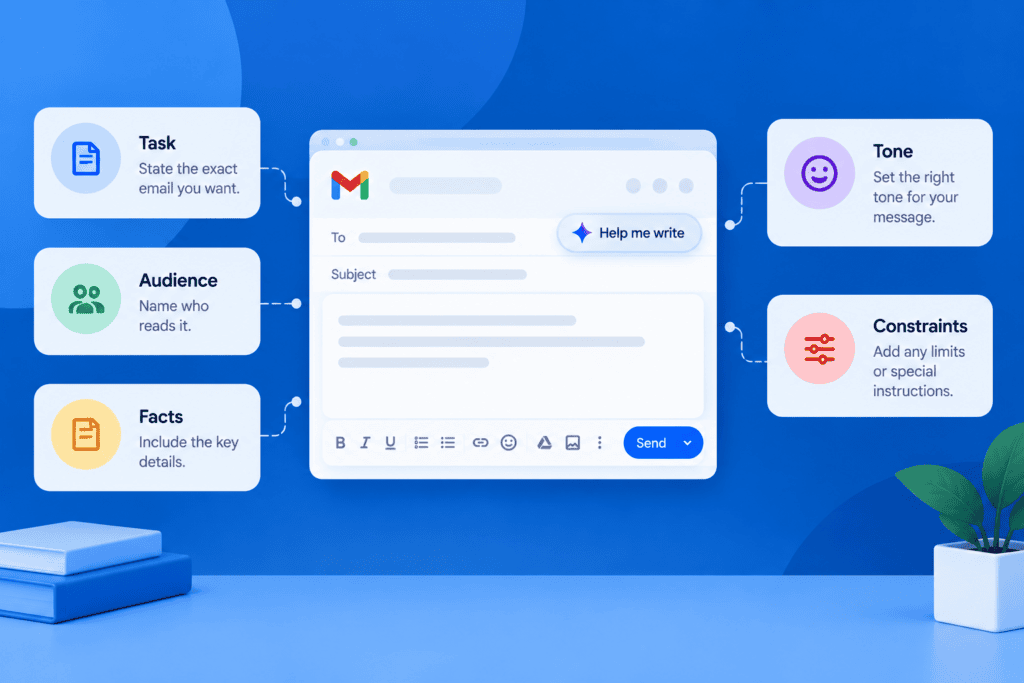
A good draft starts with a clear prompt, and a clear prompt usually has five parts. When you give Gemini the task, the audience, the facts, the tone and any constraints, it produces something close to send-ready. Skip these and you get generic filler that needs heavy editing.
- Task: State the exact email you want, such as a follow-up, an apology or a scheduling request.
- Audience: Name who reads it, since a client, a vendor and a teammate each need a different register.
- Facts: Give the specific details the email must include, like dates, amounts or order numbers.
- Tone: Say whether you want it warm, direct, formal or brief so the wording fits the relationship.
- Constraints: Set limits such as length, a deadline to mention or a point to leave out.
Here is a worked example for a small-business client follow-up. You might prompt: “Write a short, friendly follow-up to a client named Dana who asked about our spring availability. Confirm we have two April openings, ask which suits her and keep it under 120 words.” That single prompt gives Gemini a task, an audience, the facts, a tone and a constraint.
Keep sensitive information out of your prompts. Do not paste passwords, full card numbers or private personal details, since you do not need them for a solid draft. Add those by hand after you review the text.
How to use the “Ask Gemini” side panel to manage your inbox?
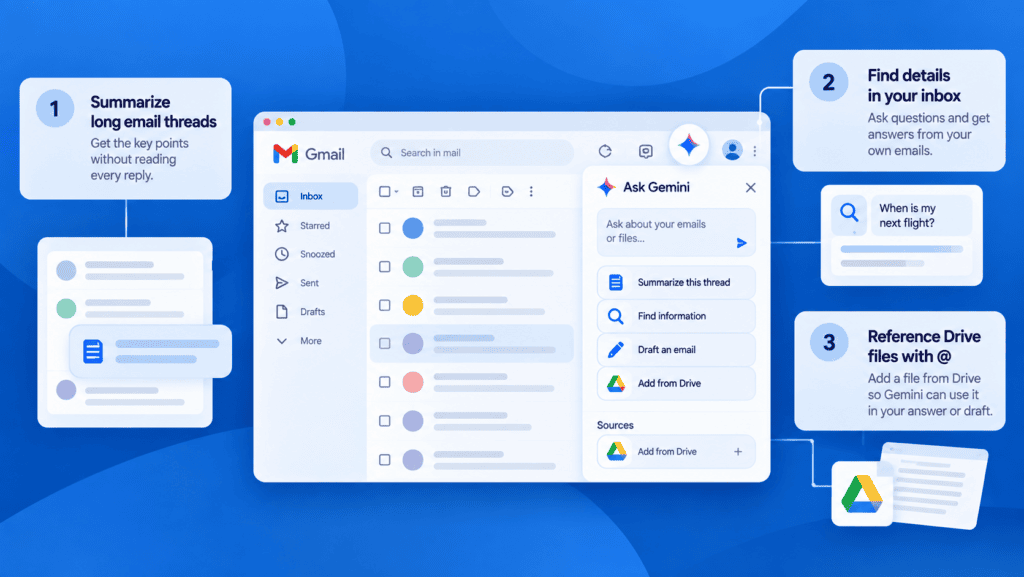
Help me write handles outgoing mail, and the Ask Gemini side panel handles the mail you already have. Open it from the top-right icon, then pick a suggested prompt or write your own. It can summarize threads, draft emails, find information buried in your inbox and reference your Drive files.
Here is one note on availability. The side panel is being phased out for some paid personal users on Google AI Pro/Ultra, in favor of inline experiences. The tasks below still work, but the place you access them may change on those accounts.
1. Summarize long email threads
Long back-and-forth threads are easy to lose track of. Thread AI Overview summaries give you the gist without scrolling through every reply. They are currently available at no extra cost on supported accounts.
Open a thread, then ask Gemini to summarize it or read the AI Overview at the top.
This is most useful for threads with many participants or decisions scattered across days. You get the current state of the conversation in a few lines. Then you decide whether you need to read the full detail.
2. Find details buried in your inbox
The side panel can answer plain questions about your mail, such as “when is my package arriving?” or “what time is my next flight?” It searches your inbox and pulls the answer from your own messages. This inbox-question search needs a paid Google AI Pro/Ultra plan or any Workspace plan.
Ask the way you would ask a person, and include enough detail to point Gemini at the right message. If the answer looks off, open the source email and confirm it yourself.
3. Reference Drive files with @
Inside the Ask Gemini side panel you can bring a Drive file into the conversation. Click Sources, then “Add from Drive”, or simply type “@” and reference a document by name. This lets Gemini use a proposal, spreadsheet or brief while it answers or drafts.
The “@” reference works in the side panel only. You do not need it in the Help me write compose box, since that box pulls context from your emails and Drive automatically. Our overview of Gemini AI across Workspace shows how this connects to the rest of the suite.
What Gemini in Gmail can and cannot do?
Gemini in Gmail is strong at wording and inbox navigation, and weaker at judgment. It does not send email automatically, so you review the draft and choose whether to send it. Its output can be inaccurate, and Google is clear that you should not rely on it for medical, legal, financial or professional advice.
Email volume is the reason a tool like this exists. According to Radicati Group’s 2026 Email Statistics Report, the number of worldwide email users, including both business and consumer users, will grow from over 4.2 billion in 2022 to over 4.7 billion by 2026. Email use continues to see strong growth with both consumer and business users. That scale shows how much writing and sorting people manage.
Gemini helps with the wording and the searching. It does not decide what the right business call is. Use the checklist below to decide when to reach for it:
- Good fit: The bottleneck is wording, so you need a first draft, a tone change or a shorter version.
- Good fit: You need to find a detail fast, like a date or an order number in a long thread.
- Good fit: You want a quick summary of a busy thread before you reply.
- Weak fit: The task is a judgment call, such as pricing, legal wording or a sensitive personnel message.
- Weak fit: Accuracy is critical and you cannot verify the facts yourself before sending.
Also read: For a wider comparison of assistants, see Gemini compared with ChatGPT.
How does Bluehost Google Workspace bring Gmail & Gemini together?
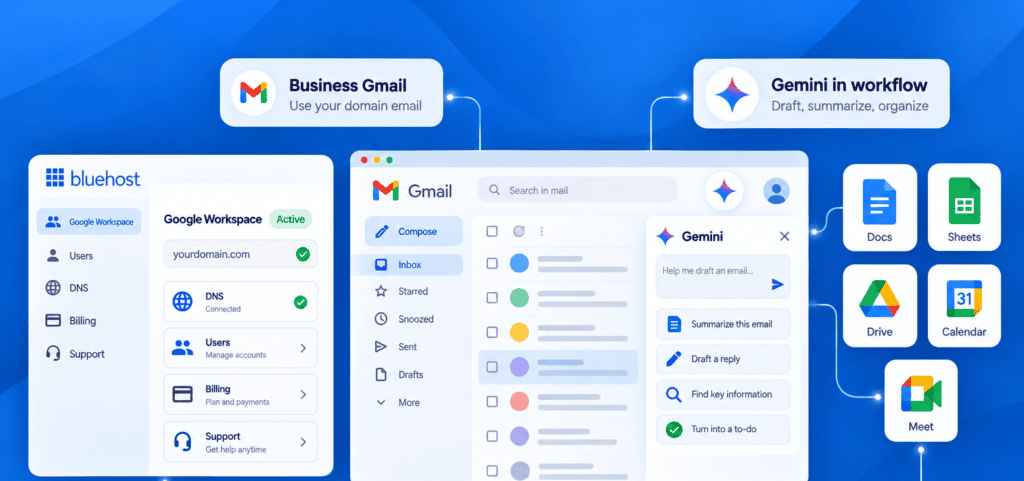
Using Gemini inside Gmail can make everyday email tasks faster, but the bigger advantage comes when your inbox is part of a connected business workspace.
Bluehost Google Workspace brings professional Gmail, Gemini and Google’s productivity and collaboration tools together under your business domain. You can use Gemini to help draft and summarize emails, then continue working across Docs, Sheets, Drive, Calendar, Meet and other Workspace apps without constantly switching between separate tools.
Key benefits of Bluehost Google Workspace
- Professional business Gmail: Use an email address that matches your domain, helping your business maintain a more consistent and professional identity.
- Gemini built into your workflow: Get AI assistance within Gmail and other Google Workspace apps to draft content, summarize information and work through everyday tasks faster.
- Connected productivity tools: Keep email, documents, spreadsheets, meetings, calendars and cloud files within the same Google Workspace environment.
- Simpler account management: Manage users, email aliases and billing through the Bluehost dashboard. Bluehost also handles the DNS setup required to connect your business email.
- Plans that grow with your business: Start with the Workspace features your team needs today, then move to plans with more storage, meeting capabilities and administrative controls as your requirements grow.
- 24/7 Bluehost support: Get help with your Google Workspace setup alongside the hosting and domain services you already manage with Bluehost.
Which plan should you choose?
- Choose Business Starter if your main goal is to use Gemini in Gmail with a domain-based business email and essential Workspace apps.
- Choose Business Standard if you want Gemini to help across email, documents, spreadsheets, meetings and files. It also gives growing teams significantly more storage and stronger meeting capabilities.
- Choose Business Plus if your business needs the same broader Gemini experience with more storage, larger meetings and additional security and archiving through Google Vault.
Pro Tip: For most businesses adopting AI beyond email, Business Standard offers a practical middle ground between Starter’s essential Gmail experience and the advanced storage and security features included with Plus.
Gemini becomes more useful when it is connected to the tools your business already relies on. Instead of using AI only for an occasional Gmail draft, Google Workspace lets you bring AI-assisted work into email, documents, meetings, files and team collaboration.
With Bluehost Google Workspace, you can set up a professional business inbox while keeping your domain, email and Workspace management more closely connected.
Final thoughts
You now have a working setup. Draft with Help me write, then use the Ask Gemini side panel to summarize threads and find inbox details. The habit that keeps it reliable is simple: Review every message before you send it.
If you are bringing this Gemini workflow into a professional inbox, Bluehost Google Workspace gives you the business email and collaboration tools to support it in one place. Our Google Workspace brings email, productivity and collaboration tools together in one place. Starting with Business Starter, our plans include a domain-matching business Gmail account with Gemini. Manage users, aliases and billing from the Bluehost dashboard, while we handle DNS setup automatically and provide 24/7 support.
Ready to bring Gemini into your business inbox? Get started with Bluehost Google Workspace today.
FAQs
Some of it is free and some is paid. On personal Gmail accounts in the US, Help me write, thread summaries and Suggested Replies are free. Inbox-question search and Proofread sit behind a paid Google AI plan or a qualifying Workspace plan.
No, Gemini in Gmail does not send email automatically. It drafts, refines, summarizes and searches, but you review the message and choose whether to send it yourself. Its output can be inaccurate, so a quick check before sending is worth the moment it takes.
Yes, you control Gemini through the “Smart features and personalization” setting in Gmail. Turn it off there when you do not want it. That also stops Gemini from pulling context from your emails and Drive files, so switch it back on when you want that help again.
Yes, Gemini in Gmail works on mobile. The “Ask Gemini” icon appears at the top of the compose window, which is confirmed on Android. Availability still depends on your account type, plan, region and language, the same as it does on desktop.
Gemini in Gmail lives inside your inbox and works with your email and Drive context. It drafts replies, summarizes threads and answers questions about your mail. The standalone Gemini app is a general assistant for tasks outside Gmail, so reach for Gemini in Gmail when the job is your email.

Write A Comment