 ChatGPT,
 Claude,
 Gemini,
 Grok — all four for
AI-assisted development is changing how developers plan, build, test and ship software. But getting more from an AI coding assistant takes more than generating code. It also takes a structured workflow and an environment that supports the work happening in the background.
That’s where gStack comes in. This open-source skill pack extends Claude Code with specialized skills for different stages of development, from evaluating an idea to reviewing code and testing an application.
With Bluehost gStack VPS Hosting, developers can run this workflow in a self-managed server environment rather than relying solely on a personal laptop. Root access gives them control over the tools and configuration, while scalable VPS plans offer options for different workloads.
Whether you’re a solo developer, technical founder or part of a small engineering team, gStack on Bluehost VPS gives you a place to run your development workflow beyond your local machine.
What is gStack VPS Hosting?
gStack is a free, open-source skill pack for Claude Code. It organizes AI-assisted development into specialized slash-command skills, giving each stage of a project a defined role.
Instead of relying on one general-purpose assistant mode for every task, developers can use gStack to structure their workflow around product thinking, planning, implementation, code review, testing, shipping and reflection.
Because gStack is open source, developers can inspect its skill files, adapt them and shape the workflow around their projects. It’s designed for developers who want a more structured way to work with Claude Code throughout the development cycle.
Why does gStack need a persistent development environment?
Some development tasks continue beyond an individual coding session. gStack’s automated QA workflow uses a background browser to navigate applications, interact with pages and check for breakage between commands.
Running this setup on your personal laptop can limit background work. Sleep settings or closing the laptop may suspend local processes, depending on your configuration.
A VPS provides a separate server environment for these workflows. Here’s how it helps:
- Keep background workflows running: Configure development tools and supporting processes to run independently of your personal device.
- Support automated QA: Give gStack’s background browser an environment to navigate applications and check for breakage between commands.
- Configure your development environment: Set up the required browser, tools and supporting processes on your server.
- Reduce dependence on your laptop: Run configured workflows without needing to keep your personal device open.
Actual behavior depends on your server configuration, running processes and service availability.
How does gStack structure the development workflow?
gStack organizes development into seven stages. Each stage gives Claude Code a more specific role, helping developers move from early ideas to implementation, testing and release.
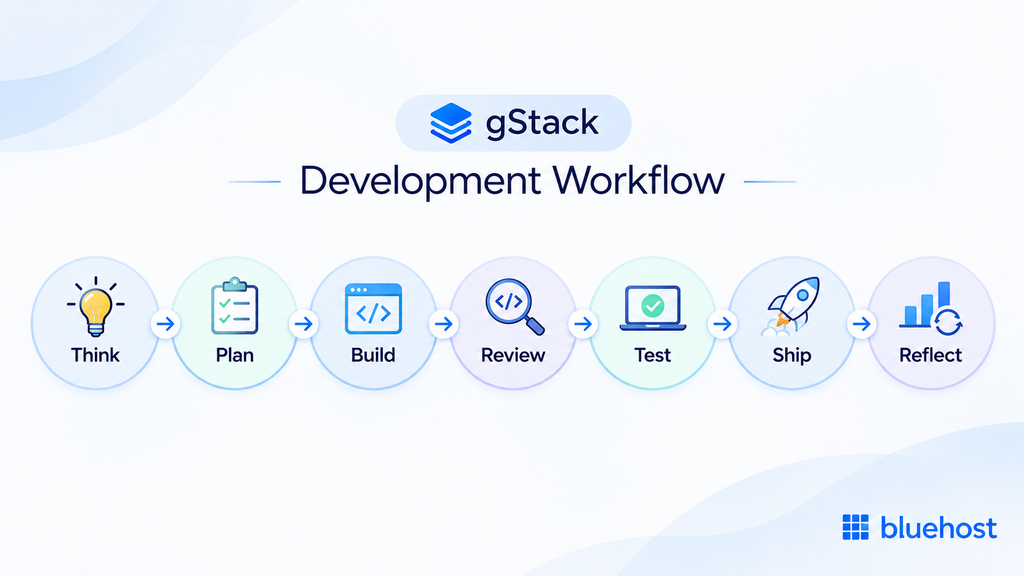
Think: Challenge assumptions and explore an idea before committing development time. This stage helps clarify the problem and evaluate what is worth building.
Plan: Create a technical blueprint before implementation. Planning helps identify missing states, edge cases and architectural decisions early.
Build: Turn the plan into working application code with Claude Code.
Review: Examine the implementation for structural issues and potential bugs that ordinary testing may miss. This adds another review step to the development process.
Test: Use gStack’s background browser to navigate the application, interact with pages and check for visible breakage. Authenticated testing can use configured browser sessions.
Ship: Streamline release tasks, such as running tests and opening a pull request, through the configured workflow.
Reflect: Review what shipped and use the findings to inform the next development cycle.
Together, these stages provide a structured approach to AI-assisted development. Developers can use the workflow to organize work across planning, implementation, review, testing and release rather than treating each task as an isolated coding request.
What does Bluehost VPS bring to gStack?
gStack provides the workflow structure, while Bluehost Self-Managed VPS provides the server environment where developers can configure and run it. Here’s how the two fit together.
1. A server environment for background workflows
Run configured background browser and development processes on a VPS instead of depending solely on your laptop. Availability still depends on how you configure those processes and the server.
2. Root access and environment control
Install the required development tools, including Claude Code, Bun and Git. Root access also lets you configure the screen and graphics environment needed by gStack’s background browser.
3. NVMe storage and configurable resources
gStack’s browser-based QA and development tools use CPU, memory and storage. Bluehost’s NVMe VPS plans offer different resource configurations, letting you select a plan that fits your workload.
4. Options for growing workloads
As your development needs change, you can consider larger VPS plans with more CPU and memory. This can help accommodate heavier workloads or additional concurrent sessions, depending on your application and configuration.
5. A self-managed setup
Bluehost provides the VPS infrastructure, but you remain responsible for installing, configuring and securing your software environment. This approach suits developers who want control over their server and development tools.
Which VPS plan is recommended for gStack?
Choosing the right VPS plan means accounting for the operating system, development tools and background browser, not just gStack itself.
| Bluehost VPS plan | vCPU | RAM | Storage | Best suited for |
| NVMe 4 | 2 | 4 GB | 100 GB NVMe | Lighter workloads that meet the documented minimum |
| NVMe 8 | 4 | 8 GB DDR5 | 200 GB NVMe | A recommended starting point for gStack |
| NVMe 16 | 8 | 16 GB | 450 GB NVMe | Heavier workloads and additional resource headroom |
Why consider NVMe 8?
It matches gStack’s recommended CPU and memory specifications. Its 200 GB of NVMe storage also exceeds the documented 30 GB storage recommendation.
Your ideal plan will depend on the number of concurrent sessions, browser activity and other applications running on the server. Review the current plan specifications and renewal pricing before choosing a configuration.
Editorial note: Verify plan specifications, current availability and pricing against our live product page before publishing.
How can developers get started with gStack on Bluehost?
Getting started involves provisioning a VPS, configuring the environment and installing gStack’s skill files. You’ll also need to configure the background browser and connect Claude Code to a supported AI provider.
A typical setup follows these steps:
- Provision your VPS: Choose a Bluehost Self-Managed VPS plan that fits your workload.
- Install the development tools: Use root access to install Claude Code, Bun and Git.
- Configure the browser environment: Set up the screen and graphics environment required by gStack’s background browser.
- Install gStack: Follow the current project instructions to install and configure its skill files.
- Configure AI access: Set up Claude Code authentication and the supported AI provider connection.
- Secure your server: Configure firewall rules, SSH key-based authentication and regular software updates. Protect API credentials and active browser sessions.
For detailed instructions, follow our Purchase a Self-Managed VPS with gStack Installation guide.
Because gStack and Claude Code can change over time, consult their current documentation for compatible versions, installation commands and authentication requirements.
What can you build with gStack on Bluehost VPS?
With gStack running in a VPS environment, developers can organize different parts of their development process around a structured workflow.
Here are a few examples:
- Validate product ideas: Use the Think and Plan stages to challenge assumptions and define the technical approach before implementation.
- Build applications: Use Claude Code and gStack’s Build stage to work through implementation tasks.
- Review code: Add a structured review step to help identify potential issues before release.
- Test application changes: Configure the background browser to navigate pages and check for visible breakage.
- Streamline releases: Use configured shipping workflows for tasks such as running tests and opening pull requests.
- Improve future iterations: Reflect on completed work and apply those findings to the next cycle.
Developers can combine these stages to suit their projects. The exact tasks gStack can perform depend on its current capabilities, the tools you configure and the permissions available in your environment.
Choose a VPS plan that fits your workload, configure your environment and start building a more structured development process.
Explore gStack VPS Hosting to find a plan for your workflow.
FAQs
You’ll need Claude Code and the dependencies required by gStack, including its supported runtime and browser environment. Configure the server according to the current gStack setup instructions before running its workflows.
Yes, gStack’s background browser can test authenticated application flows when the required browser session and login configuration are available. The exact setup depends on your application and environment.
gStack is open source, so developers can inspect its skills and adapt supported workflows to their development needs. Review the project’s documentation before modifying commands or workflow behavior.
No dedicated GPU is required for the gStack workflow itself. However, running AI models locally can require additional computing resources. You can configure Claude Code’s AI access separately while using your VPS for gStack’s tools and browser environment.
Yes. You can run gStack locally if your environment meets its requirements. However, a VPS offers a separate environment for background tasks and browser-based testing, reducing dependence on your personal computer being available.
Yes. Bluehost Self-Managed VPS gives developers root access to configure their server, install development tools and manage their environment. You’re responsible for server setup, updates, security and ongoing maintenance.

Write A Comment