 ChatGPT,
  Claude,
  Gemini,
  Grok — all four for
Purchase a Self-Managed VPS with gstack Installation
Learn how gstack makes it easy to launch and manage your apps, databases, and projects on a Bluehost Self-Managed VPS without any technical stress. This guide shows you how to slash your hosting costs by running multiple websites on a single server, launch updates with zero downtime, and check your server's health instantly from one simple dashboard. Follow the step-by-step instructions below to select your server options and add gstack under the software tab during checkout.
Why Use gstack?
Say goodbye to configuring and scaling your servers by hand. We give you the smooth, premium experience of a top-tier cloud platform—but at a fraction of the cost. With gstack, you have total control over your development setup, making it easy to run multiple live projects securely and efficiently.
Uses of gstack
There are many applications of gstack in different technical environments.
- Run Apps Smoothly: Connect and manage all your applications and databases in one place without dealing with messy setups.
- Set Up Instantly: Launch identical testing and live sites in seconds so your team can build and update features without errors.
- Cut Hosting Costs: Pack multiple heavy projects onto a single server to get the most out of your budget and stop overpaying for cloud space.
- Automate Updates: Push code updates to your live site automatically and safely without ever taking your website offline.
- Track Everything Easily: Check your server speed, memory, and database health at a glance from one simple dashboard.
This flexibility makes gstack the perfect choice for teams and companies that want to grow their tech setup without the stress.
System Requirements
Before deploying, ensure your server meets the following minimum hardware requirements. For a stable production deployment, we recommend using higher specifications than the minimum requirements.
- Do not purchase a server that only meets the minimum requirements. The minimum specifications represent the software's bare survival threshold and do not account for operating system overhead or production workloads. Running with only 2 vCPUs, 4 GB RAM, and 20 GB disk space can result in severe performance slowdowns, system freezes, or unexpected crashes during traffic spikes.
- Bluehost Self-Managed VPS and VDS lack dedicated GPUs (VRAM). Running local LLMs entirely on their CPUs will cause extremely slow response times. For optimal performance, host your application on Bluehost but connect it to an external AI cloud provider (like OpenAI or Anthropic) via API.
- For a stable deployment, we recommend using at least 4 vCPUs, 8 GB RAM, and 30 GB disk space. While lower specs might be sufficient for basic installation, consider allocating additional disk space if you plan to store recordings, logs, or other application data.
| Resource | Minimum | Recommended |
|---|---|---|
| RAM | 4 GB | 8 GB |
| Disk | 20 GB | 30 GB |
| CPU | 2 vCPUs | 4 vCPUs |
How to Purchase a Self-Managed VPS Hosting with gstack Installation
To get started with gstack on Bluehost, you first need to purchase a Self-Managed VPS plan. Follow the steps below:

New to VPS or not sure where to start? No worries! At the top of the Self-Managed VPS purchase page, you’ll see the Pre-configured Setup section. This handy feature is perfect if you’re feeling a bit unsure—just pick the type of project you want, like WordPress Site, AI Agent/Claude Code, Dev/Staging, or eCommerce Store. We’ll take care of the rest by automatically filling in the best plan, operating system, and template for you.
- Super simple for beginners or anyone who just wants a quick setup
- Instantly get the recommended settings for your project
- Skip the guesswork and save time
- You can still customize things later if you want
- In your browser, go to https://www.bluehost.com/vps-hosting.
- Click the Choose Plan button under your preferred VPS hosting plan.
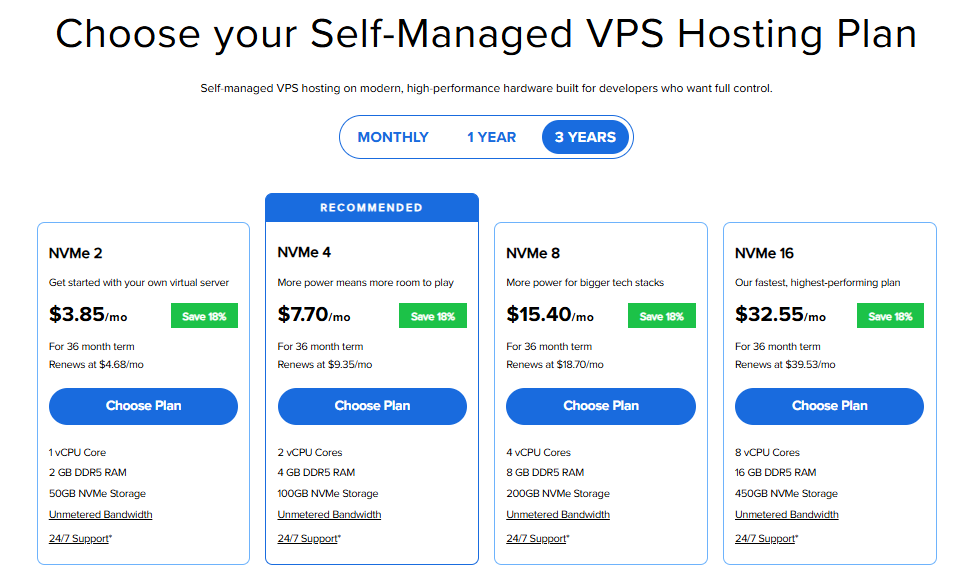
Important: Pricing is subject to change—please visit https://www.bluehost.com/vps-hosting for the current introductory/sign-up offer for Bluehost VPS Hosting. For the most up-to-date renewal pricing, visit your Bluehost Portal Renewal Center.
- Select your preferred Data Center location.

- On the Cart page, you can configure your server to fit your needs in the following section:
- Hardware:
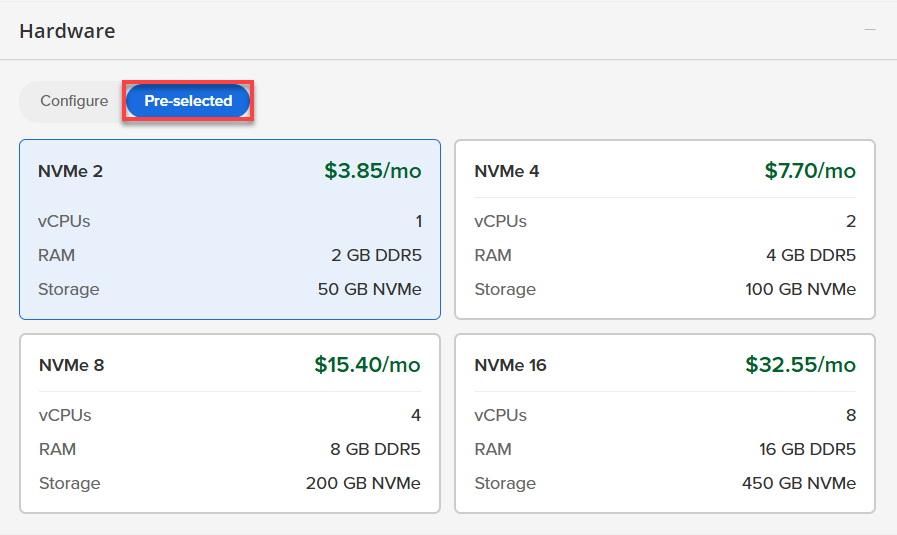
- Pre-selected:
You can select a different Self-Managed VPS plan in this section.
- Configure:
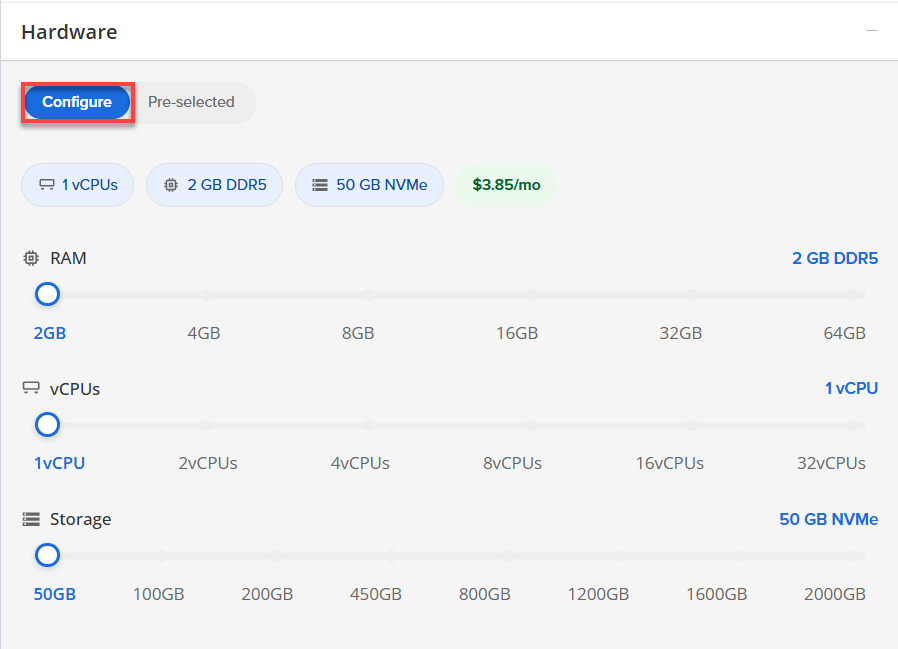
Click Configure to customize your package.
Note that your changes help customize your plan, and the overall cost will adjust accordingly to fit your needs.
- Pre-selected:
- Software:
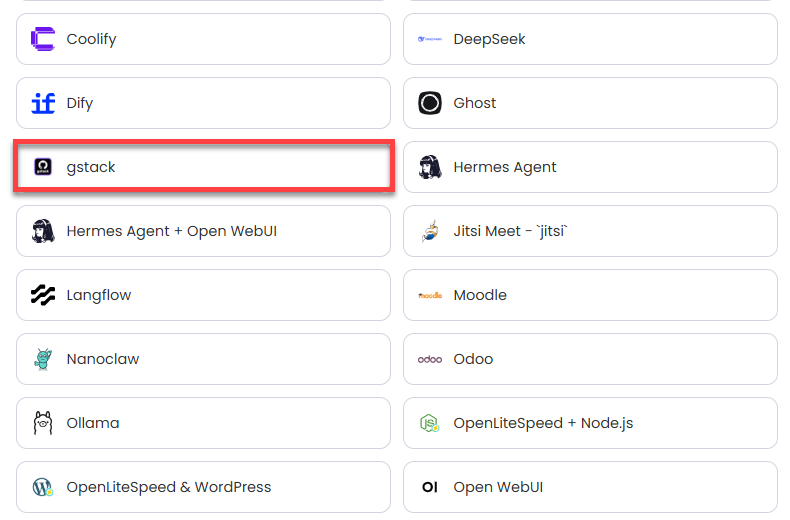
If the selected plan does not meet the app's minimum requirements, the app will be grayed out.
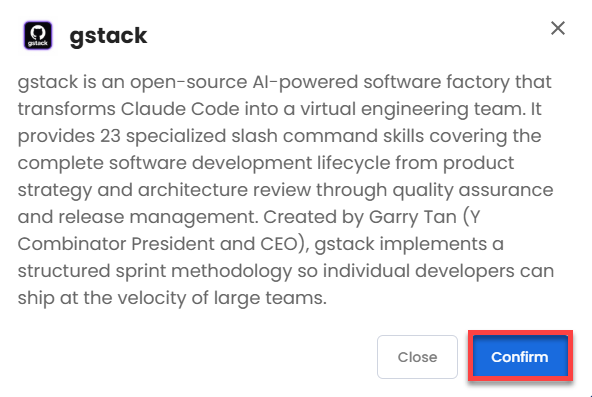
- Click on the Application Tab.
- Choose gstack.
- Click Confirm to continue.
- Hardware:
- Add-Ons:
- Premium Support:
This service provides you with priority access to our expert team for faster responses and personalized assistance whenever you need it.

- Premium Support:
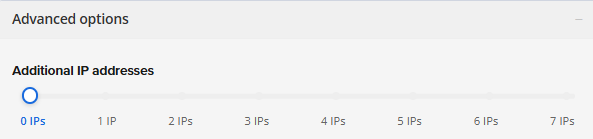
- In the Advanced options:
- Extra IP's: You can add extra IP addresses for an additional fee.
Pricing changes based on how many IPs you add. - Hostname: Assign a custom hostname to easily identify your server. This is optional.
- Extra IP's: You can add extra IP addresses for an additional fee.
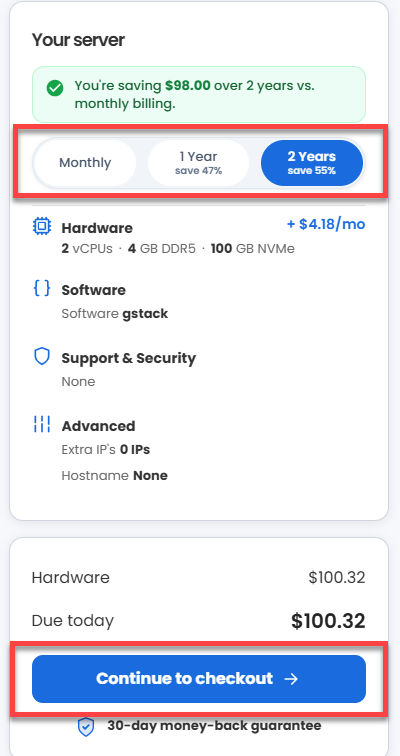
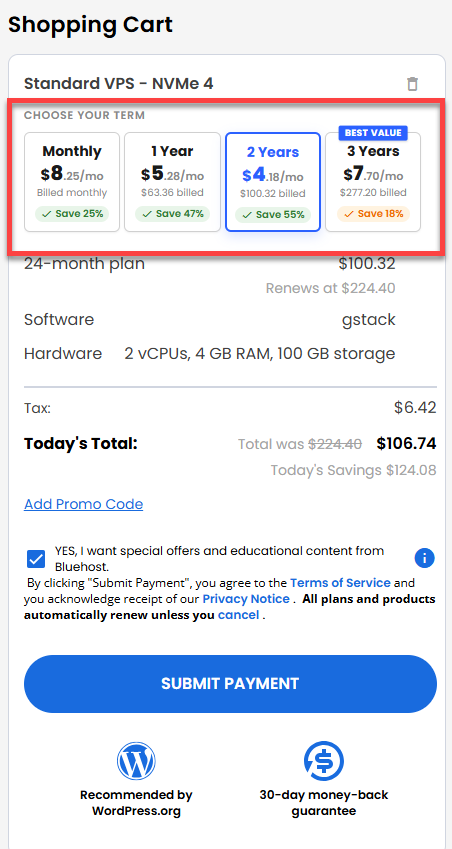
- Select your preferred billing term and view your Order Summary. Click the Continue to Checkout button to proceed.
- Do the following on the Checkout page:
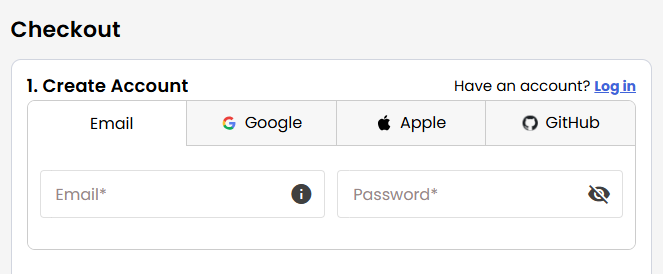
- Create your Bluehost account by using your email address or by connecting with your Google, Apple, or GitHub account — whichever you prefer!
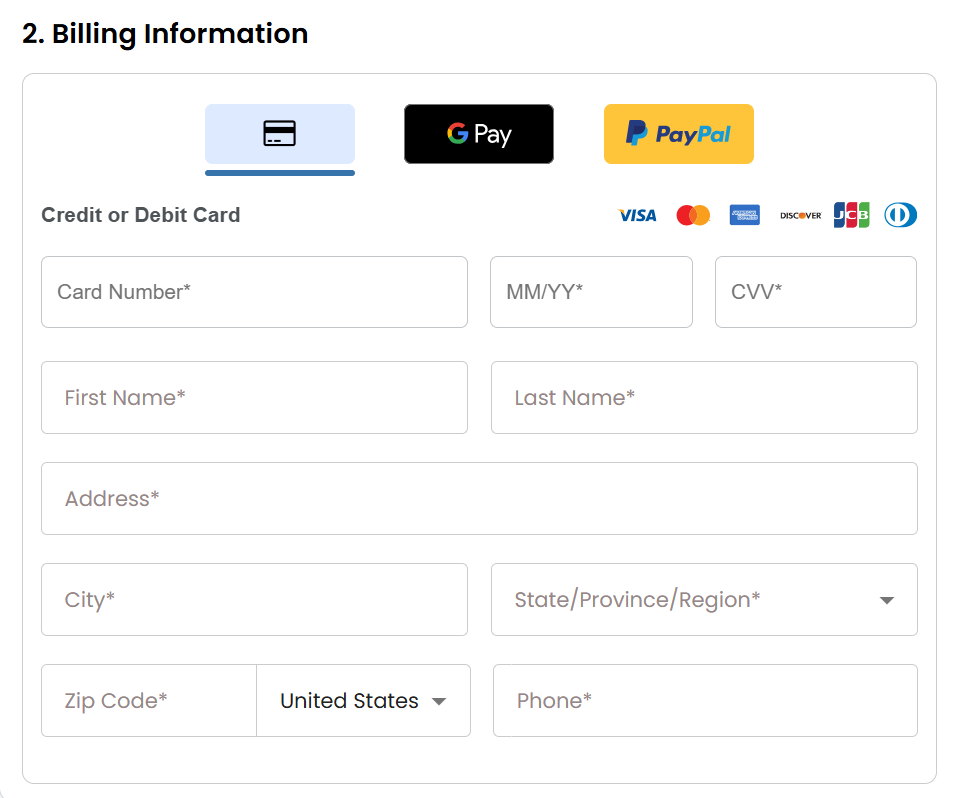
- Select your preferred payment method: credit card, Google Pay, or PayPal. Enter your billing information.
- If you have an account with us, you will see your Bluehost login details when you are logged into your Bluehost Portal. If you are not logged in, please click the Log In link.
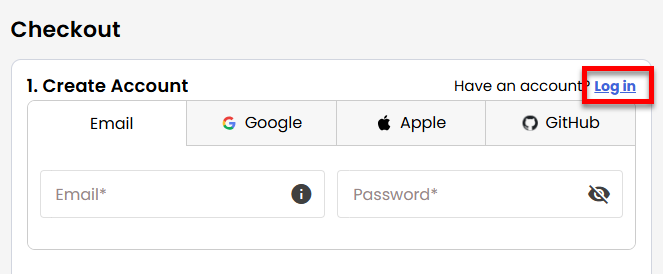
- Create your Bluehost account by using your email address or by connecting with your Google, Apple, or GitHub account — whichever you prefer!
- In the Shopping Cart section, you can still adjust your billing term if needed.
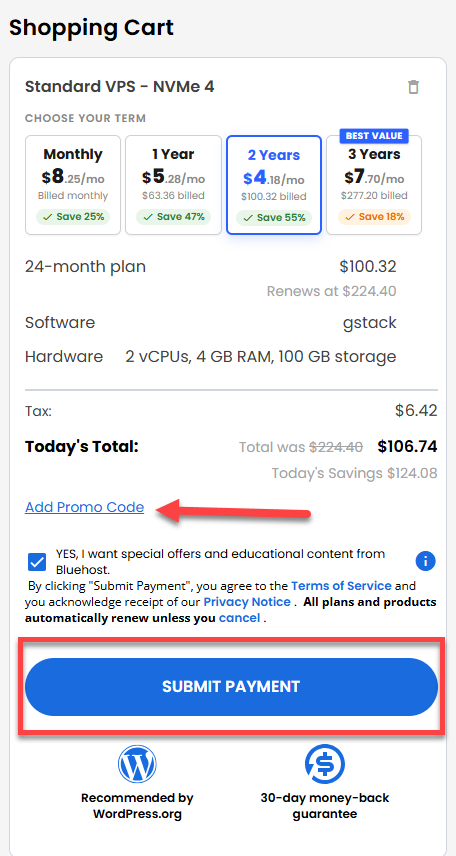
- Review the items in your cart, add a Promo Code if you have one, and then click Submit Payment to complete the purchase.
After completing the purchase, your VPS hosting will begin provisioning. You can access and manage your new VPS hosting in the Hosting tab of your Bluehost Portal.
Getting Started with gstack
gstack turns Claude Code into a complete virtual engineering team. It helps you manage your entire development lifecycle—from early product strategy to final release—using 23 specialized commands.
Follow these steps to set up your environment and start your first sprint.
Step 1: Access your gstack Dashboard
After installation completes:
- Log in to your Bluehost Portal.
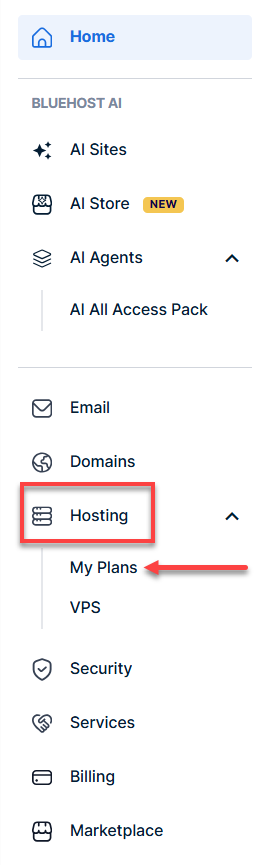
- In the left-hand menu, click Hosting, then select My Plans.
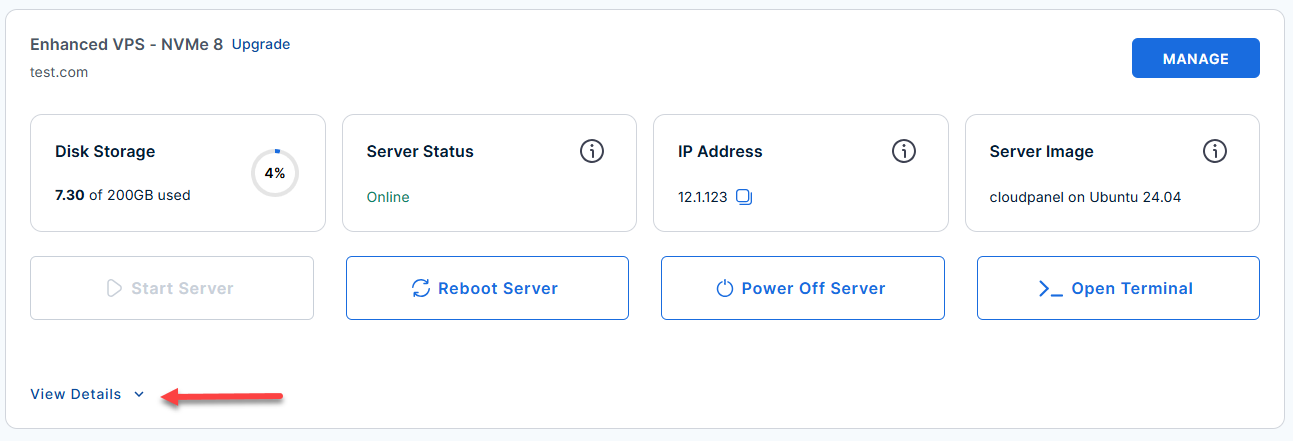
- Locate the server you want to manage, then click View Details in the bottom-left corner to expand the section and access additional server information.
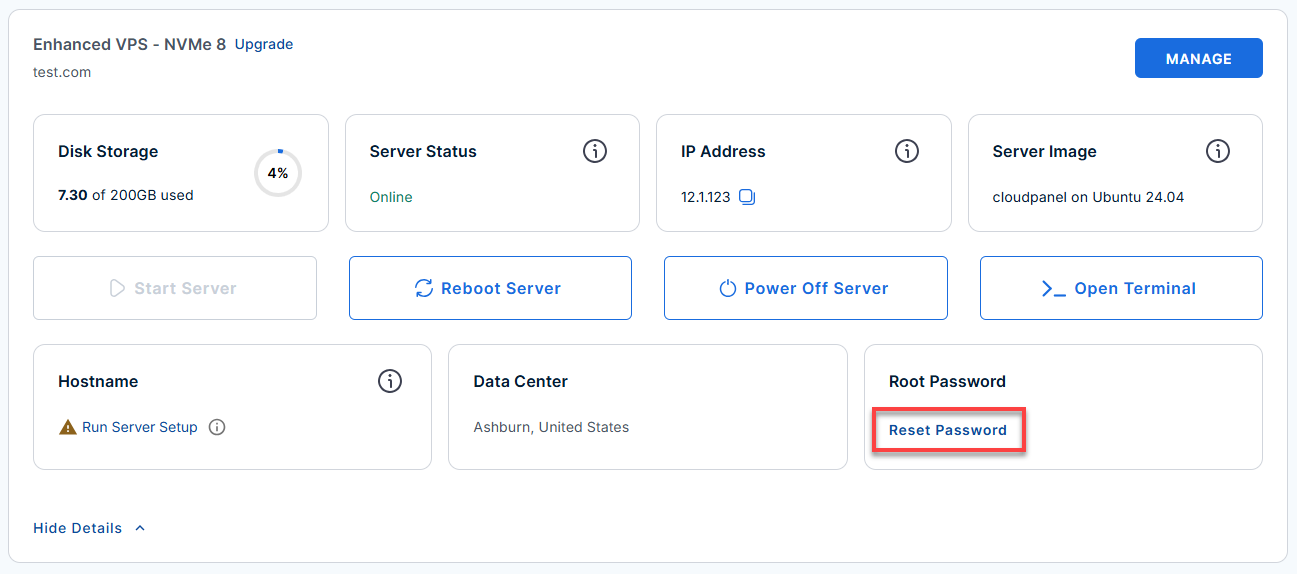
- Click the Reset Password.
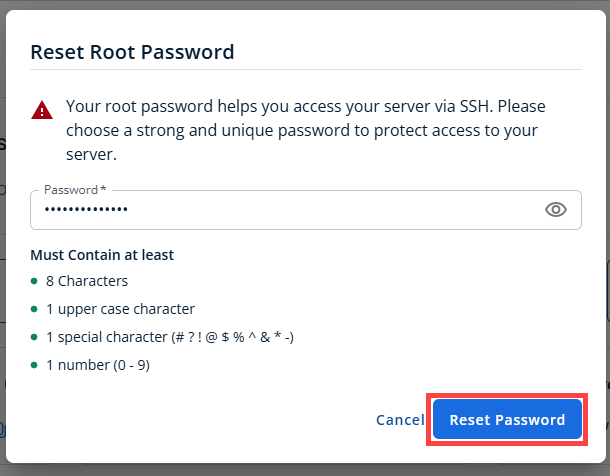
- In the pop-up window, type your new root password, then click Reset Password again to confirm and save the changes.
- Connect to your VPS via SSH.
Use your VPS IP and credentials with an SSH client, follow the prompts, and enter your root password when asked:Replaceyour_server_ipwith your actual server IP address.ssh root@your_server_ipExample Output:
Welcome to Ubuntu 24.04.4 LTS (GNU/Linux 6.8.0-124-generic x86_64)
********************************************************************************

gstack is installed and ready. Claude Code with gstack skills awaits your use.

gstack gives you 23 specialized slash commands covering the full development
lifecycle: strategy, architecture, code review, QA, security, and release.

IMPORTANT: machinectl is required to enter the gstack user session.
  Without it, user-scoped environment settings will not be loaded correctly.

First-time setup:
  machinectl shell gstack@
  claude auth
  cd ~/my-project && claude

Then inside Claude Code, type /gstack to see all available skills.

Sprint workflow:
  /office-hours       - define the feature
  /plan-eng-review    - validate the technical approach
  /qa                 - generate tests before building
  /ship               - release when done

Updating gstack (inside a claude session):
  /gstack-upgrade

Or manually:
  machinectl shell gstack@
  cd ~/.claude/skills/gstack && git pull && ./setup --quiet

Files:
  Skills   : /home/gstack/.claude/skills/
  Source   : /home/gstack/.claude/skills/gstack
  Config   : /home/gstack/.gstack/
  README   : /root/README.md (root) | /home/gstack/README.md (gstack user)

Installed:
  Node.js    : v22.23.0
  Bun        : 1.3.14
  Claude Code  : 2.1.186 (Claude Code)
  Server IP    : 12.1.1.123

********************************************************************************
To delete this message of the day: rm -rf /etc/update-motd.d/99-gstack
Step 2: Switch to the gstack User
gstack runs under its own user account for security. Switch to this session by running:
Example Output:
root@server-12345:~# machinectl shell gstack@
Connected to the local host. Press ^] three times within 1s to exit session.
gstack@server-12345:~$
Step 3: Authorize Claude Code
Before you start coding, you need to connect Claude Code to your Anthropic account. You have two options:
- Option A (Interactive): Run
claude authand follow the prompts on your screen.claude authExample Output:
gstack@server-12345:~$ claude auth Usage: claude auth [options] [command] Manage authentication Options: -h, --help Display help for command Commands: help [command] display help for command login [options] Sign in to your Anthropic account logout Log out from your Anthropic account status [options] Show authentication status - Option B (Environment Variable): Alternatively, you can set your key directly in your current session:
Replace
your_key_herewith your actual API Key.export ANTHROPIC_API_KEY=your_key_here
Step 4: Start Your First Sprint
If you haven't created the project folder yet.
You can create it and then enter it:
- Choose the text style that looks best with your terminal and then click Enter.
mkdir ~/my-project cd ~/my-project claude
Example Output:
gstack@server-12345:~$ mkdir ~/my-project cd ~/my-project claude mkdir: cannot create directory ‘/home/gstack/my-project’: File exists Welcome to Claude Code v2.1.186 .......................................................... * █████▓▓░ * ███▓░ ░░ ░░░░░░ ███▓░ ░░░ ░░░░░░░░░░ ███▓░ ░░░░░░░░░░░░░░░░░░░ * ██▓░░ ▓ ░▓▓███▓▓░ * ░░░░ ░░░░░░░░ ░░░░░░░░░░░░░░░░ █████████ * ██▄█████▄██ * █████████ * .......█ █ █ █.......................................... Let's get started. Choose the text style that looks best with your terminal To change this later, run /theme 1. Auto (match terminal) ❯ 2. Dark mode ✔ 3. Light mode 4. Dark mode (colorblind-friendly) 5. Light mode (colorblind-friendly) 6. Dark mode (ANSI colors only) 7. Light mode (ANSI colors only) ╌╌╌╌╌╌╌╌╌╌╌╌╌╌╌╌╌╌╌╌╌╌╌╌╌╌╌╌╌╌╌╌╌╌╌╌╌╌╌╌╌╌╌╌╌╌╌╌╌╌╌╌╌╌╌╌╌╌╌╌╌╌╌╌╌╌╌╌╌╌╌╌╌╌╌╌╌╌╌╌╌╌╌╌╌╌╌╌╌╌╌╌╌╌╌╌╌╌╌╌╌╌╌╌╌╌╌╌╌╌╌╌╌╌╌╌╌╌ 1 function greet() { 2 - console.log("Hello, World!"); 2 + console.log("Hello, Claude!"); 3 } ╌╌╌╌╌╌╌╌╌╌╌╌╌╌╌╌╌╌╌╌╌╌╌╌╌╌╌╌╌╌╌╌╌╌╌╌╌╌╌╌╌╌╌╌╌╌╌╌╌╌╌╌╌╌╌╌╌╌╌╌╌╌╌╌╌╌╌╌╌╌╌╌╌╌╌╌╌╌╌╌╌╌╌╌╌╌╌╌╌╌╌╌╌╌╌╌╌╌╌╌╌╌╌╌╌╌╌╌╌╌╌╌╌╌╌╌╌╌ Syntax theme: Monokai Extended (ctrl+t to disable) - To finalize your setup in the Claude Code CLI, please select the billing method that applies to your situation:
- Option 1: Select this if you have an active Claude Pro, Max, Team, or Enterprise subscription and wish to apply your existing plan benefits.
- Option 2: Select this if you prefer to be billed based on API usage via your Anthropic Console account.
- Option 3: Select this if you are connecting through a specific cloud provider platform (e.g., AWS, Azure, or Google Cloud).
After highlighting your choice, press Enter to proceed with the authentication flow.
Example Output:
Welcome to Claude Code v2.1.186 .......................................................... * █████▓▓░ * ███▓░ ░░ ░░░░░░ ███▓░ ░░░ ░░░░░░░░░░ ███▓░ ░░░░░░░░░░░░░░░░░░░ * ██▓░░ ▓ Welcome to Claude Code v2.1.186 .......................................................... * █████▓▓░ * ███▓░ ░░ ░░░░░░ ███▓░ ░░░ ░░░░░░░░░░ ███▓░ ░░░░░░░░░░░░░░░░░░░ * ██▓░░ ▓ ░▓▓███▓▓░ * ░░░░ ░░░░░░░░ ░░░░░░░░░░░░░░░░ █████████ * ██▄█████▄██ * █████████ * .......█ █ █ █.......................................... Claude Code can be used with your Claude subscription or billed based on API usage through your Console account. Select login method: ❯ 1. Claude account with subscription · Pro, Max, Team, or Enterprise 2. Anthropic Console account · API usage billing 3. 3rd-party platform · Amazon Bedrock, Microsoft Foundry, or Vertex AI - If your browser fails to launch automatically, copy the URL below and paste it into your browser to complete the sign-in process.
- Retrieve Code: Follow the prompts in the browser; once authorized, you will be provided with a verification code.
- Finalize: Copy that verification code, return to your terminal, paste it when prompted, and press Enter.
Example Output:
     *                                    █████▓▓░
                                    *          ███▓░       ░░
          ░░░░░░                      ███▓░
    ░░░   ░░░░░░░░░░                  ███▓░
   ░░░░░░░░░░░░░░░░░░░    *           ██▓░░      ▓
                                       ░▓▓███▓▓░
 *                                  ░░░░
                                  ░░░░░░░░
                                 ░░░░░░░░░░░░░░░░
      █████████                                        *
      ██▄█████▄██                  *
       █████████     *
.......█ █   █ █..........................................

 Browser didn't open? Use the url below to sign in (c to copy)

https://claude.com/cai/oauth/authorize?code=true&client_id=9d1c250a-e61b-44d9-88ed-5944d1962f5e&response_type=code&redirect_uri=https%3A%2F%2Fplatform.claude.com%2Foauth%2Fcode%2Fcallback&scope=org%3Acreate_api_key+user%3Aprofile+user%3Ainference+user%3Asessions%3Aclaude_code+user%3Amcp_servers+user%3Afile_upload&code_challenge=ebpyfZlp5uPT8pvo1gezIRJ0P4vgW7tHLztDSKNYc44&code_challenge_method=S256&state=qhPFuP_QmdQL82Nf79jGaHZ8QY3mnF1dUacvmNiUkgI

 Paste code here if prompted >
If the project is in a different location.
If your project is already located elsewhere, use the ls command to look around and find the correct path:
- List files in your home directory:
ls -F(The-Fflag will helpfully add a/after folder names). - Navigate to the correct folder: Once you identify the folder, use
cd path/to/your/project. - Run Claude: After you are inside the correct directory, run
claudeagain.
Step 5: Open Your Project
Now that your environment is ready, you can start managing your projects using the gstack-powered Claude CLI.
Example Output:
gstack@server-12345:~$ cd ~/my-project
gstack@server-12345:~/my-project$
Example Output:
Authentication successful!

Welcome to Claude Code (v2.1.186).
You are now in: /home/gstack/my-project

How can I help you with your code today?
(Type /help to see available commands)

gstack@server-12345:~/my-project $ claude>
- Navigate to your code: Move into the directory containing your project:
- Start the session: Simply type:
- Verify available tools: Once the CLI is active, type
/gstackto see the full menu of 23 specialized skills.
Keeping gstack Up to Date
To make sure you always have the latest features and improvements, run this command inside your Claude Code session:
/gstack-upgrade
gstack Skills Reference
Below is the comprehensive list of available skills to help you manage your software development lifecycle.
| Skill | Purpose |
|---|---|
/office-hours |
Product strategy and vision |
/plan-eng-review |
Architecture and technical planning |
/plan-design-review |
Design review and iteration |
/qa |
Quality assurance and test generation |
/qa-only |
Run QA without a broader context |
/review |
Code review |
/cso |
Security audit using OWASP and STRIDE |
/ship |
Release management |
/land-and-deploy |
Deploy to production |
/design-html |
HTML/CSS design iteration |
/document-generate |
Generate documentation |
/browse |
Web browsing and research |
/pair-agent |
Multi-agent browser collaboration |
/gstack-upgrade |
Update gstack to the latest version |
Additional Information and Example Documentation Output
You can run cat/root/README.md to see more information and useful commands:
root@server-123456:~# cat /root/README.md
# gstack
## Description

gstack is an open-source AI-powered software factory that transforms Claude Code into a virtual engineering team. It provides 23 specialized slash command skills covering the complete software development lifecycle from product strategy and architecture review through quality assurance and release management. Created by Garry Tan (Y Combinator President and CEO), gstack implements a structured sprint methodology so individual developers can ship at the velocity of large teams.

The sprint cycle follows: Think, Plan, Build, Review, Test, Ship, and Reflect. Each skill feeds into the next, creating a continuous pipeline where design docs from office-hours automatically inform downstream planning phases and test matrices from engineering reviews guide QA workflows.

## Services

Service | Port | Purpose
--------|------|--------
OpenSSH | 22   | SSH access

Ports are protected using ufw.


## What Gets Installed

- Claude Code latest (global CLI: `@anthropic-ai/claude-code`)
- Bun runtime latest (JavaScript/TypeScript runtime required by gstack)
- gstack skills (23 specialized slash commands, source at `/home/gstack/.claude/skills/gstack`)
- Playwright Chromium (headless browser for the `/browse` and `/design-html` skills)
- Installed to: `/home/gstack/.claude/skills/gstack`
- Runs as user: `gstack`


## First Boot Behavior

- Cloud-init completes OS initialization
- All gstack skills and the browse binary are ready to use
- Claude Code requires authentication with an Anthropic API key before first use
- gstack is NOT auto-started; it runs interactively when you invoke `claude`


## First-Time Setup

1. SSH to the server as root
2. Switch to the gstack user session:
   ```
   machinectl shell gstack@
   ```
3. Authenticate Claude Code with your Anthropic API key:
   ```
   claude auth
   ```
   Alternatively, export your key directly:
   ```
   export ANTHROPIC_API_KEY=sk-ant-...
   ```
4. Navigate to your project directory and start a Claude Code session:
   ```
   cd ~/my-project
   claude
   ```
5. Type `/gstack` inside Claude Code to see all available skills


## Key Skills

Skill | Purpose
------|--------
`/office-hours` | Product strategy and vision
`/plan-eng-review` | Architecture and technical planning
`/plan-design-review` | Design review and iteration
`/qa` | Quality assurance and test generation
`/qa-only` | Run QA without broader context
`/review` | Code review
`/cso` | Security audit using OWASP and STRIDE
`/ship` | Release management
`/land-and-deploy` | Deploy to production
`/design-html` | HTML/CSS design iteration
`/document-generate` | Generate documentation
`/browse` | Web browsing and research
`/pair-agent` | Multi-agent browser collaboration
`/gstack-upgrade` | Update gstack to the latest version


## Updating gstack

Run the built-in upgrade skill from inside a Claude Code session:
```
/gstack-upgrade
```

Or update manually:
```
cd ~/.claude/skills/gstack && git pull && ./setup --quiet
```


## Firewall

UFW is enabled and allows:
- Port 22 (SSH, rate-limited)

All other inbound ports are blocked by default.


## File Locations

Location | Purpose
---------|--------
`/home/gstack/.claude/skills/gstack` | gstack source repository and compiled browse binary
`/home/gstack/.claude/skills/` | Registered Claude Code skills directory
`/home/gstack/.gstack/` | gstack global state and configuration
`/root/README.md` | This documentation (root user)
`/home/gstack/README.md` | This documentation (gstack user)
`/etc/motd.d/99-gstack` | Login message of the day


## Minimum Resources

Resource | Minimum | Recommended
---------|---------|------------
RAM      | 4 GB    | 8 GB
Disk     | 20 GB   | 30 GB
CPU      | 2       | 4


## Next Steps

After launching your image and connecting via SSH:

1. Switch to the gstack user: `machinectl shell gstack@`
2. Authenticate Claude Code: run `claude auth` and follow the prompts, or set `ANTHROPIC_API_KEY` in your shell
3. Navigate to your project: `cd ~/my-project`
4. Start a Claude Code session: `claude`
5. Explore available skills: type `/gstack` to see all 23 skills
6. Begin a sprint: start with `/office-hours` for product strategy or `/plan-eng-review` for technical architecture
7. Keep gstack current: run `/gstack-upgrade` periodically to pull the latest skills

A complete sprint workflow looks like:
```
/office-hours       -> define the feature
/plan-eng-review    -> validate the technical approach
/qa                 -> generate tests before building
/ship               -> release when done
```


## Links

Documentation: [https://github.com/garrytan/gstack](https://github.com/garrytan/gstack)

Community: [https://github.com/garrytan/gstack/discussions](https://github.com/garrytan/gstack/discussions)

Issues: [https://github.com/garrytan/gstack/issues](https://github.com/garrytan/gstack/issues)
root@server-646875:~# client_loop: send disconnect: Connection reset
Summary
gstack simplifies the process of deploying, managing, and scaling applications on Bluehost Self-Managed VPS. By following this guide, you can efficiently set up your server, reduce hosting costs, and streamline your workflow with a user-friendly dashboard. Take advantage of automated updates, centralized management, and flexible options to optimize your hosting experience.