 ChatGPT,
 Claude,
 Gemini,
 Grok — all four for
If you searched for Portainer vs Docker expecting to choose one tool, the answer is simple: they solve different problems.
Docker is the container runtime and platform that builds and runs containers. Portainer is container management software that gives you a web-based GUI for managing Docker and other supported container environments.
You can run Docker without Portainer. Portainer needs a supported container environment, such as Docker, Docker Swarm or Kubernetes, underneath it.
For many developers and teams, the two tools work better together than apart. Docker handles the runtime while Portainer makes daily management easier through an intuitive UI.
This guide explains what each tool does, how they compare and when adding Portainer makes sense for your workflow.
TL;DR
Docker and Portainer are not direct alternatives. Docker builds and runs containers, while Portainer provides a web-based interface for managing Docker and other supported container environments. You can use Docker on its own, but Portainer works on top of a supported container platform to make day-to-day container management easier.
What is Docker and what does it do?
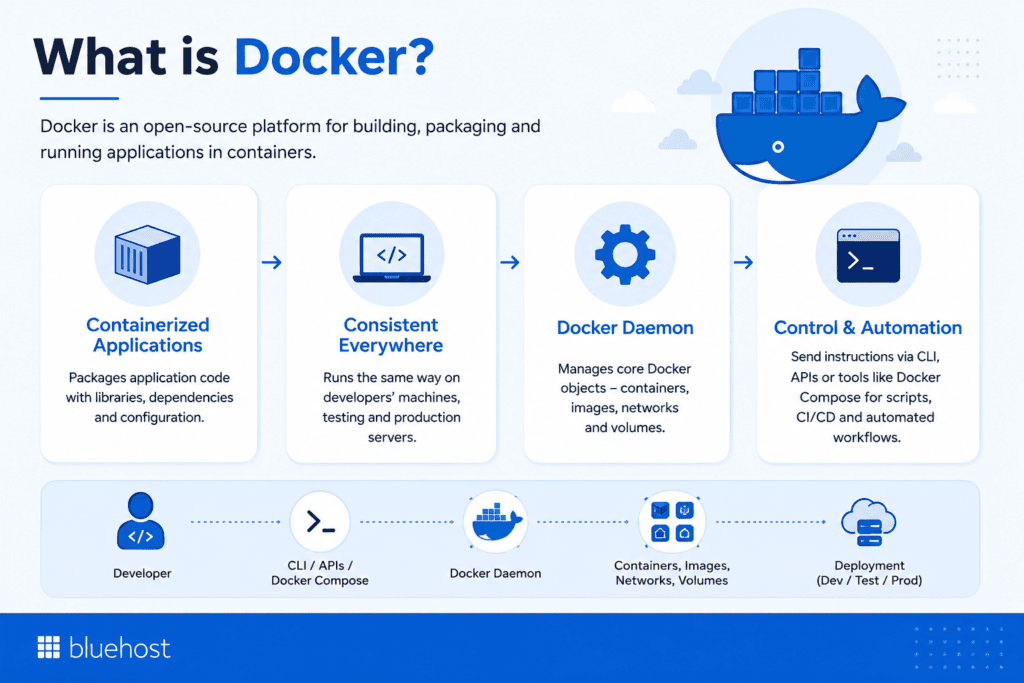
Docker is an open-source platform for building, packaging and running applications in containers. It bundles your application code with the libraries, dependencies and configuration files it needs, so it can run consistently across different environments.
Docker uses OS-level virtualization to keep containers lightweight while giving developers a predictable way to move applications from a local machine to testing and production servers.
The Docker daemon handles core Docker objects such as containers, images, networks and volumes. You send instructions through the CLI, APIs or tools such as Docker Compose. This setup gives developers direct control over the runtime. It works well when deployments use scripts, CI/CD systems or other automated workflows.
Docker Engine vs Docker CLI vs Docker Compose
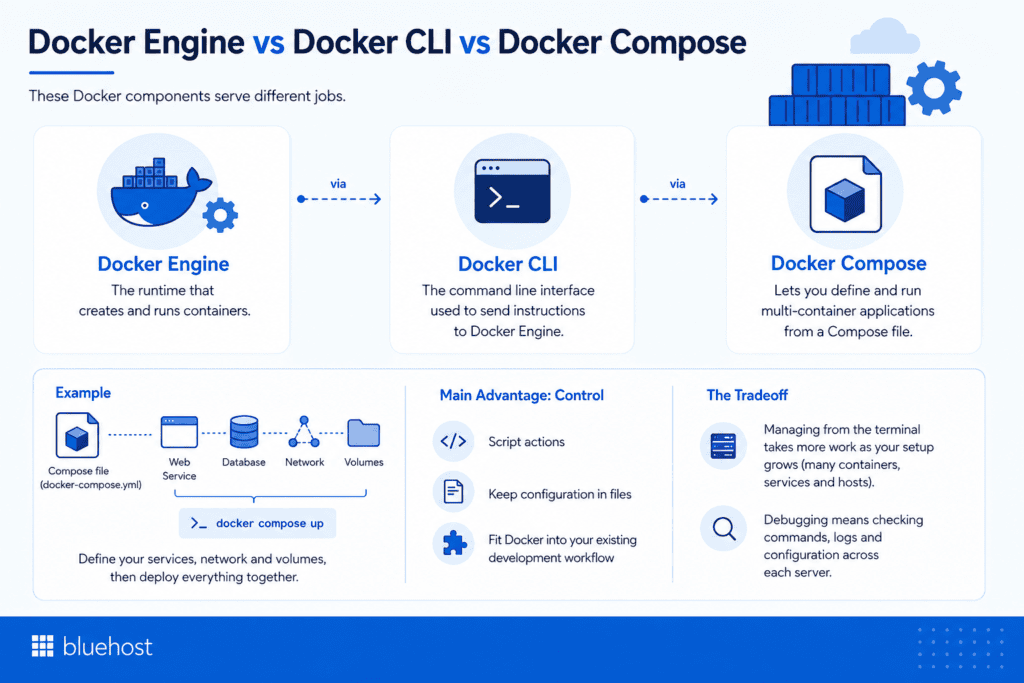
These Docker components serve different jobs:
- Docker Engine is the runtime that creates and runs containers.
- Docker CLI is the command line interface used to send instructions to Docker Engine.
- Docker Compose lets you define and run multi-container applications from a Compose file.
For example, a Compose file can define a web service, database, network and persistent volumes. You can then deploy those services together with docker compose up.
Docker’s main advantage is control. You can script actions, keep configuration in files and fit Docker into an existing development workflow. The tradeoff appears as your setup grows. Managing Docker from a terminal can take more work when you have many containers, services and hosts.
Debugging may also mean checking commands, logs and configuration across each server.
What is Portainer and how does it work with Docker?
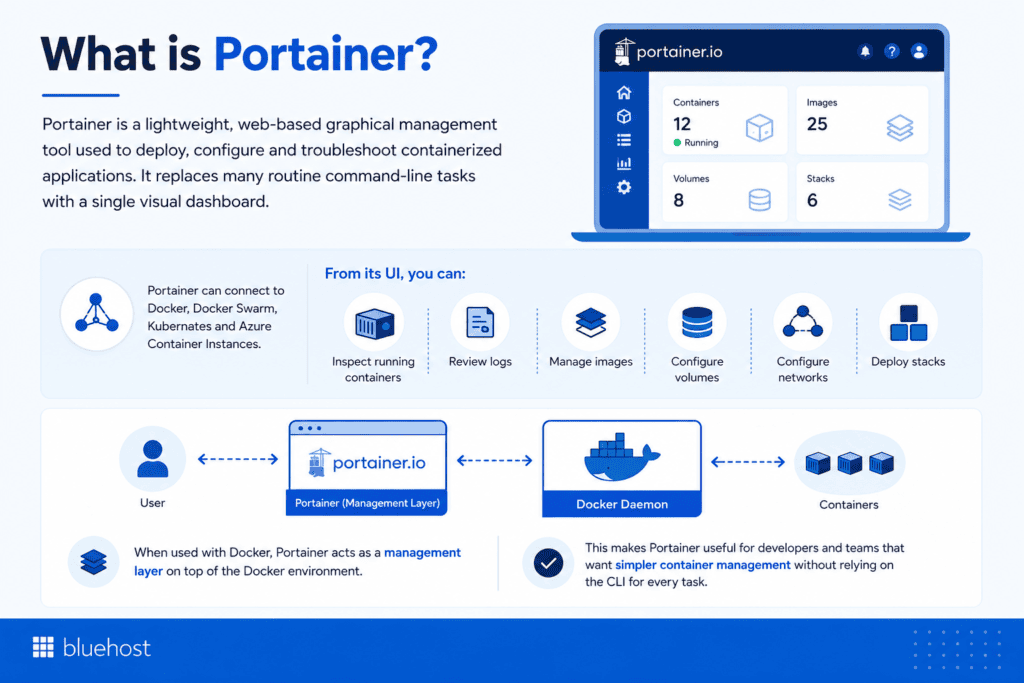
Portainer is a lightweight, web-based graphical management tool used to deploy, configure and troubleshoot containerized applications. It replaces many routine command-line tasks with a single visual dashboard.
Portainer can connect to Docker, Docker Swarm, Kubernetes and Azure Container Instances. From its UI, you can inspect running containers, review logs, manage images, configure volumes and networks and deploy stacks.
When used with Docker, Portainer acts as a management layer on top of the Docker environment. Docker still runs the containers through the Docker daemon, while Portainer gives you an easier way to manage them.
This makes Portainer useful for developers and teams that want simpler container management without relying on the CLI for every task.
How does Portainer connect to your Docker environment?
Portainer can connect to Docker environments using supported connection methods such as an agent. The Portainer Agent communicates with the Portainer Server instance and provides access to resources on the connected node.
Once connected, Portainer becomes a management layer for that environment. Its dashboard can expose powerful controls, so you should secure access carefully.
For multiple servers, Portainer gives teams a central point for viewing and managing connected environments. This removes the need to jump between separate terminal sessions for many routine tasks.
Portainer also supports Git integration for stack deployments. If your Compose file lives in a Git repository, Portainer can deploy a stack from that repository.
Portainer vs. Docker: What’s the difference and how do they work together?
No. Portainer vs Docker is not a true either-or comparison. Docker is the platform that builds and runs containers. Portainer is a management tool that connects to container platforms and helps you control them visually.
Here is the difference by responsibility:
| Area | Docker | Portainer |
| Run containers | Yes | Relies on the connected runtime |
| Build images | Yes | Focuses on management |
| Command line control | Yes | Not required for routine UI tasks |
| Visual container management | Requires other interface tooling | Core Portainer use case |
| Multiple-server visibility | Requires your own workflow or tooling | Central view for connected environments |
| Compose workflows | Docker Compose | Can deploy and manage stacks from Compose definitions |
| Access control | Docker does not provide native RBAC | Access features with deeper RBAC in Business Edition |
| Git-based stack deployment | Often handled through external workflow tooling | Git integration available for stack deployment |
Docker’s precision and scriptability make it strong for automation. Portainer’s advantage is visibility and easier day-to-day management.
Using Portainer does not mean giving up Docker CLI either. Experienced users can keep CLI commands for automation while using Portainer when a visual view is faster.
Portainer vs Docker Desktop: What’s the real difference?
Docker Desktop and Portainer can look similar because both provide a GUI. Their main use cases are different.Docker Desktop is an application for Mac, Windows and Linux that lets you build and run containerized applications locally.
On the other hand, Portainer focuses on managing connected container environments, including remote Docker systems and clusters.
| Factor | Docker Desktop | Portainer |
| Primary use | Local development | Container management across connected environments |
| Interface | Desktop GUI plus CLI tools | Browser-based UI |
| Common environment | Developer workstation | Server, VPS, Docker host or clusters |
| Team use | Development workflows | Shared management for users and teams |
| Docker relationship | Includes Docker tools for local use | Connects to supported container environments |
| Kubernetes management | Available through Docker Desktop setup | Can manage connected Kubernetes environments |
If you build and test software on your local machine, Docker Desktop may fit your workflow well. If you need to manage containers on a remote Linux server, Portainer can be a great choice.
Some developers use both. They work locally with Docker Desktop, then use Portainer for staging or production container management.
How do Docker and Portainer compare feature by feature?
The best way to compare Docker and Portainer is to focus on how you plan to manage your environment.
| Capability | Docker CLI and Compose | Portainer |
| Container runtime | Yes | No, uses the connected runtime |
| Interface | CLI | Web GUI |
| Container management | Direct commands | Visual controls |
| Manage containers | Yes | Yes, through the connected environment |
| Docker Compose | Native Compose CLI | Stack deployment from Compose definitions |
| Multiple servers | Requires your own workflow or tooling | Centralized environment view |
| Access control | No native Docker RBAC | User and team access controls, with deeper RBAC in Portainer Business Edition |
| Git integration | Often handled through CI/CD or scripts | Can deploy stacks from Git repositories |
| Logs | CLI commands | Available through the interface |
| Images, volumes and networks | Managed through Docker commands | Managed visually |
| Automation | Strong | Better suited to visual operations and supported stack workflows |
| Kubernetes clusters | Managed through Kubernetes tooling | Portainer can manage connected Kubernetes environments |
| Docker Swarm | Docker tooling | Supported by Portainer |
| Learning curve | Best for terminal users | More intuitive for visual workflows |
| Production use | Strong for automated environments | Useful as a shared management layer |
Portainer Business Edition adds deeper role-based access control for Docker and Docker Swarm environments. Portainer’s documentation identifies these RBAC roles as a Business Edition feature.
For organizations with compliance requirements, controlled roles can help define which users can access specific resources. Your full compliance needs still depend on your wider systems, policies and server configuration.
When should you use Docker CLI alone vs add Portainer?
Use Docker CLI and Docker Compose alone when you want direct control, already automate deployments and feel comfortable managing Docker through a terminal.
Add Portainer when visibility, shared access or multi-environment management becomes more valuable than a CLI-only workflow.
Stick with Docker CLI and Compose if:
- You manage one server or a small number of hosts.
- You prefer configuration files and scripted deployments.
- Your CI/CD pipeline already handles build and deploy tasks.
- Your developers know Docker commands well.
- You want less management software running on the host.
- You prefer to define infrastructure changes in version-controlled files.
Docker Compose is useful when several services belong to one application. A single Compose file can describe the services, volumes and networks required by that application.
Add Portainer if:
- You need to manage containers across multiple servers.
- You want an intuitive UI for routine container tasks.
- Several users need shared access to the same environment.
- Your teams want easier access to logs, images, networks and volumes.
- You use stacks and prefer a visual deployment workflow.
- You want Git integration for supported stack deployments.
- You manage Docker Swarm or connected Kubernetes clusters.
There is some extra overhead because Portainer itself is software that must run and be maintained. For many teams, that tradeoff becomes worthwhile once container operations become difficult to track across separate terminals.
If vendor lock in is a concern, keep application definitions, Compose files and deployment documentation under your control. Treat Portainer as a management layer rather than the only place where important configuration exists.
Portainer Community Edition vs Business Edition: Which one do you need?
Portainer offers Community Edition and Business Edition for different types of users.
Portainer CE is the free, open-source option aimed at home users and hobbyists. Portainer Business Edition targets businesses and organizations that need more advanced management features and commercial support.
| Area | Portainer CE | Portainer Business Edition |
| Cost | Free | Licensed product |
| Target users | Home users, hobbyists and smaller environments | Businesses and larger organizations |
| Core UI | Yes | Yes |
| Docker management | Yes | Yes |
| Kubernetes and Docker Swarm support | Yes | Yes |
| Advanced RBAC | No | Yes |
| Support | Community support channels | Dedicated business support channels |
| Best fit | Personal labs and smaller setups | Teams needing stronger governance and support |
Portainer CE is a practical starting point if you want a free GUI for container management. Business Edition makes more sense when teams need defined roles, stronger access control or business support.
Portainer’s official documentation lists role-based access control and dedicated support among Business Edition capabilities.
How do you install Portainer on a VPS?
On Bluehost, you can use a self-managed VPS template that pairs Portainer with Docker. Selecting the Portainer application during checkout or reimaging your VPS later, automatically installs Docker alongside Portainer.
Here is the setup process:
- Go to the VPS hosting page: visit bluehost.com/vps-hosting and click “Choose Plan” on your preferred Self-Managed VPS plan.
- Select your data center location.
- Configure hardware: on the Cart page, either keep the pre-selected hardware or click “Configure” to customize vCPU, RAM and storage to fit your expected containers/traffic/storage needs.
- Select Portainer as the software: under the Software section, click the “Application” tab, choose Portainer and click Confirm. (Docker is bundled automatically with the Portainer template, there’s no separate Docker install step.)
- Add-ons and advanced options: optionally add Premium Support, extra IPs or a custom hostname.
- Choose billing term and checkout: review the order summary, create/log into your Bluehost account, enter payment info and submit payment.
- Access your VPS: once setup finishes, find it under the Hosting tab in your Bluehost Portal.
For a detailed step by step guide, read our blog on Self-Managed VPS with Portainer Installation.
Our VPS hosting includes full root access, NVMe SSD storage and unmetered bandwidth. As your workloads grow, you can scale CPU, RAM or storage without rebuilding your server.
The service is self-managed, so you remain responsible for your OS, Docker environment and Portainer configuration. You can also use SSH or SFTP for debugging while relying on the Portainer UI for routine container management.
How do you keep Portainer secure on your server?
Treat Portainer as privileged management software. It controls resources inside the environments you connect, so weak access settings can expose much more than the dashboard.
Use these practices:
- Use HTTPS: Protect browser access with TLS rather than leaving the management UI unsecured.
- Limit access: Give users only the permissions their work requires.
- Keep software updated: Patch Portainer, Docker and your host operating system regularly.
- Restrict network exposure: Use firewall rules, trusted networks or other controls to limit dashboard access.
- Protect credentials: Use strong credentials and review who has administrator rights.
- Back up configuration and application data: Portainer configuration, Docker volumes and application files may need separate backup plans.
- Review logs: Logs can help you investigate failed deployments, unexpected access attempts and container issues.
- Test recovery: Make sure you know how to restore the data you back up.
Docker’s documentation warns about the security implications of exposing Docker daemon access over a network. Portainer also provides security and access-control guidance for administrators.
If a container or stack has failed, check Portainer logs and Docker logs before changing configuration. A clear debugging process helps determine whether the problem comes from an image, network, volume, environment variable or runtime setting.
Portainer vs Docker: Which should you choose?
You don’t have to choose between Portainer and Docker. Docker runs your containers, while Portainer gives you a visual interface to manage them.
With Bluehost self-managed VPS hosting, you can choose Docker or Portainer with Docker pre-installed. Get full root access, NVMe SSD storage and unmetered bandwidth to run and manage your container workloads your way.
Ready to get started? Explore Bluehost Portainer VPS hosting or Docker VPS hosting and run your containers your way.
FAQs
No. Docker provides the runtime that builds and runs Docker containers. Portainer is a container management tool that works above supported environments and provides a visual UI.
For a Docker environment, Portainer needs a working Docker setup to manage. On Bluehost self-managed VPS hosting, choosing the Portainer template installs Docker alongside Portainer. You do not need a separate Docker install step for that template.
Yes. Portainer Community Edition, also called Portainer CE, is free and open source. Portainer Business Edition is the commercial product designed for businesses and organizations.
No. Docker Desktop is designed to build, run and manage containerized applications on Mac, Linux or Windows machines. Portainer focuses on managing connected container environments through a browser-based GUI.
Yes. Portainer can manage supported Kubernetes environments. However, Bluehost’s Portainer VPS template installs Docker by default and does not create a Kubernetes cluster.
Yes. Portainer lists Docker Swarm as a supported environment. Portainer Business Edition also provides RBAC roles for Docker Standalone and Docker Swarm environments.
Yes. Portainer supports stack deployment from a Git repository when your Compose file is stored there. Portainer clones the repository during deployment and uses the selected Compose definition. This Git integration can work well for teams that want deployment files in source control while using a visual management workflow.
Your running containers can continue running because Docker remains responsible for their runtime. You lose access to the Portainer dashboard until Portainer returns, but the underlying Docker containers are not dependent on the UI staying available.
No. Portainer documentation includes Docker environment guidance for both Linux and Windows systems. The exact configuration depends on your host and container environment.
Not completely. Portainer’s GUI handles many routine tasks, while the Docker CLI remains useful for automation, advanced configuration and debugging.

Write A Comment