 ChatGPT,
 Claude,
 Gemini,
 Grok — all four for
Key highlights
- Discover the exact hardware and RAM requirements for running DeepSeek-R1 smoothly on a CPU-based server.
- Learn how to install the Ollama framework and pull the DeepSeek model using command-line instructions.
- Configure secure remote access to your self-hosted LLM using an Nginx reverse proxy.
- Explore Bluehost VPS hosting to find the right amount of NVMe storage and root access for your project.
Running a self-hosted AI model gives you complete data privacy and control. Doing this on your local computer can quickly drain resources. Moving this workload to a virtual private server solves that problem completely.
Deploying your stack on Bluehost VPS hosting ensures you have the dedicated power needed for consistent performance. This guide explains how to deploy DeepSeek-R1 using Ollama on a Linux VPS. Let’s start by looking at the hardware you will need.
What are the server prerequisites for running DeepSeek?
Before installing any software, your server must meet a few basic hardware requirements. Running language models requires specific resources to ensure smooth operation.
- Operating system control: You need a Linux-based VPS running Ubuntu or AlmaLinux with full root access.
- Memory capacity: Plan for at least 8GB of RAM to run the 7B or 8B model smoothly. Larger models need 16GB of RAM or more.
- Storage speed: Fast NVMe storage is essential to guarantee quick model loading and inference speeds.
Upgrading your VPS tier ensures you have enough memory for these tasks. Next, we will cover the actual installation process.
How do you install and run DeepSeek with Ollama?
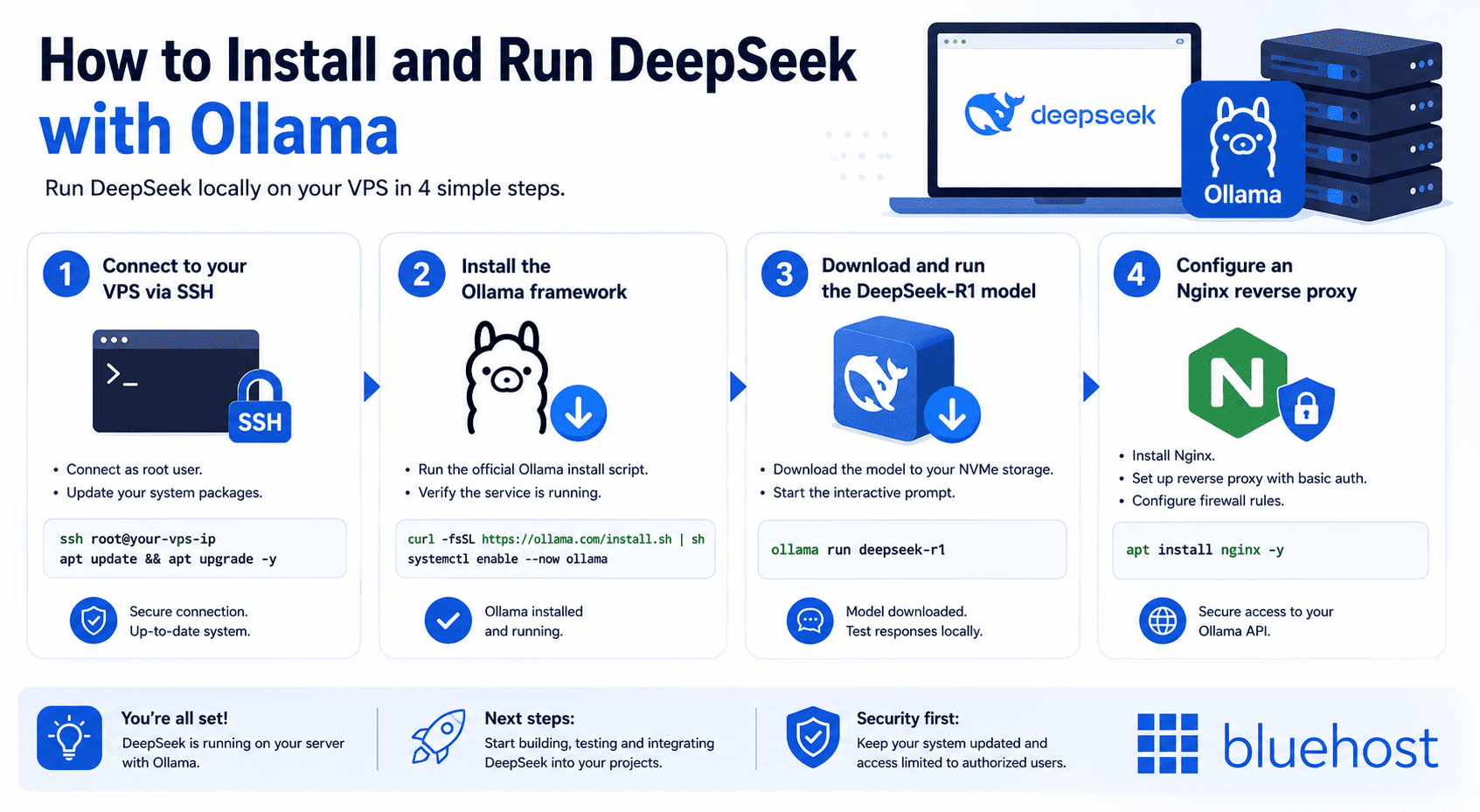
Setting up your AI environment requires a few commands in the terminal. The process involves preparing the server, downloading the framework and fetching the model. We will break this down into four clear phases.
1. Connect to your VPS via SSH
Open your terminal or a program like PuTTY to log into your server. You must connect as the root user to configure the necessary permissions. Always update your package manager before starting any new installation.
2. Install the Ollama framework
Download the official curl installation script provided by the Ollama team. This script automatically handles all necessary dependencies for your Linux distribution. Once installed, verify the service is running properly in the background.
3. Download and run the DeepSeek-R1 model
Use the command ollama run deepseek-r1 to download the model directly to your NVMe storage. The system pulls the required files and starts the interactive prompt automatically. You can then test the model locally to confirm it generates responses.
4. Configure an Nginx reverse proxy
Install Nginx to safely expose the Ollama API to the public internet. You must set up basic authentication and strict firewall rules. This approach ensures only authorized users can query your self-hosted LLM.
With the installation complete, you might wonder which hosting provider works best for this setup.
Why choose Bluehost for VPS AI deployment?
Choosing the right infrastructure makes a huge difference when deploying AI tools. A Bluehost VPS gives you the full root access required for installing custom software like Ollama. Every tier includes fast NVMe SSD storage to ensure quick data retrieval.
If you prefer to have the server environment maintained for you, managed VPS solutions offer expert assistance and 24/7 human support.
Matching the right model size to your server configuration is critical for performance.
| DeepSeek Model | Minimum RAM | Recommended RAM | Storage Needed |
| DeepSeek-R1 1.5B | 4GB | 8GB | 5GB NVMe |
| DeepSeek-R1 7B/8B | 8GB | 16GB | 15GB NVMe |
| DeepSeek-R1 14B | 16GB | 32GB | 25GB NVMe |
However, running large language models on a CPU-based VPS has a real limitation. Your token generation (the speed at which words appear) will be slower compared to dedicated GPU clusters. Despite this trade-off, a CPU setup is vastly more cost-effective for developers testing prompts.
Final thoughts
Self-hosting DeepSeek guarantees total data privacy for your sensitive projects. It also eliminates the unpredictable costs associated with public API usage. You retain full control over the environment and the underlying data.
Ready to start building? Bluehost Ollama VPS plans provide the full root access and NVMe SSD storage you need to deploy your own models. Now, let’s review some common questions about this setup.
Frequently asked questions
No, a GPU is not required. Ollama is optimized to run inference, meaning text generation, on standard CPUs. Token generation is slower without a GPU, but the setup works well for testing and development environments. If you are learning how to run DeepSeek with Ollama on a VPS for the first time, a CPU-based server is a perfectly practical starting point.
You need at least 8GB of RAM to run the 7B or 8B model versions. The larger 14B version requires a minimum of 16GB. Choosing the right model size upfront saves you from performance issues caused by memory exhaustion mid-session.
By default, Ollama binds only to your local host, which limits exposure to the public internet. For remote access, you must set up a reverse proxy such as Nginx and add basic authentication. Skipping authentication on a public-facing endpoint exposes your model API to unauthorized use, so treat it as a required step, not an optional one.
Ubuntu is the easiest option for beginners because of its wide community support and straightforward package management. AlmaLinux is a strong, stable choice for production or enterprise environments. Both distributions work with the official Ollama installation script without requiring manual configuration adjustments.
Yes. Ollama supports a wide range of open-source models, including Llama 3 and Mistral. The same ollama run command works across all supported models by simply swapping the model name. Once you understand how to run DeepSeek with Ollama on a VPS, switching to or experimenting with other models takes only seconds.

Write A Comment