


Key highlights
- Learn how to subscribe to IMAP folders across popular email clients like Roundcube, Outlook and Thunderbird.
- Discover how to fix missing IMAP folders in your email client with simple subscription steps.
- Understand how IMAP folder subscriptions enable selective folder display in shared network environments.
- Explore step by step instructions for subscribing to IMAP folders on iPhone, iPad and Mac devices.
- Know how to configure IMAP path prefix settings for proper folder display on mobile devices.
Ever opened your email client only to find crucial folders missing from view? Such scenarios affects countless email users who rely on IMAP to access their messages across multiple devices. The solution lies in understanding how to subscribe to IMAP folders, a simple yet often overlooked feature that gives you complete control over which folders appear in your inbox.
Whether you’re managing a shared team account, decluttering your email interface or troubleshooting missing folders like Sent, Drafts or Trash, mastering IMAP folder subscription can transform your email experience. In this guide, we’ll walk you through everything you need to know about subscribing and managing your IMAP folders effectively.
TL;DR
- IMAP folder subscription lets you choose which email folders to display in your client.
- Missing folders like Sent, Trash or Drafts can be restored by re-subscribing to them.
- Step by step guides cover Roundcube, Outlook, Thunderbird, iPhone, iPad and Mac Mail.
- Setting the IMAP Path Prefix to INBOX fixes folder display issues on Apple devices.
How to subscribe to IMAP folders in Roundcube?
Below is a step-by-step guide to subscribing to IMAP folders in Roundcube:
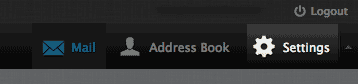
1.Go to Settings
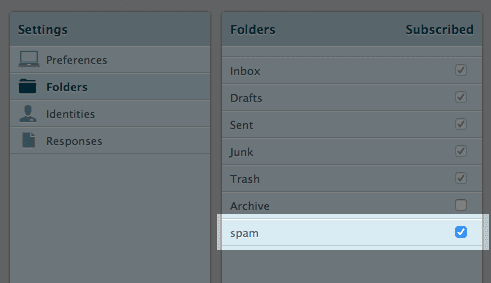
2. Click Folders
3. Re-subscribe to each folder by clicking on the check box next to each one.
How to subscribe to IMAP folders in Outlook?
Below is a step-by-step guide to subscribing to IMAP folders in Outlook:
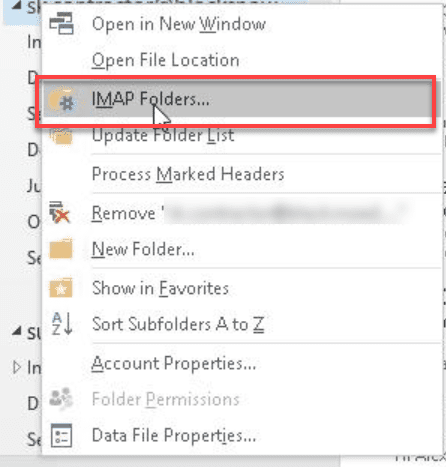
1.Open Mail and right-click on the top folder in your Navigation pane.
2. Select IMAP Folders from the options.
3. Next, click Query.
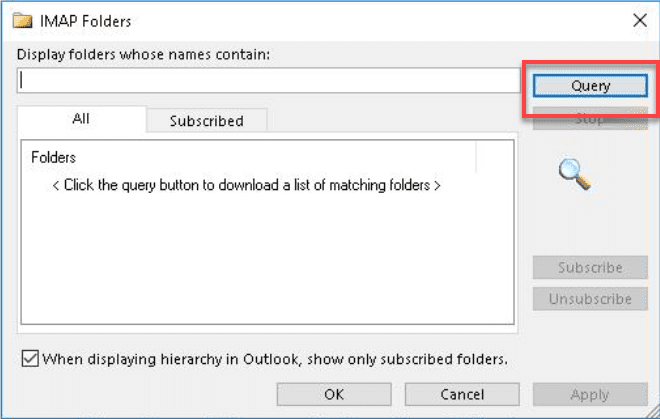
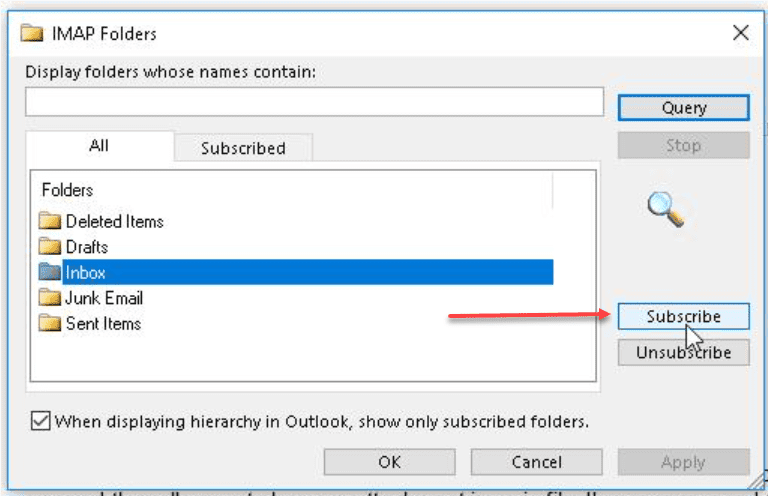
4. Select a folder, then click the Subscribe button. To select more than one folder, press and hold the CTRL button while clicking on folder names.
How to subscribe to IMAP folders on your iPhone or iPad?
If you sync IMAP mail account settings from your computer to your iPhone or iPad, the IMAP folders may show under your Inbox folder. In this case, you need to specify the IMAP path prefix.
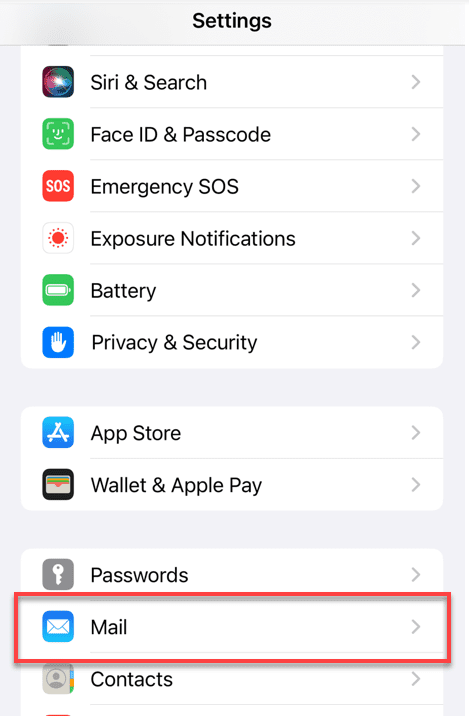
1.In Settings, choose Mail.
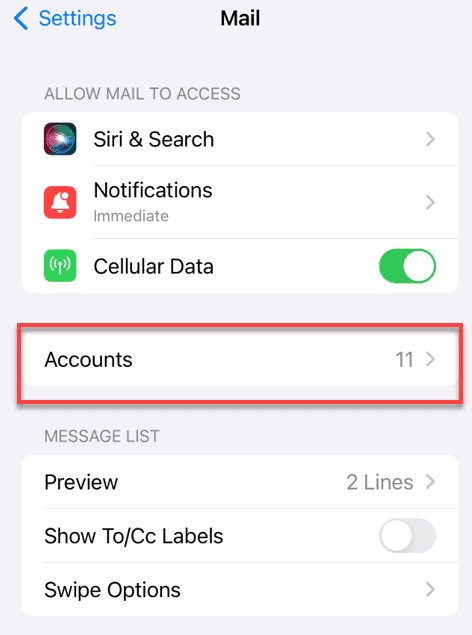
2. Click Accounts.
3. Choose an email account.
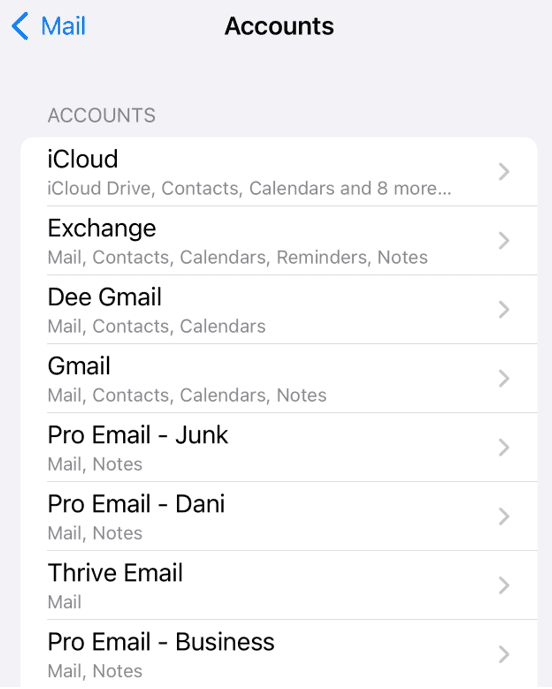
4. Click Account Settings.
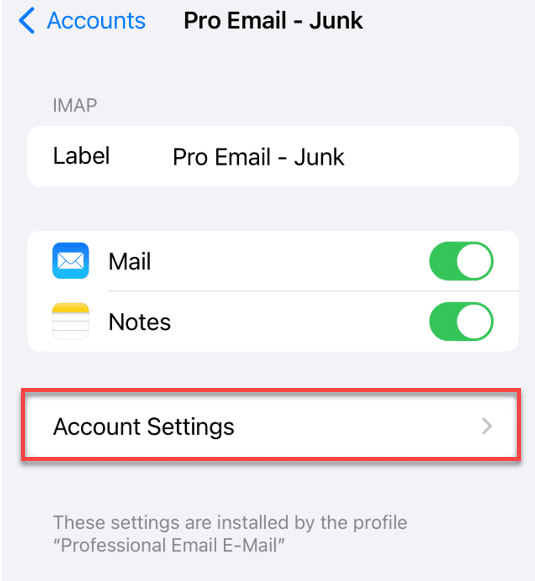
5. Click Advanced.
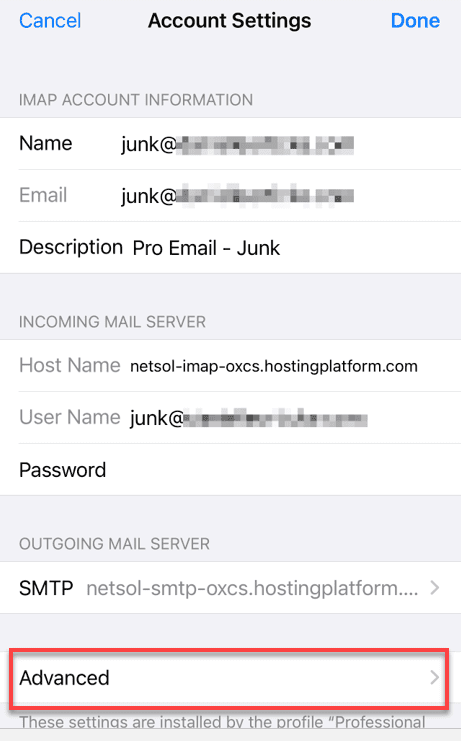
6. The IMAP Path Prefix field is in the INCOMING SETTINGS section.
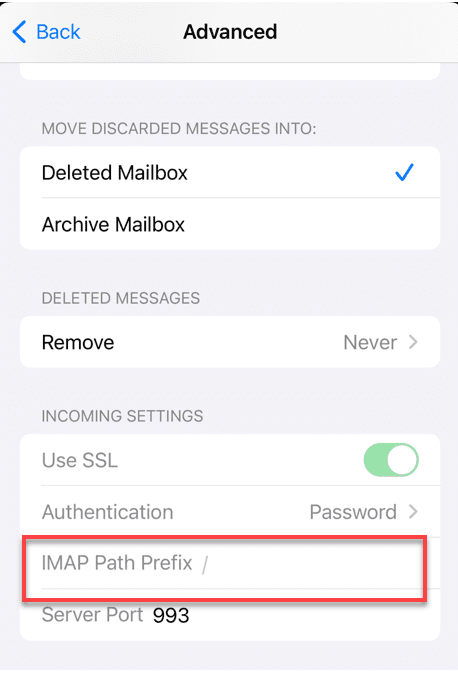
7. Enter the word INBOX (all caps) and save the setting. Now, your folders should appear as expected.
How to subscribe to IMAP folders in Thunderbird?
Below is a step-by-step guide to subscribing to IMAP folders in Thunderbird:
1. Go to File and click Subscribe
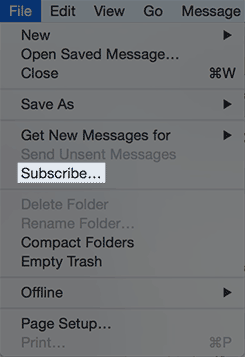
2. Select the folders you want to subscribe to, then click Subscribe.
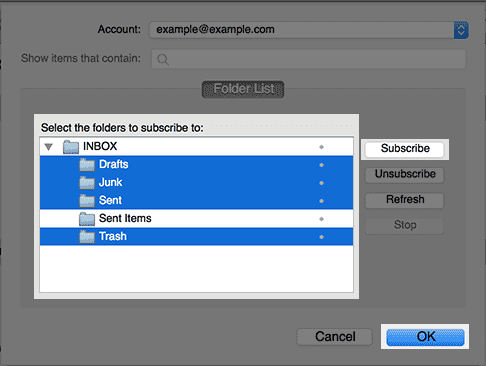
3. Click OK.
New folders can now be accessed from the Folders list on the left side.
How to subscribe to IMAP folders on Mac OS X Mail (Mac Mail)?
Below is a step-by-step guide to subscribing to IMAP folders in Mac Mail:
- Go to Mail > Preferences > Accounts.
In Mac OS X Mail, subscribing to folders is a two-step process.
Enter the IMAP path prefix
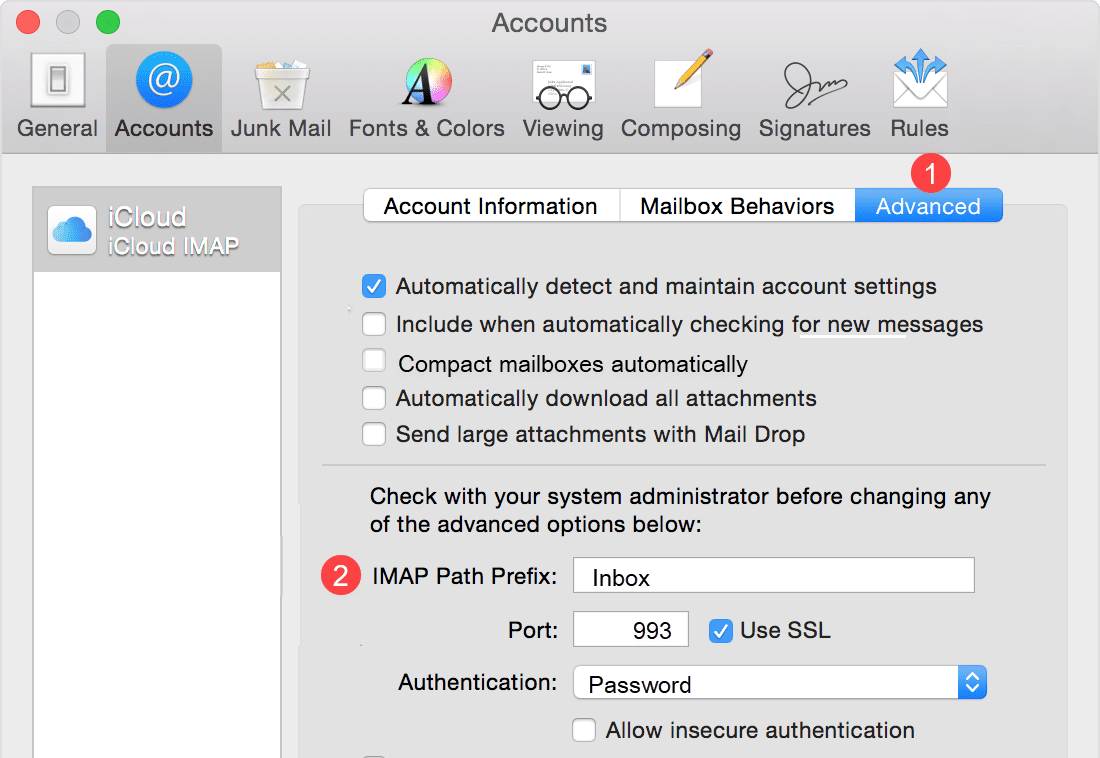
1.Click the Advanced tab.
2. Enter INBOX as the IMAP Path Prefix.
Use IMAP folders for Sent, Drafts, Junk and Trash
1.Click the IMAP folder you like to use as one of the Mailboxes.
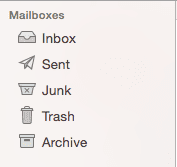
2. Click the Mailbox menu.
3. Under Use This Mailbox For, choose the corresponding mailbox.
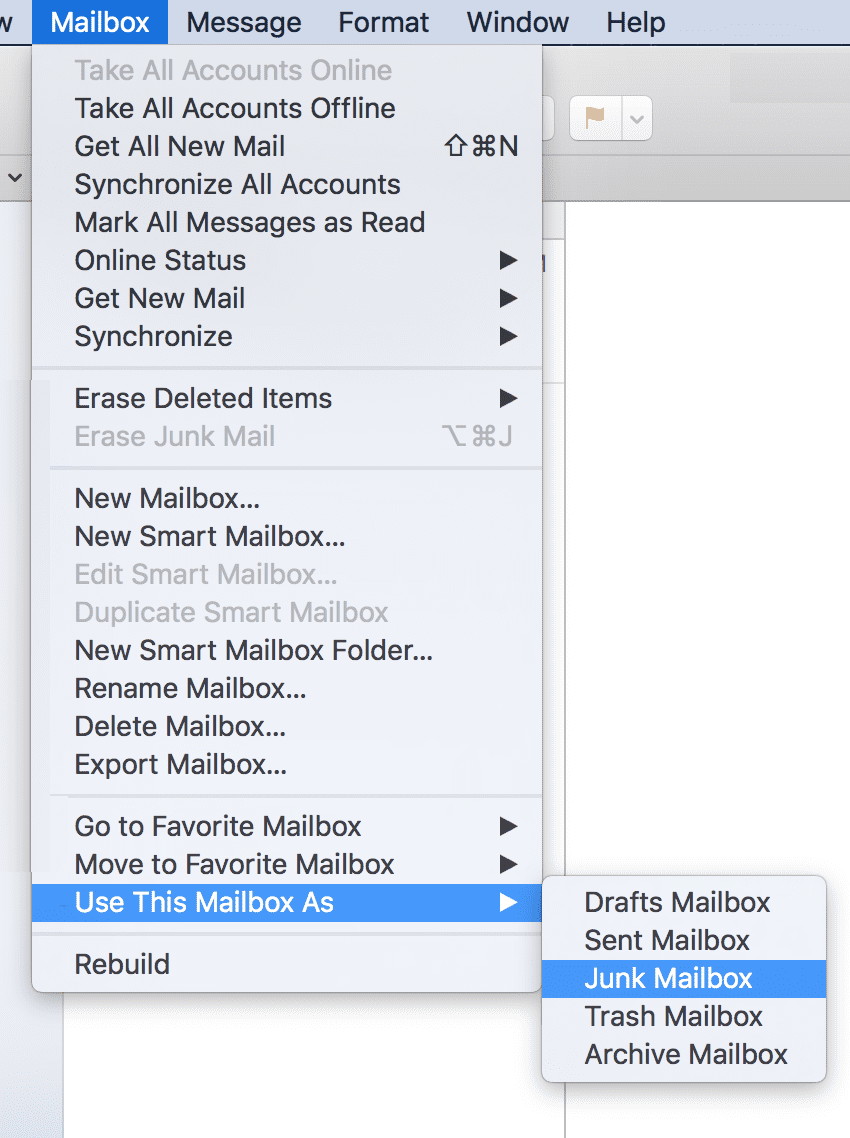
4. Repeat the same steps for any other folders you wish to store on the server.
Now that you know how to subscribe to IMAP folders in Mac Mail, having a reliable hosting provider that supports robust IMAP functionality is essential for seamless email management. The right email hosting solution can make configuring and maintaining your IMAP folders significantly easier.
How Bluehost helps with IMAP email management?
Managing IMAP folders efficiently requires reliable email hosting with robust features and support. Bluehost provides reliable email solutions that streamline IMAP functionality and ensure seamless access across all your devices.
- Comprehensive IMAP support: Enhanced IMAP functionality is built into every Bluehost hosting plan, allowing you to easily access and manage your email folders from anywhere without compatibility issues.
- Professional email features: Bluehost Professional Email powered by Titan includes robust IMAP support, advanced spam protection and integrated calendar functionality to keep your communications organized and secure.
- Seamless cross-device synchronization: Your email folders sync reliably across desktop and mobile clients, ensuring you never miss important messages regardless of which device you’re using.
- Intuitive management tools: The user-friendly control panel simplifies IMAP settings configuration and makes troubleshooting folder visibility issues straightforward, even for users with limited technical experience.
- 24/7 expert support: Dedicated support specialists are available around the clock to assist with IMAP folder configuration, new email client setup and resolving any synchronization challenges you encounter.
With Bluehost’s reliable infrastructure and expert guidance, you can maintain seamless email access across all devices while confidently managing your IMAP folders without technical complications.
Final thoughts
Learning how to subscribe to IMAP folders is an essential skill that empowers you to take full control of your email organization. By following the steps outlined in this guide, you can streamline your inbox management, ensure you never miss important messages and access your emails seamlessly across all devices. Whether you’re managing personal correspondence or professional communications, properly subscribing to IMAP folders gives you the flexibility and efficiency you need.
Ready for business-grade email? Upgrade to Bluehost Professional Email for enhanced IMAP support and powerful spam protection. Plus, enjoy seamless domain integration with 24/7 expert support.
FAQs
Subscribing to IMAP folders tells your email client which folders to display and sync from the mail server. When you subscribe, folders become visible in your inbox, allowing you to access and manage emails stored in specific directories on the server.
Subscribing ensures you see all important folders like Sent, Drafts or custom labels across devices. It helps organize emails efficiently, prevents clutter by hiding unnecessary folders and maintains consistent folder visibility when accessing your account from multiple email clients.
Access your email client’s folder settings or preferences menu. Look for “Subscribe to folders” or “IMAP subscriptions” option. Select folders you want to display, check the subscription boxes, then save changes. Each client like Outlook, Thunderbird or Mac Mail has slightly different steps.
Refresh your folder list or restart the email client. Verify your IMAP settings are configured correctly. Check if folders are hidden in view settings. If issues persist, try unsubscribing and resubscribing to the folders or contact your email provider for assistance.
Yes, you can unsubscribe from any IMAP folder to simplify your inbox view. Open folder subscription settings, uncheck folders you don’t need and apply changes. Unsubscribing only hides folders from view; it doesn’t delete emails or folders from the server.



Write A Comment