 ChatGPT,
 Claude,
 Gemini,
 Grok — all four for
Key highlights
- Discover the most common causes of dedicated server downtime and how to quickly identify them.
- Learn step-by-step methods to test connectivity, examine system logs and assess server resources.
- Explore essential monitoring tools that help you catch hosting issues before they impact your business.
- Understand when to rely on managed support versus tackling cPanel or WHM errors yourself.
Dedicated servers offer isolated resources, predictable performance and full infrastructure control. However, with greater control comes greater operational responsibility. Even well-configured environments can experience hardware failures, network disruptions, configuration errors or unexpected performance bottlenecks.
The ability to quickly Troubleshoot Dedicated Server Problems is essential for minimizing downtime and maintaining business continuity. Delayed diagnosis can lead to slower applications, failed services, customer-facing outages and revenue loss.
In this guide, we break down the most common dedicated server issues and explain how to troubleshoot them efficiently. You’ll learn how to diagnose CPU spikes, storage problems, connectivity issues, application failures and server instability while implementing faster recovery strategies for production workloads.
What is the fastest way to troubleshoot dedicated server problems?
Dedicated server troubleshooting typically involves identifying whether the issue is caused by connectivity failures, resource exhaustion, configuration errors or application-level problems. Start by verifying server availability, testing network connectivity, reviewing system logs and monitoring CPU, RAM and storage usage. Most dedicated server performance issues can be traced back to overloaded resources, networking disruptions or recent configuration changes.
What do you need before troubleshooting your dedicated server?
Before modifying any server settings, gather the necessary tools to avoid causing further downtime. Having everything prepared ensures a smoother diagnosis.
- Secure your root access and have your SSH client (a secure command-line interface) or cPanel/WHM login credentials ready.
- Verify you have a recent server backup stored safely off-site.
- Keep a record of any recent configuration changes to help pinpoint the issue.
With your tools in hand, let’s explore the exact process for identifying the problem.
How we validated this troubleshooting guide
To ensure this dedicated server troubleshooting workflow follows industry best practices, we reviewed common server failure scenarios across Linux-based hosting environments using SSH access, cPanel/WHM management tools and standard network diagnostic utilities.
The validation process included:
- Testing server connectivity using ping and traceroute.
- Reviewing Apache, NGINX and system log files.
- Monitoring CPU, RAM and storage utilization.
- Validating DNS configurations and firewall accessibility.
- Assessing common cPanel and WHM troubleshooting workflows.
Important: Results may vary depending on your operating system, control panel configuration, firewall settings and hosting environment. Always create a current backup before applying configuration changes on production servers.
What are the most common dedicated server problems?
Before starting dedicated server troubleshooting, it helps to understand the most common issues that affect server availability and performance.
| Issue | Common symptoms | Possible cause |
| High CPU usage | Slow websites, delayed responses | Runaway processes, traffic spikes |
| High RAM usage | Application crashes, service failures | Memory leaks, insufficient resources |
| Disk storage full | Website errors, failed updates | Log growth, backup accumulation |
| DNS failures | Website unreachable | Incorrect DNS records |
| Network connectivity issues | Timeouts, packet loss | Routing problems, firewall blocks |
| cPanel or WHM errors | Login failures, management issues | Service failures, configuration conflicts |
How do you troubleshoot dedicated server issues step-by-step?
Use this step-by-step process to troubleshoot dedicated server problems and pinpoint the root cause of downtime. Work through each stage in order to avoid misdiagnosis and resolve hosting issues faster.
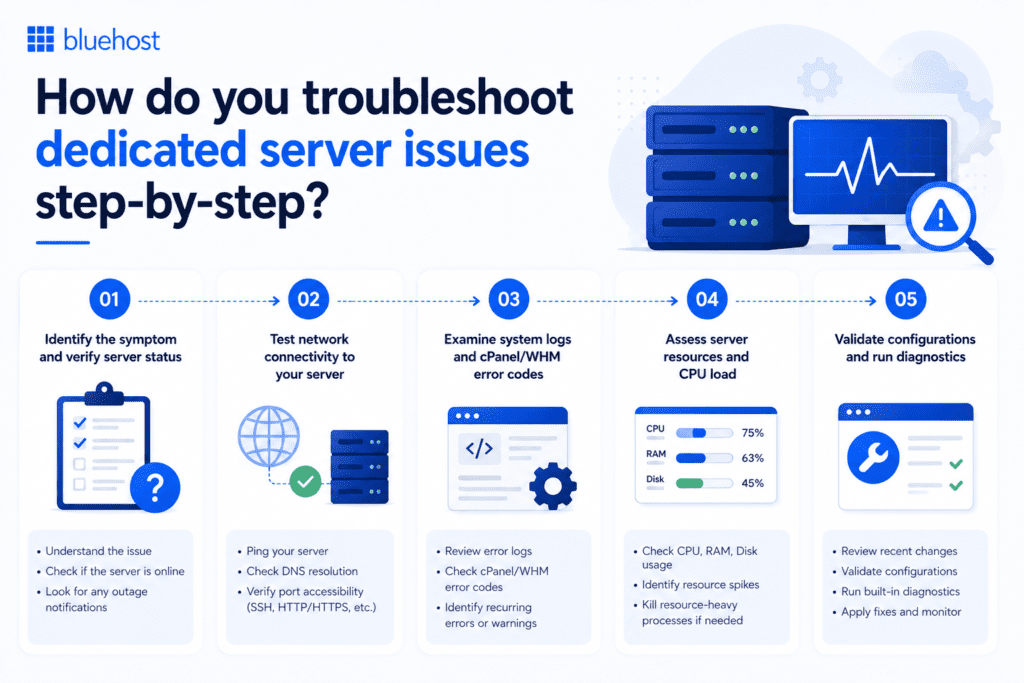
Step 1: Identify the symptom and verify server status
When you troubleshoot dedicated server problems, your first step is to identify whether you are dealing with a slow response, a complete outage or a specific application failure.
Run external uptime checks to determine if the disruption is global or limited to a single location. Pinpointing the scope early helps you eliminate common causes of server downtime and focus your diagnostic efforts where they matter most.
Step 2: Test network connectivity to your server
Network-related issues are among the most common causes of dedicated server downtime. Before investigating applications or services, verify that your server can be reached across the network.
Run a basic connectivity test:
ping yourdomain.comA successful response confirms that the server is reachable.
Next, identify where traffic may be failing:
traceroute yourdomain.comTraceroute helps determine whether packets are being interrupted between your local machine and the server.
If the server is online but inaccessible, verify that:
- Your IP address has not been blocked by firewall rules.
- Required ports such as SSH (22), HTTP (80) and HTTPS (443) are open.
- DNS records resolve correctly.
Keep in mind that firewall restrictions, routing issues and DNS misconfigurations can all cause a dedicated server to appear offline even when the underlying infrastructure remains operational.
Step 3: Examine system logs and cPanel/WHM error codes
System logs often provide the fastest path to identifying server failures. Reviewing recent log entries can reveal application crashes, permission issues, failed services and resource-related errors.
Common log locations include:
/var/log/messages
/var/log/apache2/error.log
/var/log/nginx/error.log
/usr/local/cpanel/logs/
Review logs for:
- PHP execution failures
- Service startup errors
- Disk-related warnings
- Authentication failures
- cPanel or WHM service interruptions
When troubleshooting cPanel or WHM issues, compare control panel errors against system-wide logs to determine whether the issue is isolated to the management interface or affecting the entire server.
Note: Log locations vary by operating system and control panel configuration. On cPanel servers, Apache logs may also be found under /usr/local/apache/logs/, while some RHEL or AlmaLinux-based systems may use /var/log/httpd/ instead of /var/log/apache2/.
Step 4: Assess server resources and CPU load
Resource exhaustion is a leading cause of dedicated server performance issues.
Use the following commands to identify resource bottlenecks:
top

or

htop
These tools display active processes and current CPU utilization.
Check available memory:
free -mReview disk usage:
df -hExample scenario: High CPU usage
Symptoms:
- Slow page loads
- Delayed SSH access
- Increased server load averages
Diagnosis:
top
Potential resolution:
- Identify resource-intensive processes.
- Restart affected services gracefully.
- Investigate application inefficiencies or traffic spikes.
Avoid performing forced server reboots unless necessary, as abrupt restarts may interrupt services or increase recovery times.
Step 5: Validate configurations and run diagnostics
Check for recent changes to your .htaccess files, PHP configurations or DNS records. Small typos in these files often trigger site-wide errors. Run basic diagnostic scripts if they are available within your WHM interface. Taking these actions helps optimize your dedicated server configuration for better overall stability.
Once you have identified the immediate issue, setting up proper alerts is your next priority.
Which essential tools can help you monitor server uptime?
When you troubleshoot dedicated server problems, proactive monitoring tools are your first line of defense, alerting you to issues before they escalate into costly downtime. Using the right server health software keeps you informed in real time so you can fix problems fast and maintain maximum uptime.
- Configure automated alert notifications to ping your email when resources run low.
- Use external uptime monitoring software that alerts you the moment your dedicated server stops responding.
Proactive monitoring allows you to fix server issues and boost uptime without waiting for a customer to report a problem. Knowing when an issue occurs is helpful, but knowing when to ask for help is equally important.
Which server monitoring tools help prevent downtime?
Proactive server monitoring helps identify problems before they affect customers.
Consider monitoring multiple areas of server health:
| Monitoring type | Purpose |
| Service monitoring | Detects failed web, database or email services |
| Resource monitoring | Tracks CPU, RAM and storage utilization |
| Network monitoring | Identifies latency, packet loss and connectivity issues |
| Uptime monitoring | Alerts administrators when a server becomes unreachable |
For cPanel and WHM users, built-in Service Status tools provide quick visibility into service availability. External uptime monitoring services can provide additional alerting when your server becomes inaccessible.
When should you choose managed support instead of troubleshooting yourself?
Troubleshooting complex server infrastructure can quickly overwhelm a busy small business owner. Comparing unmanaged and managed hosting helps you decide when to escalate problems to professionals.
| Responsibility | Unmanaged Dedicated server | Managed Dedicated Hosting |
| Operating system updates | You must manually apply all patches. | Handled automatically by expert technicians. |
| Security patching | Your responsibility to monitor and install. | Proactively managed to prevent vulnerabilities. |
| Hardware failure handling | You must identify the failed component yourself. | Diagnosed and replaced quickly by the hosting provider. |
| Complex troubleshooting | You rely on community forums and documentation. | You get immediate access to dedicated support teams. |
Small business owners without dedicated IT staff benefit heavily from managed support to ensure business continuity. Finding the right provider makes all the difference in protecting your uptime.
Why choose Bluehost for dedicated server hosting?
Bluehost offers powerful solutions tailored to growing businesses.
| Tier | Best for | CPUs | DDR5 RAM |
| Standard | Growing applications and development environments | 8 CPUs | 32 GB DDR5 RAM |
| Enhanced | Resource-intensive applications and production workloads | 16 CPUs | 64 GB DDR5 RAM |
| Premium | Enterprise-scale applications and high-demand environments | 32 CPUs | 128 GB DDR5 RAM |
All plans include NVMe SSD storage (high-speed data storage) for faster read and write speeds during heavy traffic. You also gain 24/7 expert human support to help resolve complex troubleshooting scenarios. This premium support significantly reduces your downtime risk.
However, dedicated hosting requires a higher budget and more technical confidence than basic shared hosting. Making the right investment today protects your online revenue tomorrow.
What are our final thoughts and next steps for maintaining uptime?
Knowing how to troubleshoot dedicated server problems quickly is essential for maintaining uptime, performance stability and business continuity. Issues such as CPU spikes, storage bottlenecks, network failures and misconfigured services can escalate rapidly if left unresolved.
A structured troubleshooting process helps identify the root cause faster while reducing operational downtime. Regular monitoring, proactive maintenance and scalable infrastructure also play a major role in preventing recurring server issues.
At Bluehost, our dedicated hosting environments provide isolated resources, NVMe storage and full server-level control to support demanding workloads and performance-sensitive applications. Combined with 24/7 support access, businesses can maintain more stable and reliable hosting environments as infrastructure demands grow.
What are frequently asked questions about server troubleshooting?
Your server might be down due to hardware failures, traffic spikes or network connectivity issues. Check your external uptime monitors to confirm the outage scale.
Most providers offer uptime guarantees in their Service Level Agreements (SLAs), typically around 99.9%. Some, like Bluehost Dedicated Hosting, provide a higher 99.99% uptime SLA. Beyond percentages, consider factors like infrastructure, backups and support, as these play a key role in overall reliability.
Common error codes usually indicate permission issues or misconfigured scripts. Check your Apache error logs to pinpoint the exact file causing the crash.
Verify your root password and ensure your local IP is not blocked by the server firewall. Restarting the cPanel service via SSH can also resolve login hangs.
A dedicated server may slow down because of high CPU utilization, memory exhaustion, storage bottlenecks or application-level inefficiencies. Monitoring system resources helps identify the root cause.
Use commands such as top, htop, free -m and df -h to review CPU, RAM and disk utilization in real time.
Signs of an overloaded server include slow page loads, application crashes, delayed SSH access and consistently high CPU or memory utilization.
Verify DNS records, confirm domain propagation and ensure your server IP address matches the configured DNS settings. DNS misconfigurations are a common cause of website accessibility issues.

Write A Comment