



Key highlights
- Understand what is favicon.ico and how it improves website recognition across tabs, bookmarks and devices.
- Identify why favicon.ico remains crucial for browser compatibility and fallback.
- Implement favicon ico correctly via HTML or your website platform.
- Ensure consistent favicon display across browsers and devices.
- Resolve common favicon issues like caching, missing files or incorrect placement.
- Apply best practices for favicon design, format and placement to enhance usability.
When users interact with a website, browsers rely on small technical details to present it clearly and consistently. One of those details is the icon shown in tabs, bookmarks and other browser interfaces. How that icon appears isn’t random – it follows specific browser rules and HTML conventions.
In many cases, browsers start by looking for a file named favicon.ico. This file plays a key role in how a favicon on a website is detected, loaded and displayed, even before any HTML instructions are processed.
Understanding what is favicon.ico in HTML helps ensure your website is recognized correctly across browsers and devices. In this guide, we’ll explore how favicons function, why favicon ico on website still matters and how to implement it properly without unnecessary complexity.
What is a favicon?
A favicon is the small visual icon associated with a website that helps browsers distinguish one site from another. It is designed to appear in compact spaces where full page titles are difficult to scan.
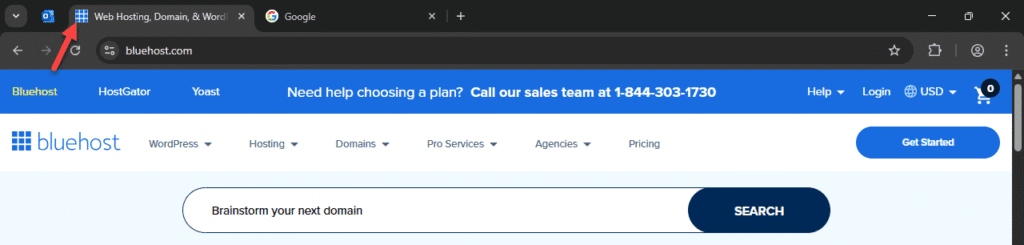
From a website perspective, a favicon serves as a visual anchor, helping browsers identify, organize and label your site across tabs, bookmarks and other interfaces.
Favicons can exist in multiple formats and sizes. While users only see the icon itself, browsers rely on files and HTML rules to determine which favicon to display and where.
This concept sets the stage for understanding what is favicon.ico, the specific file that ensures your icon appears reliably across browsers.
What favicon.ico Is and why it matters for your website?
While a favicon is the general term for the small icon representing your website, favicon ico is one specific file format that browsers traditionally look for by default.
- Favicon: The concept of the website icon; can be delivered in multiple formats such as ICO, PNG or SVG.
- Favicon ico on website: A multi-resolution ICO file placed in the root directory, ensuring broad browser compatibility and acting as a fallback if no other favicon formats are defined.
Why this matters: Browsers often request favicon.ico automatically. Even if you define other favicon formats in HTML, having a favicon.ico ensures your website icon displays consistently across all browsers, older systems and devices.
Where and how do browsers display favicons?
Browsers show favicons in multiple locations to help users quickly recognize websites:
- Browser tabs: Help users scan and identify multiple open pages quickly.
- Bookmarks and favorites: Act as visual markers for saved websites.
- History views and autocomplete suggestions: Help users recognize previously visited sites.
- Search results: Improve site recognition when shown alongside listings.
- Mobile home screens: Represent the website when saved as a shortcut.
Browsers depend on correctly locating the favicon file to display it in all these places. But is it still matters to have favicon ico on website? Let’s understand.
Why favicon.ico matters from a website perspective?
Many browsers automatically request a file named favicon.ico from a website’s root directory, even if no favicon is defined in HTML.
This default behavior makes favicon ico for website a reliable fallback. If the file exists, browsers can display a favicon without additional configuration. If it’s missing, generic icons are shown instead.
From a website perspective, favico.ico helps to:
- Ensure consistent icon display across all browsers.
- Maintain compatibility with older browsers and systems.
- Reduce the risk of missing favicons.
- Improve overall site presentation with minimal setup.
To understand why favicon.ico works so reliably across browsers, it helps to look at the basic technical structure of favicon files and how they’re designed for small-scale display.
Favicon file basics (HTML and development details)
Favicons are image files designed to be displayed at very small sizes. Because of this, they require simple, recognizable designs.
Key characteristics include:
- Small dimensions, such as 16×16 or 32×32 pixels
- Support for multiple resolutions within a single file (especially in ICO format)
- Placement in predictable locations browsers can access easily
While modern websites may use multiple favicon files for different contexts, favicon.ico remains widely supported due to its flexibility and browser compatibility.
How to create and implement a favicon on your website?
Creating and implementing a favicon involves designing the icon, preparing files for different contexts and ensuring browsers can locate it. Here’s how to do it step by step:
Step 1. Design a favicon
Start with your existing logo or brand mark, but simplify it for small sizes. Focus on bold shapes, high contrast and recognizable elements – fine text or intricate details won’t be visible at 16×16 or 32×32 pixels.
Tips:
- Use a single letter, symbol or simplified logo element.
- Test the design at actual size to ensure clarity.
- Choose colors that remain visible on both light and dark browser interfaces.
Step 2. Prepare favicon files
Different browsers and devices require different sizes and formats:
- 16×16 pixels – Browser tabs
- 32×32 pixels – Bookmarks and address bars
- 48×48 pixels – Desktop shortcuts
- 180×180 pixels – Mobile home screen icons
File formats:
- ICO (Icon file format): Most reliable, supports multiple resolutions, works on all browsers.
- PNG (Portable Network Graphics): High clarity, transparency support, ideal for modern devices.
- SVG (Scalable Vector Graphics): Perfect for high-res displays but limited in older browsers.
Recommendation: Save your primary favicon as favicon.ico (multi-resolution) and add PNG or SVG versions for enhanced compatibility.
Step 3. Implement the favicon
There are two main ways to ensure browsers display your favicon correctly:
- Automatic detection: Upload your favicon.ico file to the root directory of your website. Most browsers will detect it automatically at [yourdomain].com/favicon.ico. No HTML code is required for this method.
- HTML-defined favicon: For explicit control or additional formats, add a tag in your website’s section:
<link rel="icon" href="/favicon.ico" type="image/x-icon">
<link rel="icon" href="/favicon.png" type="image/png">
Step 4. Verify and test
After uploading and linking your favicon:
- Clear your browser cache to see updates.
- Check browser tabs, bookmarks and mobile shortcuts.
- Test across different browsers and devices to ensure consistent display.
By combining thoughtful design, multi-size files and proper HTML implementation, your favicon will display reliably across all platforms, giving your website a polished and professional look.
Common issues and troubleshooting favicon.ico
Even though favicon.ico is a small and simple file, it can sometimes fail to display correctly. Understanding common issues and how to troubleshoot them ensures your favicon appears consistently across browsers and devices.
Common favicon.ico issues
- Browser caching delays updates: Browsers store favicon files aggressively, so changes may not appear immediately.
- Incorrect file placement: If favicon.ico isn’t in the root directory, browsers may not detect it automatically.
- File permission problems: Restricted access can prevent browsers from loading the file.
- Unsupported or corrupted files: Using invalid formats or broken files can result in missing icons.
Troubleshooting browser requests
Browsers often request /favicon.ico even if no favicon is defined in HTML, which can show up as 404 errors in server logs. While harmless, these requests can be addressed to ensure proper display:
- Verify the file exists at
[yourdomain].com/favicon.icowith the correct spelling and lowercase letters. - Check file permissions to allow public access.
- Clear browser and CDN caches to see recent changes immediately.
- Ensure HTML tags point to the correct favicon path for additional formats (PNG or SVG).
Providing a correctly placed favicon.ico not only fixes these display issues but also ensures consistent website branding across tabs, bookmarks and shortcuts.
Best practices while using favicons
Follow these practices to ensure your favicon appears clearly and consistently across browsers and devices:
- Include favicon.ico in the root directory: Ensures automatic detection and compatibility with older browsers.
- Keep designs simple and recognizable: Use bold shapes, high-contrast colors and simplified logo elements for small sizes.
- Use multiple sizes and formats: Combine favicon.ico (multi-resolution) with PNG or SVG for modern devices.
- Add HTML tags: Control which files browsers should use for consistent display.
- Avoid frequent changes: Prevent caching issues by updating only when necessary.
- Test across browsers and devices: Verify appearance in tabs, bookmarks and mobile shortcuts.
These practices help ensure the favicon appears reliably wherever the website is accessed.
Final thoughts
Favicons may seem like a small detail, but as this guide shows, files like favicon.ico play an important role in how browsers identify and display your website. From tabs and bookmarks to search results, a properly implemented favicon helps your site look complete, recognizable and trustworthy.
At Bluehost, we know that managing technical elements shouldn’t slow you down. That’s why we make it easy to create, upload and manage favicon files. Whether you’re working directly with HTML or building your site with WordPress and our website tools, we got you covered.
If you’re launching a new website or improving an existing one, we’re here to help you get the details right from the start. With Bluehost, you can focus on building your site while we support the foundation behind it.
FAQs
Favicon.ico is a specific icon file that browsers look for by default to display a website’s favicon. It is usually placed in the root directory of a website and can be loaded even if no favicon is explicitly defined in the HTML.
Favicon.ico is not strictly required, but it is strongly recommended. Many browsers automatically request this file and including it helps ensure your favicon displays consistently across browsers and older systems.
No. A favicon is the general term for the icon that represents a website, while favicon.ico is one specific file used to provide that icon. A favicon can be delivered using different formats, but favicon.ico remains the most widely supported.
Favicon.ico should be placed in the root directory of your website. This allows browsers to find it automatically without requiring additional HTML configuration.
A favicon appears in browser tabs, bookmarks, history lists, search results and sometimes as a shortcut icon on mobile devices. Its appearance depends on how the browser locates and loads the favicon file.
Yes. Many websites use favicon.ico alongside PNG or SVG favicon files defined in HTML. This approach provides better control for modern browsers while maintaining compatibility.
Common reasons include browser caching, incorrect file placement, file permission issues or using an unsupported or corrupted file. Clearing the browser cache often resolves favicon display issues.



Write A Comment