



Key highlights
- Slugs are the readable part of a WordPress URL that helps users + search engines understand page content.
- SEO-friendly slugs are short, keyword-focused and consistent with your permalink structure.
- Changing a slug can affect rankings unless you add a 301 redirect and update internal links.
- Slug optimization improves CTR, usability and site organization, especially for blogs and WooCommerce stores.
When it comes to SEO, every detail counts, including your URLs. A well-structured URL helps search engines understand your content and improves user experience by making navigation easier. Content relevance drives SEO and your URL speaks before your page does.
Say you are searching for the best digital cameras available online and you come across two URLs:
- [www].[example].[com]/?p=1234
- [www].[example].[com]/best-digital-cameras-2025
Without clicking, you already know which one is more relevant. The second link is clear, direct and tells you exactly what to expect.
Despite being a small element, this part of the URL holds more weight than it appears. It influences search rankings, impacts user engagement and shapes website navigation. Your SEO efforts can be dampened by a poorly optimized WordPress slug, meaning that without a proper slug, your rankings may suffer.
This guide explores what is a slug in WordPress, why it matters and the best strategies to ensure it strengthens your website’s performance.
What is a slug in WordPress?
A WordPress slug is the part of a URL that identifies a specific page or post in a readable and structured way, excluding the homepage. It appears after the domain name and briefly defines what the page’s content is about, often reflecting the post title.

For example:
- [www].[example].[com]/?p=321 (unclear, generic and bad for SEO)
- [www].[example].[com]/mobile-optimization-in-2025-best-practices (clear, informative and optimized for search engines)
Slug vs permalink: what’s the difference?
A permalink is the complete, permanent URL of a page on your website. The slug is one component of that permalink, specifically, the readable segment that follows the domain name. For example, [in] [yourdomain].[com]/blog/seo-slug-guide. The full address is the permalink, while seo-slug-guide is the slug.
Your permalink structure, configured under Settings > Permalinks in WordPress, determines how slugs are framed. If your structure includes a category base (/category/slug), date archives (/2025/04/slug) or a custom prefix, the surrounding context changes how search engines and users read each URL even when the individual slug itself stays the same. Changing the global permalink structure affects every URL on your site simultaneously, whereas editing an individual slug only modifies that single post or page.
Common permalink structures and where the slug appears:
- Plain:
[yourdomain].com/?p=123(no readable slug) - Post name:
[yourdomain].com/your-slug(slug follows domain directly) - Category + post name:
[yourdomain].com/category/your-slug(slug is the final segment) - Day + post name:
[yourdomain].com/2025/04/28/your-slug(slug trails date components)
Keeping permalink and slug decisions consistent matters for site organization, internal linking accuracy and avoiding broken URLs. Any structural change at either the global or individual level can disrupt existing links and rankings, making 301 redirects essential to preserve SEO value and ensure visitors reach the correct page.
What makes a slug SEO-friendly?
An SEO slug is the part of a URL that comes after the domain name, intentionally crafted to match user search intent, include relevant keywords and clearly communicate page content. Unlike a default slug auto-generated by WordPress, an SEO slug is manually refined for search engine relevance, crawlability and user trust.
WordPress generates slugs directly from your post title, which often results in lengthy, stop-word-heavy URLs that add no SEO value. An SEO slug strips that down to its essential keywords, aligns with how your audience actually searches and gives search engines clearer context about your page’s topic. This small distinction between what WordPress creates automatically and what you optimize intentionally can meaningfully influence how your page ranks and how confidently users click through from search results.
Consider these side-by-side comparisons:
| Type | Example URL |
|---|---|
| Default (poor) | www.[yourdomain].com/the-top-10-ways-to-improve-your-wordpress-site-in-2025 |
| SEO slug (good) | www.[yourdomain].com/improve-wordpress-site |
| Default (poor) | www.[yourdomain].com/?p=4892 |
| SEO slug (good) | www.[yourdomain].com/wordpress-seo-tips |
Clean, keyword-focused slugs are easier to share, quicker to scan and more trustworthy at a glance. To understand how permalink settings shape every slug on your site, explore Bluehost’s guide to WordPress SEO best practices.
Why slugs matter for SEO, UX and marketing performance?
WordPress slugs sharpen URL clarity, simplify navigation and improve search visibility, thus ultimately contributing to an SEO-friendly website. Here is why they matter.
1. Helps search engines understand your content
Google and other search engines analyze URLs to determine a page’s relevance to a search query. A well-optimized slug increases the likelihood of ranking higher for relevant keywords.
For example, if someone searches for “best WordPress SEO plugins,” a page with the URL www.[example].com/best-wordpress-seo-plugins is more likely to rank well compared to a generic one like www.[example].com/?p=987.
2. Improves click-through rates (CTR)
Users are more likely to click on a link when the URL clearly reflects what they are looking for. A clear, keyword-rich slug gives people confidence that they are heading to the right page.
For example, when you are searching for the best laptops, you will prefer,
– www.[example].com/best-laptops-2025, which is clear and specific,
Instead of,
– www.[example].com/pageid=34567, which is confusing and untrustworthy.
3. Enhances website user experience
Structured slugs make it easier to navigate a website. When slugs follow a logical structure, users can understand how different pages relate to each other. If you know what a slug in WordPress is, you will understand the difference in structures.
For instance:
- www.[example].com/blog/seo-tips (indicates a blog category)
- www.[example].com/services/web-design (indicates a service page)
Also read: How to Optimize Content for SEO on WordPress
How WordPress generates slugs by default & why you should optimize them?
WordPress is designed to automatically generate a slug based on the title of a new post or page. It converts all characters to lowercase and replaces spaces with hyphens.
For example:
- Title: “The Best Strategies for Growing Your Online Business”
- Default slug: the-best-strategies-for-growing-your-online-business
While the default slug is functional, it’s not always optimized for search engines or user experience. By refining slugs manually, you ensure they remain focused, keyword-rich and SEO-friendly, ultimately strengthening your website’s performance.
How to change a slug in WordPress?
A slug is the URL-friendly text WordPress uses for posts, pages, categories, tags and some archives. WordPress generates it from your title, but you can edit it to keep the URL clear and search-friendly. In the Block Editor, you can update the slug in the Permalink field in the right sidebar before you publish or later when you update the page.
1. Edit a slug in Gutenberg
If you are using the Block Editor, WordPress makes slug edits quick because the URL settings live in the right sidebar. WordPress usually creates a slug from your title, but you can shorten it, remove extra words and keep it aligned with the page topic before you publish or when you update the post later.
- Open “Posts” or “Pages” and select the item you want to edit.
- Open the “Settings” sidebar on the right. If you do not see it, click the “Settings” icon in the top right.

- In the “Post” or “Page” tab, open “Permalink”.
- Edit the “slug” in the Permalink field.
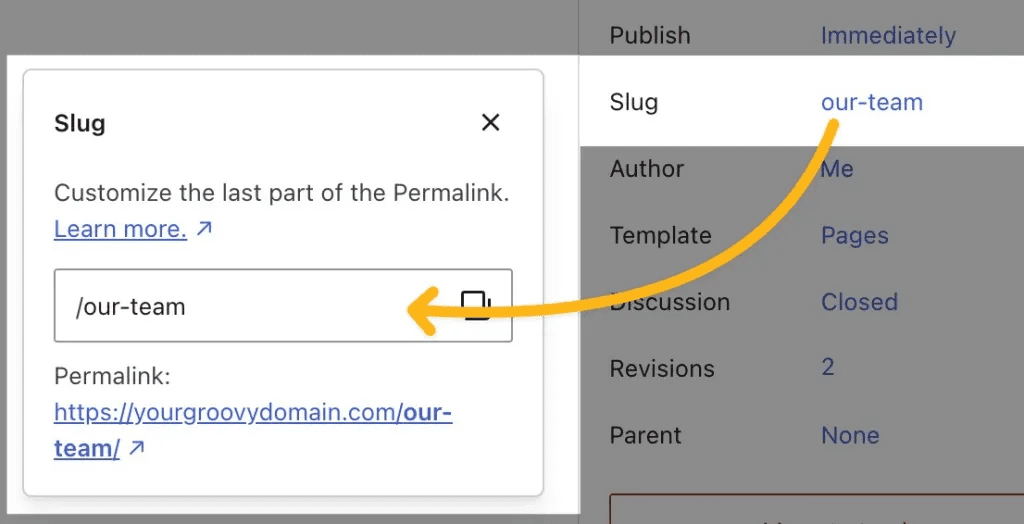
- Click “Update” or “Save”.
Tip: If the content is already live, changing the slug changes the URL, so plan a 301 redirect.
2. Edit a slug in Classic Editor
In the Classic Editor, the slug is tied to the permalink shown near the title area. This workflow is helpful if you are working on older WordPress sites, using the Classic Editor plugin or editing content that still relies on the legacy interface.
Go to “Posts” or “Pages” and open the content in the Classic Editor.
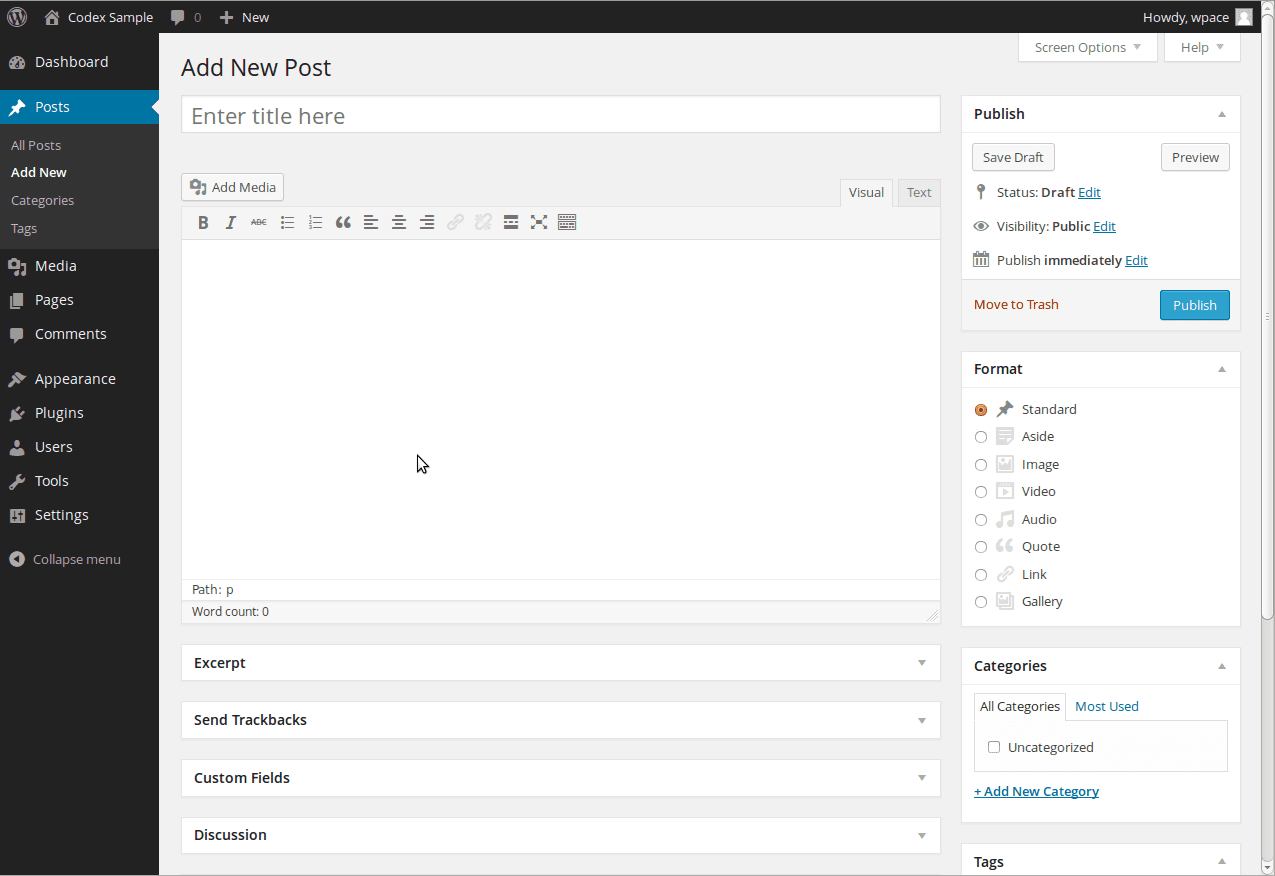
Under the title, find the permalink line and select “Edit” next to the URL.
Enter the new slug, save, then select “Update”.
3. Change category and tag slugs
Category and tag slugs control the URLs for taxonomy archive pages. These pages can rank on their own, especially on content-heavy sites, so it is worth keeping taxonomy slugs clean and consistent. Since changing them also changes the archive URL, you should only update them when you have a clear reason and a redirect plan.
Change a category slug
- Go to Posts → Categories.
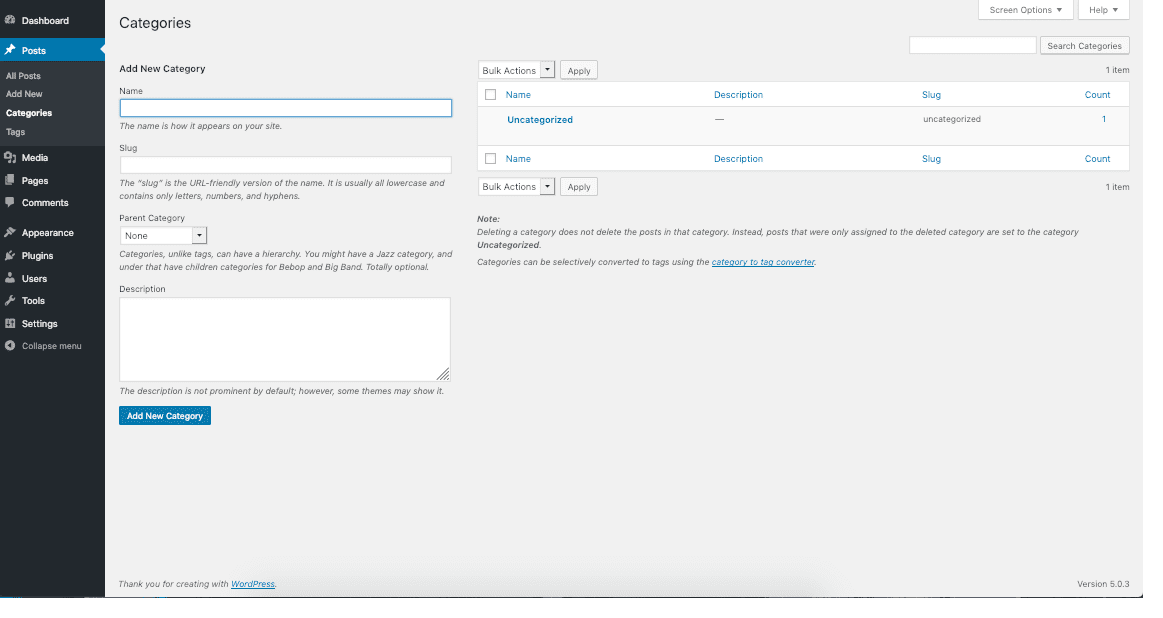
- Select the category name or “Edit”.
- Update the Slug field, then select “Update”.
Change a tag slug
- Go to Posts → Tags.
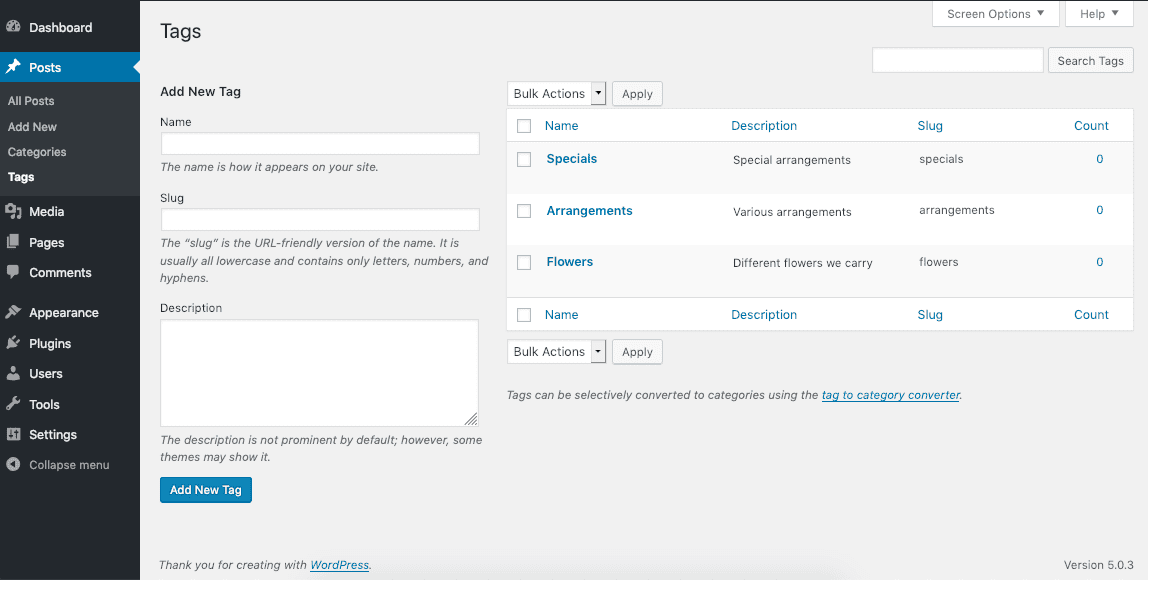
- Select the tag name or “Edit”.
- Update the Slug field, then select “Update”.
4. Custom post type slugs
Custom post types have two slug layers. You can edit the slug for a single item, just like a normal post and you can also control the base slug that appears in the URL structure for the entire post type. The second option is more advanced because it affects many URLs at once.
Edit the slug for a single custom post type item
Open the item and edit the slug in the editor using the Gutenberg or Classic steps above.
Change the URL base slug for the whole custom post type
This is usually set when registering the post type, often through register_post_type() and its rewrite settings. WordPress Developer Resources notes you can resolve conflicts by changing the slug used for a post type.
If you change the base slug, resave permalinks and set 301 redirects because existing URLs for that post type will change.
5. Editing slugs with Yoast SEO
Yoast SEO gives you another place to adjust the slug while you are optimizing your snippet. This can be convenient because you can align your title, slug and meta description in one flow, but the slug you edit there still updates the WordPress permalink for that post or page.
- Open the post or page in WordPress.
- Open the Yoast SEO panel in the editor.
- Open the search appearance preview.
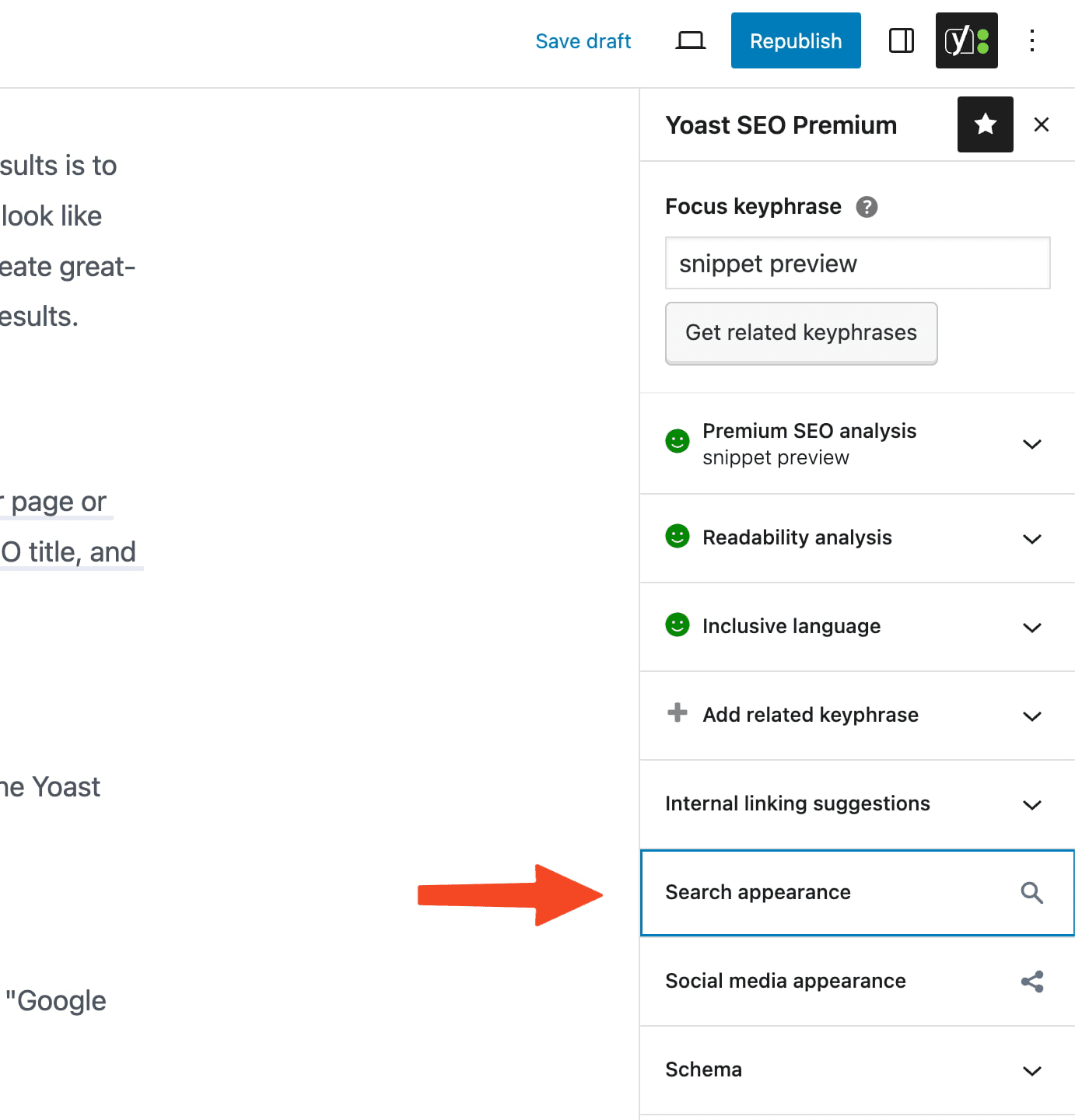
- Edit the slug field, then save or update the post. (yoast.com)
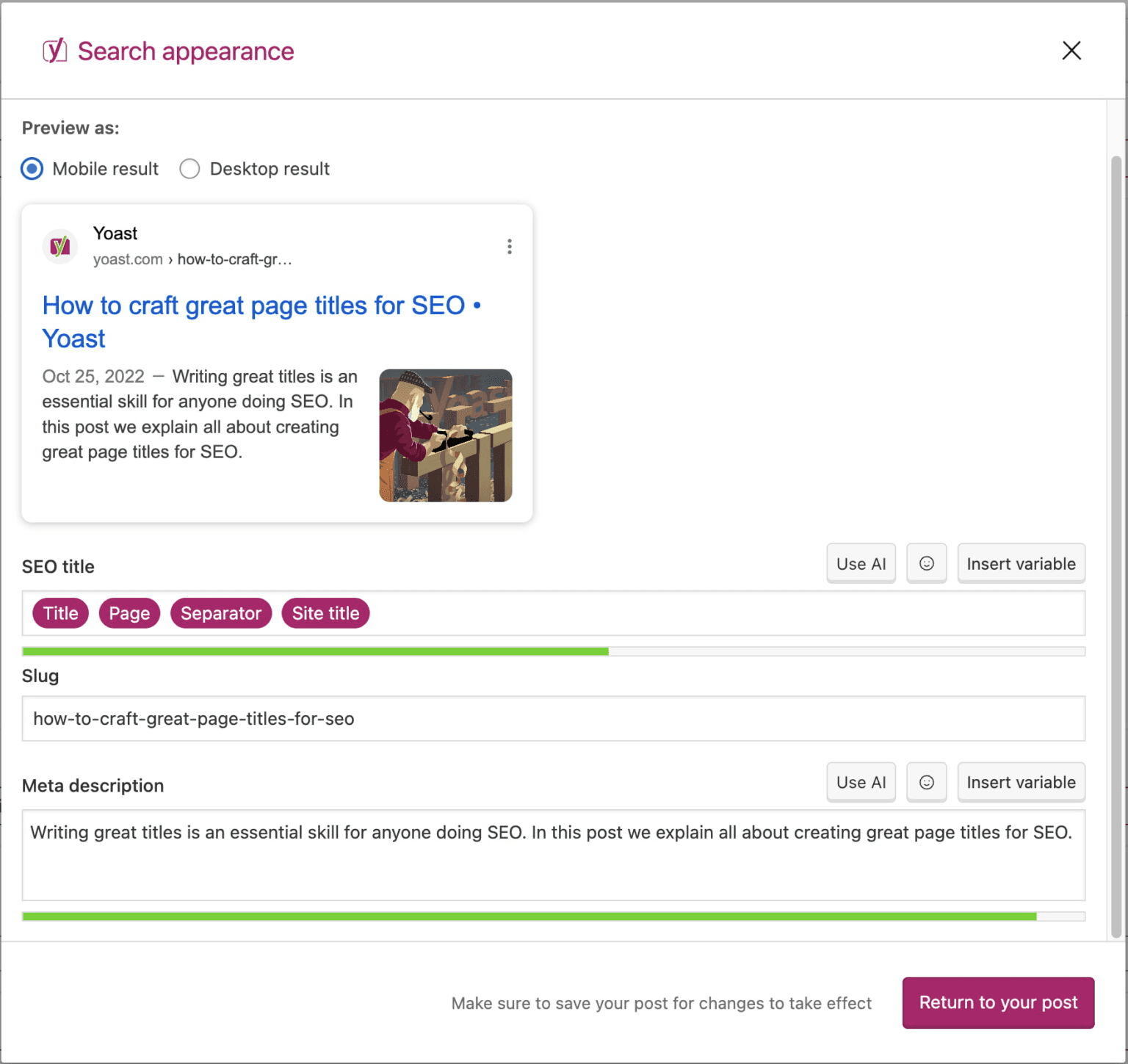
If you are already using Yoast SEO to fine-tune titles, meta descriptions and slugs, the next step is making that workflow easier to repeat across your whole site. Bluehost Yoast SEO to help simplify everyday optimization so you spend less time guessing what to fix and more time publishing content that can rank.
What Yoast SEO helps you improve
- SEO analysis with clear recommendations so you know what to update on the page
- Focus keyword targeting to align content with what people search for
- Content insights like post age monitoring so older pages do not quietly decay
- Search result preview so you can review how your page may appear in Google
- Social sharing preview so you can control how your content looks when shared
- Readability checks that help improve flow, clarity and on page quality
- Technical SEO basics that support crawling, indexing and site hygiene
When Yoast SEO Premium makes sense
If you publish often, update older content or manage a growing site, Yoast SEO Premium can reduce manual work and prevent common mistakes that cost traffic.
- Optimize for up to 5 keywords plus related phrases and synonyms
- Redirect Manager to simplify 301 redirects and reduce 404 errors
- Internal linking suggestions to strengthen structure while you write
- AI-powered support for titles, meta descriptions and optimization ideas
- Extra tools for specific needs, like Local, Video and News SEO plugins
- Support access when you need help moving faster
If you want to drive more traffic without becoming an SEO expert, Yoast makes optimization more structured and repeatable. With Bluehost, you can start with the essentials and move to Premium when you need stronger automation, smarter suggestions and faster execution. Add your CTA below to help readers pick the plan that matches their site stage and goals.
How to optimize WordPress slugs for SEO & user experience
A good slug makes your URL easy to scan, easy to trust and easy for search engines to understand. WordPress generates a slug automatically from your title, but a quick cleanup can improve clarity, help clicks from search results and keep your site structure consistent.
1. Keep it short and readable
Short slugs are easier to remember, share and scan in search results.
Bad: how-to-choose-the-right-running-shoes-for-marathon-training
Good: marathon-running-shoes
Tip: aim for 2 to 6 words when possible.
2. Use the primary keyword
Include the main topic keyword so the URL matches the page intent. Use it once and keep it natural.
Target topic: email marketing checklist
Good slug: email-marketing-checklist
Bad slug: email-marketing-checklist-best-email-marketing-checklist
3. Remove stop words
Words like the, a, an, and, of, for often add length without adding meaning. Remove them unless they change the intent.
Before: the-beginners-guide-to-meal-prep-for-weight-loss
After: meal-prep-weight-loss
4. Use hyphens
Hyphens make slugs easier to read and are the standard separator for WordPress URLs.
Bad: summer_trip_planning_tips
Good: summer-trip-planning
5. Avoid special characters
Special characters can create messy URLs, encoding issues and readability problems. Stick to lowercase letters, numbers and hyphens.
Avoid: best-coffee-&-espresso?machines=top+10
Better: best-espresso-machines
6. Avoid including dates
Dates can make evergreen content look outdated and can force future URL changes. Only include a date when the content is tied to a specific year or event.
Avoid: home-gym-setup-2024
Better: home-gym-setup
If the year is part of the search intent and you update the content annually, keep the year in the title and update the page regularly. You can still keep the slug evergreen to avoid changing URLs later.
Also read: WordPress SEO 2024: Everything you Need to Know! Optimization Tips + Best Practices + Plugins
Common slug mistakes to avoid
Even small URL choices can create long-term SEO and usability problems. These common slug mistakes are easy to fix early, but they get harder to clean up once pages are indexed, shared and linked across your site.
- Slug is too long and reads like the full headline
- Slug does not match the page topic or search intent
- Keyword stuffing in the slug
- Special characters, messy formatting or underscores instead of hyphens
- Changing a live slug without adding a 301 redirect
- Changing the slug but not updating internal links, menus and sitemap cues
- Duplicate or near duplicate slugs across similar pages and categories
After you clean up slug mistakes, the next smart move is to check whether the rest of the page is aligned with SEO best practices. A slug can improve clarity and clicks, but rankings also depend on on-page setup, technical health, speed and mobile experience. That is where Bluehost’s website SEO checker helps. It runs a quick scan, gives you an SEO score and flags the highest impact fixes so you know what to prioritize.
If you want a quick way to validate your SEO after updating slugs and on page content, try the Bluehost free SEO checker.
Final thoughts
Every element of a website shapes its visibility and slugs are no exception. A well-structured slug improves SEO, supports a smoother user experience and makes site navigation more intuitive. Simple changes like keeping slugs short, aligning them with the page topic and using consistent formatting can help search engines interpret your content and help users trust what they are clicking.
Once your slugs are clean, the next step is scaling that same consistency across the rest of your on-page SEO. Yoast SEO Premium helps you do that with smarter automation and guidance, from optimizing for multiple related keyphrases to handling redirects when URLs change. It also supports a stronger site structure with internal link suggestions and saves time with AI-powered recommendations, making it easier to maintain SEO improvements as your site grows.
Explore Yoast SEO Premium to optimize faster, reduce errors and grow your search traffic with more confidence.
FAQs
A WordPress slug is the part of a URL that identifies a specific page in a clean, readable format. Optimized slugs improve search rankings, enhance user experience and boost click-through rates.
In Bluehost’s WordPress dashboard, navigate to Posts or Pages, locate the Permalink section and edit the slug to be concise and keyword-rich before saving changes.
Keep slugs short, use relevant keywords, remove stop words and separate words with specific lowercase letters and hyphens. Maintaining It is actually a good idea to maintain consistency across your site as it improves both SEO and navigation.
Yes, Bluehost provides an intuitive interface for direct slug editing, along with built-in SEO tools to refine URLs and improve search visibility.
Yes, modifying slugs can impact rankings if not handled properly. Always set up 301 redirects for old URLs to maintain SEO value and prevent traffic loss.

Write A Comment