



La création d’un site web peut sembler décourageante, mais WordPress la rend incroyablement facile. Avec plus de 43% du web, WordPress est devenu la plateforme de référence pour la création de sites web de tous types, des blogs aux sites d’eCommerce. Avec la puissance supplémentaire de l’AI WordPress Website Builder de Bluehost, le processus devient encore plus rationalisé et accessible.
Dans ce guide, nous vous guiderons pas à pas dans la création d’un site WordPress. À la fin, votre site sera opérationnel, optimisé pour les moteurs de recherche et conçu pour durer.
Qu’est-ce que WordPress et pourquoi l’utilisez-vous ?
Un site web WordPress est construit sur un système de gestion de contenu (CMS) open-source qui simplifie la création de sites web. Il offre une immense flexibilité et des milliers de thèmes et de plugins WordPress. WordPress vous permet de personnaliser votre site pour n’importe quel usage, qu’il s’agisse d’un blog, d’un portfolio ou d’une boutique en ligne.
Un site WordPress est également facile à utiliser, ce qui le rend parfait pour les débutants. La nature open-source de WordPress permet aux utilisateurs de modifier et d’étendre les fonctionnalités sans savoir coder. Avec des options pour WordPress.com et WordPress.org, il offre une solution à tous les types de propriétaires de sites web, quelles que soient leurs compétences techniques.
Ai-je besoin de compétences en codage pour utiliser WordPress ?
Non ! L’une des meilleures choses à propos de WordPress est qu’il est conçu pour tout le monde, des débutants aux développeurs expérimentés. Même si vous ne connaissez pas le HTML, le CSS ou tout autre langage de programmation, le tableau de bord de WordPress permet aux clients de créer facilement un site d’apparence professionnelle sans avoir à manipuler une seule ligne de code.
Pour ceux qui recherchent un processus encore plus simple, le constructeur de sites Web WordPress de Bluehost, alimenté par l’IA, offre des conseils étape par étape pour vous aider à créer votre site en quelques minutes. Mais tout d’abord, passons en revue les étapes de base à suivre pour créer un site web.
Un guide pas à pas pour créer un site web avec WordPress
Maintenant que nous avons abordé les bases de WordPress, plongeons dans les étapes à suivre pour créer un site web. Dans ce guide, vous apprendrez tout, de la sélection d’un nom de domaine à la personnalisation du design et des fonctionnalités de votre site WordPress.
1. Choisissez votre nom de domaine et votre hébergement

L’étape initiale de la création de votre site web WordPress consiste à choisir un nom de domaine, qui sera l’adresse de votre site web (par exemple, www.bluehost.com). Lorsque vous choisissez un nom de domaine, gardez ces conseils à l’esprit :
- Votre nom de domaine doit être court et mémorable ; évitez les noms longs ou complexes.
- Le nom de domaine doit être facile à épeler et à prononcer, car il aide les utilisateurs à se souvenir de votre site et à le trouver facilement.
- Le plus important est que le nom de domaine soit en rapport avec votre marque et qu’il reflète votre activité ou votre objectif.
Bluehost propose un outil de recherche de nom de domaine qui permet aux clients de vérifier rapidement la disponibilité du domaine souhaité. En outre, vous pouvez utiliser un générateur de domaine AI qui fournit un nom de domaine approprié correspondant à votre activité.
Une fois que vous avez choisi un nom de domaine, vous devez choisir un hébergeur. L’hébergement web est l’endroit où les fichiers de votre site web sont stockés et mis à la disposition des visiteurs. Parmi les options d’hébergement web les plus courantes, citons
- Hébergement partagé: Une solution rentable pour les petits sites web.
- Hébergement WordPress: Un service d’hébergement spécifiquement optimisé pour les sites WordPress.
- Hébergement dans le nuage: Une option évolutive pour les sites web en croissance dont le trafic fluctue.
Pour les débutants, l’hébergement WordPress de Bluehost est un excellent choix, car WordPress est préinstallé dans les plans Bluehost, ce qui signifie que vous pouvez sauter l’étape de l’installation manuelle et vous plonger directement dans la personnalisation de votre site web WordPress. Avec l’hébergement WordPress, vous bénéficiez d’un domaine gratuit la première année, d’un certificat SSL gratuit pour sécuriser votre site web et de l’installation automatique de WordPress.
L’hébergement WordPress de Bluehost est optimisé pour la performance, avec des serveurs à haute vitesse et un support client 24/7. Grâce aux mises à jour automatiques de WordPress, vous disposerez toujours de la dernière version de WordPress, ce qui garantit que votre site WordPress reste sécurisé et à jour. Que vous construisiez un blog, une boutique en ligne ou un site eCommerce, les services d’hébergement WordPress de Bluehost facilitent le processus en incluant toutes ces fonctionnalités essentielles dans une seule offre, ce qui vous permet de vous concentrer sur la construction et la croissance de votre site web.
Installer WordPress
Après avoir choisi un hébergement web, l’étape suivante consiste à installer WordPress. L’installation de WordPress est un processus en un clic proposé par un grand nombre de fournisseurs d’hébergement web, ce qui vous permet de mettre en place la dernière version du site web WordPress en quelques minutes. Si vous choisissez Bluehost, WordPress est déjà préinstallé, ce qui simplifie encore le processus.
2. Lancer le constructeur de sites web AI
Si vous choisissez Bluehost comme fournisseur d’hébergement web, vous avez trois options pour créer votre site web d’entreprise : DIY, AI website builder ou faire appel à un développeur.
AI website builder rationalise le processus de création d’un site web.
Cela vous évite d’avoir à choisir manuellement un thème, à ajuster les mises en page ou à choisir les couleurs. Le constructeur fait des recommandations et des ajustements automatiquement, ce qui signifie que même ceux qui ne sont pas familiers avec la conception de sites web peuvent avoir un site web d’entreprise d’apparence professionnelle en un rien de temps.

Sélectionnez le créateur de sites Web IA pour personnaliser la conception et le contenu générés par l’IA en quelques minutes.
Commencez par définir le titre du site et le nom de domaine. Vous aurez également la possibilité de choisir un domaine gratuit si c’est la première fois que vous créez un site WordPress avec Bluehost.
Ensuite, un écran vous demandera de décrire brièvement le site web professionnel que vous souhaitez créer. Fournissez autant de détails que possible pour aider l’IA à créer la conception la plus adaptée à vos besoins.

Ensuite, si vous avez un compte Facebook et que vous souhaitez vous connecter, vous pouvez le faire. Vous obtiendrez ainsi des détails et des images sur le site web. Vous pouvez également sauter cette étape si vous n’avez pas de page Facebook.

L’étape suivante consiste à créer un logo ou à télécharger un logo existant. Si vous avez déjà un logo, il vous suffit de joindre le fichier ici pour continuer. Vous pouvez également utiliser des plateformes telles que Canva pour créer un logo. Veillez à ce qu’il soit simple, intuitif et conforme à l’identité de votre marque. Ce logo sera affiché sur le titre de votre site et dans l’ensemble de votre site web.

Une fois ces détails définis, le créateur de site Web AI génère trois variantes différentes de votre site Web WordPress. Chaque version sera personnalisée en fonction des détails que vous avez fournis, y compris le titre de votre site et les exigences de votre site d’entreprise. Vous pouvez voir l’aperçu complet de chaque version, avec des thèmes gratuits et des éléments de conception adaptés à vos spécifications.

3. Personnaliser votre site WordPress
Une fois que l’IA a construit les fondations de votre site web WordPress, selon vos idées, vous avez la possibilité de le personnaliser pour qu’il corresponde à votre marque. Les thèmes WordPress sont plus flexibles et vous permettent de tout modifier, des polices et des couleurs à la mise en page.

Personnaliser un thème WordPress
Si vous n’êtes pas satisfait de la version du site Web générée par l’AI builder, vous avez la possibilité de changer de thème WordPress à tout moment. Les thèmes WordPress sont des modèles préconçus qui contrôlent la présentation visuelle et le style de votre site WordPress. Pendant que l’AI builder sélectionne un thème approprié pour vous, vous pouvez facilement changer de thème si nécessaire.

Voici comment modifier votre thème WordPress :
- Connectez-vous à votre tableau de bord WordPress.
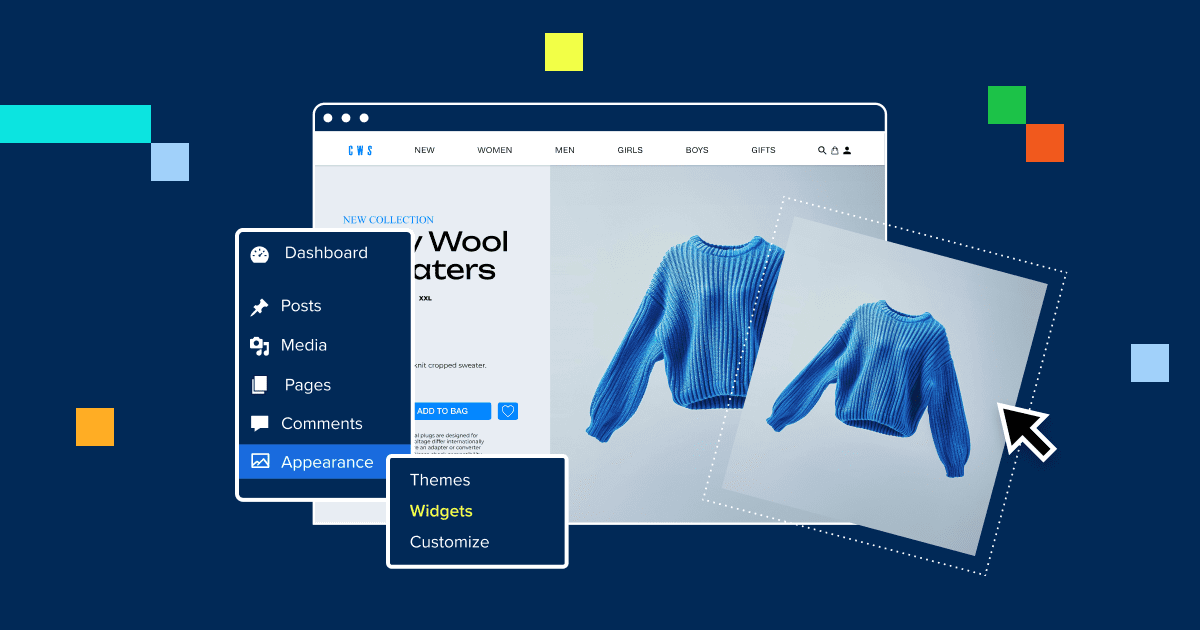
- Dans le menu de gauche, naviguez jusqu’à Apparence et cliquez sur Thèmes.
- Cliquez sur le bouton Ajouter un nouveau thème.
- Parcourez l’annuaire des thèmes WordPress, où vous avez la possibilité de choisir parmi des milliers de thèmes gratuits et de thèmes premium.
- Une fois que vous avez trouvé un thème qui vous plaît, cliquez sur Installer, puis sur Activer pour appliquer le thème à votre site Web WordPress.
Conseil de pro: Lorsque vous choisissez un nouveau thème WordPress, assurez-vous qu’il est adapté aux mobiles et compatible avec les plugins WordPress afin de garantir les meilleures performances et l’optimisation du référencement.
WonderBlocks pour la personnalisation

Avec Bluehost, vous pouvez utiliser WonderBlocks, un outil de glisser-déposer qui facilite la personnalisation des pages sans codage. Ajoutez des images, des boutons, du texte et bien plus encore d’un simple clic.
Conseil SEO: Choisissez un thème WordPress adapté aux mobiles pour améliorer l’expérience de l’utilisateur et le trafic du site sur Google.
4. Comment installer un nouveau plugin
Les fonctionnalités de votre site web WordPress peuvent être étendues en installant des plugins WordPress. Ces plugins vous permettent d’ajouter à votre site des fonctionnalités telles que des outils de référencement, des formulaires de contact et une sécurité renforcée.

Voici comment installer un plugin WordPress :
- Connectez-vous à votre tableau de bord WordPress.
- Dans le menu de gauche, naviguez jusqu’à Plugins et cliquez sur Ajouter un nouveau plugin.
- Dans la barre de recherche, tapez le nom du plugin que vous souhaitez installer (par exemple, Yoast SEO).
- Une fois que vous avez trouvé le plugin, cliquez sur Installer maintenant, puis sur Activer pour activer le plugin sur votre site WordPress.
Plugins essentiels pour un site web WordPress
Les plugins WordPress ajoutent des caractéristiques et des fonctionnalités supplémentaires à votre site WordPress. WordPress compte plus de 59 000 plugins, ce qui vous permet de personnaliser votre site en fonction de vos besoins. Voici quelques plugins essentiels :
YoastSEO
Il aide à optimiser le contenu pour les moteurs de recherche, garantissant ainsi un bon classement de votre site WordPress sur Google. Il propose une optimisation sur la page, une analyse des mots-clés et des scores de lisibilité.
Jetpack
Renforcez la sécurité de votre site, surveillez le trafic et améliorez les performances avec Jetpack, un plugin tout-en-un créé par WordPress.
WPForms
Besoin d’un formulaire de contact ou d’inscription à une newsletter ? Avec WPForms, il devient facile de créer des formulaires et de collecter des informations auprès de vos visiteurs.
W3 Total Cache
Un plugin de mise en cache qui améliore la vitesse et les performances de votre site, en veillant à ce que votre site WordPress se charge rapidement pour les visiteurs.
Smush
Un plugin utilisé pour compresser une image sans en réduire la qualité, améliorant ainsi la vitesse du site.
Lien vers le guide des plugins de Bluehost: Pour plus d’informations sur les plugins recommandés, consultez le guide des plugins WordPress de Bluehost.
5. Comment ajouter une nouvelle page à votre site WordPress
Pour que votre site WordPress offre une expérience professionnelle à vos visiteurs, vous devez créer des pages essentielles telles que « A propos », « Contact » et « Services ». Voici comment ajouter une nouvelle page à votre site WordPress :

- Connectez-vous à votre tableau de bord WordPress.
- Dans le menu de gauche, naviguez vers Pages et cliquez sur Ajouter un nouveau.
- Saisissez le titre de votre nouvelle page (par exemple, À propos de nous, Services, Contact).
- Il est facile d’ajouter du contenu sur la page en utilisant l’éditeur de blocs de WordPress. Vous pouvez ajouter du texte, des images et des vidéos.
- Une fois que vous avez ajouté votre contenu, cliquez sur Publier pour mettre la page en ligne sur votre site Web WordPress.
Pages essentielles pour votre site web WordPress
Après avoir ajouté une nouvelle page, il est important de créer les pages essentielles suivantes pour votre site web WordPress :
A propos de la page :
Cette page présente votre entreprise ou votre marque personnelle et explique l’objectif de votre site WordPress. Elle contribue à instaurer un climat de confiance avec votre public.
Page de contact :
Facilitez la tâche des visiteurs en incluant un formulaire de contact, votre adresse électronique et votre numéro de téléphone. Vous pouvez utiliser des plugins comme WPForms pour créer des formulaires de contact personnalisés.
Page de services ou de produits :
Si vous proposez des services ou vendez des produits, créez des pages dédiées qui expliquent clairement chaque offre et précisent les prix. C’est essentiel pour tout site de commerce électronique ou boutique en ligne.
Page du blog :
Si vous envisagez de créer du contenu régulièrement, c’est essentiel. Il permet d’attirer plus de trafic vers votre site WordPress et d’améliorer votre classement SEO.
Politique de confidentialité et clause de non-responsabilité :
Ces pages sont des obligations légales, en particulier si vous recueillez des données auprès des utilisateurs. Assurez-vous que vos visiteurs savent comment leurs données sont utilisées et protégées.
Conseil en matière de référencement : Veillez à ce que chaque page comporte un appel à l’action clair pour guider les visiteurs vers des actions spécifiques, telles que vous contacter ou acheter un produit.
6. Optimisez votre site web pour le référencement et la rapidité
L’optimisation des moteurs de recherche est un outil important pour générer du trafic organique vers votre site web WordPress. Heureusement, WordPress est adapté au référencement dès sa sortie de l’emballage. Vous pouvez néanmoins faire des ajouts pour vous assurer que votre site est bien classé dans les moteurs de recherche.
Utiliser des plugins SEO
Yoast SEO est l’un des meilleurs outils pour aider à optimiser votre contenu pour les mots-clés, ajouter des méta-descriptions et améliorer la lisibilité globale.
Compression d’images
Votre site web peut se charger plus lentement et être moins bien classé dans les recherches s’il contient des images volumineuses. Utilisez des outils tels que Smush ou Imagify pour compresser les images sans compromettre la qualité.
Tirer parti de la mise en cache
Les plugins de mise en cache tels que W3 Total Cache permettent d’accélérer votre site en stockant une version de celui-ci pour un accès rapide.
Activer HTTPS
Google donne la priorité aux sites sécurisés dans son classement. Utilisez le certificat SSL gratuit fourni par Bluehost pour vous assurer que votre site WordPress est sécurisé.
7. Lancez votre site web
Une fois que tout est configuré et optimisé, vous êtes prêt à lancer votre site web WordPress ! Mais avant de cliquer sur le bouton « Publier », suivez ces dernières étapes :
Prévisualisez votre site: Utilisez le tableau de bord de WordPress pour prévisualiser votre site sur différents appareils (ordinateur de bureau, tablette, téléphone portable) afin de vous assurer qu’il est bien présenté partout.
Tester la fonctionnalité: Vérifiez que tous les liens, boutons et formulaires fonctionnent correctement.
Surveillez les erreurs: Utilisez des outils tels que Google Search Console pour surveiller votre site et détecter d’éventuels problèmes techniques ou de référencement.
Après les tests, cliquez sur le bouton « Publier » et partagez votre site WordPress avec le monde entier !
Pourquoi utiliser le constructeur de site WordPress AI de Bluehost ?

L’AI builder de Bluehost offre plusieurs avantages qui le rendent parfait pour ceux qui cherchent à créer un site web WordPress :
Pour les débutants
Les constructeurs de sites web AI rendent la création de sites web accessible à tous, quel que soit le niveau de compétence technique. Cela permet à tout un chacun, qu’il s’agisse d’un propriétaire de petite entreprise ou d’un travailleur indépendant, de créer un site de commerce électronique ou une boutique en ligne d’aspect professionnel sans expérience préalable.
Mise en place rapide
Il est très simple de créer un site web WordPress en quelques minutes sans sacrifier la qualité. L’AI Builder automatise tout, de l’installation de WordPress au choix des thèmes en passant par l’ajout des pages essentielles.
Les AI builders réduisent considérablement le temps nécessaire à la création d’un site web. Au lieu de concevoir et d’ajuster manuellement la mise en page, vous pouvez lancer et exploiter un site web entièrement fonctionnel en quelques minutes. Cette solution est idéale pour les particuliers ou les entreprises qui souhaitent lancer rapidement leur site sans sacrifier la qualité.
Mise en page et conception automatisées :
En répondant à quelques questions simples sur votre secteur d’activité et vos préférences, le concepteur d’IA génère automatiquement une mise en page professionnelle. Il sélectionne les jeux de couleurs, les polices et la structure du contenu adaptés à votre marque, sans qu’il soit nécessaire de procéder à des ajustements manuels.
Personnalisable
Même si une grande partie de la conception est automatisée, les constructeurs de sites web AI vous laissent la possibilité de personnaliser des éléments tels que le texte, les images et la mise en page. Vous contrôlez l’aspect final de votre site et vous vous assurez qu’il est conforme à la vision de votre marque.
Optimisé pour la performance
L’infrastructure de Bluehost garantit que votre site WordPress est non seulement rapide mais aussi sécurisé, avec des fonctionnalités optimisées pour le référencement dès le départ. À l’heure actuelle, les appareils mobiles sont la principale source de trafic web et, par conséquent, les AI builders veillent à ce que votre site WordPress soit entièrement optimisé pour les smartphones et les tablettes. L’IA configure automatiquement la mise en page pour qu’elle soit réactive sur tous les appareils, améliorant ainsi l’expérience de l’utilisateur sans travail supplémentaire de votre part.
Des plans abordables
Avec des plans d’hébergement compétitifs qui incluent des domaines et des certificats SSL gratuits, Bluehost est une solution tout-en-un pour les créateurs de sites web. Bluehost offre des plans d’hébergement web abordables qui incluent un constructeur de site AI gratuitement avec chaque plan.
Dernières réflexions
Grâce à des outils alimentés par l’IA, vous pouvez installer WordPress, choisir un thème gratuit et créer un site web sur WordPress en quelques minutes. Que vous soyez un débutant ou un développeur professionnel, ce guide garantit que votre site web WordPress est rapide, réactif et optimisé pour le succès. Les outils d’intelligence artificielle s’occupent des aspects techniques, ce qui vous permet de vous concentrer sur ce qui compte vraiment : la création d’un site web beau et fonctionnel.
Commencez votre voyage sur le Web avec Bluehost, obtenez un nom de domaine gratuit ainsi que d’autres fonctionnalités et voyez comme il est facile de donner vie à vos idées.
FAQ
Un site web WordPress est construit sur un puissant système de gestion de contenu (CMS) qui permet aux clients de créer et de gérer des sites web sans aucune compétence en matière de codage. Il est très convivial et personnalisable, ce qui le rend accessible à tous. Le tableau de bord intuitif de WordPress permet une gestion sans effort, tandis que les plugins WordPress peuvent être installés en quelques clics, étendant ainsi les fonctionnalités de votre site.
Non, le tableau de bord et les outils de création de pages de WordPress rendent la création d’un site WordPress accessible à tous, quelles que soient les compétences techniques.
Il est très facile d’installer WordPress. Sur le marché, il existe un grand nombre de fournisseurs d’hébergement web qui proposent l’installation de WordPress en un clic, mais avec Bluehost, WordPress est préinstallé, ce qui vous permet de gagner du temps et d’économiser vos efforts.
Le thème Wonder de YITH est le meilleur thème WordPress. Les meilleurs plugins WordPress sont Yoast SEO, Jetpack et WPForms pour améliorer les fonctionnalités et les performances.
Utilisez des plugins WordPress tels que Yoast SEO, comprimez les images et assurez-vous que votre site Web WordPress est bien classé et se charge rapidement. Activez le protocole SSL pour la sécurité et un meilleur référencement.
Oui, les AI builders peuvent vous aider à construire efficacement une page de blog sur votre site WordPress, vous permettant d’ajouter des articles et de générer du trafic.


Ecrire un commentaire