 ChatGPT,
  Claude,
  Gemini,
  Grok — all four for
 How to Add a New Website in Xcitium Backup
Adding a site in Xcitium Backup allows you to include additional websites in your account so they can be protected through your automated backup system.
The primary website is usually set up automatically. However, any additional websites must be manually added to ensure they are fully protected and recoverable.
Proper setup ensures:
- Automated backups
- Easy restore options
- Full website and database protection
Access Xcitium Backup
- Log in to your Bluehost Portal.
- In the left-hand menu, click Websites.
- Click the Manage Site button located next to the website you want to manage.

- Click Backups in the top menu.
- Under Premium Backup Services, click Manage for Xcitium.
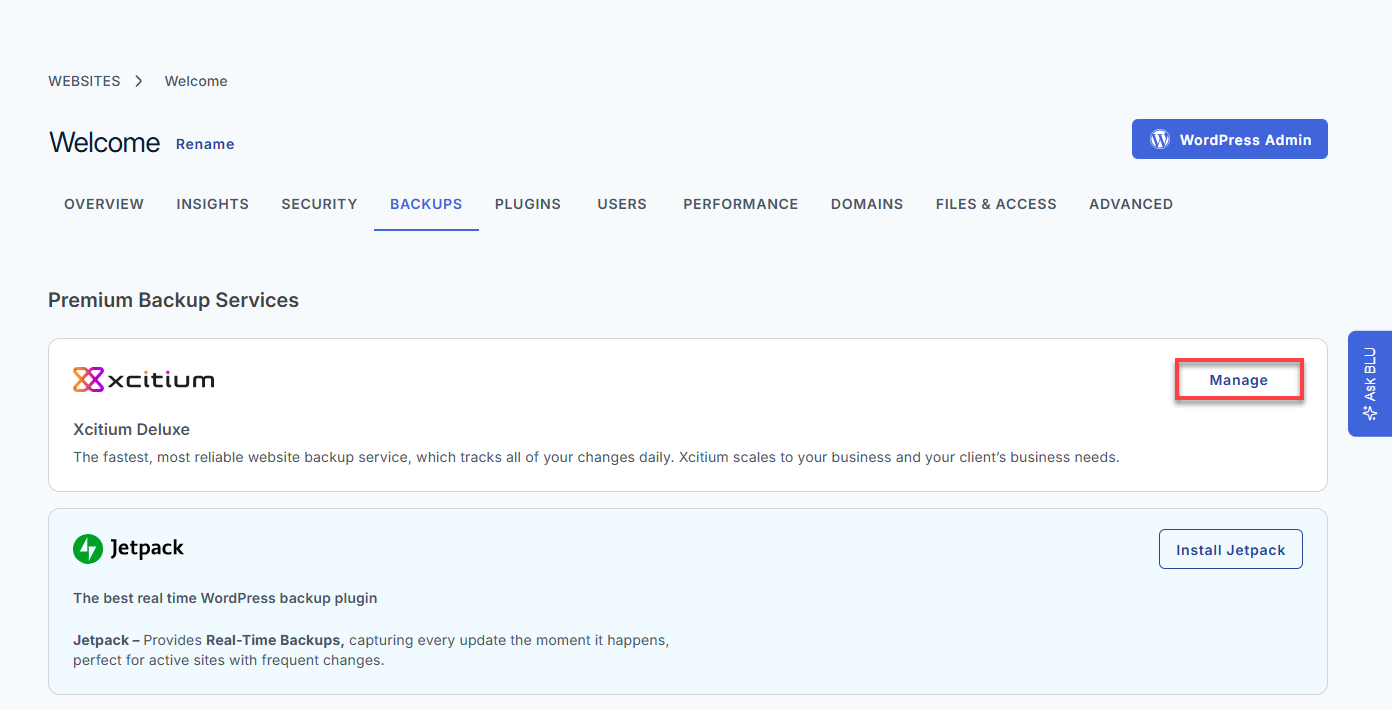
You will be redirected to the Xcitium Backup dashboard.
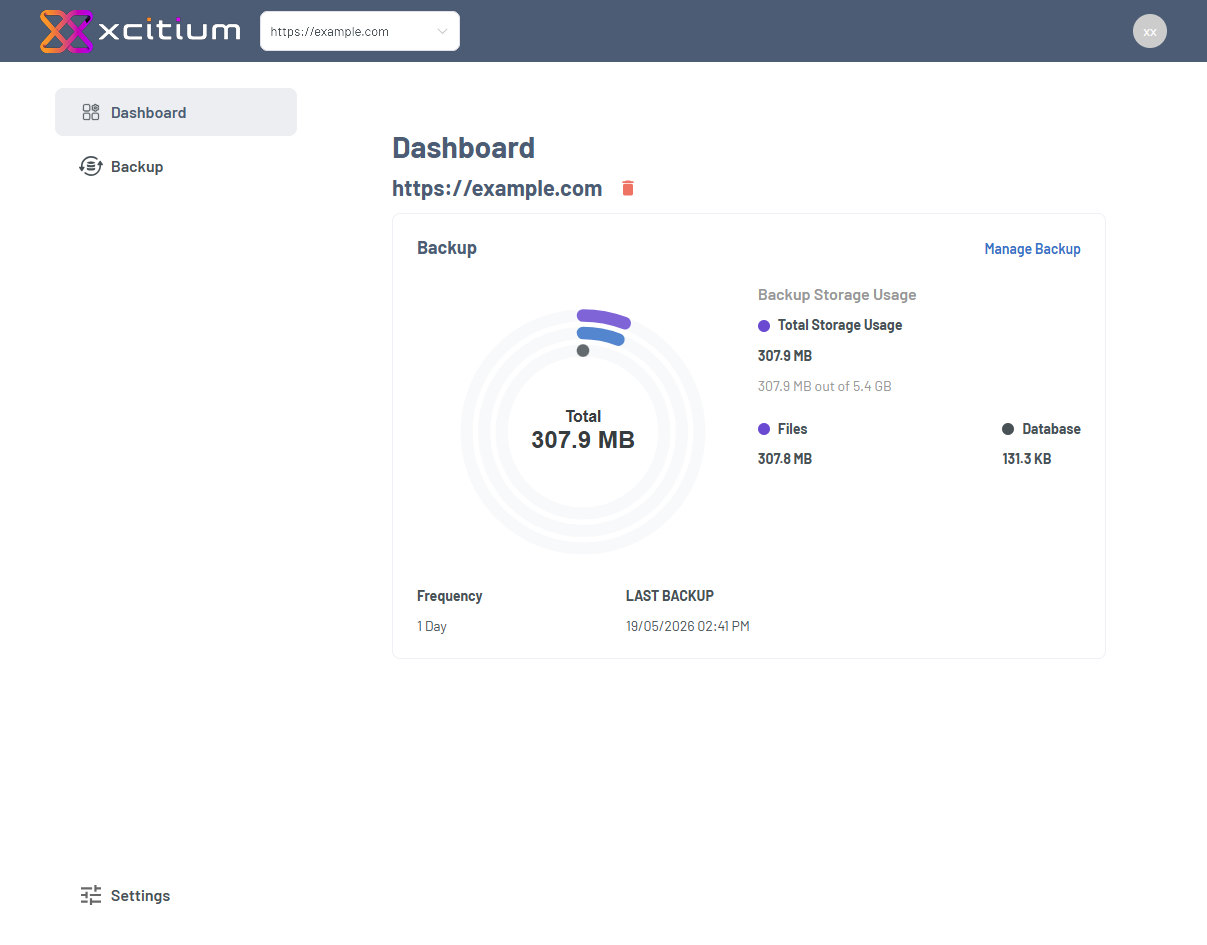
Add a New Site
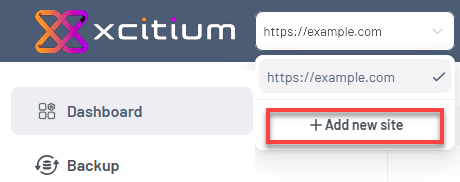
- Go to the Site Selector dropdown.
- Click ➕ Add new site.
- Enter the website domain.
Double-check the domain name to avoid setup errors.
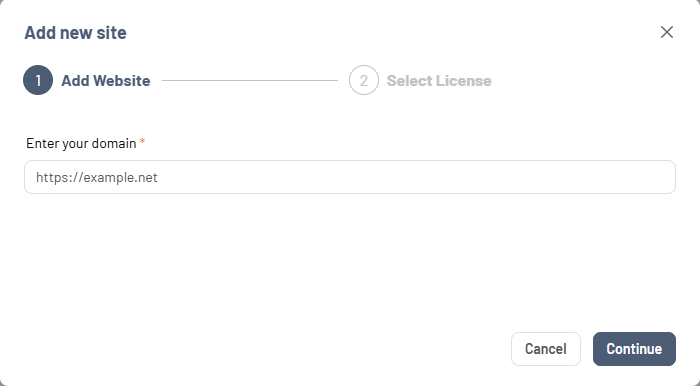
- Click Continue.
- Select a License from the dropdown.
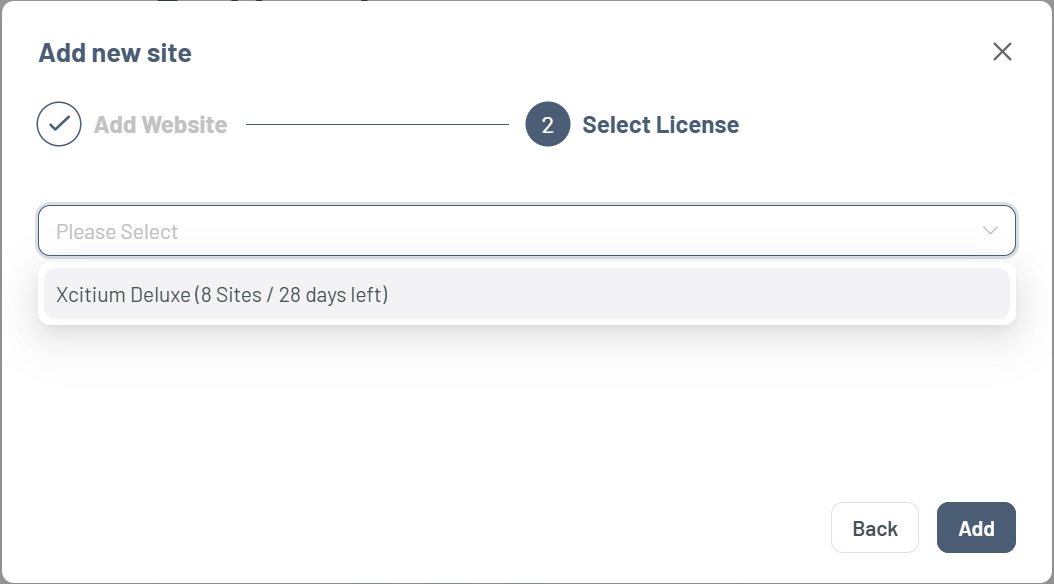
- Click Add.
Complete Setup and Configure Backup Settings
After adding the site:
- Return to the Site Selector dropdown.
- Select the newly added website.
- From the Dashboard, click Backup Settings.
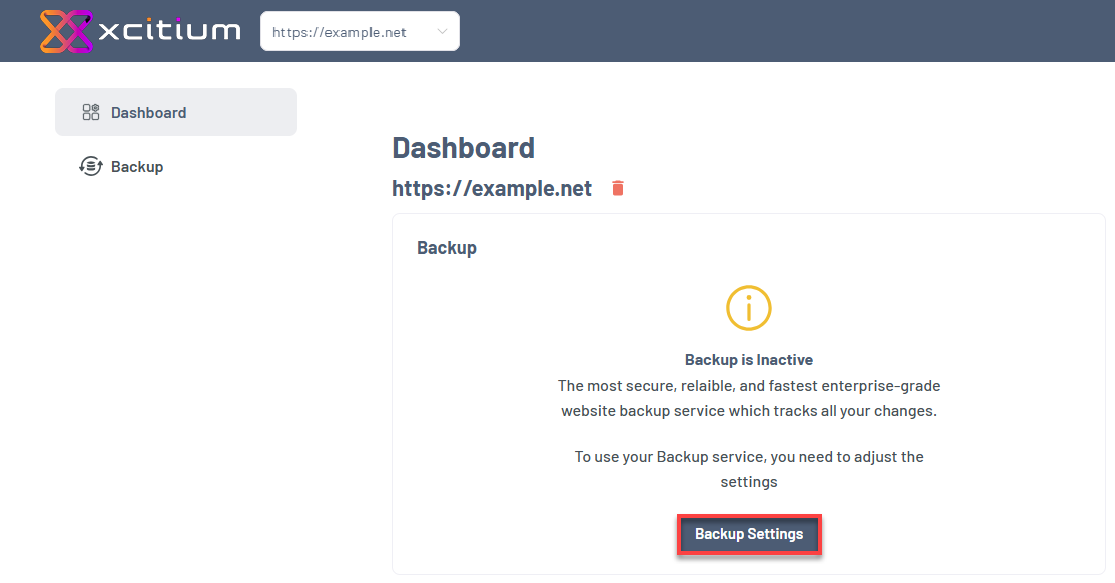
To complete the setup for files, database, and additional configurations, refer to How to Configure Xcitium Backup Settings.
This guide covers:
- File backup configuration (FTP, SFTP, SSH)
- Database setup (MySQL/PostgreSQL)
- Connection testing and troubleshooting
- Advanced configuration options
Summary
Adding a site in Xcitium Backup ensures it is included in your backup system and ready for protection. Once the domain is added, completing the configuration enables proper backups for both files and databases.
Proper setup ensures consistent backups, reliable protection, and quick recovery when needed.
If you need further assistance, Bluehost Chat Support is available 24 hours a day, 7days a week while Bluehost Phone Support is available 7 days a week from 7 am-12 midnight EST.
- Chat Support - While on our website, you should see a CHAT bubble in the bottom right-hand corner of the page. Click anywhere on the bubble to begin a chat session.
- Phone Support -
- US: 888-401-4678
- International: +1 801-765-9400
You may also refer to our Knowledge Base articles to help answer common questions and guide you through various setup, configuration, and troubleshooting steps.