 ChatGPT,
  Claude,
  Gemini,
  Grok — all four for
Bluehost AI Store: Managing Sales Channel Connections
Connecting your Bluehost AI Store to Sales Channels helps you expand your reach and sell products across multiple platforms. By integrating your store with popular sales channels, you can manage products, inventory, and orders from a single dashboard while making your products available to more customers.
This article will guide you through connecting your Bluehost AI Store to supported sales channels.
Benefits of Connecting Sales Channels
When you connect your store to sales channels, you can:
- Reach customers on multiple platforms.
- Synchronize products and inventory across channels.
- Manage orders from a centralized location.
- Increase your store's visibility and sales opportunities.
- Maintain consistent product information across platforms.
How to Connect a Sales Channel
Step 1: Access Sales Channels
- Log in to your Bluehost Portal.
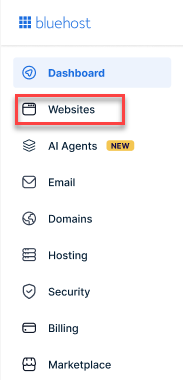
- From the left-hand menu, click the Websites tab.
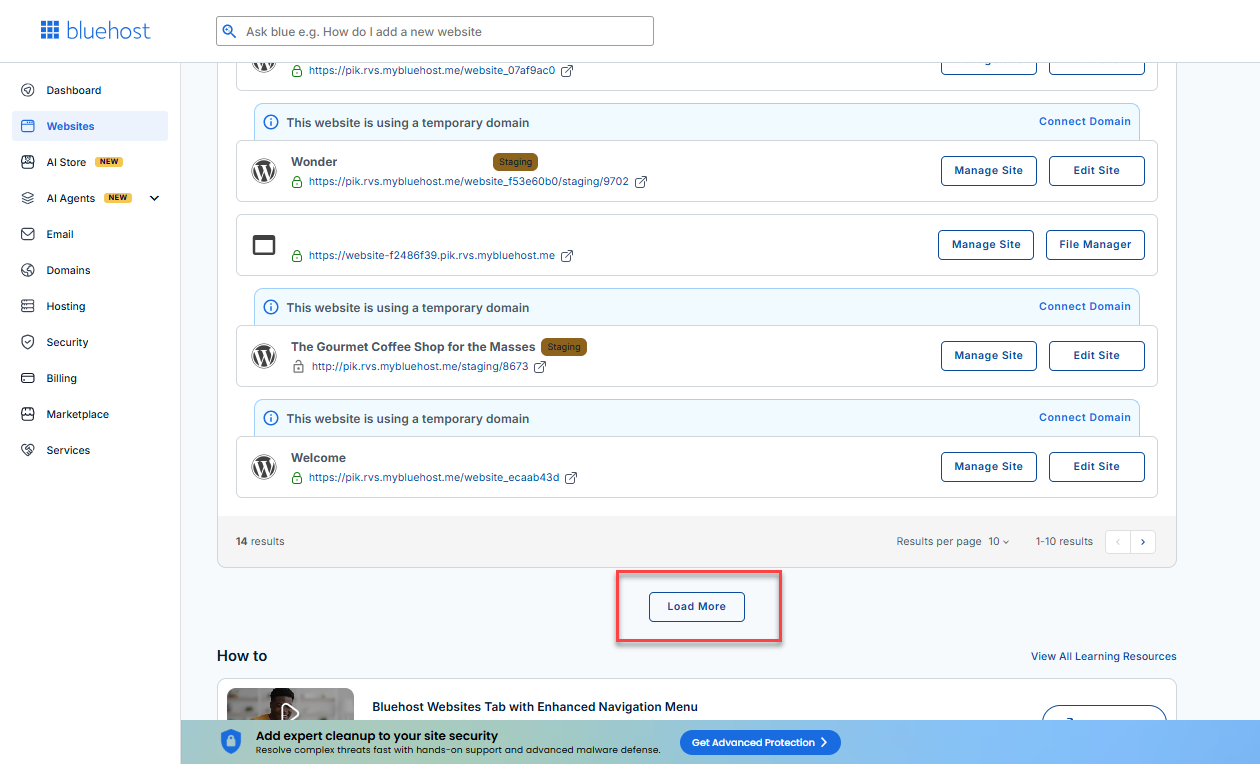
- Locate your Sell Online plan. If you have multiple websites, you need to scroll down and click the Load More link.
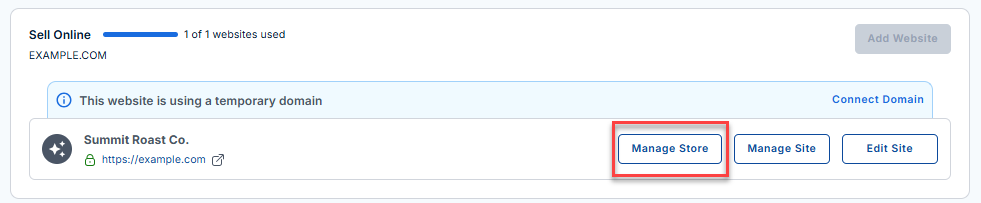
- Click the Manage Store button next to your site.
- You will be redirected to your Bluehost AI Store Dashboard.
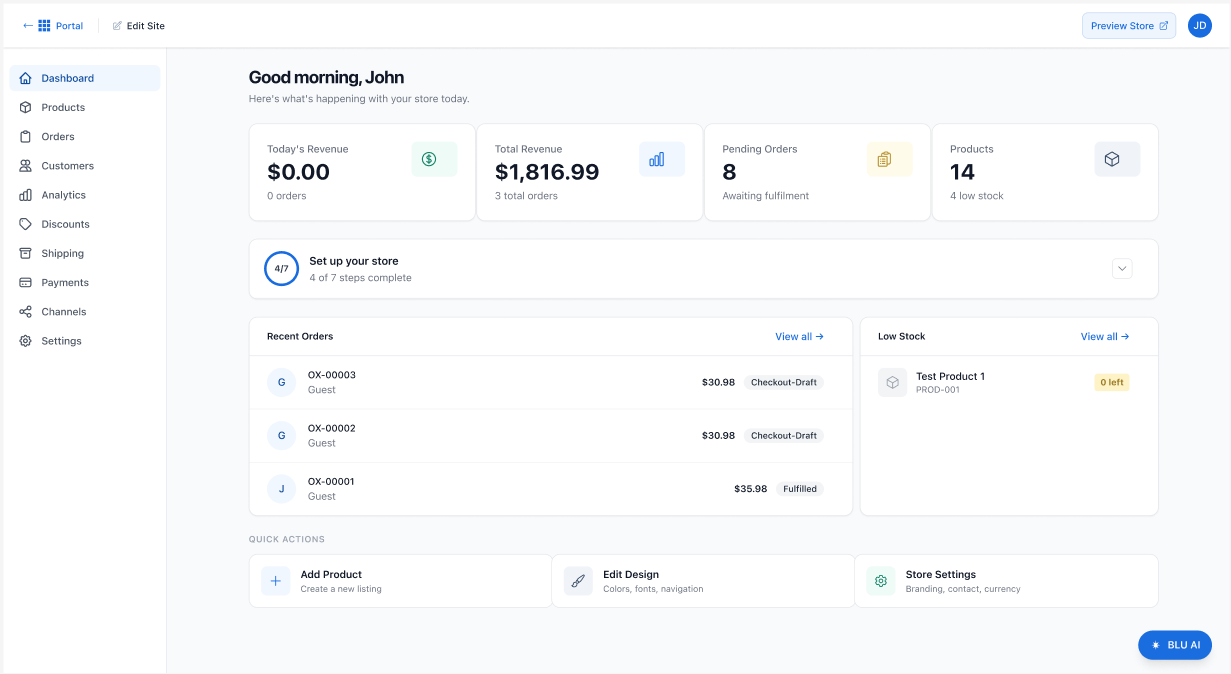
- In the AI Store dashboard, click Channels from the left-hand navigation menu.
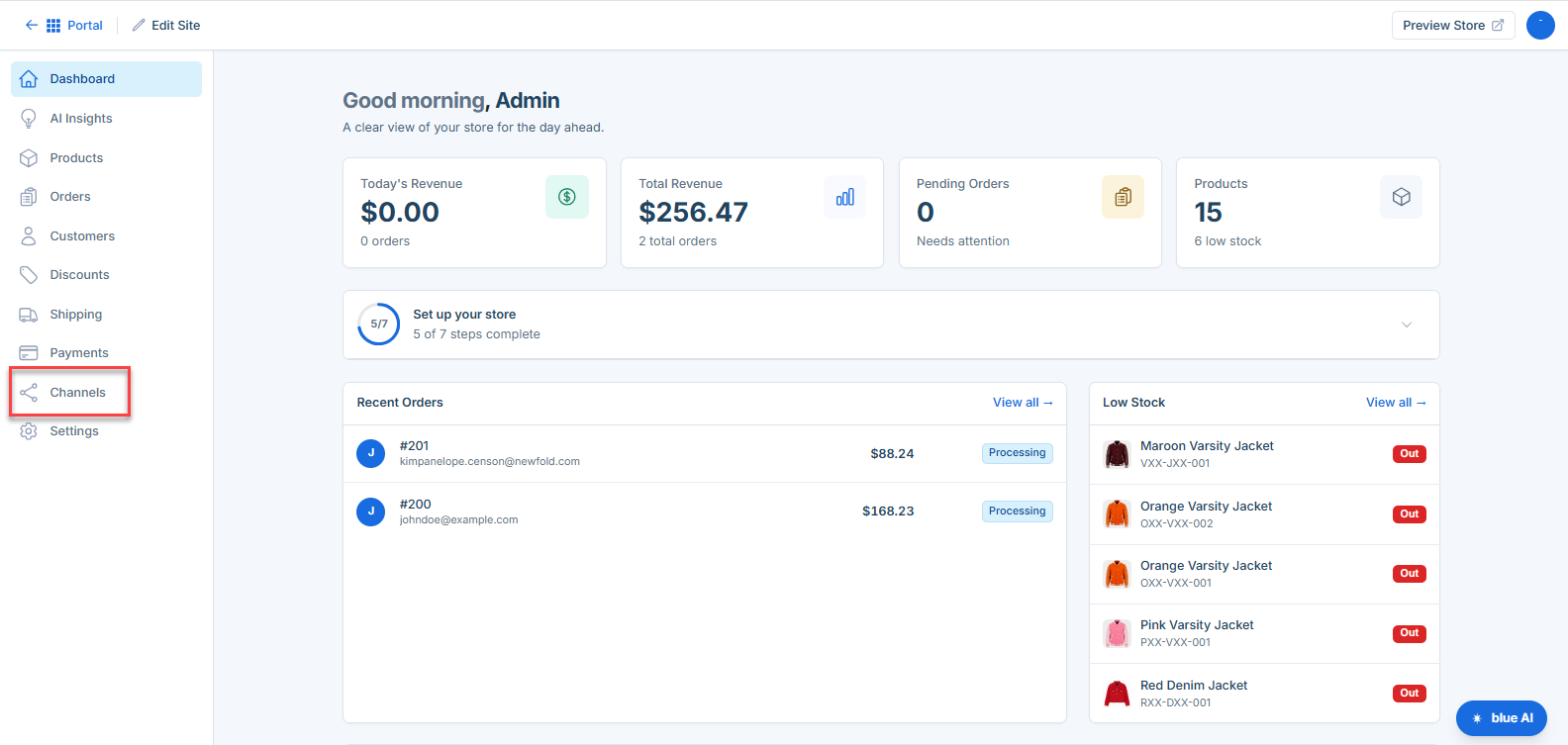
Step 2: Select a Sales Channel
- Browse the list of available sales channels.
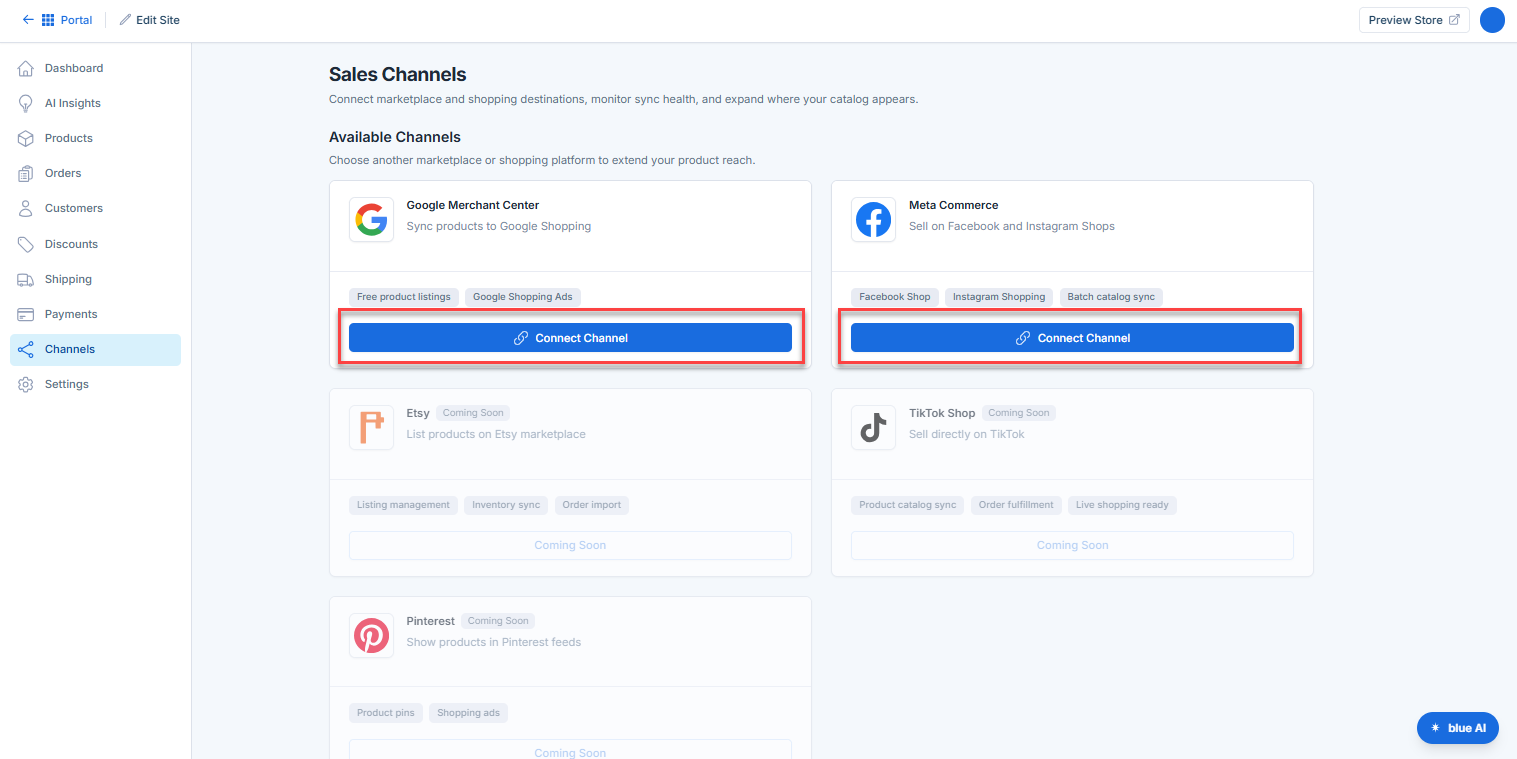
- Locate the channel you want to connect.
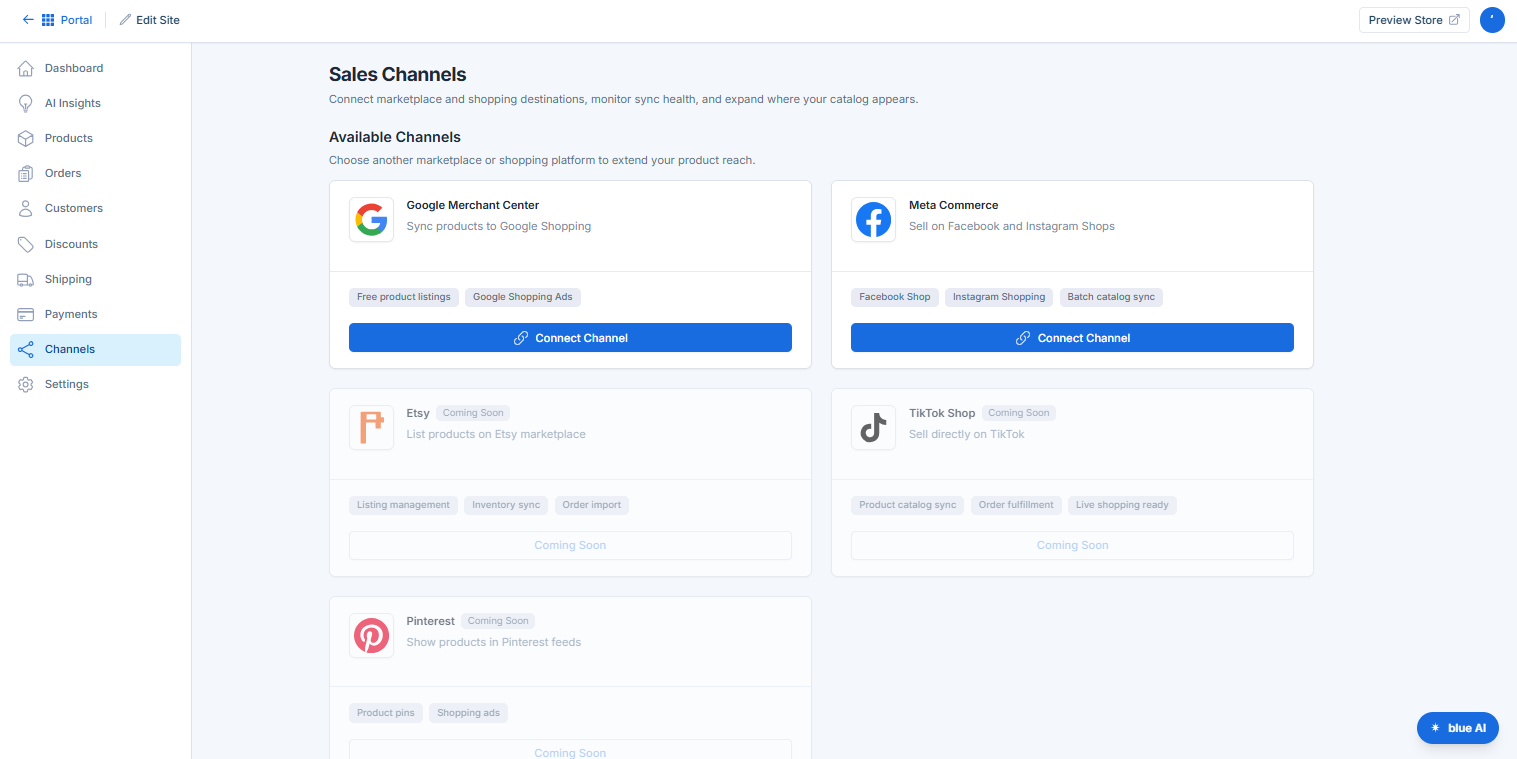
- Click the Connect button next to the channel.
Step 3: Authorize the Connection
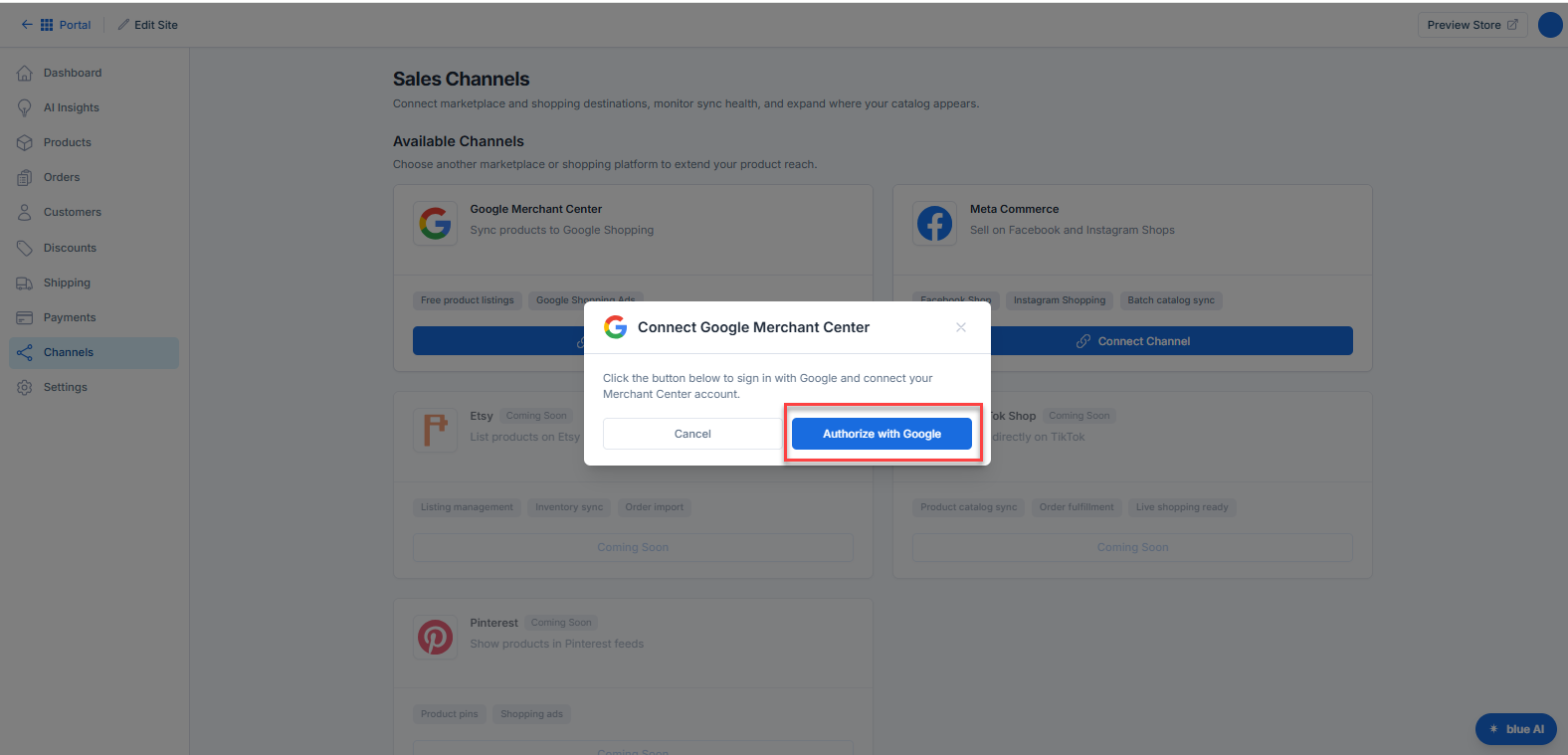
- Sign in to your account for the selected sales channel when prompted.
- Review the permissions requested by the integration.
- Click Authorize to grant access.
Step 4: Complete the Setup
- Follow the on-screen instructions to finish the connection process.
- Configure any required settings, such as:
- Product synchronization
- Inventory management
- Order import preferences
- Shipping settings
- Save your changes.
Once completed, your sales channel will appear as Connected in the Channels section.
Managing Connected Sales Channels
After connecting a sales channel, you can:
- View connection status.
- Sync products and inventory.
- Update channel-specific settings.
- Monitor synchronization activity.
- Disconnect a channel when no longer needed.
To manage a connected channel:
- Navigate to Channels in your AI Store dashboard.
- Select the connected sales channel.
- Update settings as needed.
- Save your changes.
Disconnecting a Sales Channel
If you no longer want to use a sales channel:
- Go to Channels in your AI Store dashboard.
- Select the connected channel.
- Click Disconnect.
- Confirm the action when prompted.
Important: Disconnecting a sales channel may stop product, inventory, and order synchronization between your store and that platform.
Troubleshooting Connection Issues
If you're unable to connect a sales channel:
- Verify that you have administrator access to both accounts.
- Ensure your login credentials are correct.
- Check that any required permissions have been granted.
- Refresh the page and try connecting again.
- Disconnect and reconnect the sales channel if synchronization issues occur.
Summary
Connecting your Bluehost AI Store to Sales Channels makes it easier to reach more customers while managing products, inventory, and orders from a single dashboard. By keeping your sales channels connected and synchronized, you can streamline operations, maintain accurate product information, and grow your online presence across multiple platforms.
If you need further assistance, Bluehost Chat Support is available 24 hours a day, 7days a week while Bluehost Phone Support is available 7 days a week from 7 am-12 midnight EST.
- Chat Support - While on our website, you should see a CHAT bubble in the bottom right-hand corner of the page. Click anywhere on the bubble to begin a chat session.
- Phone Support -
- US: 888-401-4678
- International: +1 801-765-9400
You may also refer to our Knowledge Base articles to help answer common questions and guide you through various setup, configuration, and troubleshooting steps.