 ChatGPT,
  Claude,
  Gemini,
  Grok — all four for
 Bluehost AI Store: Channels Tab
The Bluehost AI Store is a dashboard for managing your online store, where you can control products, orders, customers, payments, shipping, and settings in one place.
In this article, we will discuss the Channels tab in the AI Store Dashboard. The Channels tab allows merchants to connect and manage their sales and marketing platforms from a single location. By linking to popular marketplaces, they can increase product visibility, keep catalog data up-to-date, check feed performances, and monitor the health of their connections.
Channels Tab Overview
Linking sales channels enable merchants to obtain clear business results.
- Connected Channels – Number of active marketplace integrations.
- Sync Performance – Products successfully synced across channels.
- Product Status – Approved and pending products await review.
- Issue Monitoring – Products with sync errors or channel issues.
- Catalog Visibility – Product distribution across connected marketplaces.
Key Features of the Channels Tab
- Channel Integration Management - Manage all marketplace and shopping channel connections from one dashboard.
- Sync Status Monitoring - Check real-time metrics for different sync statuses across channels.
- Connection Health Tracking - Keep an eye on connection status and sync activity.
- Quick Reconnect Actions - Easily restore disconnected channels and update sync status.
- Marketplace Expansion - Add new sales channels to boost product visibility.
- Issue Detection and Resolution - Spot and fix sync errors to keep the catalog accurate.
- Centralized Channel Dashboard - Oversee all channel activities and insights in one place.
How to Access the Channels Tab
- Log in to your Bluehost Portal.
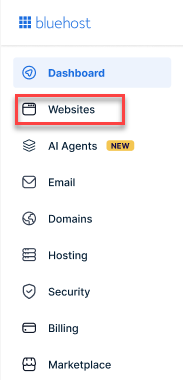
- From the left-hand menu, click the Websites tab.
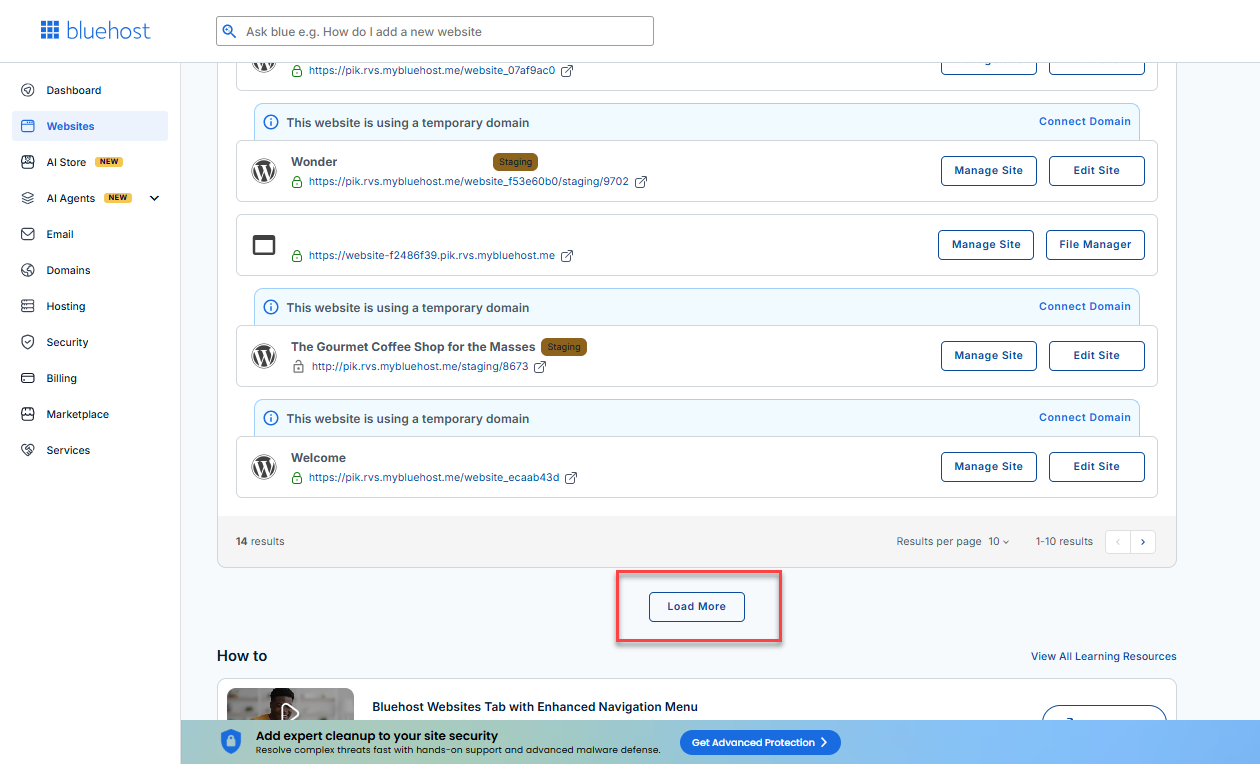
- Locate your Sell Online plan. If you have multiple websites, you need to scroll down and click the Load More link.
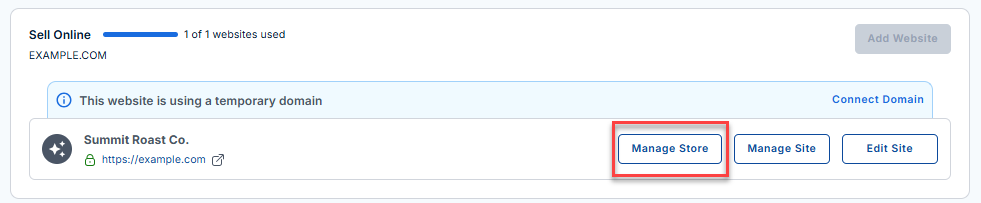
- Click the Manage Store button next to your site.
- You will be redirected to your Bluehost AI Store Dashboard.
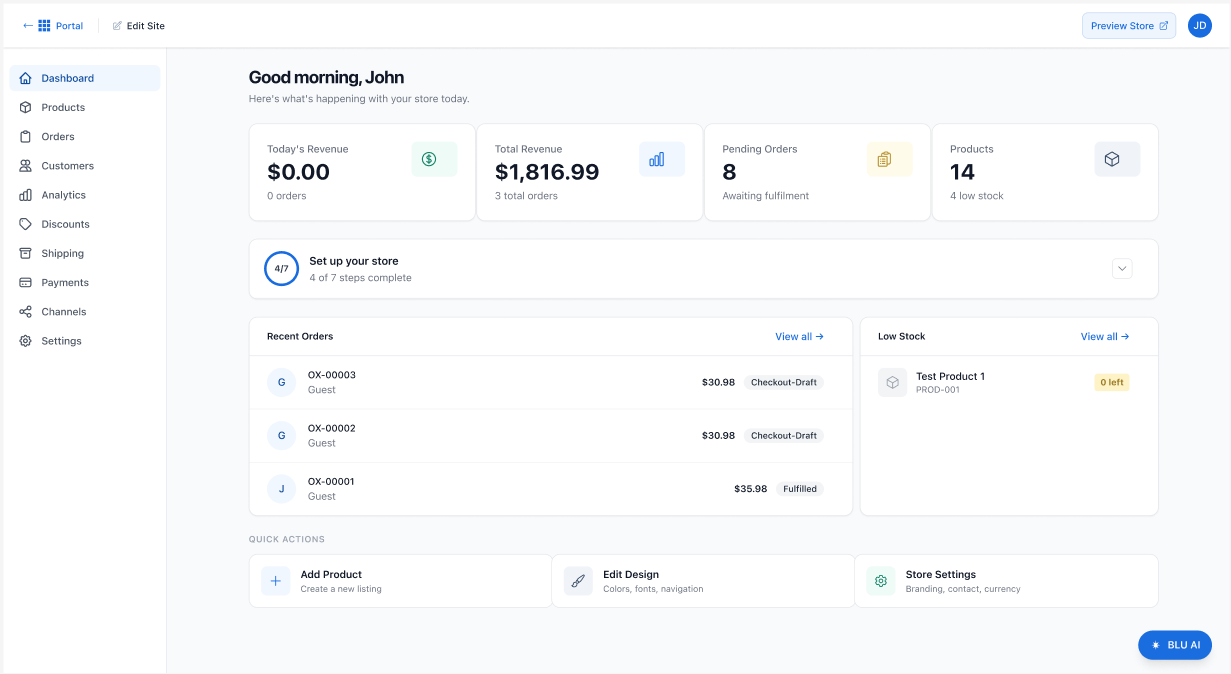
- In the dashboard, click Channels in the left menu.
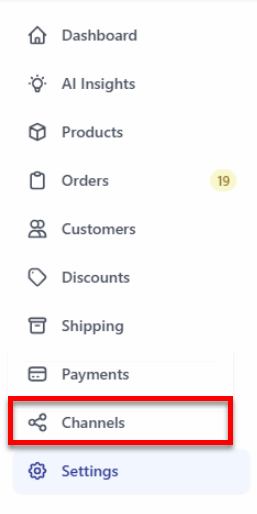
- Under the Channels tab, the following sections will be displayed:
- Connected Channels
- Add More Channels
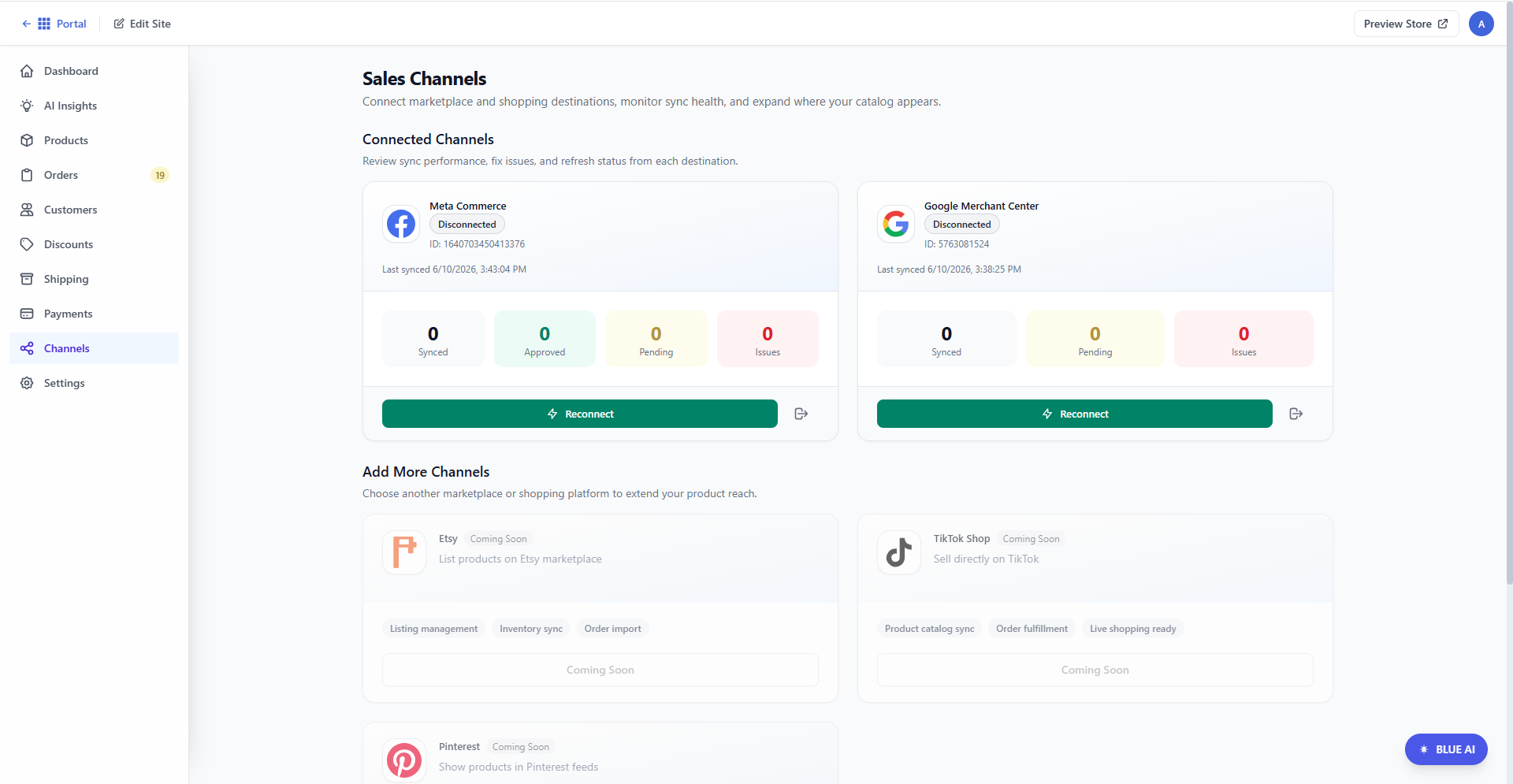
For detailed instructions on how to access the AI Store dashboard, please visit the Bluehost AI Store: Accessing the Bluehost AI Store article.
Connected Channels
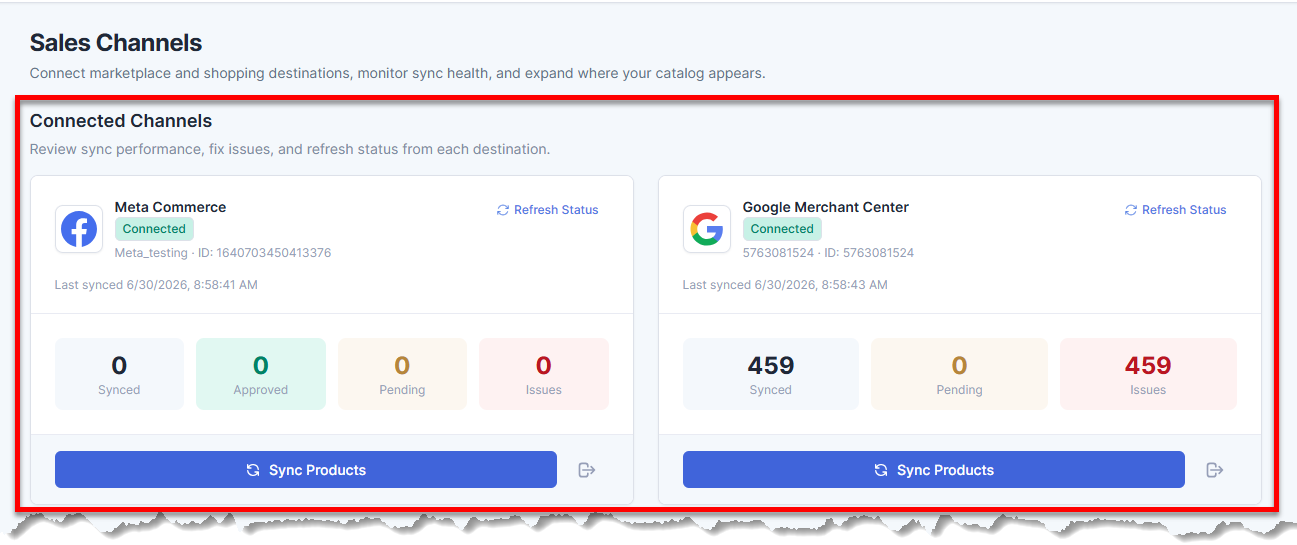
The Connected Channels section displays all active marketplace integrations and their current status.
Each channel card includes:
- Channel name and logo
- Integrated status (Connected or Disconnected)
- Mechant ID
- Most recent sync date and time.
Add More Channels
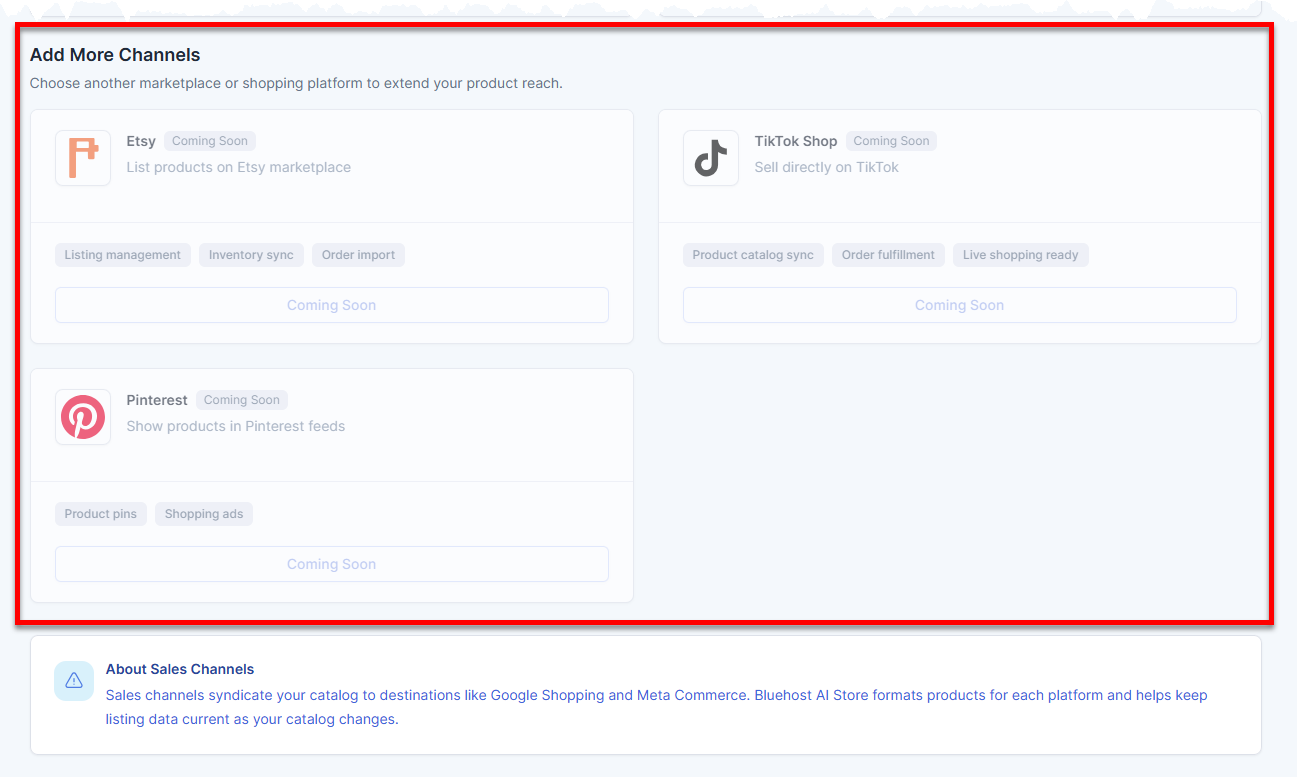
In the Add More Channels section, you can select another marketplace or shopping platform to expand the reach of your products.
Summary
The Channels tab of the Bluehost AI Store enables merchants to connect and manage their sales and marketing platforms from one dashboard. By linking to supported marketplaces, they can enhance product visibility, keep catalog data updated, and track performance and connection health, making it easier for merchants to handle marketplace integrations and reach more sales channels.
If you need further assistance, Bluehost Chat Support is available 24 hours a day, 7days a week while Bluehost Phone Support is available 7 days a week from 7 am-12 midnight EST.
- Chat Support - While on our website, you should see a CHAT bubble in the bottom right-hand corner of the page. Click anywhere on the bubble to begin a chat session.
- Phone Support -
- US: 888-401-4678
- International: +1 801-765-9400
You may also refer to our Knowledge Base articles to help answer common questions and guide you through various setup, configuration, and troubleshooting steps.