 ChatGPT,
  Claude,
  Gemini,
  Grok — all four for
 Power your Langflow connections directly using the AI Credits balance tied to your Bluehost account. This allows you to call supported models instantly using one Bluehost-issued key, instead of creating a separate provider account and API key for each model.
This article assumes you already have Langflow running on a Bluehost Self-Managed VPS or Virtual Dedicated Server (VDS).
If you haven't installed Langflow yet, see:
- Purchase a Self-Managed VPS with Langflow Installation
- Purchase a Virtual Dedicated Server with Langflow Installation
Important — Before You Start
Ensure you have the following prerequisites ready:
- Langflow Instance: Up and running with initial setup complete (superuser login functional).
- Access Level: Admin access to your Langflow dashboard.
- Bluehost Account: An active account with an available AI credit balance.
Note: You will need an AI Credits API key and gateway endpoint. If you haven't created a key yet, see How to Create and Manage API Keys. For an overview of how the system works, see Understanding AI Credits.
Connect Bluehost AI Credits to Langflow
AI Credits let you call supported models through Bluehost without creating a separate account with each model provider. Usage is deducted from your existing AI credit balance instead of being billed by the provider directly.
First Time Setup
Follow these steps to connect to your VPS or VDS, log in to Langflow for the first time, and configure your AI Credits key as a model provider.
- Log in to your Bluehost Portal.
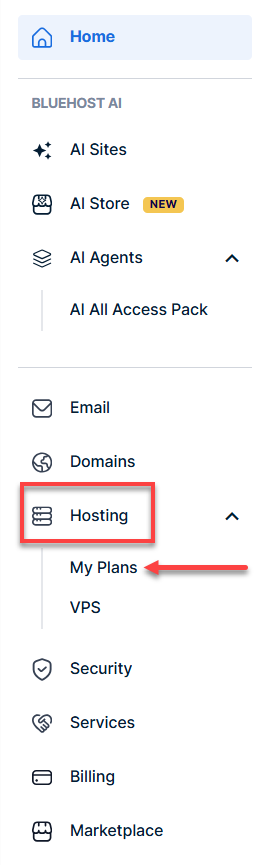
- In the left-hand menu, click Hosting, then select My Plans.
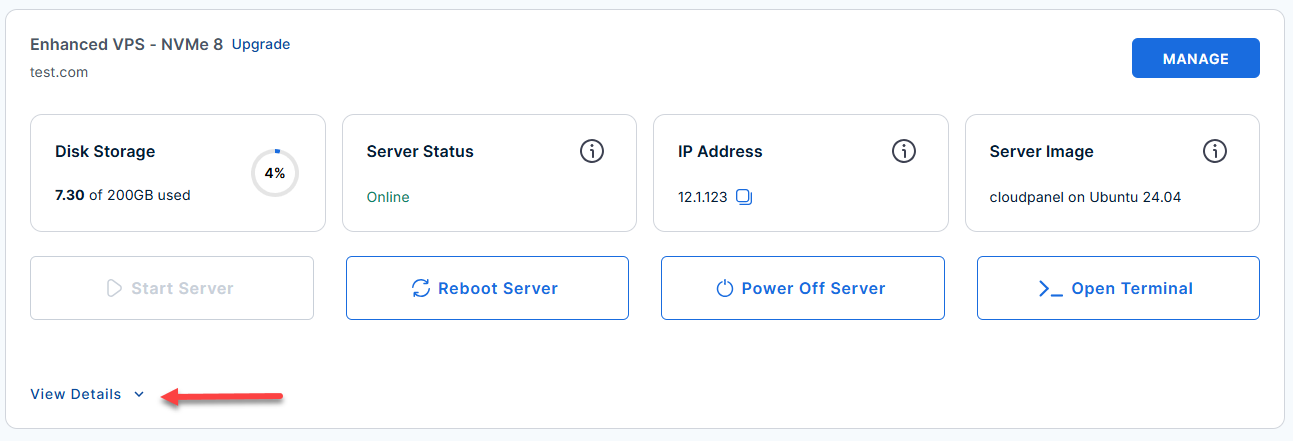
- Locate the server you want to manage, then click View Details in the bottom-left corner to expand the section and access additional server information.
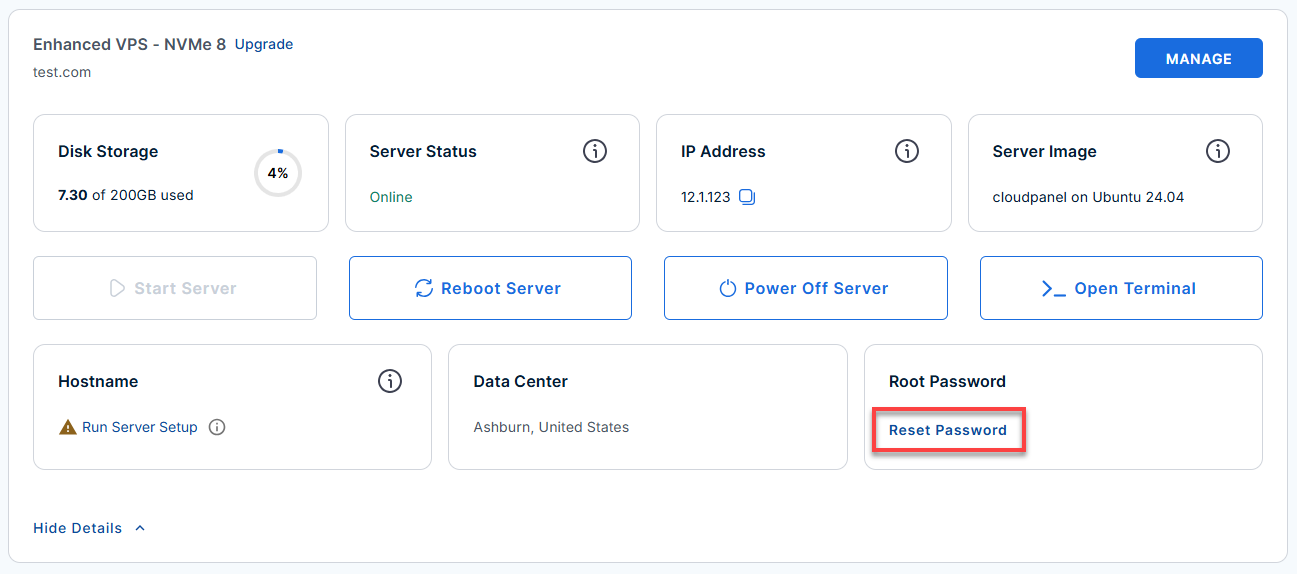
- Click the Reset Password.
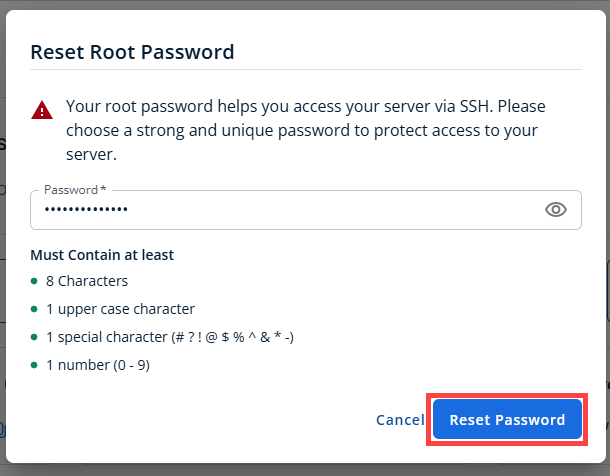
- In the pop-up window, type your new root password, then click Reset Password again to confirm and save the changes.
- Connect to your VPS via SSH.
Use your VPS IP and credentials with an SSH client, follow the prompts, and enter your root password when asked:Important: Replace
your_server_ipwith your actual server IP address.ssh root@your_server_ipTip: To quickly view your saved passwords or API credentials, run:
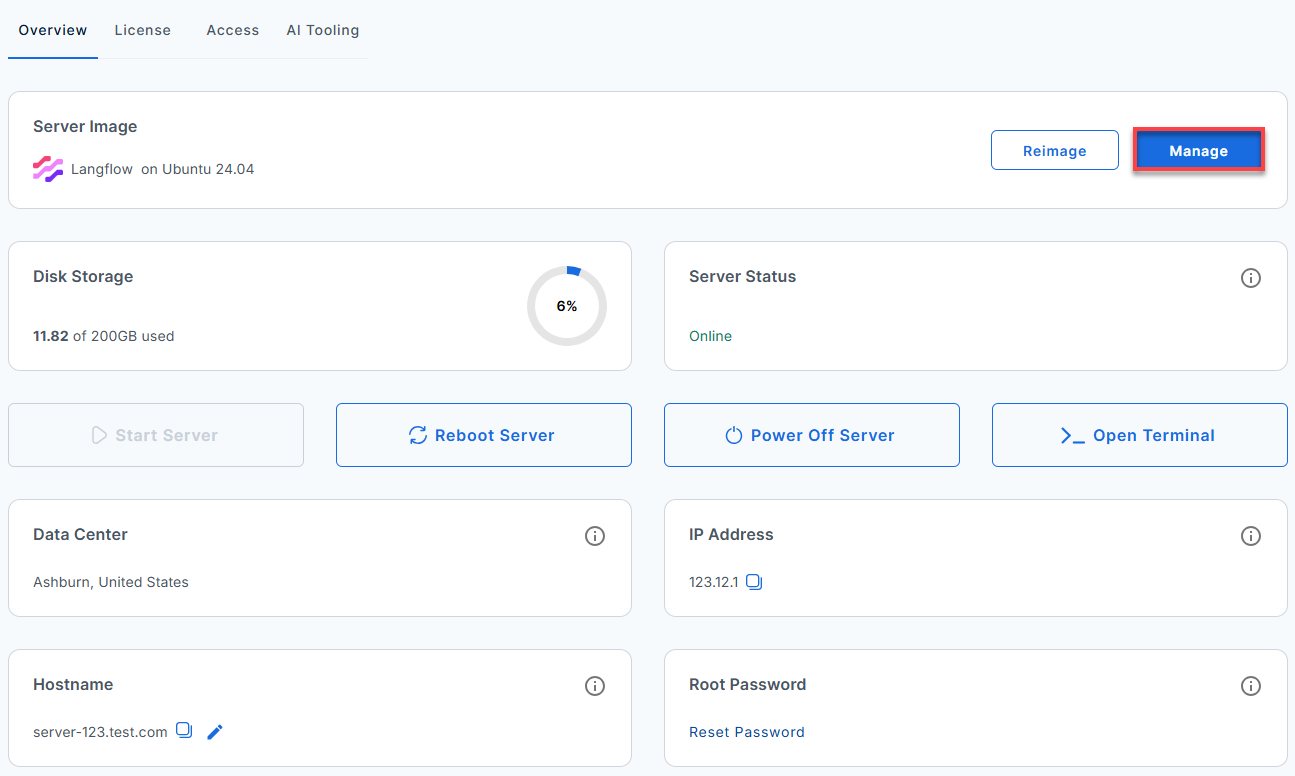
cat /root/.app_secrets - Click the Manage button.
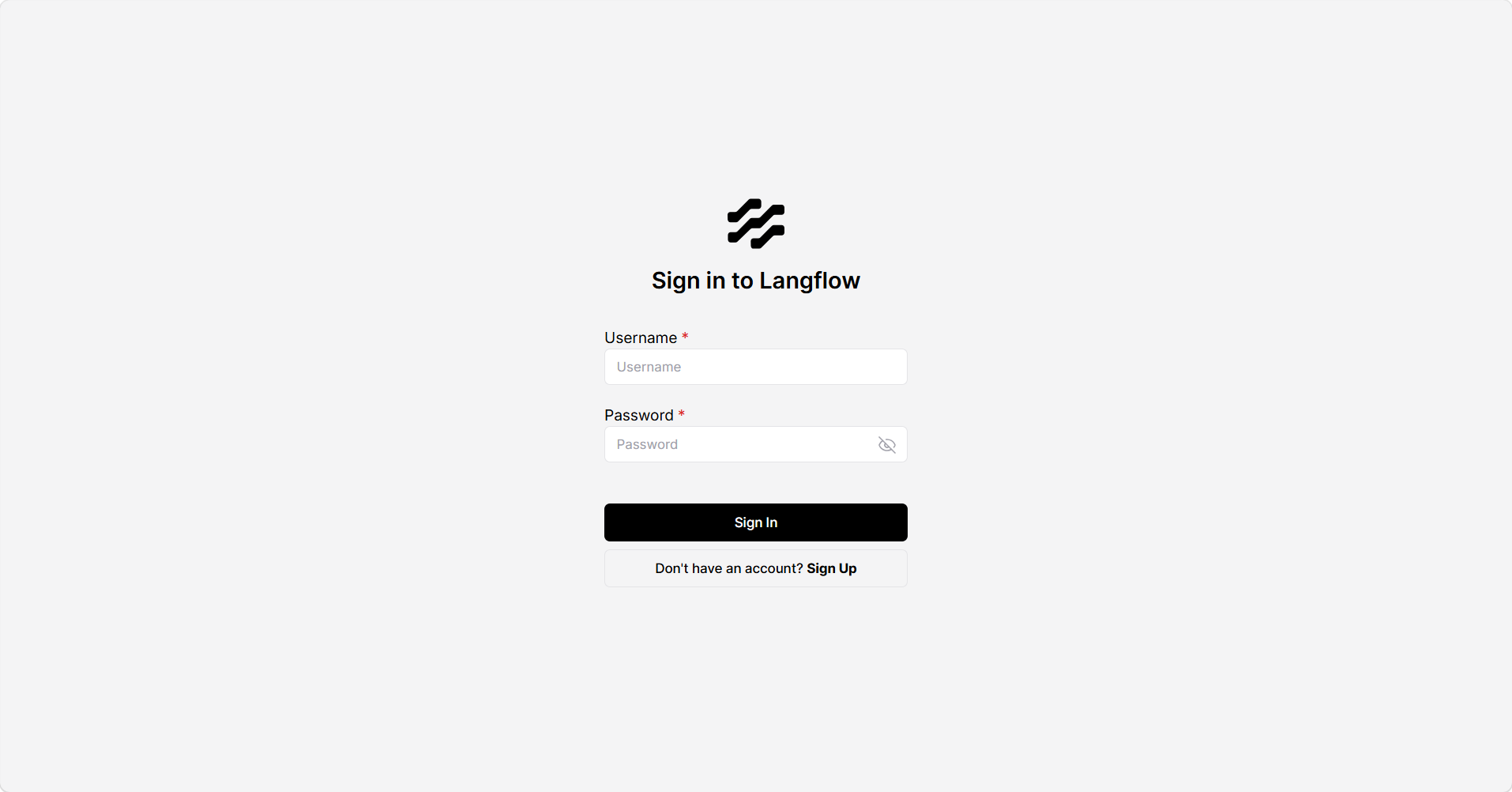
- Log in to your Langflow dashboard.
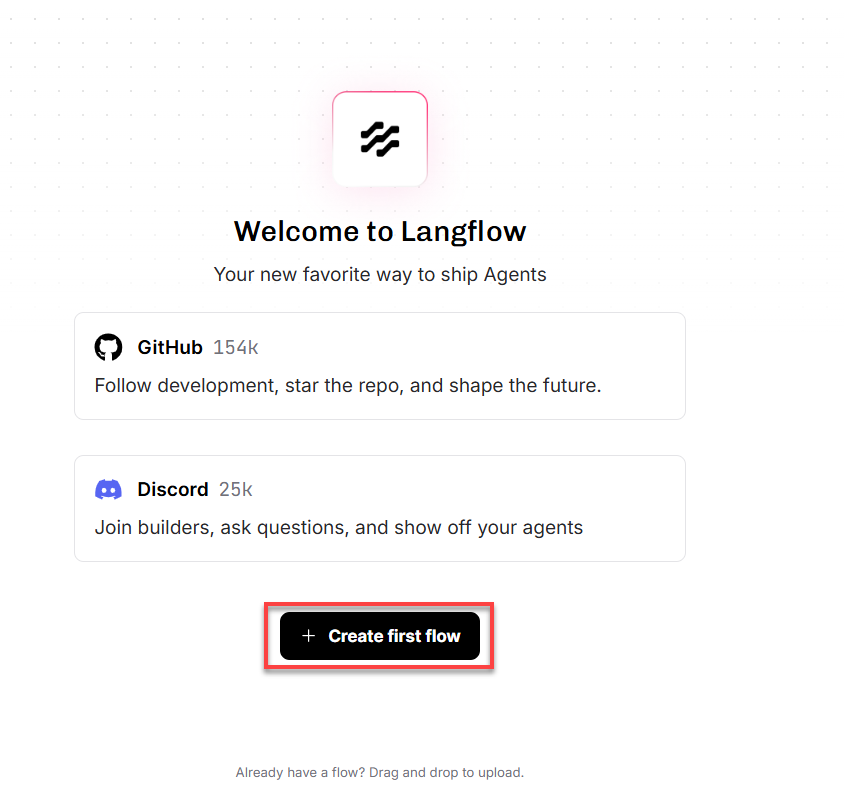
- Click + Create first flow to open your workspace.
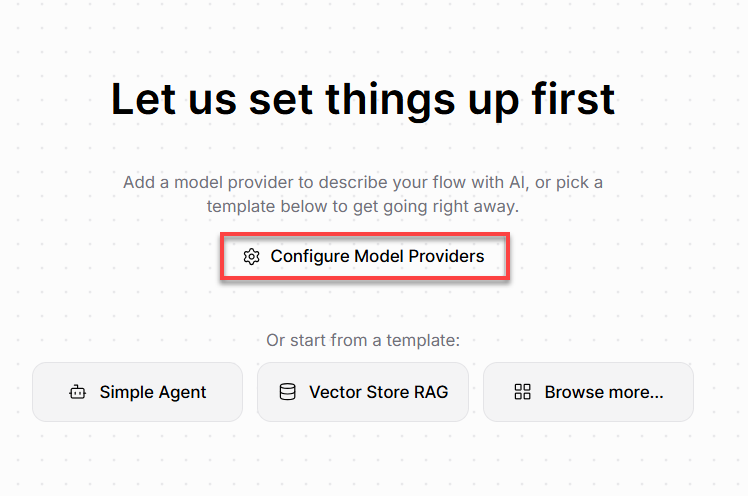
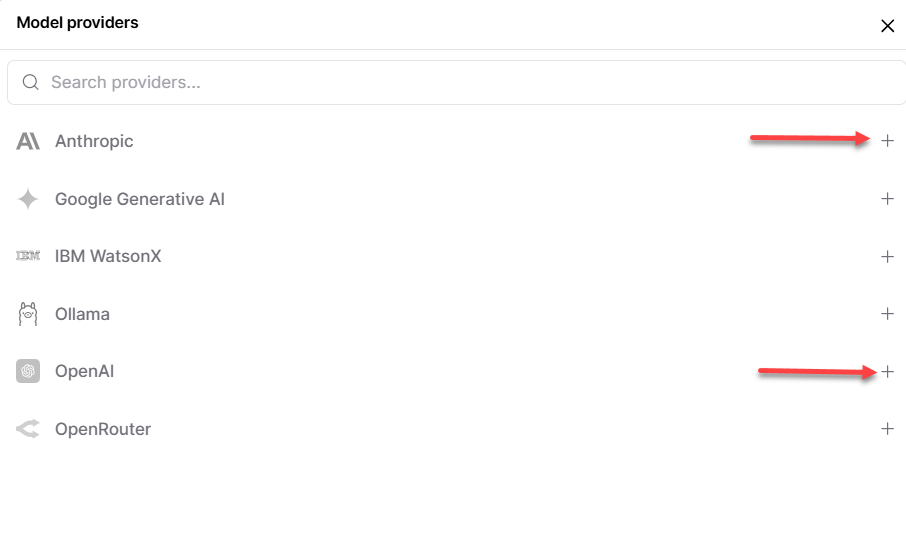
- Click Configure Model Providers in the center of your screen.
- Click the + icon next to OpenAI (or OpenRouter) in the list.
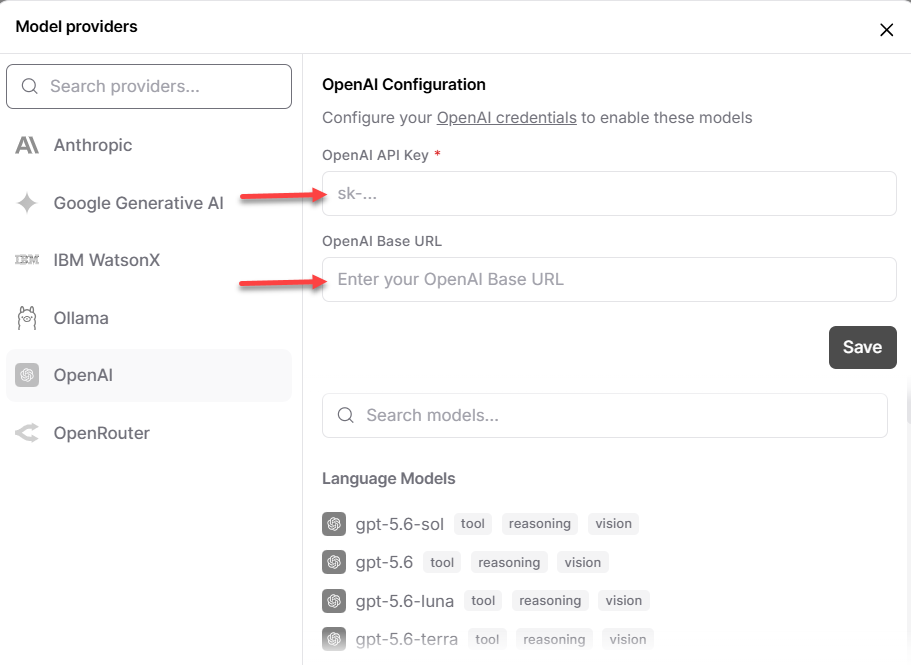
- Paste your AI Credits key into the OpenAI API Key field.
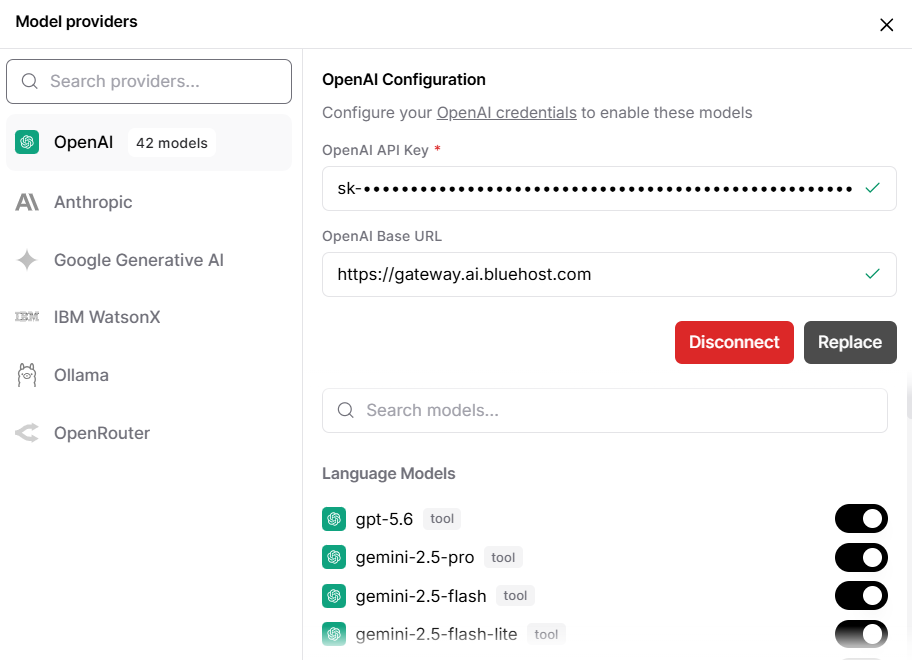
- Your OpenAI provider connection is now configured and active, with the available models ready to use.
Adding AI Credits to an Existing Langflow Install
If Langflow is already configured with a different provider and you want to add AI Credits (or switch to it) without repeating full setup, edit Langflow's configuration file directly.
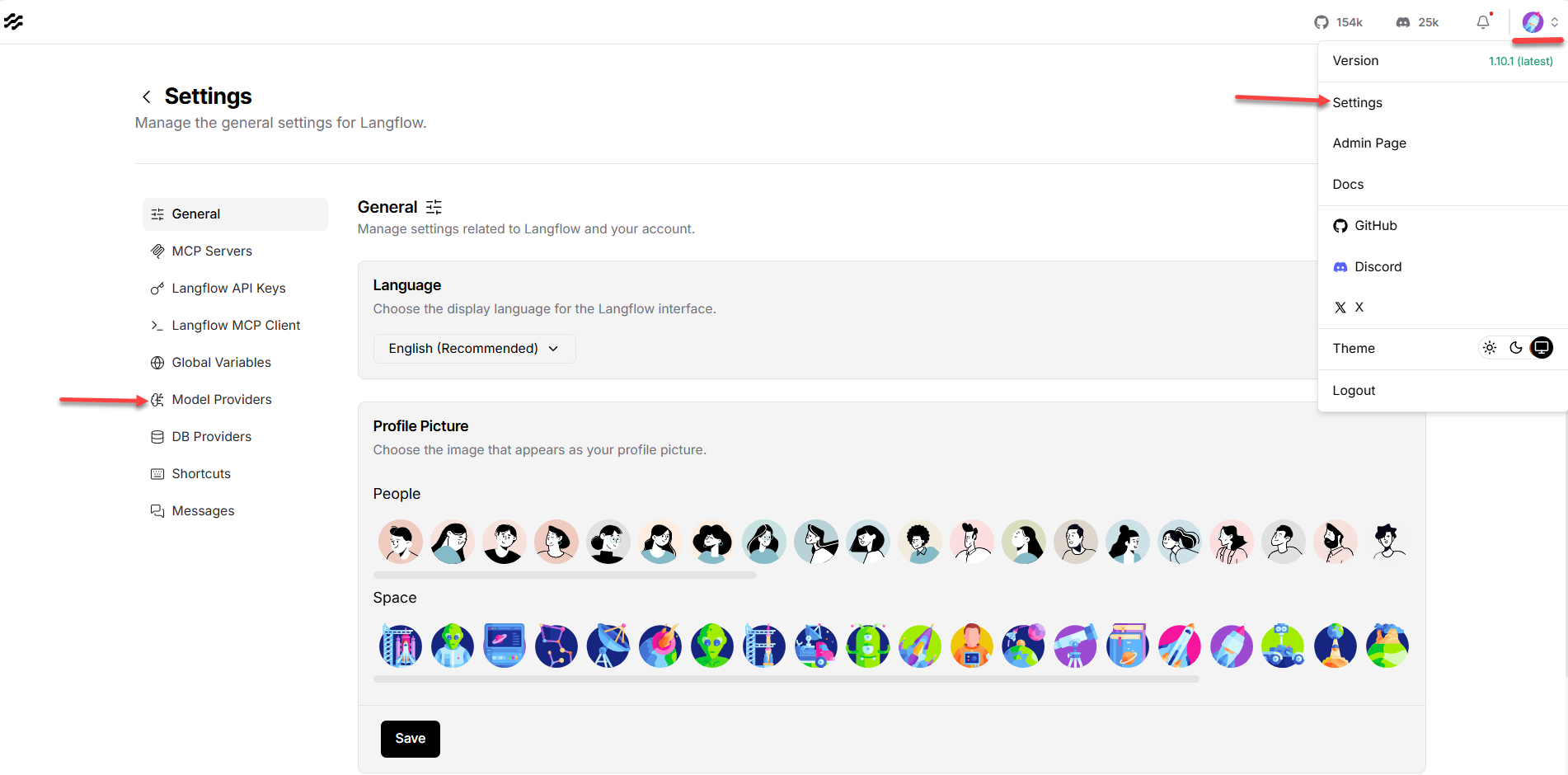
- On your Langflow dashboard and go to your profile icon > Settings > Model Providers.
- Select the OpenAI option from the list of providers (or choose the generic/OpenAI-compatible provider option if AI Credits isn't listed as a named provider in your version of Langflow).
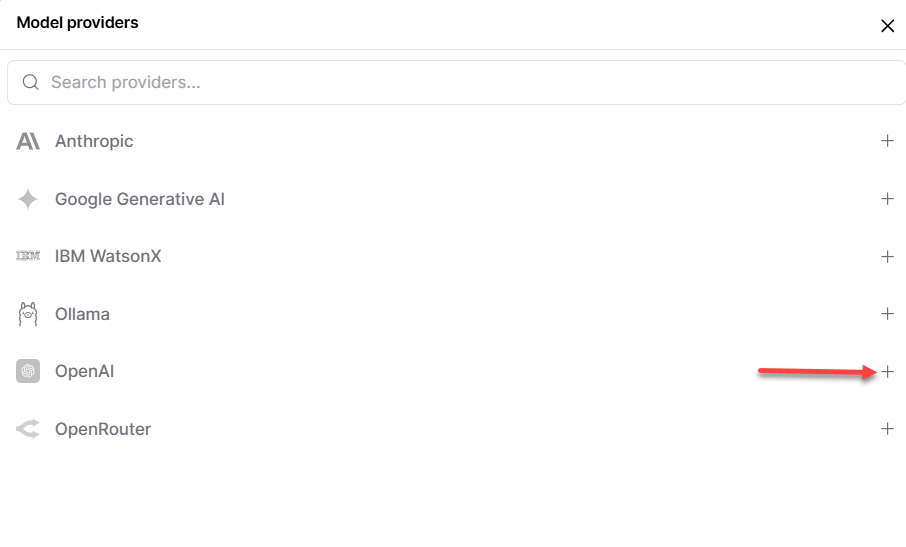
- Paste your AI Credits key into the API Key field. If a Base URL field is present, enter the endpoint provided in your Bluehost Portal AI Credits section.
- Click Save, then enable the specific models you want available in your flows.
- Add a Language Model or Agent component to a flow, and select your AI Credits connection from the Model Provider dropdown to use it.
Test Your Connection
Once a connection is configured (AI Credits or a third-party provider), confirm it works before building a larger flow:
- Create a new flow, or open the Basic Prompting template from the template gallery.
- Add Chat Input and Chat Output components, and a Language Model (or Agent) component.
- Connect Chat Input to the Language Model component's input, and connect the Language Model component's output to Chat Output.
- In the Language Model component, select the connection you just configured and choose an enabled model.
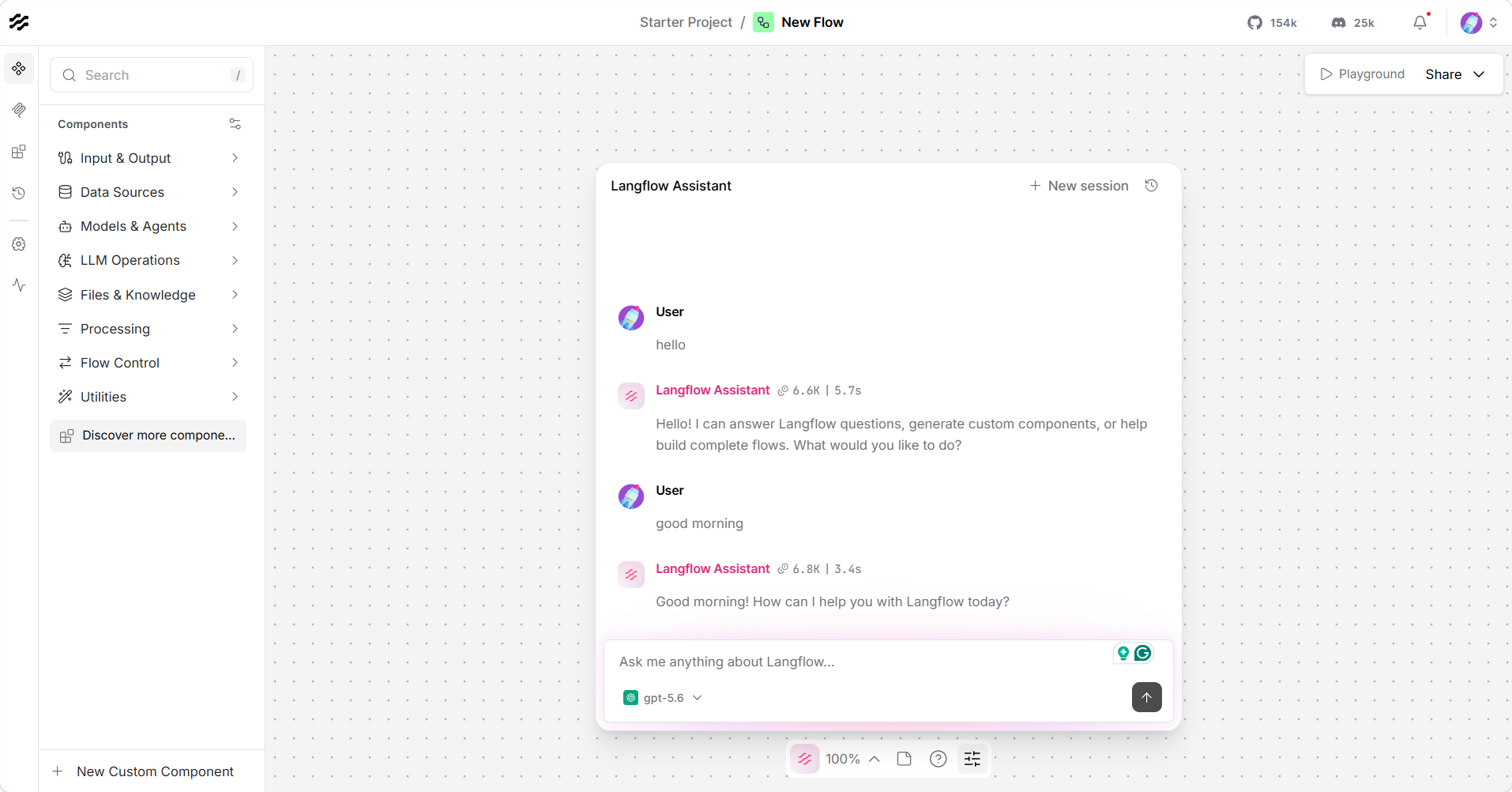
- Open the Playground and send a test message, such as "Hello?"
- If you get a response, the connection is working.
Troubleshooting
If your connection test doesn't work as expected, use the table below to identify the likely cause and next steps.
| Issue | Likely Cause | What to Check |
|---|---|---|
| "Insufficient credits" or similar error | AI credit balance is depleted | Check your balance in the Bluehost Portal and add more credits |
| "Invalid API key" error | Key was mistyped, expired, or revoked | Re-copy the key from the provider (or the Bluehost Portal for AI Credits) and re-enter it |
| Model doesn't appear in the dropdown | Model isn't enabled, or your key doesn't have access to it | Return to Model Providers settings and confirm the model is enabled for that key |
| Ollama connection fails | Ollama isn't running, or the base URL is wrong | Confirm Ollama is running on the server and that the base URL and port match your setup |
| Flow runs but returns no output | Components aren't connected correctly | Confirm Chat Input → Language Model → Chat Output are linked, and that a model is selected |
Summary
Langflow can run using AI Credits tied to your Bluehost account. AI Credits are the faster path if you want to start building without creating a separate provider account. Once a connection is configured in Model Providers, test it with a simple Chat Input → Language Model → Chat Output flow in the Playground before building anything more complex.