 ChatGPT,
  Claude,
  Gemini,
  Grok — all four for
How to Export and Import Chat Memory in Bluehost AI All-Access Pack
Chat memory helps Bluehost AI remember information from your interactions so you can have a more personalized experience. If you are switching AI providers or want to keep a copy of your Bluehost AI memory, you can use the export and import chat memory features in Bluehost AI All-Access Pack.
You can import memory from another AI provider into Bluehost AI or export your existing Bluehost AI memory. Follow the steps below to manage your chat memory.
Note: Bluehost AI All-Access Pack is a paid add-on. For current pricing and plan details, visit the Bluehost website.
How to Import Chat Memory
You can import memory from another AI provider into Bluehost AI All-Access Pack.
- Log in to your Bluehost Portal.
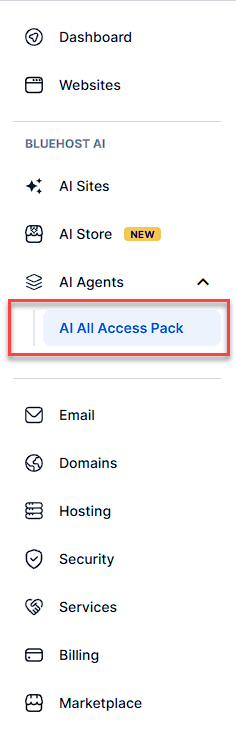
- From the left-hand menu, under the AI Agents tab, click AI All-Access Pack.
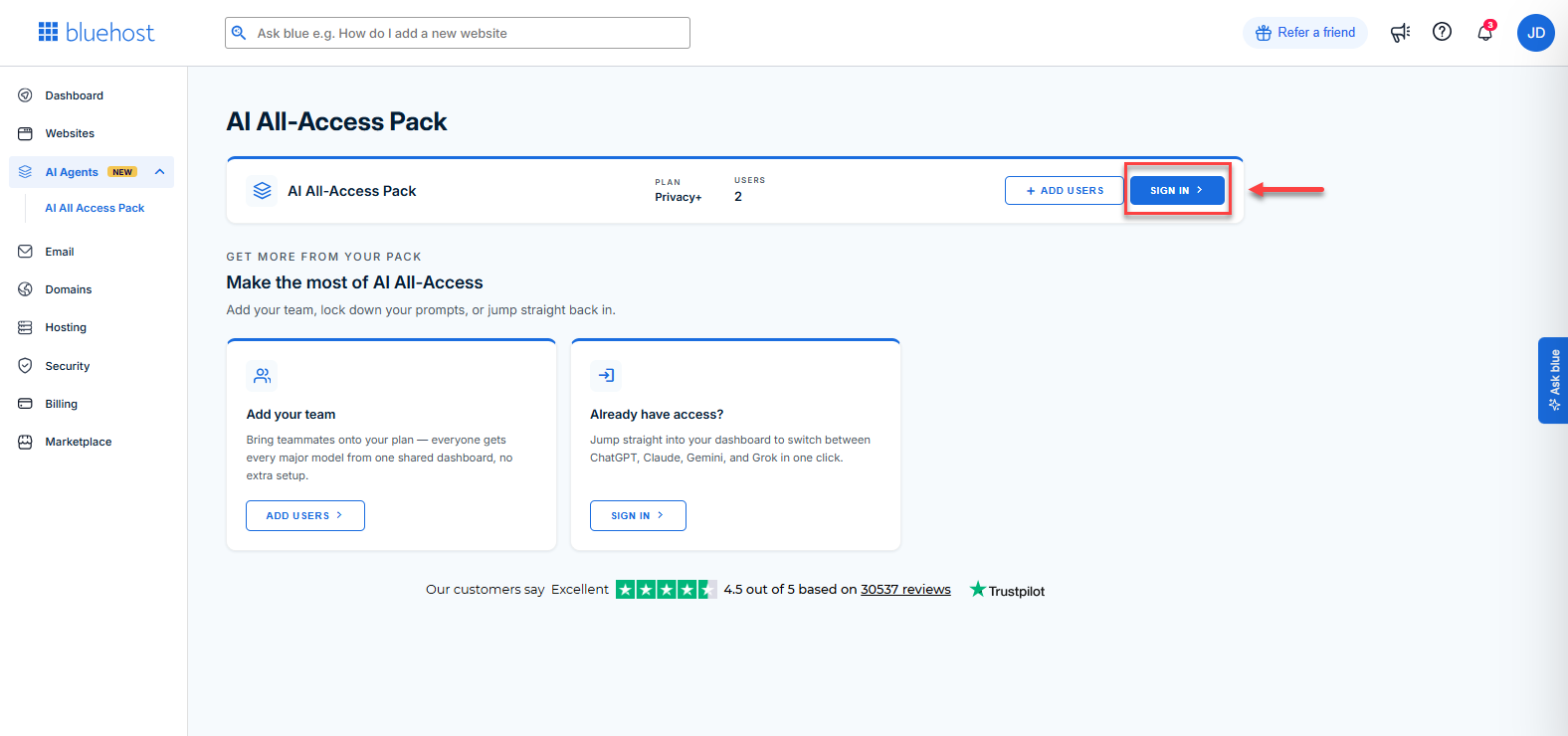
- Click the Sign In button.
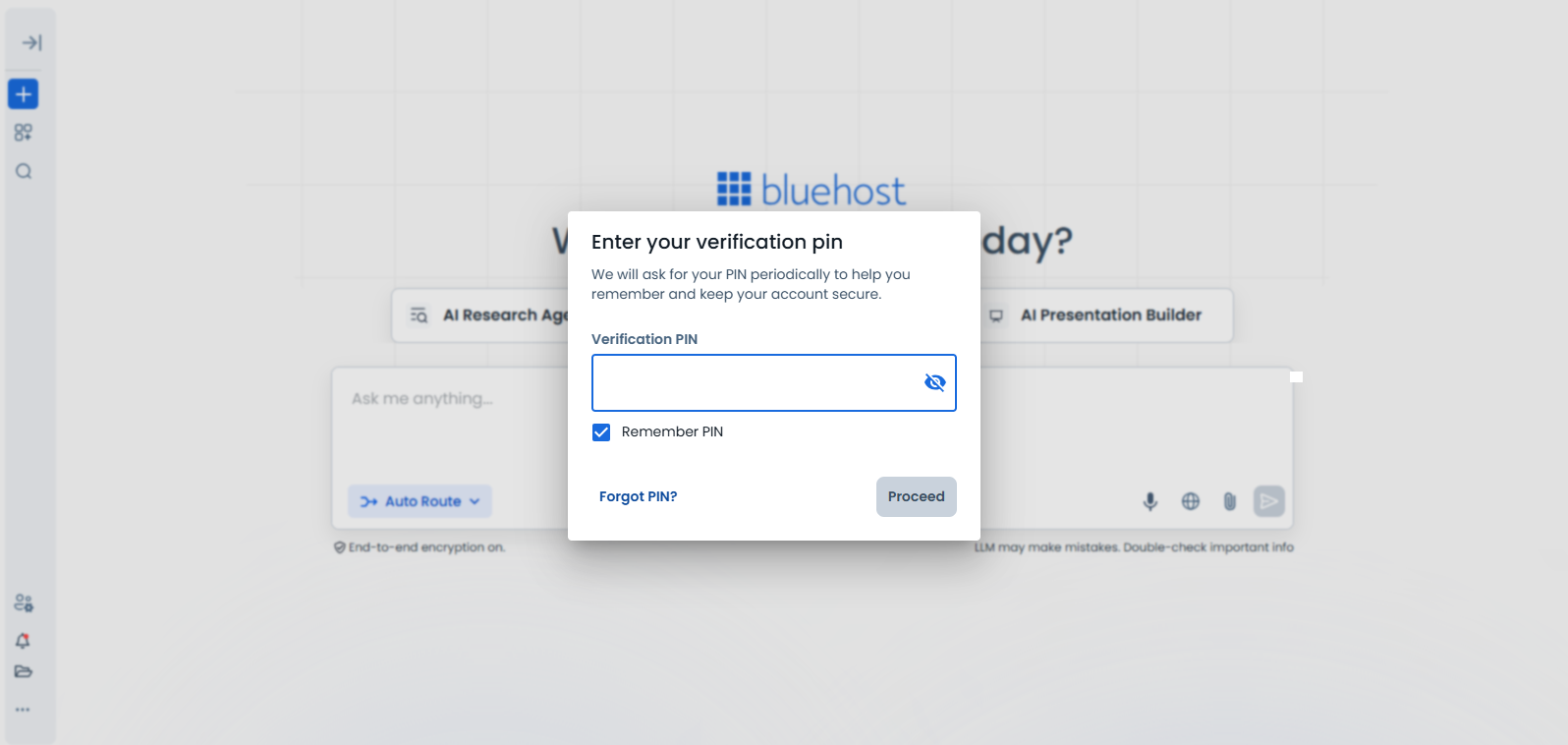
- Enter your Verification PIN when prompted.
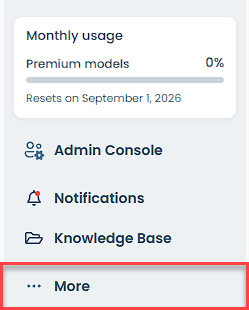
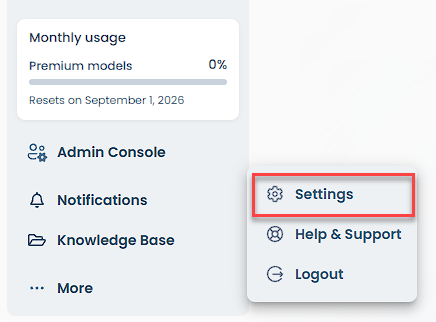
- In the lower-left corner, click More.
- Click Settings.
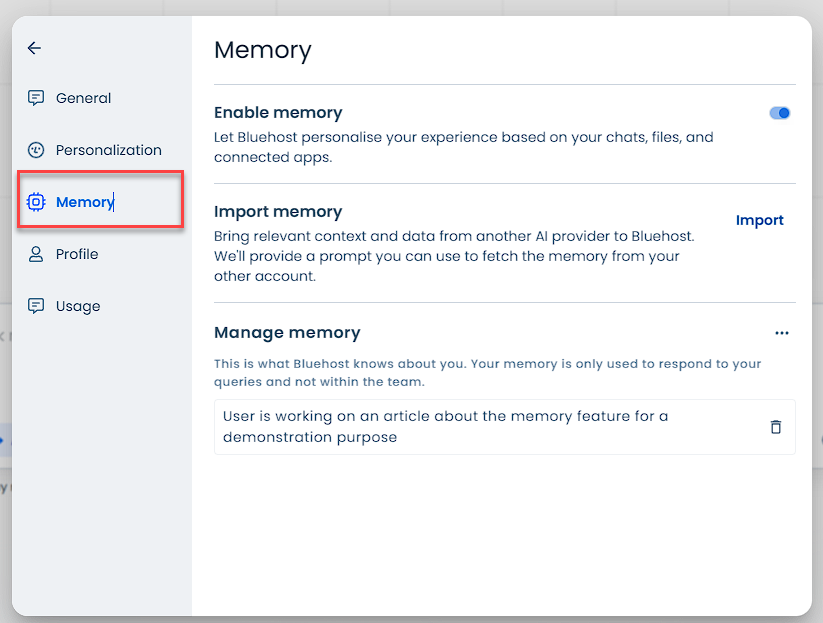
- Select Memory.
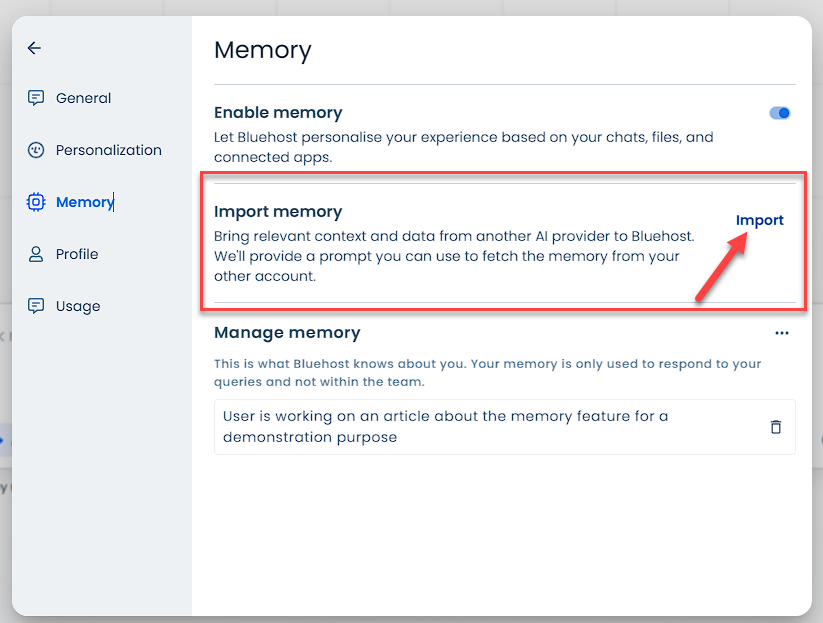
- Go to the Import Memory section, then click Import.
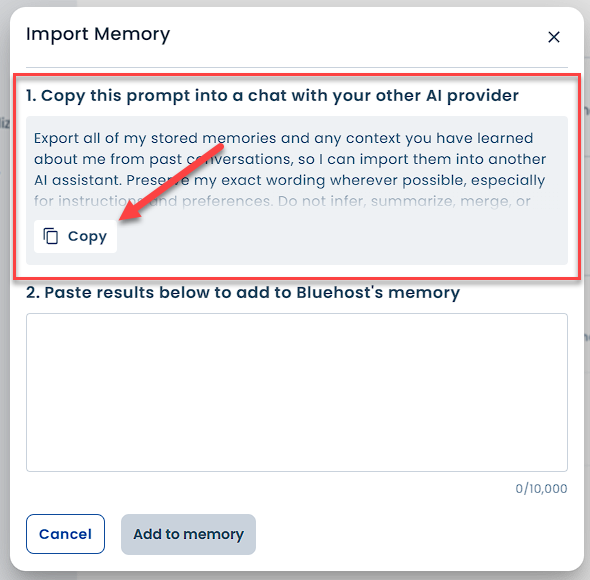
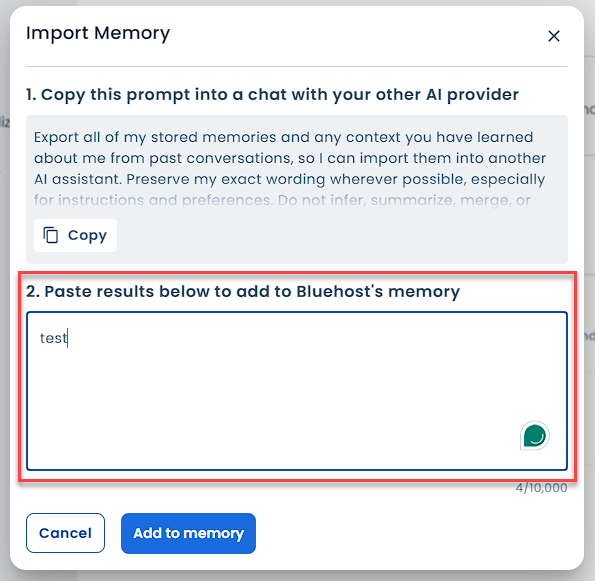
- In the pop-up window, under Copy this prompt into a chat with your other AI provider, copy the provided prompt.
- Paste the prompt into a chat with your other AI provider.
- Copy the results provided by the other AI provider.
- Return to Bluehost AI and paste the results under Paste results below to add to Bluehost's memory.
- Click Add to Memory.
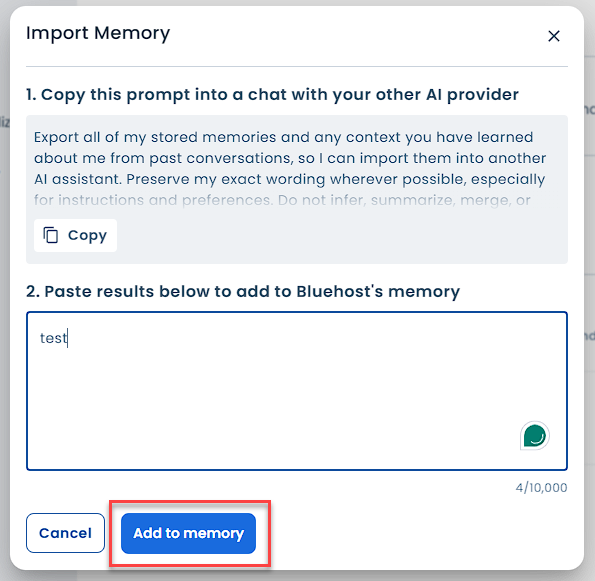
The information you provide will be added to your stored Bluehost AI memory.
How to Export Chat Memory
You can export your existing Bluehost AI memory from the General settings.
- Log in to your Bluehost Portal.
- From the left-hand menu, under the AI Agents tab, click AI All-Access Pack.
- Click the Sign In button.
- Enter your Verification PIN when prompted.
- In the lower-left corner, click More.
- Click Settings.
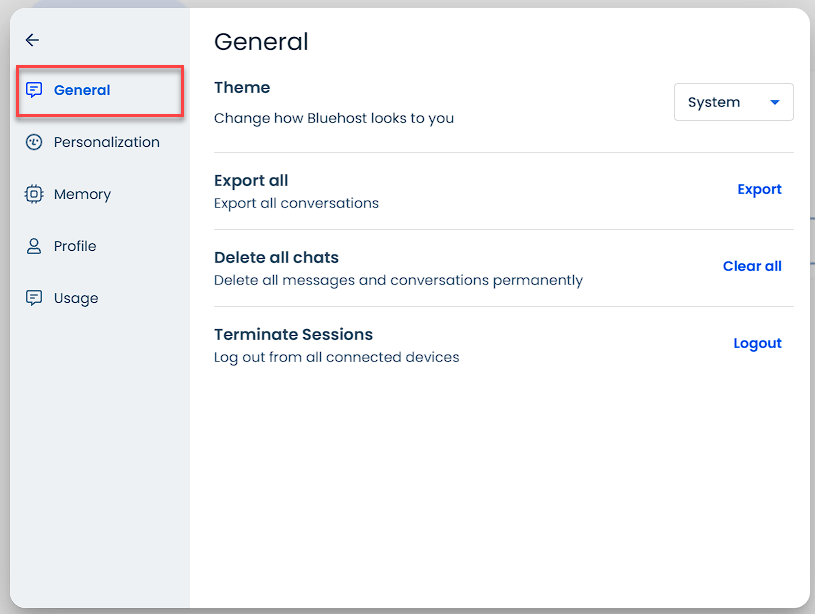
- Select General.
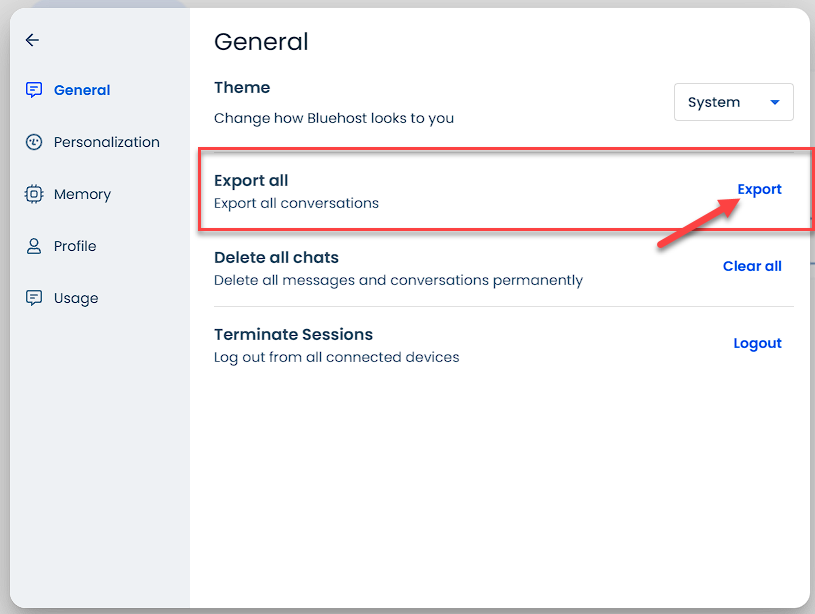
- Go to the Export All section, then click Export.
- In the pop-up window, click Confirm Export.
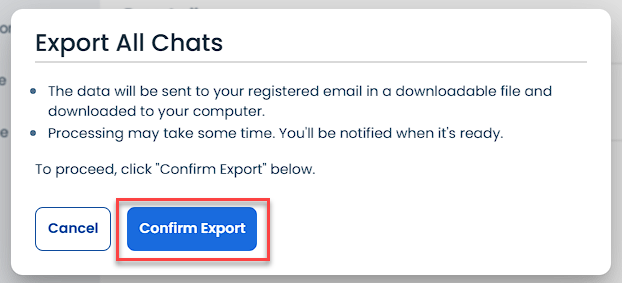
Your chat memory will be processed and sent to your registered email as a downloadable file. Processing may take some time, and you'll be notified when the export is ready. You can then download the file to your computer.
Summary
The export and import chat memory features in Bluehost AI All-Access Pack make it easier to manage and transfer the information stored in your AI memory. You can import memory from another AI provider through Settings > Memory, or export your Bluehost AI memory through Settings > General. Exported memory is sent to your registered email as a downloadable file once processing is complete.
If you need further assistance, Bluehost Chat Support is available 24 hours a day, 7days a week while Bluehost Phone Support is available 7 days a week from 7 am-12 midnight EST.
- Chat Support - While on our website, you should see a CHAT bubble in the bottom right-hand corner of the page. Click anywhere on the bubble to begin a chat session.
- Phone Support -
- US: 888-401-4678
- International: +1 801-765-9400
You may also refer to our Knowledge Base articles to help answer common questions and guide you through various setup, configuration, and troubleshooting steps.