 ChatGPT,
  Claude,
  Gemini,
  Grok — all four for
 Bluehost: How to Manage Your Professional Services and Request Changes
After purchasing a service, you can manage your service requests directly from the Services tab in your Bluehost Portal. This page provides an overview of the services you purchased and lets you submit requests if you need to make changes after your order has been placed.
This guide explains how to access the Services tab and submit a request to the Professional Services team.
How to Access the Services Tab
Follow the steps below to access your Services tab.
- Log in to your Bluehost Portal.
- In the left-hand menu, click Services.
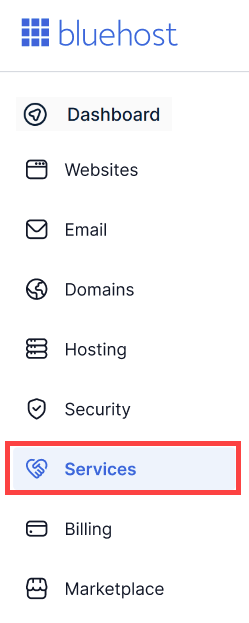
- After opening the Services tab, you'll see all of your purchased services associated with your account. From this page, you can:
- View your purchased services.
- Check the current status of each service.
- Review service details.
- Access available actions for your services.
How to Request a Change to Your Service
If you need to update or modify your purchased service after your order has been placed, you can submit a request from the Services page.
- Open the Services tab.
- Select the service you want to update.
- Click Request Change.
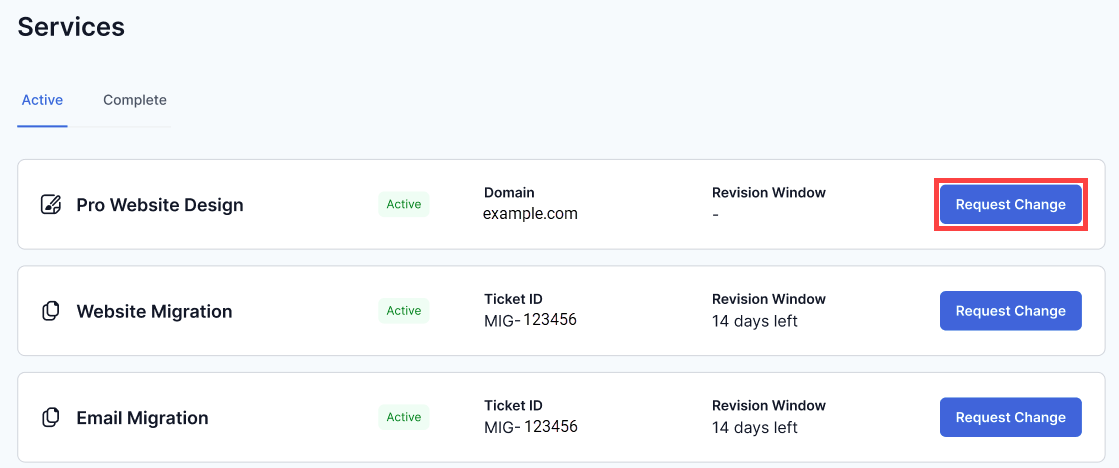
- A support ticket will open. Describe the changes you would like to make, providing as much detail as possible.
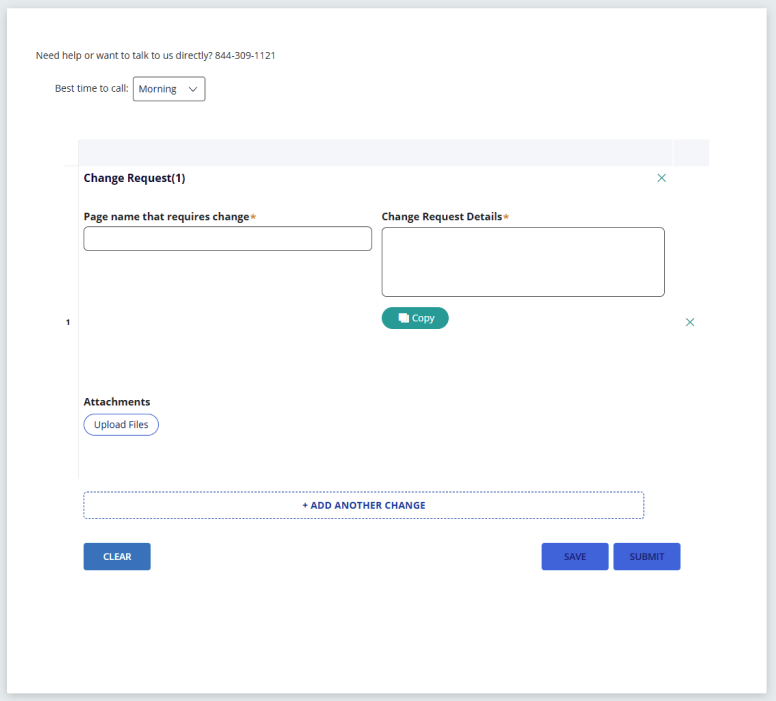
- Submit your request.
Once your request has been submitted, the Professional Services team will review your ticket and contact you if additional information is needed.
Summary
The Services tab gives you a convenient way to manage your Professional Services after purchase. From viewing your services to submitting change requests and tracking ticket progress, everything you need is available in one place to help you stay informed every step of the way.
If you need further assistance, Bluehost Chat Support is available 24 hours a day, 7days a week while Bluehost Phone Support is available 7 days a week from 7 am-12 midnight EST.
- Chat Support - While on our website, you should see a CHAT bubble in the bottom right-hand corner of the page. Click anywhere on the bubble to begin a chat session.
- Phone Support -
- US: 888-401-4678
- International: +1 801-765-9400
You may also refer to our Knowledge Base articles to help answer common questions and guide you through various setup, configuration, and troubleshooting steps.