 ChatGPT,
  Claude,
  Gemini,
  Grok — all four for
 How to Navigate the Bluehost Agency Hosting Dashboard
The Bluehost Agency Hosting Dashboard provides a centralized location for managing client websites, domains, security, performance, team access, and hosting resources.
Whether you're creating a new site, migrating an existing one, or managing multiple client websites, the dashboard gives you access to all essential tools from a single interface.
This guide provides an overview of the main dashboard sections and explains how to access common management features.
Accessing the Agency Hosting Dashboard
Log in to the Bluehost Portal. After signing in, you'll see the primary navigation areas used to manage an account and websites.
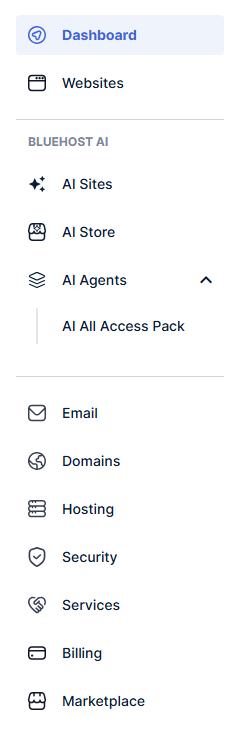
Key sections include:
- Dashboard – Central hub for managing client websites and hosting account.
For more information on the features and functionality available within the Dashboard, please refer to Getting Started with the Bluehost Portal Dashboard. - Websites – Manage all client websites, domains, hosting resources, and account settings.
- Email – Access available email solutions, manage email subscriptions, and purchase Professional Email and Google Workspace to support business and client communications. For current pricing and plans, visit https://www.bluehost.com/.
- Domains – Manage domains, update settings, monitor expiration dates, configure DNS records, and protect domain registrations.
For more information, please refer to How to Use the Domains Tab in a Bluehost Portal and Navigating the Domains Overview Tab. - Hosting – Monitor hosting resources, manage websites, review plan usage, and access hosting-related tools.
- Security – Manage website security: Malware Protection, SiteLock, and SSL Certificates.
For more information, refer to Bluehost Portal: Security Tab Overview.Agency Hosting plans include free Let's Encrypt SSL certificates. Third-party SSL certificates are not currently supported. - Services – Explore professional services, marketing solutions, and expert website assistance to help grow and manage an online presence.
For more information, refer to Bluehost: How to Manage Professional Services and Request Changes. - Billing – Manage subscriptions, renewals, payment methods, and billing settings for all Bluehost products and services.
For more information, refer to View Billing Receipts and Payment History. - Marketplace – Access additional products and services for an Agency Hosting account, including the eCommerce Premium Add-On, domain services, and other Bluehost offerings compatible with Agency Hosting. For current pricing and plans, visit https://www.bluehost.com/.
- Users & Roles – Manage team members, assign user roles, and control account access.
For more information, refer to How to Manage Users and Roles in Bluehost Portal.
Managing Client Websites
The Websites section serves as the primary workspace for managing client sites.
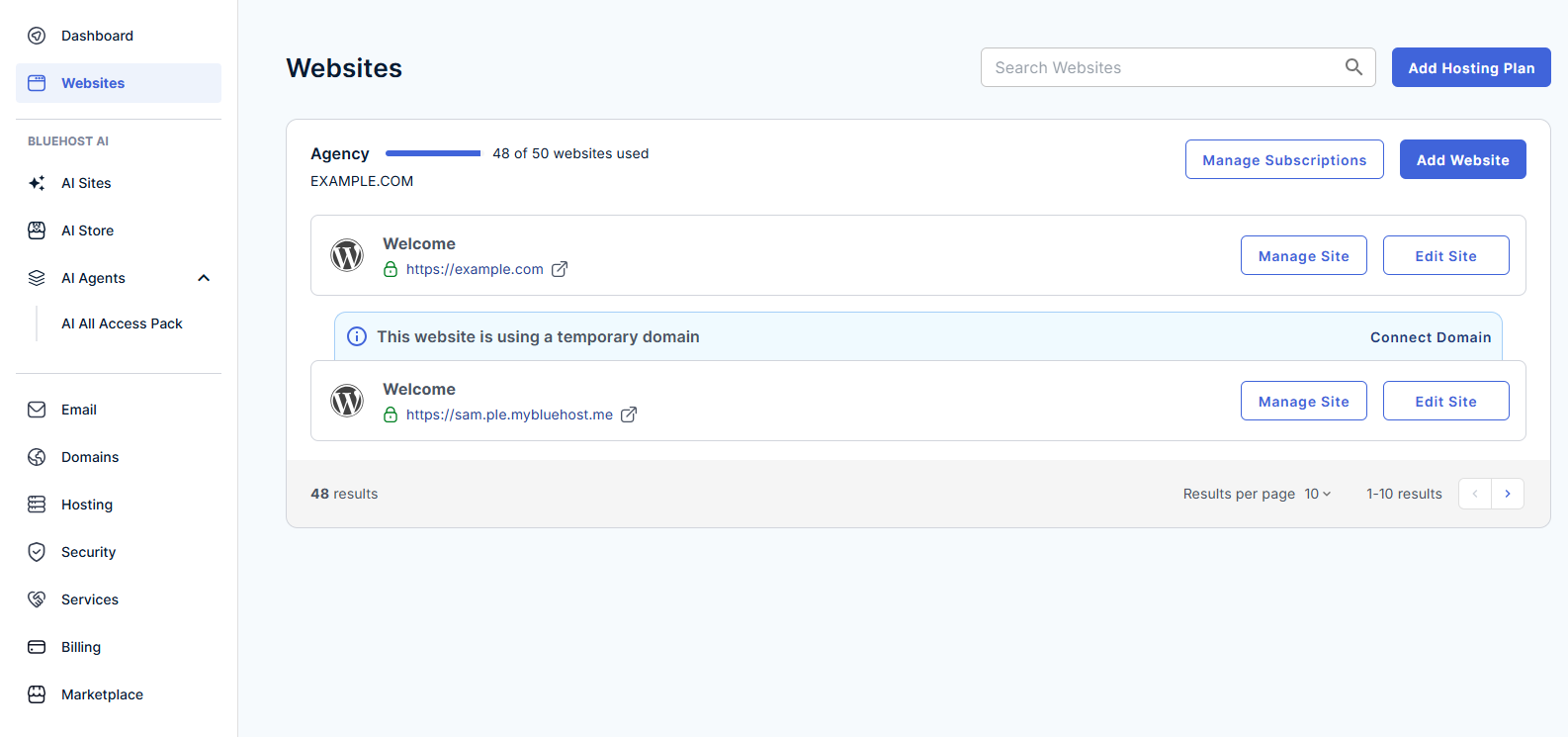
From this area, you can:
- View and search all hosted websites
- Add a hosting plan
- Manage subscriptions
- Add, clone, and transfer WordPress websites
- Connect and manage domains
- Access Manage Site
- Launch WordPress Admin
This centralized view makes it easy to manage the entire Agency Hosting website portfolio from a single location.
Managing an Individual Website
To access settings for a specific website:
- Log in to your Bluehost Portal.
- In the left-hand menu, click Websites.
- Click the Manage Site button located next to the website you want to manage.
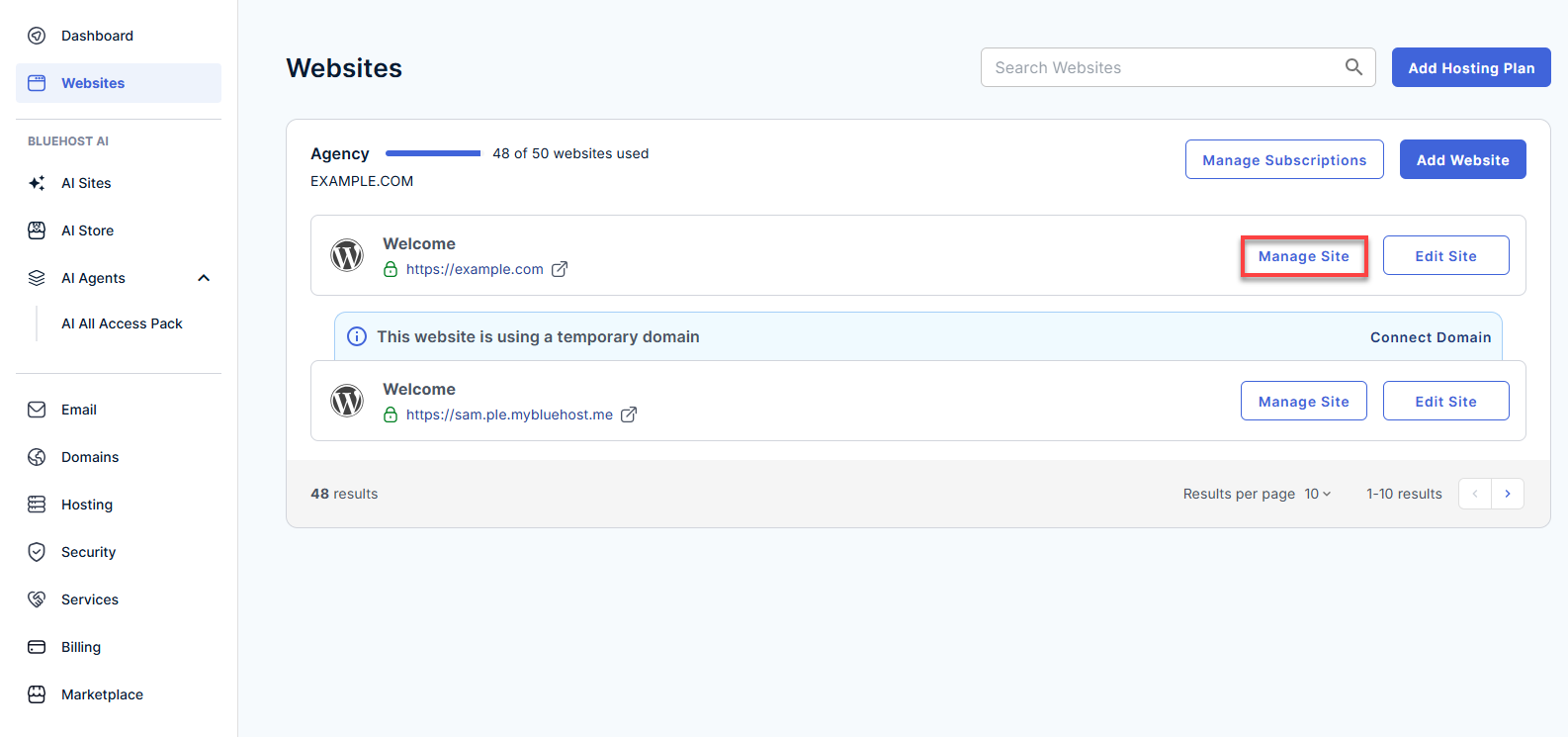
The Manage Site area contains site-specific tools and settings, including:
Overview
The Overview tab provides a high-level summary of a website and serves as the starting point for managing an individual client site. From this page, you can quickly view important site information, monitor website health, and access commonly used management tools.
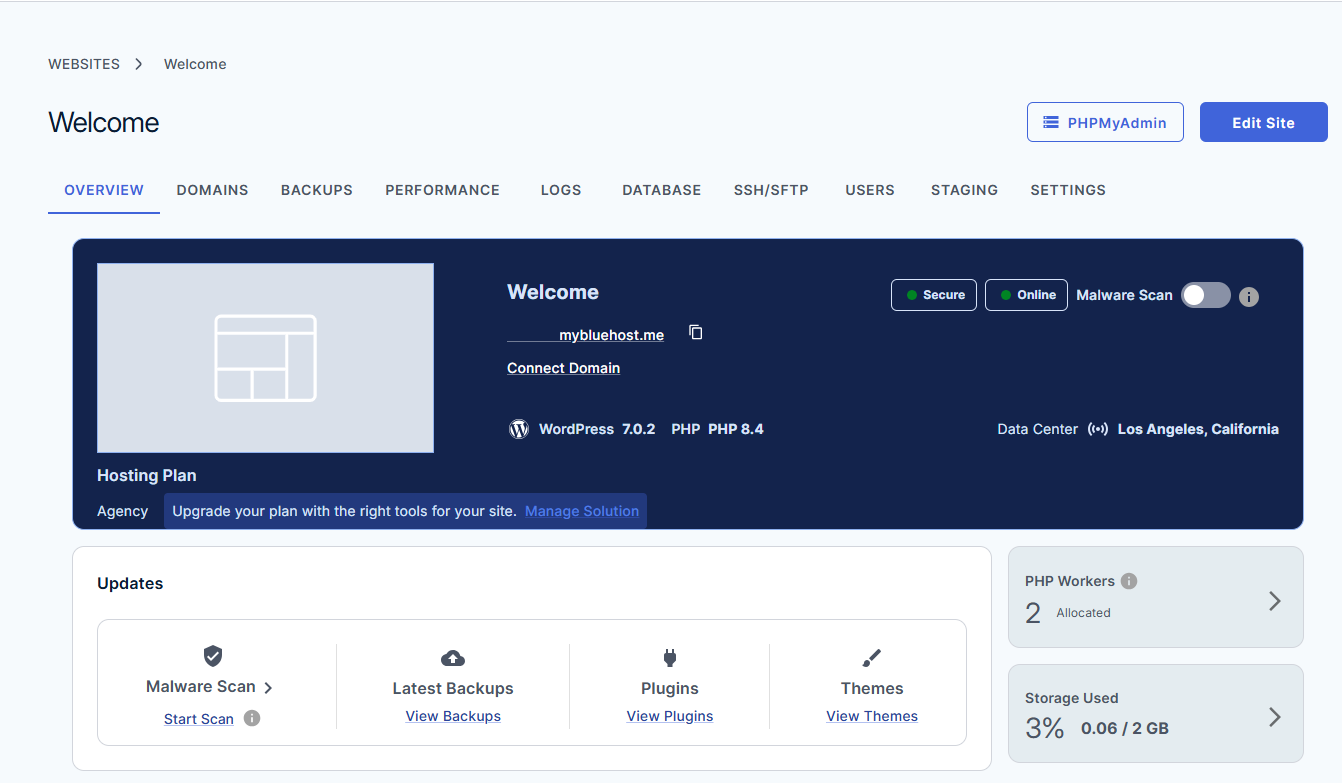
Within the Overview tab, you can:
- View a website's name
- Connect a custom domain if a site is using a temporary Bluehost URL
- Check the website's online status
- View security indicators and malware scan status
- Review the site's WordPress and PHP versions
- Identify the website's assigned data center
- Edit website details and settings
- Monitor PHP Worker allocation
- Review storage usage and available disk space
- Access recent backups
- View installed WordPress plugins
- View installed WordPress themes
- Launch malware scans and review security-related updates
The Overview tab is designed to provide a snapshot of a website's configuration, performance, and security, allowing you to quickly assess the site's status and access key management tools from a single location.
Domains
The Domains tab allows you to view and manage domains connected to a website. From this section, you can connect additional domains, review DNS and SSL status, and verify that a domain is properly pointing to an Agency Hosting site.
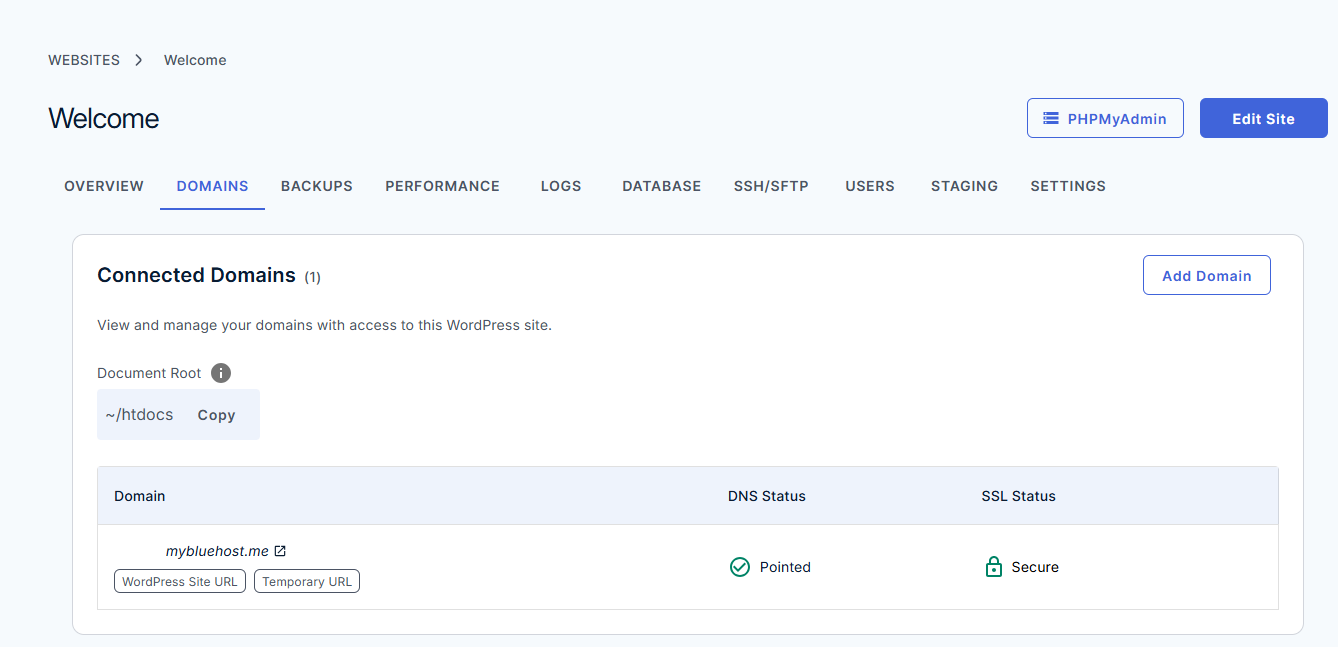
From the Domains tab, you can:
- View all domains connected to the website
- Add and connect new domains
- Review the website's document root
- Check DNS connection status
- Verify SSL status
- Access the site's temporary URL
- View the primary website domain
This section helps ensure domains are properly connected and secured for a website.
Backups
The Backups tab allows you to view and manage backups for a website through Jetpack Security. From this section, you can monitor backup status, view the most recent backup, and access Jetpack Backup tools for restoring a website when needed.
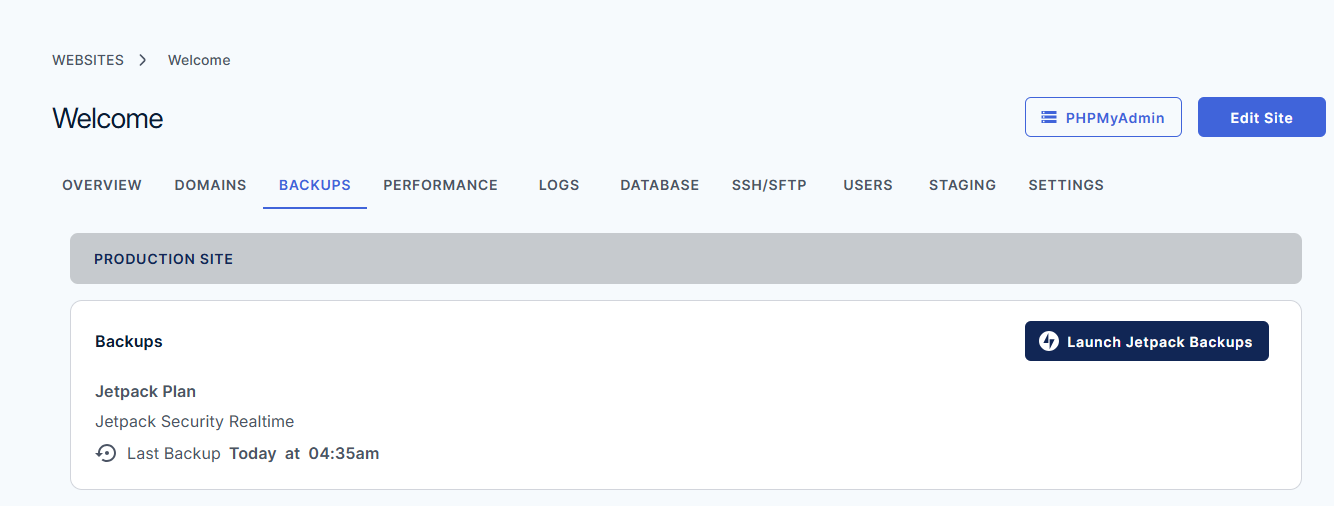
From the Backups tab, you can:
- View a site's backup status
- Check the site's Jetpack plan and protection level
- Review the date and time of the latest backup
- Access Jetpack Backups
- Restore a website from available backup points
- Monitor backup activity for a website
This section helps ensure website data is protected and can be restored if needed.
Performance
The Performance tab allows you to monitor and optimize a website's performance. From this section, you can manage caching settings, adjust PHP Worker allocations, and review performance metrics to help ensure a website remains responsive and efficient.
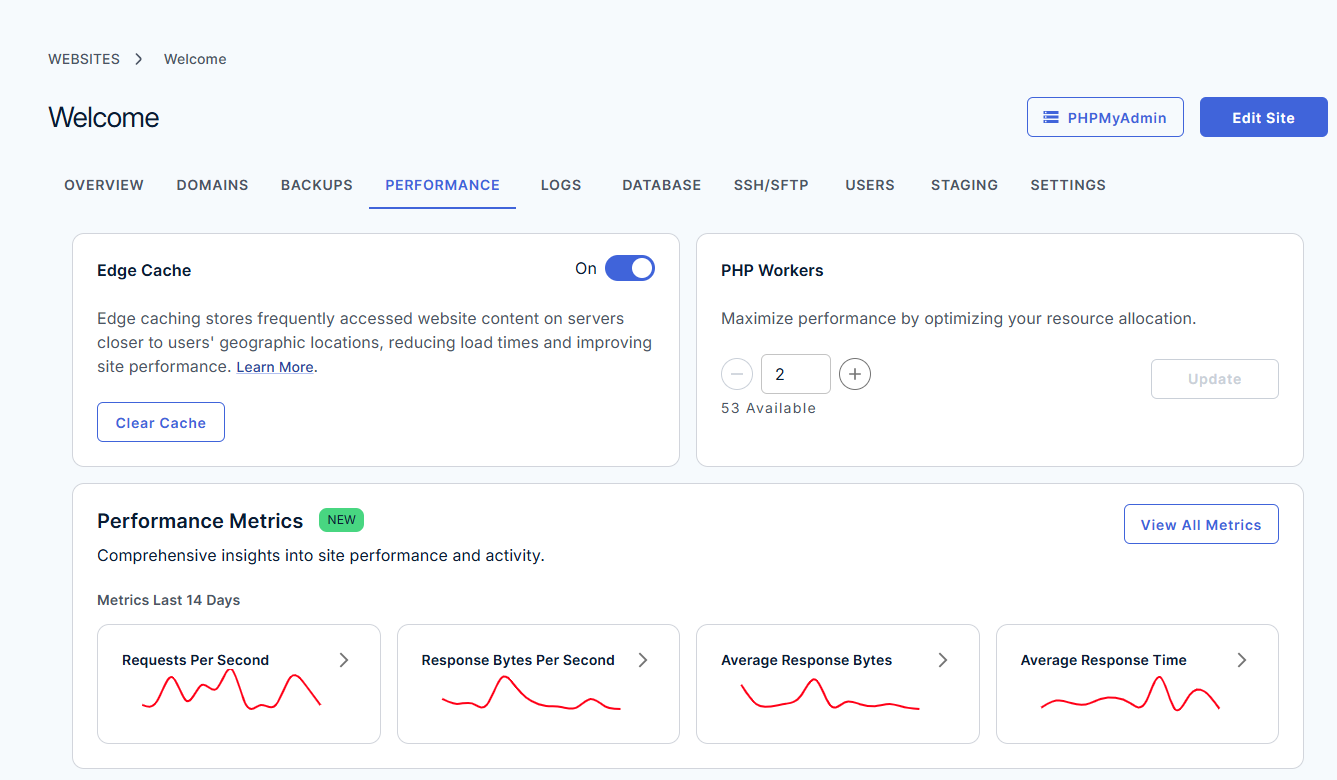
From the Performance tab, you can:
- Enable or disable and clear cache using Edge Cache
- Allocate and manage PHP Workers
- Review available PHP Worker resources
- Monitor website performance metrics
- View traffic and request activity
- Analyze response times and resource usage
- Access detailed performance reports
This section helps you identify performance bottlenecks and optimize resource allocation for a website.
Logs
The Logs tab allows you to review website activity and troubleshoot issues by accessing a site's error and access logs. These logs can help you identify website errors, monitor traffic, and diagnose performance or configuration issues.
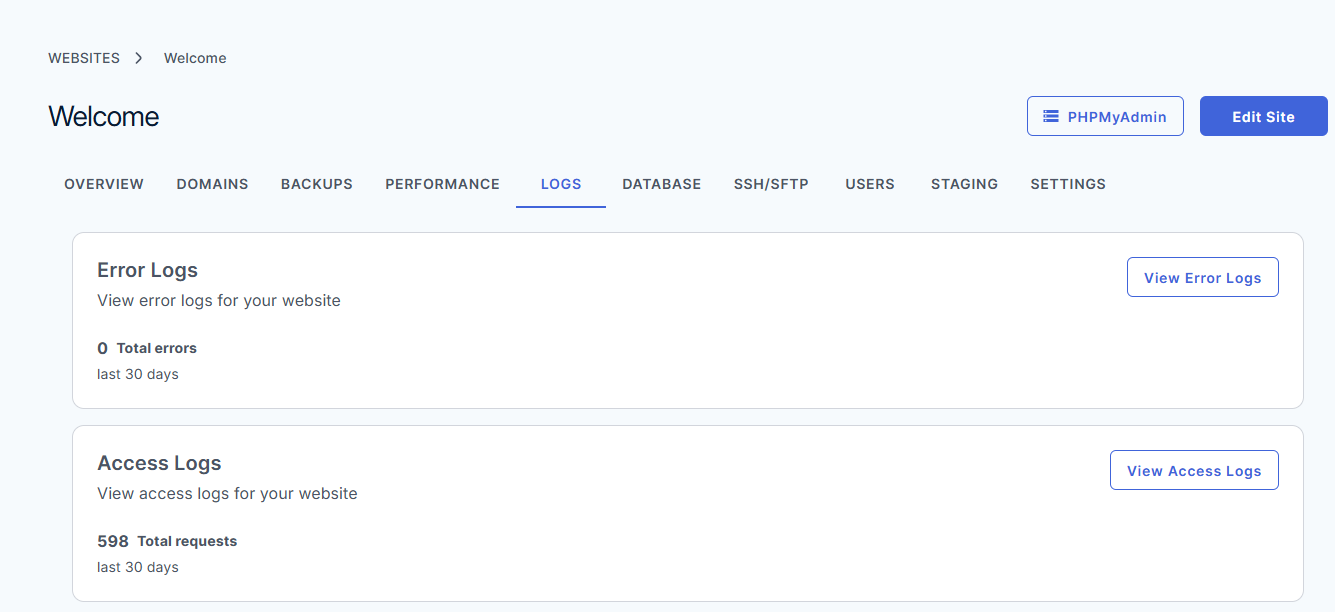
From the Logs tab, you can:
- View website Error Logs
- Review website Access Logs
- Monitor recent website activity
- Identify website errors and warnings
- Troubleshoot website and application issues
- Analyze website traffic and requests
This section is useful for monitoring site activity and diagnosing technical issues affecting a website.
Database
The Database tab provides information about a website's WordPress database and allows you to access database management tools. From this section, you can view database details, launch phpMyAdmin, and manage database access credentials.
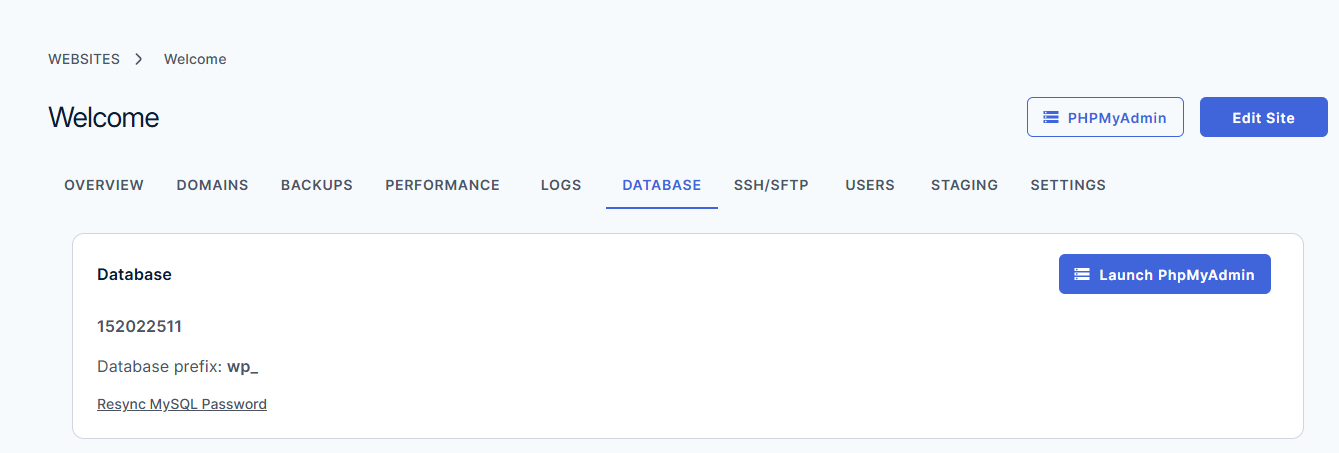
From the Database tab, you can:
- View the website's database name
- View the database prefix
- Launch phpMyAdmin to manage the database
- Resync the MySQL database password
- Access database management tools for troubleshooting and maintenance
This section is primarily used for advanced website administration and database management tasks.
SSH/SFTP
The SSH/SFTP tab allows you to securely connect to a website's hosting environment for advanced site management and file access. From this section, you can view SSH connection details and create or manage SSH users.
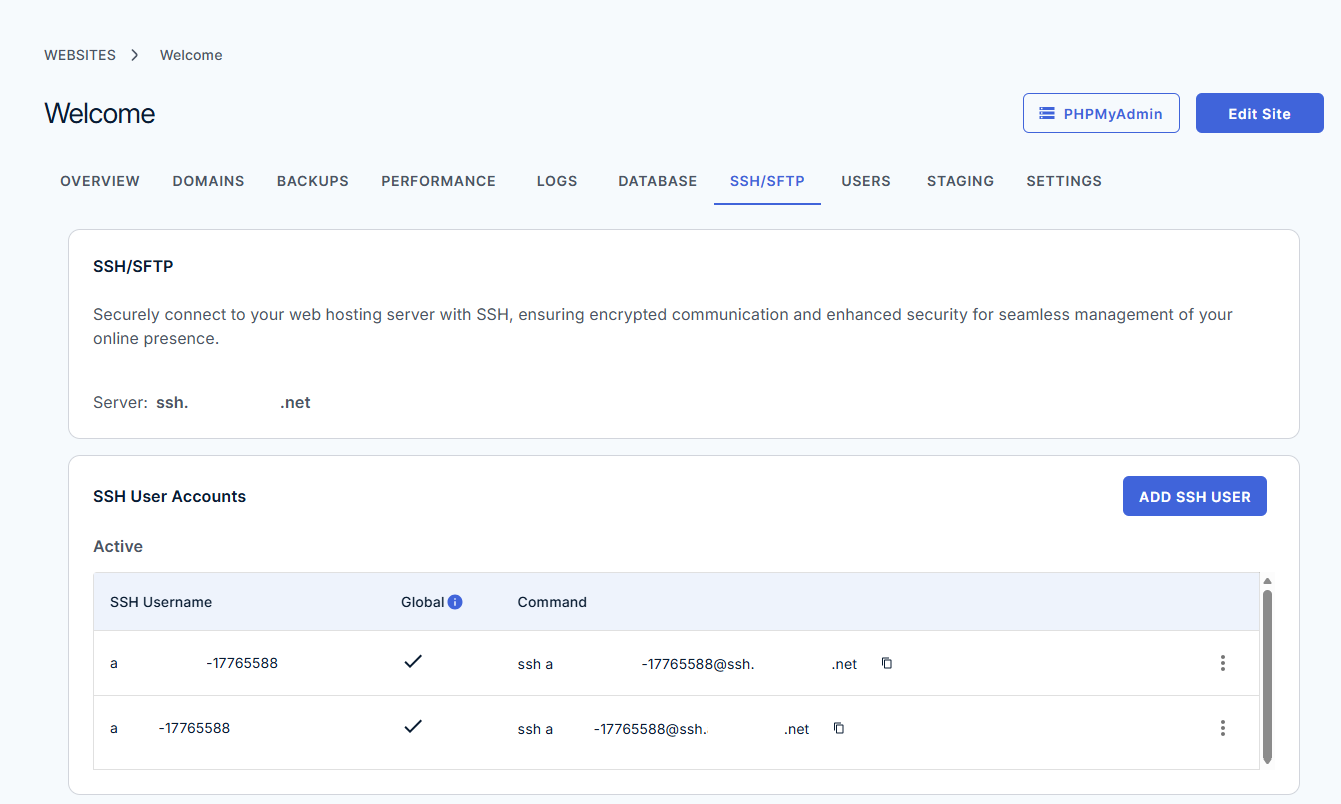
From the SSH/SFTP tab, you can:
- View a website's SSH server information
- Create and manage SSH/SFTP user accounts
- Access connection details for remote access
- Copy SSH connection commands
- Manage SSH user permissions
- Securely access website files and directories through SSH or SFTP
This section is intended for users who need direct access to website files and server resources for development, maintenance, or troubleshooting purposes.
Users
The Users tab allows you to view and manage WordPress users who have access to a website. From this section, you can review user roles, access user information, and quickly log in to the WordPress Admin area.
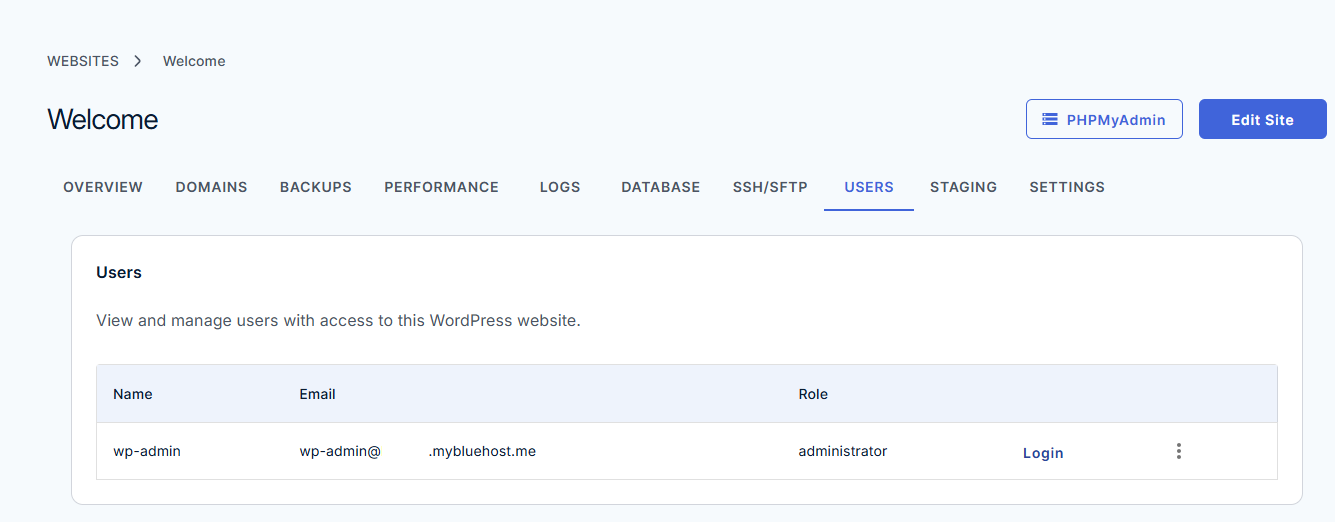
From the Users tab, you can:
- View WordPress users associated with the website
- Review user roles and permissions
- View user account information
- Access WordPress Admin through the Login option
- Manage user access within WordPress
This section helps you monitor and manage who has access to a website and their assigned permissions.
Staging
The Staging tab allows you to create and manage a staging environment for a website. A staging site is a copy of a live website where you can safely test updates, design changes, plugins, and new features before applying them to production.
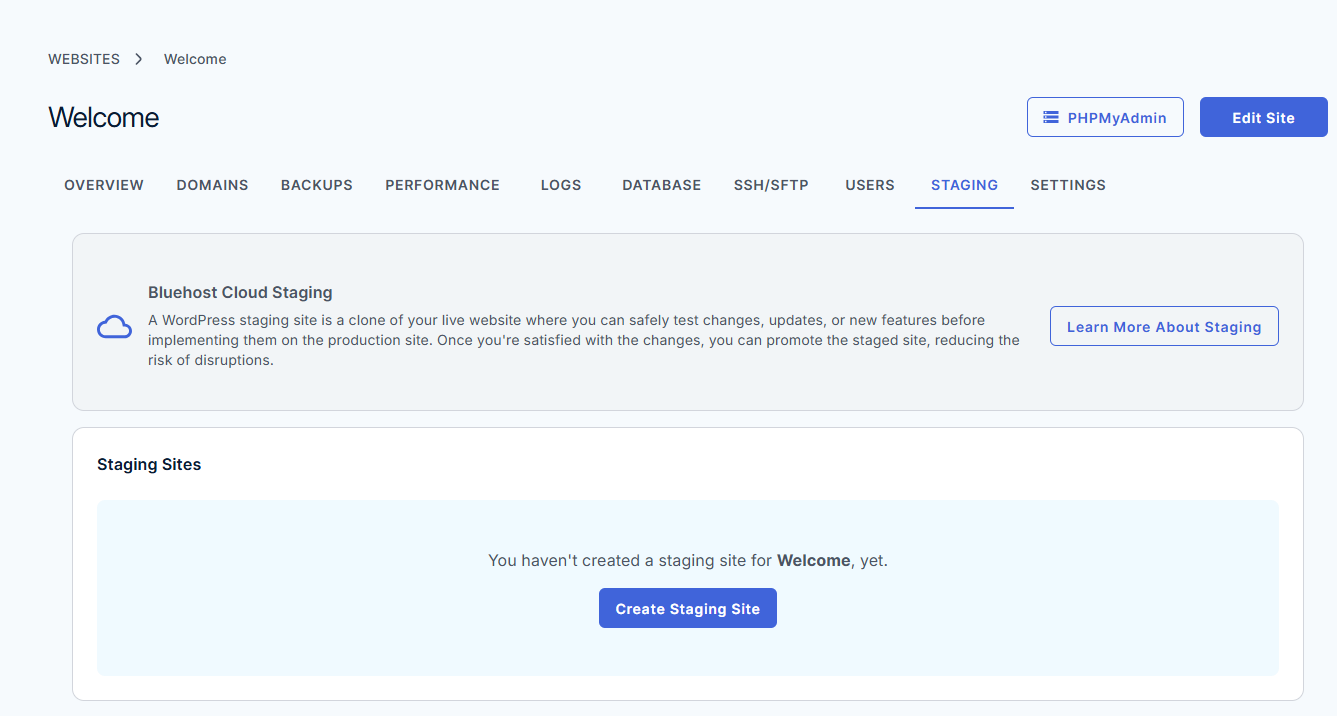
From the Staging tab, you can:
- Create a staging copy of a live website
- Test website changes in an isolated environment
- Preview updates before publishing them live
- Manage existing staging sites
- Promote a staging site to production when testing is complete
- Reduce the risk of unexpected issues on a live website
This section helps you safely develop and test changes before deploying them to a client's live website.
Settings
The Settings tab allows you to manage advanced website configurations and administrative settings. From this section, you can adjust storage allocation, manage WordPress and PHP versions, configure website behavior, and perform site maintenance tasks.
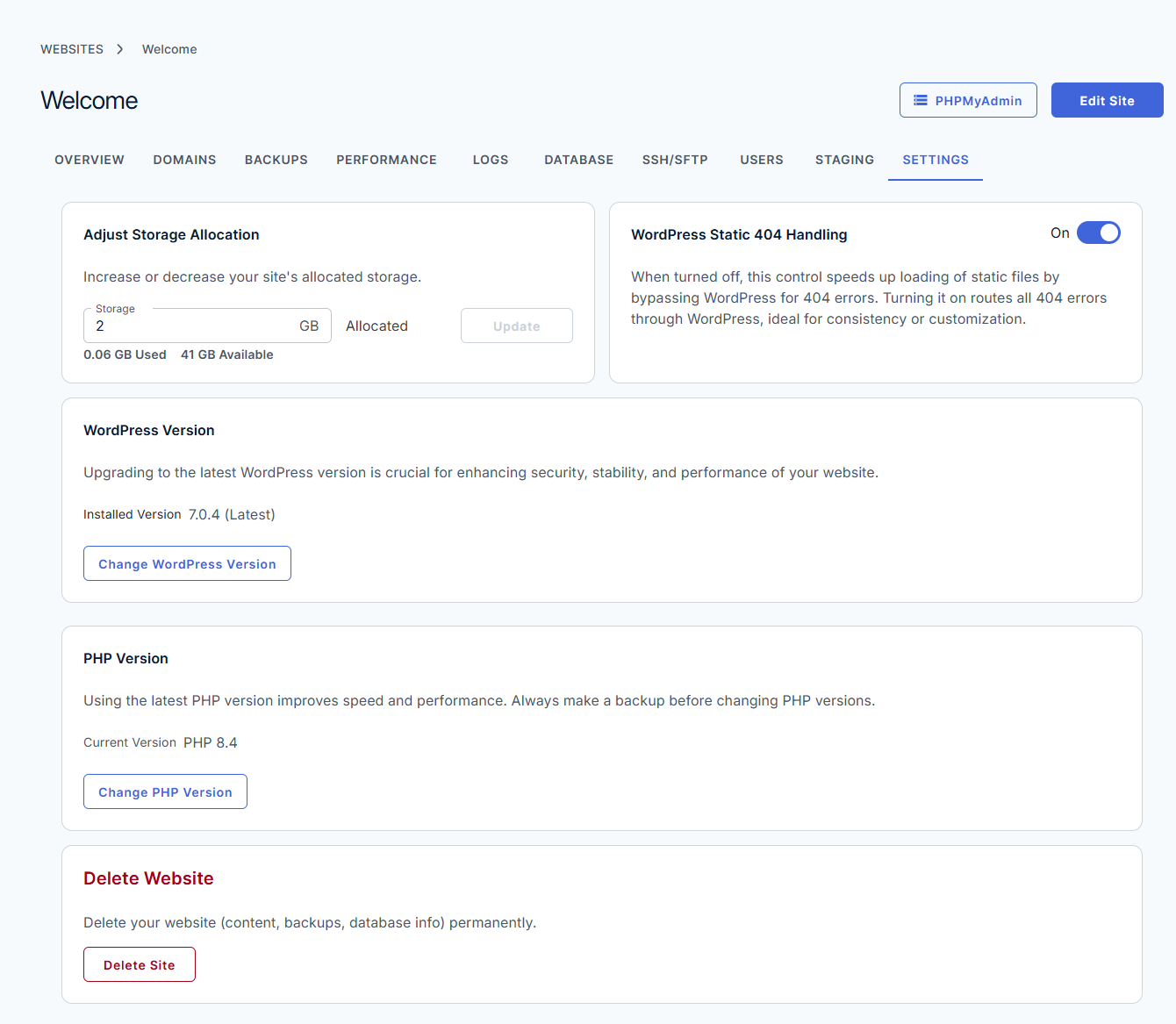
From the Settings tab, you can:
- Adjust allocated storage for the website
- Enable or disable WordPress Static 404 Handling
- View and manage PHP and WordPress Versions
- Review current website configuration settings
- Permanently delete the website when no longer needed
This section gives you greater control over a website's configuration, performance, and maintenance settings.
Next Relevant Resources
Looking for more Agency Hosting resources? Visit our comprehensive collection of guides for setup instructions, account management, dashboard features, website tools, and troubleshooting information.
- Bluehost Agency Hosting: Setup, Management & Guides – Access the complete collection of Agency Hosting documentation and resources.
Summary
The Bluehost Agency Hosting Dashboard gives you a central location to manage your client websites and hosting account. From the dashboard, you can create and manage websites, connect domains, monitor performance, access backups, create staging sites, manage WordPress users, and configure website settings. You can also manage account-related features such as billing, domains, marketplace products, email services, security tools, and user permissions, making it easier to oversee your entire Agency Hosting portfolio from one place.
If you need further assistance, Bluehost Chat Support is available 24 hours a day, 7days a week while Bluehost Phone Support is available 7 days a week from 7 am-12 midnight EST.
- Chat Support - While on our website, you should see a CHAT bubble in the bottom right-hand corner of the page. Click anywhere on the bubble to begin a chat session.
- Phone Support -
- US: 888-401-4678
- International: +1 801-765-9400
You may also refer to our Knowledge Base articles to help answer common questions and guide you through various setup, configuration, and troubleshooting steps.