 ChatGPT,
  Claude,
  Gemini,
  Grok — all four for
 Bluehost Individual Ownership – Gain Ownership
The Individual Ownership – Gain Ownership process is designed for users who need to legally obtain control of a Bluehost account when they are not the current Primary Contact. To ensure account security, Bluehost requires valid identification and official legal documentation—such as a court order—before granting ownership access. This protects account integrity and ensures that only authorized individuals can assume control.
Required Documents
To update the primary contact on an account, gather all the required documents:
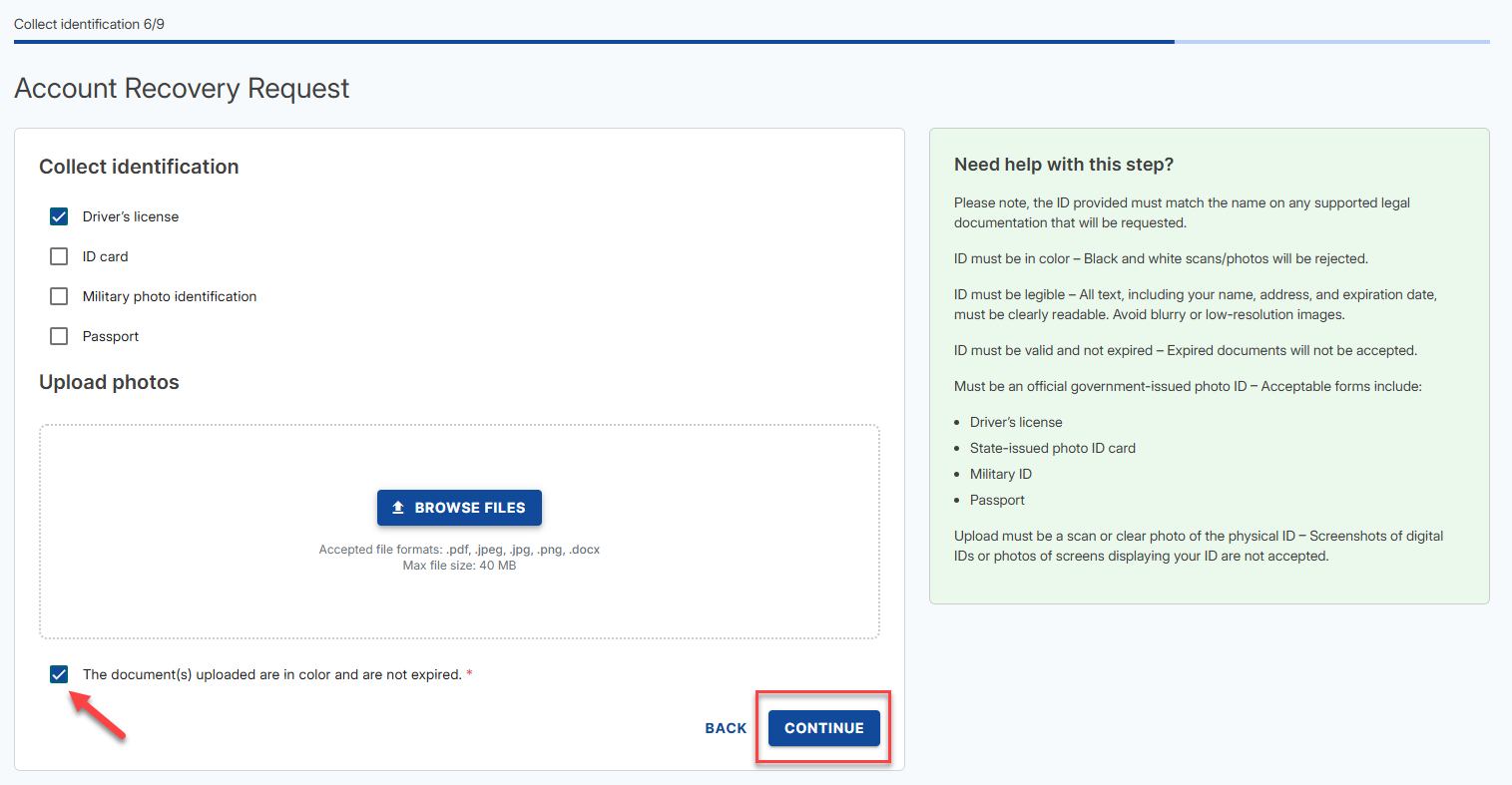
- Valid Government-Issued Photo ID (full color): A valid, unexpired, government-issued photo ID of the individual requesting to become the Primary Contact.
- Driver's license
- ID card
- Military Photo Identification
- Passport
- The ID provided must match the name on any supported legal documentation that will be requested.
- The ID must be in color – Black and white scans/photos will be rejected.
- The ID must be legible – All text, including your name, address, and expiration date, must be clearly readable. Avoid blurry or low-resolution images.
- The ID must be valid and not expired – Expired documents will not be accepted.
- Upload must be a scan or clear photo of the physical ID – Screenshot of digital IDs or photos of screens displaying your ID are not accepted.
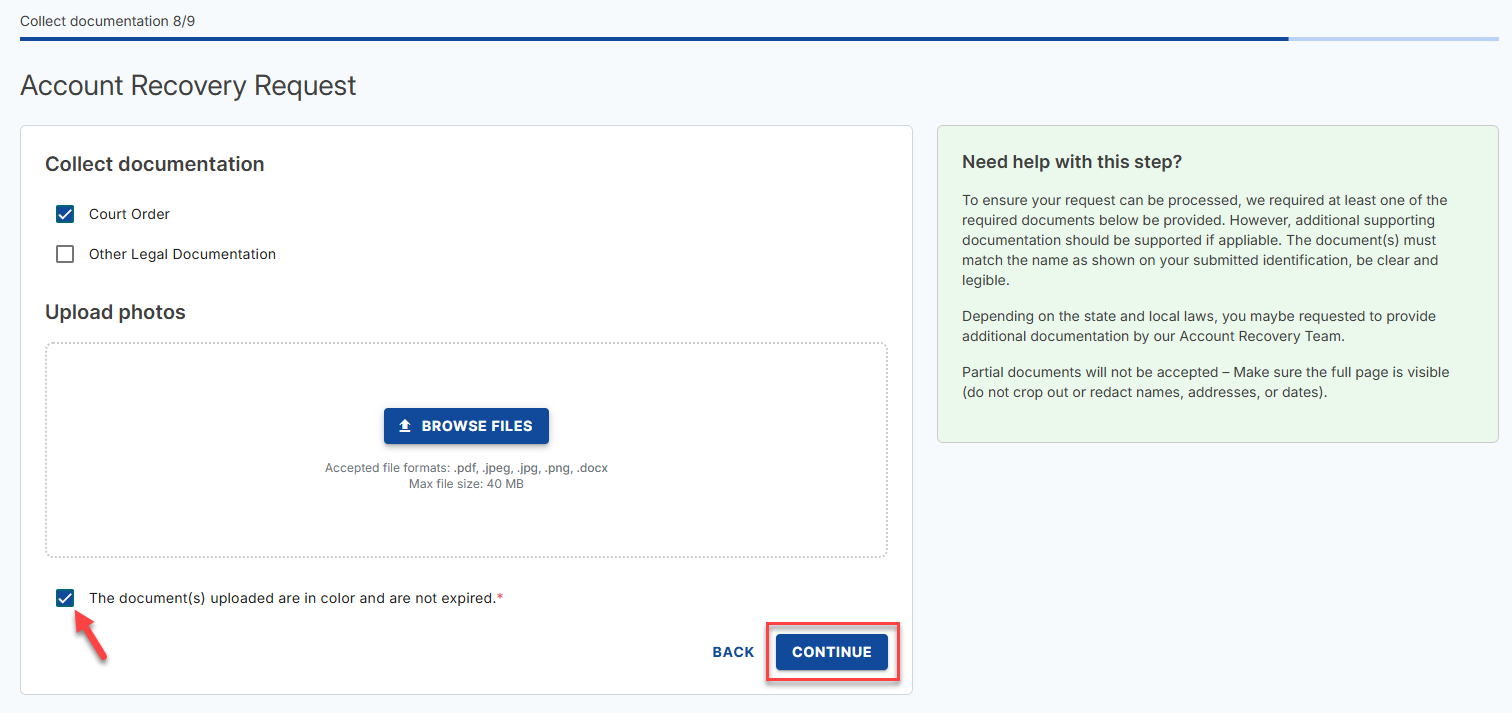
- Additional Documents: To ensure your request can be processed, we require at least one of the required documents below to be provided. However, additional supporting documentation should be provided if applicable.
- Court Order
- Other Legal Documentation
- The document(s) must match the name as shown on your submitted identification, be clear and legible.
- Depending on the state and local laws, you may be requested to provide additional documentation by our Account Recovery Team.
- Partial document(s) will not be accepted – Make sure the full page is visible (do not crop out or redact names, addresses, or dates).
Account User and Roles
- Account Owner/Primary - Who manages everything on the account, including Admin, Tech, Billing, and Domain.
- Admin/Tech - Handles the Technical or Administrative tasks on the account.
- Domain Owner – Listed as the domain name registrant on the domain(s) in the account.
- Other – None of the above descriptions fit your role.
How to Submit a Request to Gain Access to the Account
- Go to https://www.bluehost.com/my-account/account-recovery-new.
- Enter your domain and click Continue.
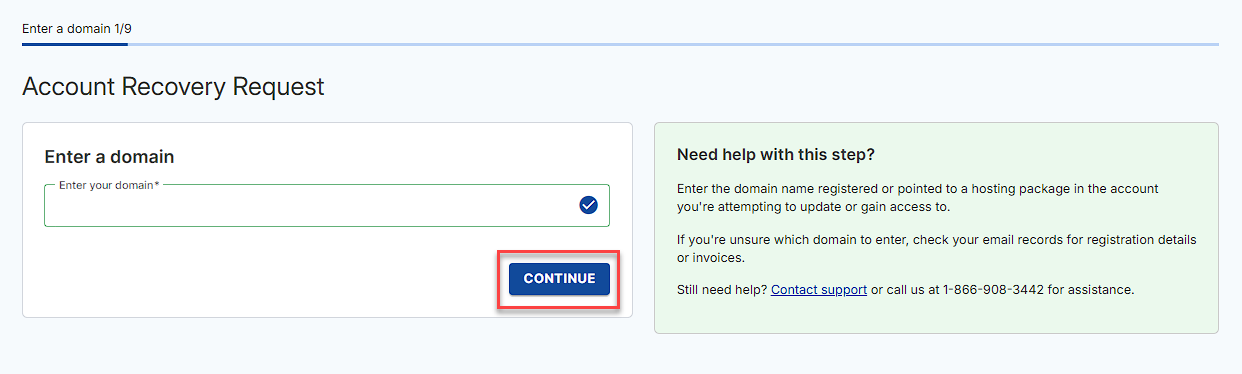
- Select your role from the options and click Continue.
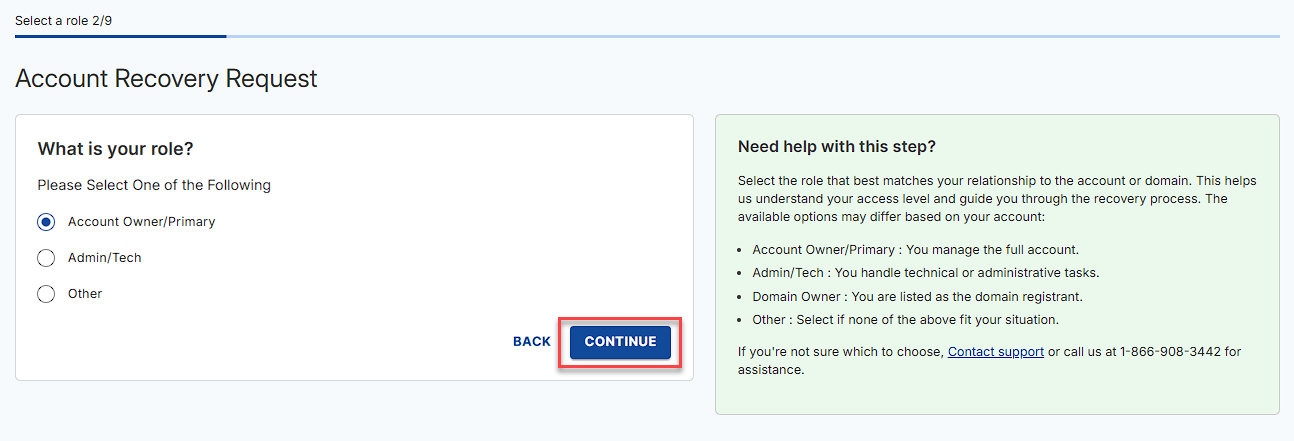
The roles displayed on this step may depend on the available User/Roles added to the account. - Select Gain ownership and click Continue.
The options available may depend on the role you select.
If you select Other as a role, you will get the options below, select Gain ownership, and click Continue: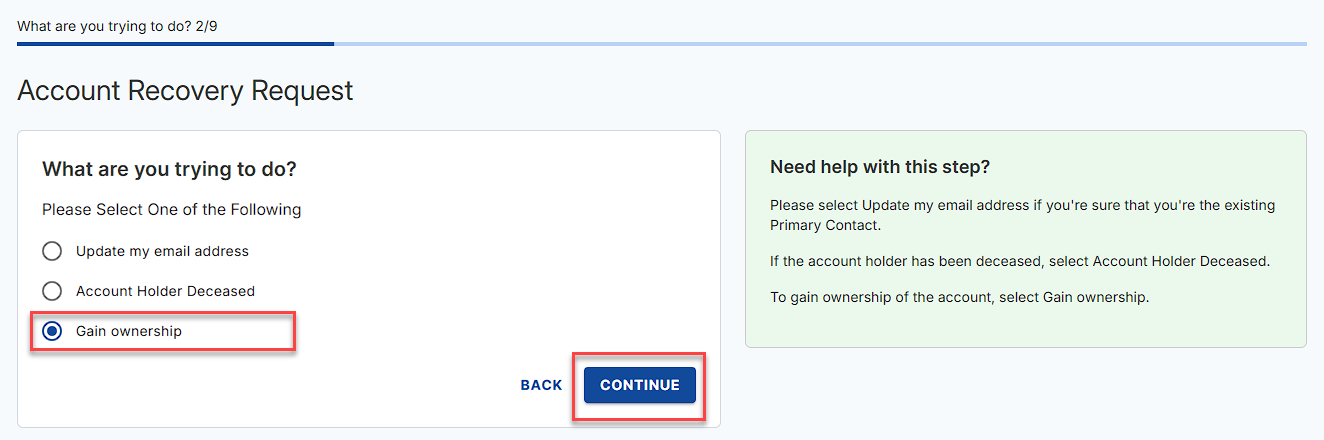
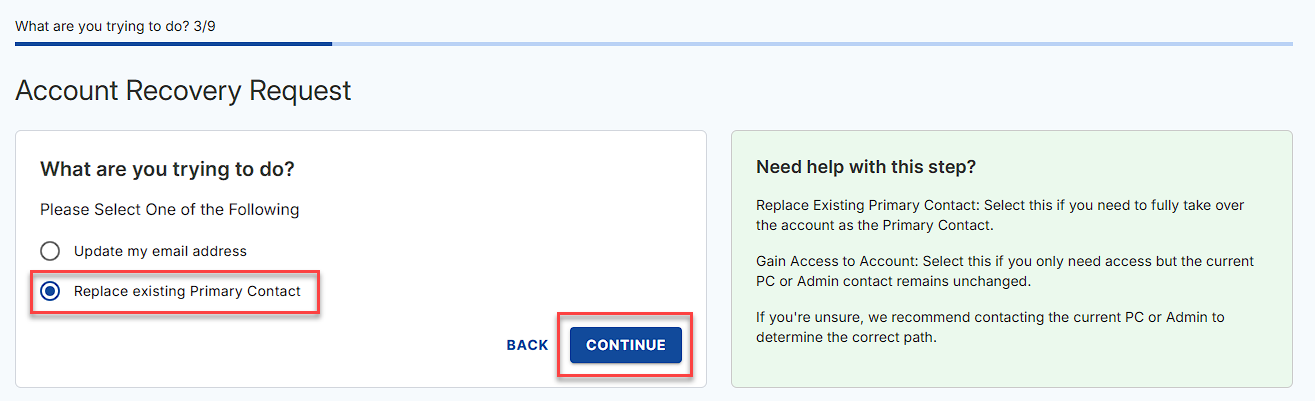
- You will be prompted if you still have contact with the current listed account owner.
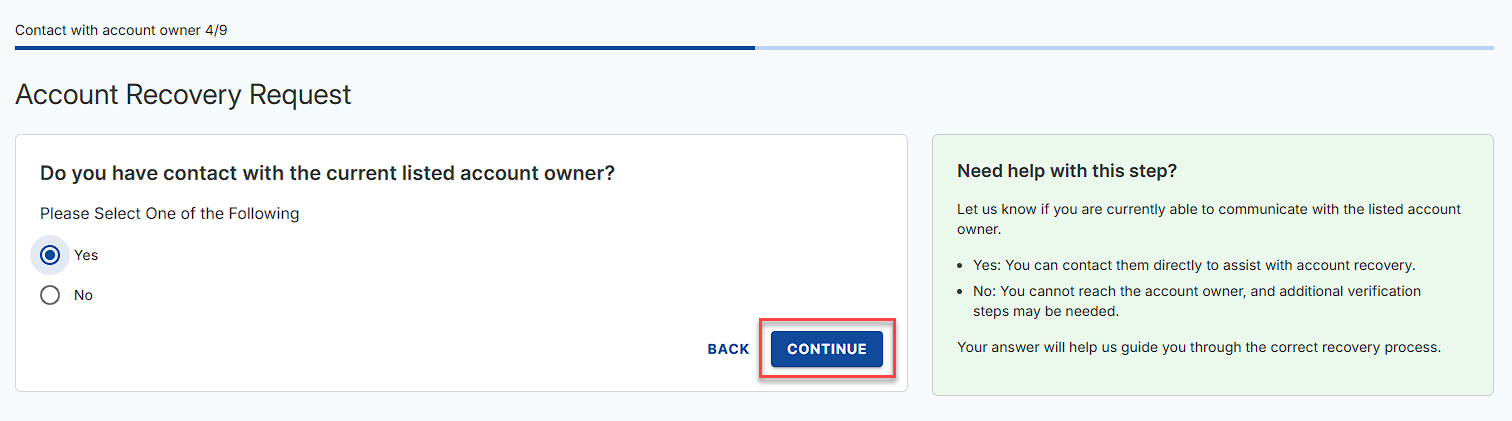
- If you select Yes, you will be asked to work with the current listed owner to gain ownership of the account or services in the account. If you already have a court order or legal documentation, check the box that says, I already have a court order or legal documentation and click Continue.
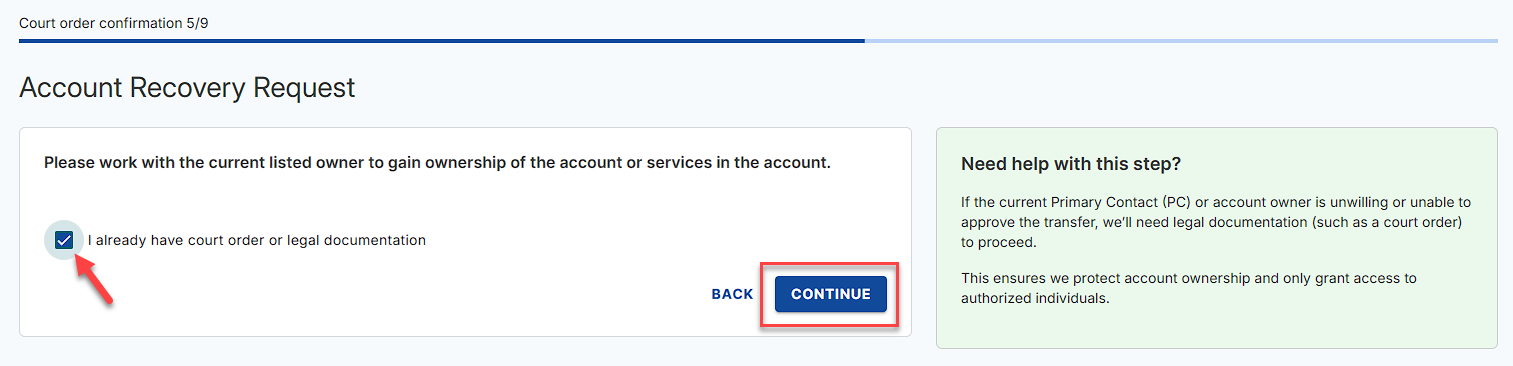
- If you select No, check the box that says, I already have a court order or legal documentation and click Continue.
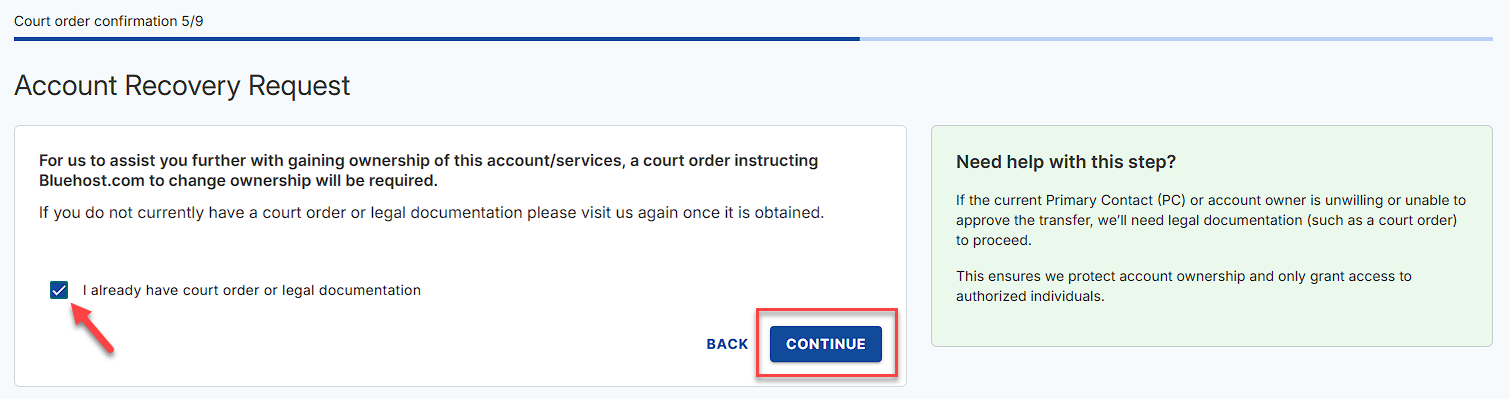
- If you select Yes, you will be asked to work with the current listed owner to gain ownership of the account or services in the account. If you already have a court order or legal documentation, check the box that says, I already have a court order or legal documentation and click Continue.
- Fill in the needed contact information and click Continue.
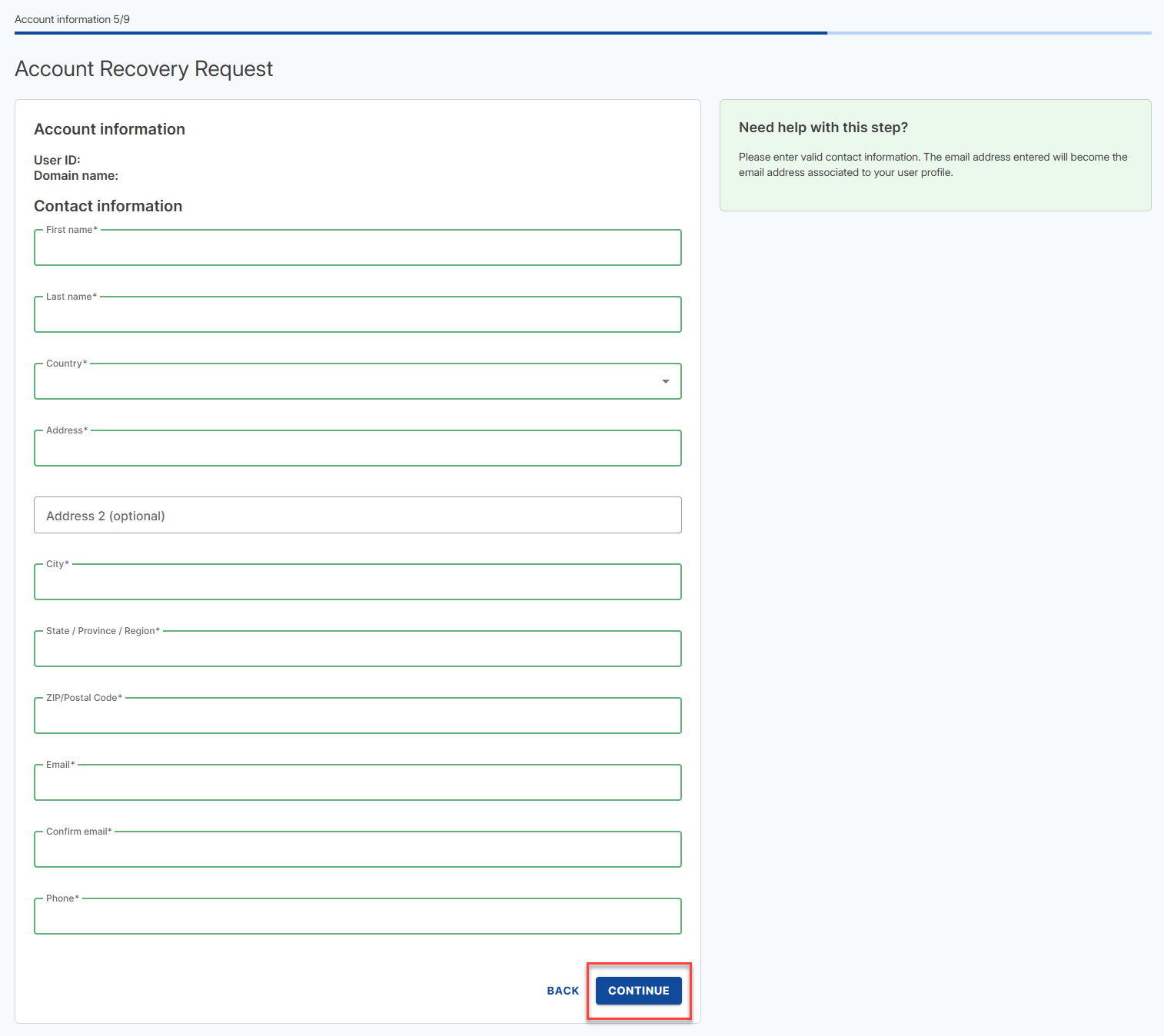
- Select the Government ID that you will upload and click Browse Files to upload your Government ID. Check the box that says The document(s) uploaded are in color and are not expired, then click Continue.
- Select the additional documents you will upload and click Browse Files to upload your documents. Check the box that says The document(s) uploaded are in color and are not expired, then click Continue.
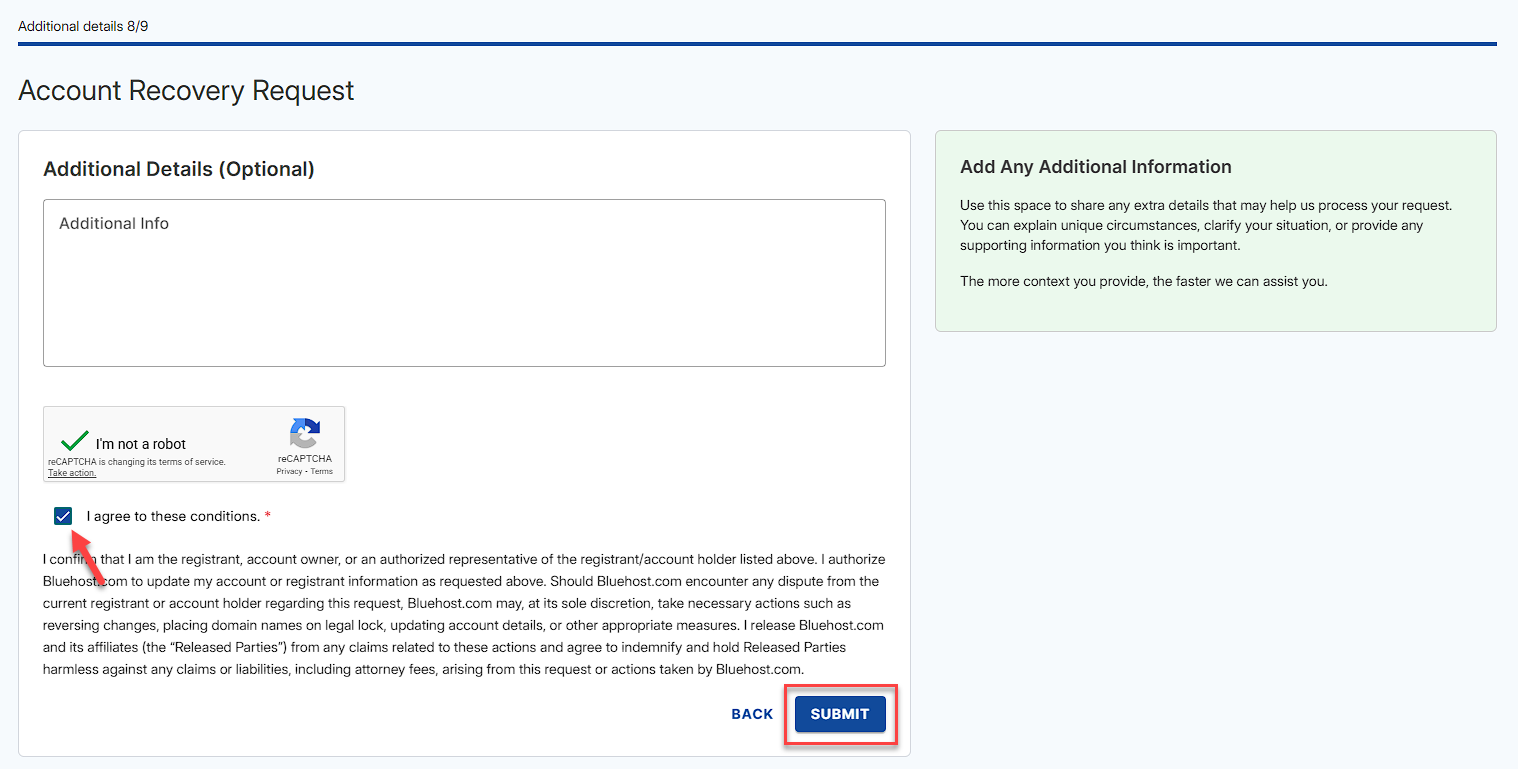
- Provide any additional information, check the I agree to these conditions, and click Submit.
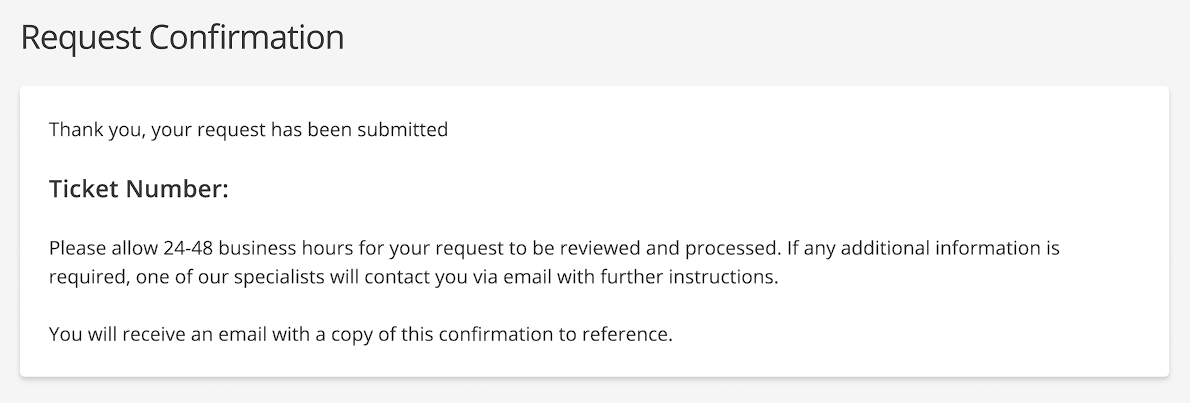
- Lastly, you should see the Request Confirmation page with your ticket number on it.
Related Articles
Summary
The Individual Ownership – Gain Ownership procedure allows an individual to request full ownership of a Bluehost account when the current Primary Contact cannot or will not provide access. Requestors must provide a government-issued ID and at least one form of legal documentation to verify their right to claim ownership. Once all documents are submitted through the Account Recovery form, a confirmation ticket is issued to track the request until it is reviewed by the Account Recovery Team.
If you need further assistance, Bluehost Chat Support is available 24 hours a day, 7days a week while Bluehost Phone Support is available 7 days a week from 7 am-12 midnight EST.
- Chat Support - While on our website, you should see a CHAT bubble in the bottom right-hand corner of the page. Click anywhere on the bubble to begin a chat session.
- Phone Support -
- US: 888-401-4678
- International: +1 801-765-9400
You may also refer to our Knowledge Base articles to help answer common questions and guide you through various setup, configuration, and troubleshooting steps.