 ChatGPT,
  Claude,
  Gemini,
  Grok — all four for
 How to View Your Complete Security Report
Bluehost Malware Protection provides detailed reports to help you monitor, review, and act on your website’s security status. This guide walks you through how to access your report, interpret the scan results, and understand the different statuses your malware removal request may go through.
Accessing Your Report
To get started, log in to your Bluehost dashboard and follow these steps to access your security report and site cleanup details.
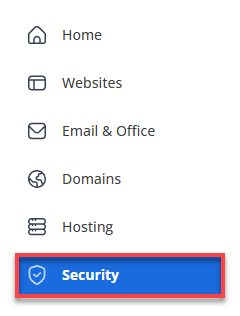
- Click the Security tab in the left-side navigation menu.
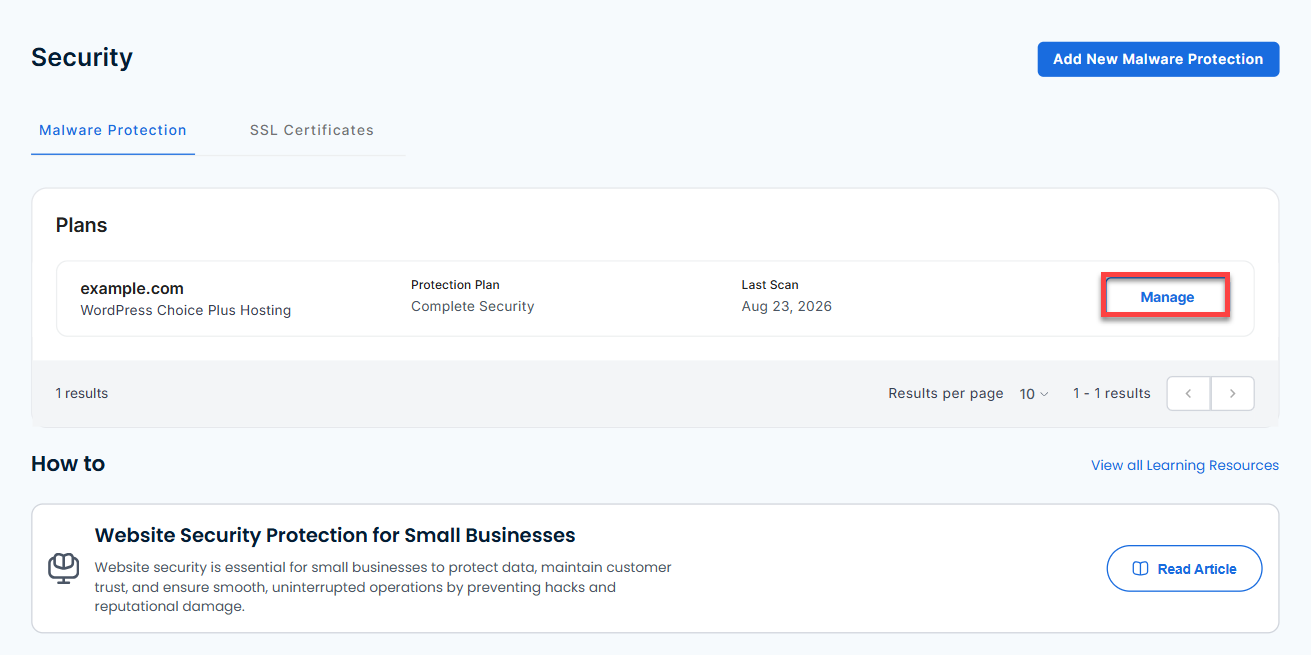
- Locate the domain you want to review, then click Manage on the same row as the domain name.
- In the top section of the Complete Security panel, locate the Site Cleanup button. The button displays the current cleanup status. Click the button to view Site Cleanup details. (See the status descriptions below for more information about each status.)
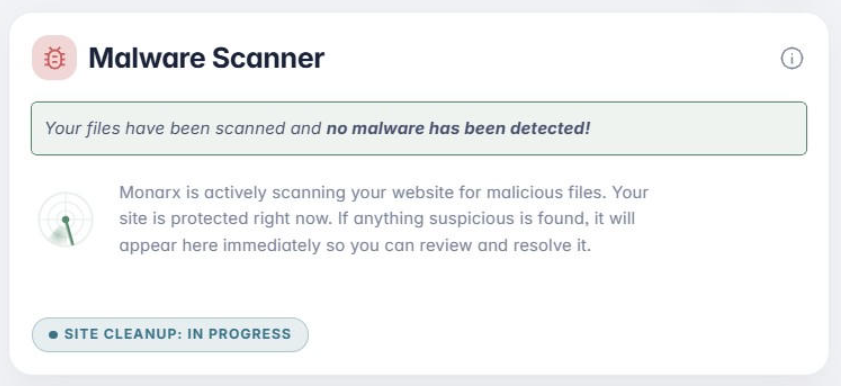
The Site Cleanup section contains two parts:
- Scan Progress Report: This section displays the status of your malware scan request, as well as the results of the most recent scan. For manual malware removal requests, it may take up to 48 hours for our Security Analysts to review the website and remove any identified malware.
You can also click the View All option to see a breakdown of different files that were found and how they were handled.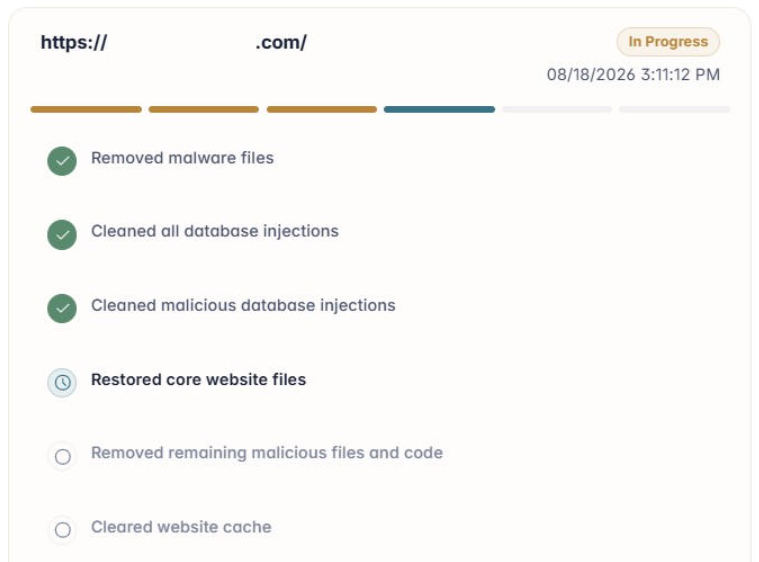
- Security Analyst Feedback Report: This section provides additional recommendations and required actions identified during the manual malware removal process. These steps should be completed by you or your developer to help strengthen your website's security and reduce the risk of future infections.
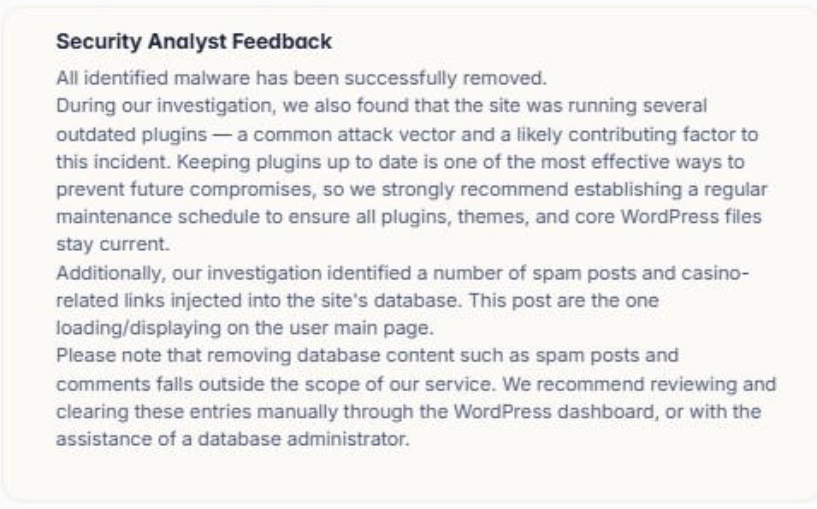
- You may need to scroll down within the dashboard to view this report.
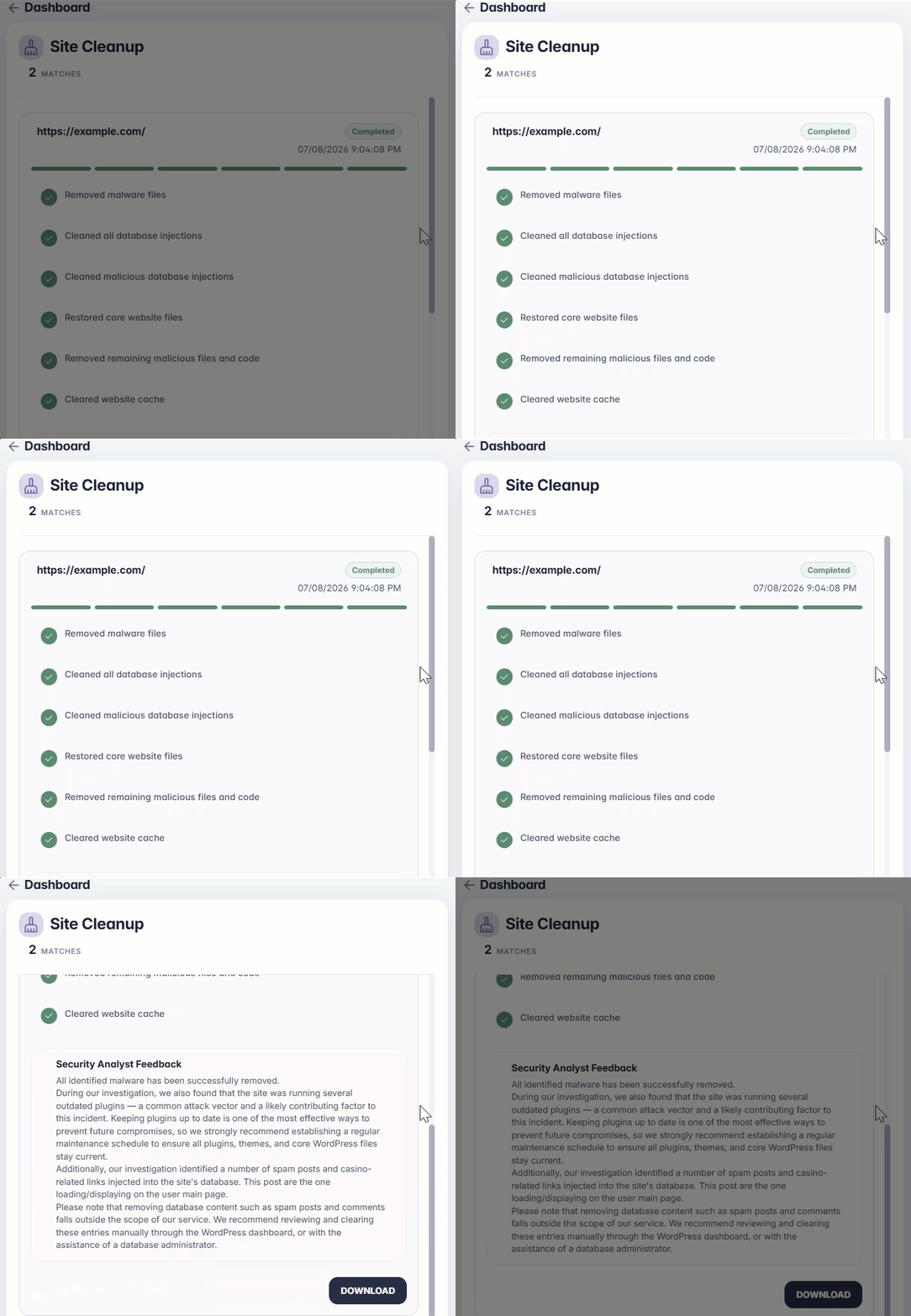
- You may need to scroll down within the dashboard to view this report.
If a manual malware removal request has been completed and you are still seeing signs of malware or believe the website has been reinfected, we're here to help. After completing the recommended actions listed in the Security Analyst Feedback Report, please contact us by phone or chat to request another manual malware review.
Statuses and What They Mean
As your malware removal request is processed, it will move through several statuses. Here’s what each status means:
- Requested: The request has been submitted and is waiting to be picked up by a malware removal professional.
- In Progress: A malware removal professional has started reviewing the infected website. You'll receive feedback once the analysis and cleanup are complete.
- Rejected: The request couldn't be processed. This typically happens when the site can't be reached (DNS issues, an expired or misconfigured domain, or an HTTP 4xx/5xx error), our tools can't access the site (for example, a WAF like Cloudflare blocking our analysis tools), or the file path provided doesn't exist.
- Superseded: This request was replaced by a newer submission for the same site — for example, if a duplicate request was submitted before the original was processed. Only the most recent request will be taken.
- Completed: The malware removal professional has finished the cleanup and added feedback on the activities performed and any next steps for the customer.
Summary
Bluehost Malware Protection makes it easy to monitor your website’s security and take action when threats are detected. By understanding your report and the status of your cleanup requests, you can keep your site safe and respond quickly to any issues. If you need further assistance, our support team is always ready to help.
If you need further assistance, Bluehost Chat Support is available 24 hours a day, 7days a week while Bluehost Phone Support is available 7 days a week from 7 am-12 midnight EST.
- Chat Support - While on our website, you should see a CHAT bubble in the bottom right-hand corner of the page. Click anywhere on the bubble to begin a chat session.
- Phone Support -
- US: 888-401-4678
- International: +1 801-765-9400
You may also refer to our Knowledge Base articles to help answer common questions and guide you through various setup, configuration, and troubleshooting steps.