 ChatGPT,
  Claude,
  Gemini,
  Grok — all four for
 Professional Email: AI Summary
AI Summary in Professional Email turns a long email or email thread into a short, bulleted summary. It's handy when you're catching up on a busy conversation and want the main points without reading every message. This article explains where to find AI Summary, how to generate a summary, and how usage limits work.
Where to Find AI Summary
AI Summary is available in your Professional Email webmail. To log in, go to Professional Email and sign in with your email address and password.
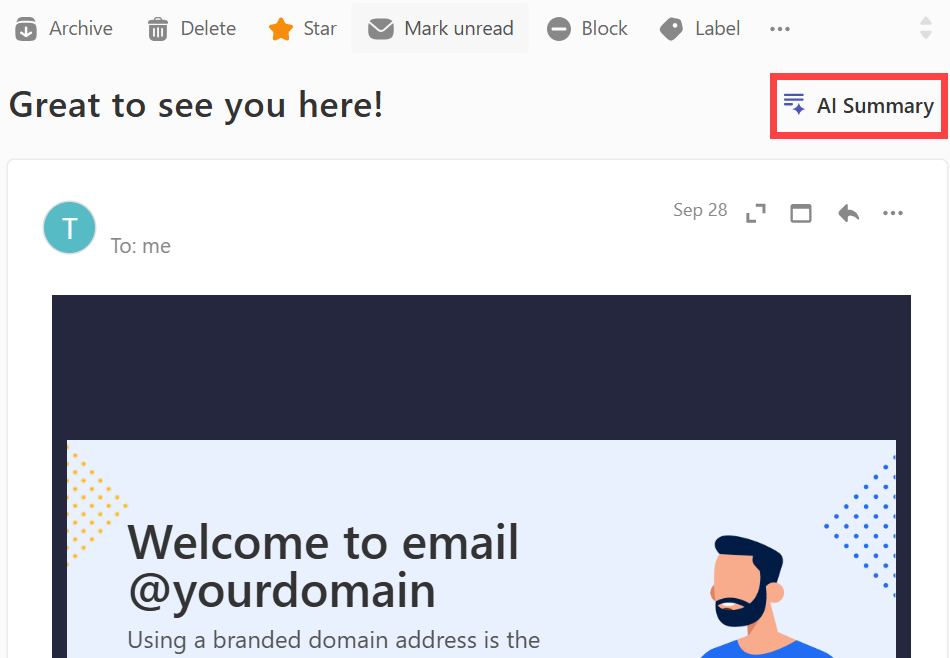
Once you open an email or email thread, the AI Summary button appears at the top right of the message, level with the subject line. It's marked with a small icon of lines and a sparkle.
How to Generate a Summary
Option 1: Use the Login to Webmail button
- Log in to your Bluehost Portal.
- From the left-hand navigation menu, click on the Email tab.
- Optional: In Professional Email, if multiple plans are listed, click Manage for the plan you want to use.

- You’ll be automatically redirected to the Email Management page, where you can manage your email settings and subscriptions.
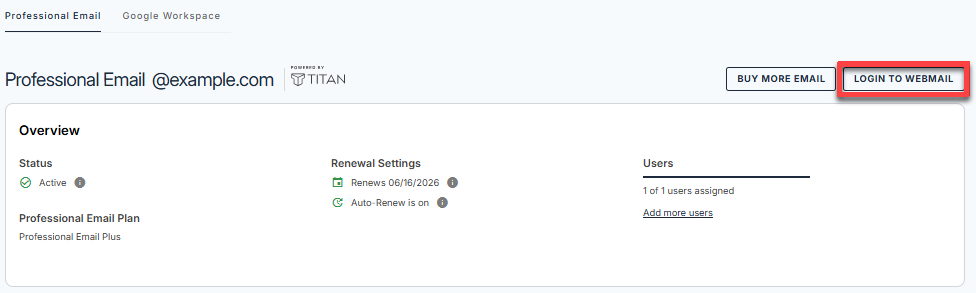
- Select the Login to Webmail button.
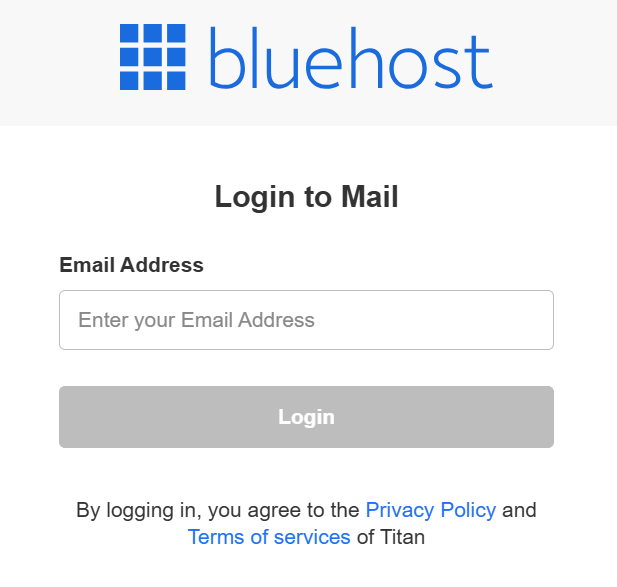
- Enter your Professional Email username and password.
Option 2: Use the direct login link
- Go to the Professional Email login page.
- Enter your Professional Email username and password.
Open an email and generate the summary
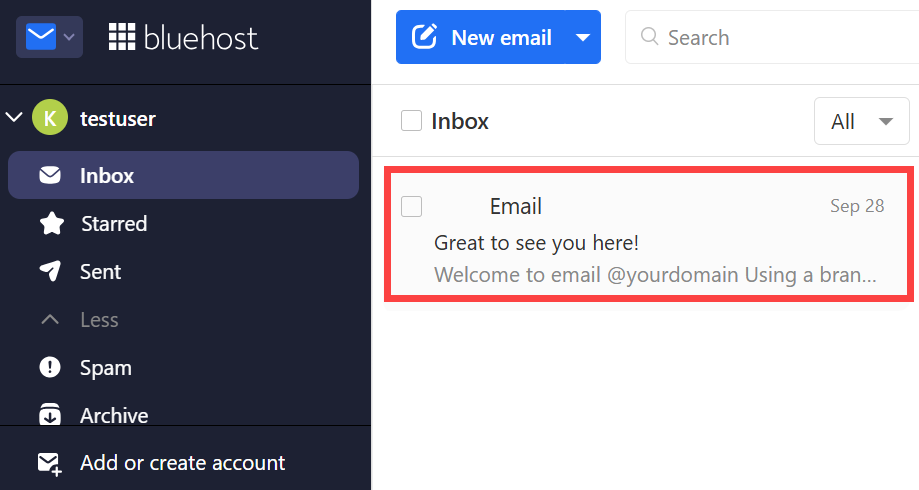
- Open the email or email thread you want summarized.
- Click AI Summary at the top right of the message.
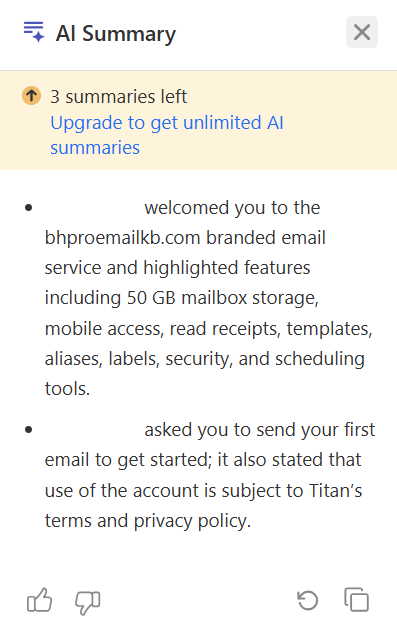
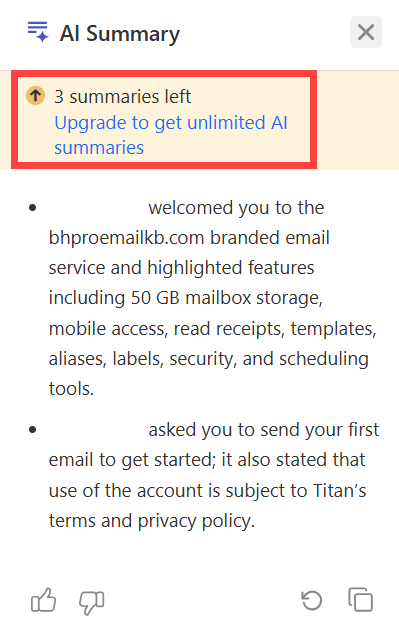
The AI Summary panel opens on the right side of the screen and shows your summary as a short list of bullet points. To close the panel, click the X in its top right corner.
What an AI Summary Includes
A summary covers the main topic of the email or thread, the important points, and any key updates or next steps. AI-generated summaries can miss details, so read the original message when accuracy matters.
Copy a Summary or Give Feedback
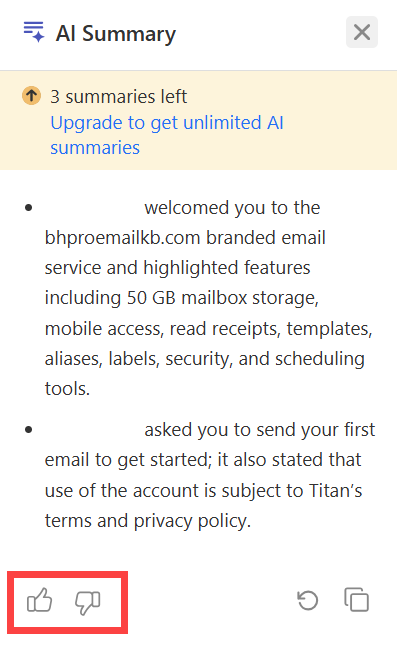
The icons at the bottom of the AI Summary panel let you:
- Select the thumbs up icon if the summary was helpful.
- Select the thumbs down icon if it wasn't. You'll also have the option to leave feedback about the summary.
- Select the Copy icon to copy the summary so you can paste it elsewhere.
Regenerate an AI Summary
If the first summary isn't quite what you need, you can regenerate it in a different style.
- Open an email or email thread and click AI Summary.
- Once the summary appears, click Regenerate, next to the Copy icon.
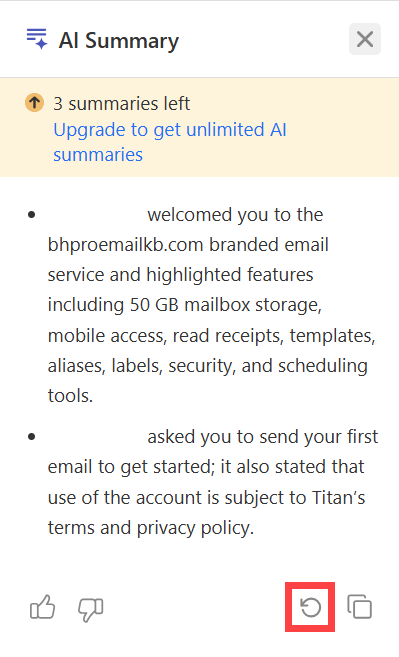
- Choose the style you want.
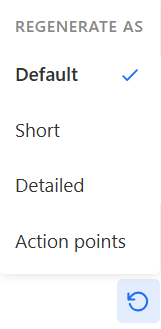
The panel updates with a new summary in the style you chose. These are the available styles:
| Style | What it does |
|---|---|
| Default | The standard summary, covering the main highlights of the email. |
| Short | A quick, condensed overview of the email or thread. |
| Detailed | A fuller summary with extra context and details. |
| Action Points | Pulls out the tasks, follow-ups, and next steps mentioned, so you can see what needs to be done. |
AI Summary Limits
A banner at the top of the AI Summary panel shows how many summaries you have left.
If you're not subscribed to Professional Email Ultra, you get four AI Summaries in total. These are one-time credits: they don't reset daily, monthly, or when your billing cycle renews, and each summary you generate uses one. When you run out, AI Summary is no longer available unless you upgrade.
Professional Email Ultra includes unlimited AI Summaries. To upgrade, select the Upgrade to get unlimited AI summaries link in the banner to view your upgrade options.
Privacy and Data Security
- AI Summary only reads emails in your own mailbox.
- Your email content isn't shared with other users.
- Summaries are generated securely, and only you can see them.
Why AI Summary Might Be Missing
If you don't see AI Summary, check the following:
- You're viewing an email draft. The AI Summary button doesn't appear on drafts. It's available when you're viewing an email or an email thread.
- You've used all your AI Summaries. If you're not subscribed to Professional Email Ultra, AI Summary is no longer available once your credits run out. For details, see AI Summary Limits.
Summary
AI Summary in Professional Email condenses a long email or email thread into a short, bulleted summary. To use it, log in to your Professional Email webmail, open an email or thread, and click AI Summary at the top right of the message. You can then copy the summary, rate it, or regenerate it in a different style. If you're not subscribed to Professional Email Ultra, you get a limited number of AI Summaries, and upgrading to Ultra gives you unlimited AI Summaries.