 ChatGPT,
  Claude,
  Gemini,
  Grok — all four for
 Professional Email: Calendar Sharing
Calendar sharing lets you give your team, or specific people, access to one of your calendars in Bluehost Professional Email. Shared calendars show up automatically in each person's Calendars list, and you choose the permission level for each person. You can only share a calendar with people who have a Professional Email account.
Log In to Professional Email Webmail
Option 1: Use the Login to Webmail Button
- Log in to your Bluehost Portal.
- From the left-hand navigation menu, click on the Email tab.
- Optional: In Professional Email, if multiple plans are listed, click Manage for the plan you want to use.

- You’ll be automatically redirected to the Email Management page, where you can manage your email settings and subscriptions.
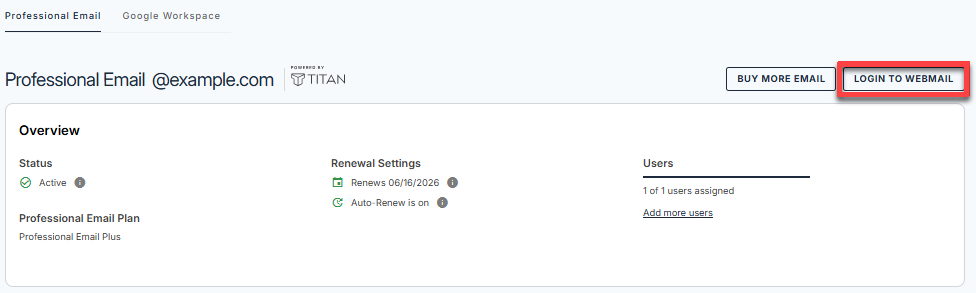
- Click the Login to Webmail button.
- Enter your Professional Email username and password.
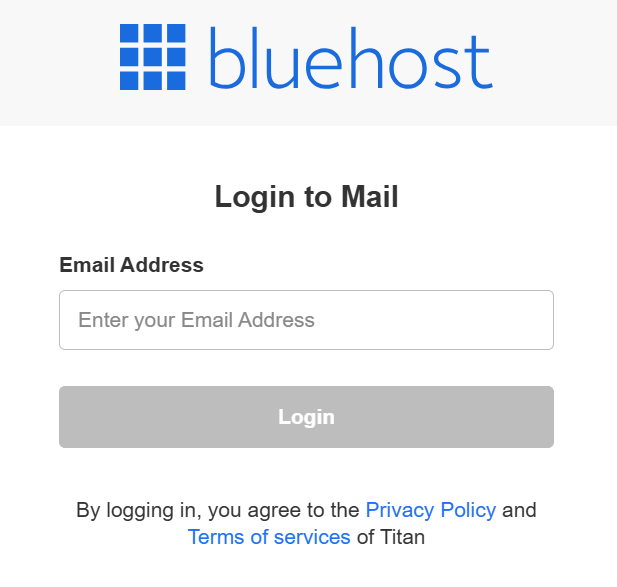
- Click Login.
Option 2: Use the Direct Login Link
- Go to the Professional Email login page.
- Enter your Professional Email username and password.
- Click Login.
Share a Calendar
Follow these steps to share a calendar:
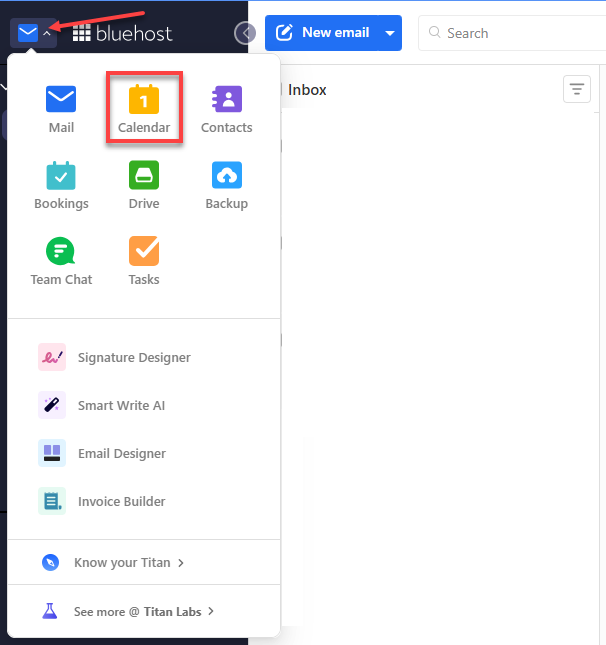
- Open Calendar in your Professional Email account.
- In the Calendars list, hover over the calendar you want to share.
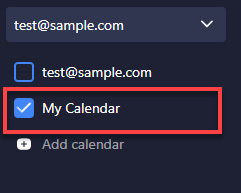
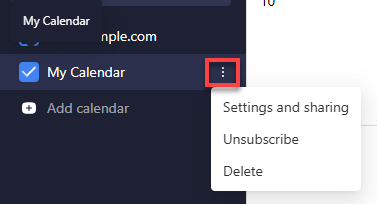
- Click the options icon next to the calendar name.
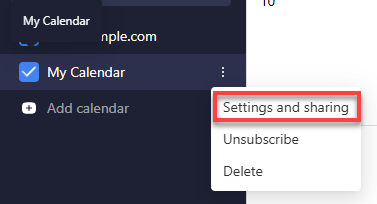
- In the menu, select Settings and sharing.
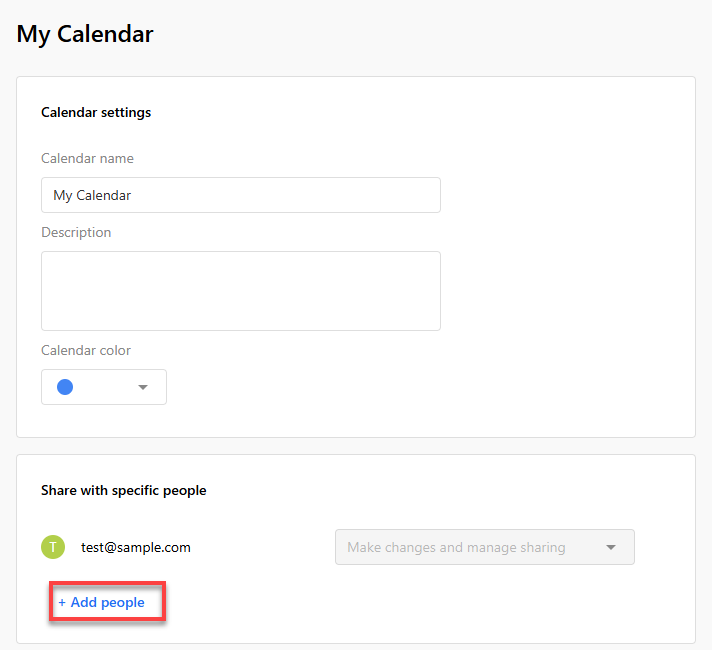
- On the Share with specific people tab, click Add people.
- Enter the email address of the person you want to share with, then press Enter. Repeat this to add more people.
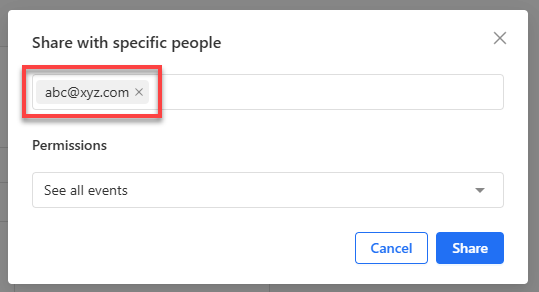
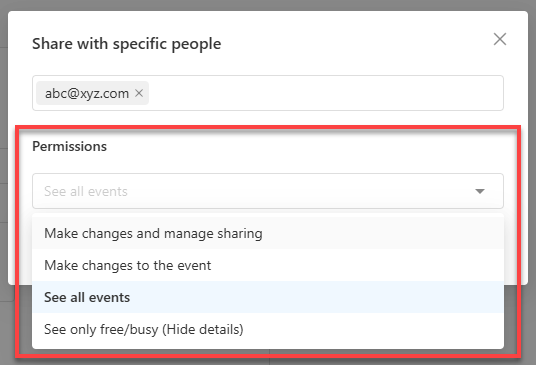
- Set the permission for each person.
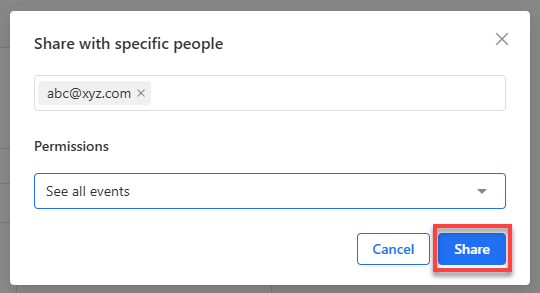
- Click Share.
What Happens After You Share
The person you shared with receives an email about the calendar, and the calendar is added to their Calendars list automatically. They don't need to accept anything.
Troubleshooting
- Problem: The person you shared with can't make changes to the calendar.
- Cause: They don't have edit permission.
- Fix: Update their permission so they can edit the calendar.
- Problem: You can't share the calendar with certain email addresses.
- Cause: Calendar sharing currently works only with Professional Email accounts.
- Fix: Share the calendar only with Professional Email addresses.
Summary
Calendar sharing lets you give people access to a calendar in Professional Email. Open the options for the calendar, select Settings and sharing, add the people you want to share with, set their permissions, and click Share. Shared calendars appear in each person's Calendars list automatically.
If you need further assistance, Bluehost Chat Support is available 24 hours a day, 7days a week while Bluehost Phone Support is available 7 days a week from 7 am-12 midnight EST.
- Chat Support - While on our website, you should see a CHAT bubble in the bottom right-hand corner of the page. Click anywhere on the bubble to begin a chat session.
- Phone Support -
- US: 888-401-4678
- International: +1 801-765-9400
You may also refer to our Knowledge Base articles to help answer common questions and guide you through various setup, configuration, and troubleshooting steps.