 ChatGPT,
  Claude,
  Gemini,
  Grok — all four for
 Professional Email: How to Create and Manage Folders
Folders help you sort the emails in your Bluehost Professional Email mailbox into categories, and subfolders let you break those categories down even further. This article shows you how to create, rename, delete, and move folders and subfolders so your inbox stays easy to navigate.
Log In to Professional Email Webmail
Option 1: Use the Login to Webmail Button
- Log in to your Bluehost Portal.
- From the left-hand navigation menu, click on the Email tab.
- Optional: In Professional Email, if multiple plans are listed, click Manage for the plan you want to use.

- You’ll be automatically redirected to the Email Management page, where you can manage your email settings and subscriptions.
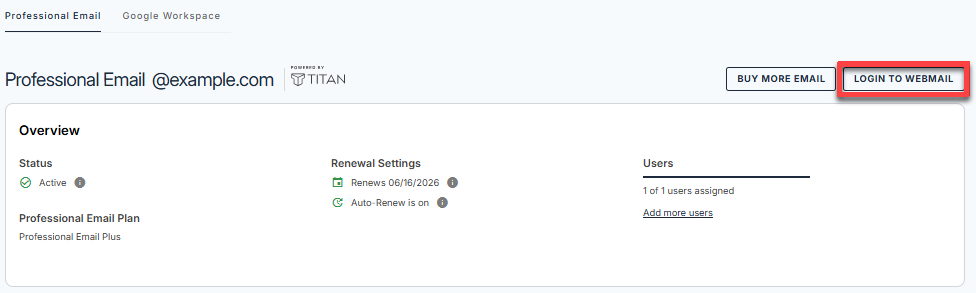
- Click the Login to Webmail button.
- Enter your Professional Email username and password.
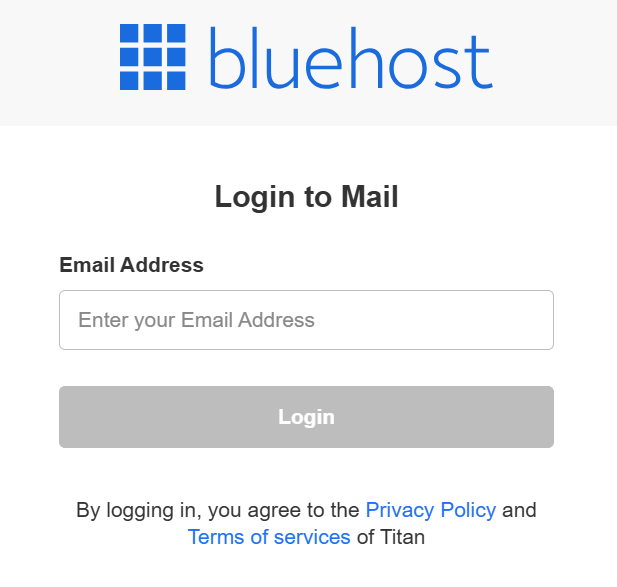
- Click Login.
Option 2: Use the Direct Login Link
- Go to the Professional Email login page.
- Enter your Professional Email username and password.
- Click Login.
Create a Folder
Follow these steps to add a new folder:
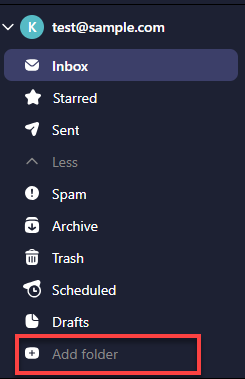
- In the sidebar, scroll to the bottom of the folders list.
- Click Add folder.
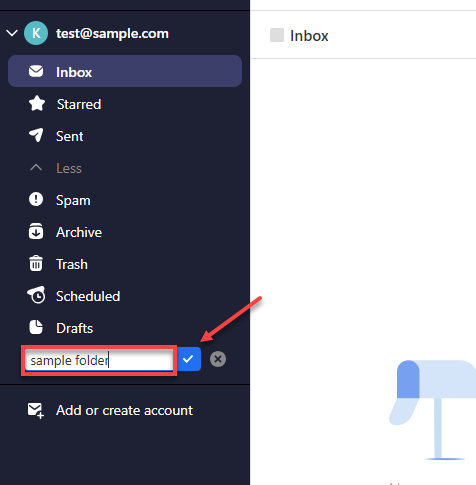
- Type a name for the folder.
- Click the blue tick, or press Enter, to confirm.
Create a Subfolder
A subfolder sits inside an existing folder. To create one:
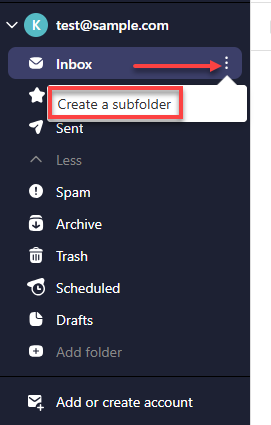
- Hover over the folder you want to put the subfolder in.
- Click the three dots at the end of the folder name.
- Select Create a subfolder.
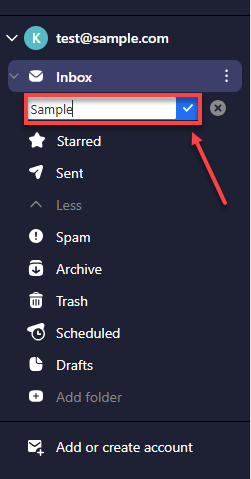
- Type a name for the subfolder.
- Click the blue tick, or press Enter, to confirm.
Rename a Folder or Subfolder
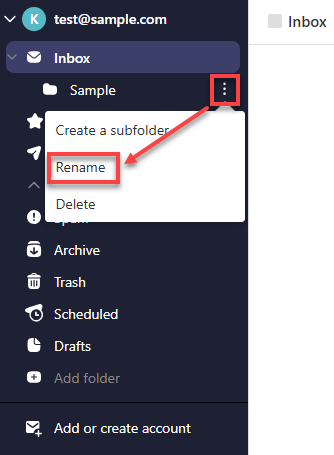
- Hover over the folder or subfolder you want to rename.
- Click the three dots at the end of its name.
- Select Rename.
- Type the new name.
- Click the blue tick, or press Enter, to confirm.
Delete a Folder or Subfolder
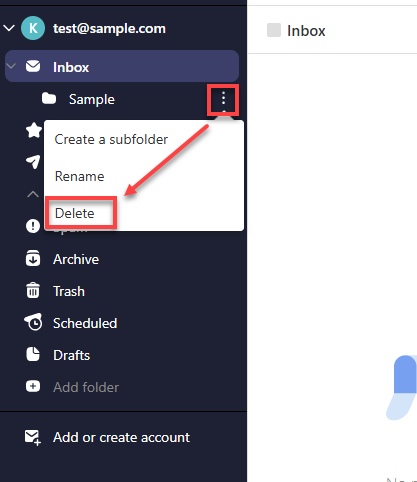
- Hover over the folder or subfolder you want to delete.
- Click the three dots at the end of its name.
- Select Delete.
Move a Folder or Subfolder
- Hover over the folder or subfolder you want to move.
- Click it, then drag it onto the folder you want to move it into.
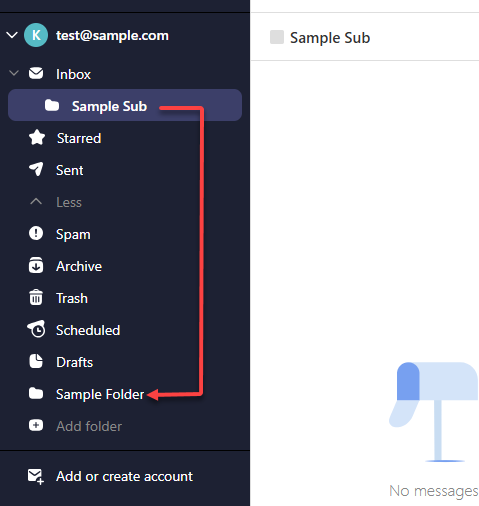
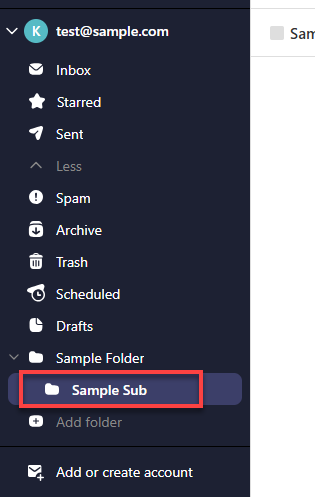
- Release it. The item now appears nested under its new parent folder.
Summary
Folders and subfolders keep your Professional Email mailbox organized. With the sidebar expanded, use Add folder to create a folder, and use the three dots next to a folder name to create a subfolder, rename it, or delete it. To move a folder or subfolder, click it and drag it onto its new parent folder.
If you need further assistance, Bluehost Chat Support is available 24 hours a day, 7days a week while Bluehost Phone Support is available 7 days a week from 7 am-12 midnight EST.
- Chat Support - While on our website, you should see a CHAT bubble in the bottom right-hand corner of the page. Click anywhere on the bubble to begin a chat session.
- Phone Support -
- US: 888-401-4678
- International: +1 801-765-9400
You may also refer to our Knowledge Base articles to help answer common questions and guide you through various setup, configuration, and troubleshooting steps.