 ChatGPT,
  Claude,
  Gemini,
  Grok — all four for
 Professional Email: How to Fix "Invalid From address" Error
Bluehost Professional Email checks the From address on messages you send. If that address is formatted incorrectly or doesn't match the account you're sending from, the message is rejected with an "Invalid From address" error.
This article explains the error messages you may see and how to correct the settings behind them, whether you send from an email program or from webmail.
Invalid From Address Error Messages
A rejected message comes back with a 550 5.7.1 code followed by one of these messages:
| Error Message | What It Means |
|---|---|
550 5.7.1 Invalid From address. Different emails [address 1] and [address 2] found |
The From address doesn't match the email address of the account sending the message. |
550 5.7.1 Invalid From address. Different domains [domain 1] and [domain 2] found |
The domain in the From address is different from the domain of the account sending the message. |
550 5.7.1 Invalid From address. Mail is not following RFC 5322. 'From' header is invalid |
The From address isn't formatted the way the RFC 5322 email standard requires. |
550 5.7.1 Invalid From address. Mail is not following RFC 5322. 'From' header does not exist |
The message was sent without any From address. |
Fix the Error in an Email Program
If you send from Outlook, Thunderbird, or Apple Mail, the error is usually caused by two settings that don't line up. Follow these steps to correct them:
- Open the account settings in your email program.
- Find the Message From setting and make sure it contains one valid email address.
- Make sure that address exactly matches the Mail From address.
- Save your changes, then send a new message.
Fix the Error in Webmail
If you send from Bluehost Professional Email webmail, check the name saved on your account:
- Log in to your Bluehost Professional Email.
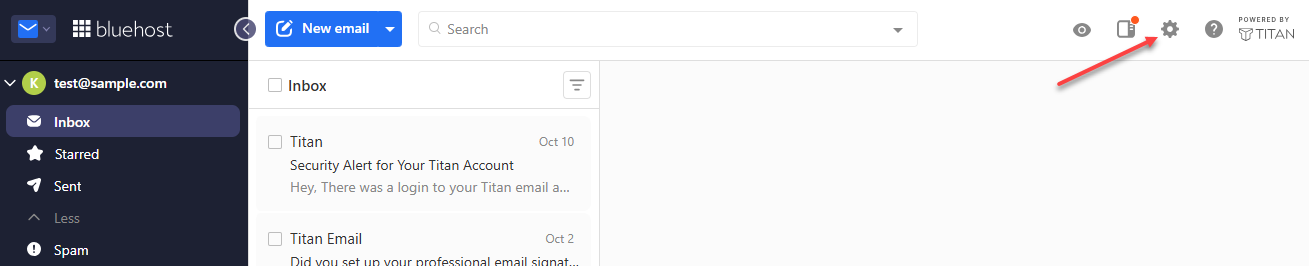
- Click Settings at the top right corner.
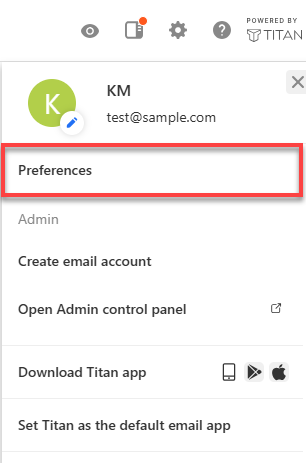
- Click Preferences.
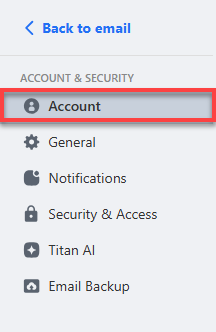
- Find the Account section.
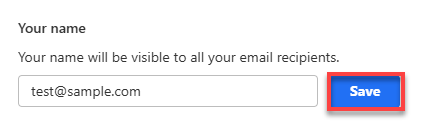
- Look at the Your name field. If it contains an email address, make sure it exactly matches the address you are logged in with.
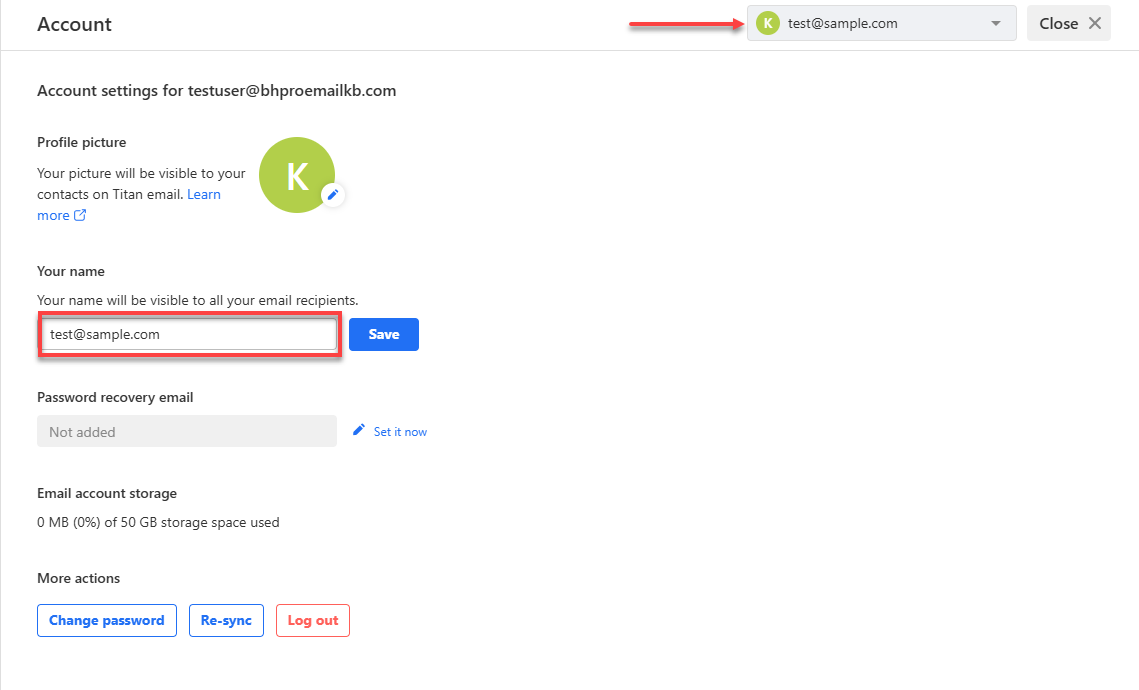
- Click Save.
If the Error Continues
The "Different domains" Error
If you still see this error after correcting the address, close and reopen your email program so it stops using old, saved settings.
The RFC 5322 Errors
These errors usually clear up once the Message From and Mail From addresses match. If the message says the From header does not exist, make sure a sending address is filled in.
Confirm the Fix Worked
Send a test message. When the settings are correct, the message should no longer be rejected with a 550 5.7.1 error, and the recipient sees the matching From address.
Summary
The "Invalid From address" error appears when the From address on a message is badly formatted, missing, or doesn't match the Bluehost Professional Email account that sent it. In an email program, make sure the Message From and Mail From addresses are the same single, valid address. In webmail, check that the Your name field matches the address you are logged in with. If a "Different domains" error remains after the fix, restart your email program, then send a test message to confirm.
If you need further assistance, Bluehost Chat Support is available 24 hours a day, 7days a week while Bluehost Phone Support is available 7 days a week from 7 am-12 midnight EST.
- Chat Support - While on our website, you should see a CHAT bubble in the bottom right-hand corner of the page. Click anywhere on the bubble to begin a chat session.
- Phone Support -
- US: 888-401-4678
- International: +1 801-765-9400
You may also refer to our Knowledge Base articles to help answer common questions and guide you through various setup, configuration, and troubleshooting steps.