 ChatGPT,
  Claude,
  Gemini,
  Grok — all four for
 Bluehost Professional Email: How to Open and Use Titan Drive
Titan Drive is cloud storage built into your Professional Email account. You can use it to store and organize files, save email attachments without downloading them, attach stored files to new emails, and share files with others.
How to Access Titan Drive
You can reach Titan Drive by logging in to webmail from your Bluehost Account Manager.
- Log in to your Bluehost Portal.
- From the left-hand navigation menu, click on the Email tab.
- Optional: In Professional Email, if multiple plans are listed, click Manage for the plan you want to use.

- You’ll be automatically redirected to the Email Management page, where you can manage your email settings and subscriptions.
- Click Email Accounts.
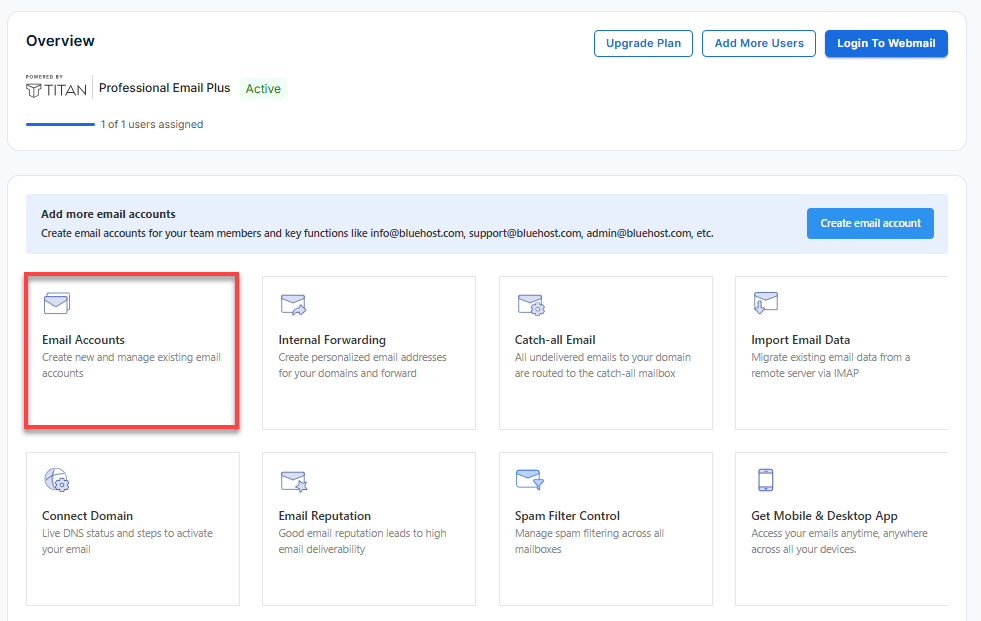
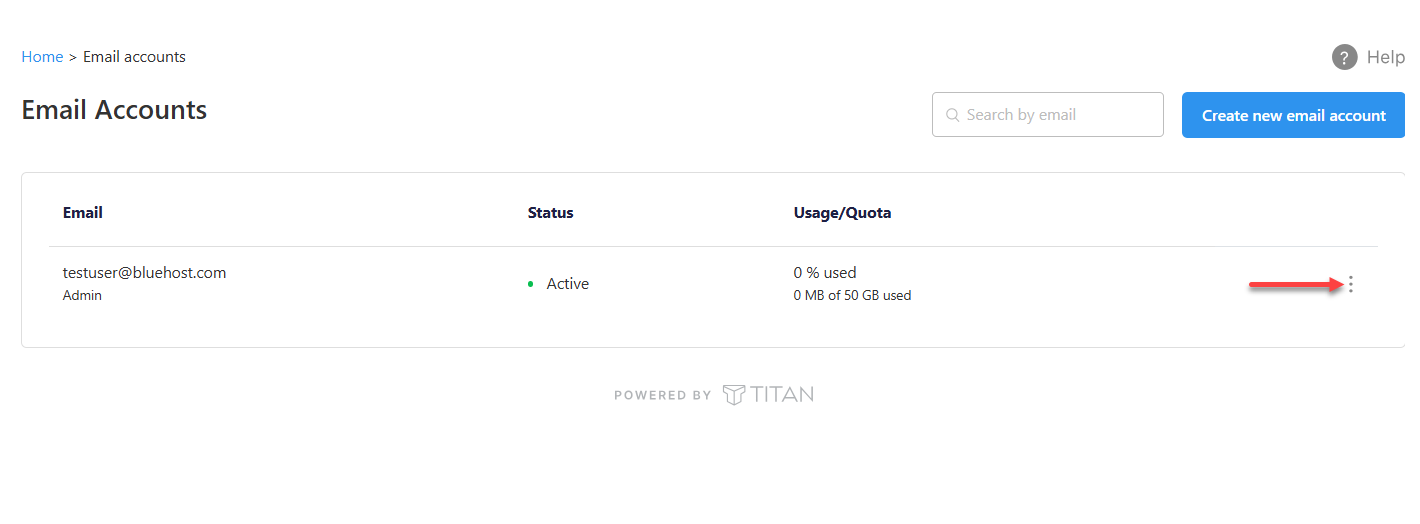
- Find the email account you want to manage.
- Hover over the account and click the ellipsis icon (
⋮).
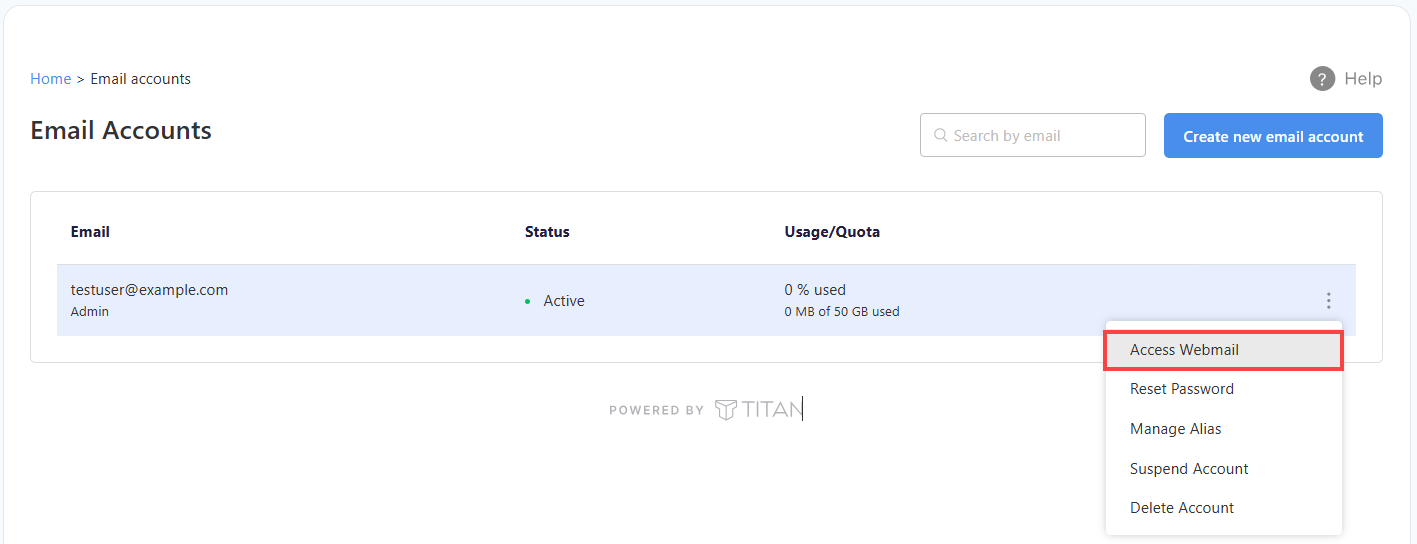
- Click Access Webmail to launch your webmail.
- Enter your email address and click Login. Next, type your password and click Login once more to access your account.
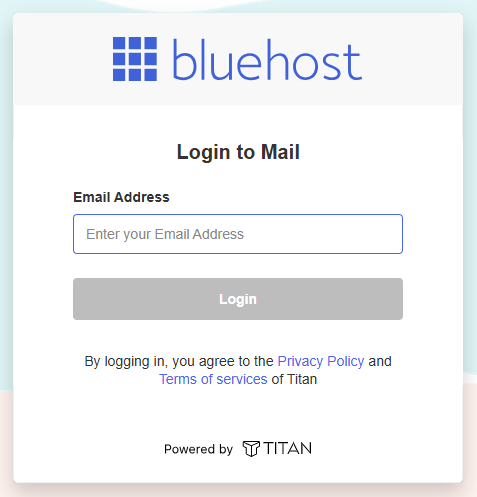
Alternatively, sign in directly at https://bluehost.titan.email/login/ using your full email address and password. - In the top navigation bar, click the App Switcher, then select Drive.
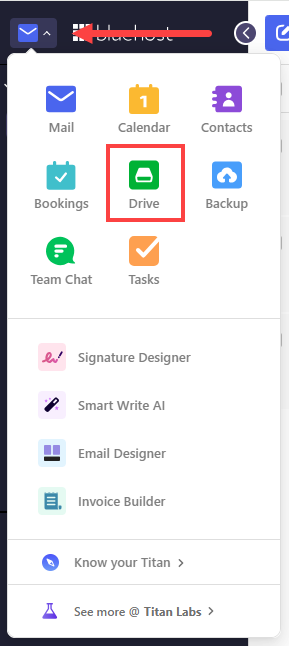
The Titan Drive dashboard opens, showing all the files stored in your Drive. To return to your inbox, click the App Switcher again and select Mail.
How to Upload and Organize Files
Set up folders and upload your files to keep everything in your Drive neat and easy to manage.
Create a folder
Create folders to sort your files by project, client, or any category you choose.
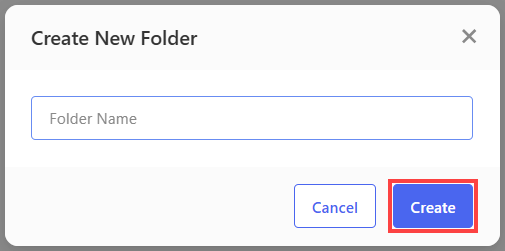
- In Titan Drive, click New Folder.

- Enter a name for the folder, then click Create.
Upload files or folders
Copy files from your computer to Titan Drive so you can access them from webmail.
- In Titan Drive, click Upload.
- Select Upload File or Upload Folder.
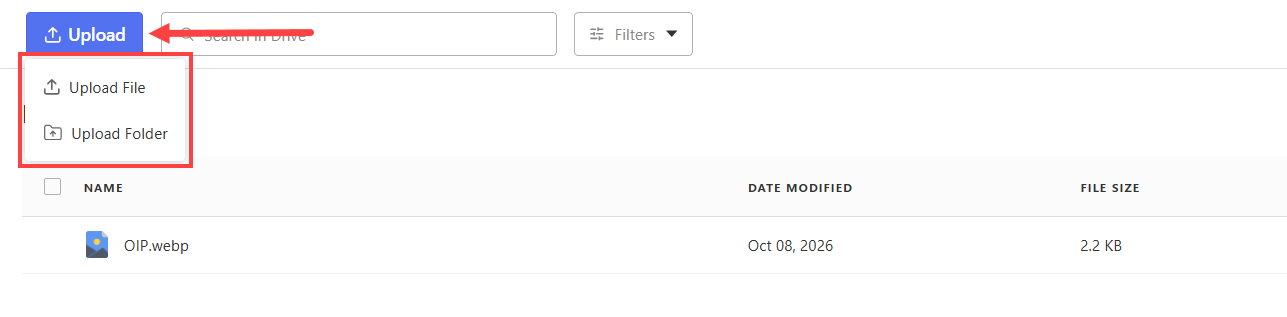
- Choose the files or folder from your device.
An upload progress window appears. When the upload finishes, your files show up in the current folder.
If a file with the same name already exists in the folder, choose how to handle it:
- Keep Both (default): Uploads the new file with a number added to its name.
- Replace: Moves the existing file to Trash and replaces it with the new one.
- Skip: Leaves the existing file unchanged and doesn't upload the new one.
Find Files
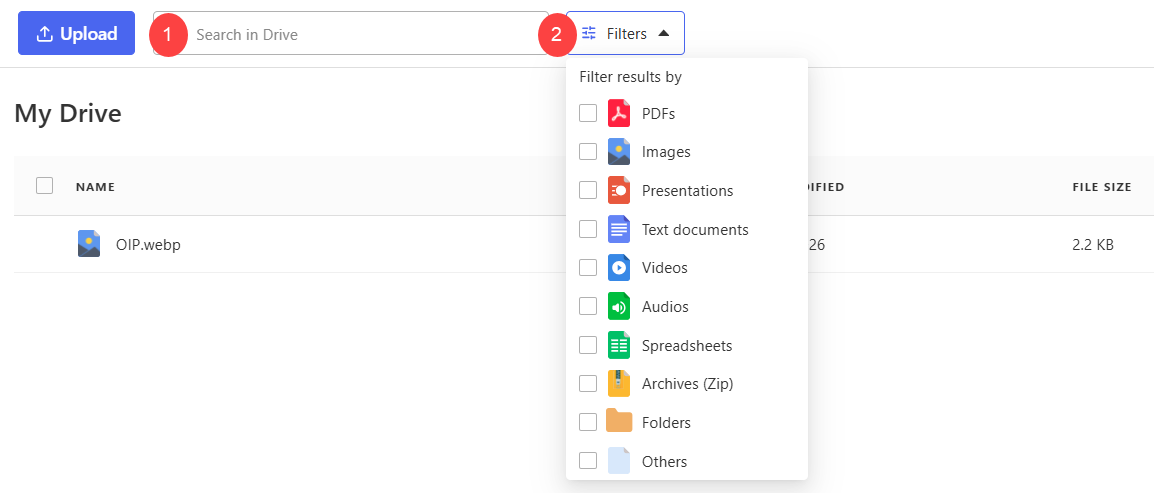
Search and filters make it easy to find a specific file, even when your Drive holds a lot of content.
- Search: Type a keyword, such as a file name or client name, into the Search bar to see matching files and folders.
- Filter: Click Filter and choose a file type, such as PDFs, Images, or Videos, to show only those files.
Preview, Download, Share, Transfer a Copy, Rename, Move, and Delete Files
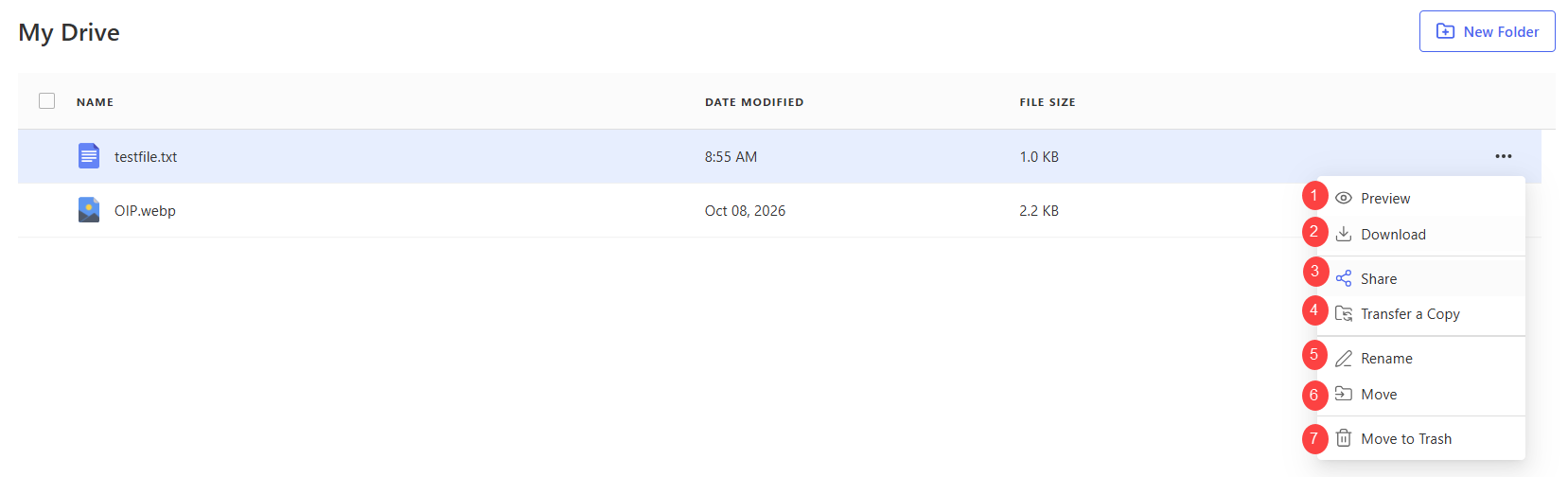
Click the three dots next to any file or folder to see the actions you can take on it.
- Preview: Double-click a file, or select Preview, to view it without downloading. Previews are available for PDFs, images, text files, Microsoft Office files, and audio and video files.
- Download: Click the three dots (⋯) next to a file or folder, then click Download.
- Share: Click the three dots (⋯) next to a file or folder, select Share, and copy the link to send to others. Recipients always see the latest version, and any changes you make later appear for them automatically.
Important: Anyone who has a Share or Transfer link may be able to open the files, so only send links to people you trust. To stop sharing, turn off or delete the link in Titan Drive. If your plan supports it, add a password or expiry date to Transfers that contain sensitive information.
- Transfer a copy: Click the three dots (⋯) next to a file or folder, select Transfer a copy, adjust the Transfer settings, then copy the link to send to others. Recipients get a one-time copy of the files as they are right now, and later changes aren't reflected. Transfers expire after 30 days by default.
- Rename: Click the three dots (⋯) next to a file or folder, select Rename, enter the new name, and click Rename.
- Move: Click the three dots (⋯) next to a file, select Move, choose the destination folder, and click Move.
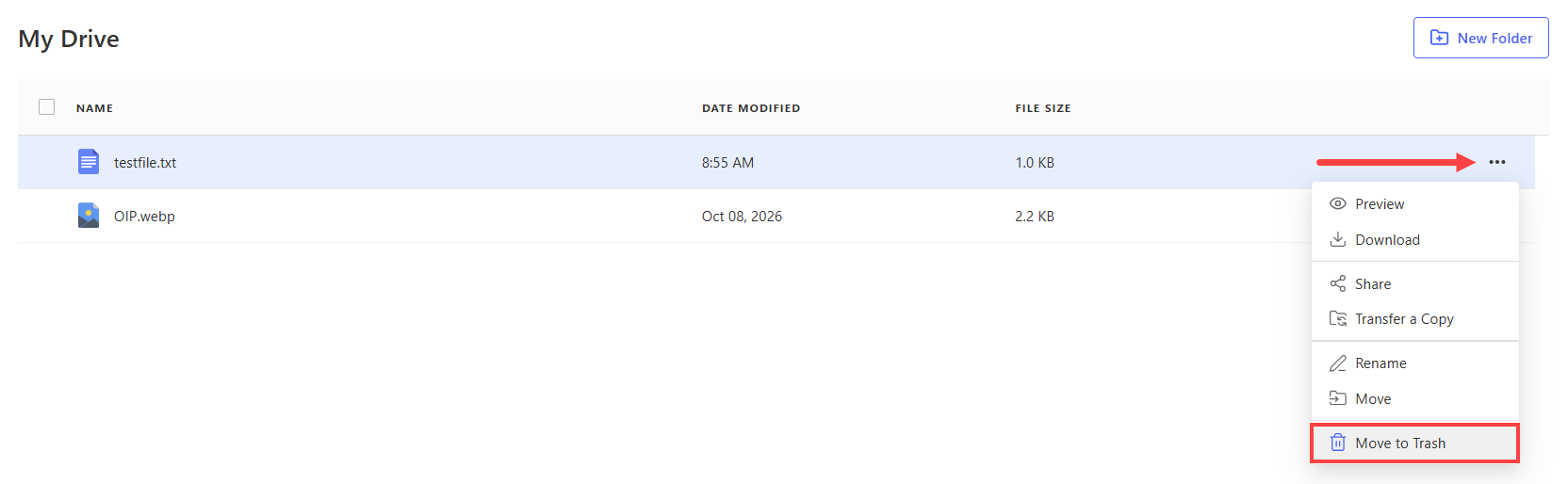
- Move to Trash: Click the three dots (⋯) next to a file, then select Move to Trash. You can restore the file from Trash within 30 days. See Restore or Permanently Delete Files below.
Delete Files
When you delete a file, it moves to the Trash folder in the sidebar instead of being removed right away.
- To delete a file, click the three dots (⋯) next to it and select Move to Trash.
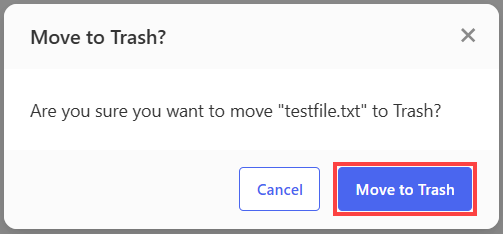
- Click Move to Trash to complete the action.
Restore or Permanently Delete Files
Use the Trash folder to recover files you still need or to permanently remove the ones you don't.
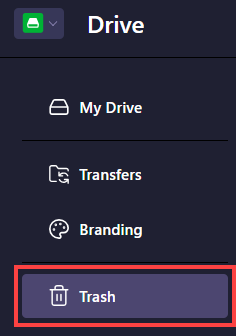
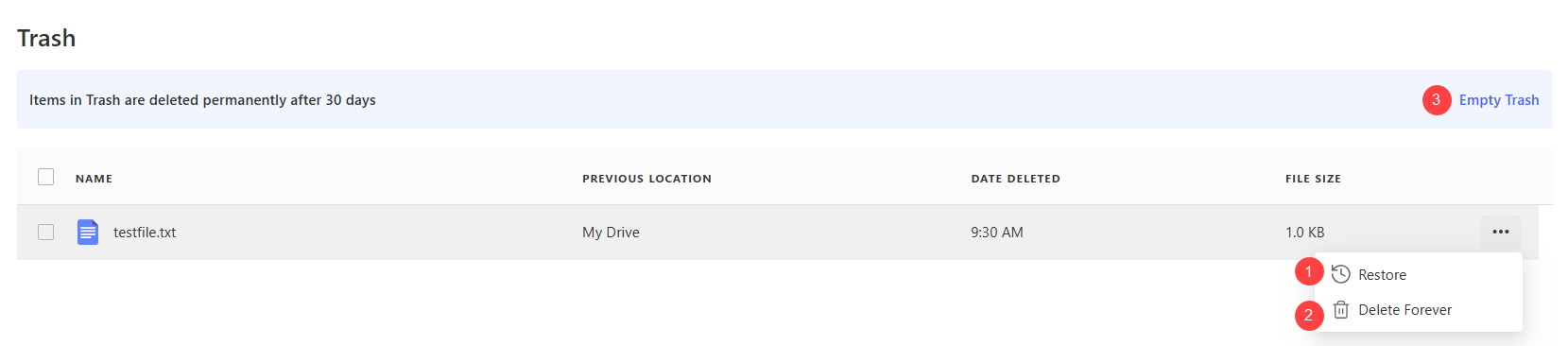
- Click Trash in the sidebar to view deleted files.
- Choose an action:
- Restore: Returns the file to its original folder.
- Delete Forever: Permanently deletes the file.
- Empty Trash: Permanently deletes everything in Trash at once.
Use Titan Drive with Email
Titan Drive works hand in hand with your webmail, letting you save and send files without leaving your inbox.
Save an email attachment to Drive
Save attachments you receive straight to Drive so they're stored with the rest of your files.
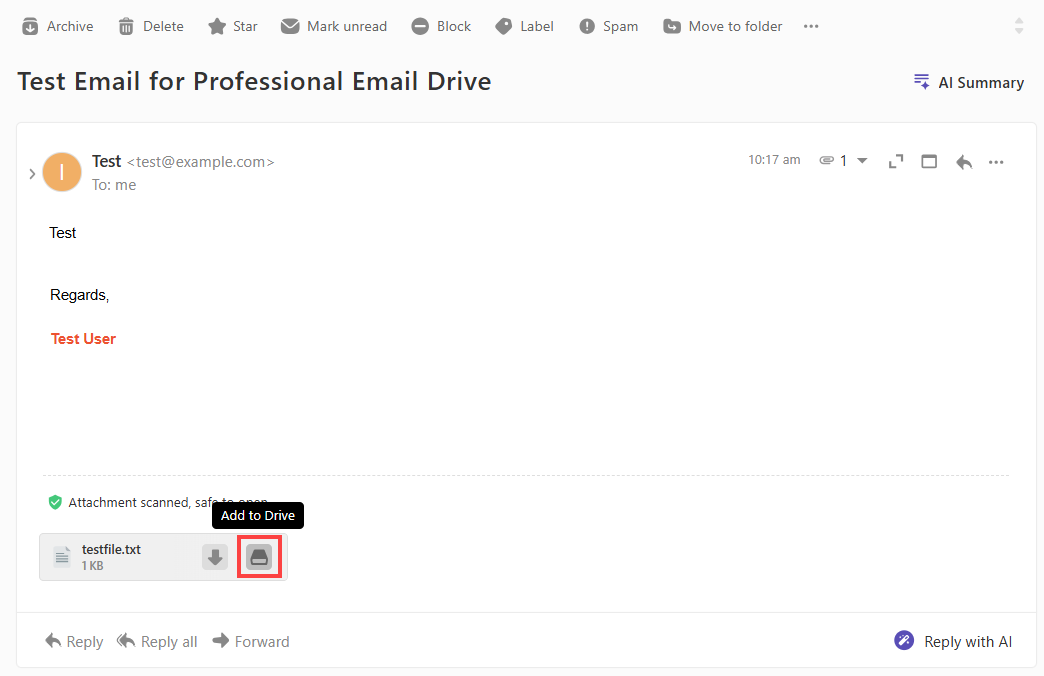
- In webmail, open an email that has an attachment.
- Click Add to Drive next to the attachment.
- For emails with several attachments, click Add all to Drive.
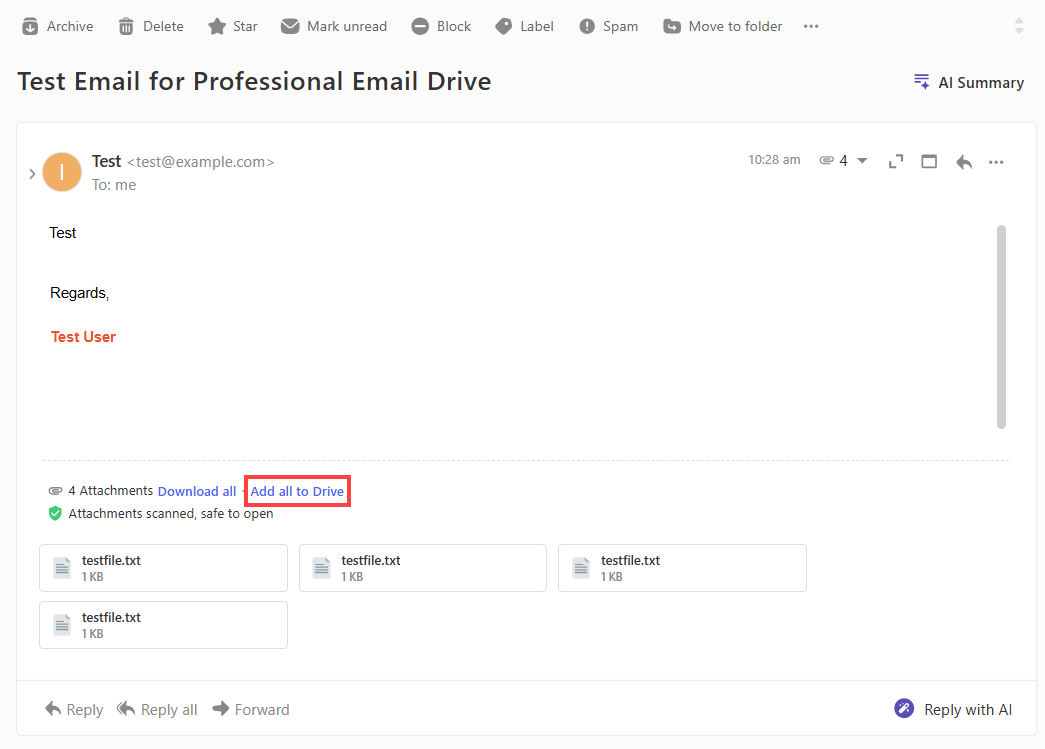
Once an attachment is saved, the option changes to Show in Drive, which opens the file's location in Titan Drive.
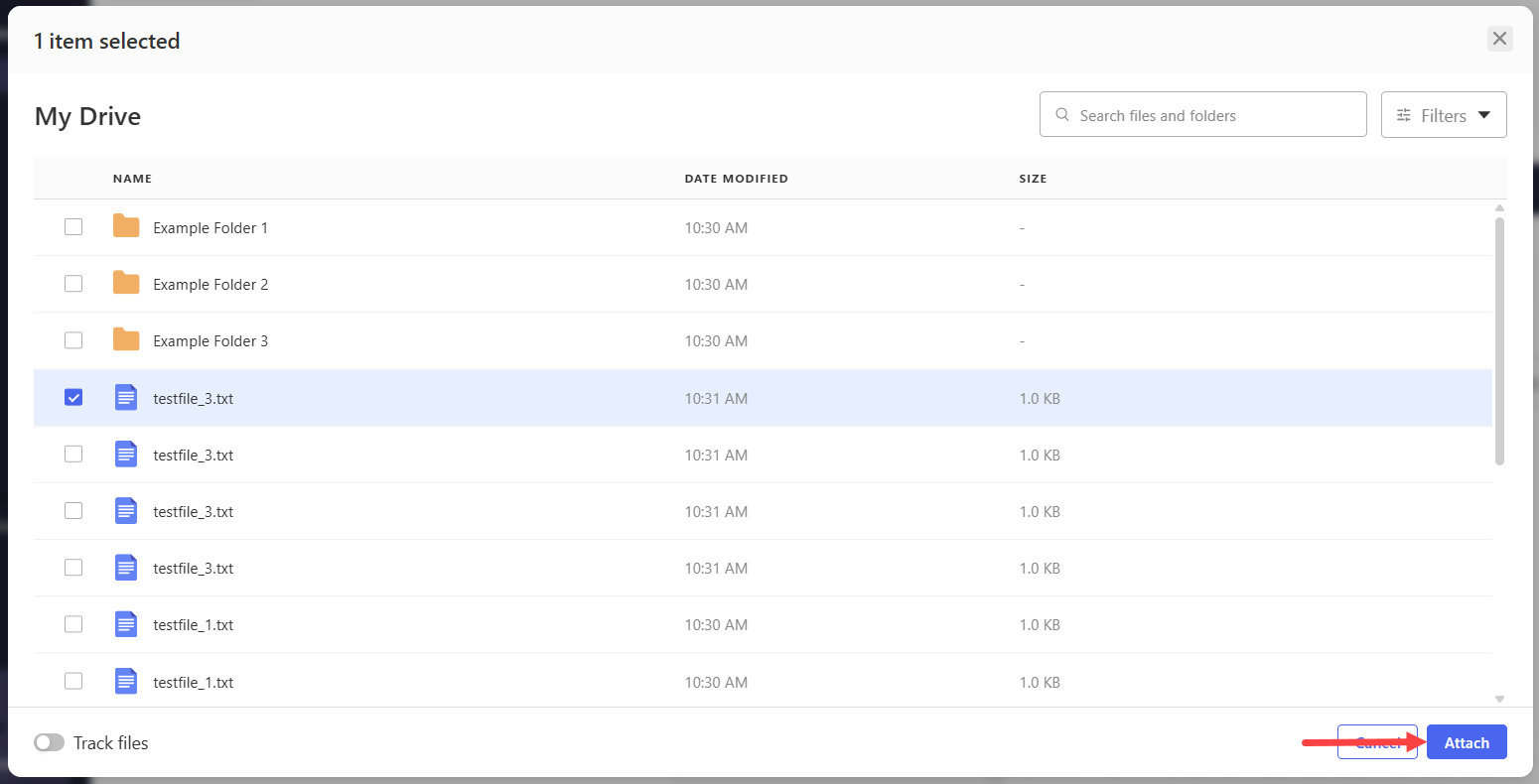
Attach a file from Drive to an email
Send files from your Drive as email attachments without downloading them to your device first.
- In webmail, click Compose.
- Click Attach from Drive.
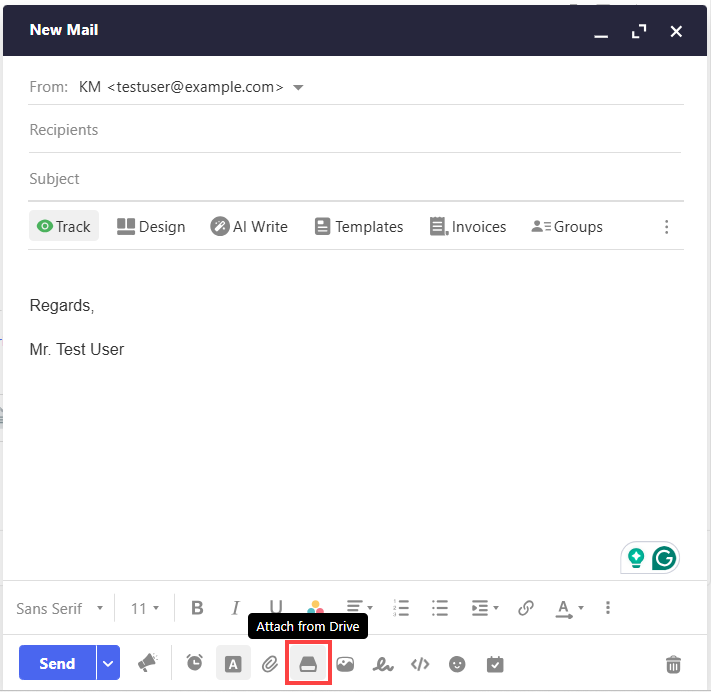
- Browse your Drive, select the file, and click Attach.
Share Files from Titan Drive
Titan Drive offers two ways to share files and folders with others:
- Share: Gives recipients access to the live version of a file or folder. Any changes you make later appear for them automatically, which is useful for ongoing collaboration.
- Transfer: Sends a one-time downloadable copy of the files as they are right now. Later changes in Drive aren't reflected. Depending on your plan, Transfers can include expiry dates, passwords, and download tracking.
Summary
Titan Drive gives your Bluehost Professional Email account built-in cloud storage, so you can keep files, attachments, and shared documents in one place.
If you need further assistance, Bluehost Chat Support is available 24 hours a day, 7days a week while Bluehost Phone Support is available 7 days a week from 7 am-12 midnight EST.
- Chat Support - While on our website, you should see a CHAT bubble in the bottom right-hand corner of the page. Click anywhere on the bubble to begin a chat session.
- Phone Support -
- US: 888-401-4678
- International: +1 801-765-9400
You may also refer to our Knowledge Base articles to help answer common questions and guide you through various setup, configuration, and troubleshooting steps.