 ChatGPT,
  Claude,
  Gemini,
  Grok — all four for
 Bluehost Professional Email: How to Access and Manage Files in Titan Drive
Titan Drive is cloud file storage that is built into your Bluehost Professional Email webmail. With Titan Drive, you can upload, manage, and share files without leaving your webmail interface.
Whether you are storing client contracts, project files, or important media, this guide walks you through accessing and organizing your files in Titan Drive.
Titan Drive Storage by Plan
Titan Drive storage is separate from the mailbox storage included in your email plan. The storage you get depends on your Professional Email plan:
| Plan | Mailbox Storage | Titan Drive Storage |
|---|---|---|
| Professional Email | 10 GB per mailbox | Not included |
| Professional Email Plus | 50 GB per mailbox | 1 GB |
| Professional Email Ultra | 100 GB per mailbox | 50 GB |
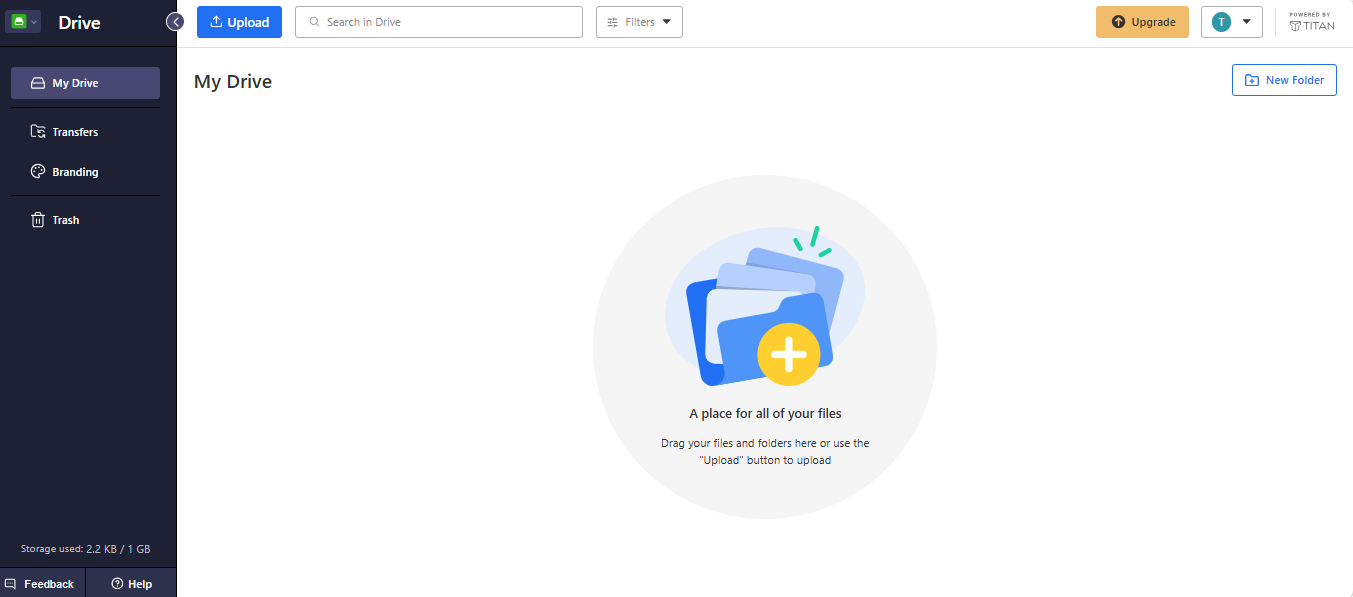
To see how much Titan Drive storage you have used, check the storage indicator at the bottom of the left menu in Titan Drive.
How to Access Titan Drive
To open Titan Drive, log in to Titan Webmail from your Bluehost Portal:
- Log in to your Bluehost Portal.
- From the left-hand navigation menu, click on the Email tab.
- Optional: In Professional Email, if multiple plans are listed, click Manage for the plan you want to use.

- You’ll be automatically redirected to the Email Management page, where you can manage your email settings and subscriptions.
- Click the Login to Webmail button to log in.
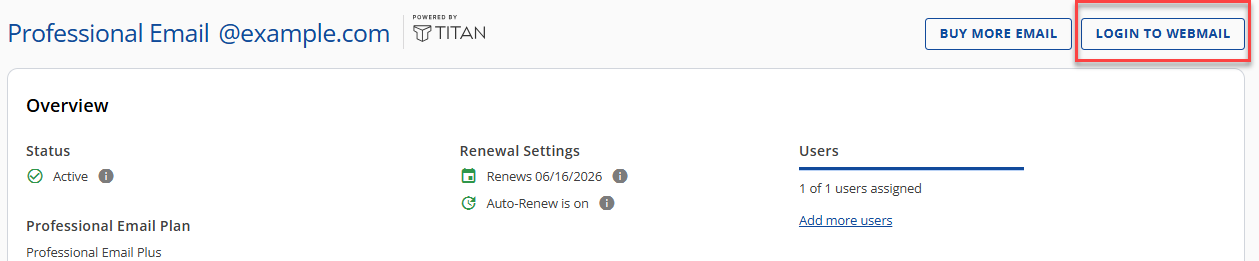
You can also go directly to the Bluehost Webmail login page and log in with your email address and password. For other ways to log in, see How to Access Webmail: Log into Your Email Account.
- Click the Switch apps icon in the upper-left corner of the webmail window.
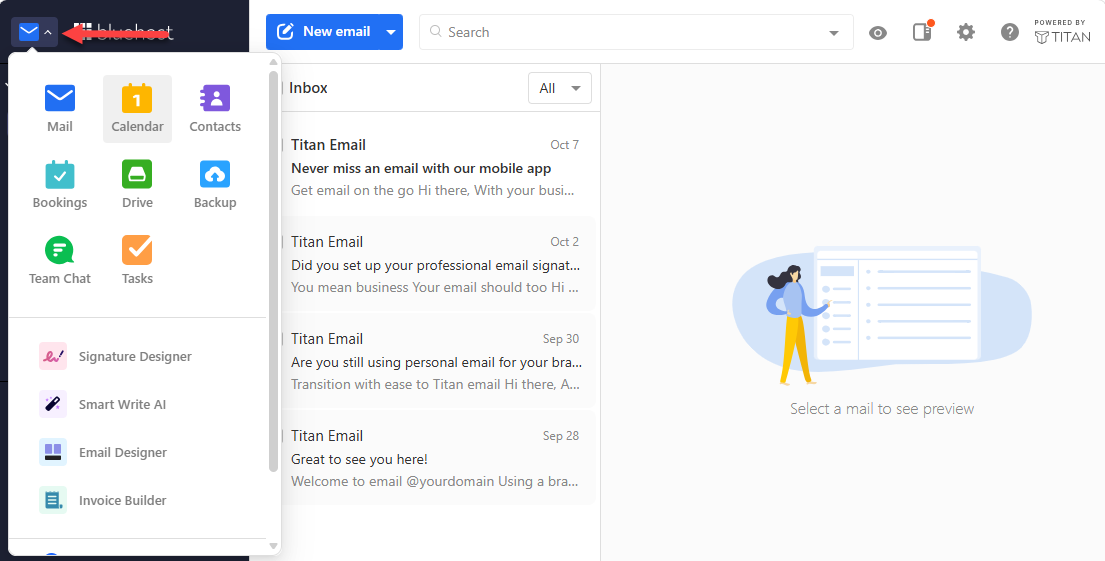
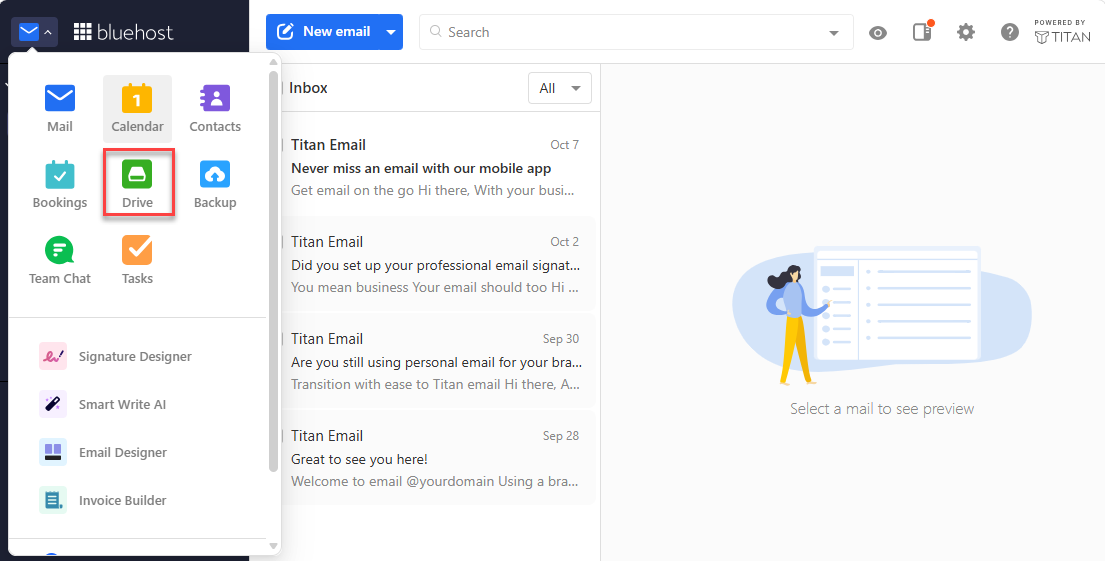
- Select Drive from the menu.
Your Titan Drive dashboard opens in your browser window, showing the My Drive page.
How to Upload Files and Folders
Titan Drive offers two ways to add files and folders from your computer.
Using the Upload button:
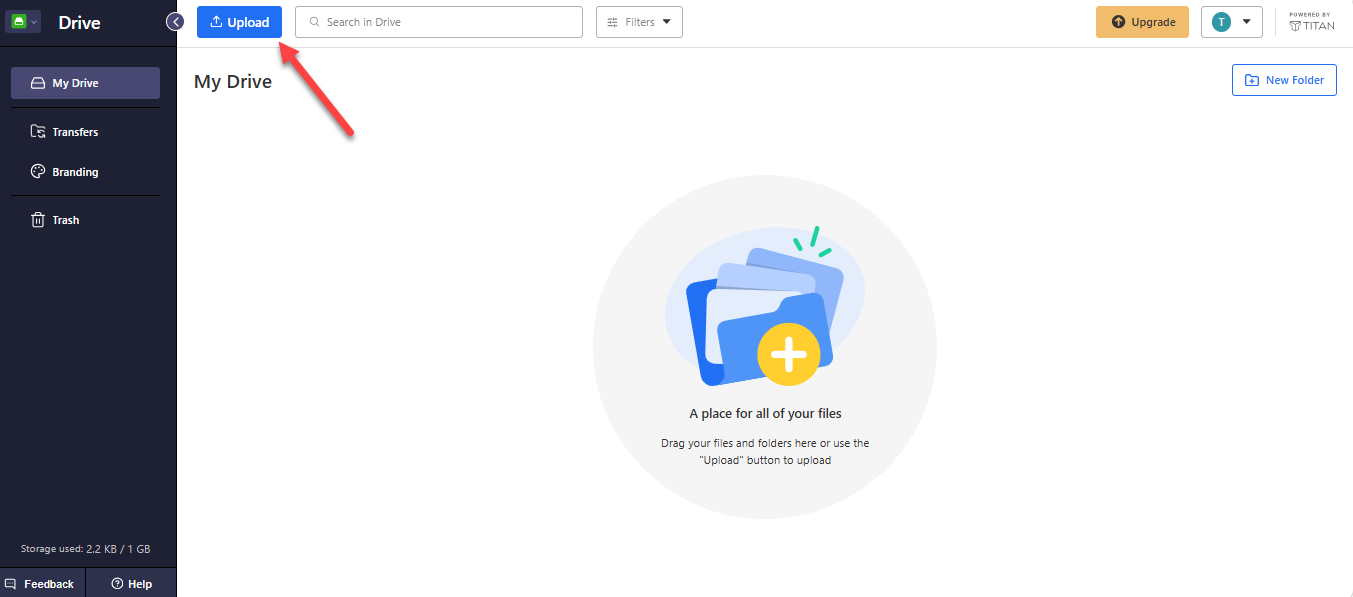
- Click the Upload button in the top toolbar of My Drive.
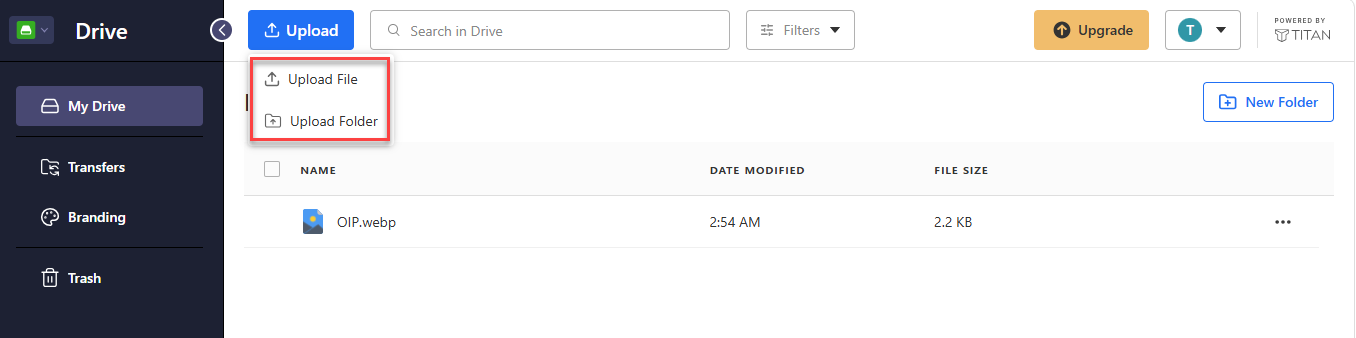
- Select Upload File or Upload Folder.
- Browse your computer, select your item(s), and confirm the upload.
Using drag-and-drop:
- Locate the files or folders on your computer.
- Drag them into your open Titan Drive browser window.
- Release to start the upload.
How to Organize Files and Folders
To keep your files structured and easy to find, use the file management options in Titan Drive:
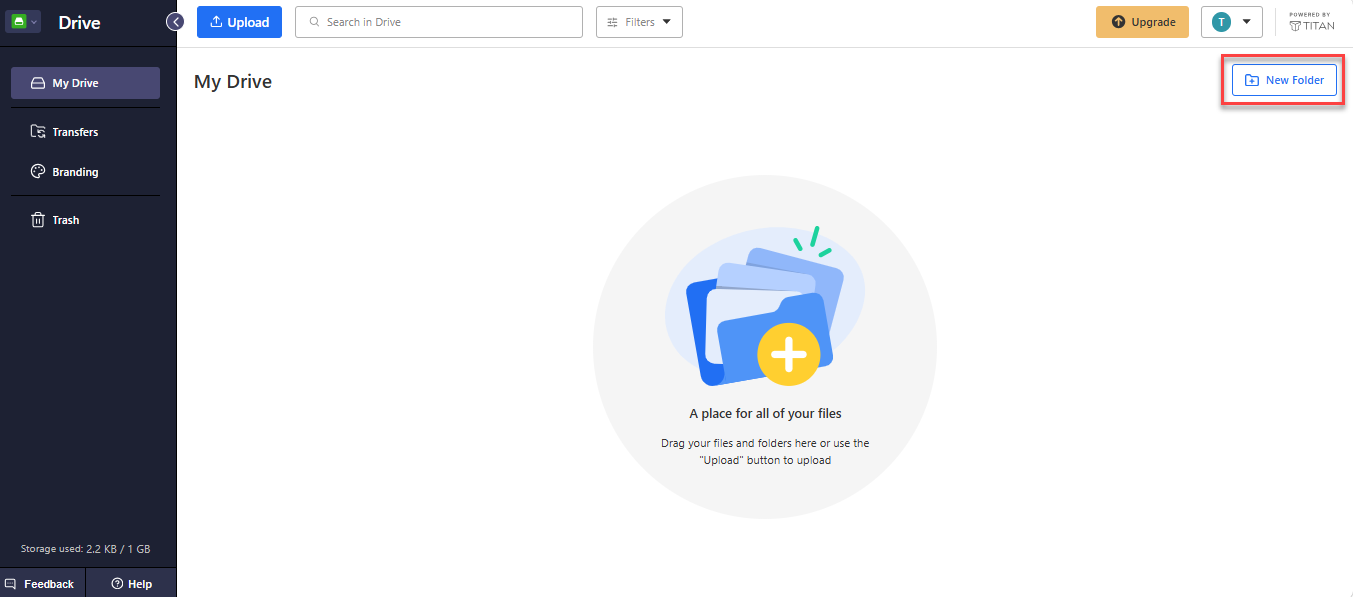
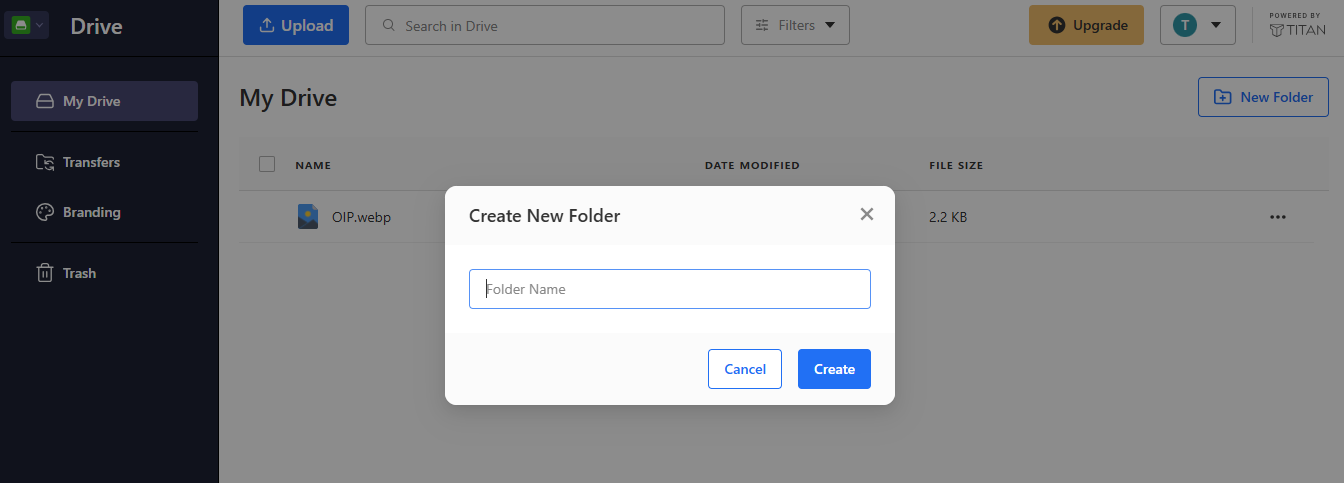
- Create a New Folder: Click the New Folder button in the upper-right corner of My Drive. In the Create New Folder window, enter a name in the Folder Name field and click Create.
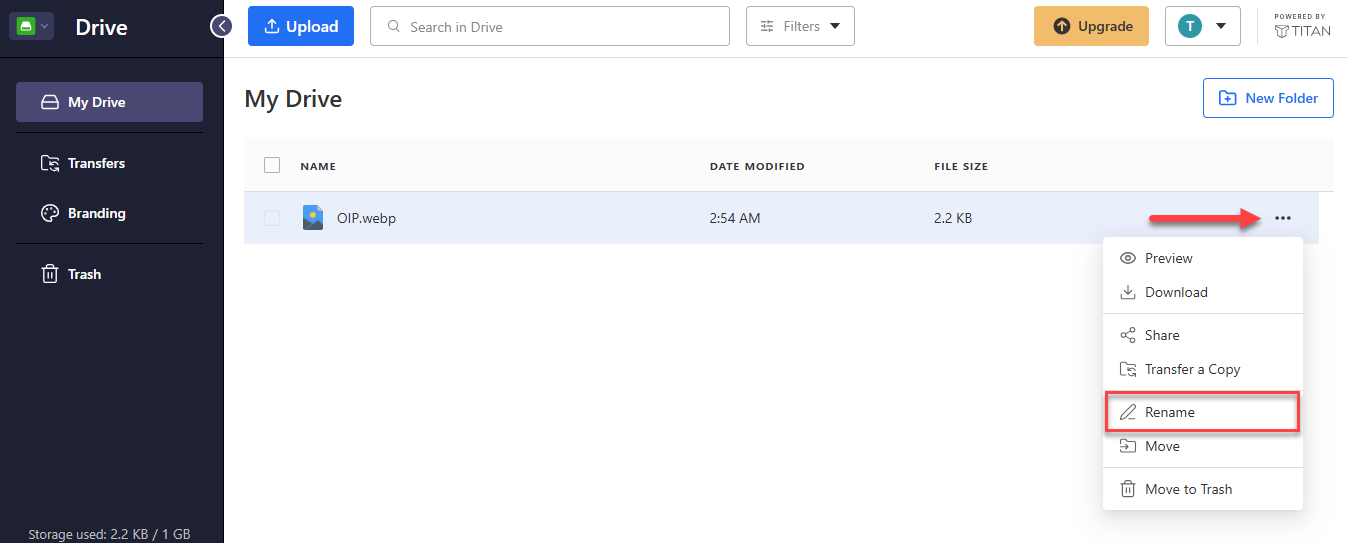
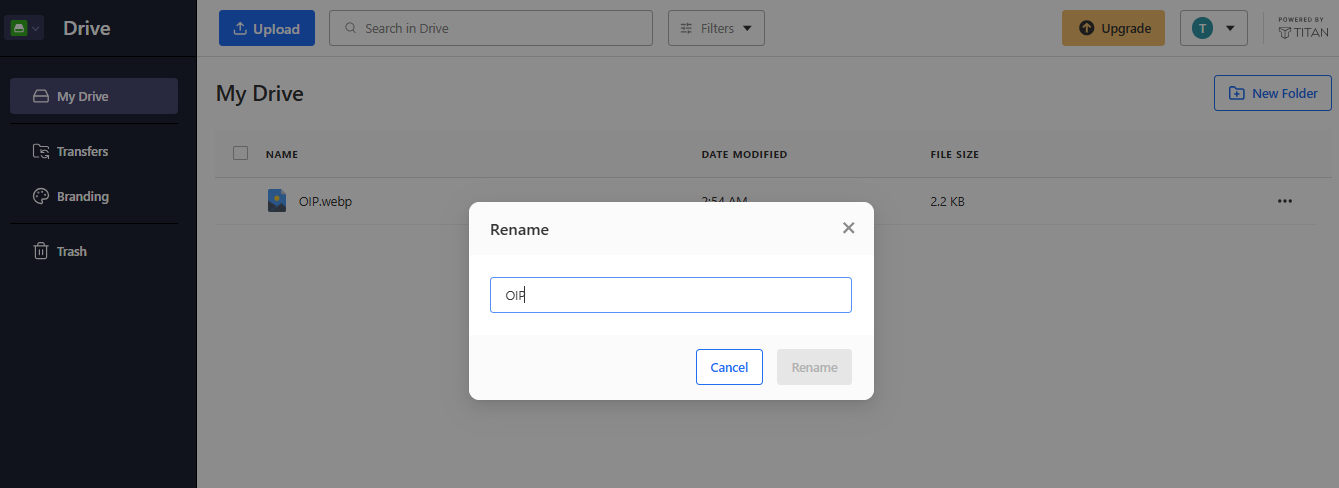
- Rename an Item: Click the More options (three-dot ⋮) icon next to the file or folder and select Rename. In the Rename window, enter the new name and click Rename.
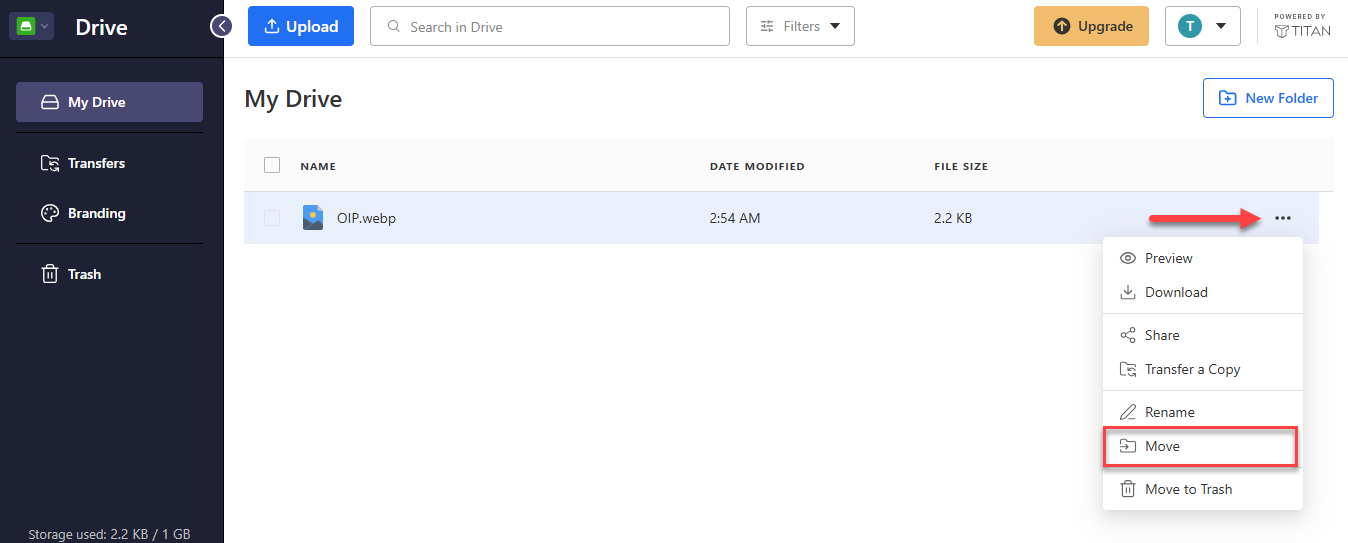
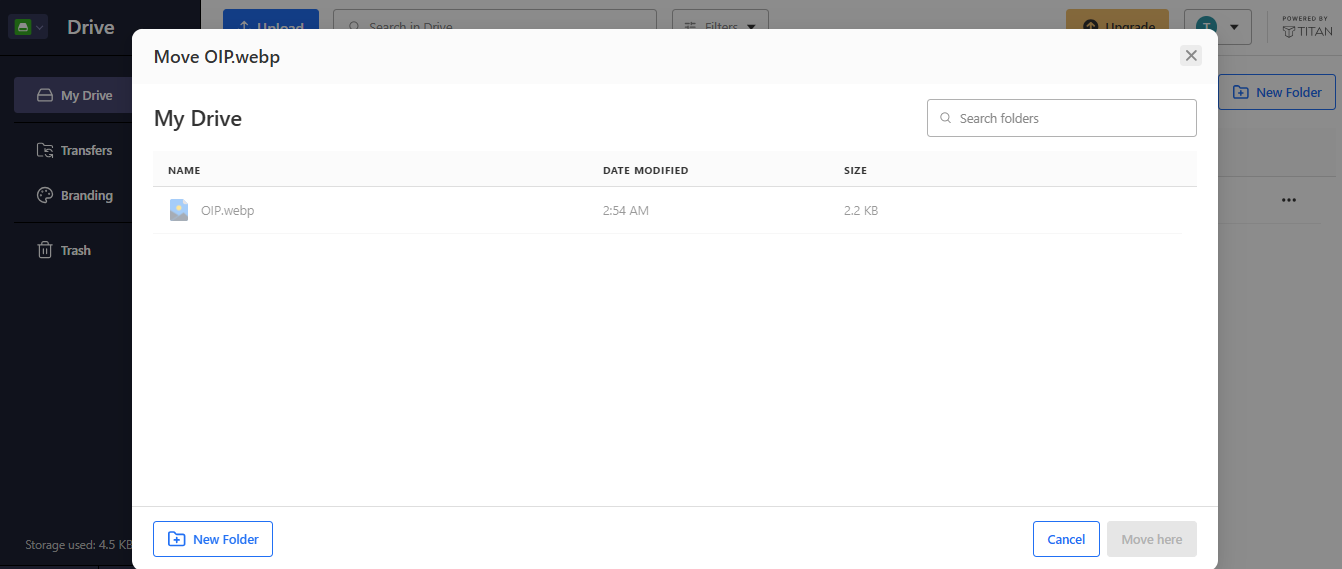
- Move Items: Click the More options (three-dot ⋮) icon next to the file or folder and select Move. In the Move window, select the destination folder, then click Move here. To create a destination folder, click New Folder in the same window.
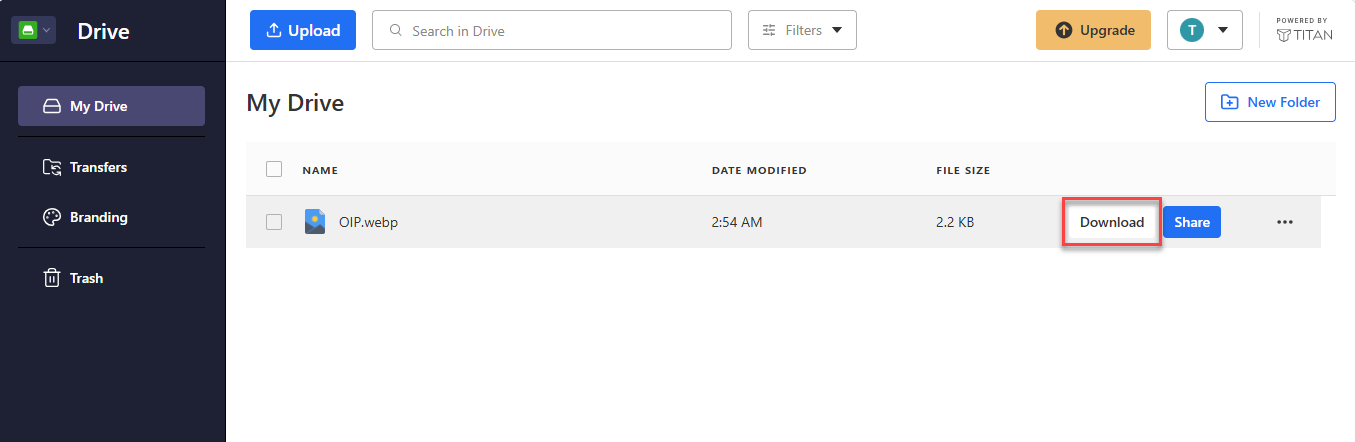
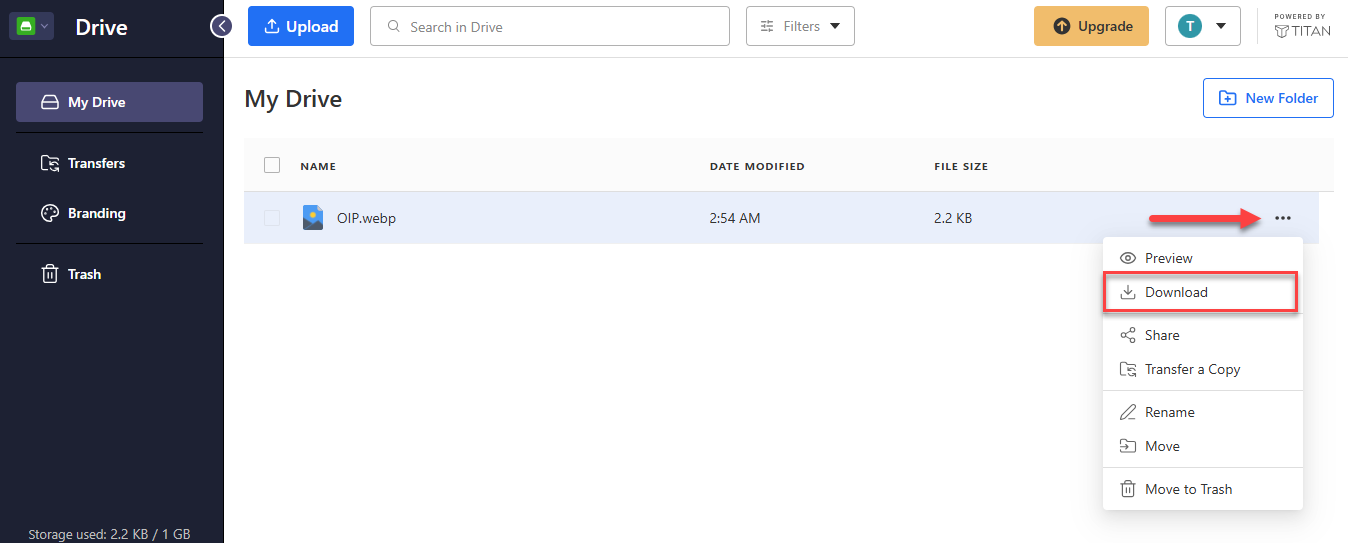
- Download an Item: Hover over the file or folder and click Download. You can also click the More options (three-dot ⋮) icon next to the item and select Download.
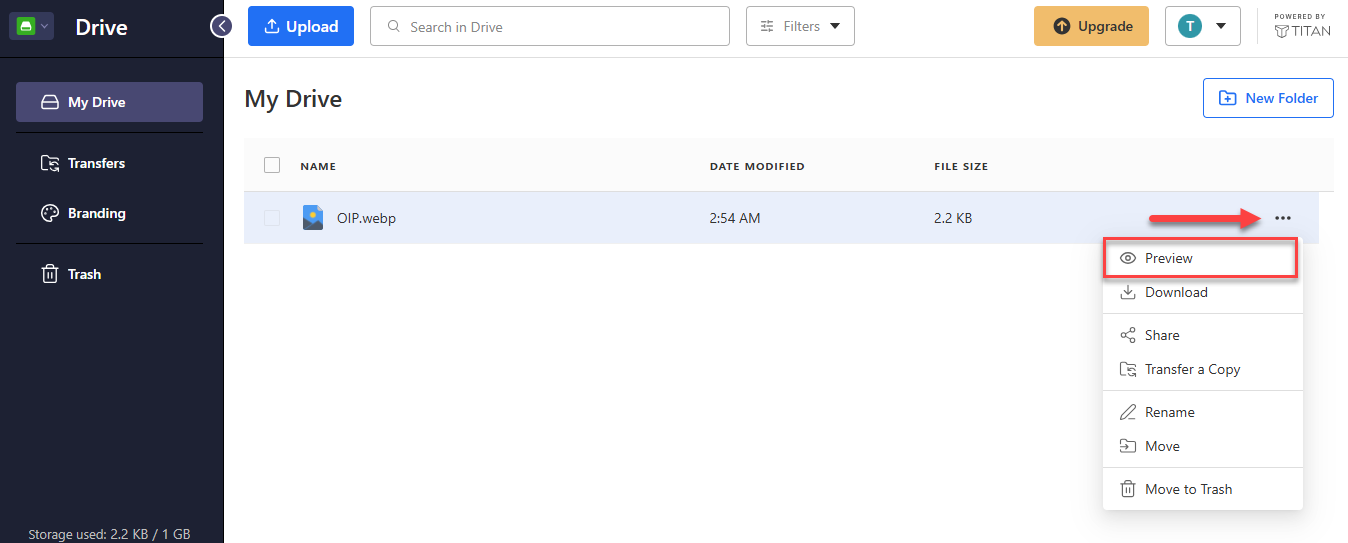
- Preview a File: Click the More options (three-dot ⋮) icon next to the file and select Preview. (Folders do not have this option.)
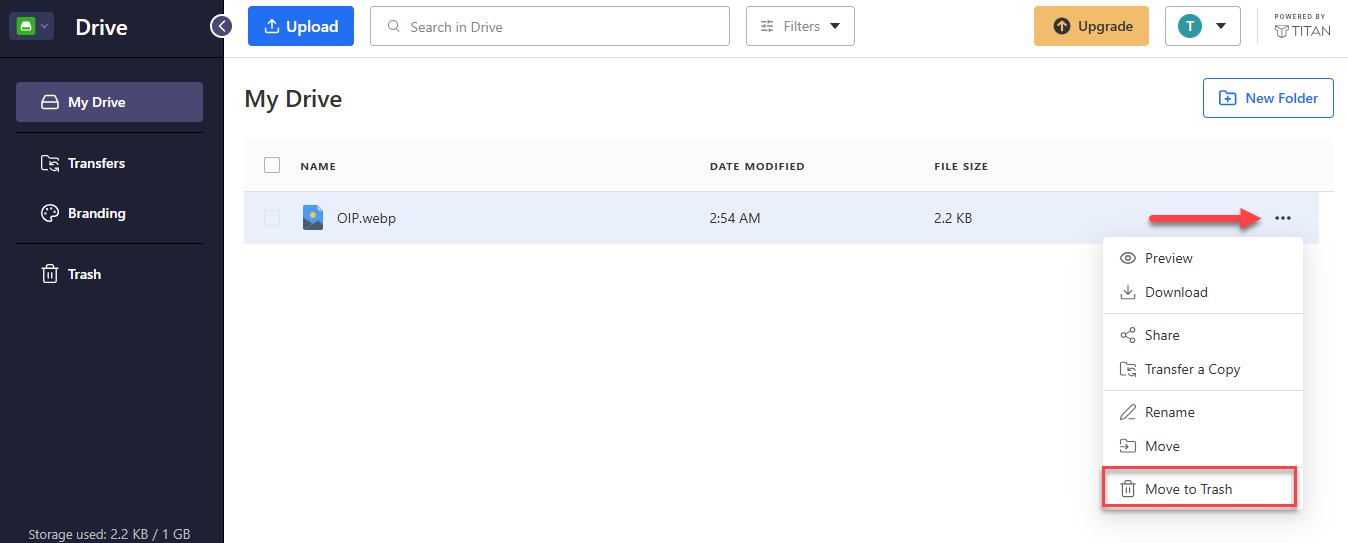
- Delete Items: Click the More options (three-dot ⋮) icon next to the file or folder, select Move to Trash, and click Move to Trash again to confirm.
How to Share Files and Folders
You can create a link to share a file or folder from Titan Drive:
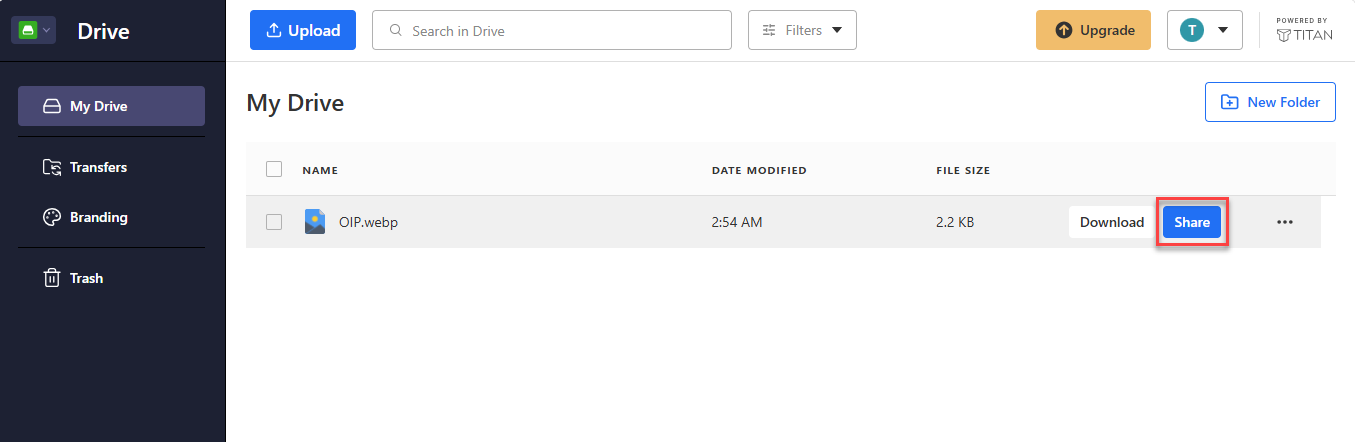
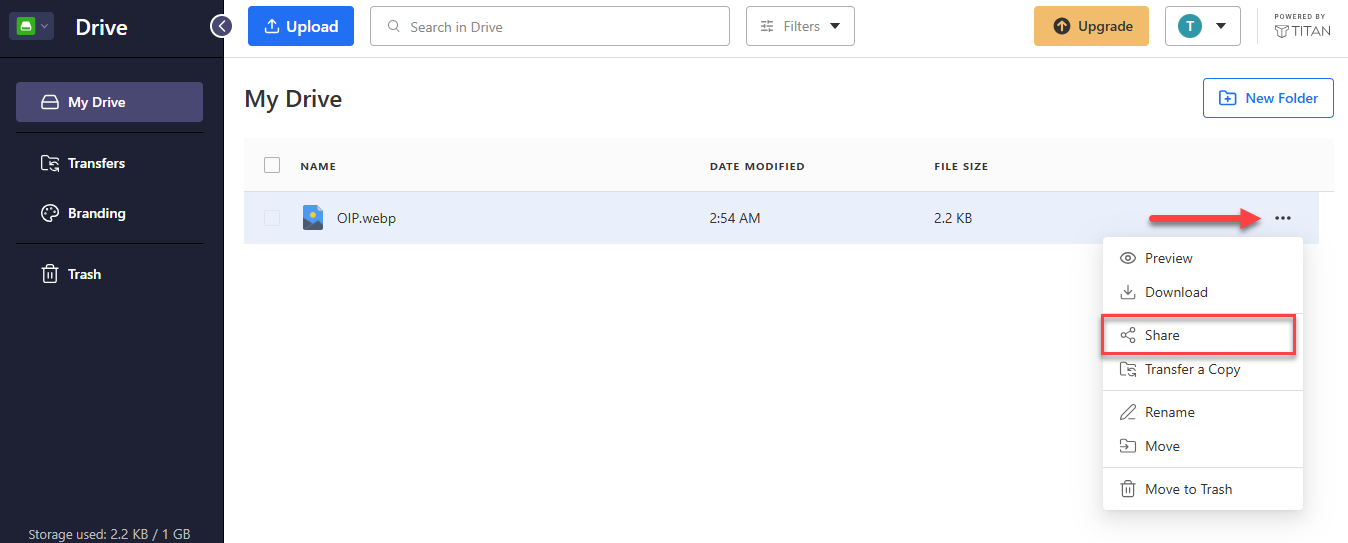
- Hover over the file or folder and click Share. You can also click the More options (three-dot ⋮) icon next to the item and select Share.
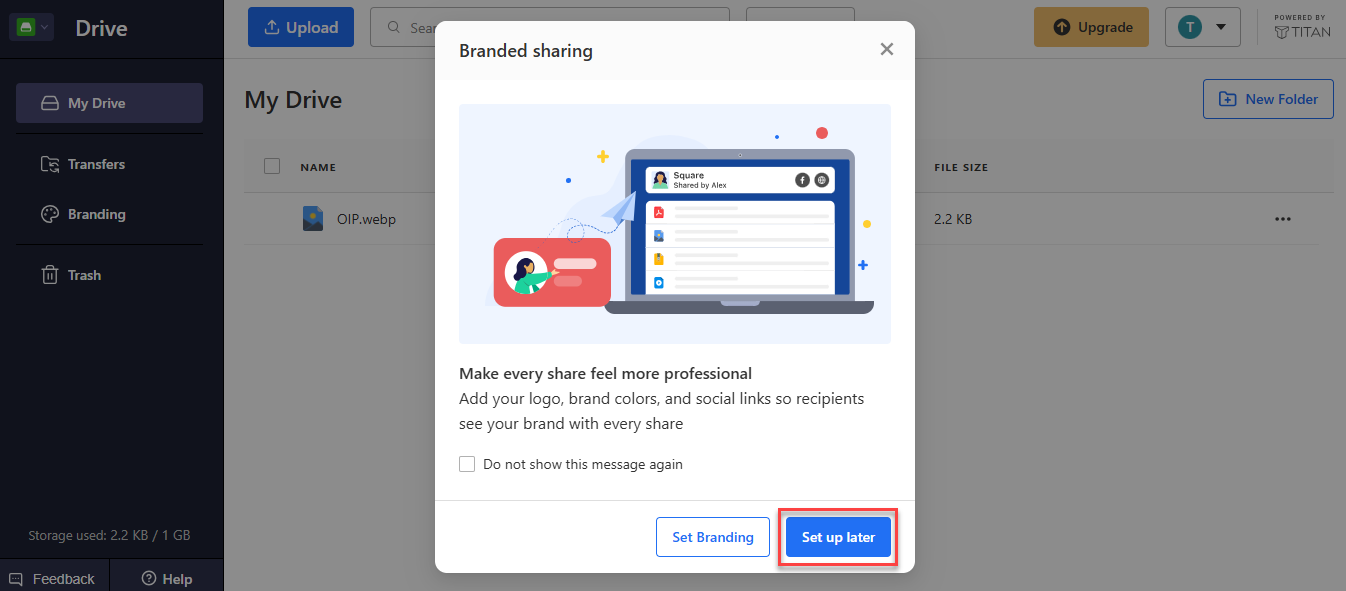
- If a Branded sharing message appears, click Set up later to continue.
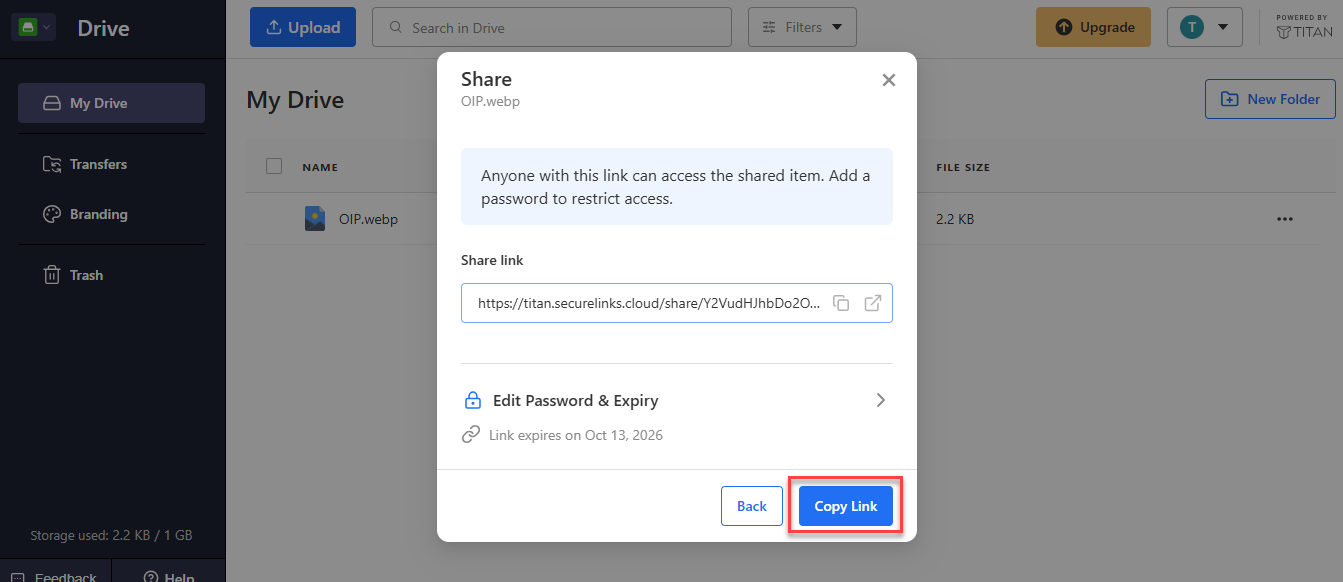
- In the Share window, click Copy Link, then paste the link into your message.
To change your link settings:
- In the Share window, click Edit Password & Expiry.
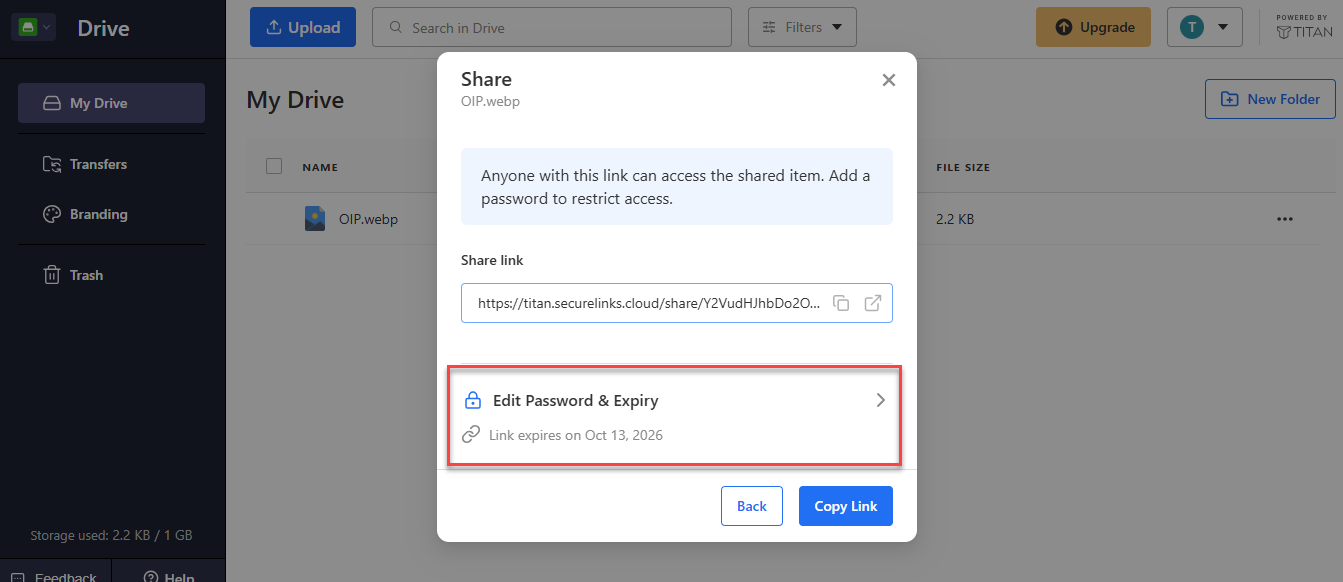
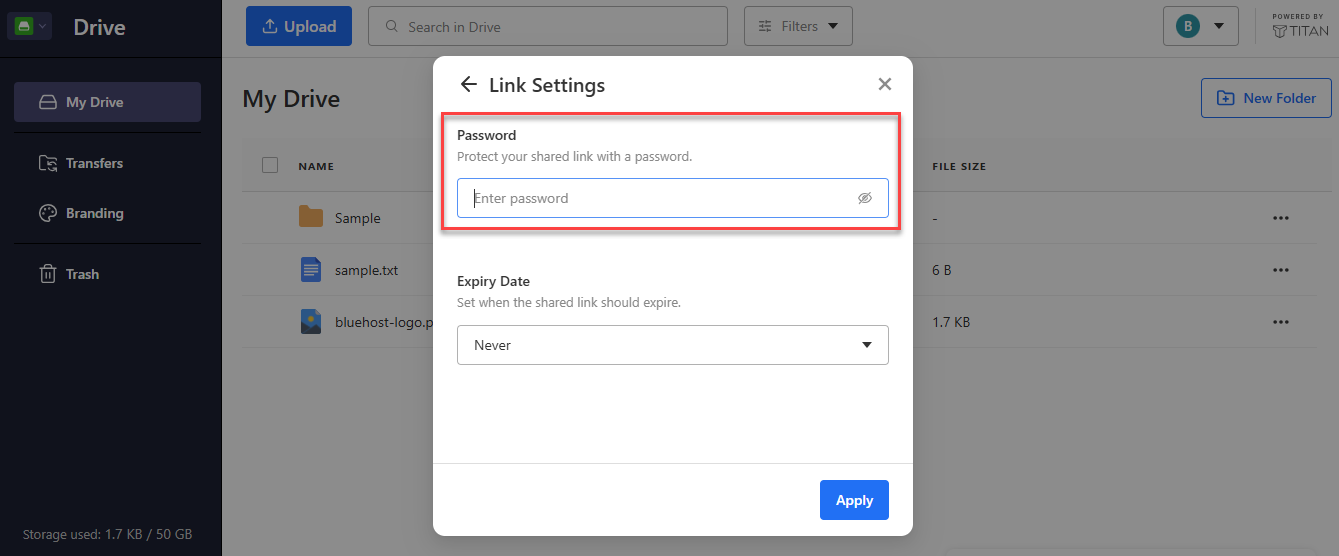
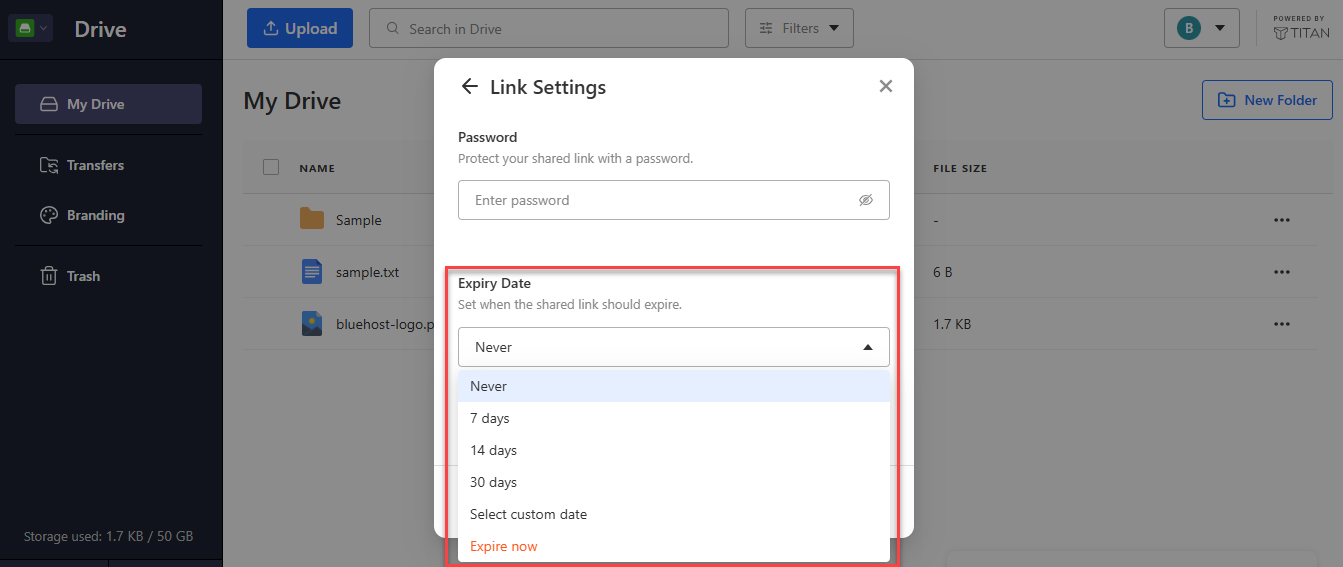
- In the Link Settings window, set the options available for your plan:
- Password: Protect your shared link with a password. This option is available with the Professional Email Ultra plan.
- Expiry Date: Choose when the shared link expires. Custom expiry options are available with the Professional Email Ultra plan. With the Professional Email Plus plan, you can select Expire now to end the link right away.
- Password: Protect your shared link with a password. This option is available with the Professional Email Ultra plan.
- Click Apply.
How to Send Files with Transfers
Transfers let you send large files and folders to others with a trackable link.
To create a transfer from a file or folder:
- Click the More options (three-dot ⋮) icon next to the file or folder and select Transfer a Copy.
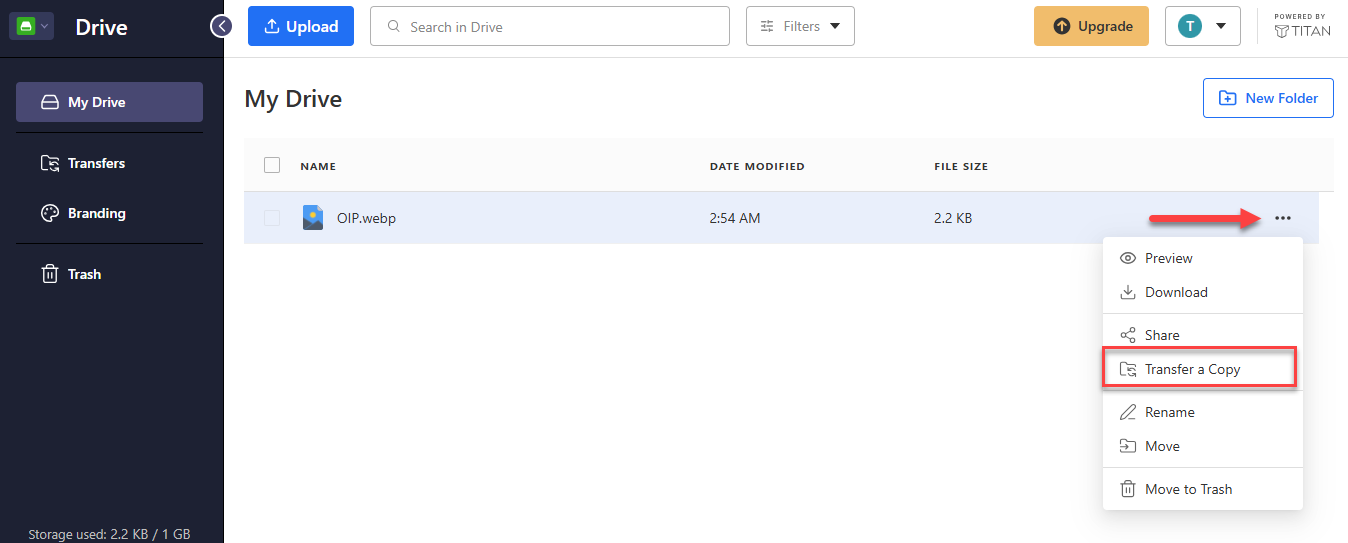
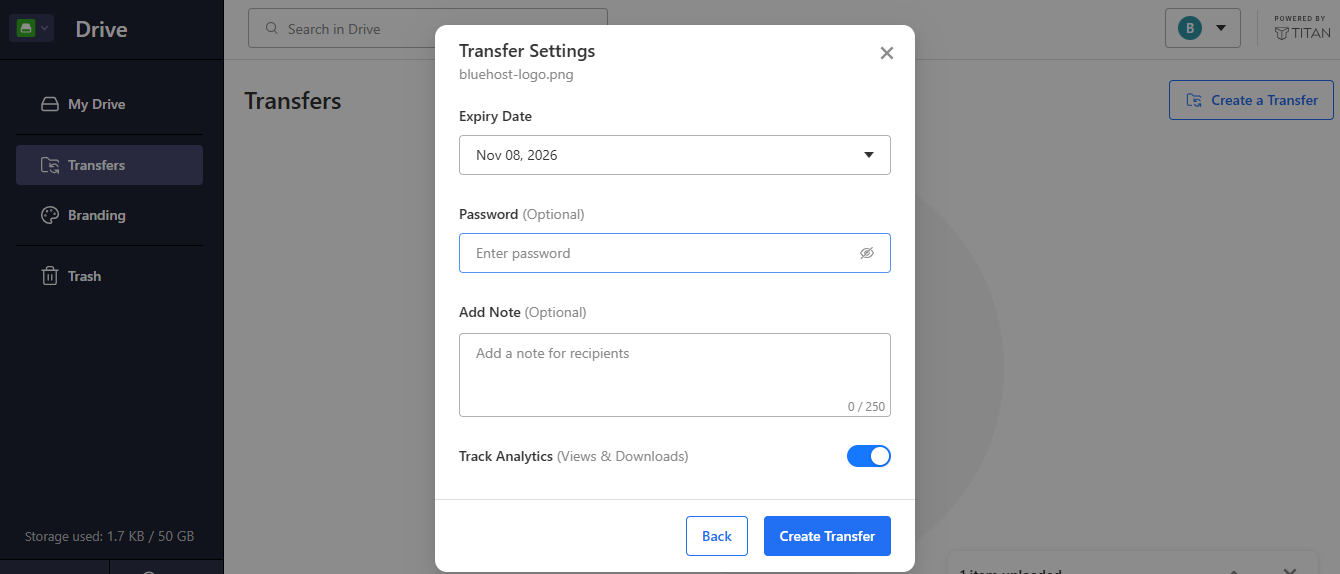
- In the Transfer Settings window, set the options you want:
- Expiry Date: Choose when the transfer link expires. Custom expiry dates are available with the Professional Email Ultra plan.
- Password (Optional): Protect the transfer link with a password. This option is available with the Professional Email Ultra plan.
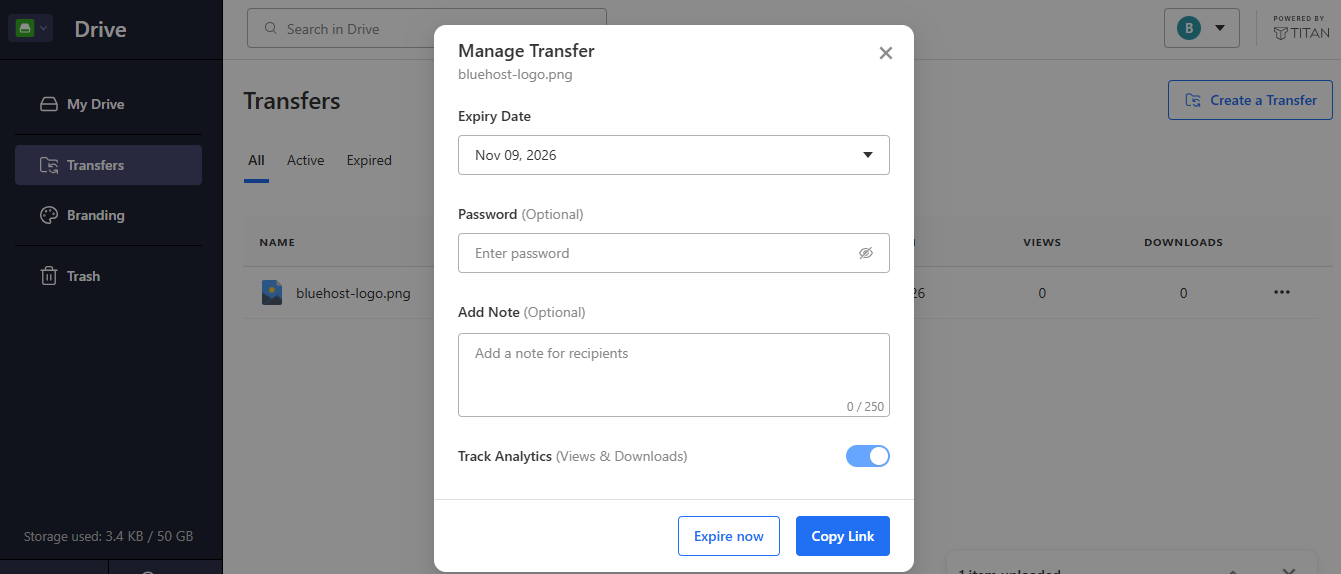
- Add Note (Optional): Add a note for the people you send the link to, up to 250 characters.
- Track Analytics (Views & Downloads): Turn this on to see how many times your transfer has been viewed and downloaded.
- Click Create Transfer.
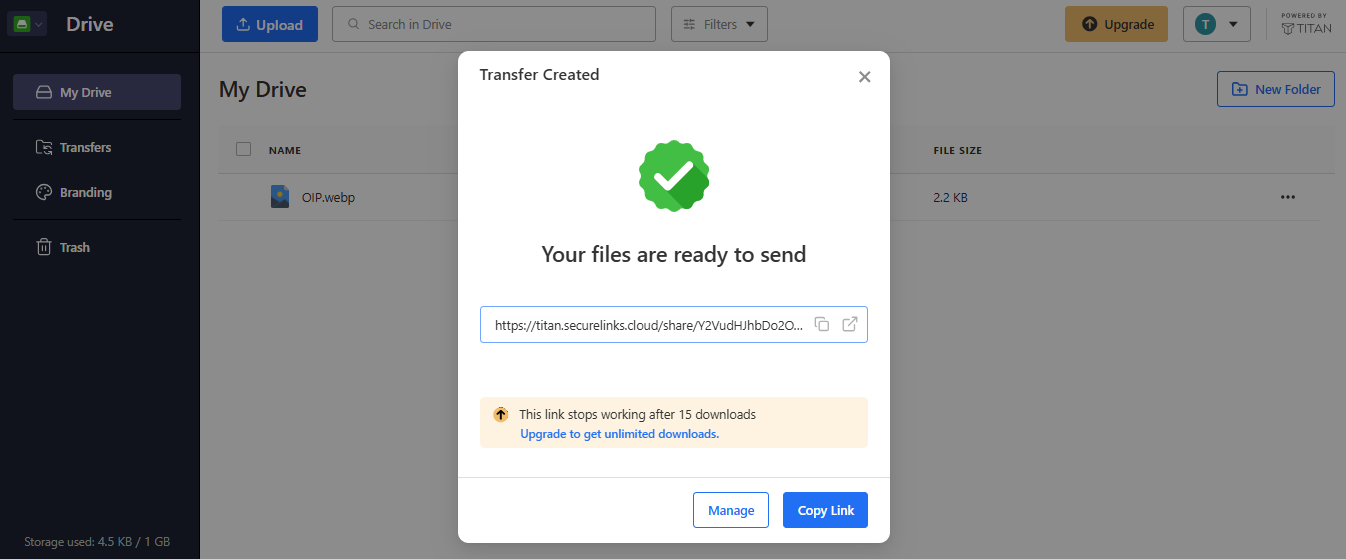
- In the Transfer Created window, click Copy Link, then paste the link into your message.
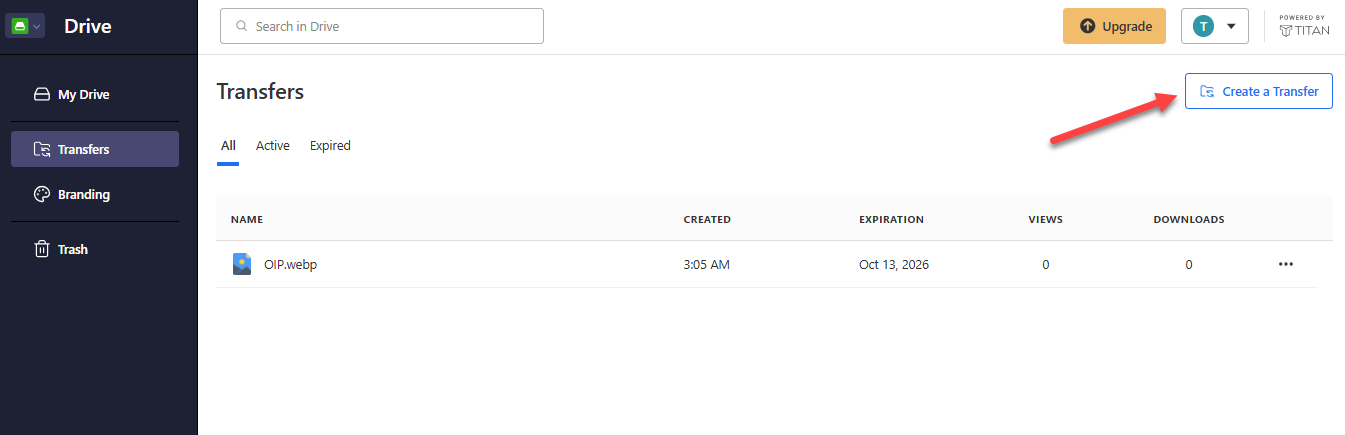
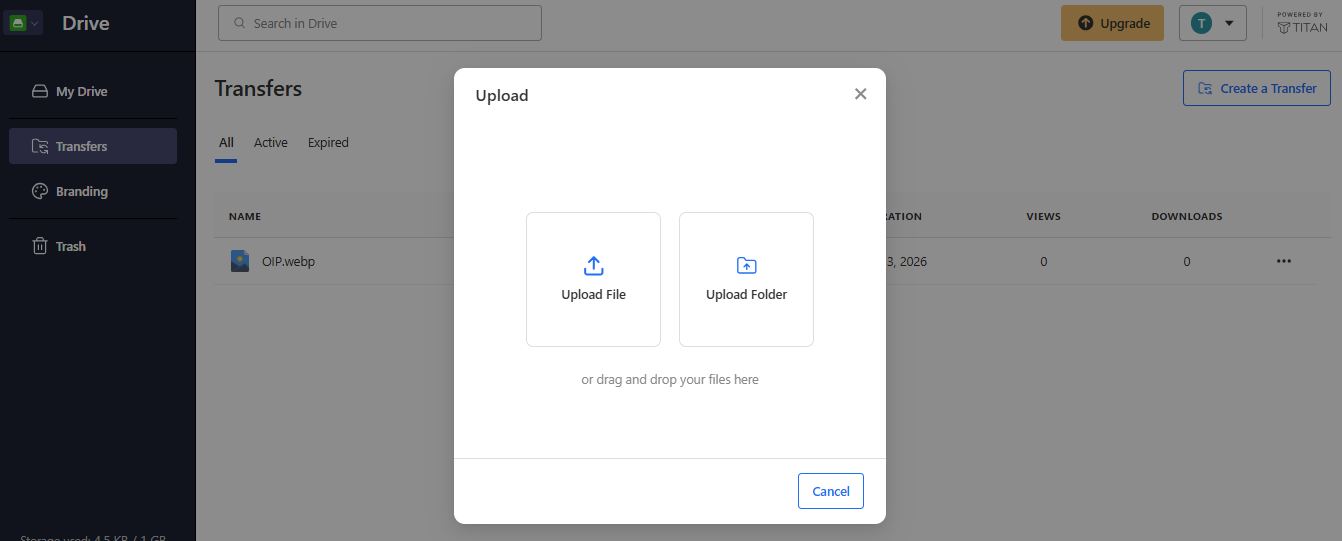
You can also click Create a Transfer on the Transfers page, then upload the files you want to send.
To manage your transfers:
- Click Transfers in the left menu. The page lists each transfer with its creation date, expiration date, views, and downloads. Use the All, Active, and Expired tabs to filter the list.
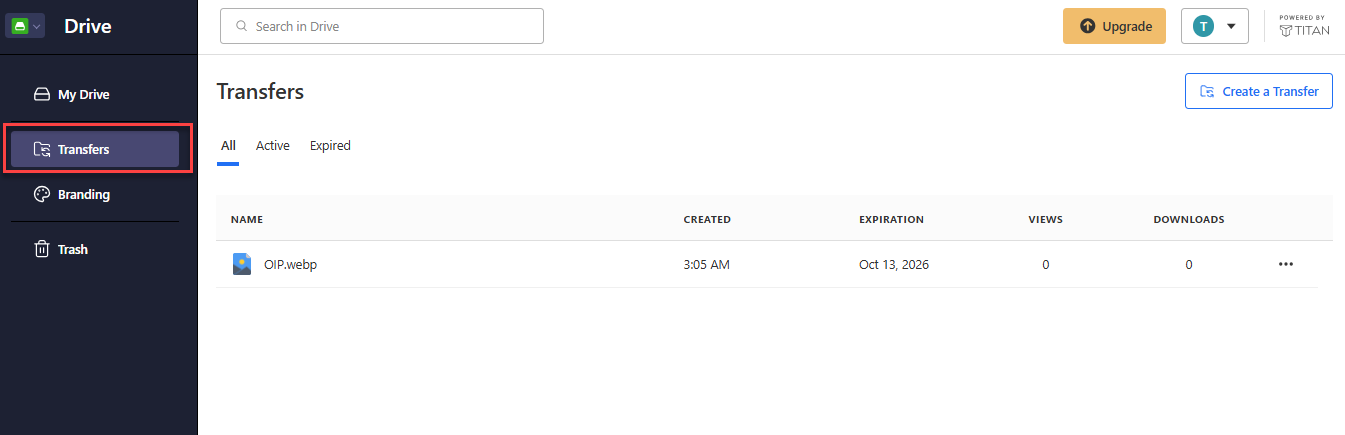
- Click the More options (three-dot ⋮) icon next to a transfer and select an option:
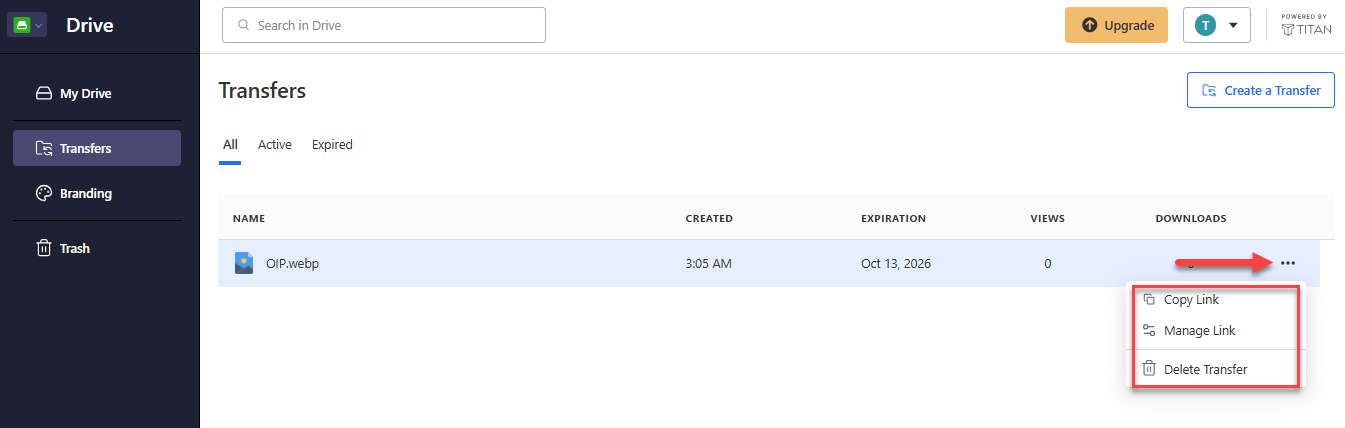
- Copy Link: Copy the transfer link.
- Manage Link: Open the Manage Transfer window to update the note, turn tracking on or off, or click Expire now to end the link right away. Password and custom expiry options are available with the Professional Email Ultra plan.
- Delete Transfer: Delete the transfer.
How to Brand Your Shared Pages
Branding lets you add your company logo, company name, and a background to the pages people see when you share files or send transfers.
- Click Branding in the left menu.
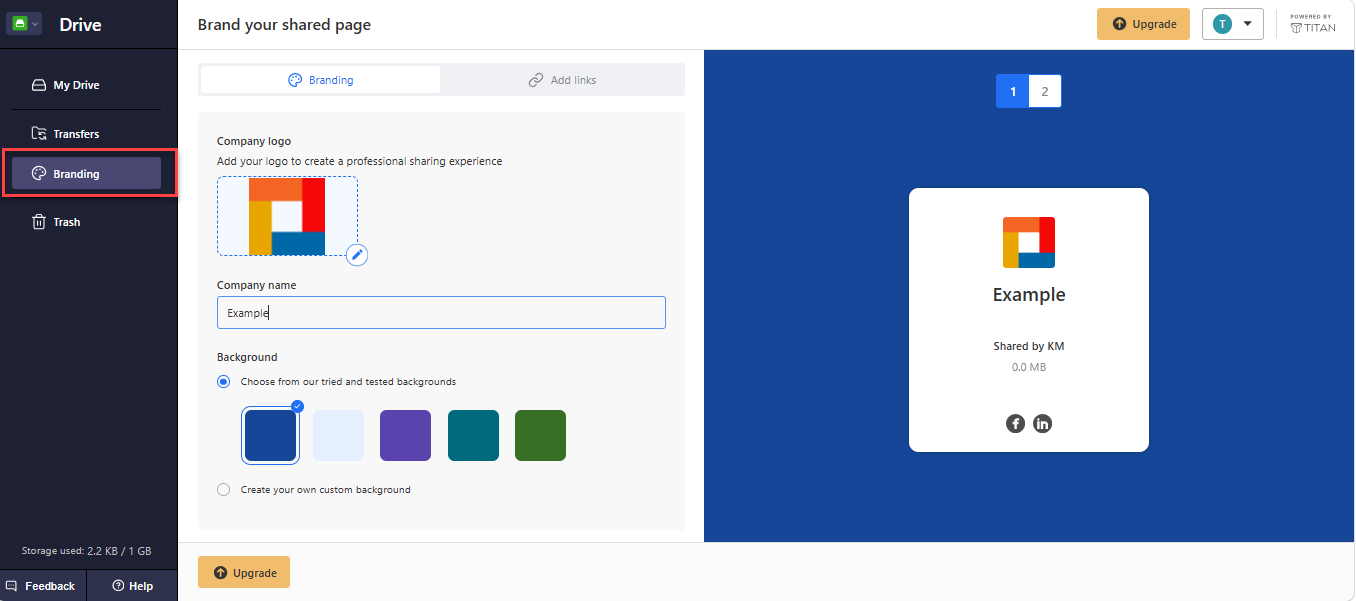
- On the Branding tab, set up your shared page:
- Company logo: Click the pencil icon on the logo box to add your logo.
- Company name: Enter your company name in the Company name field.
- Background: Choose one of the provided backgrounds, or select Create your own custom background.
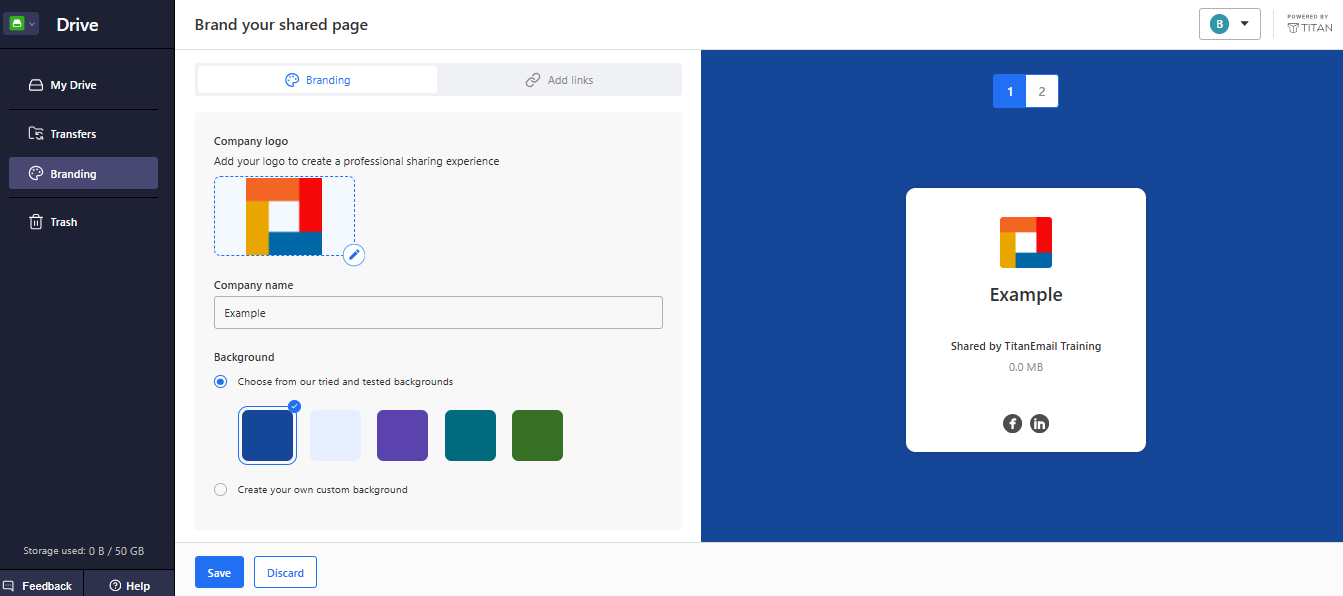
- Check the preview on the right side of the page to see how your shared page will look.
- Click Save. To cancel your changes, click Discard.
How to Restore Items and Empty the Trash
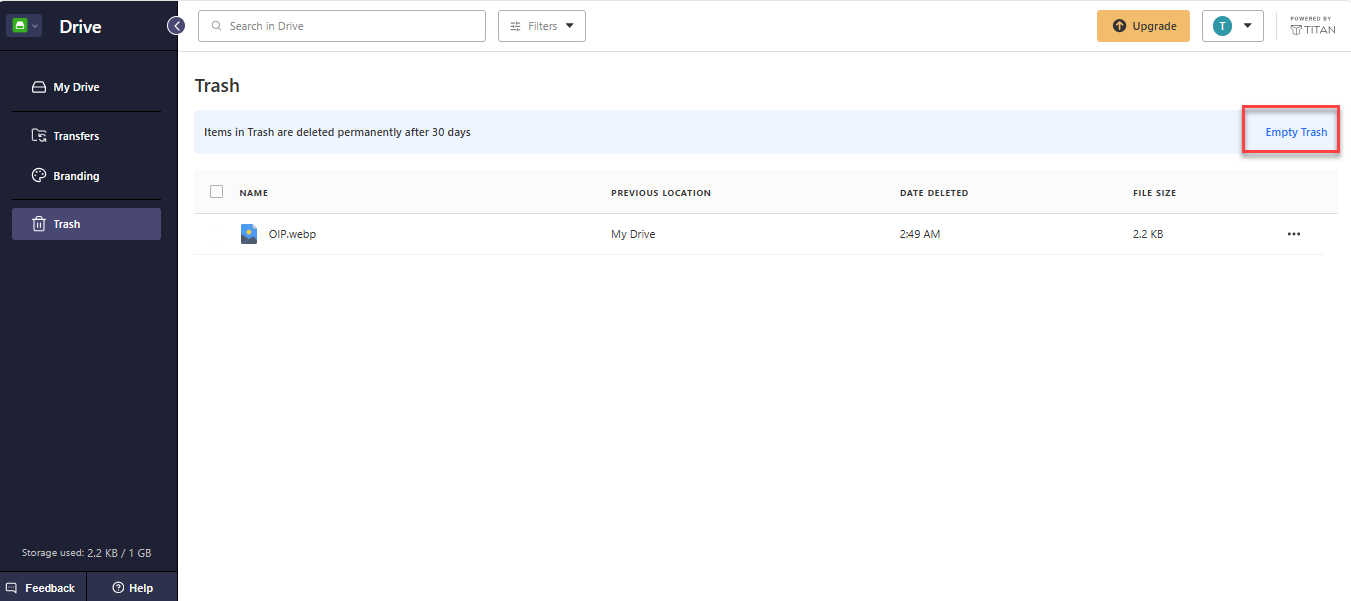
Items you delete move to the Trash and continue to count toward your Titan Drive storage until they are permanently deleted. Titan Drive permanently deletes items in the Trash after 30 days. You can also remove them sooner or restore them.
To open the Trash, click Trash in the left menu.
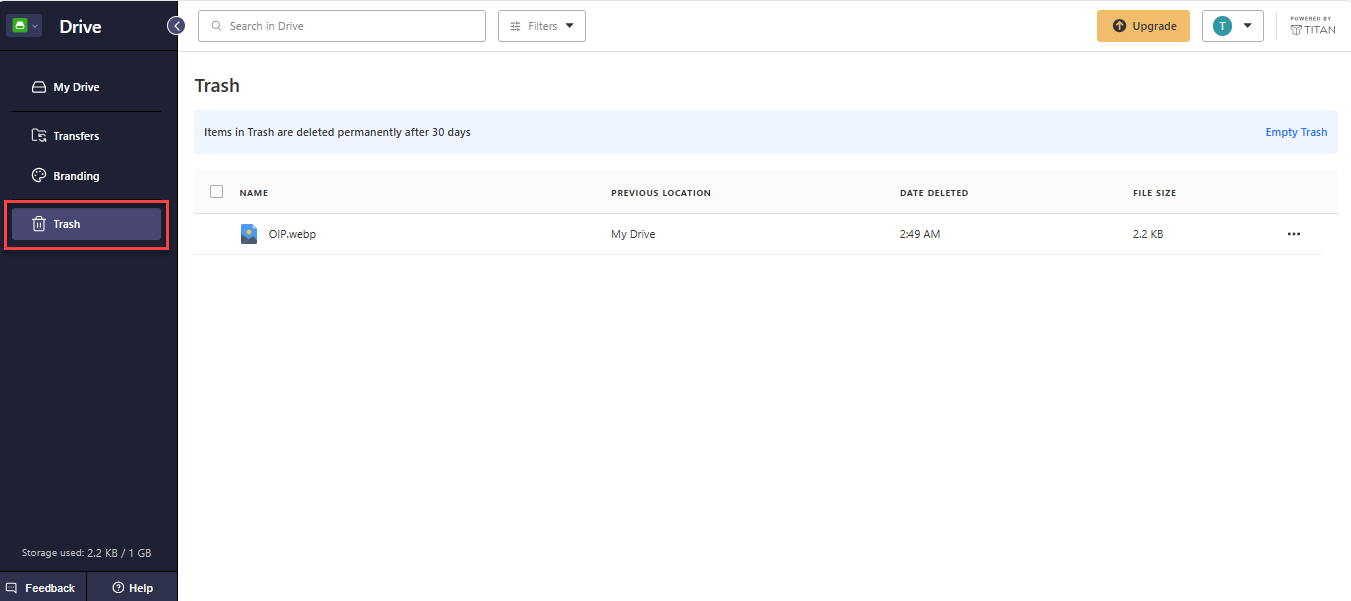
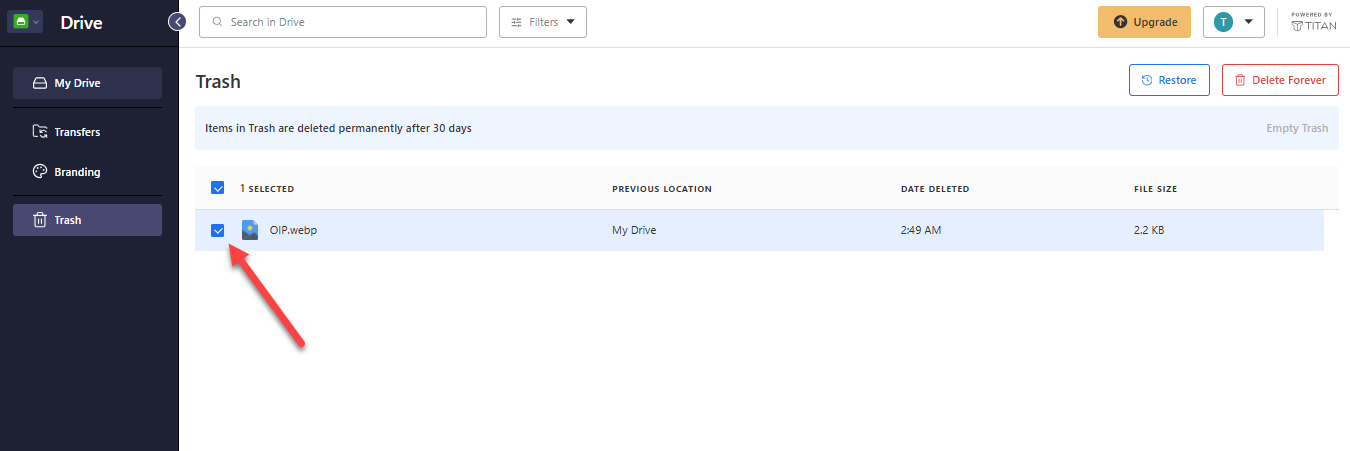
To restore an item:
- Select the checkbox next to the item.
- Click Restore.
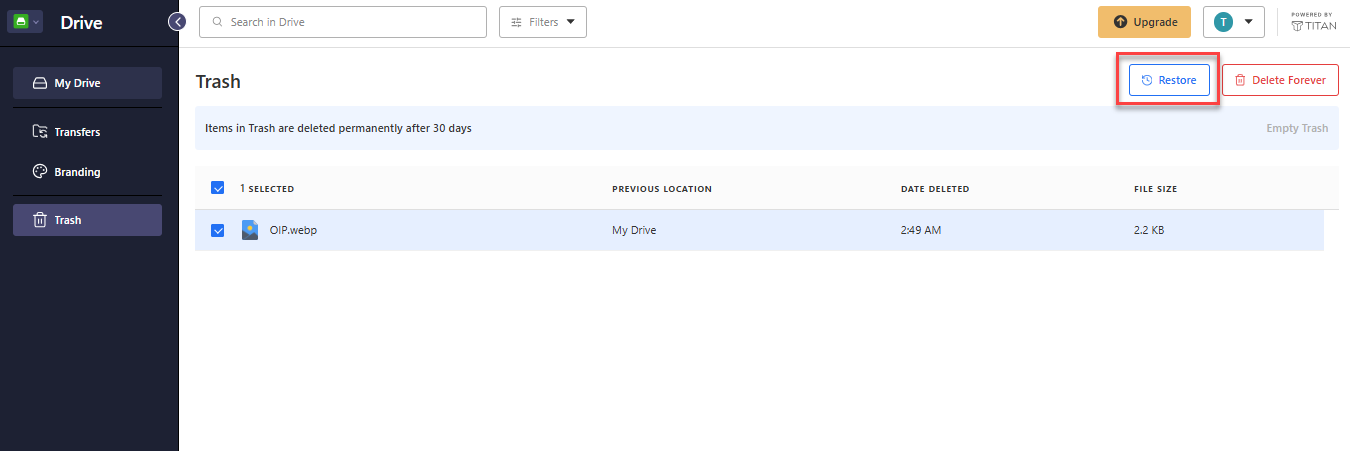
To permanently delete selected items:
- Select the checkbox next to each item you want to delete.
- Click Delete Forever.
To permanently delete everything in the Trash:
- Make sure no items are selected.
- Click Empty Trash in the upper-right of the banner.
Summary
Titan Drive gives Professional Email Plus and Ultra users a central place within webmail to store, organize, share, and send business files. With folders, drag-and-drop uploads, and storage that varies by plan, you can manage your files without leaving your email account.
If you need further assistance, Bluehost Chat Support is available 24 hours a day, 7days a week while Bluehost Phone Support is available 7 days a week from 7 am-12 midnight EST.
- Chat Support - While on our website, you should see a CHAT bubble in the bottom right-hand corner of the page. Click anywhere on the bubble to begin a chat session.
- Phone Support -
- US: 888-401-4678
- International: +1 801-765-9400
You may also refer to our Knowledge Base articles to help answer common questions and guide you through various setup, configuration, and troubleshooting steps.