 ChatGPT,
  Claude,
  Gemini,
  Grok — all four for
 Bluehost Professional Email: How to Use Email Templates
Email templates in Professional Email help you send common messages faster. Instead of writing the same email again and again, you can pick a ready-made template from Titan's library or save your own messages as templates, then reuse them whenever you need them.
Log In to Webmail
Email templates are available in the compose window, so start by opening your mailbox in webmail from your Bluehost Account Manager.
- Log in to your Bluehost Portal.
- From the left-hand navigation menu, click on the Email tab.
- Optional: In Professional Email, if multiple plans are listed, click Manage for the plan you want to use.

- You’ll be automatically redirected to the Email Management page, where you can manage your email settings and subscriptions.
- Click Email Accounts.
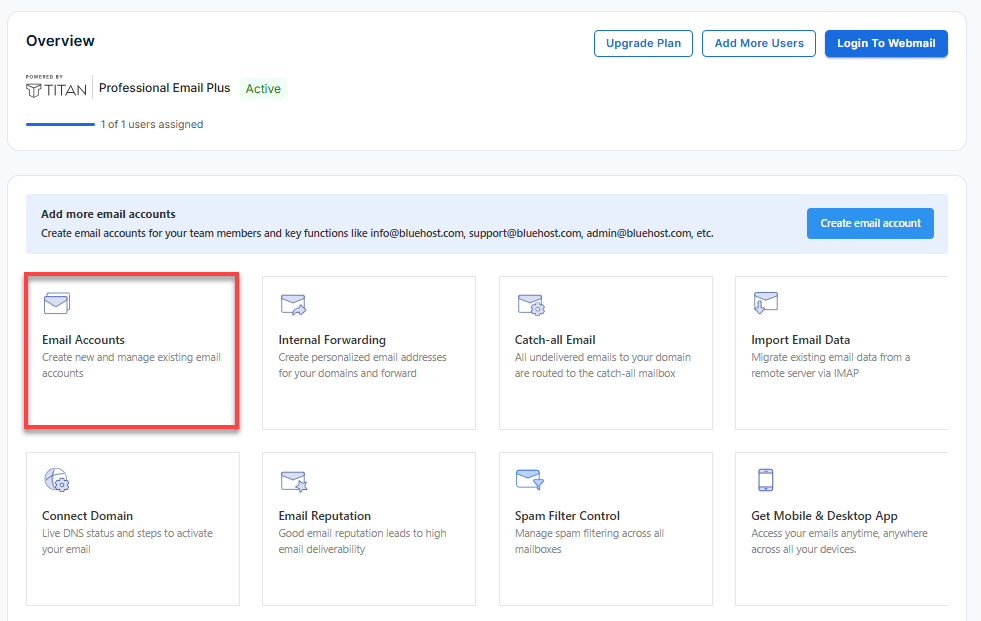
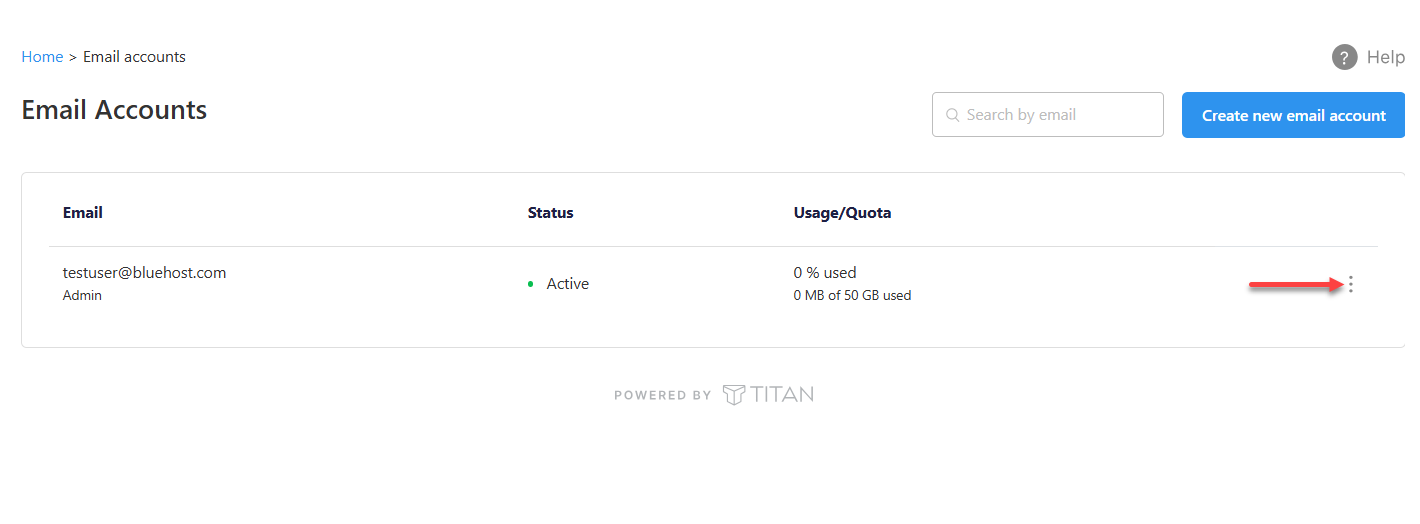
- Find the email account you want to use.
- Hover over the account and click the ellipsis icon (
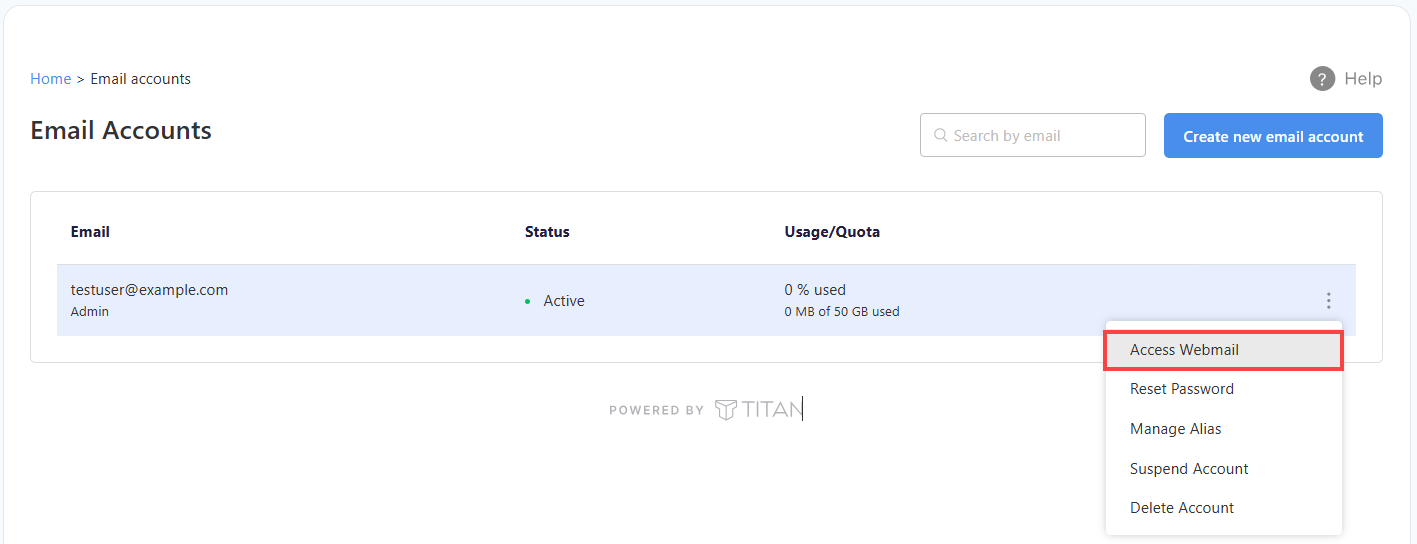
⋮).
- Click Access Webmail to launch your webmail.
- Enter your email address and click Login. Next, type your password and click Login once more to access your account.
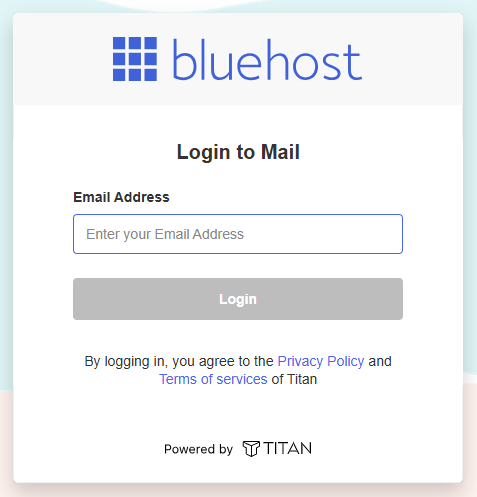
Alternatively, sign in directly at https://bluehost.titan.email/login/ using your full email address and password.
How to Use an Email Template
Titan includes a library of pre-written templates for common situations, such as announcing a new business, reaching out to prospects, or sending a thank-you note.
- In webmail, click New Mail to open the compose window.
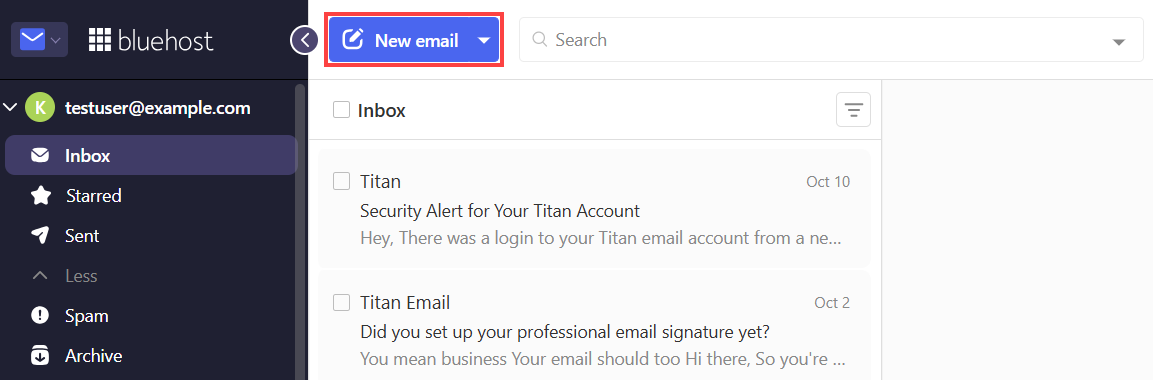
- In the toolbar below the Subject line, click Templates.
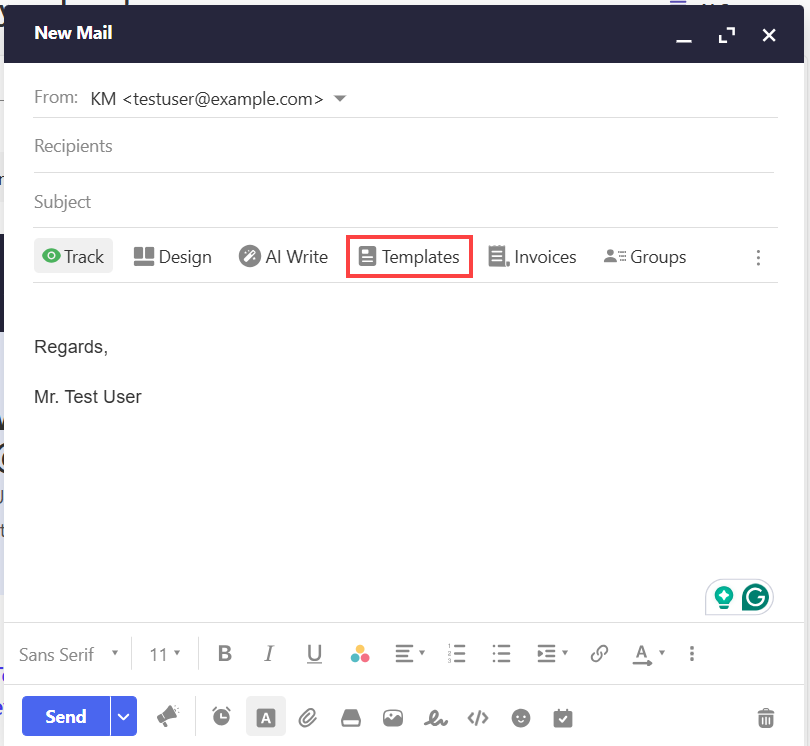
- Browse the list and select the template you want to use.
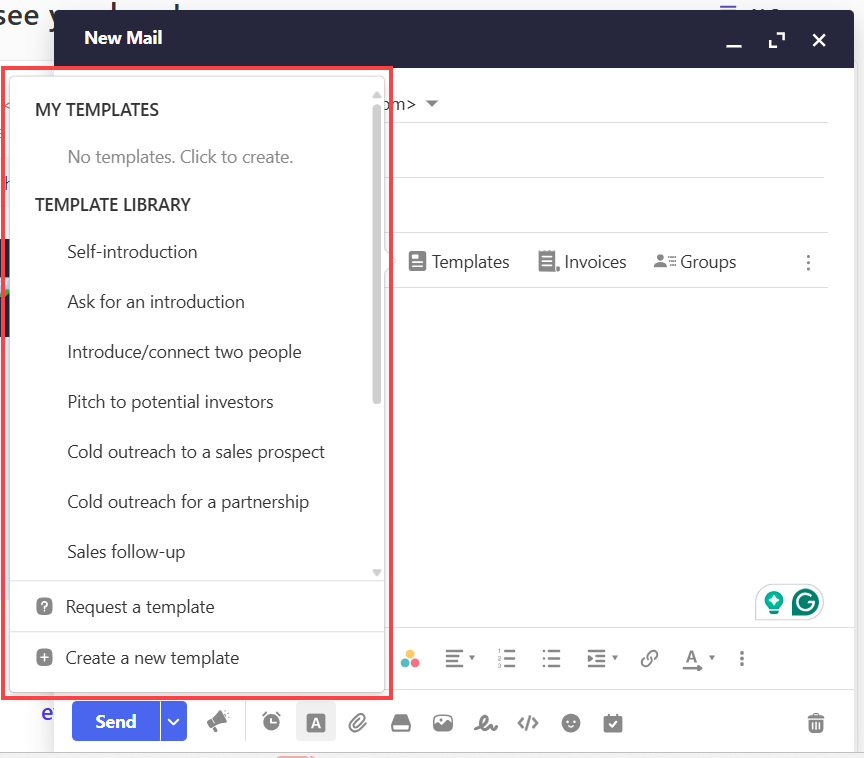
- The template is added to your email. Replace any placeholder text with your own details, add your Recipients, and click Send.
Create Your Own Template
Save messages you send often as templates so you can reuse them with just a few clicks.
Create a new template
Build a reusable message from the Templates menu in the compose window.
- In webmail, click New Mail.
- In the toolbar below the Subject line, click Templates.
- At the bottom of the templates list, click Create a new template.
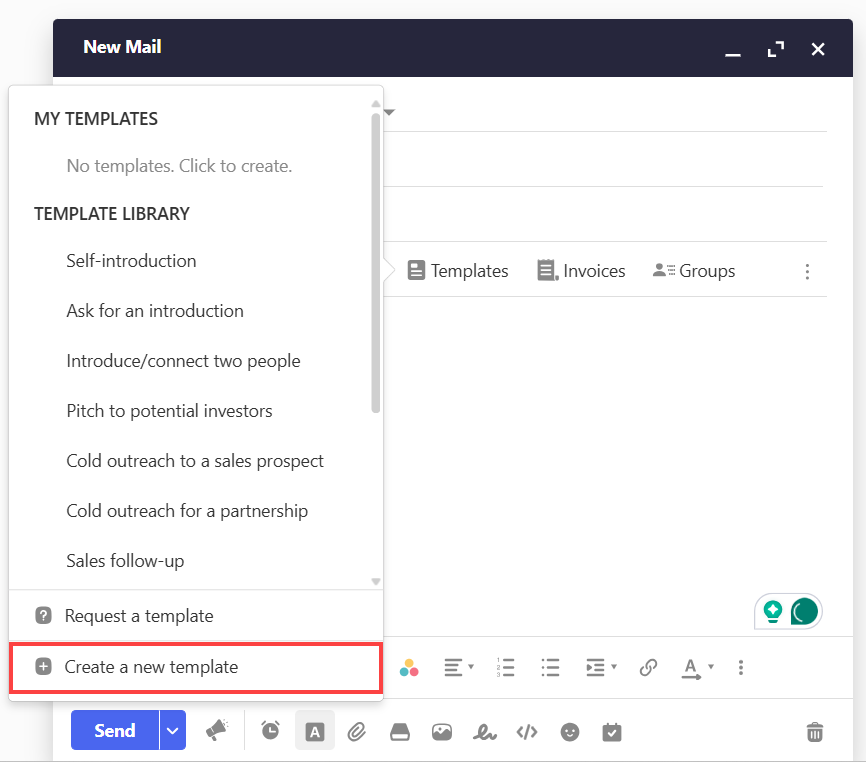
- Enter a name for the template, write the message you want to reuse, then save it.
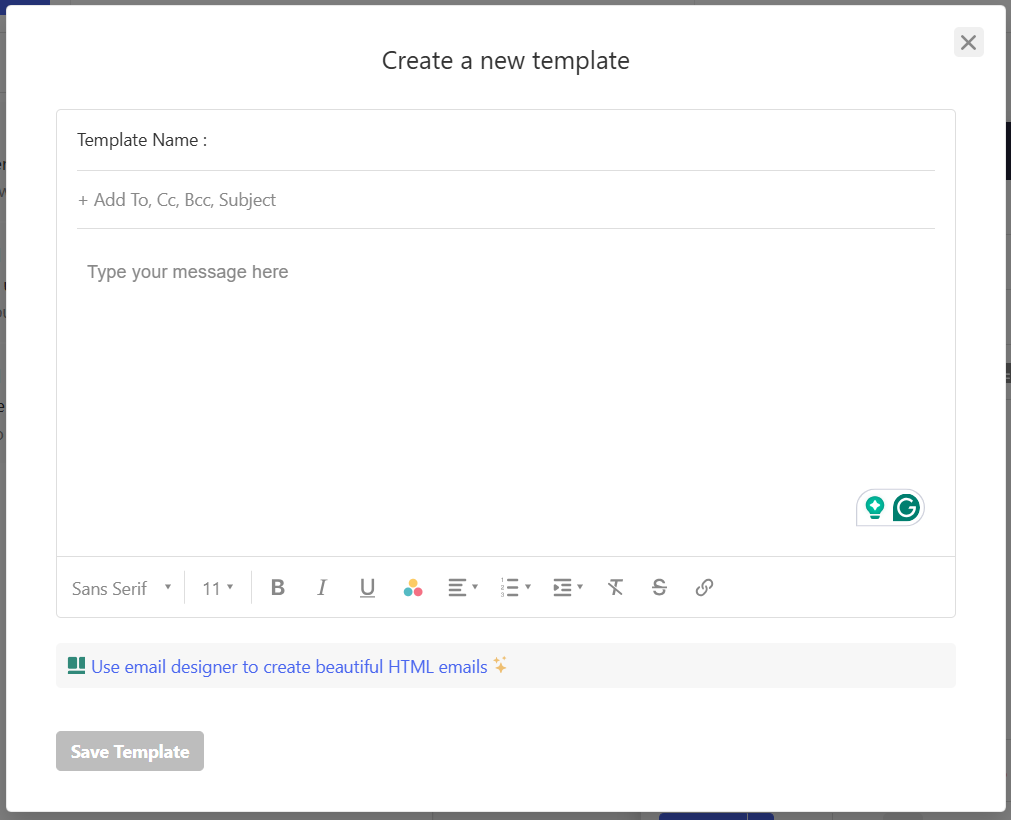
Your new template appears under My Templates, ready to use in future emails.
Create a template from a sent or received email
If you already have an email you'd like to reuse, you can turn it into a template directly.
- Open the sent or received email you want to save.
- Click the More Actions icon (⋯) at the top-right of the message.
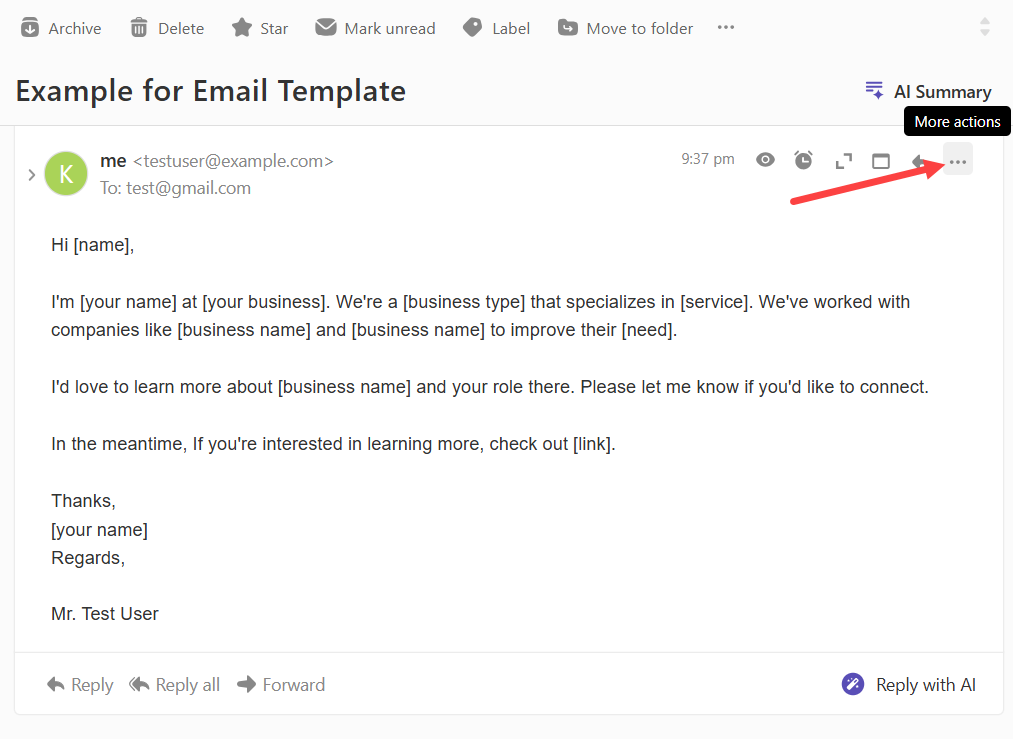
- Select Save as template.
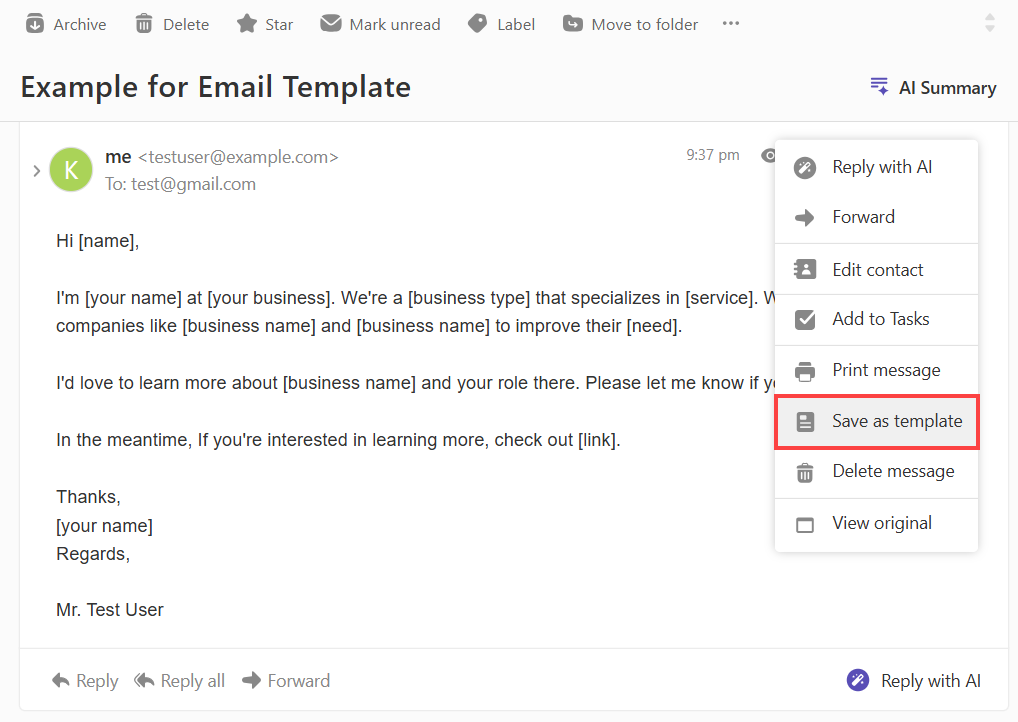
- Enter a name for the template, then save it.
Delete a Template
Remove templates you no longer use to keep your templates list short and easy to browse.
- In webmail, click New Mail.
- In the toolbar below the Subject line, click Templates.
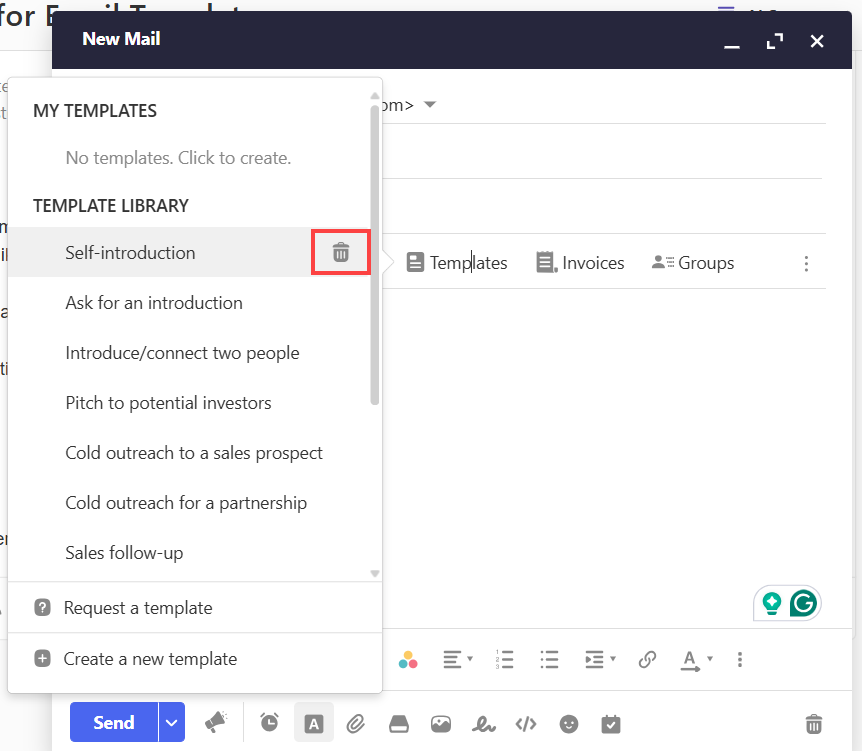
- Hover over the template you want to remove and click the Delete icon.
Summary
Email templates let you send recurring messages from your Bluehost Professional Email account in seconds, whether you start from Titan's template library or a message you've saved yourself.
If you need further assistance, Bluehost Chat Support is available 24 hours a day, 7days a week while Bluehost Phone Support is available 7 days a week from 7 am-12 midnight EST.
- Chat Support - While on our website, you should see a CHAT bubble in the bottom right-hand corner of the page. Click anywhere on the bubble to begin a chat session.
- Phone Support -
- US: 888-401-4678
- International: +1 801-765-9400
You may also refer to our Knowledge Base articles to help answer common questions and guide you through various setup, configuration, and troubleshooting steps.