 ChatGPT,
  Claude,
  Gemini,
  Grok — all four for
 Bluehost Professional Email: How to Use HTML Formatting
Using HTML formatting in Professional Email allows you to go beyond standard text options by incorporating custom call-to-action buttons, structured tables, visual dividers, and tailored email templates. With the built-in HTML insertion tool available directly within Professional Email, you can add custom code blocks to your message body to help you send clean, branded communications to your contacts.
This guide covers plan requirements, login steps, step-by-step instructions for adding custom code to your email composer and signature, and key formatting limitations to keep in mind.
Plan Eligibility and Requirements
Before attempting to insert custom HTML code into your email composer, verify that your plan includes the feature:
- Email Composer: HTML in Composer is included with Professional Email Plus and Professional Email Ultra. The standard Professional Email plan does not include it. If you do not see the Insert HTML option in your composer, you can upgrade your email plan.
- Signatures: You can add HTML when you create a custom signature. Premium signature templates in Signature Designer are included with Professional Email Ultra. If you see an Upgrade option next to the templates, your current plan does not include them. Signature features may vary by plan.
How to Insert HTML into an Email
To add custom HTML code to an outgoing message, follow these steps:
- Log in to your Bluehost Portal.
- From the left-hand navigation menu, click on the Email tab.
- Optional: In Professional Email, if multiple plans are listed, click Manage for the plan you want to use.

- You’ll be automatically redirected to the Email Management page, where you can manage your email settings and subscriptions.
- Click the Login to Webmail button to log in.
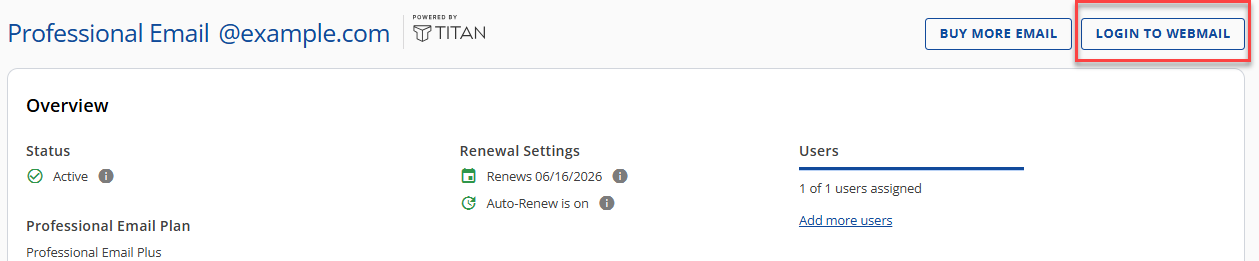
You can also go directly to the Bluehost Webmail login page and log in with your email address and password. For other ways to log in, see How to Access Webmail: Log into Your Email Account.
- Select the New email button located in the top-left corner of the dashboard to open the message composer.
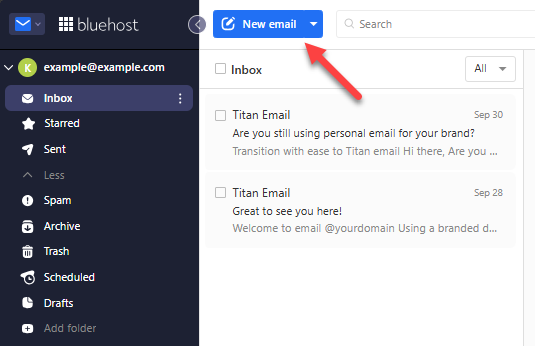
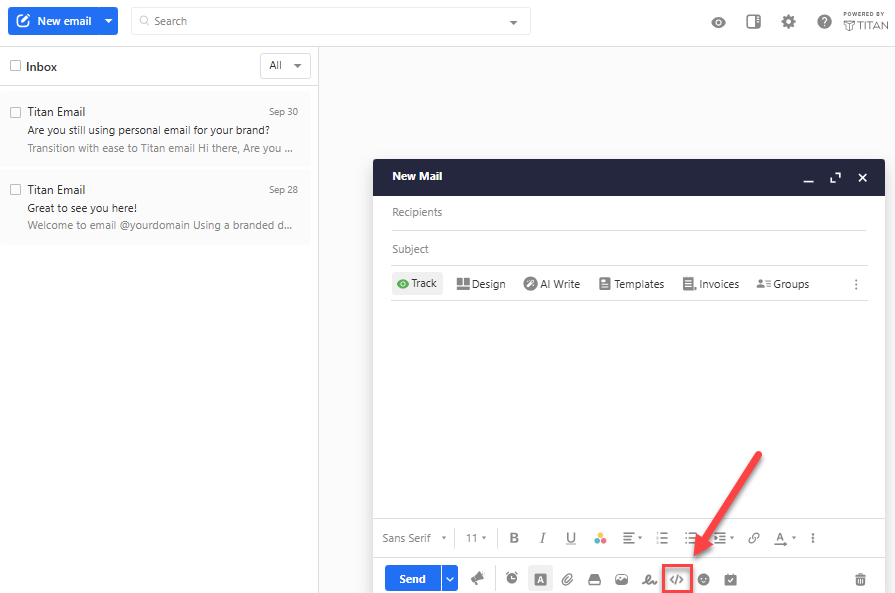
- Look at the toolbar at the bottom of the New Mail window and click the Insert HTML icon, which displays a code bracket symbol (
</>).
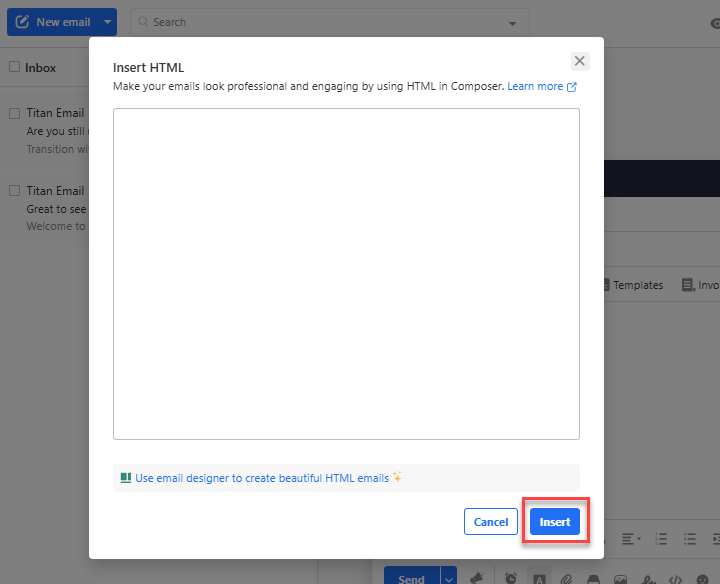
- Enter or paste your custom HTML code directly into the text field within the modal pop-up window that appears on your screen.
- Click the Insert button to close the modal dialog and display the formatted content within your email compose area.
- Repeat steps 7 through 9 if you need to place additional, independent HTML fragments in other sections of the email body.
How to Add HTML Formatting to Signatures
If you want persistent HTML styling across all outgoing messages rather than just a single draft, you can add HTML to a custom signature.
- Log in to Professional Email by following steps 1 through 5 in the previous section.
- Click the Switch apps icon (the envelope icon with the drop-down arrow) next to the Bluehost logo in the upper-left corner of the window.
- Select Signature Designer from the application menu.
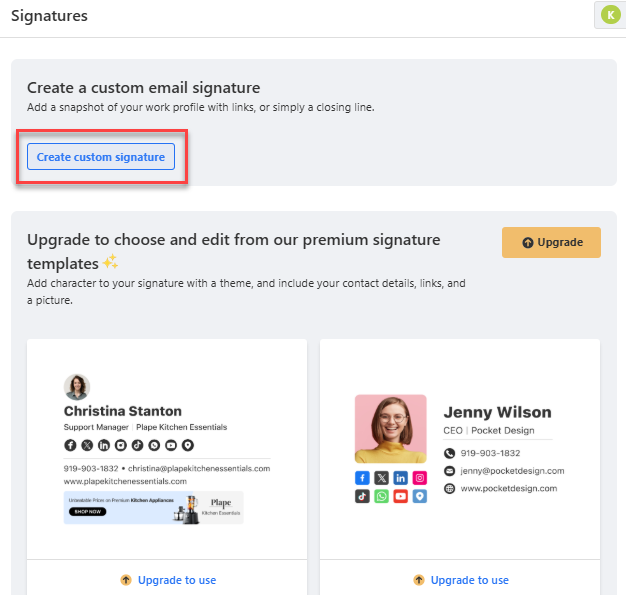
- On the Signatures page, click Create custom signature.
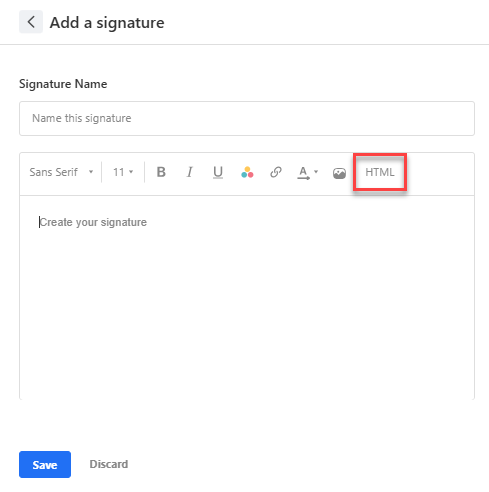
- In the Signature Name field, enter a name for your signature.
- Click HTML in the editor toolbar, and then enter or paste your custom signature markup.
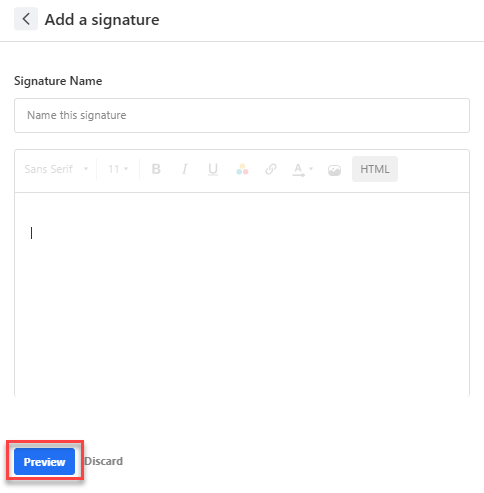
- Click Preview to view your email signature.
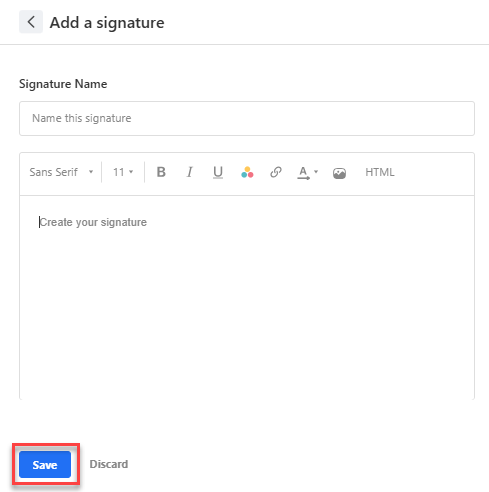
- Click Save.
Formatting Limitations and Best Practices
Professional Email accepts a defined set of HTML tags and attributes in the composer and in signatures. To help with email security, cross-client compatibility, and deliverability, keep the following in mind:
- Supported Elements: Professional Email supports standard, email-safe HTML tags and inline CSS attributes (such as tables, links, images, spans, and styled text containers).
- Unsupported Code: Code that is not on Professional Email's list of supported tags and attributes may be removed or may not display as you expect.
- Client Compatibility: Because different email clients render advanced styles differently, keep your designs table-based and test your email layout across major email clients before sending large campaigns.
Summary
Using HTML formatting in Professional Email gives you more flexibility over how your emails look, so you can build visually rich, branded messages with tables, custom buttons, and styled layouts. You can add HTML through the Insert HTML tool in the Professional Email composer on Professional Email Plus and Ultra, and through the HTML option when you create a custom signature. Following web-safe code standards and testing across multiple email clients can help your messages display consistently and support good deliverability.
If you need further assistance, Bluehost Chat Support is available 24 hours a day, 7days a week while Bluehost Phone Support is available 7 days a week from 7 am-12 midnight EST.
- Chat Support - While on our website, you should see a CHAT bubble in the bottom right-hand corner of the page. Click anywhere on the bubble to begin a chat session.
- Phone Support -
- US: 888-401-4678
- International: +1 801-765-9400
You may also refer to our Knowledge Base articles to help answer common questions and guide you through various setup, configuration, and troubleshooting steps.